Value Based Pricing Settings
Introduction
The Value-Based Pricing (VBP) section in the Storagely Dashboard allows facility operators to configure tiered pricing models and highlight features that differentiate unit pricing. This feature helps businesses provide Good, Better, and Best pricing structures based on unit location, accessibility, and amenities.
Important Notice: For Value-Based Pricing to work correctly, it must first be:
- Enabled in your Facility Management Software (FMS).
- Configured at the unit level in the FMS correctly.
- Users should refer to the user documentation and/or job aids provided by their FMS provider to ensure the correct setup before enabling Value-Based Pricing in Storagely.
Navigating to Value-Based Pricing Settings
To access the Value-Based Pricing Settings:
- Log in to your Storagely Dashboard.
- In the left sidebar menu, click on Settings.
- Select Value Based Pricing.
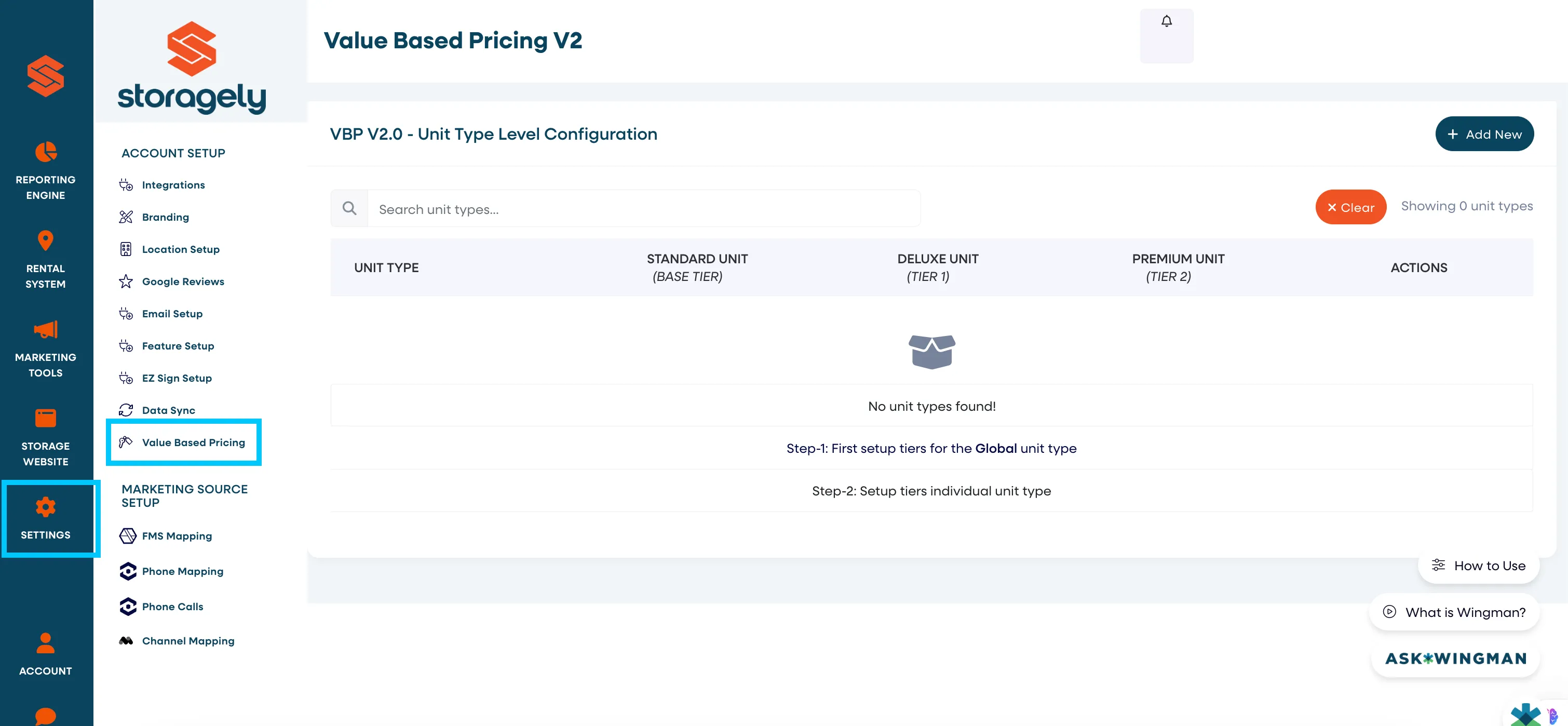
Understanding the Value-Based Pricing Interface
Pricing Tier Card Features & Settings
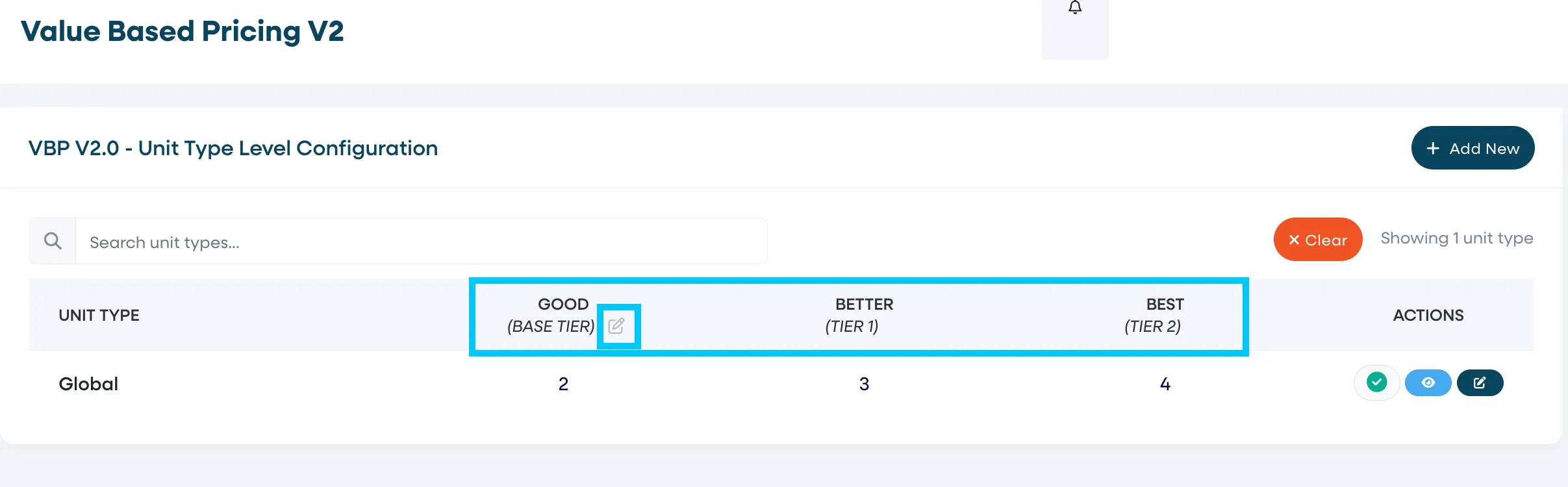
Operators can edit or update the tier label and define which features belong to each pricing tier.
Example of tier labels:
- Good (Base Tier) – Budget-friendly options with essential features.
- Better (Tier 1) – Mid-range units with additional conveniences.
- Best (Tier 2) – Premium units with the highest accessibility and benefits.
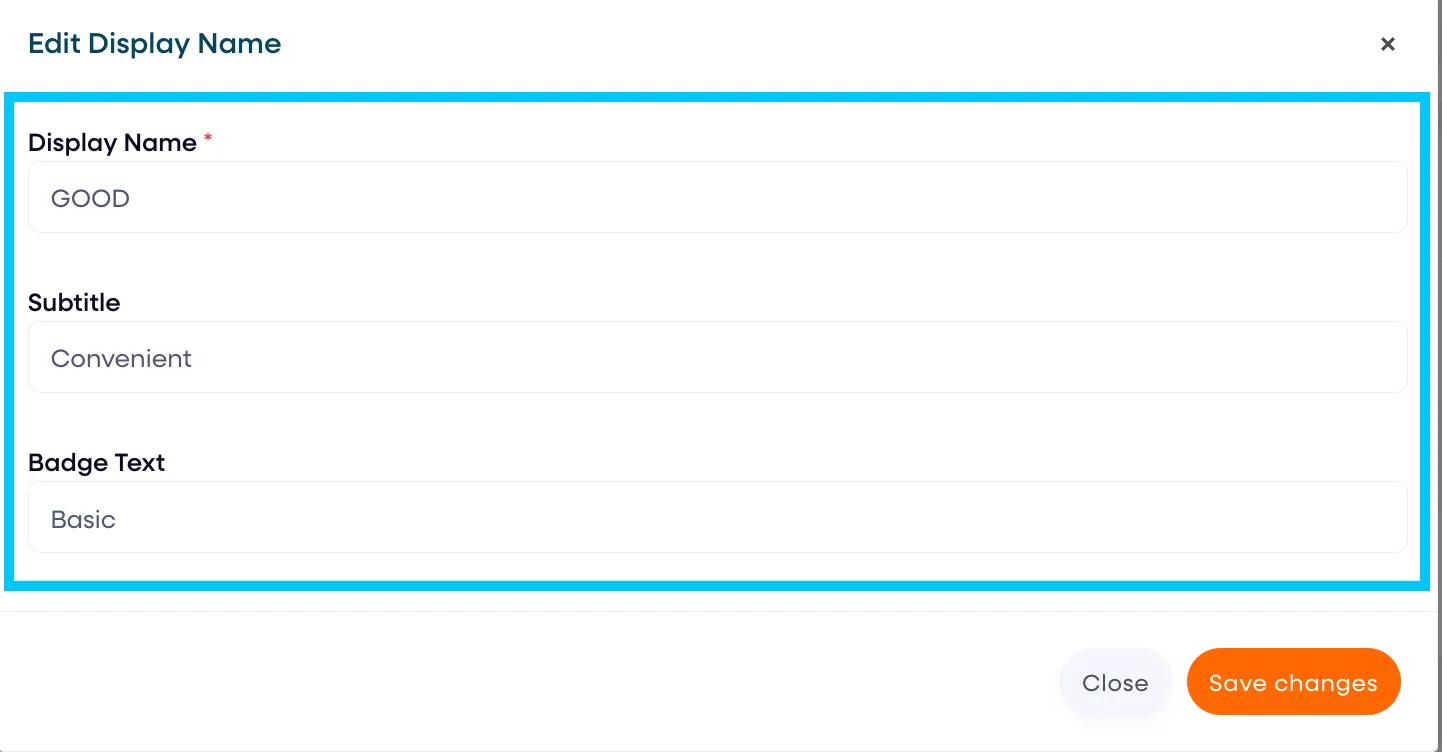
- Enter the tier Display Name, Subtitle, and Badge Text to display on the checkout page for each tier.
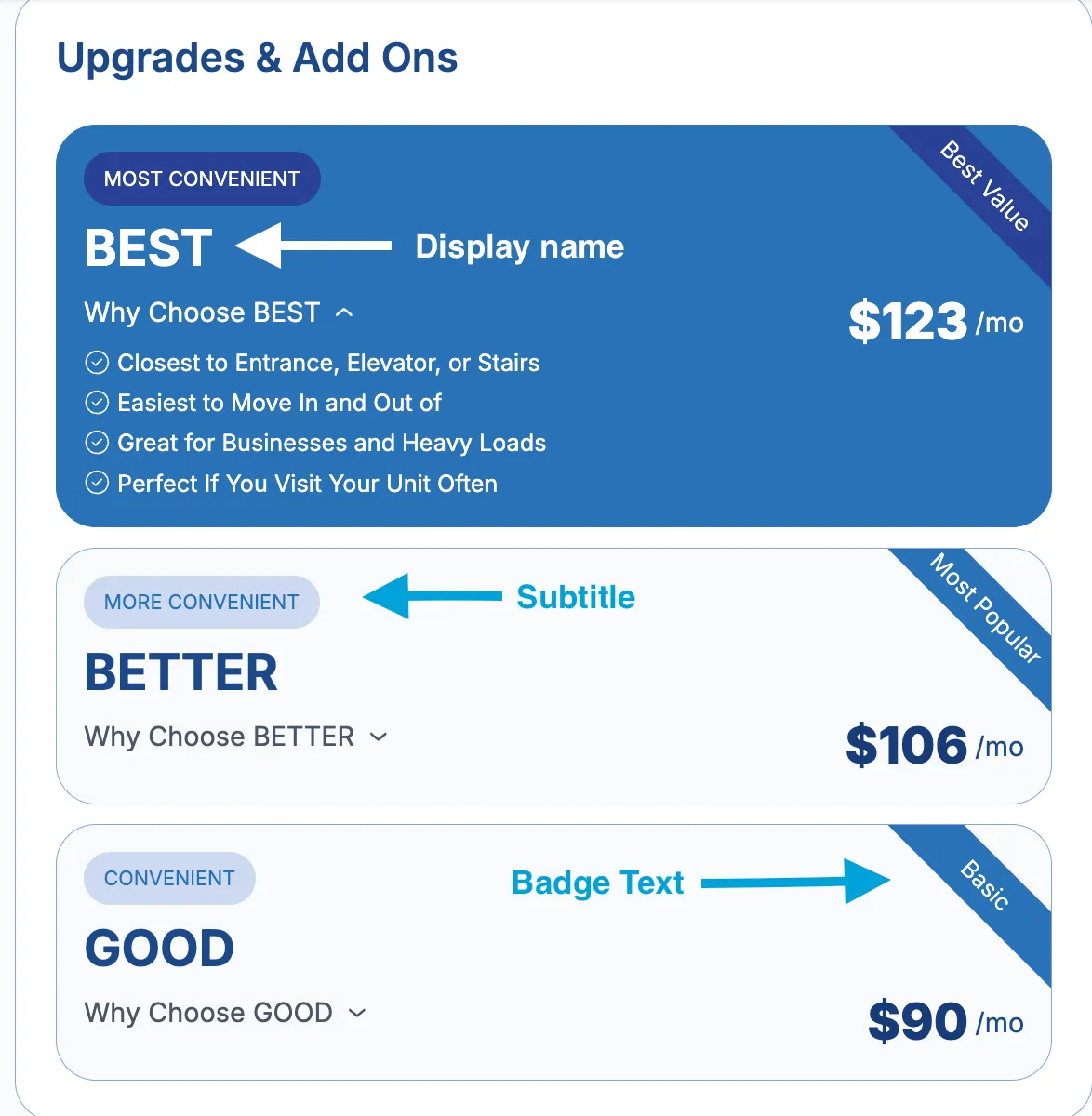
Each tier includes a checkbox selection for individual features that apply to the tier.
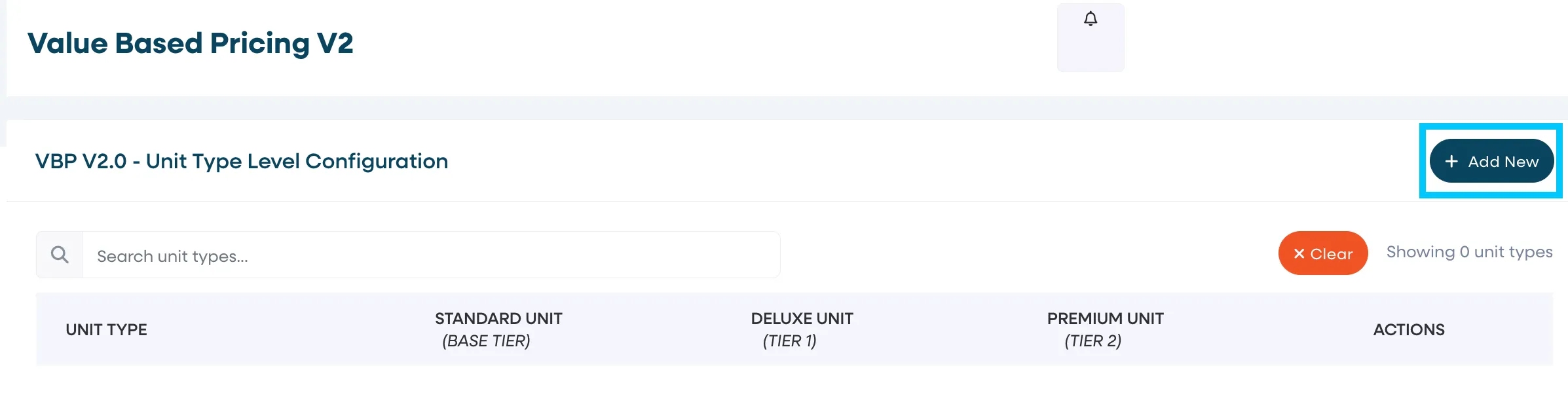
- Click on the "+ Add New" button to edit/add the individual features
Feature List & Custom Features
Next, click on the "+ Add New Feature" button on the bottom left side of the table. This allows you to add features to the list. Features can be edited or removed from the feature list.
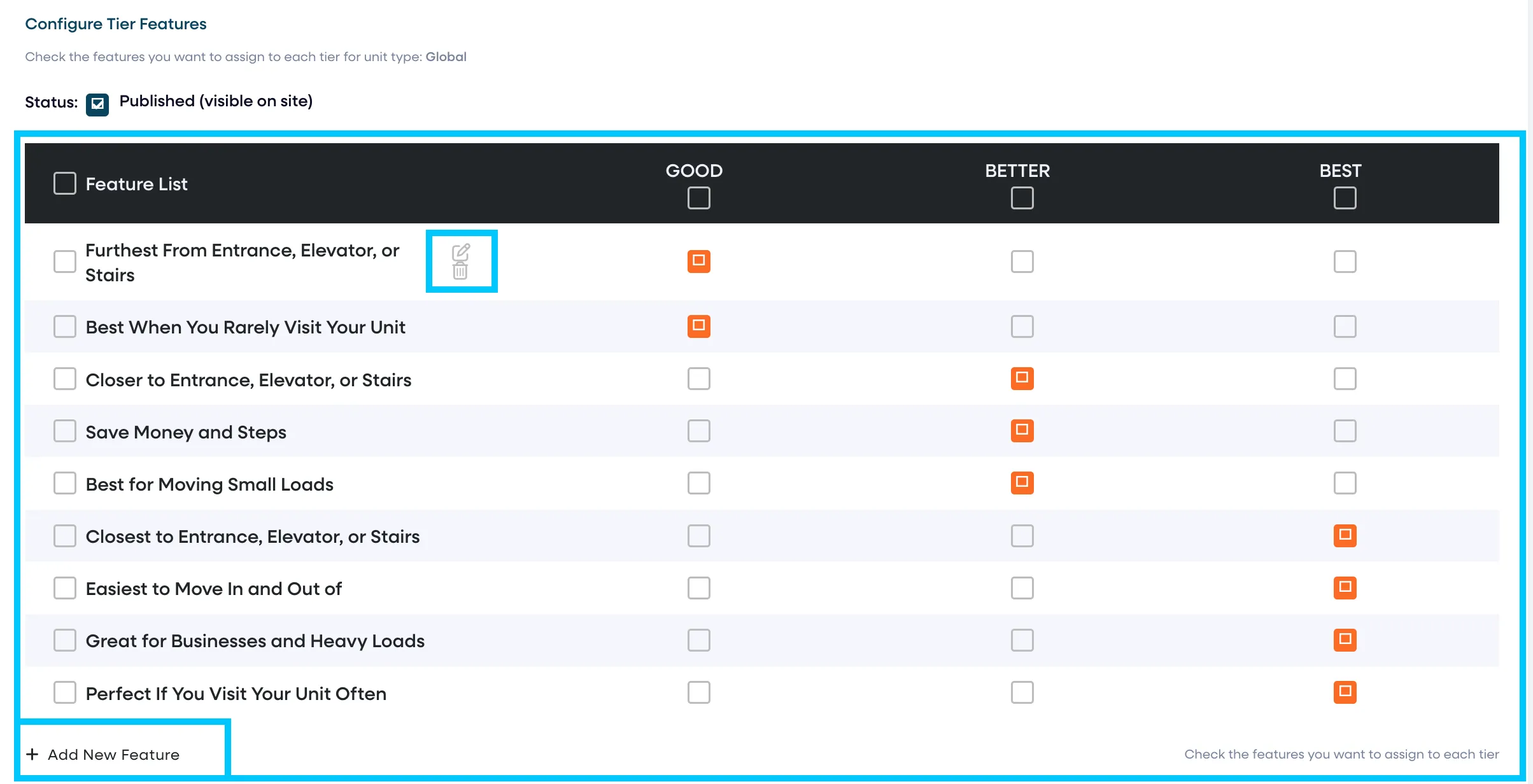
- Once the features have been created, check the boxes of the features you want to assign to each tier and click "Save Changes"
How to Configure Value-Based Pricing
Step 1: Verify FMS Configuration
- Ensure Value-Based Pricing is enabled in the FMS.
- Confirm that unit-level pricing tiers are correctly assigned in the FMS.
- Refer to your FMS provider’s documentation for proper setup before proceeding in Storagely.
Step 2: Assign Features to Pricing Tiers
- Under Pricing Tier Card Features, review the feature list.
- Check the boxes to assign features to Good, Better, and Best tiers.
- Click Save & Apply to confirm selections.
Step 3: Add a New Custom Feature (If Needed)
- Click “+ Add New Feature”.
- Enter the Feature Name and Feature Description.
- Click Save Changes to add it to the list.
Step 4: Select Highlighted Top Features for Each Tier
- In the Highlighted Top Feature section, select a feature for:
- Good (Base Tier)
- Better (Tier 1)
- Best (Tier 2)
- Click Save & Apply.
Best Practices for Value-Based Pricing
✅ Ensure Value-Based Pricing is properly configured in the FMS before enabling it in Storagely. ✅ Use a balance of features across tiers to highlight the value of upgrades. ✅ Select a strong subtitle for each tier to differentiate pricing levels. ✅ Ensure feature descriptions are clear and concise to avoid confusion. ✅ Regularly update pricing tiers to match seasonal trends and promotions.
6. FAQs & Troubleshooting
Q1: Why isn’t Value-Based Pricing working? A: Verify that VBP is enabled in your Facility Management Software (FMS) and that units have the correct pricing tiers assigned.
Q2: How do I add a new feature to the Value-Based Pricing tiers? A: Click “+ Add New Feature”, enter the feature name and description, and click Save Changes.
Q3: Can I remove a feature after assigning it to a tier? A: Yes, features can be removed from tiers or deleted entirely from the feature list.
Q4: What happens if I don’t select a highlighted top feature? A: The system will default to the first feature listed in each tier.
Q5: How do I reset the Value-Based Pricing settings? A: Changes can be undone by adjusting settings manually or contacting Storagely Support.
For further assistance, the Storagely Support Team can be reached in one of the following ways:
As always, if you have any questions during this process, our Customer Success Team is here to help. The best way to reach us is by submitting a support ticket.