How To: Correct Autofill Info During Checkout in Chrome
Background:
If you’ve saved addresses in Google Chrome, you can easily add, edit, or delete this information at any time. This is especially helpful when updating your billing details or ensuring your autofill information is accurate for online payments.
Step 1: Open Chrome
On your computer, open the Google Chrome browser.
Step 2: Access Autofill Settings
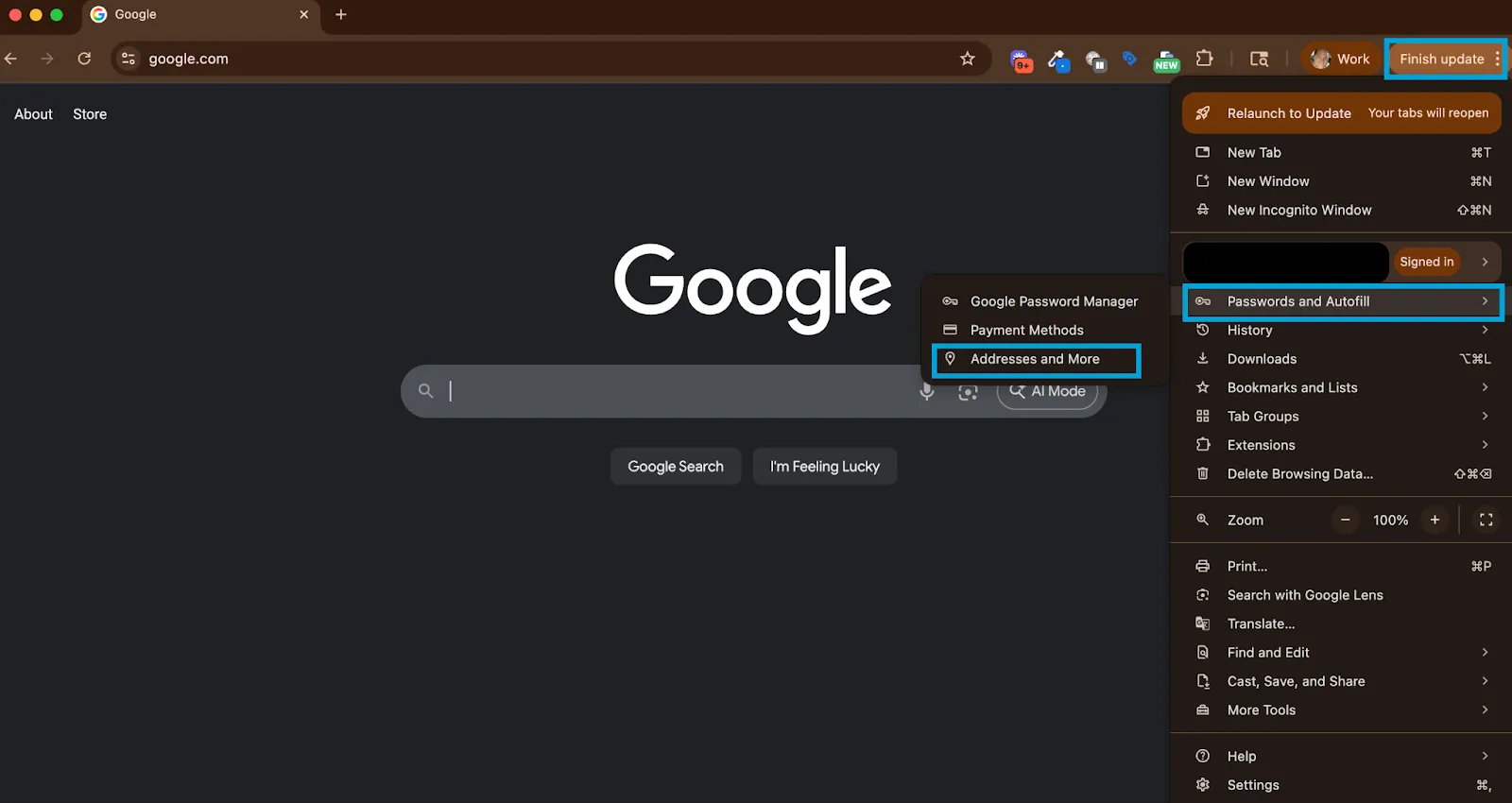
- At the top right, click your Profile icon.
- Select Passwords and autofill.
- Choose Addresses and more — to manage saved addresses and contact details.
Step 3: Add, Edit, or Delete Information
➕ Add New Information
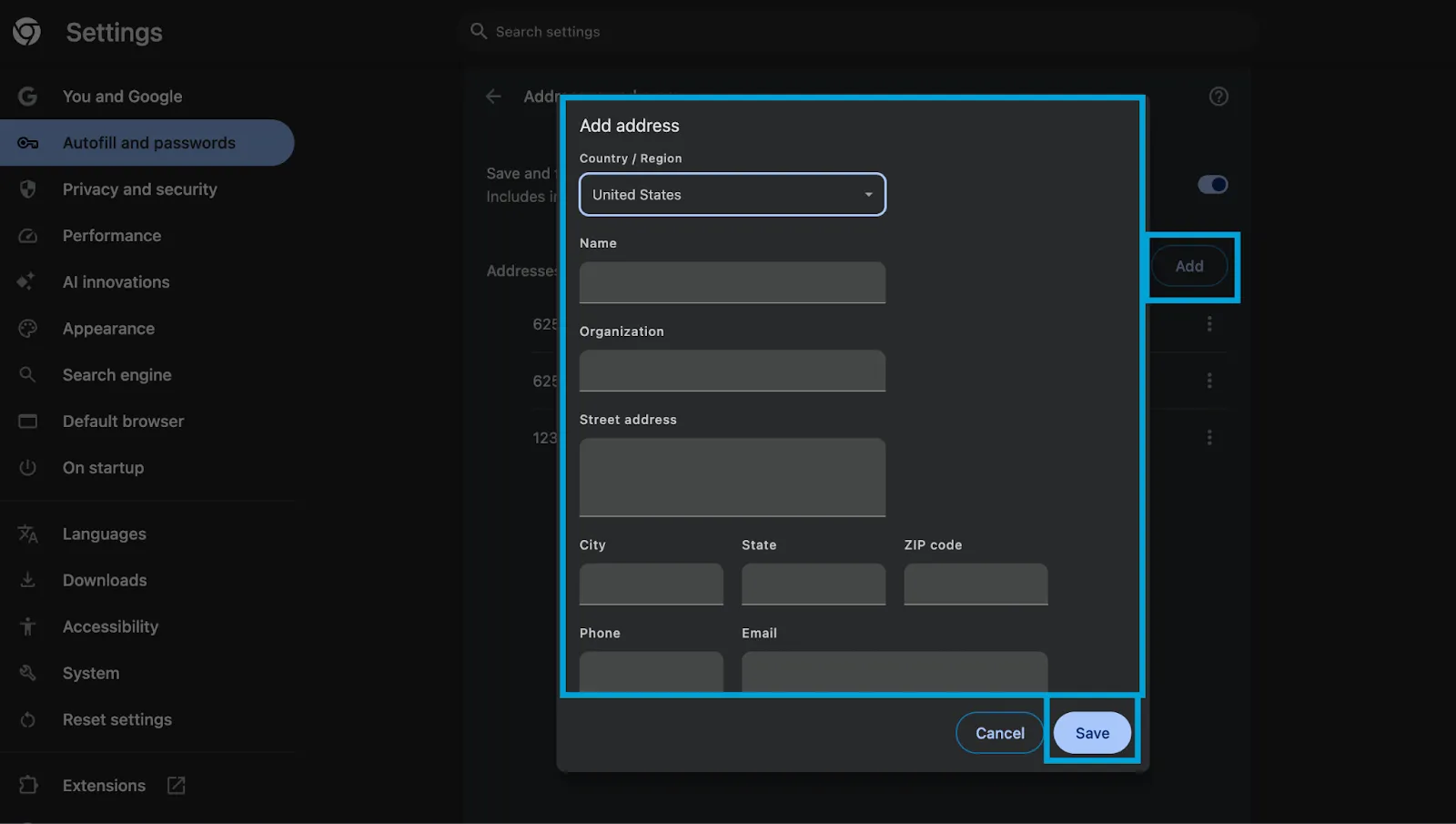
- Next to Addresses, click Add.
- Enter the new information and save your changes.
✏️ Edit Existing Information
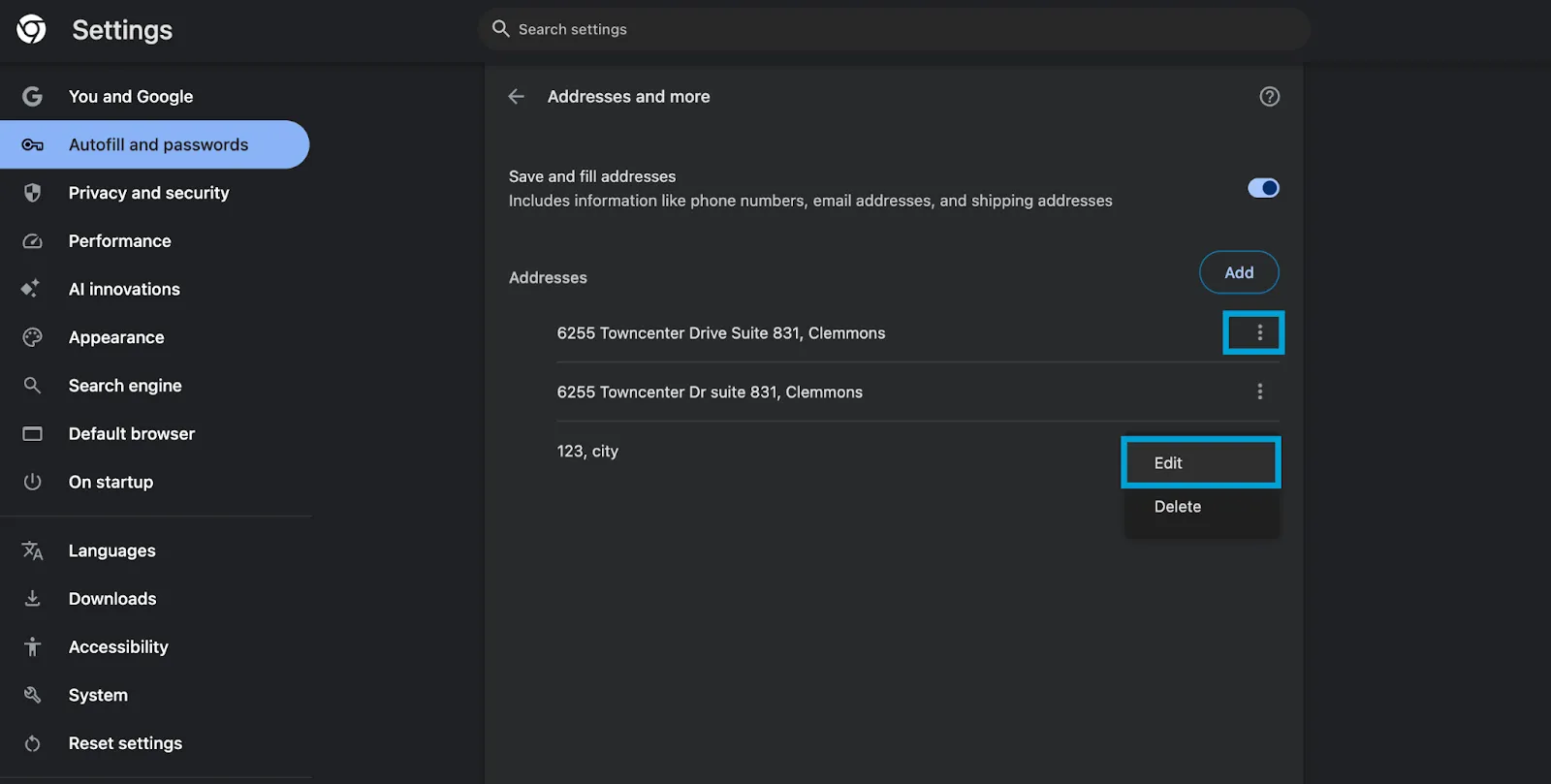
- To the right of the saved payment method or address, click More (⋮).
- Select Edit, make your changes, and save.
❌ Delete Saved Information
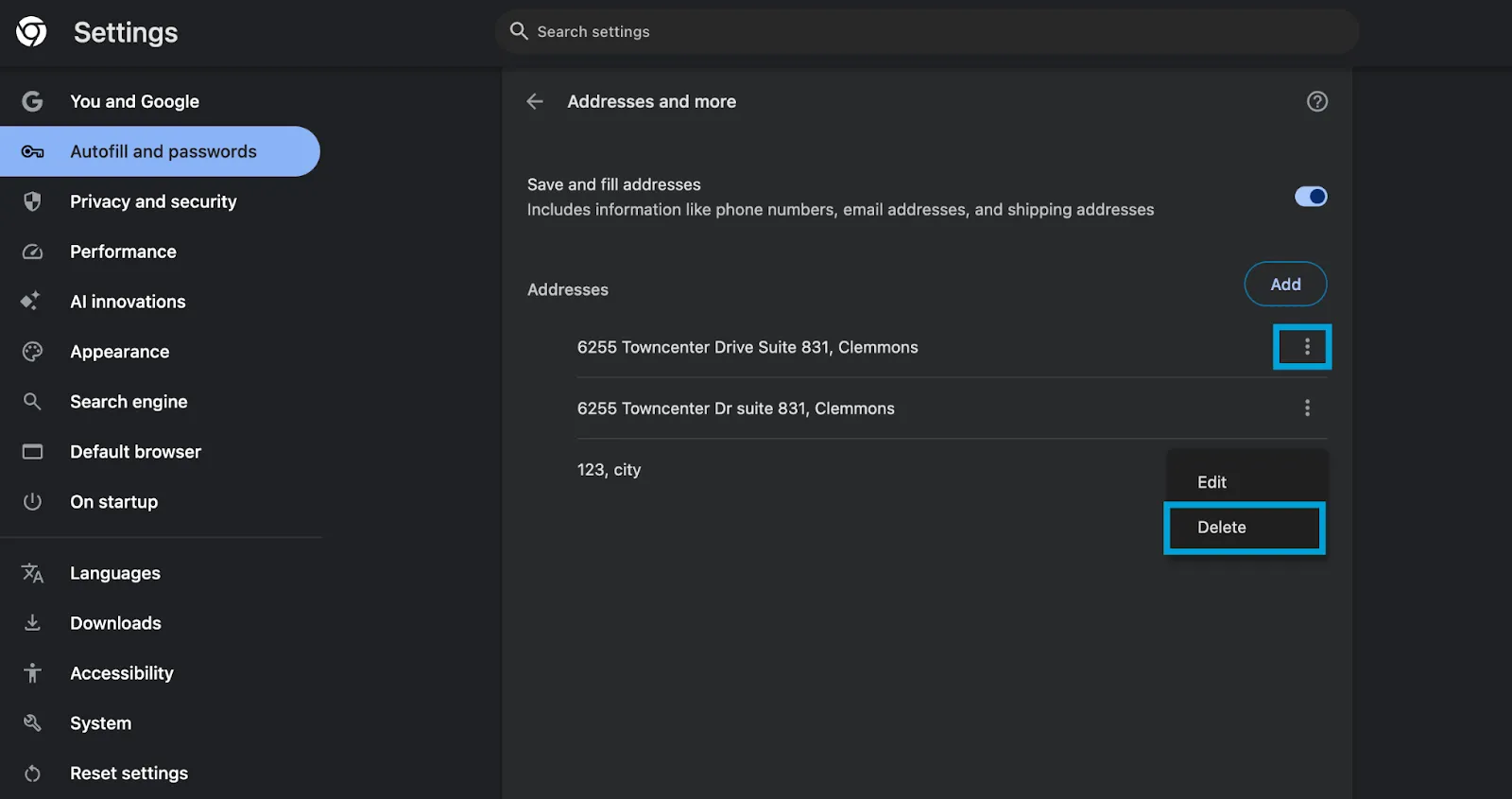
- Next to the payment method or address you want to remove, click More (⋮).
- Select Delete to remove it from Chrome.
Step 4: Sync Changes Across Devices
If you’re signed in to Chrome with your Google Account, any changes you make will automatically sync across all devices where you’re signed in to Chrome using the same account.
🛠 Troubleshooting Unexpected Text or Characters During Checkout
If you notice unexpected text (such as repeated characters like “!!!!!”) appearing automatically in your address or payment fields during checkout, this may be caused by your browser’s autofill feature. Sometimes, saved data in Chrome can become outdated or corrupted, causing fields to fill incorrectly.
To resolve:
- Check and clear your autofill data:
- Follow the steps in the “Manage Autofill Address Info in Chrome” section above.
- Review the saved addresses under Addresses and more.
- Delete any entries that look incorrect or unfamiliar.
- Turn off autofill temporarily:
- In Chrome, go to Settings → Autofill → Addresses and more.
- Toggle Save and fill addresses to Off.
- Try entering your address again on the checkout page.
- Verify the issue in Incognito mode:
- Open a new Incognito Window (Ctrl + Shift + N on Windows, Command + Shift + N on Mac).
- Visit the payment page and try typing in your address again.
- If the issue doesn’t occur, it’s likely caused by autofill data or browser extensions.
- Update or reset your browser:
- Ensure Chrome is up to date.
- If the issue persists, you can reset Chrome’s settings under Settings → Reset settings → Restore settings to their original defaults.
Tip: Autofill issues can vary between devices and browsers. If problems continue, try completing the checkout process on a different browser (e.g., Firefox, Safari, or Edge) or device.
Best Practices
- Keep your address information up to date to ensure smooth checkout experiences.
- Periodically review saved data for accuracy and security.
- Use Chrome’s built-in password manager and payment protections to keep your information secure.
As always, if you have any questions during this process, our Customer Success Team is here to help. The best way to reach us is by submitting a support ticket.