How to Reset a Tenant’s Password in StorEDGE
Introduction:
If a tenant has forgotten their password, you can quickly reset it in StorEDGE. Follow these steps to issue a temporary password and guide your customer back into their account.
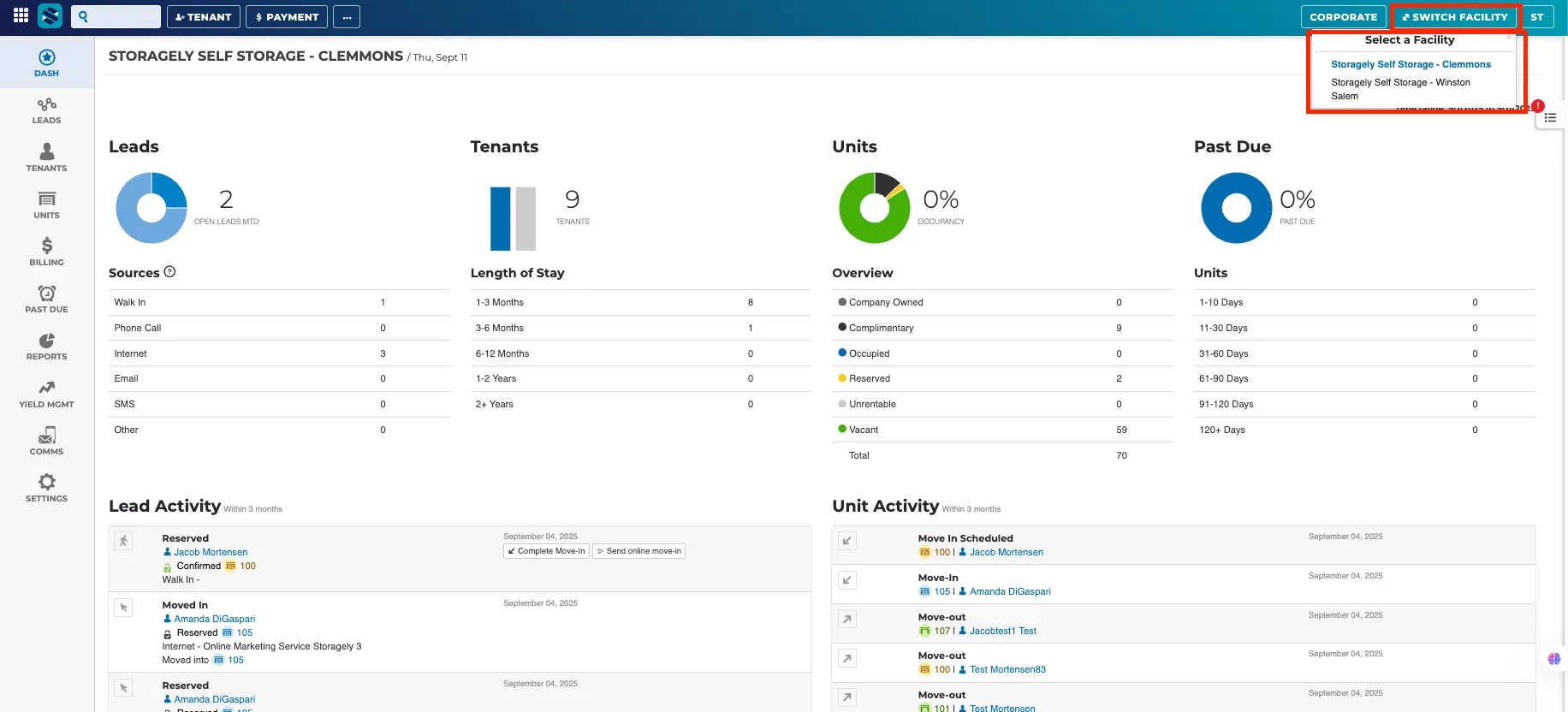
Step 1: Select the Facility
- Log in to StorEDGE.
- From the facility list, choose the location where the tenant currently rents.
Step 2: Open the Tenant List
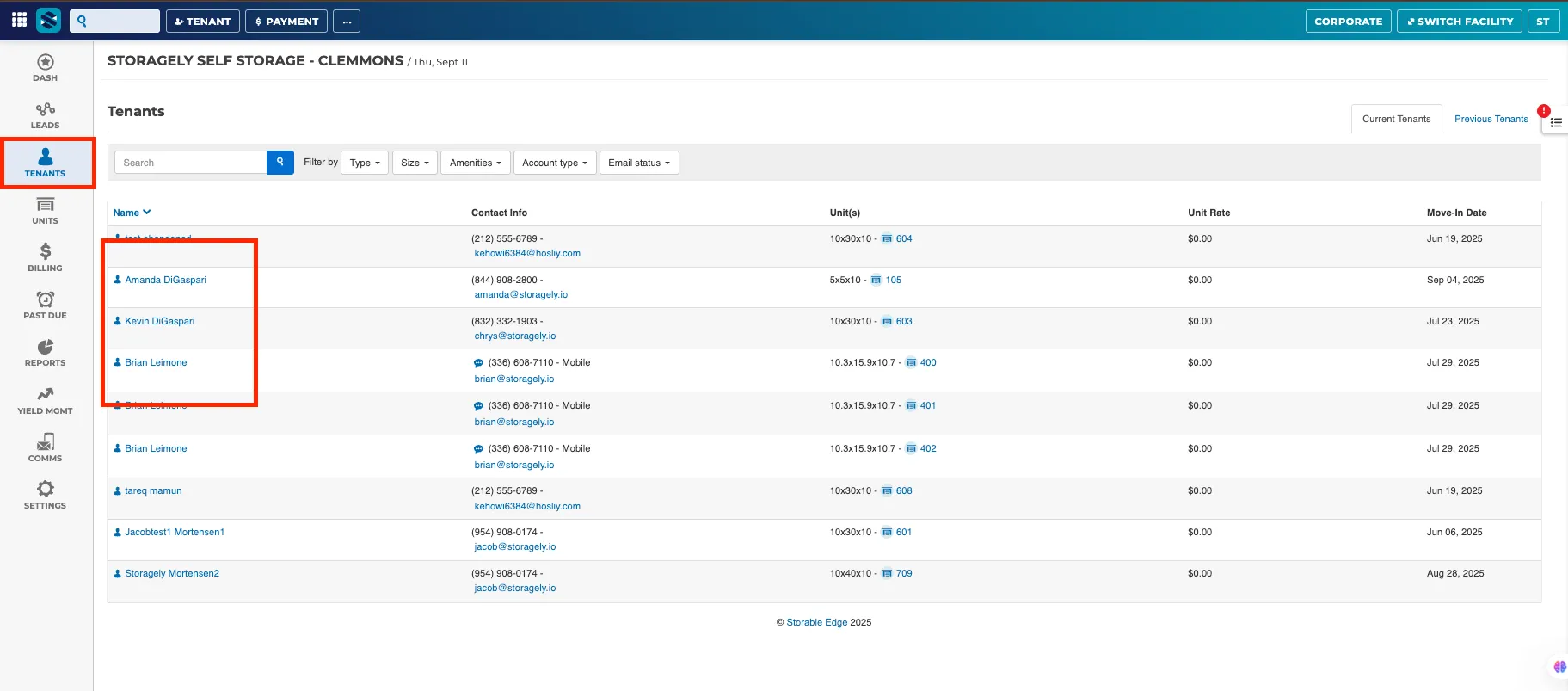
- In the facility dashboard, click on Tenants.
- Locate and select the tenant whose password needs to be reset.
Step 3: Reset the Password
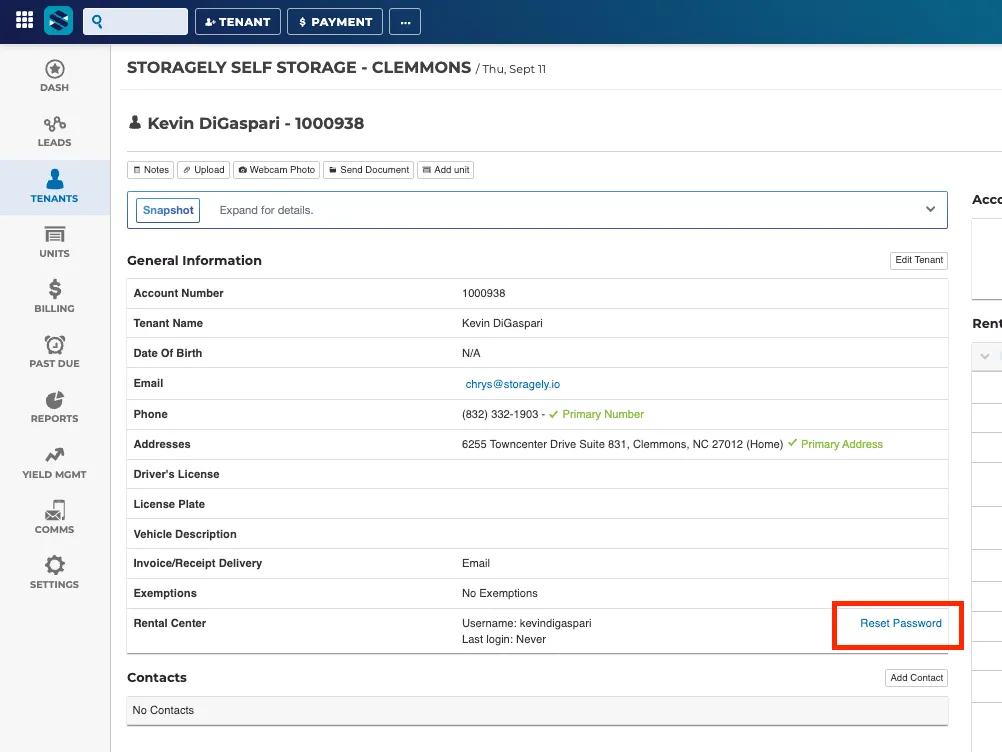
- On the tenant’s account page, click Reset Password.
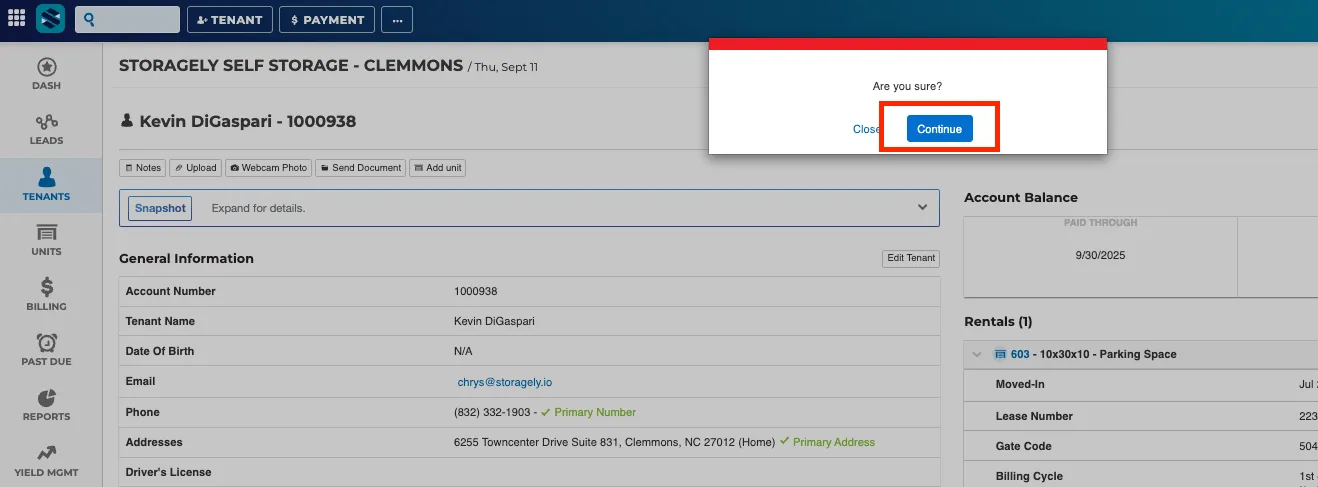
- Confirm by clicking Continue.
Step 4: Share Login Details
- Provide the tenant with their username (if they don’t already have it).
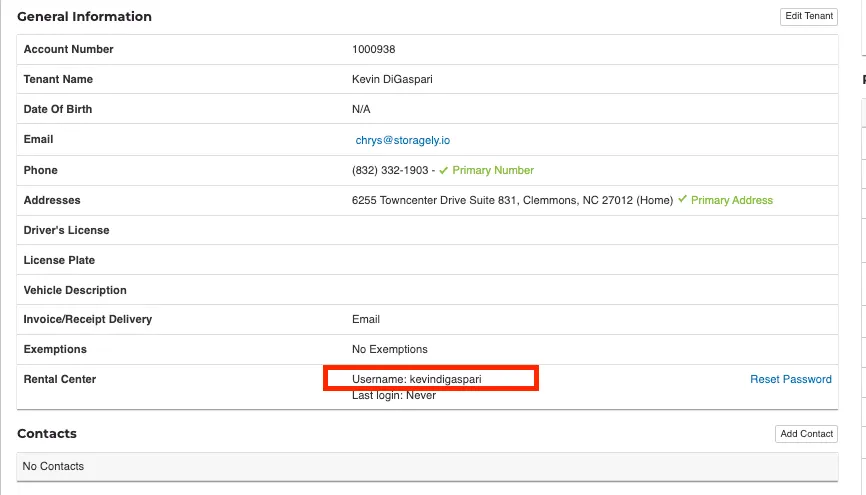
- Give them the temporary password generated after the reset.
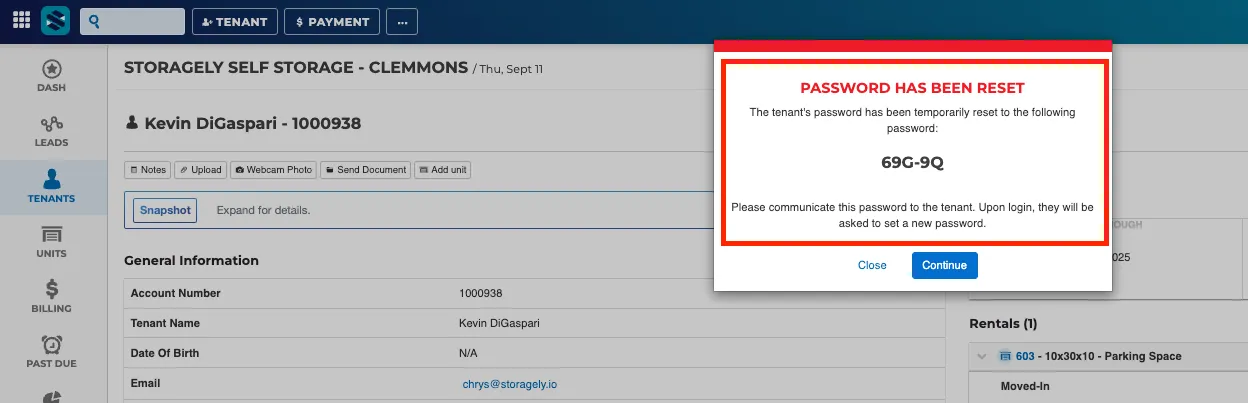
Step 5: Tenant Login & Password Change
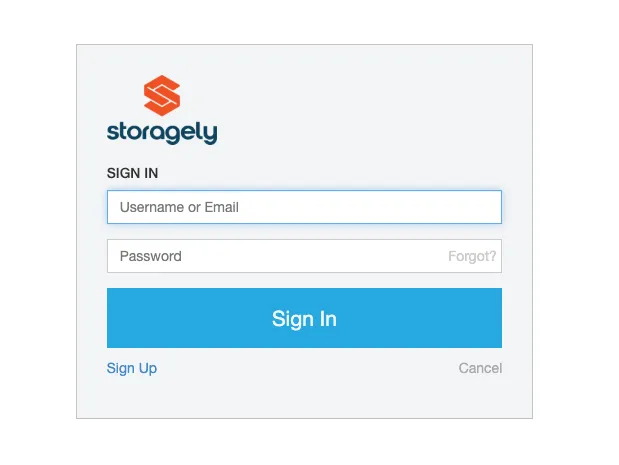
- Have the tenant go to the StorEDGE Payment Portal.
- They will log in using their username and the temporary password.
- Upon login, they’ll be prompted to create a new password of their choice.
Best Practices for Resetting Tenant Passwords
✅ Verify tenant identity before resetting - Always confirm the tenant’s identity (e.g., by asking for account details, unit number, or phone/email on file) to ensure the request is legitimate.
✅ Do not email temporary passwords - Share temporary passwords over a secure method, such as a phone call or in-person, rather than email or text, to reduce security risks.
✅ Remind tenants about password security - Encourage tenants to create strong passwords using a mix of letters, numbers, and symbols, and avoid reusing old passwords.
✅ Encourage portal use - Remind tenants that the payment portal is the fastest way to make payments, update contact info, and manage their account.
As always, if you have any questions during this process, our Customer Success Team is here to help. The best way to reach us is by submitting a support ticket.