Understanding Your Storagely Website
Overview
Your Storagely website is built using two primary systems that work together to deliver a fast, SEO-optimized experience for customers:
- The Storage Website – Controls all static and informational pages
- The Rental System (connected to your FMS) – Controls location-specific content, unit availability, pricing, and operational details
Understanding which system controls which elements will help you make updates confidently and avoid unintended changes.
What’s Managed in the Storage Website
The Storage Website includes all static pages built and managed in the Storagely Website Editor. These pages support SEO, branding, education, and lead generation.
Examples of Storage Website Pages:
- Home Page – Primary marketing page highlighting services, locations, and calls to action
- City Pages – SEO-focused pages targeting geographic search terms
- Storage Type Pages – Pages for RV storage, climate-controlled units, drive-up units, and more
- Resources Pages – FAQs, moving tips, and educational content
- About Page – Facility story, values, and trust signals
- Contact Page – Contact details, forms, and maps
All layout, text, images, buttons, and SEO fields for these pages are edited using the Website Editor.
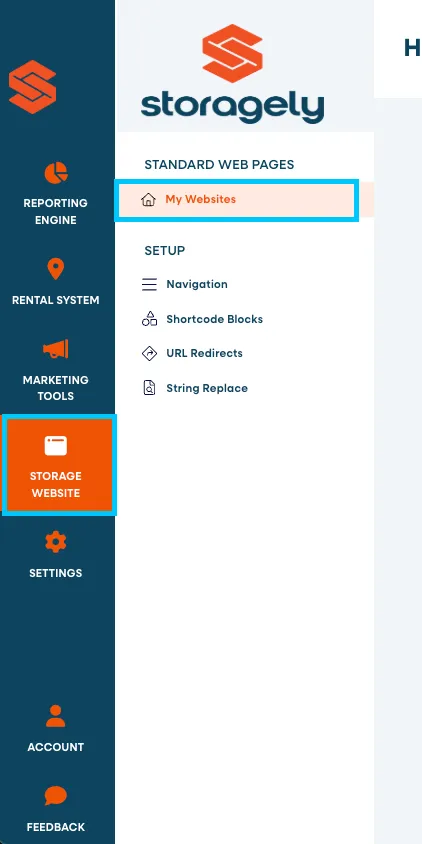
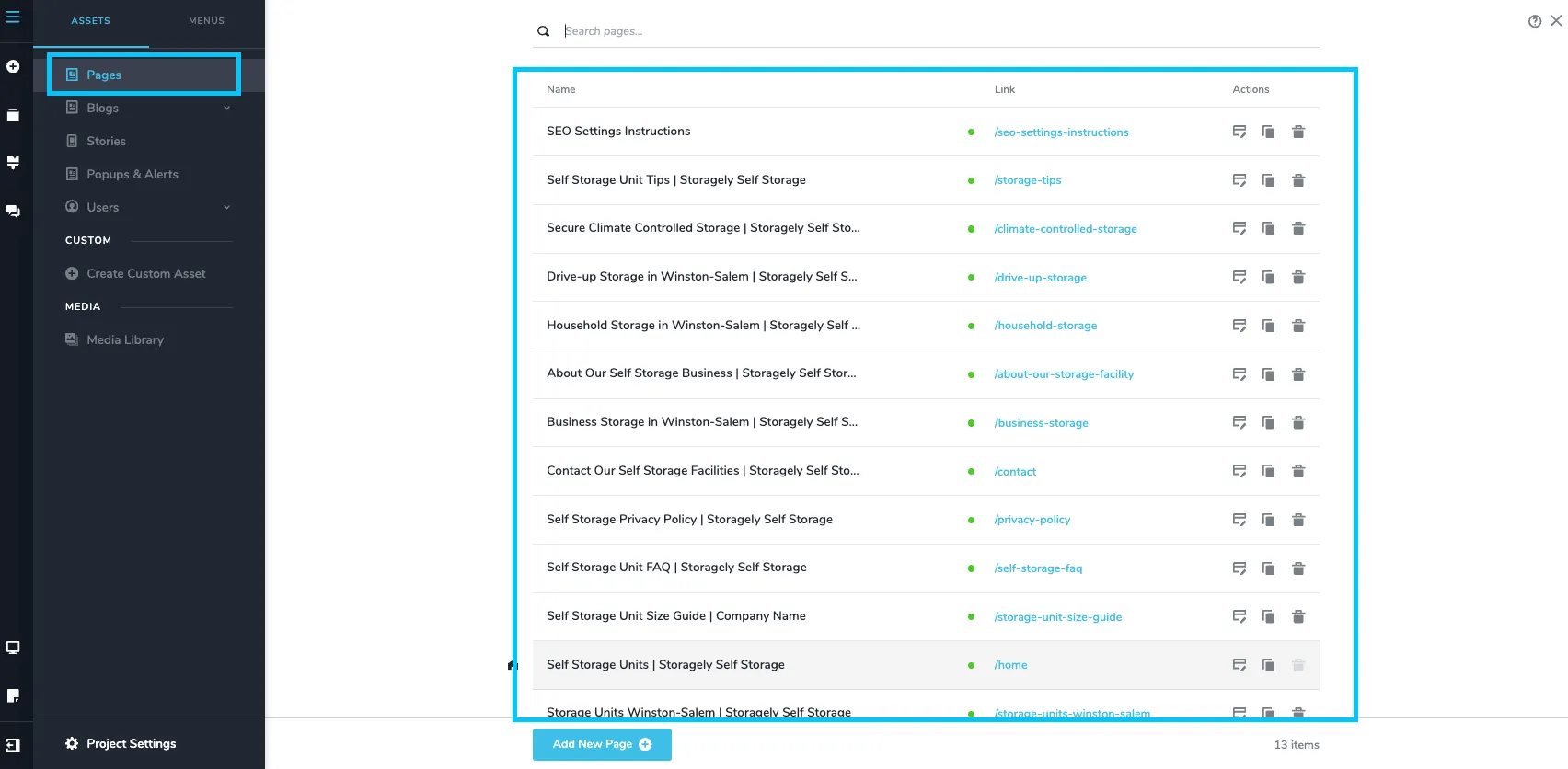
What You Can Edit Here
- Layout and page structure
- Text and images
- Buttons and links
- SEO titles, descriptions, and page slugs
Important: These pages are edited entirely within the Website Editor and are not connected to the rental system or live pricing data.
Storagely Article: Accessing the Storagely Website Editor
Navigation Bar Elements
The navigation bar appears at the top of your website and provides access to key pages and actions.
Includes:
- Page links (Home, Locations, Storage Types, Contact, etc.)
- Action buttons (Rent Now, Pay Online/My Account)

Where it pulls from:
- Storage Website tab > Navigation option
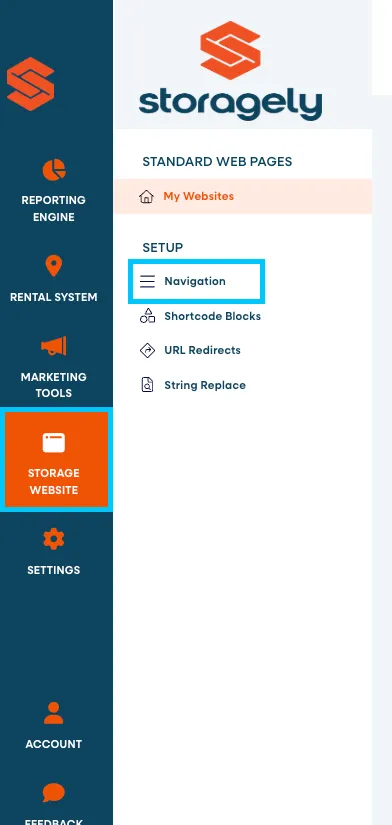
How to update:
- Storagely Article: Navigation Setup
- Add, remove, rename, or reorder links in the Website Editor navigation settings
- Configure button destinations to link to:
- Internal pages
- External URLs
Location Pages: What’s Managed in the Rental System
Location pages are dynamic pages that display information about the location and include real-time unit availability, pricing, and operational details.
These pages pull data from:
- Different sections of Storagely Rental System
- Your Facility Management Software (FMS)
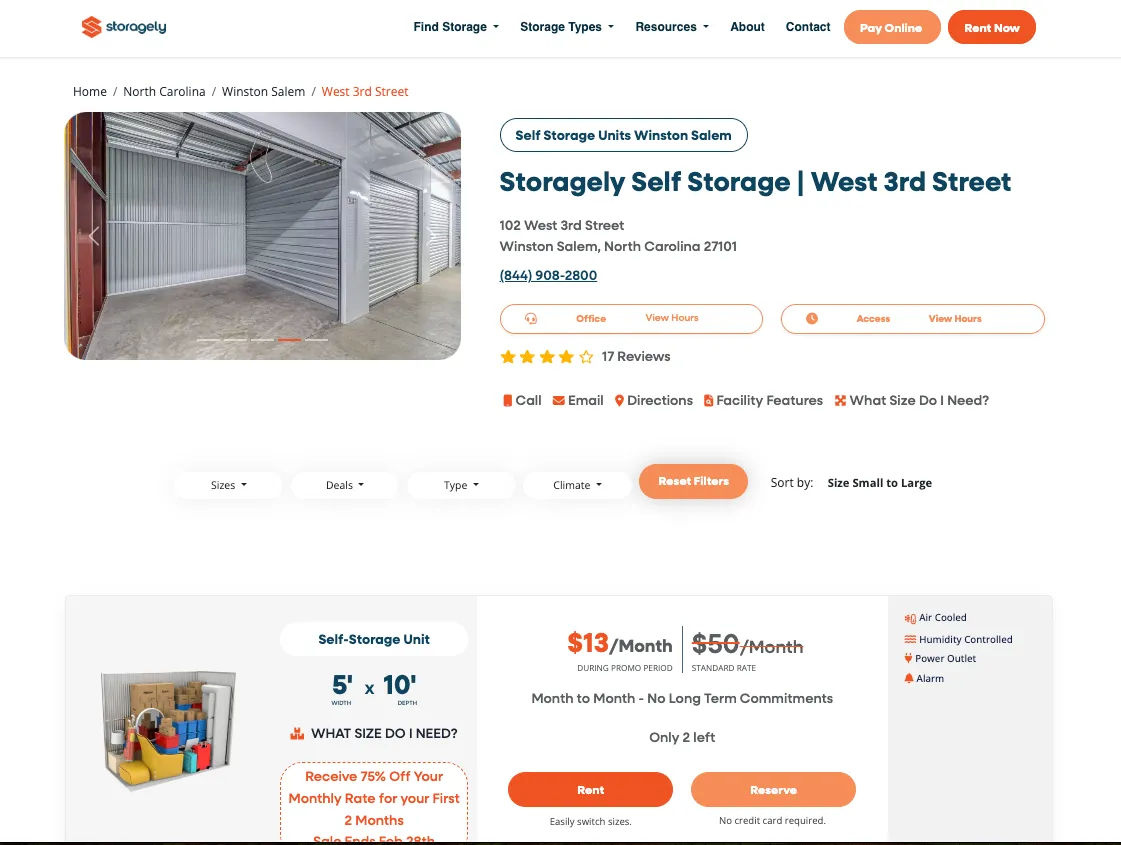
Location Page Breakdown
Carousel Images
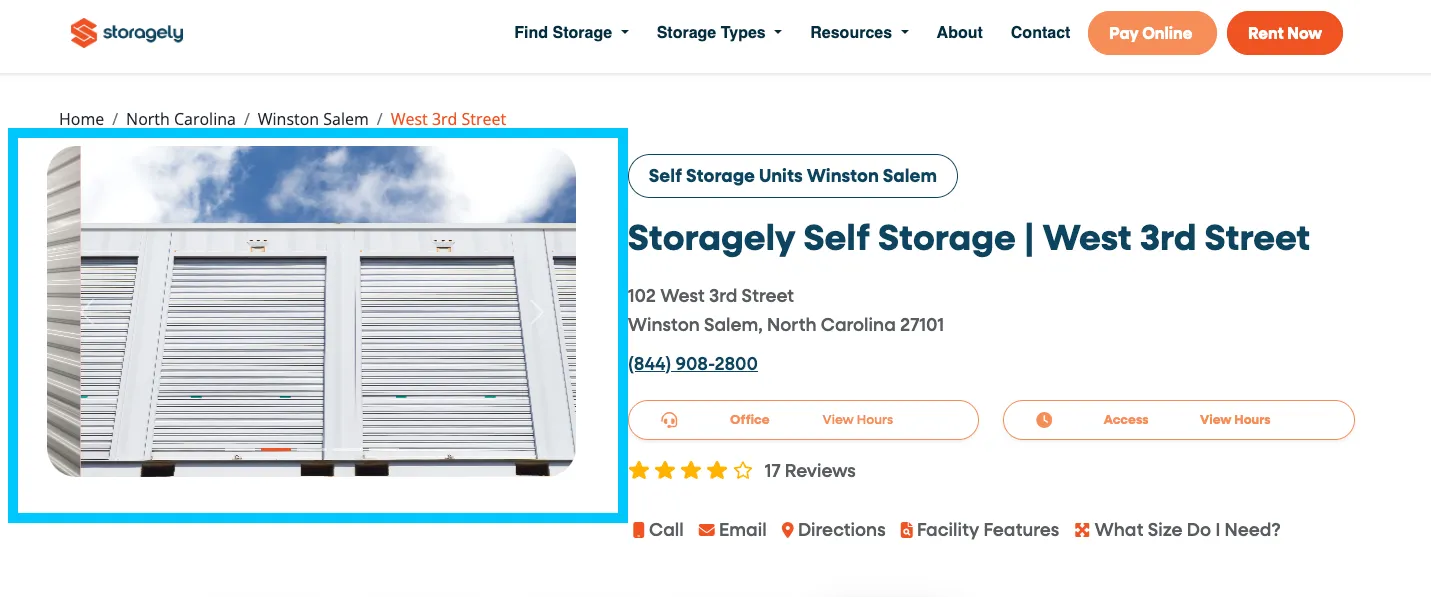
Carousel images appear at the top of the location page and display images of that specific location. These images are optimized according to SEO best practices such as file name, alt text, format, and size.
Storagely Article: Managing Images
Location Details: Company Name, Address, Phone Number
Accurate and current location information is critical for SEO and customer trust.
Displayed at the top of the location page:
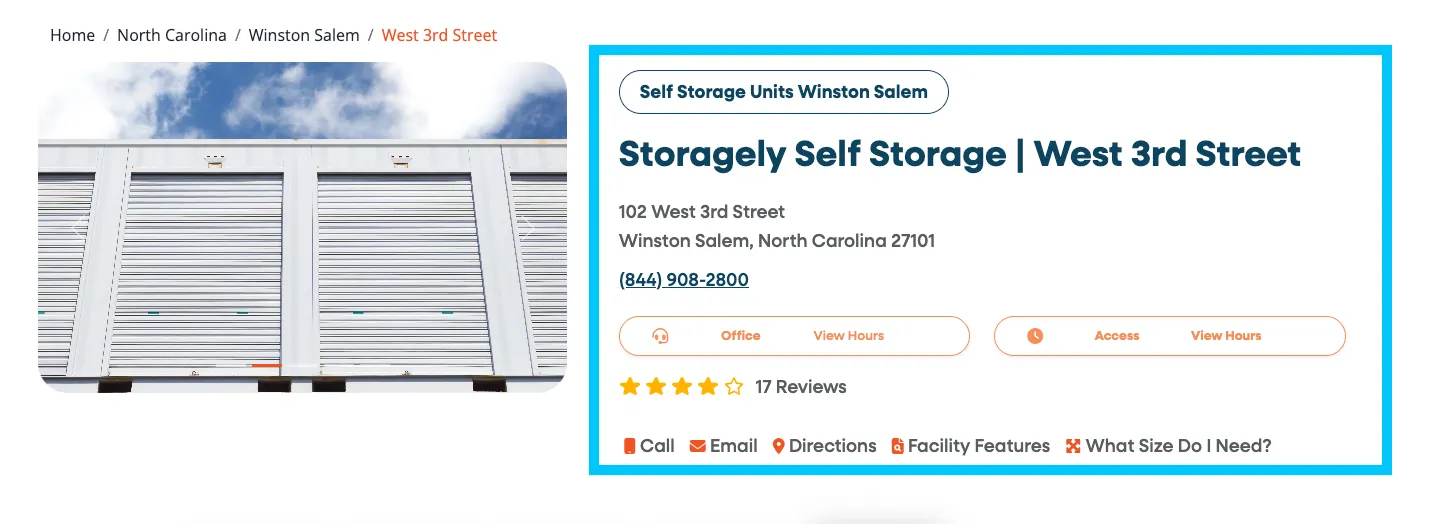
- Primary keyphrase for this specific location to promote ranking.
- Company and Facility name
- Address and phone number
- Office and access hours.
- Customers can click on the links to
- Call or email the facility
- Get directions via Google Maps
- Jump to the Facility Features section on the page
- Use the interactive unit size calculator
Where it pulls from:
- Storagely Rental System > Location Settings page
Storagely Article to follow: Location Details
Reviews
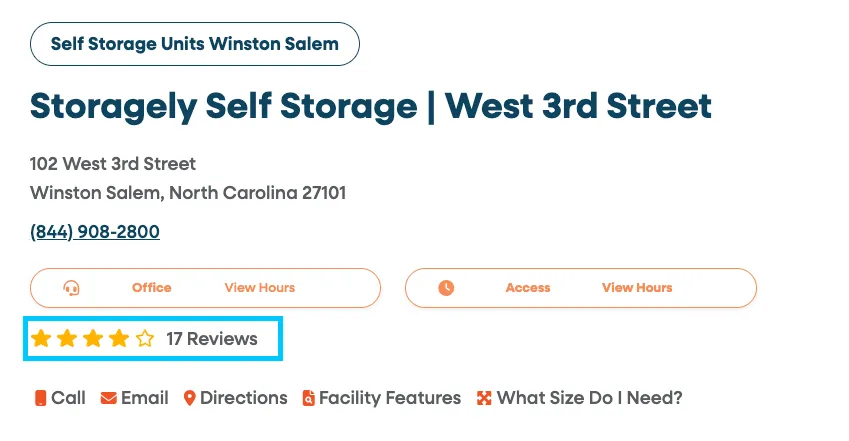
Customer reviews are displayed to build trust and credibility. Reviews are displayed at the top and bottom of the location page.
Where they pull from:
- These are pulled in directly from the location’s Google Business Profile based on the location's Place ID.
How to update:
- This is done dynamically within the Storagely platform.
Office & Tenant Access Hours
These hours set expectations for customers before they rent or visit.
Where they pull from:
- Storagely Rental System > Location Settings page
How to update:
Storagely Article: How to update Tenant Access & Office Hours
Pricing Grid
The Pricing Grid is the core interactive component of the Location Page.
It allows customers to:
- Browse available units
- Compare pricing
- Apply filters
- Rent or reserve units online
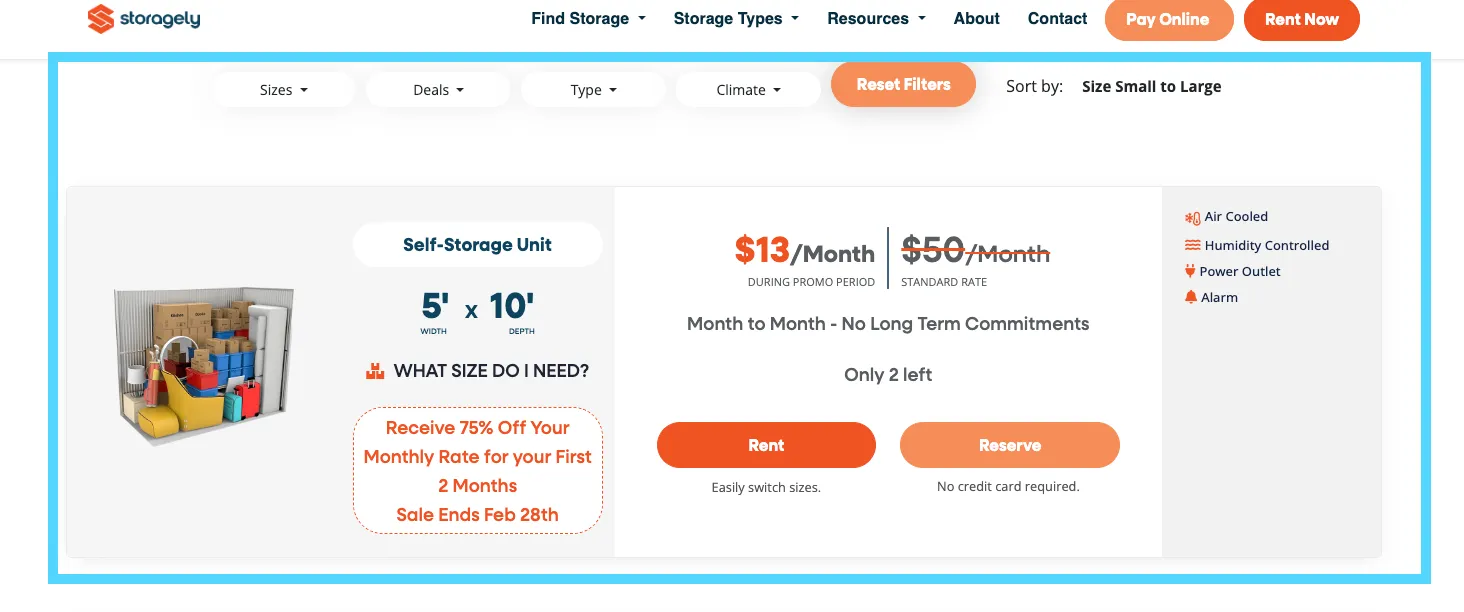
Includes:
- Unit cards that display:
- Promotions
- Rates
- 3D images
- Unit types and sizes
- Rent and reserve buttons
- Amenities
- Informational text
- Filters
Data source:
- Rates, promotion text, unit sizes, unit types, and amenities are pulled directly from your FMS
- Button functionality and text are pull through the Storagely Rental System > Rental System Settings page
Filters
Filters are displayed at the top of the unit grid and help customers quickly narrow down unit options, and are based on unit data received from the FMS.

- Sizes - This filter pulls the details from the units Storagely receives from the FMS and is based on the unit's total square footage.
- Small - 25 sq. ft. - 75 sq. ft.
- Medium - > 75 sq. ft. - 150 sq. ft.
- Large - > 150 sq. ft.
Currently, unit filtering by size supports only grouped categories rather than exact dimensions. Units are automatically organized into Small, Medium, and Large based on total square footage received from the FMS.
Because of this, customers cannot filter for specific sizes (for example, 5×10 or 10×15). They will instead see all units that fall within the selected size range. This ensures consistent performance and compatibility across all integrated facility management systems.
- Deals - Are the active promotions pulled into Storagely from the FMS
- Type - Unit Types are defined in your FMS and are displayed on your website to distinguish different categories of units.
If your FMS uses only one Unit Type for all unit sizes, units with the same size cannot be separated or grouped differently on the website because they share the same Unit Type assignment.
Unit Cards
Each unit card displays detailed information for an individual unit or unit type.
The unit cards display the following:
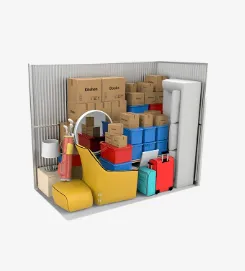
- 3D Unit Images - Pulled from unit-type assignments and are managed in the rental system > 3D Unit Images section. They are organized and updated based on their unit type from the FMS.
Storagely Article: 3D Unit Images
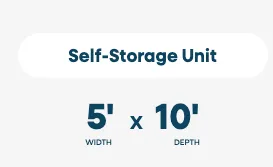
- Unit Size & Type - Defined by unit configuration in the FMS.
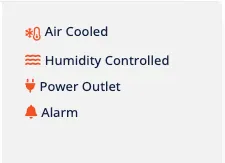
- Amenities - Pulled from unit-level amenities set in the FMS
- Promo Text - Displays promotional messaging that is configured in the FMS
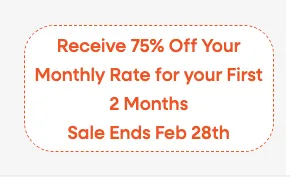
Storagely does not control the promotional verbiage displayed on your website. All promotional messaging is pulled directly from your Facility Management Software (FMS). Please ensure the promotion details and wording are accurate and properly configured within your FMS, as updates must be made there to reflect on your site. If promotion text is not appearing correctly on the website, you can make the needed changes to the promotional text in the FMS and then run a manual sync (data sync) from your Storagely Dashboard to refresh the website data pulling in from the FMS.
Storagely Article: Data Sync
- Rates - Live pricing pulled directly from the FMS
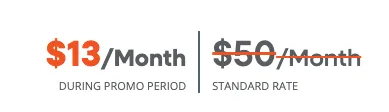
Storagely does not manipulate or control the pricing displayed on your website. All rates are pulled directly from your Facility Management Software (FMS). To update pricing, changes must be made within your FMS, as the website reflects that data in real time after a successful sync.
Storagely Article: Data Sync
- Pricing Labels - This section allows you to customize the text used for different pricing types throughout the rental grid.
Storagely Article: Pricing Labels
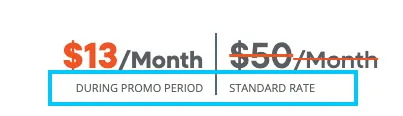
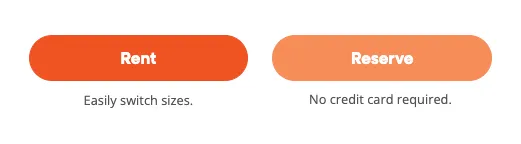
- Rent and Reserve Buttons & Text - The button text, text underneath, and activation are able to be customized.
Storagely Article: Rental & Reservation Button Customization
Bottom Section of the Location Page
- This section provides additional context and SEO value. A minimum of three carousel images is required for this section to appear on the page.
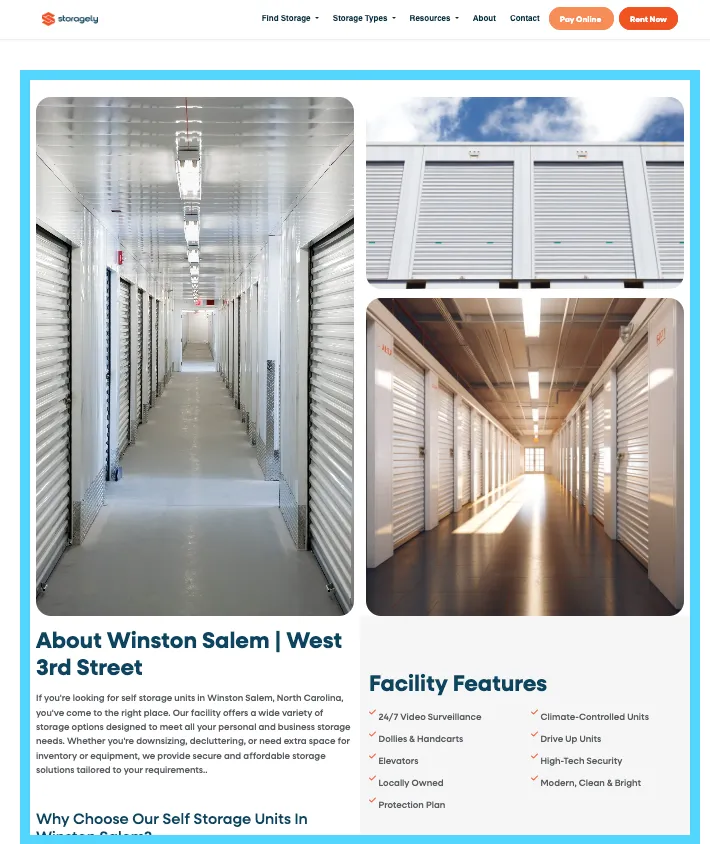
Includes
- Images and “About This Location” content
- Location-specific text and keywords
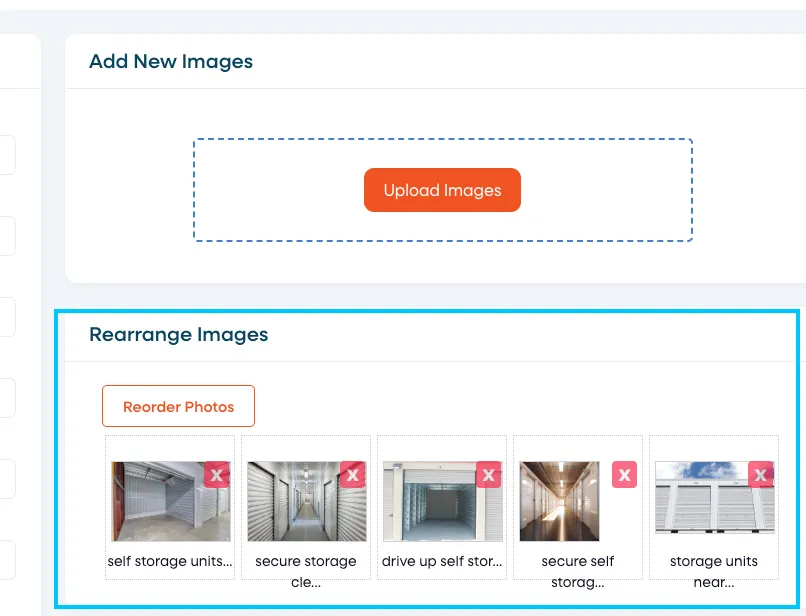
Images in the “About” Location section
- Managed through Rental System Settings > Location Settings > Images
- This section automatically displays the first three images from the location’s carousel.
- These images can be changed by changing the order of the images in the carousel. Let Storagely assist with this to ensure SEO best practices are kept.
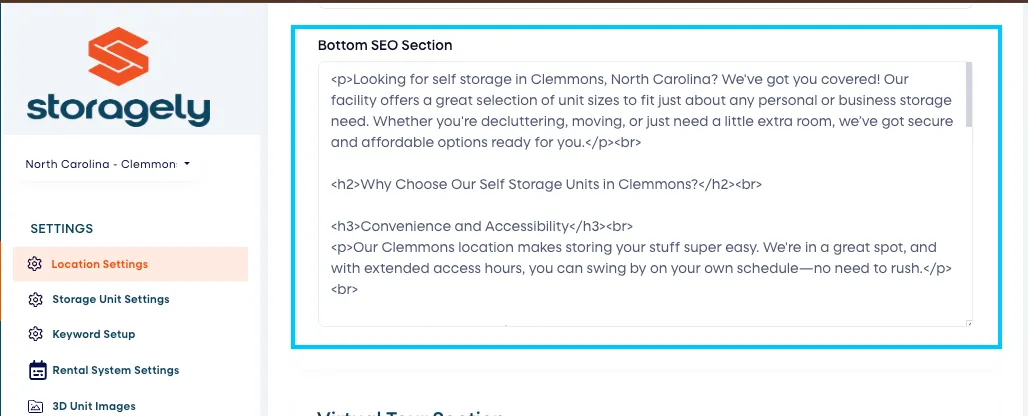
Text Content in the “About” Location section
- Location-specific messaging consisting of keywords and information about the facility
- Editable in the Storagely Rental System > Location Settings page > SEO section
Frequently Asked Questions (FAQs)
What are the two main systems that power my Storagely website?
- Your website is powered by two systems:
- The Storage Website (Website Editor) – Manages all static pages, design, branding, navigation, and SEO content.
- The Rental System – Manages location pages, pricing grids, unit availability, promotions, and operational details pulled from your Facility Management Software (FMS).
Understanding which system controls each element helps ensure updates are made in the correct place.
Where do I edit my Home page, City pages, or About page?
- These pages are managed entirely in the Storagely Website Editor.
- You can edit layout, text, images, buttons, and SEO fields without affecting live pricing or unit data.
How do I update the navigation bar or menu links?
- Navigation items are controlled in the Website Editor under the Navigation settings. From there, you can add, remove, rename, or reorder menu links and update button destinations.
The price is incorrect on one of my units. How do I fix it?
- All pricing displayed on your website is pulled directly from your Facility Management Software (FMS). Storagely does not adjust or override unit rates. To correct the pricing, please review the unit’s rate setup within your FMS to ensure it is configured properly. Once updated in the FMS, the corrected pricing will sync to your website after the next sync schedule.
What controls my Location pages?
- Location pages are controlled by the Storagely Rental System and pull live data from your FMS. This includes pricing, unit availability, promotions, hours, and amenities.
Where do carousel images on location pages come from?
- Carousel images are managed in the Storagely Rental System > Location Settings. These images are optimized for SEO and appear at the top of each location page.
Why isn’t the image section below the pricing grid showing?
- That section pulls the first three images from the carousel. If fewer than three carousel images are uploaded, the section will not appear.
What is the Pricing Grid and where does its data come from?
- The Pricing Grid displays available units, pricing, promotions, and rental options. All data is pulled directly from your FMS through the Storagely Rental System.
What if I’m not sure where to make a change?
- If you’re ever unsure, the Storagely team is happy to help guide you to the correct setting and avoid unintended changes.
As always, if you have any questions during this process, our Customer Success Team is here to help. The best way to reach us is by submitting a support ticket.