3D Unit Images
1. Introduction
The 3D Unit Images section in the Rental System Settings of the Storagely Dashboard allows facility operators to assign 3D images to different storage unit sizes and types. These images enhance the online rental experience by providing visual representations of units, helping potential renters better understand available options.
2. Navigating to 3D Unit Images Settings
To access the 3D Unit Images settings:
- Log in to your Storagely Dashboard.
- In the left sidebar menu, click on Rental System.
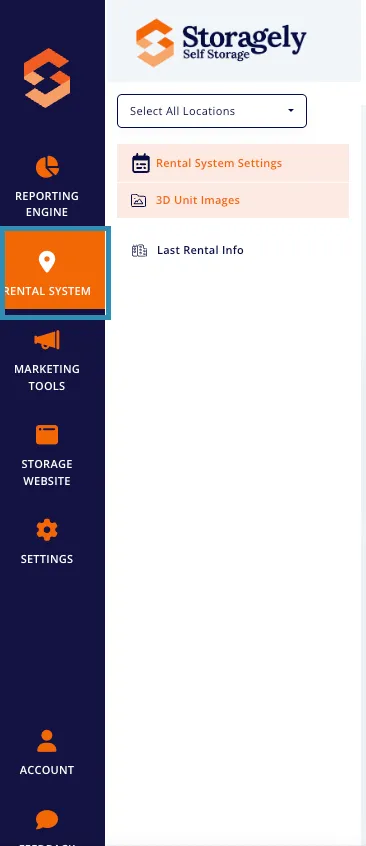
- Select 3D Unit Images from the available options.
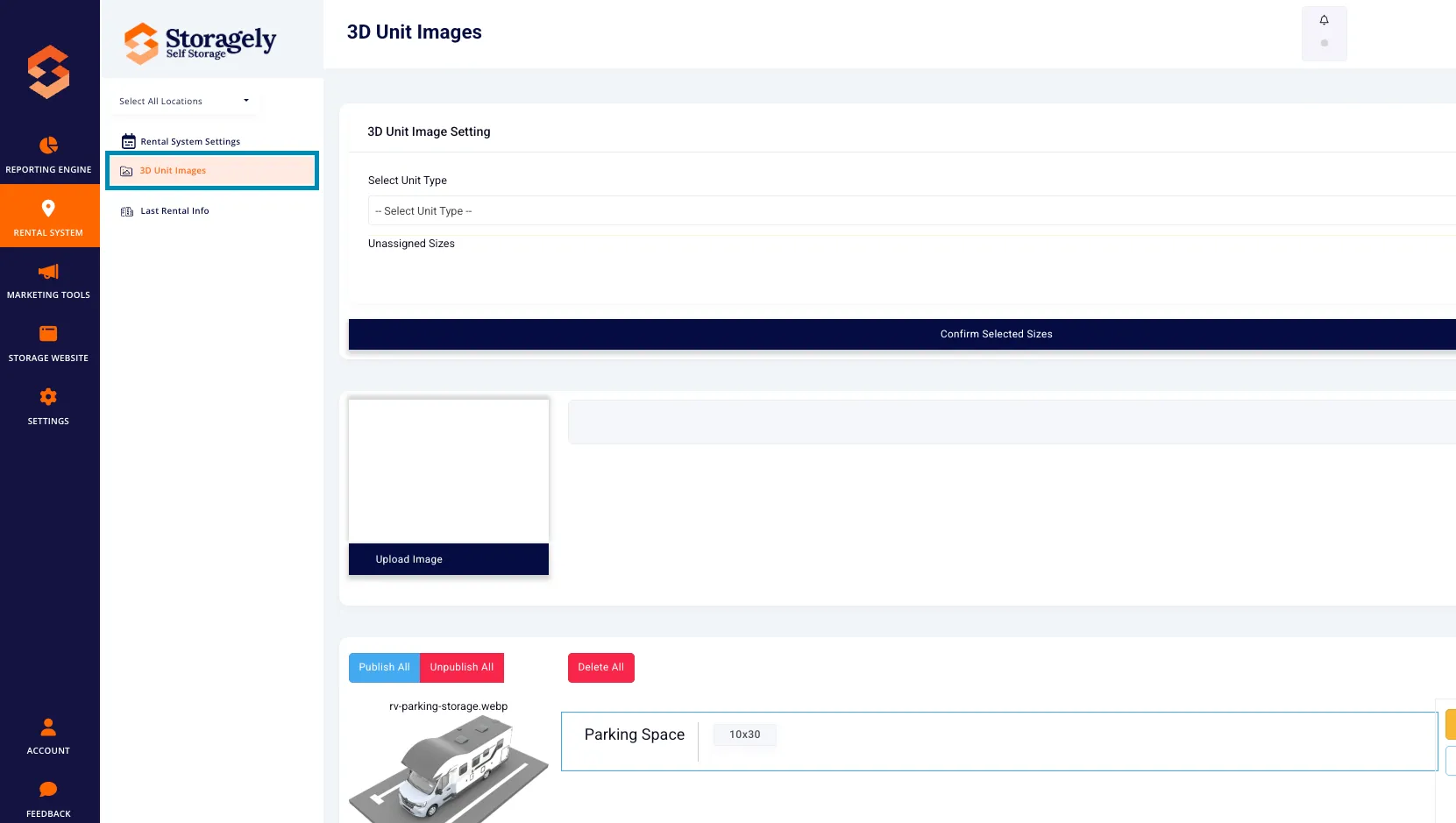
3. Understanding the 3D Unit Images Interface
The 3D Unit Images page consists of multiple sections for managing and assigning unit images.
A. Selecting Unit Types for Image Assignment
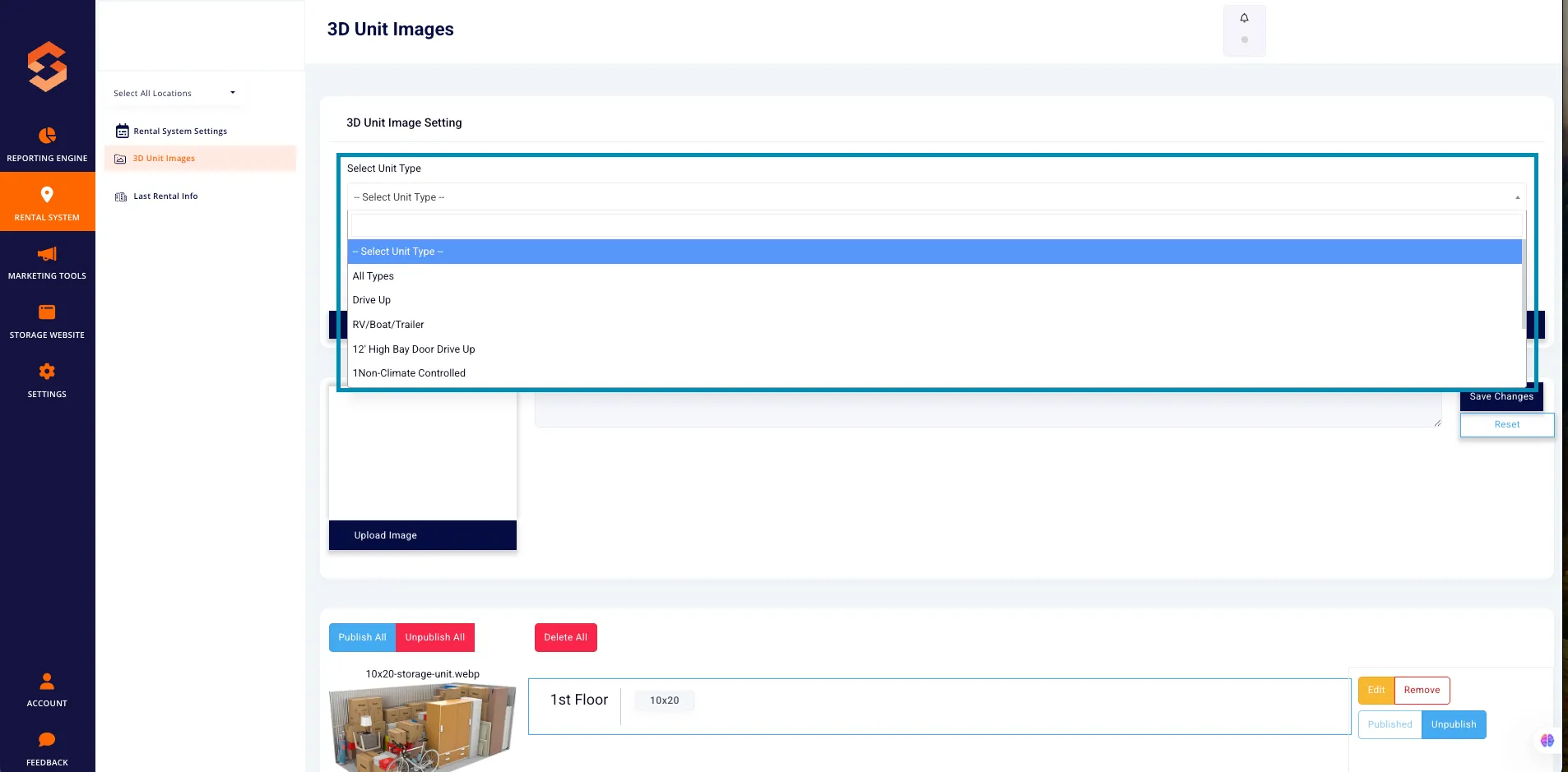
- A dropdown menu allows users to select a specific unit type (e.g., Drive-Up, Climate-Controlled, RV/Boat Storage).
- Users can select “All Types” to apply an image to multiple unit types at once.
B. Assigning 3D Images to Specific Unit Sizes
- When a unit size is selected, the system displays any unassigned unit sizes below that still require a 3D image.
- Users can bulk select multiple unit sizes and assign them to a single image.
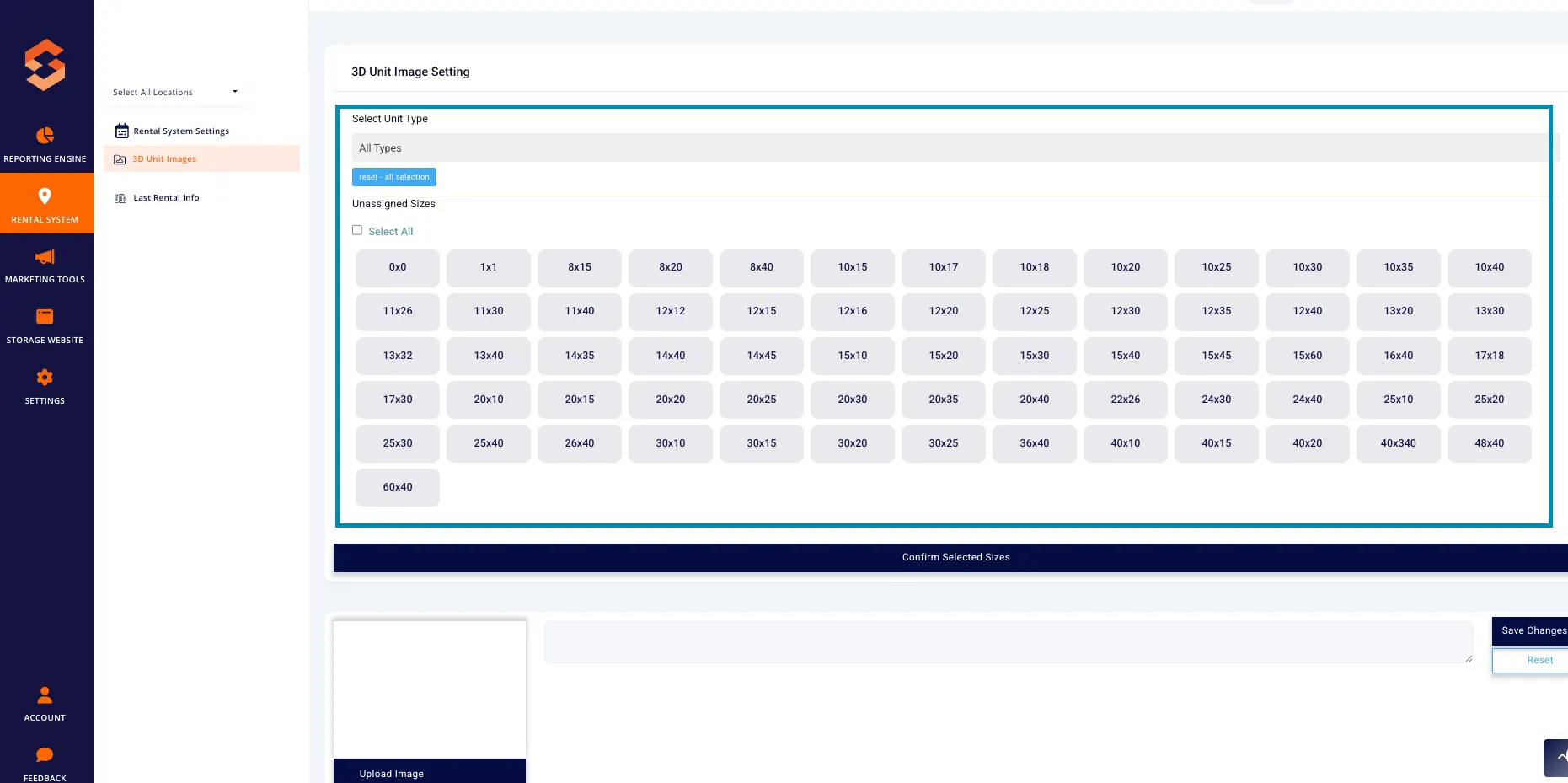
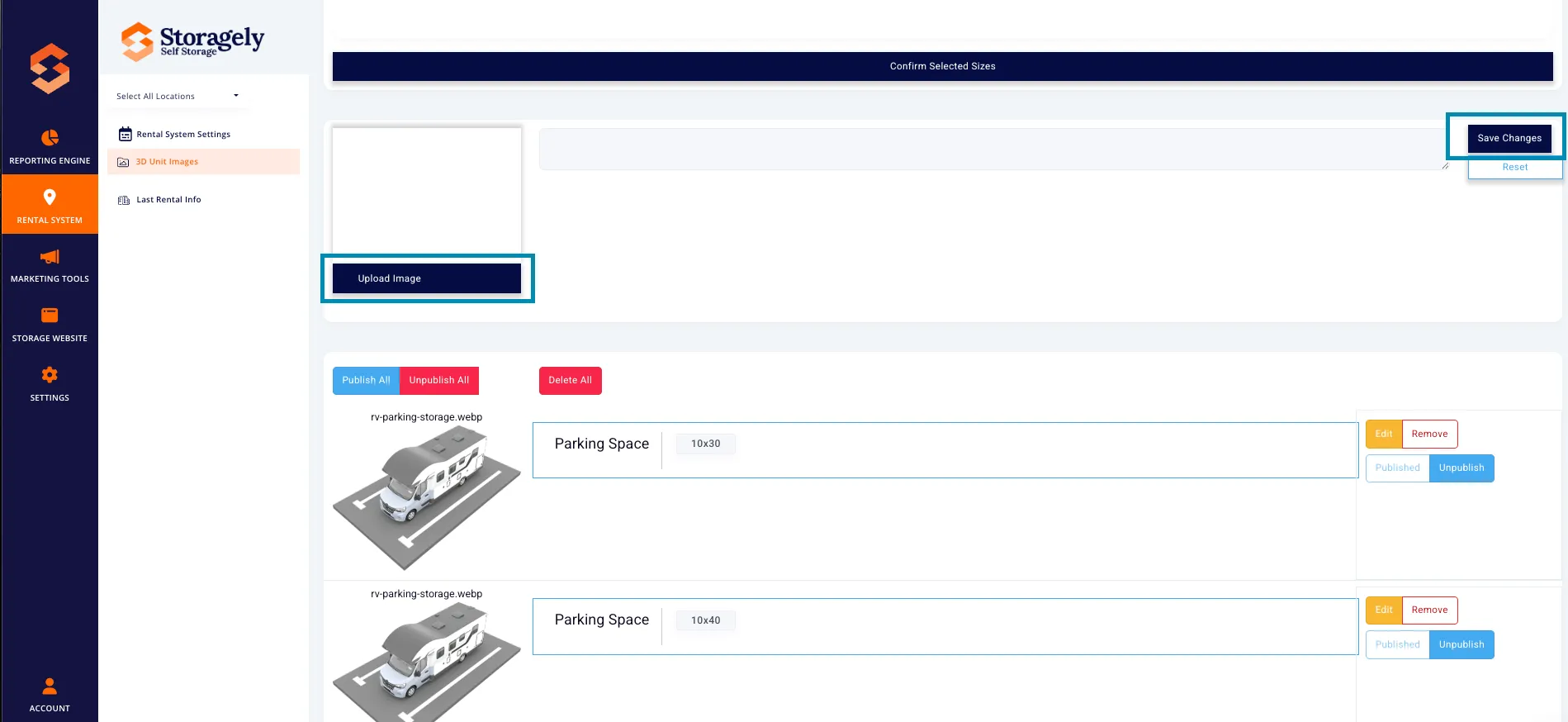
- Once the unit sizes have been selected, click "Confirm Selected Sizes" to upload the 3D image.
C. Uploading 3D Images
- Facility operators can upload a custom 3D image for each unit type and size.
- The uploaded image must be in an accepted file format (e.g., .jpg, .png, .webp).
- Users must click “Save Changes” to apply the image to the selected unit sizes.
D. Managing Existing 3D Images
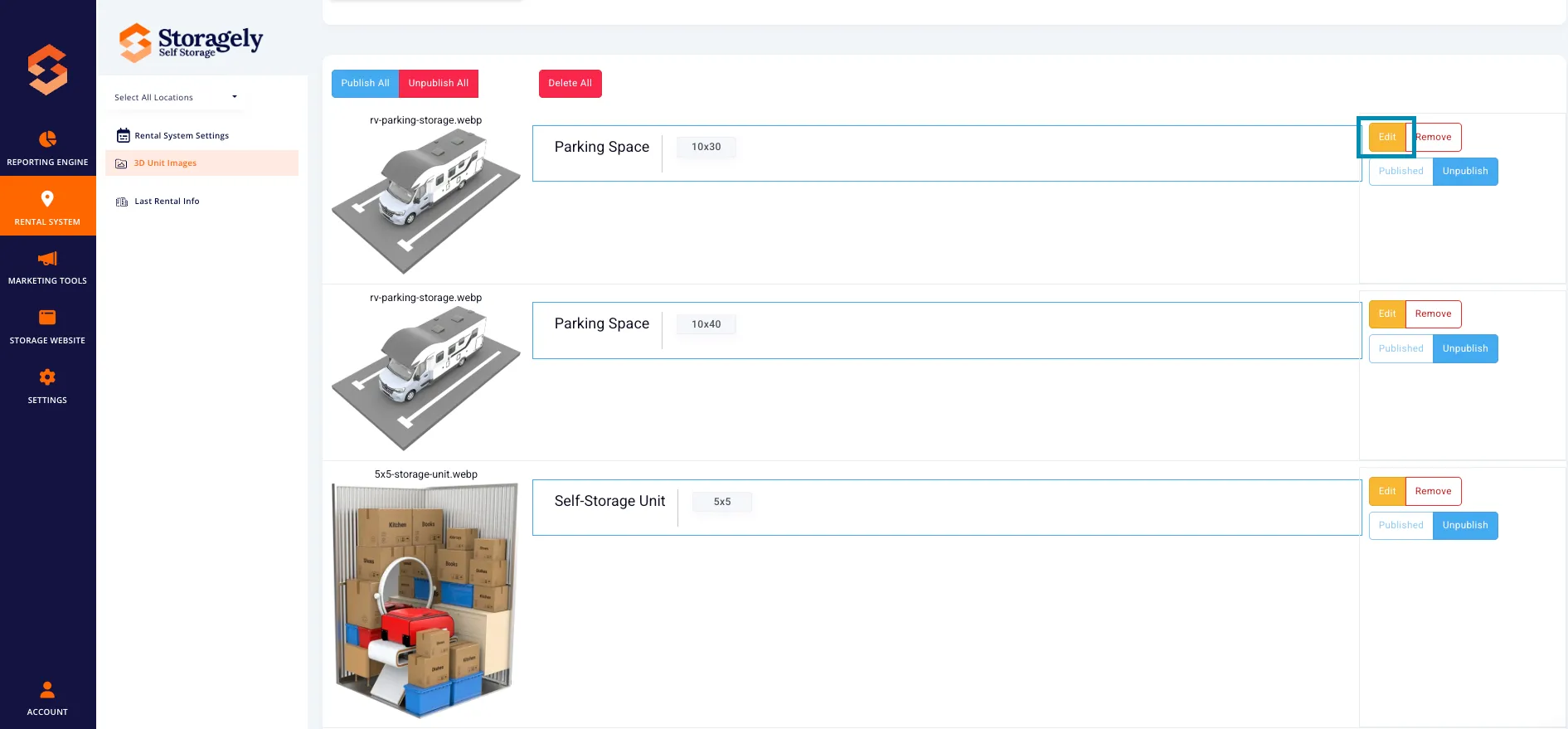
- The image management section displays all previously uploaded 3D images.
- Each image shows:
- The unit type it is assigned to.
- The unit sizes associated with the image.
- The current publish/unpublish status.
- Operators can edit or remove images as needed.
E. Publishing or Unpublishing 3D Images
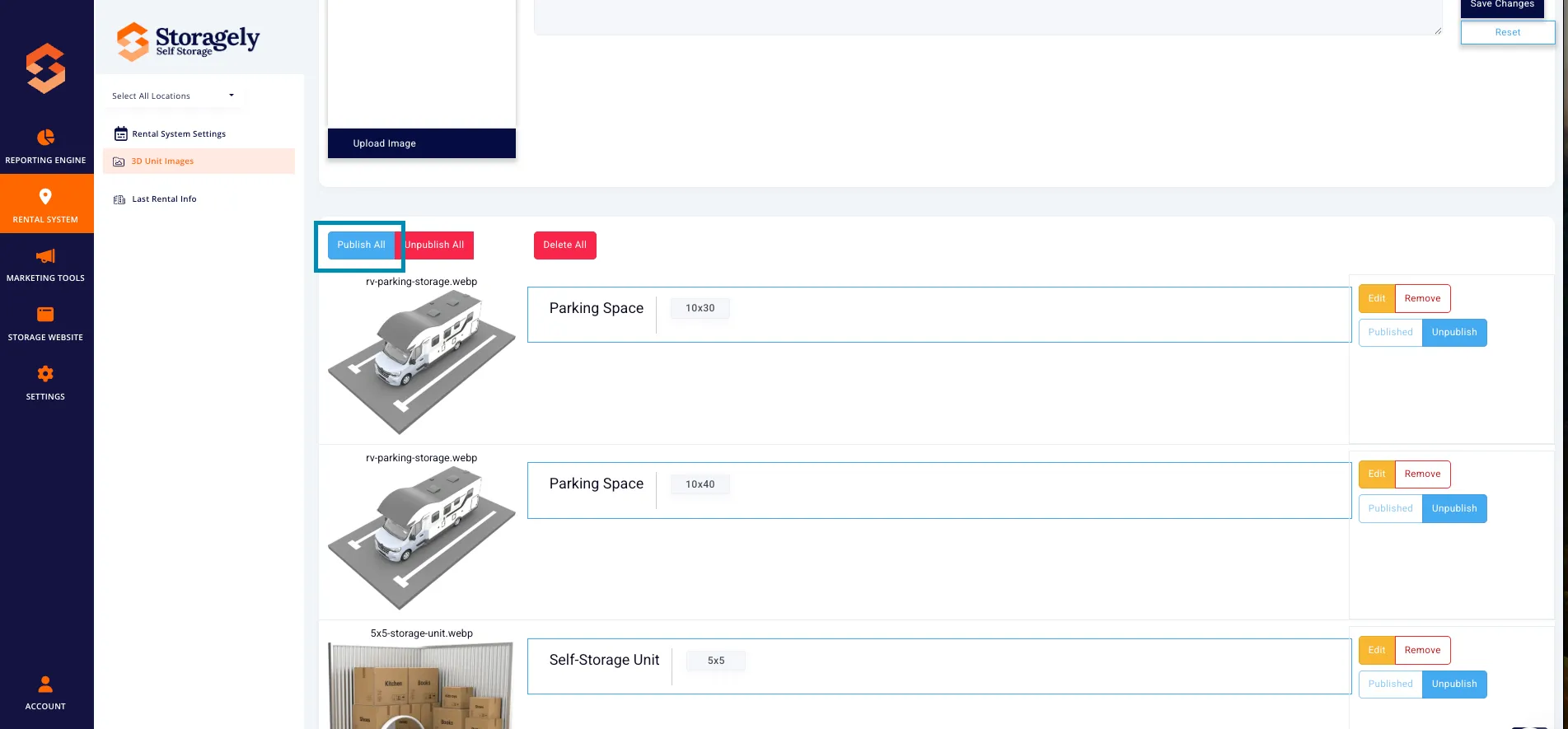
- Users can publish all assigned 3D unit images for public visibility.
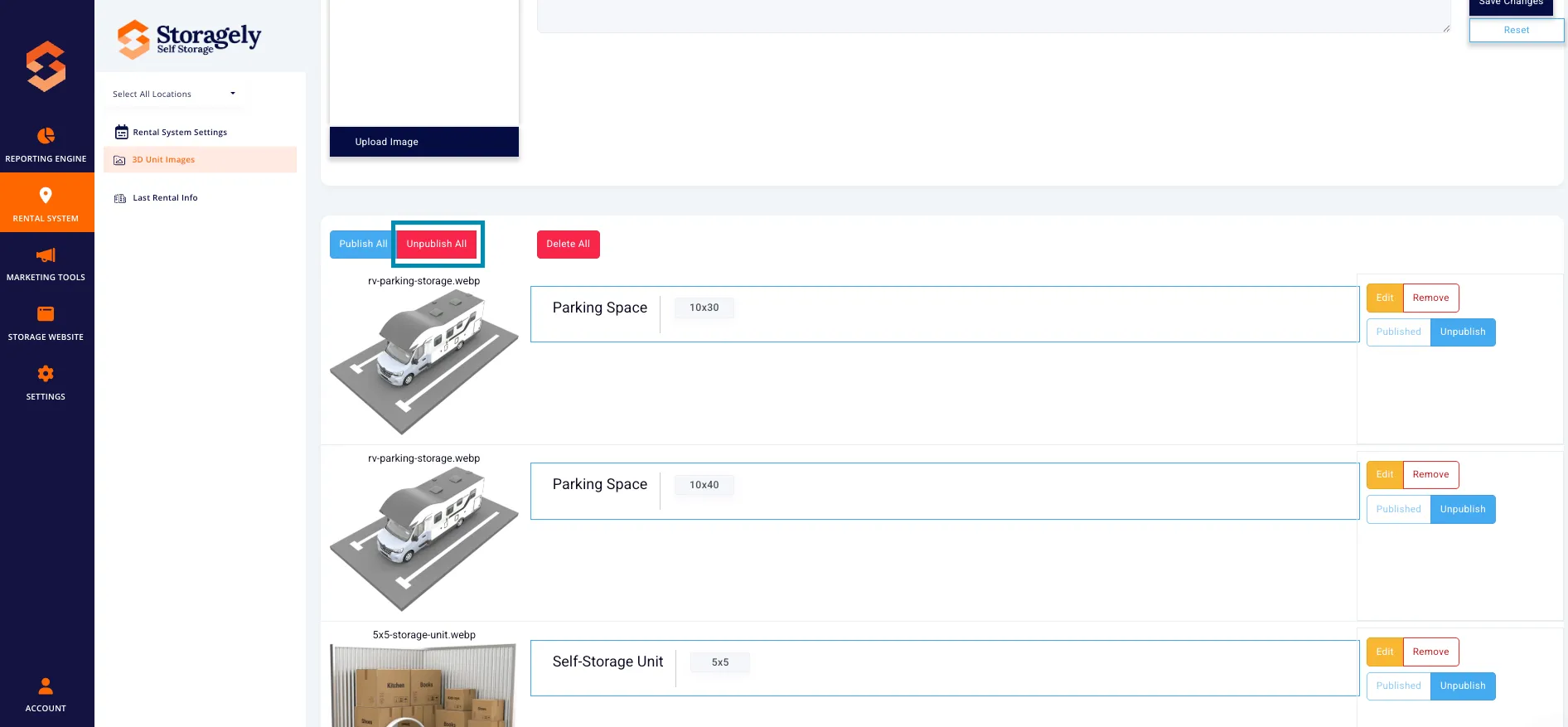
- If needed, operators can unpublish all images to temporarily disable them from customer view.
4. How to Assign a 3D Image to a Unit Type and Size
Step 1: Select a Unit Type
- Click the “Select Unit Type” dropdown menu.
- Choose a unit type (e.g., Drive-Up, Climate-Controlled, Indoor).
- If the image applies to all unit types, select “All Types.”
Step 2: Assign Unit Sizes
- Under “Unassigned Sizes,” check the boxes for all unit sizes that should use the selected image.
- Click “Confirm Selected Sizes” to proceed.
Step 3: Upload the 3D Image
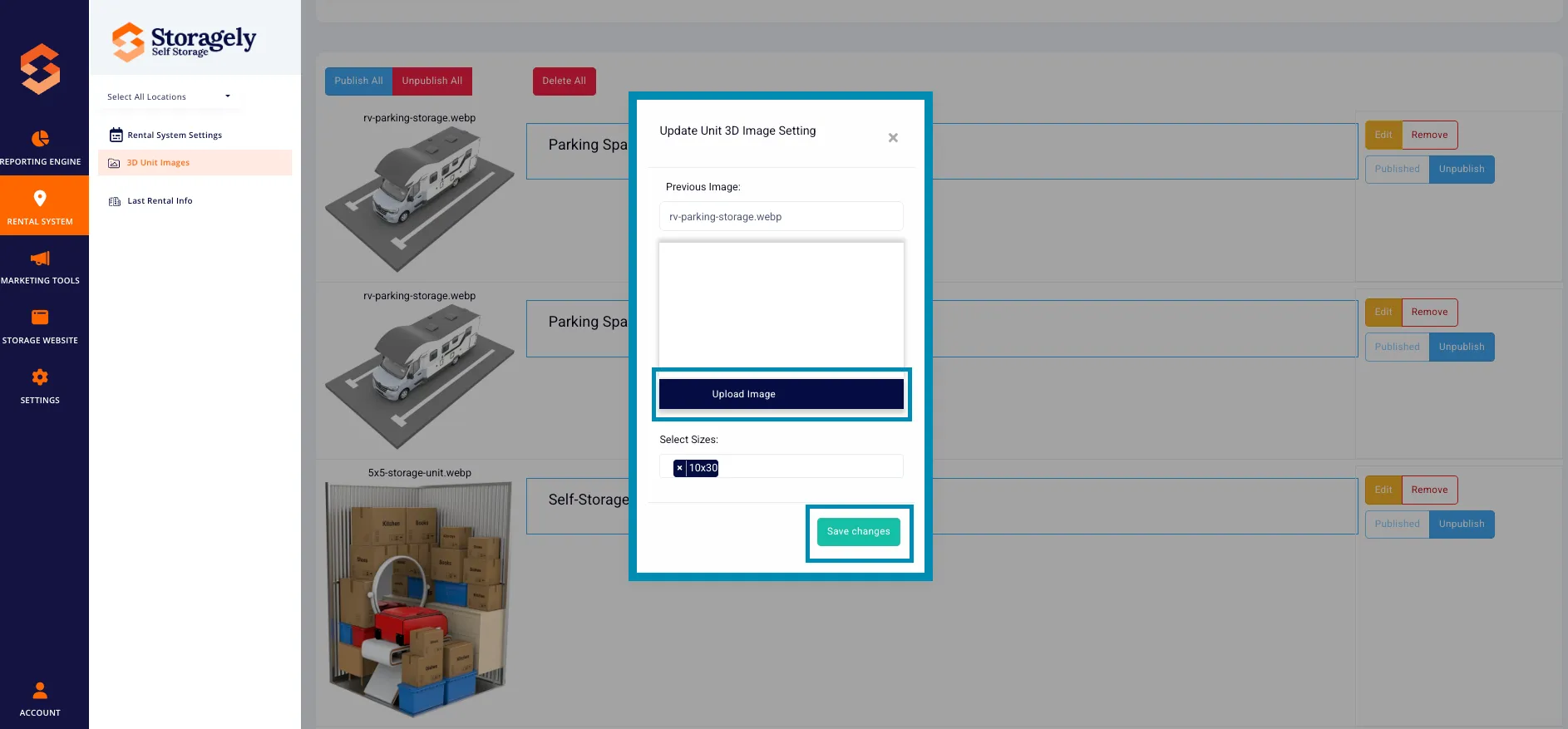
- Click the “Upload Image” button.
- Select the 3D unit image file from your computer.
- Click “Save Changes” to assign the image.
Step 4: Publish or Unpublish the Image
- Navigate to the image management section.
- Locate the uploaded image.
- Click “Publish” to make the image visible to customers.
- If needed, click “Unpublish” to remove the image from the website temporarily.
5. How to Remove or Replace a 3D Image
A. Removing a 3D Image
- Locate the image in the image management section.
- Click the "Remove" button.
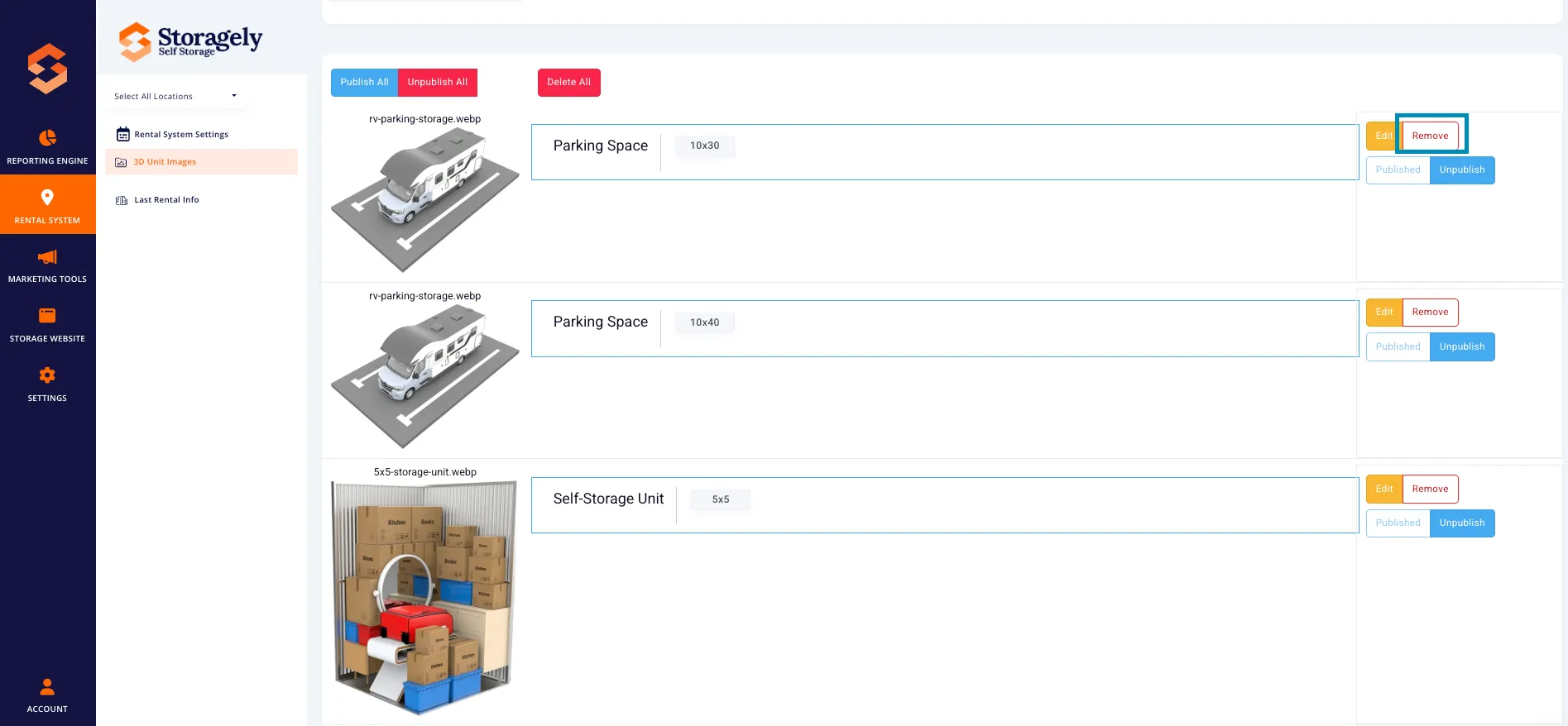
- Confirm the removal to delete the image from the assigned unit types.
B. Replacing a 3D Image
- Click "Edit" to upload a new image.
- Assign it to the same unit types and sizes as the previous image.
- Click "Save Changes" to update the assignment.
6. Best Practices for Managing 3D Unit Images
✅ Ensure each unit type has a 3D image to provide renters with a clear visual. ✅ Use high-quality images to enhance the customer experience. ✅ Regularly update images if unit types or features change. ✅ Double-check image assignments to avoid misrepresenting unit sizes. ✅ Keep published images relevant by removing outdated visuals.
7. FAQs & Troubleshooting
Q1: Why is my unit type not listed in the dropdown? A: The unit type may not yet be set up in the system. Contact Storagely Support for assistance.
Q2: Can I assign the same image to multiple unit sizes? A: Yes! Use the “Select All” option under Unassigned Sizes to apply one image to multiple sizes.
Q3: What happens if I delete a 3D image? A: The unit sizes previously assigned to that image will no longer display a visual. You must upload a new image to replace it.
Q4: How do I ensure images appear on the website? A: After uploading, make sure to publish the image in the image management section.
As always, if you have any questions during this process, our Customer Success Team is here to help. The best way to reach us is by submitting a support ticket.