Storage Types Settings
1. Introduction
The Storage Type Pages section in the Standard Web Pages settings of the Storagely Dashboard allows facility operators to create and customize pages dedicated to different types of storage options. These pages help customers understand the benefits and features of each storage type, improving engagement and conversions.
2. Navigating to Storage Type Pages Settings
To access the Storage Type Pages Settings:
- Log in to your Storagely Dashboard.
- In the left sidebar menu, click on Storage Website.
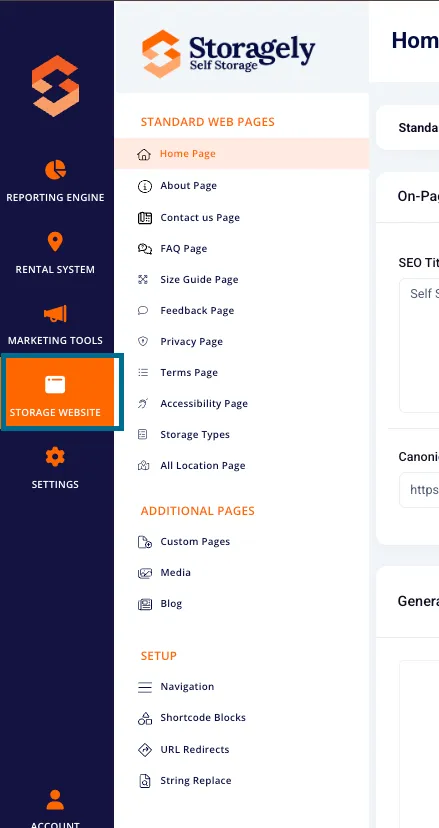
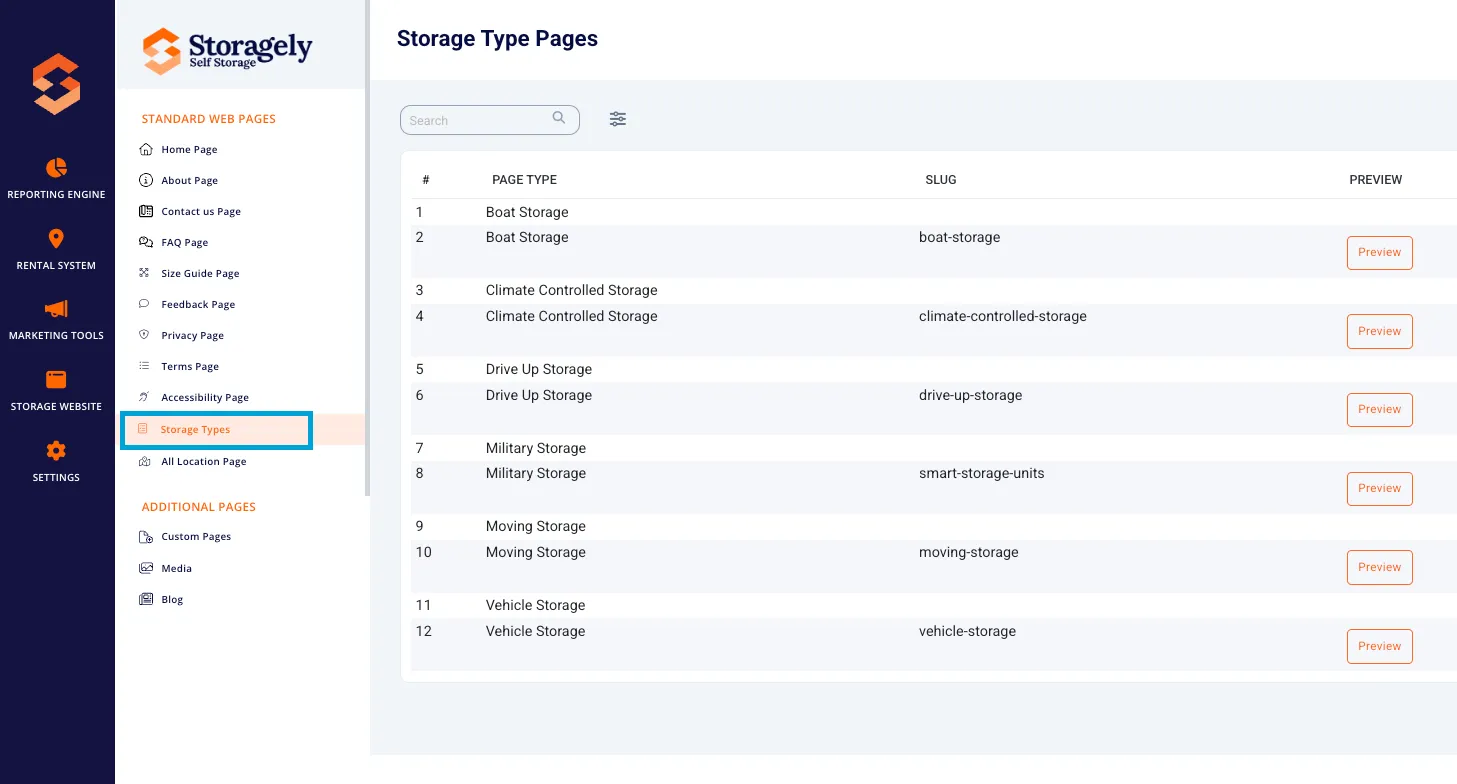
- Select Standard Web Pages → Storage Type Pages from the available options.
3. Understanding the Storage Type Pages Interface
A. Storage Type Pages Overview
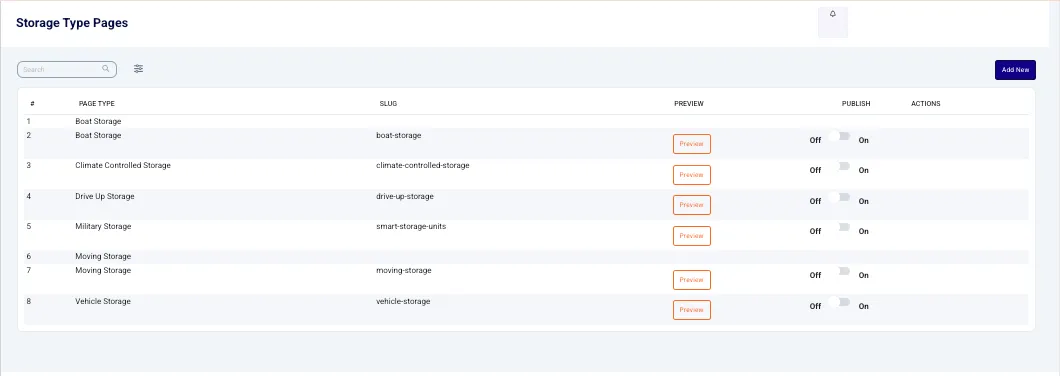
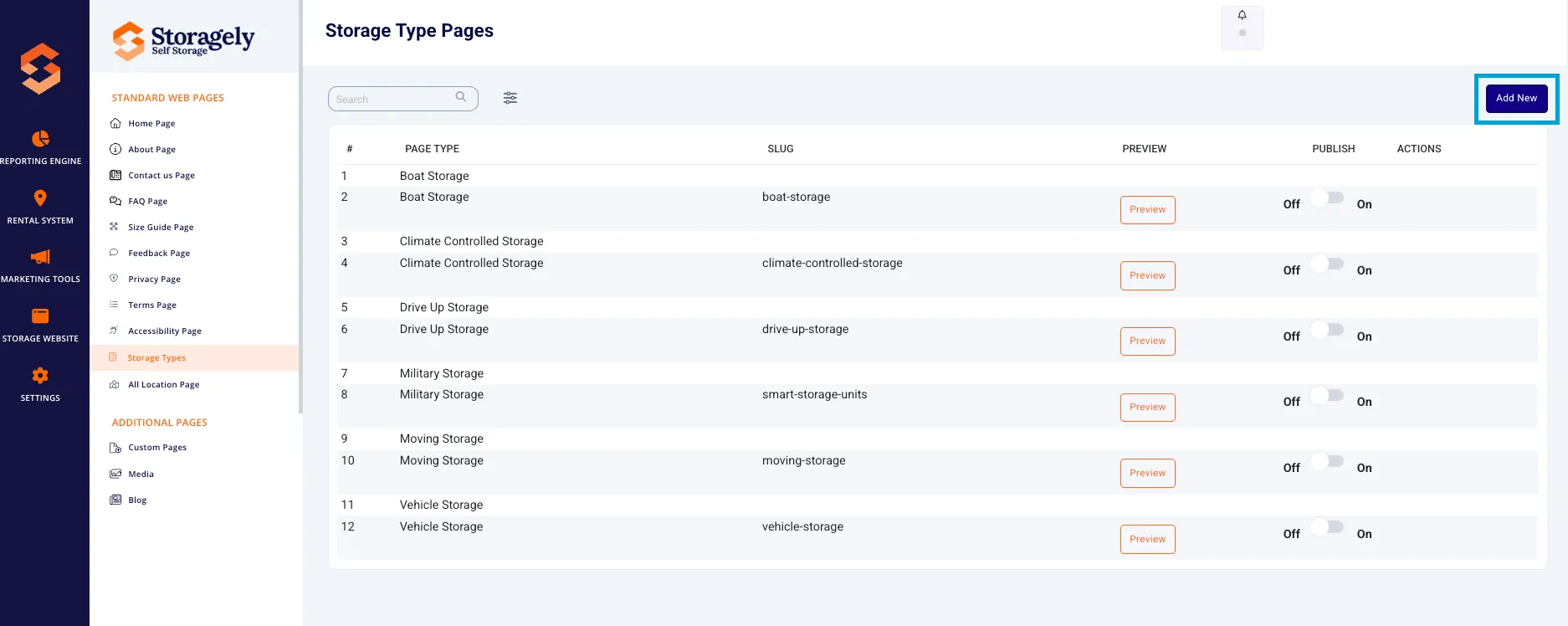
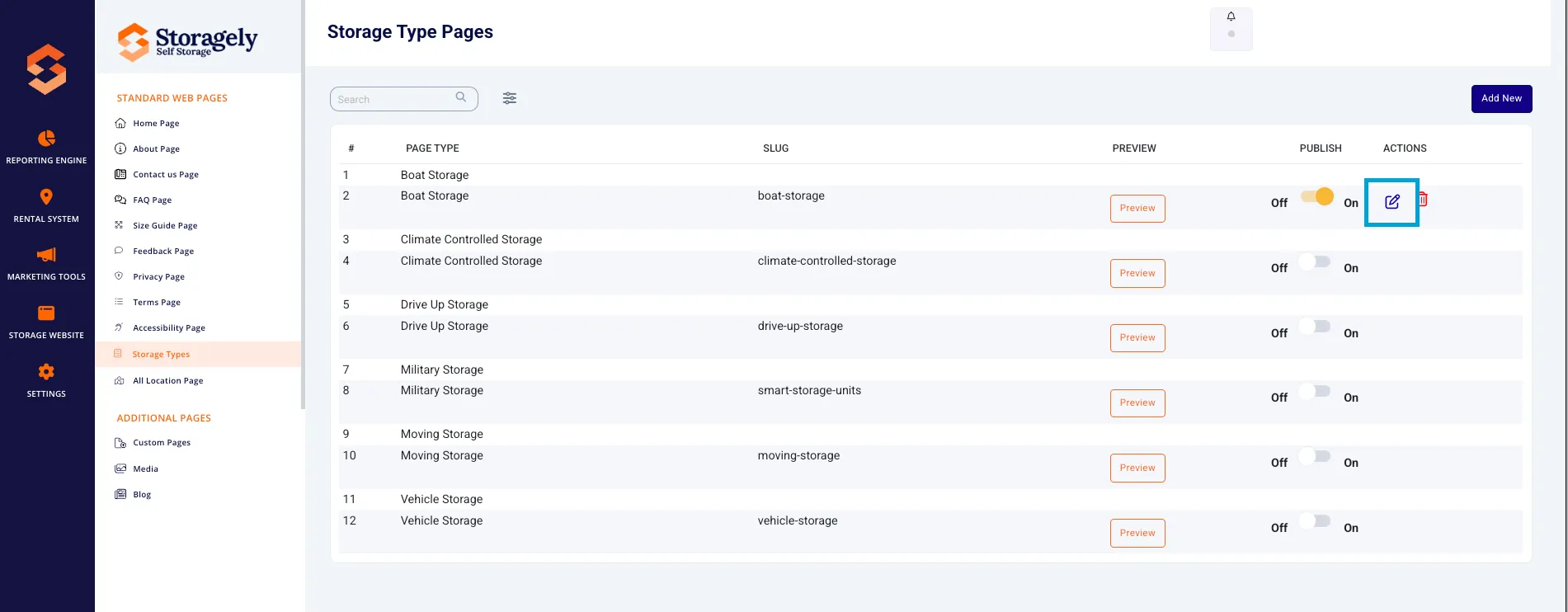
The main screen displays a list of all created Storage Type pages with the following columns:
- Page Type – The name of the storage type (e.g., Boat Storage, Climate-Controlled Storage).
- Slug – The URL path for the page (e.g., /boat-storage).
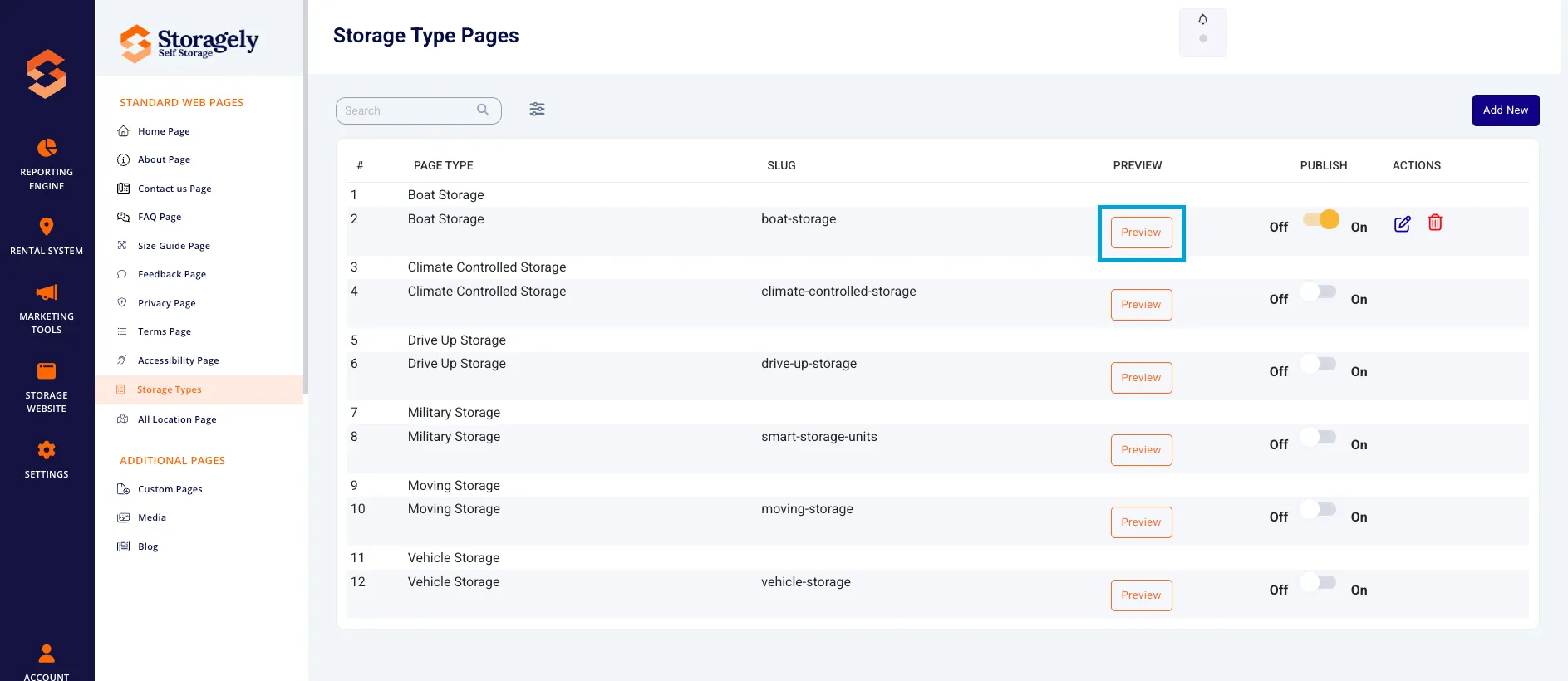
- Preview – Allows users to preview the page before publishing.
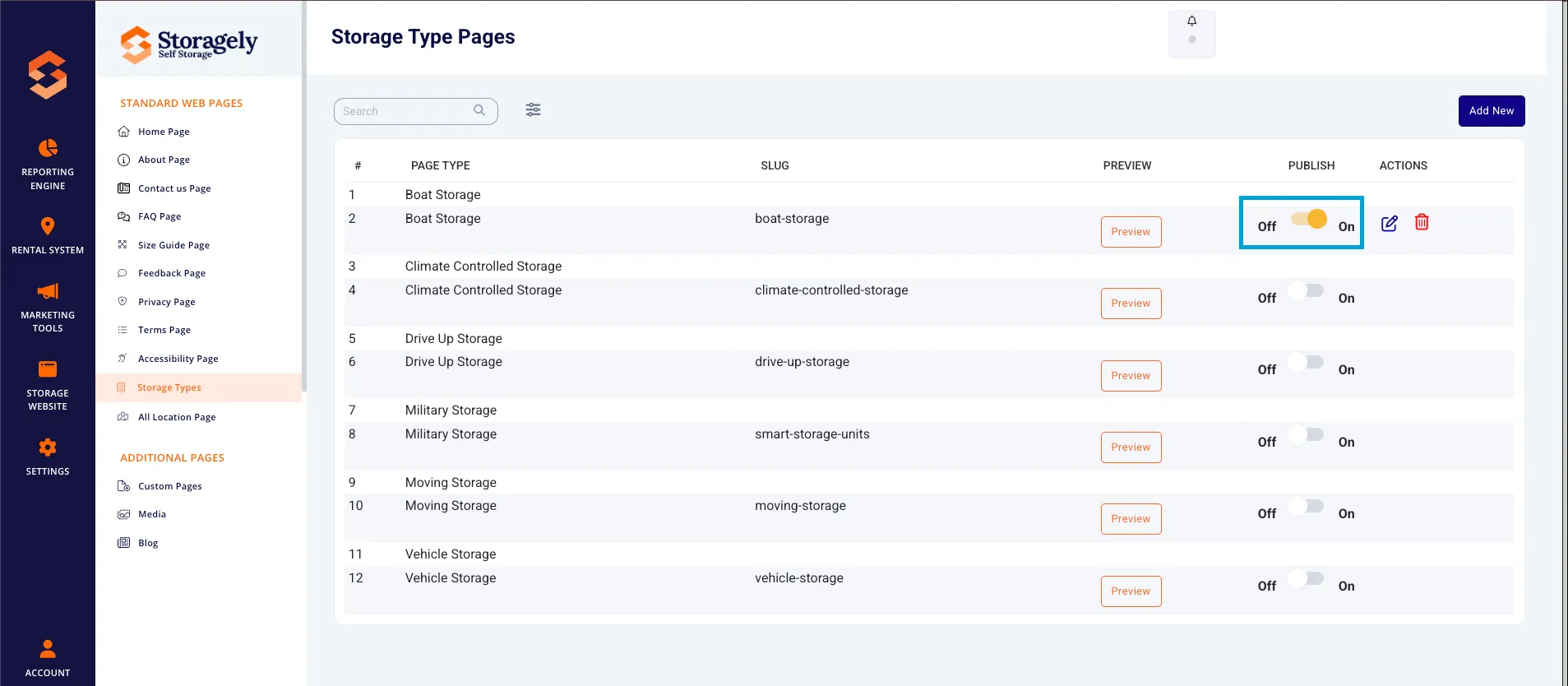
- Publish Toggle – Switch between On (Published) and Off (Unpublished).
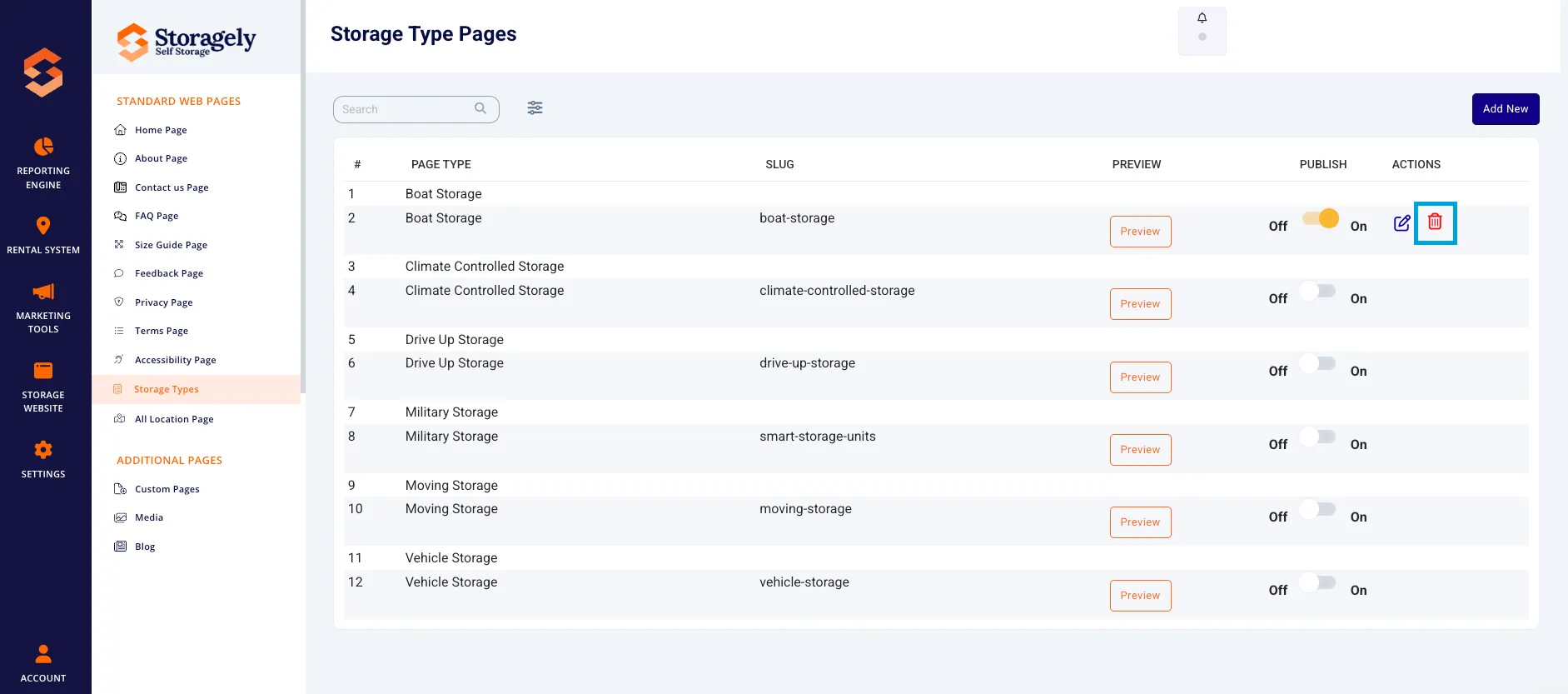
- Actions – Options to edit or delete a page.
To add a new Storage Type page, click the "Add New" button in the top-right corner.
4. Adding a New Storage Type Page
Clicking the "Add New" button opens the page editor, which contains the following sections:
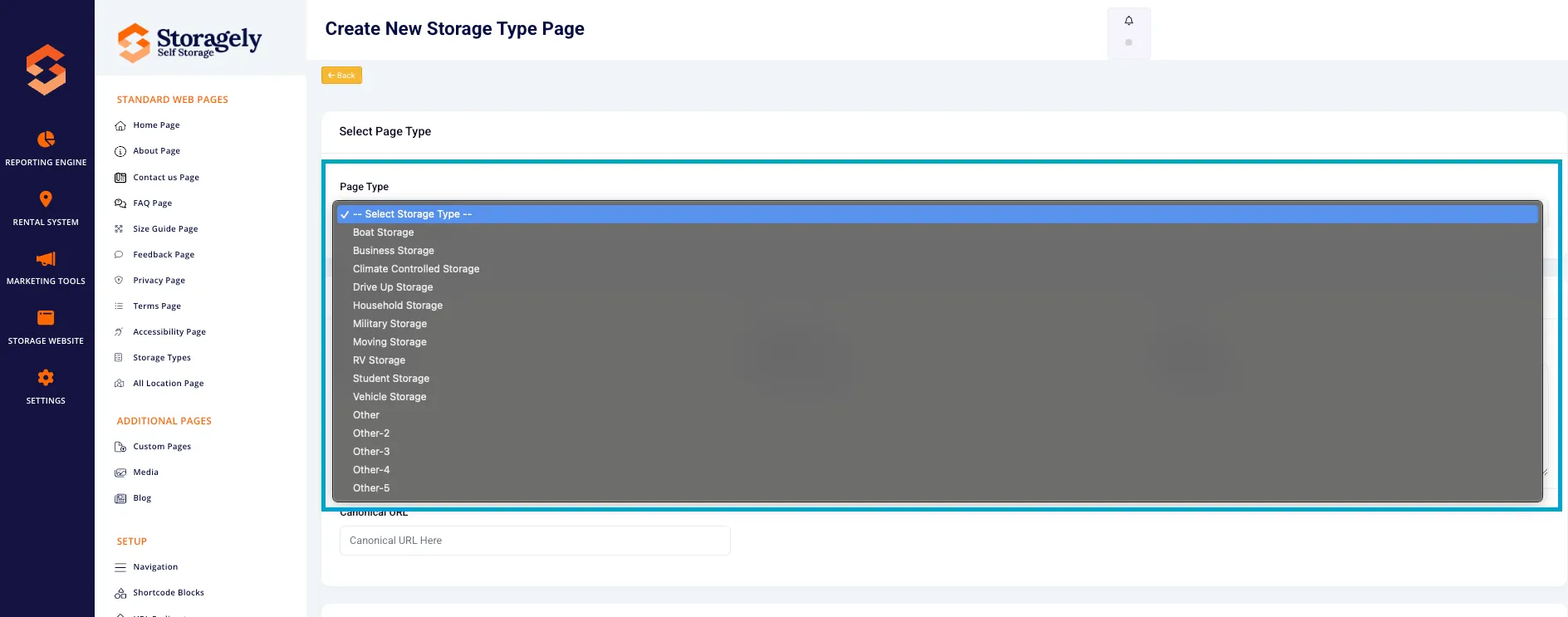
A. Select Page Type
- Choose the Storage Type from the dropdown menu (e.g., Boat Storage, Vehicle Storage).
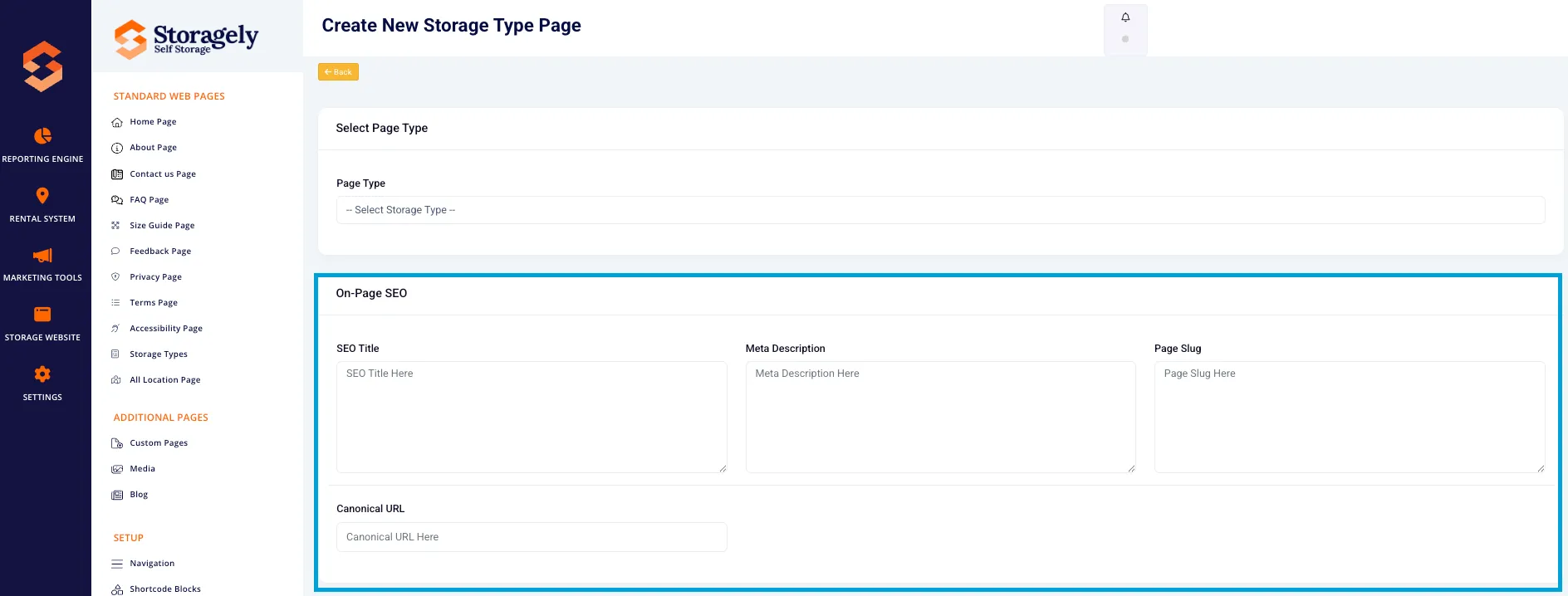
B. On-Page SEO Settings
- SEO Title – The page title appearing in search engine results.
- Meta Description – A short description that helps improve search visibility.
- Page Slug – The URL path for the page (e.g., /boat-storage).
- Canonical URL – Helps search engines determine the preferred version of the page.
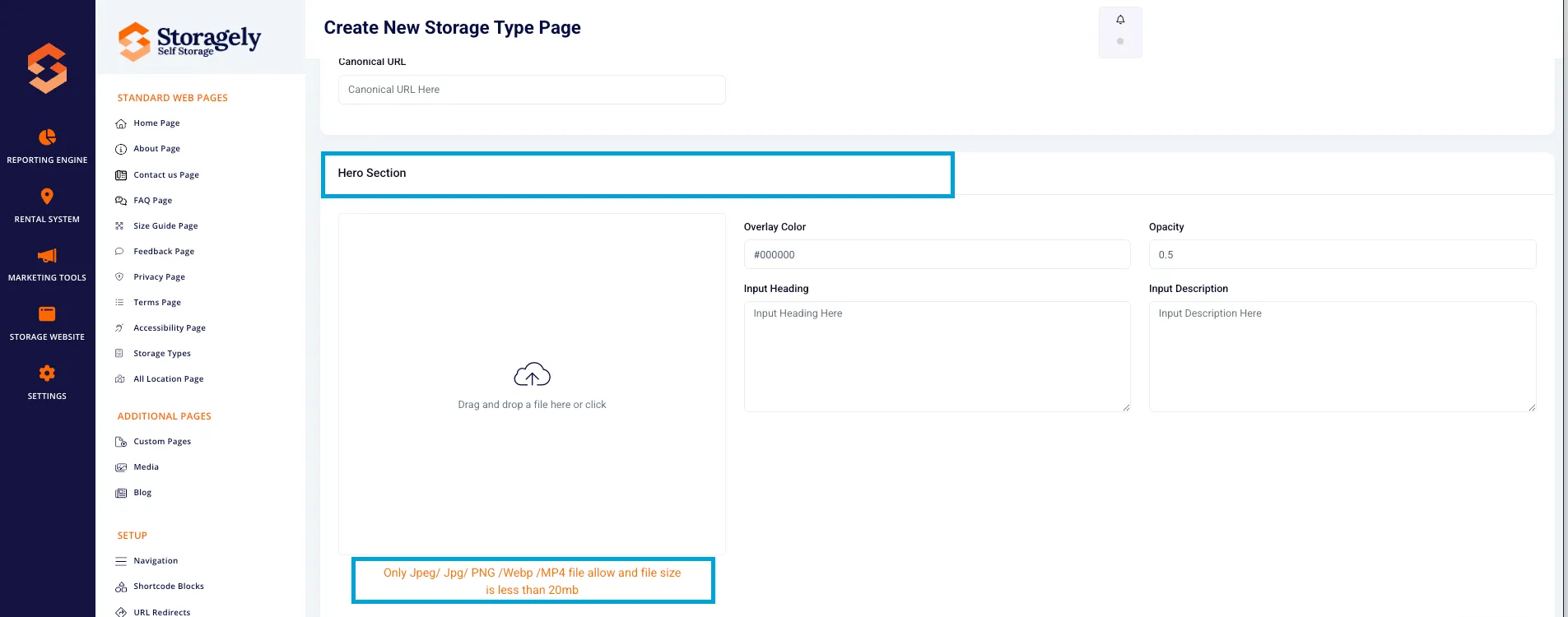
C. Hero Section
- Upload a Hero Image (JPEG, PNG, WebP, MP4 up to 20MB).
- Overlay Color & Opacity – Adjust the color overlay and transparency.
- Heading & Description – Add a short introduction to the storage type.
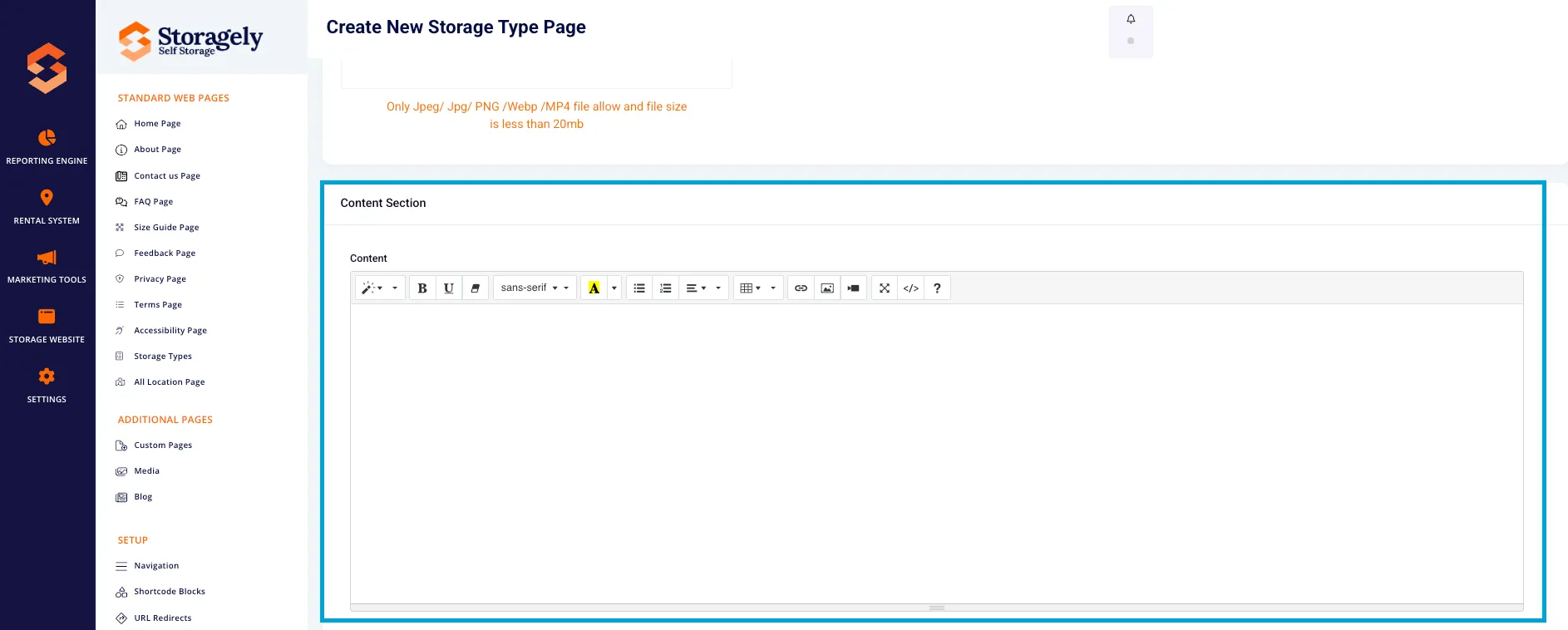
D. Content Section
- Add detailed descriptions about the storage type.
- Use the rich text editor to format text, add images, and insert links.
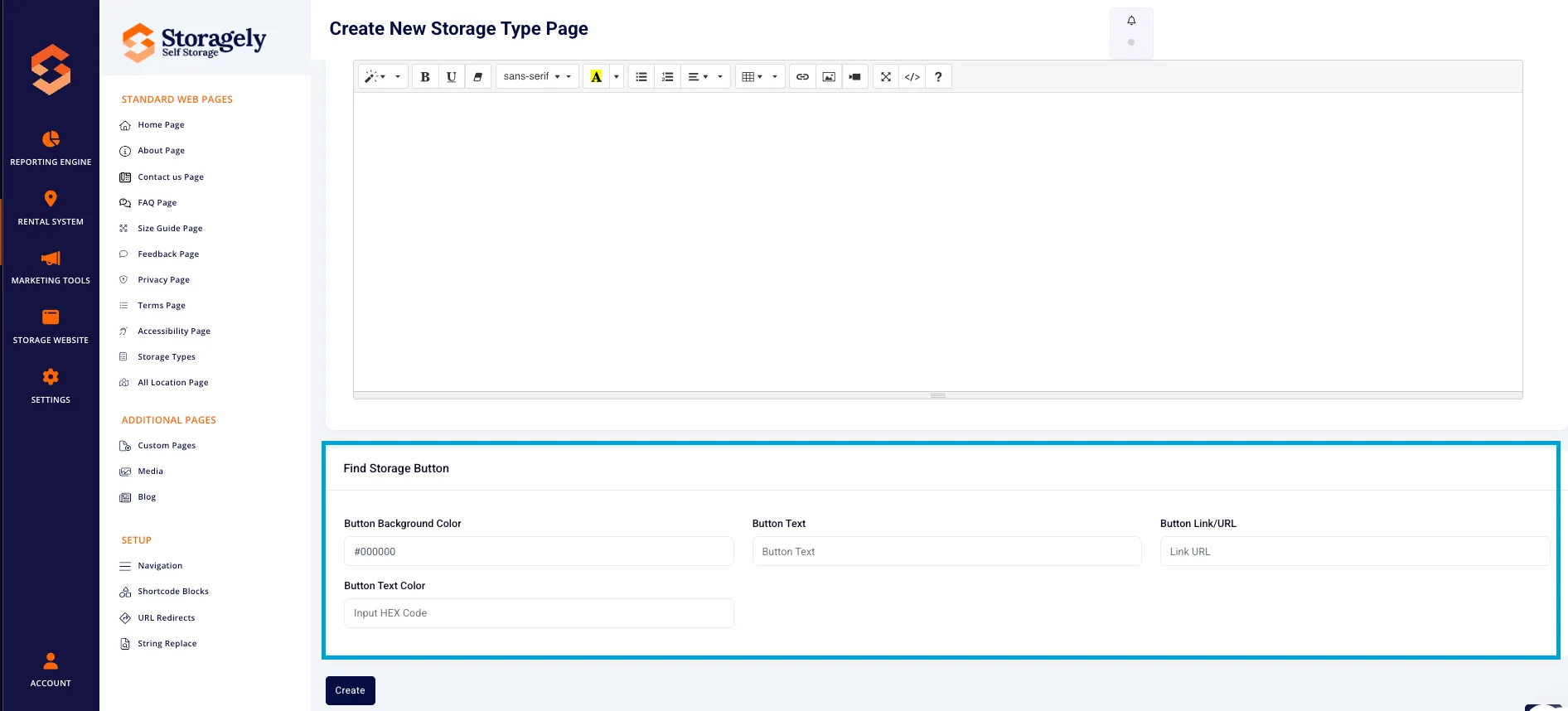
E. Find Storage Button
- Button Background Color & Text Color – Customize colors for the call-to-action button.
- Button Text – Customize the button label (e.g., "Find Storage Near You").
- Button Link/URL – Direct users to the rental or reservation page.
F. Create & Publish
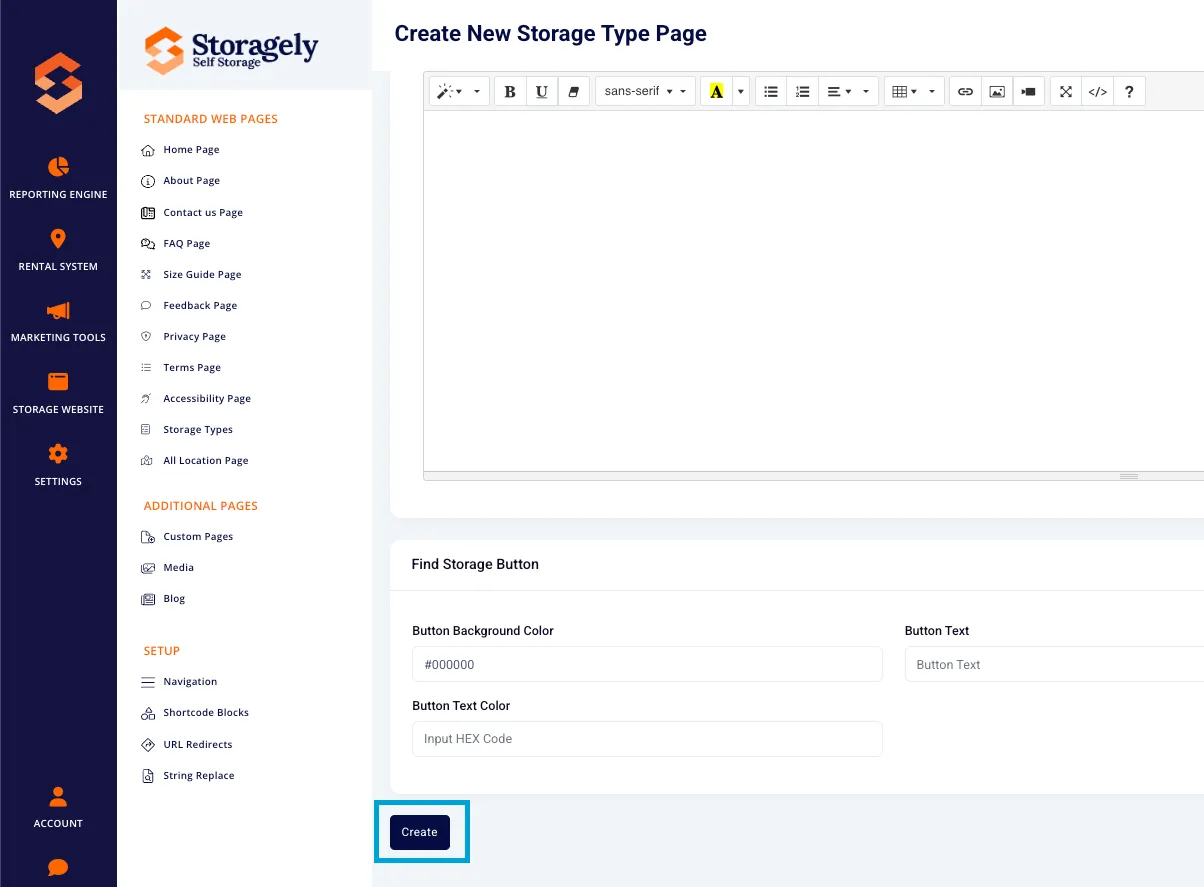
- Click "Create" to save the page as a draft.
- Click “Publish” to make the page live.
5. Editing & Managing Storage Type Pages
A. Editing an Existing Storage Type Page
- From the Storage Type Pages list, find the page you want to edit.
- Click on the Page Name to open the editor.
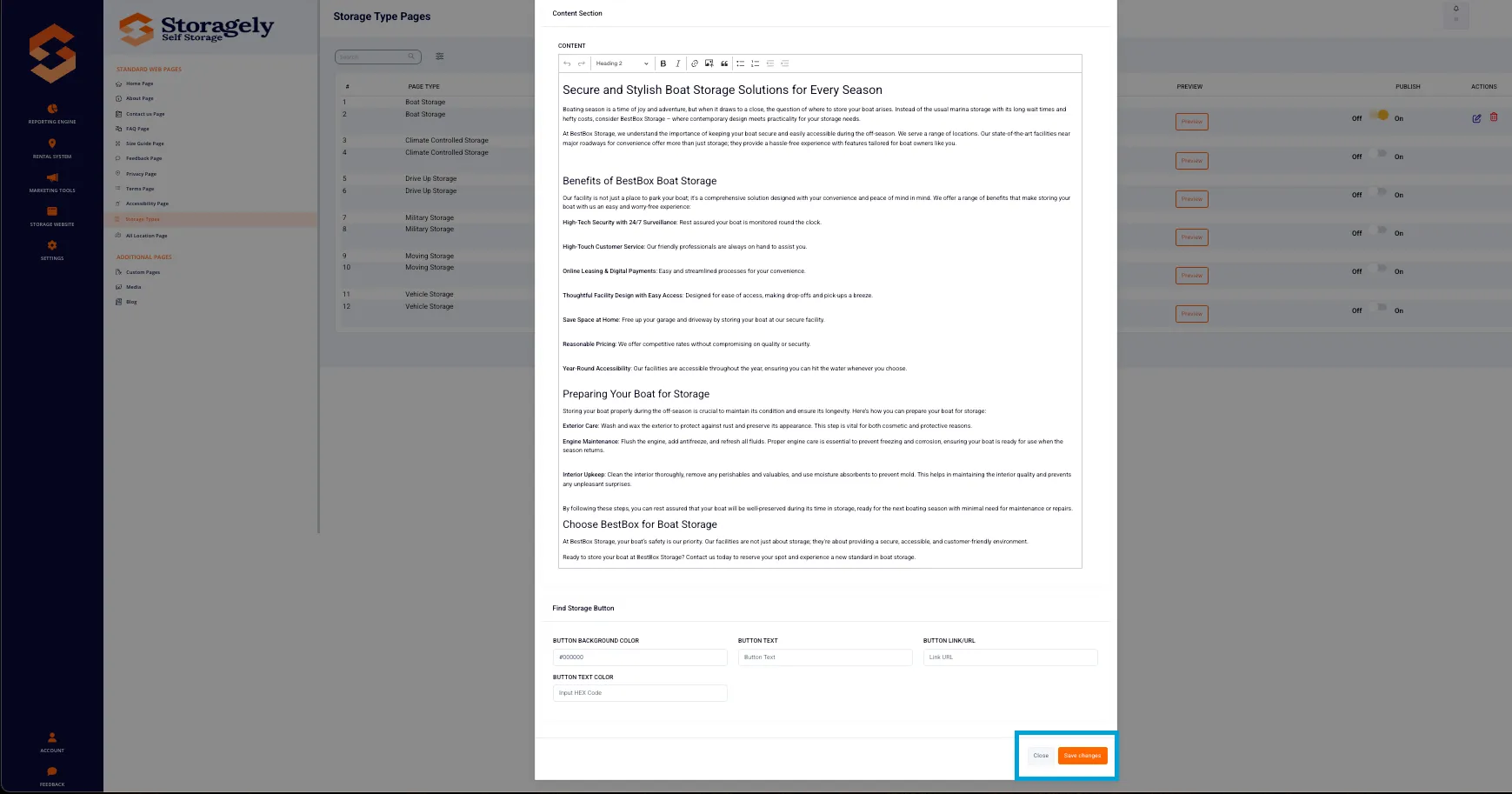
- Modify any section as needed.
- Click “Save” to store changes or “Publish” to make them live.
B. Previewing a Storage Type Page
- Click the "Preview" button next to the page in the list.
- A new tab will open, displaying the current draft or published version.
C. Publishing or Unpublishing a Page
- Toggle the Publish switch to On to make the page live.
- Toggle it Off to remove it from public view.
D. Deleting a Storage Type Page
- Click the Actions menu next to the page you want to delete.
- Select “Delete”, then confirm the deletion.
6. Best Practices for Storage Type Pages
✅ Use high-quality images in the hero section for better user engagement. ✅ Keep descriptions concise yet informative, highlighting key benefits. ✅ Ensure CTA buttons link to the correct rental or reservation page. ✅ Optimize SEO settings to improve search rankings. ✅ Regularly update content to reflect new features or services.
7. FAQs & Troubleshooting
Q1: How do I add a new Storage Type page? A: Click "Add New", select the storage type, fill in the details, and click "Create".
Q2: How do I preview a Storage Type page before publishing? A: Click the "Preview" button next to the page in the list.
Q3: Can I disable a Storage Type page without deleting it? A: Yes! Toggle the Published/Unpublished switch to control visibility.
Q4: What happens if I leave the SEO settings blank? A: Default values will be used, but optimizing SEO settings is recommended for better search visibility.
Q5: How do I make a Storage Type page live? A: Click “Publish” after making updates.
As always, if you have any questions during this process, our Customer Success Team is here to help. The best way to reach us is by submitting a support ticket.