How To: Troubleshoot Units Not Displayed on the Website
Overview:
If certain storage units are not appearing on your website, several common causes within StorEDGE may be preventing them from displaying. Ensuring units are displayed correctly online improves rental conversions, reduces customer frustration, and maintains accurate inventory.
Use this guide to diagnose and resolve the most common issues quickly.
Units Marked as 'Rentable' or 'Unrentable'
Units marked as Unrentable will not display online. This setting is typically used for units undergoing cleaning, maintenance, or repairs.
Steps to Check:
- Log in to the StorEDGE Admin Portal.
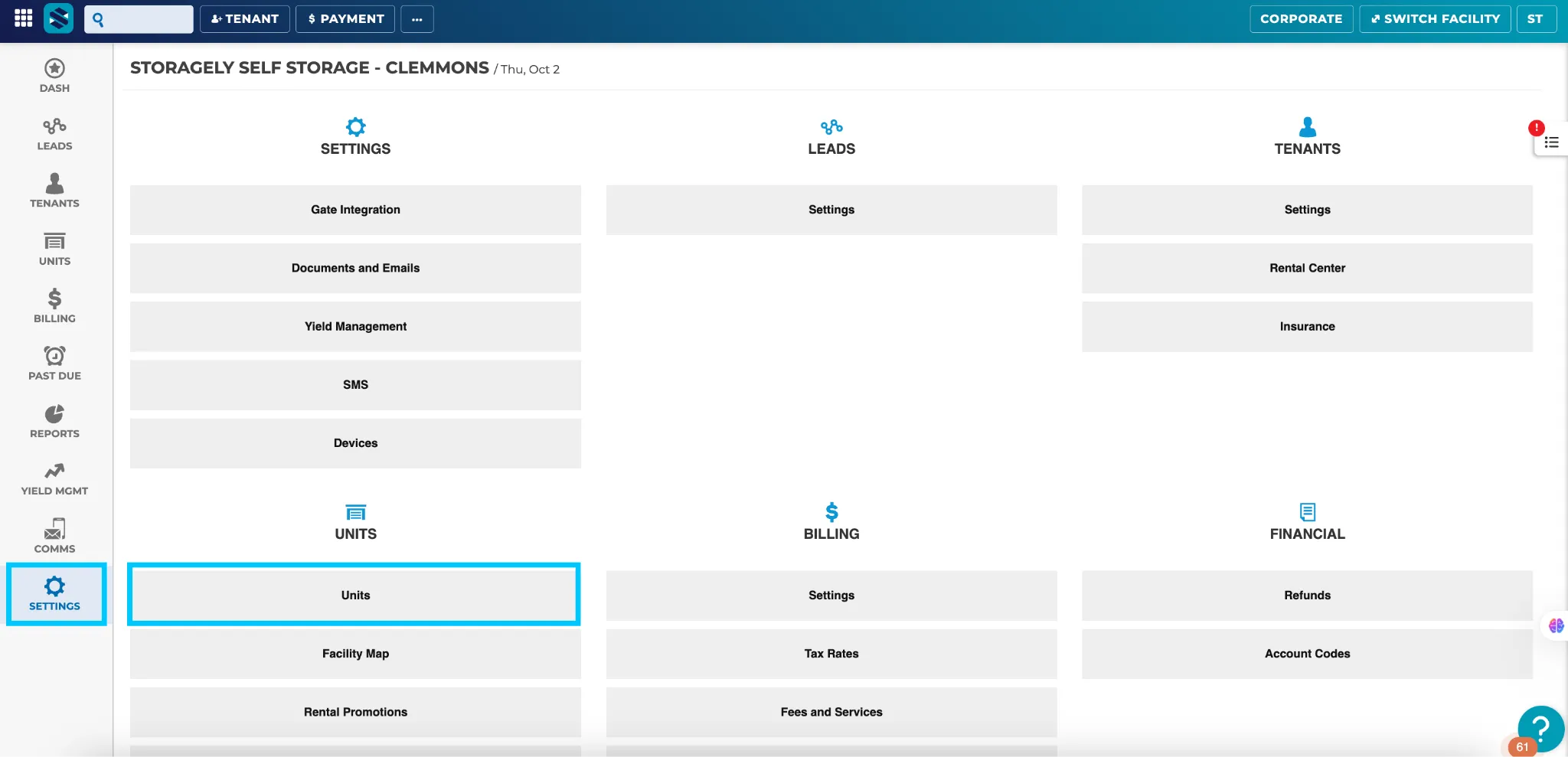
- Navigate to the Facility Settings > Units.
- Identify and select the affected unit from the list.
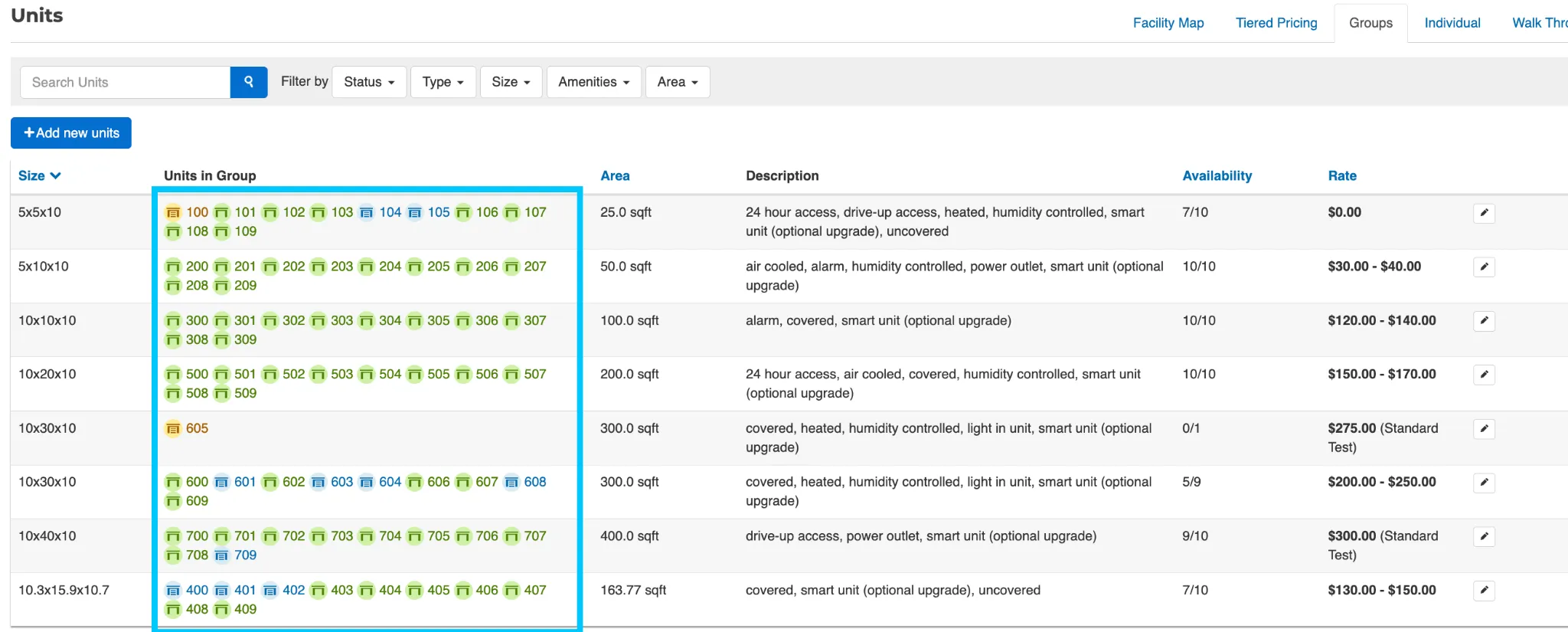
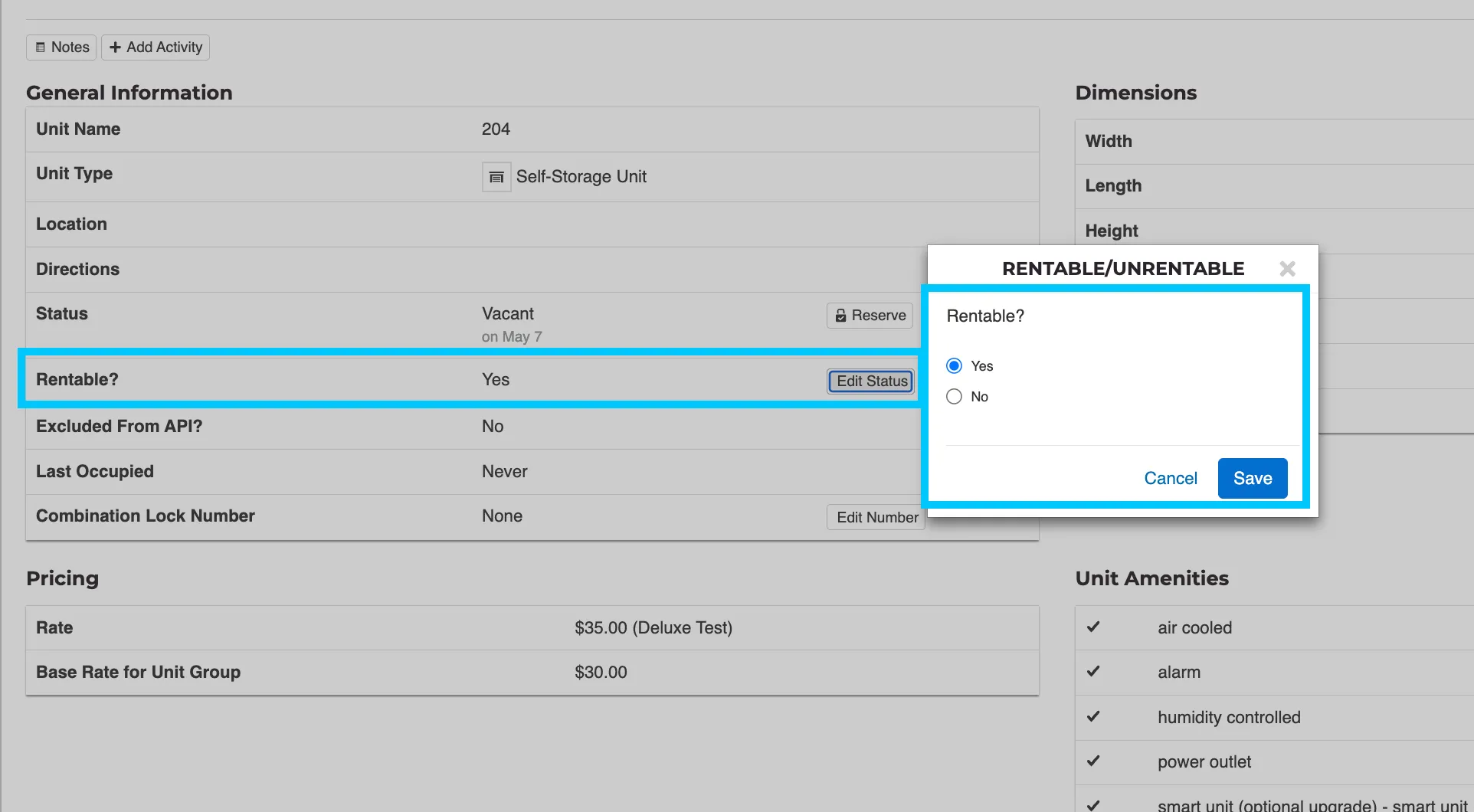
- Under the 'General Information' section, check the 'Rentable?' field:
- Rentable ‘Yes’ - Allows the unit to be rented online
- Rentable ‘No’ - Prevents the unit from being rented or displayed online.
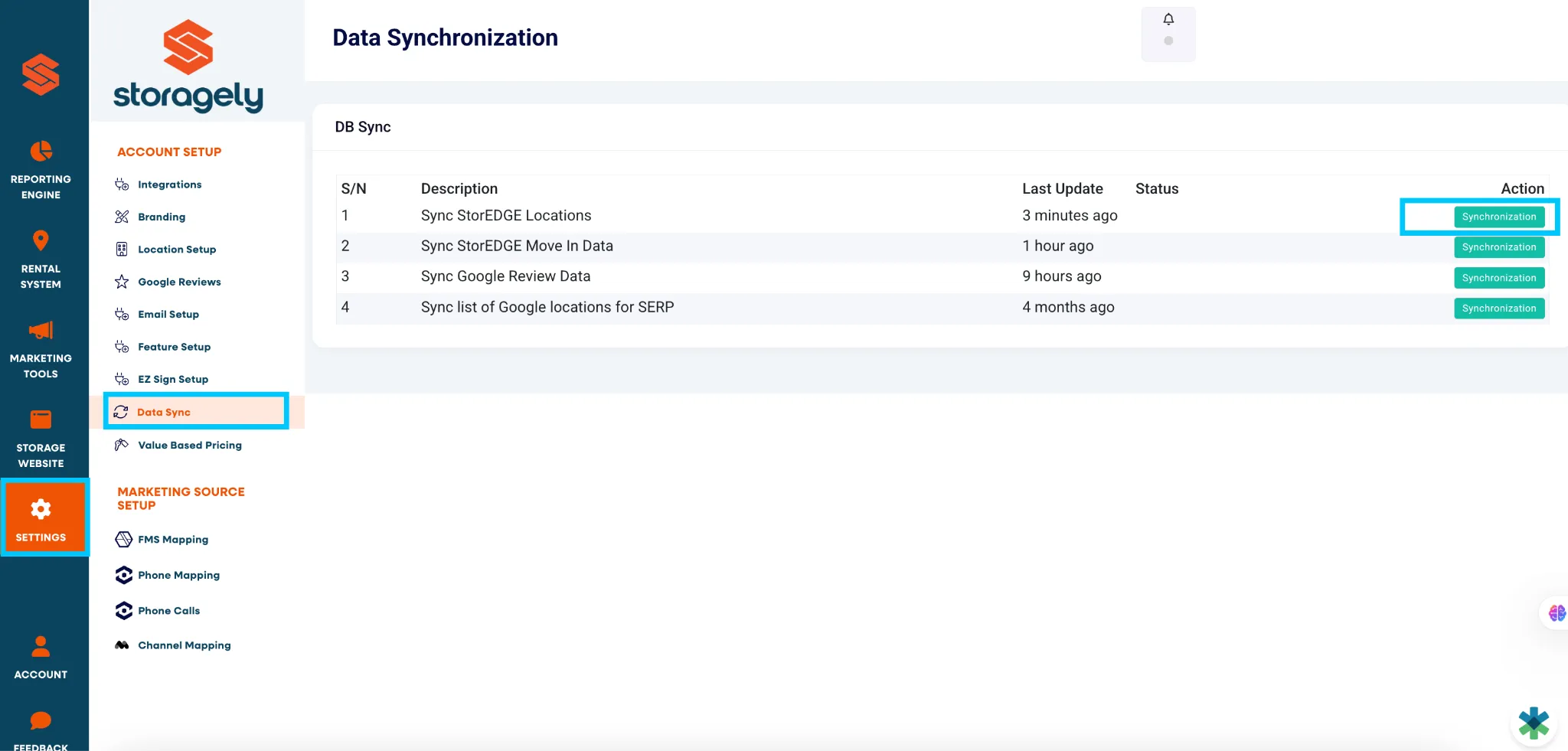
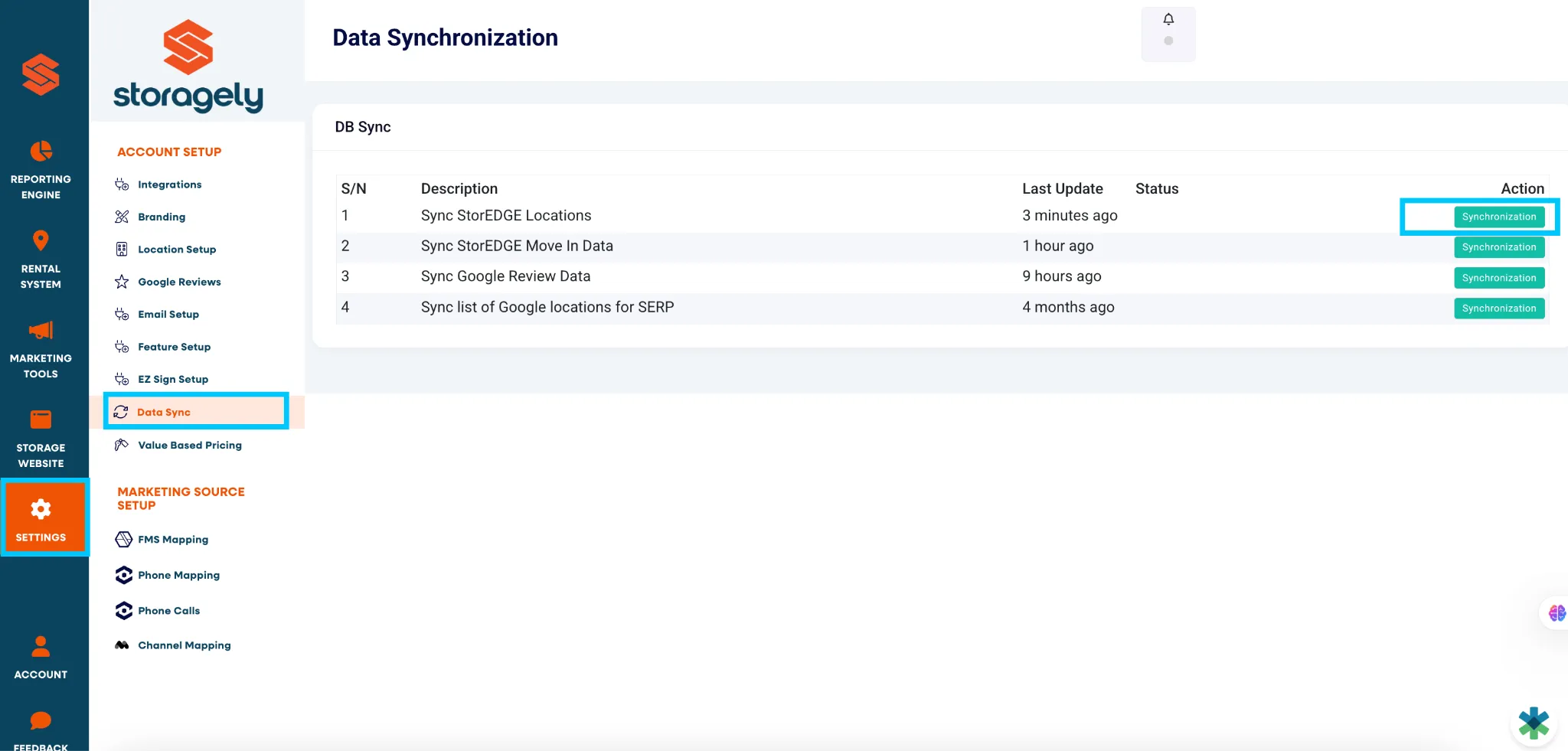
- Save your changes, then navigate to the Storagely Dashboard > Settings tab and click on ‘Data Sync’ to refresh your website inventory feed.
Best Practices:
- Use Unrentable status only when necessary to avoid lost rental opportunities.
- Schedule regular reviews of units marked Unrentable to ensure they return online promptly.
- Maintain a Maintenance Log or spreadsheet to track units temporarily offline and their estimated return dates.
"Excluded from API" is Checked
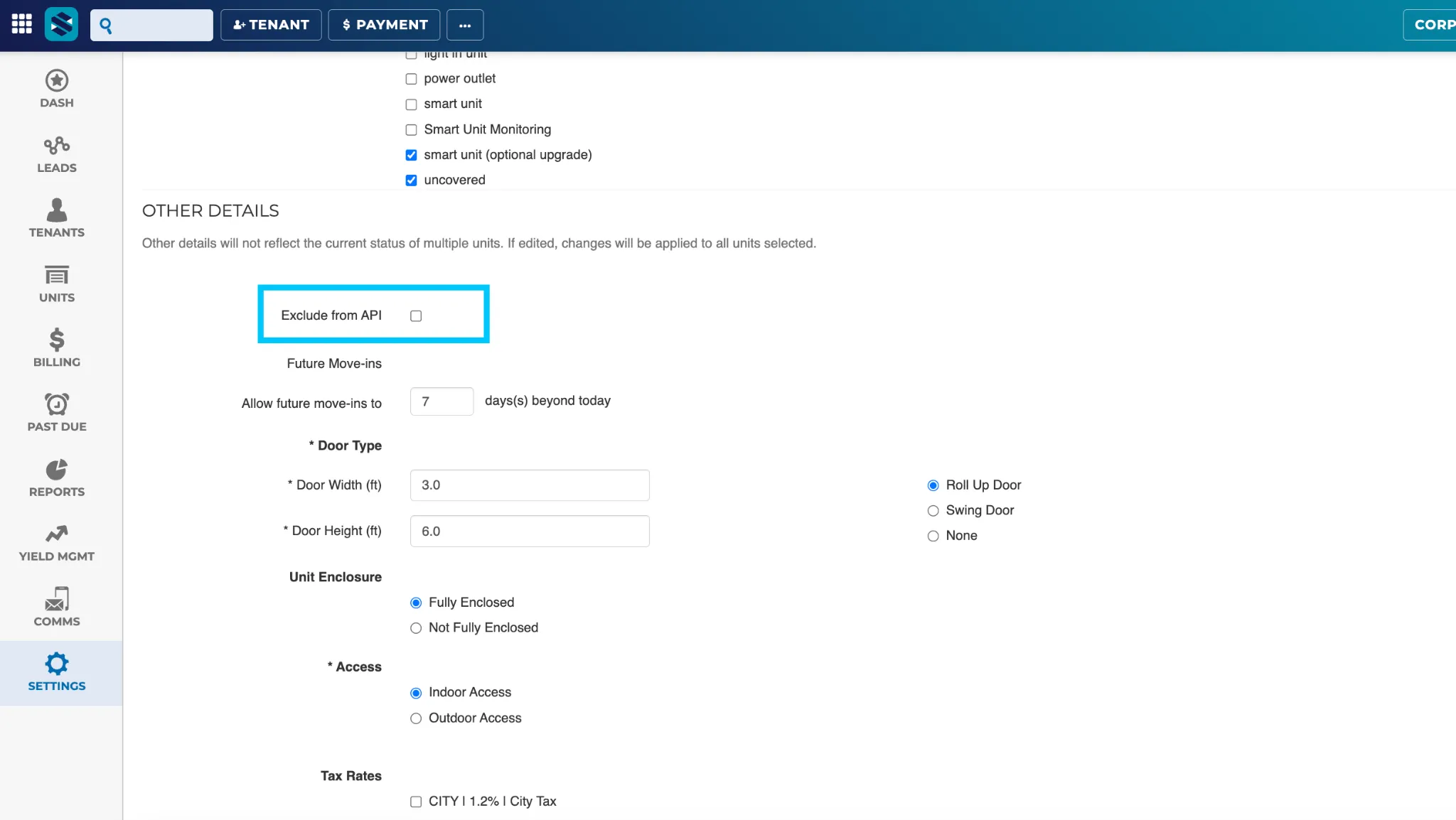
The Excluded from API setting controls whether a unit’s information is shared with external systems, including your website. If this box is checked, the unit will not appear on the website or through third-party integrations.
Steps to Check:
- Log in to the StorEDGE Admin Portal.
- Navigate to the Facility Settings > Units.
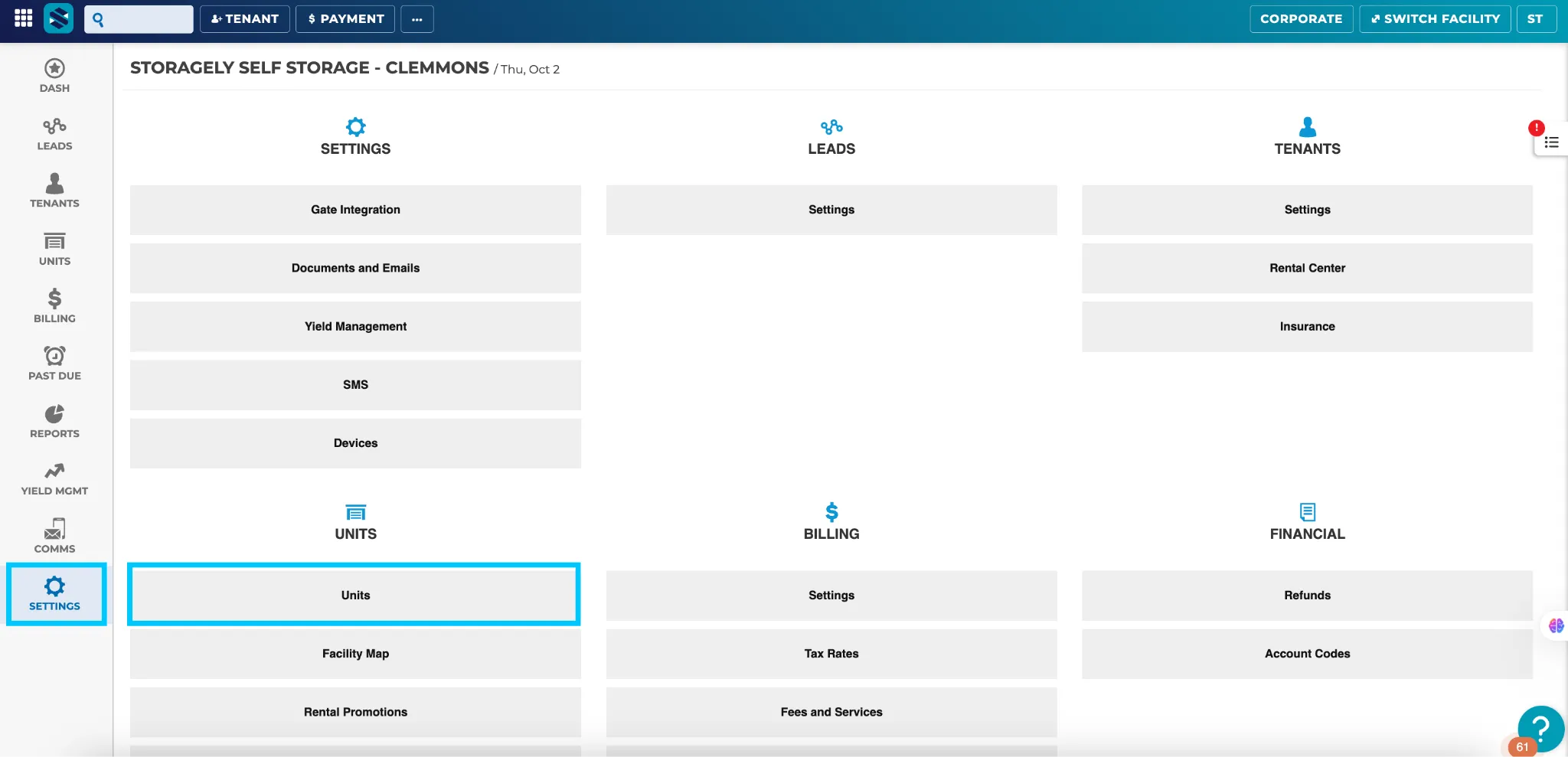
- Find the unit in question, or choose the unit group if several are missing, then click the Edit button on the right.
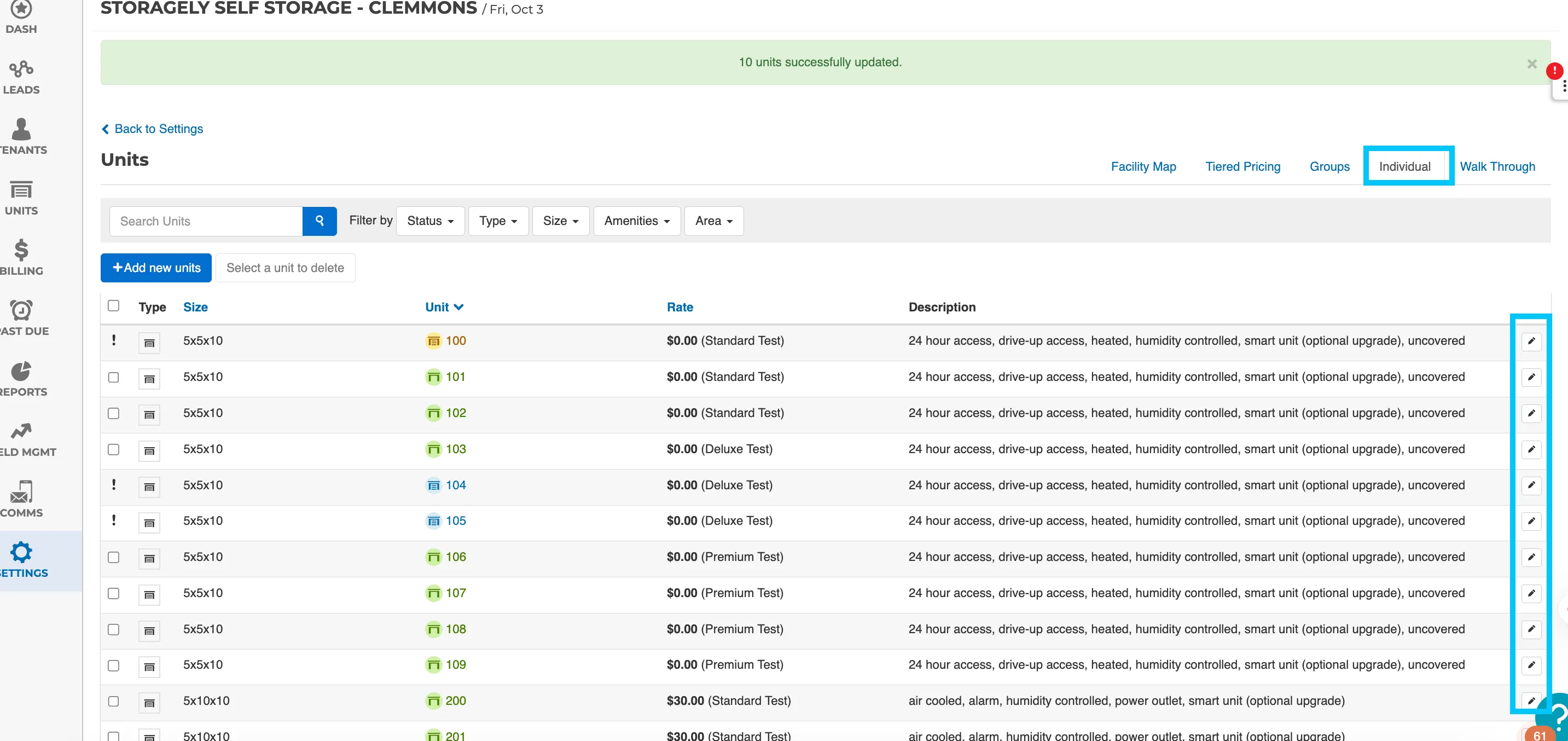
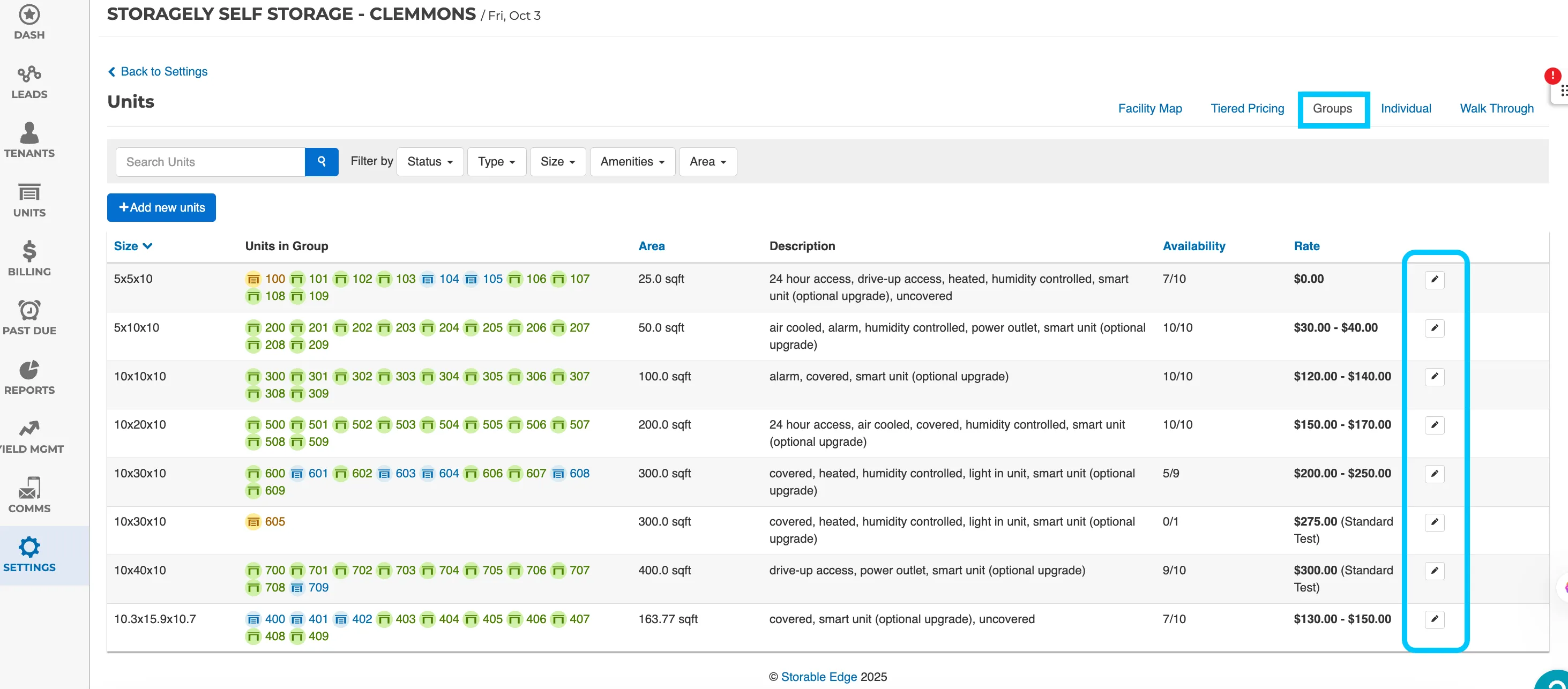
- Uncheck Excluded from API if you want the unit to appear online.
- Save your changes, then navigate to the Storagely Dashboard > Settings tab and click on ‘Data Sync’ to refresh your website inventory feed.
Best Practices:
- Only exclude units from the API when intentional (e.g., reserved for specific tenants, promotions, or internal use).
- Keep a master list of excluded units for quick reference.
- Add quarterly inventory audits to verify API settings and avoid accidental unit suppression.
Unit is Fully Occupied
Units that are fully rented cannot be displayed for online rental; however, these can be displayed to allow tenants to ‘Join the Waitlist’ when vacancy becomes available.
Steps to Check:
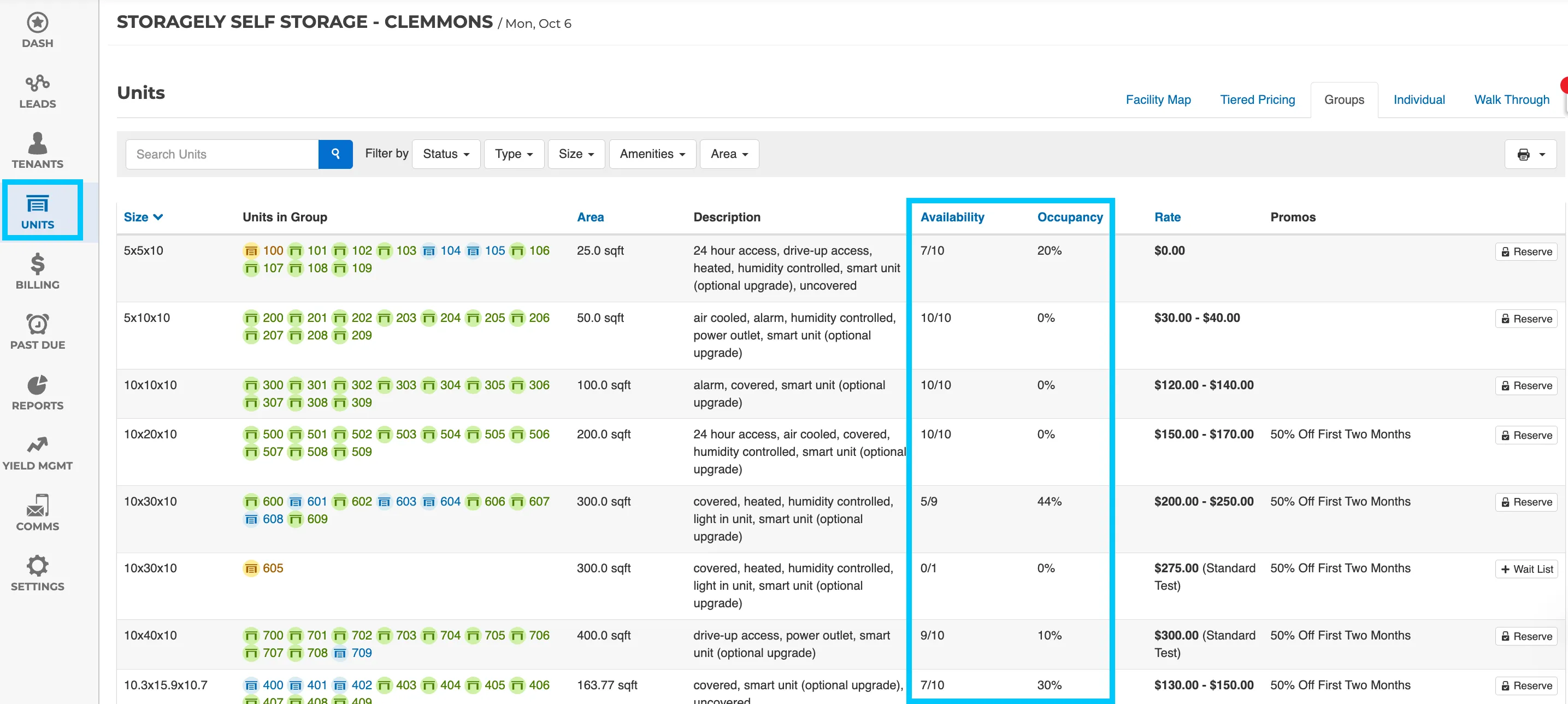
- Navigate to the Units tab to check the Vacancy Status, click on the 'Groups' tab to determine the number of available units within the group.
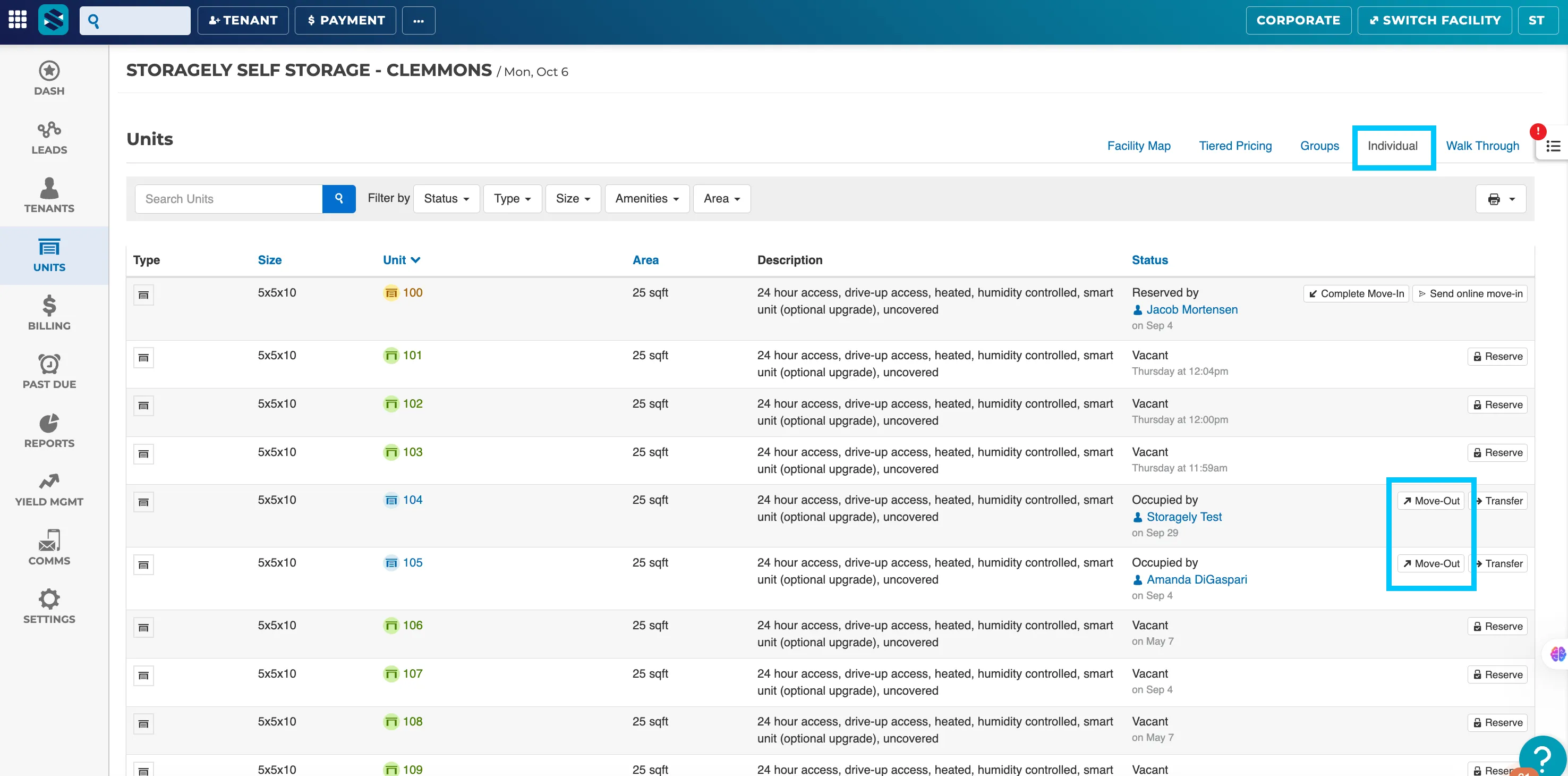
- If a unit is incorrectly marked as ‘Occupied,’ you may need to process a tenant move-out.
- Open the Individual tab, find the unit in the list, select Move-Out, and follow the prompts to complete the process.
Best Practices:
- Monitor occupancy rates and website availability daily for high-demand units.
- Track historical occupancy trends to optimize pricing and availability strategies.
Using a Single Unit Type for Multiple Unit Sizes
Unit Types are configured within your FMS and are synchronized to your Storagely website. They help categorize and distinguish units beyond their physical size, allowing customers to more easily identify the type of storage unit that best fits their needs.
Unit Types are displayed throughout the pricing grid and unit filters, and play an important role in how units are organized and presented.
A Unit Type is a category assigned to a storage unit in your FMS. Common examples include:
- Climate Controlled
- Drive-Up
- Interior
- Parking
- RV Storage
- Boat Storage
- Wine Storage
Although two units may have the same dimensions, assigning different Unit Types allows them to be displayed as separate categories on your website.
Example:
Unit Size | Unit Type | Website Display |
|---|---|---|
10 × 10 | Climate Controlled | 10×10 Climate Controlled |
10 × 10 | Drive-Up | 10×10 Drive-Up |
Important Considerations
If your FMS assigns only one Unit Type to all units, Storagely cannot separate units that share the same size.
For example, if every 10×10 unit is assigned the Unit Type Storage, the website will display all 10×10 units together—even if some are climate controlled, drive-up, or have other distinguishing features.
To display units as separate categories, each group must have a unique Unit Type configured in your Facility Management System.
Note: Unit Types are managed within your FMS. If you need to create, rename, or update Unit Types, those changes must be made in your management software before they can be synchronized to your Storagely website.
Best Practices
For the best customer experience, Storagely recommends:
- Create distinct Unit Types for units with different features or amenities.
- Use clear, descriptive Unit Type names that customers can easily understand.
- Avoid assigning the same Unit Type to units that should be displayed separately.
- Review your Unit Type configuration in your FMS regularly to ensure your website accurately reflects your available inventory.
As always, if you have any questions during this process, our Customer Success Team is here to help. The best way to reach us is by submitting a support ticket.