Setting Up GA4 Events in GTM
10 min
Overview
This guide walks you through importing Storagely’s prebuilt GTM event container and configuring it so events are properly tracked in Google Analytics from actions taken on your website.
Import the Container File
- Download this .JSON file HERE
- Login to Google Tag Manager
- Click to open GTM container

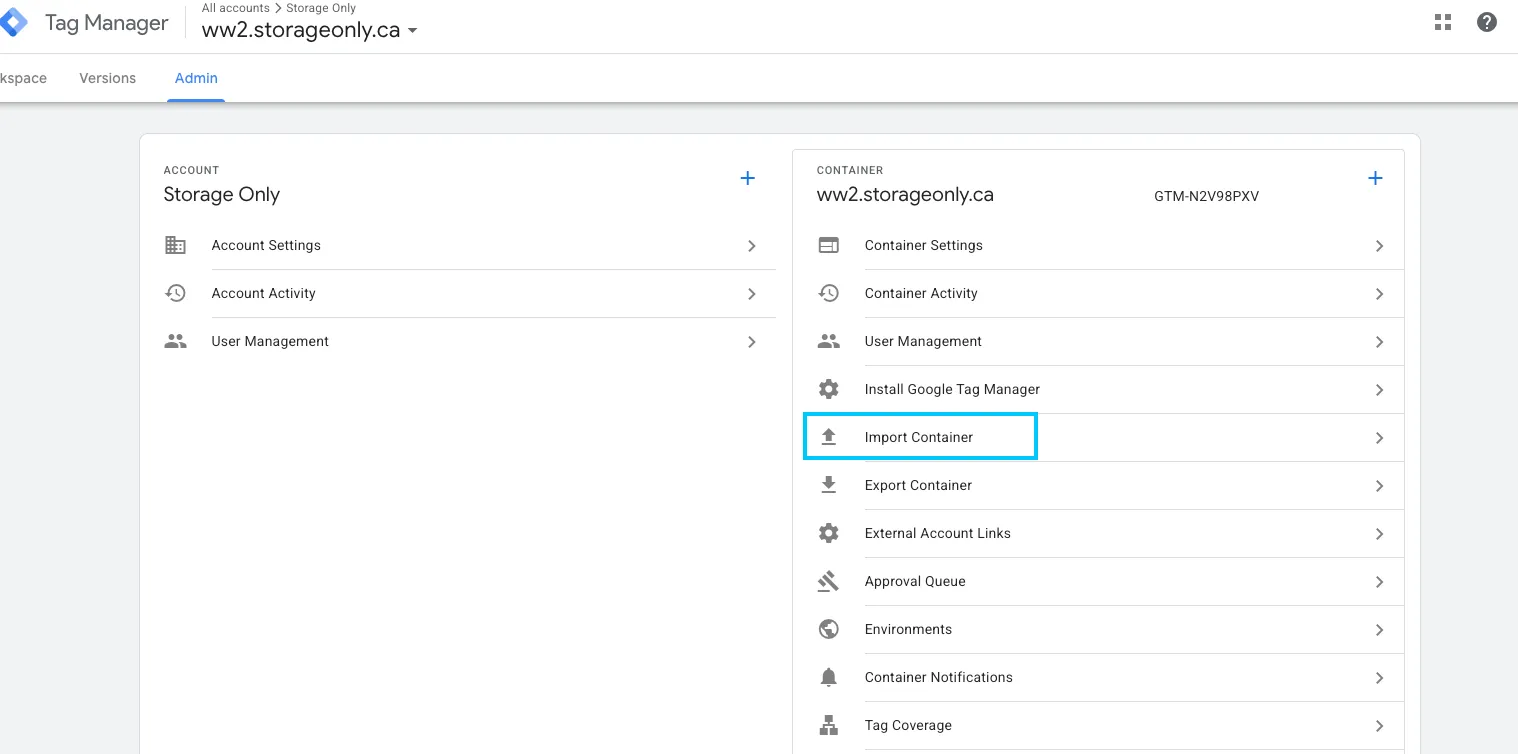
- Click on “Admin” in the top navigation

- Click on ‘Import Container’ to import the downloaded .JSON file
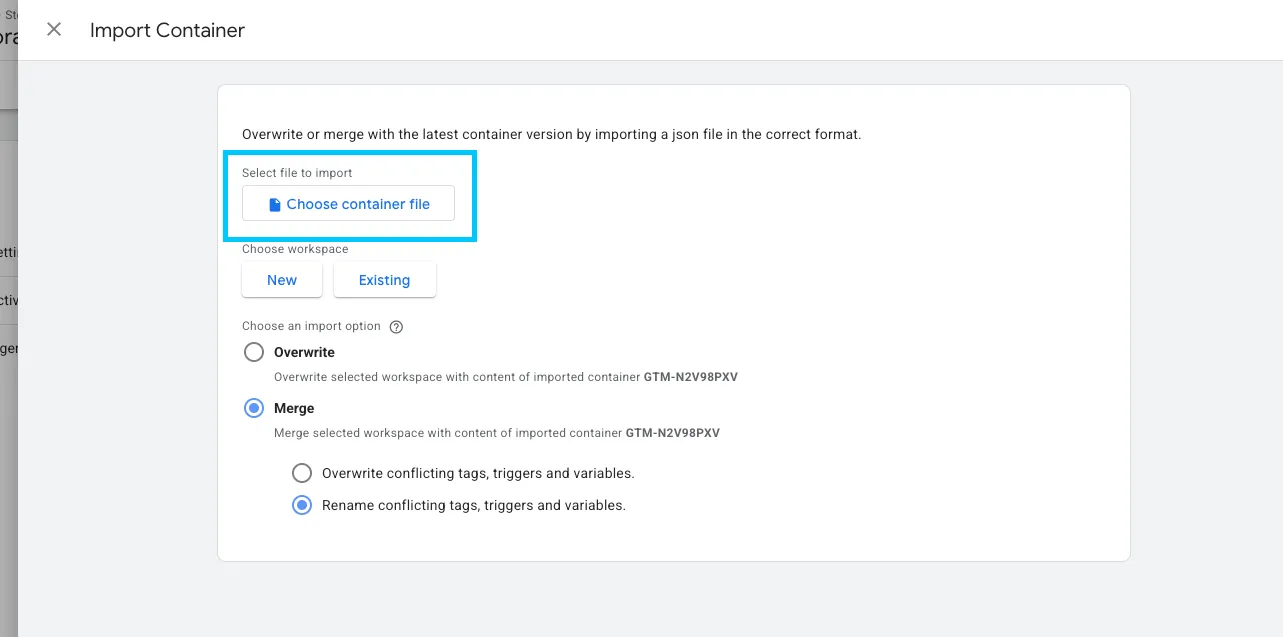
- Click on ‘Choose container file’ and select the downloaded .JSON file from your downloads folder
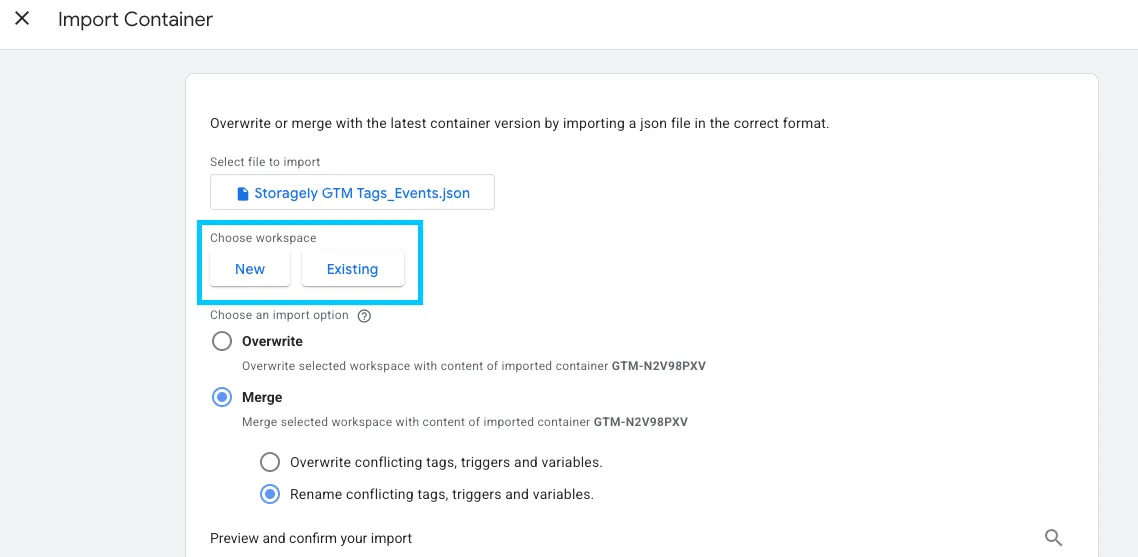
Select Workspace
Choose where the tags should live:
- Existing Workspace – typically "Default Workspace" (recommended for most users)
- New Workspace – use if you want the tags separated for testing
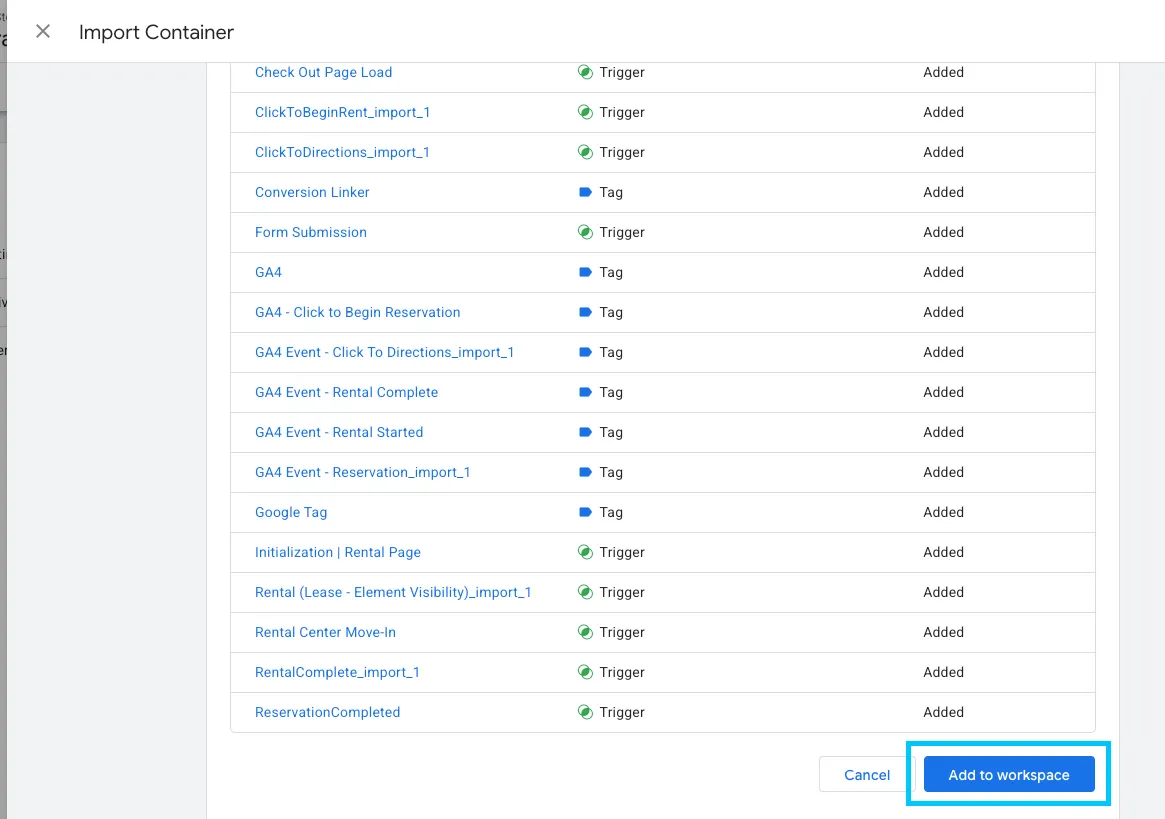
- Click Add to workspace at the bottom of the page.
Configure Variables
- Go to Variables
- Open GA4 Measurement ID
- Enter your Google Analytics 4 Measurement ID
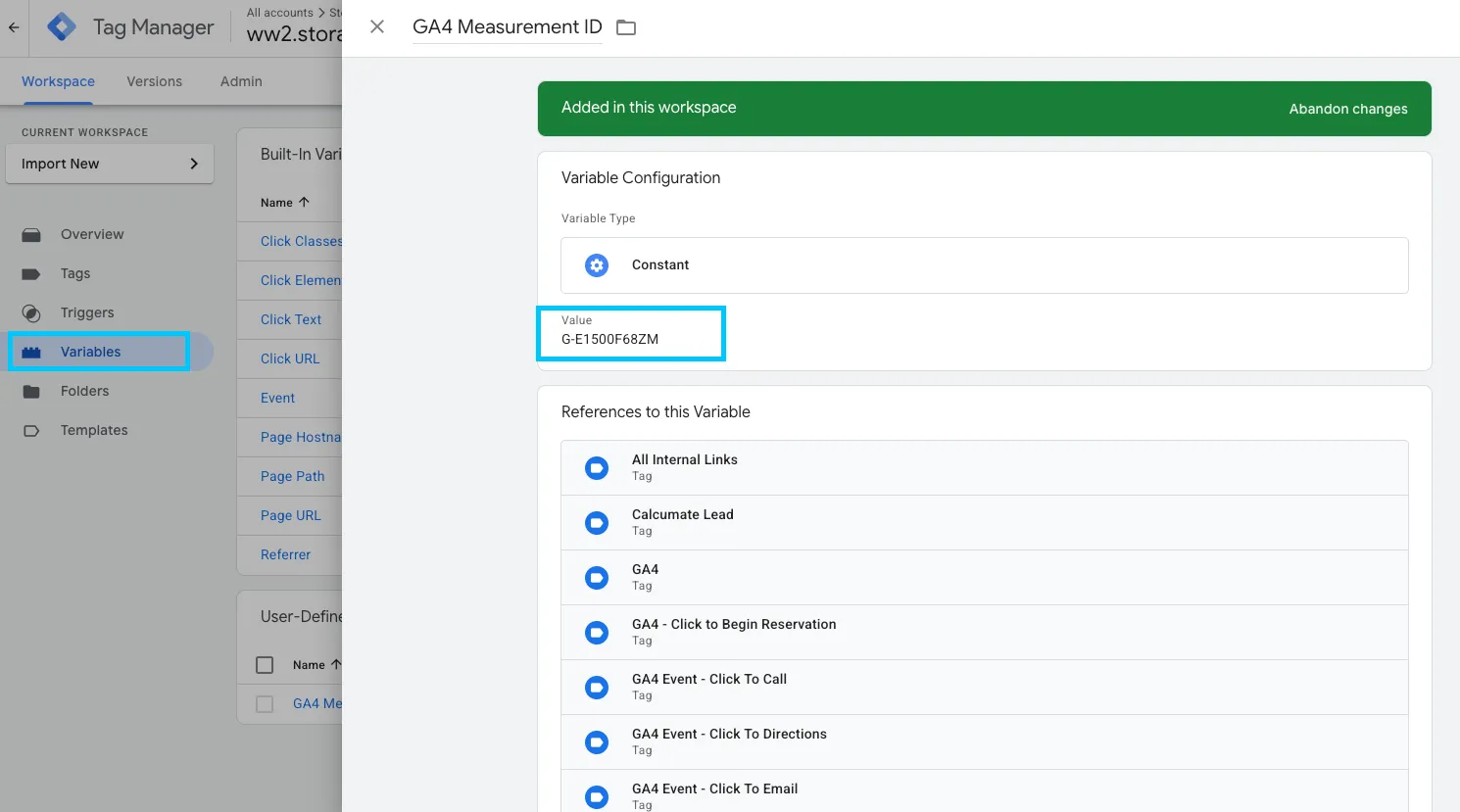
To find the GA4 measurement ID: Follow this article
Update Trigger URLs
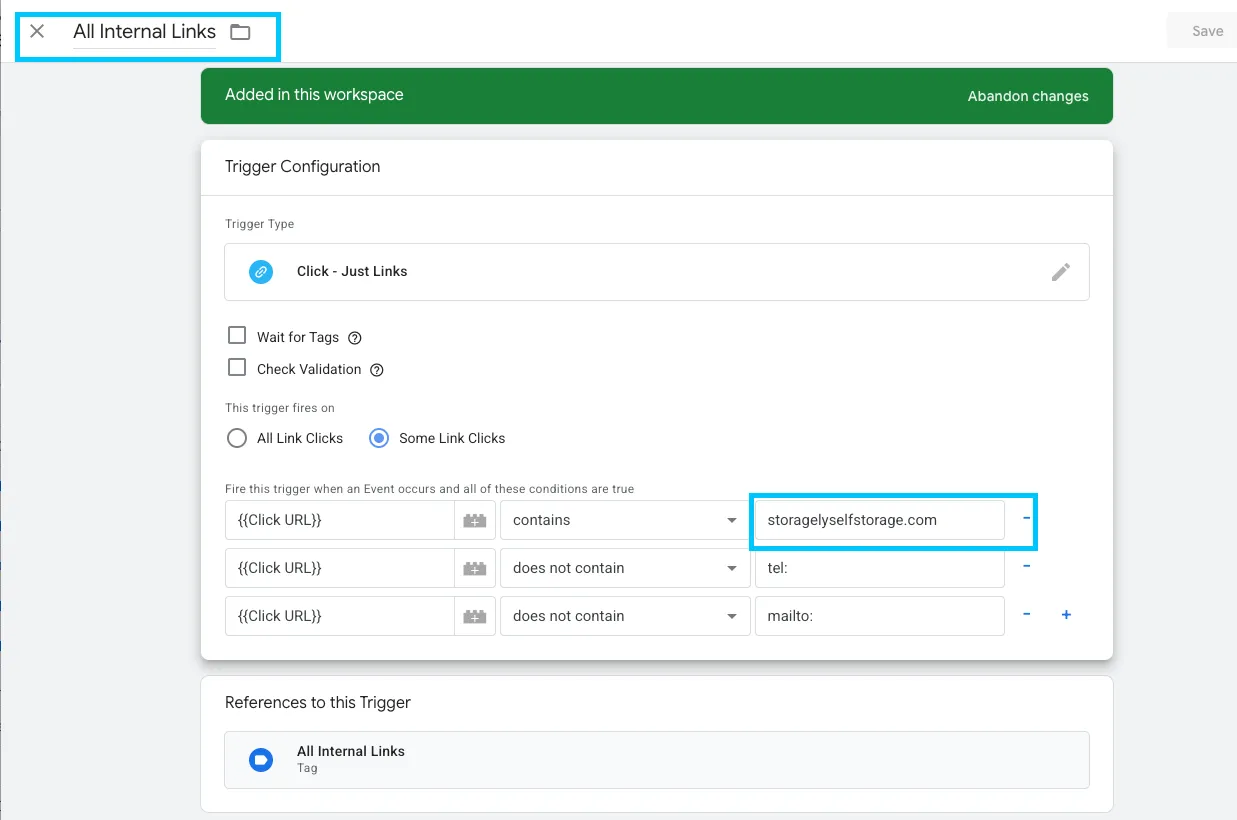
- Open Triggers
- Select 'All Internal Links'
- Click Trigger Configuration
- Update the top {{Click URL}} field with your root domain:
- Example: https://yourdomain.com
Preview and Debug New GA4 Tag
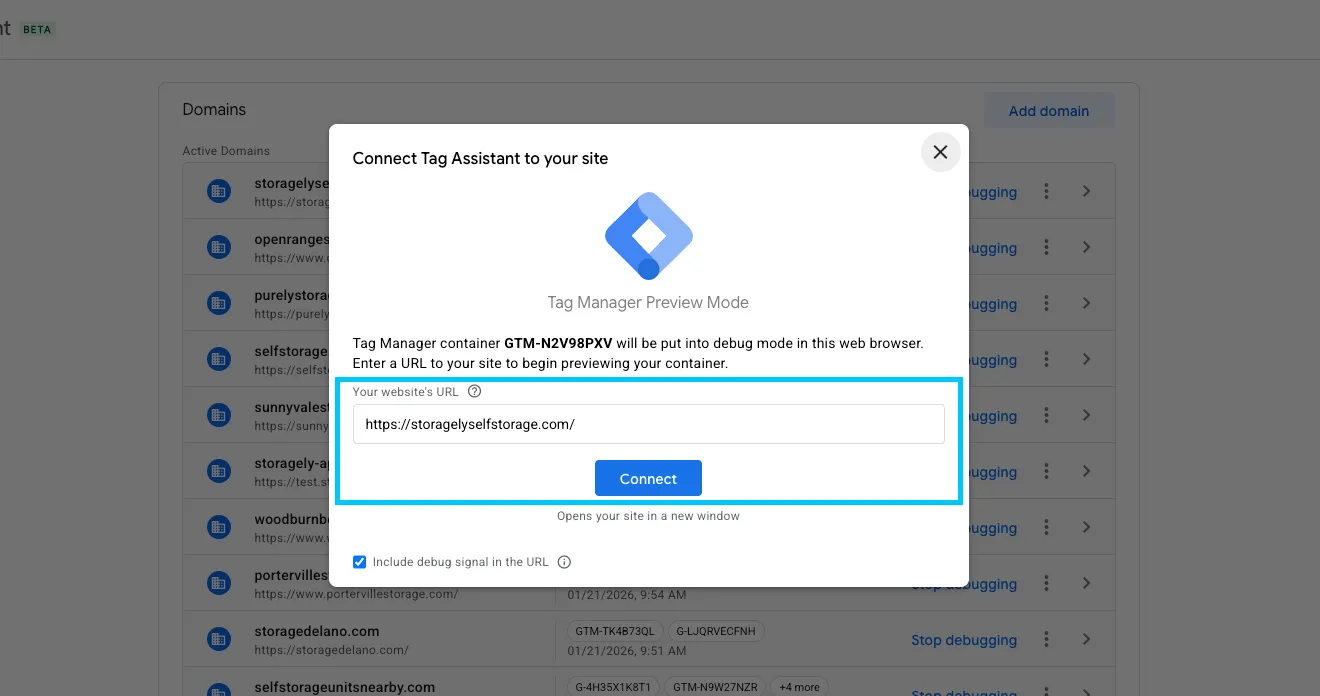
- After adding the Event tags, click the Preview button in the top right.

- Click Connect. The website will open in a new Tab.
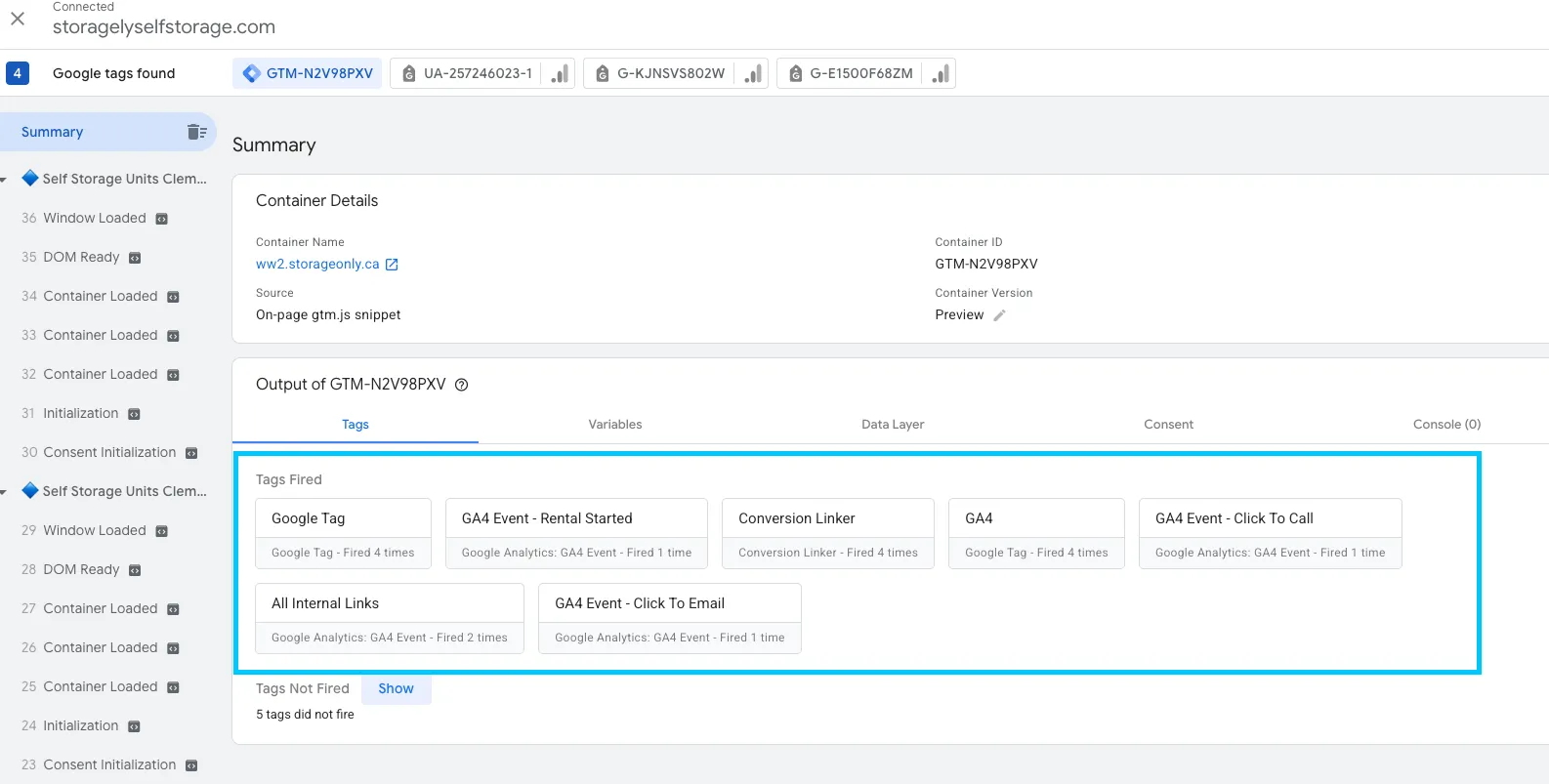
- Navigate to the website and click the buttons to trigger the events.
- Click back to the Google Tag Manager debug panel and view the Tags Fired section. You should see the event name of the tag you just tested.
Publish Changes
- After previewing the website and testing, the new event is firing correctly. Go back to Google Tag Manager and click Submit.

- Add a descriptive name and/or detailed description of the changes. Click Publish.
Mark the Event as a Conversion (Key Event) in GA4
Events may take up to 24 hours to appear in GA4
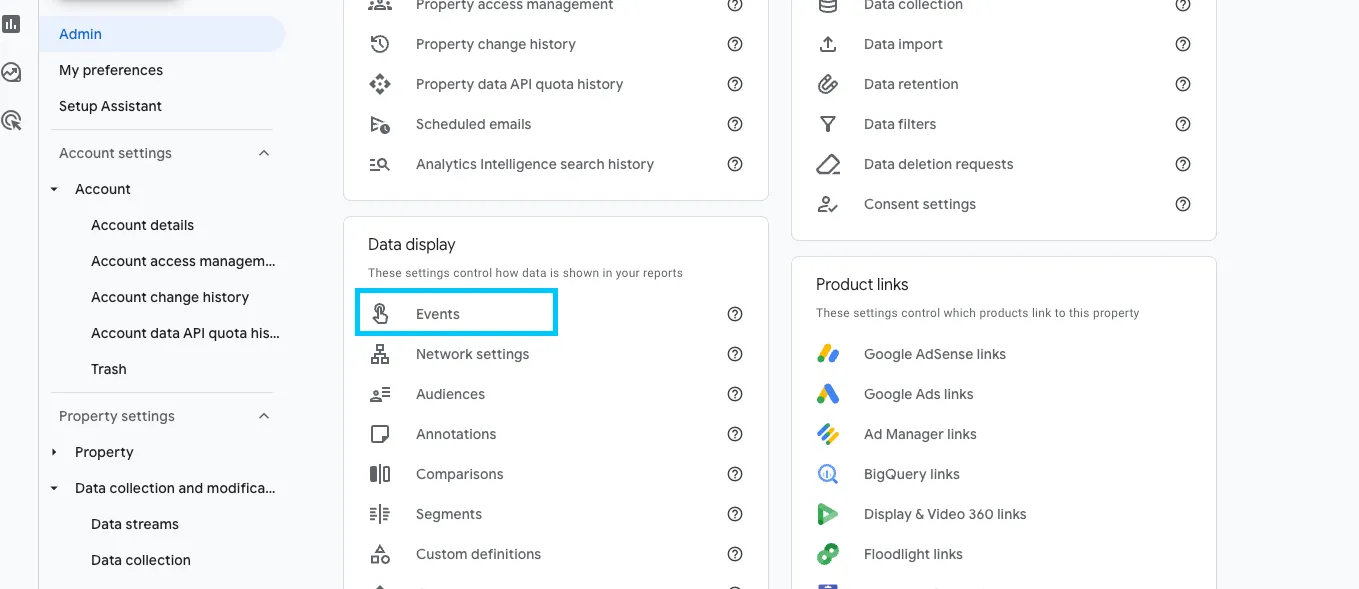
- Log in to GA4
- Click Admin
- Select Data Display → Key Events
- Toggle the event ON to mark it as a conversion
Best Practices
- Ensure the Measurement ID matches your GA4 property
- Confirm that the domain in triggers matches your site exactly
- Always use Preview mode before publishing
- Wait 24 hours before confirming events in GA4 reporting
As always, if you have any questions during this process, our Customer Success Team is here to help. The best way to reach us is by submitting a support ticket.
Have a question?
Our super-smart AI, knowledgeable support team and an awesome community will get you an answer in a flash.
To ask a question or participate in discussions, you'll need to authenticate first.