Media Settings
1. Introduction
The Media Settings in the Storagely Dashboard allow facility operators to upload, manage, and organize media files such as images and videos for use across their website. These media assets can be applied to various sections, including hero images, facility photos, promotions, and custom pages.
2. Navigating to Media Settings
To access the Media Settings:
- Log in to your Storagely Dashboard.
- In the left sidebar menu, click on Storage Website.
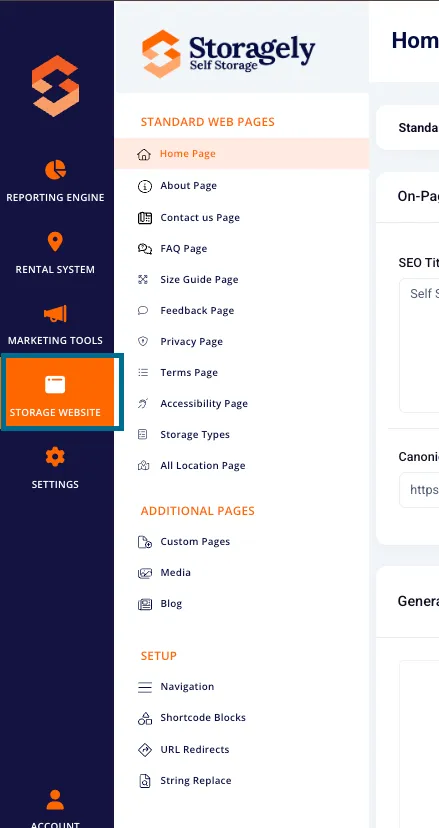
- Select Media from the available options.
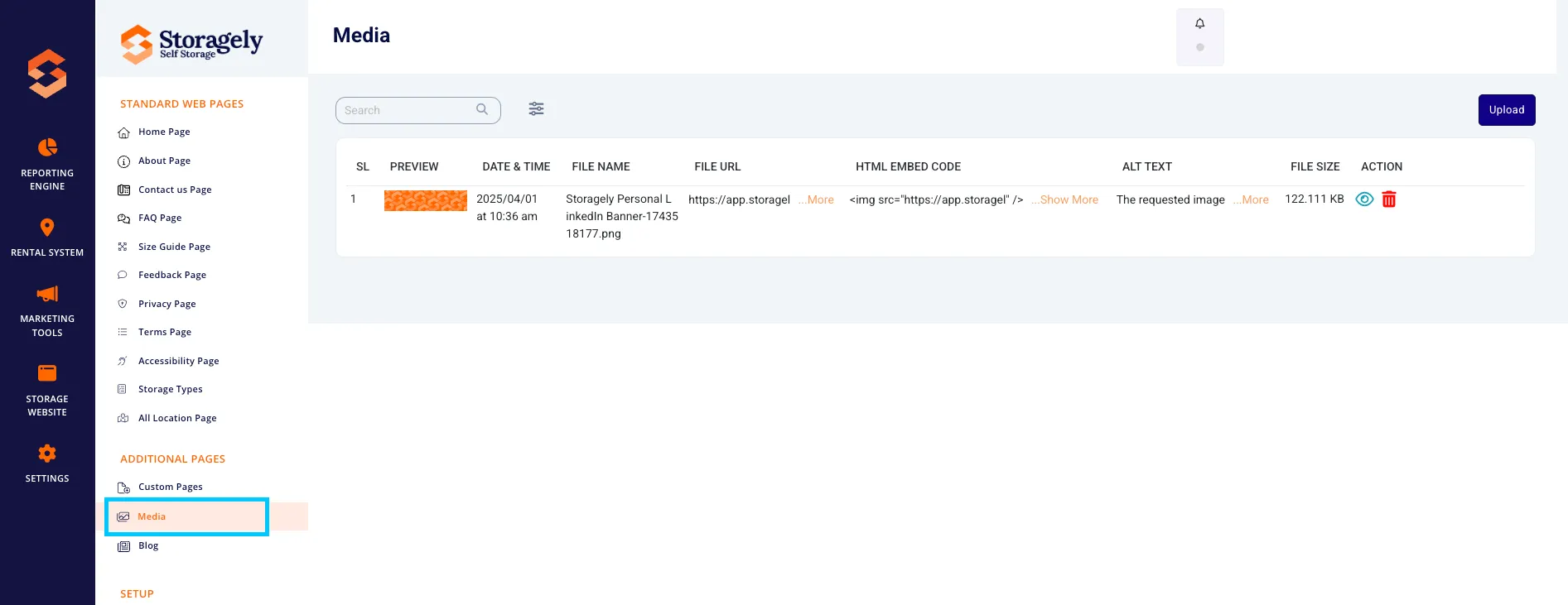
3. Understanding the Media Settings Interface
A. Uploading Media Files
- Click the “Upload” button in the top right corner.
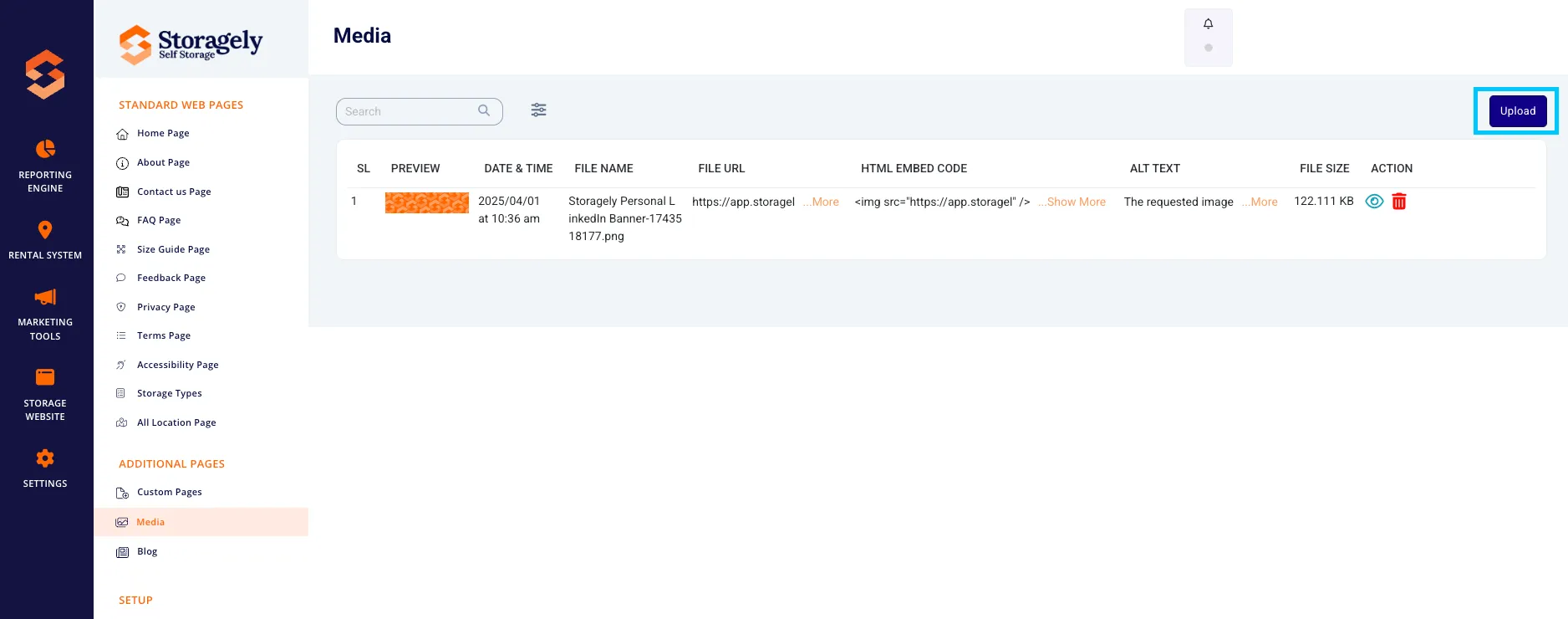
- A file uploader will appear with the option to drag and drop a file or click to browse your device.
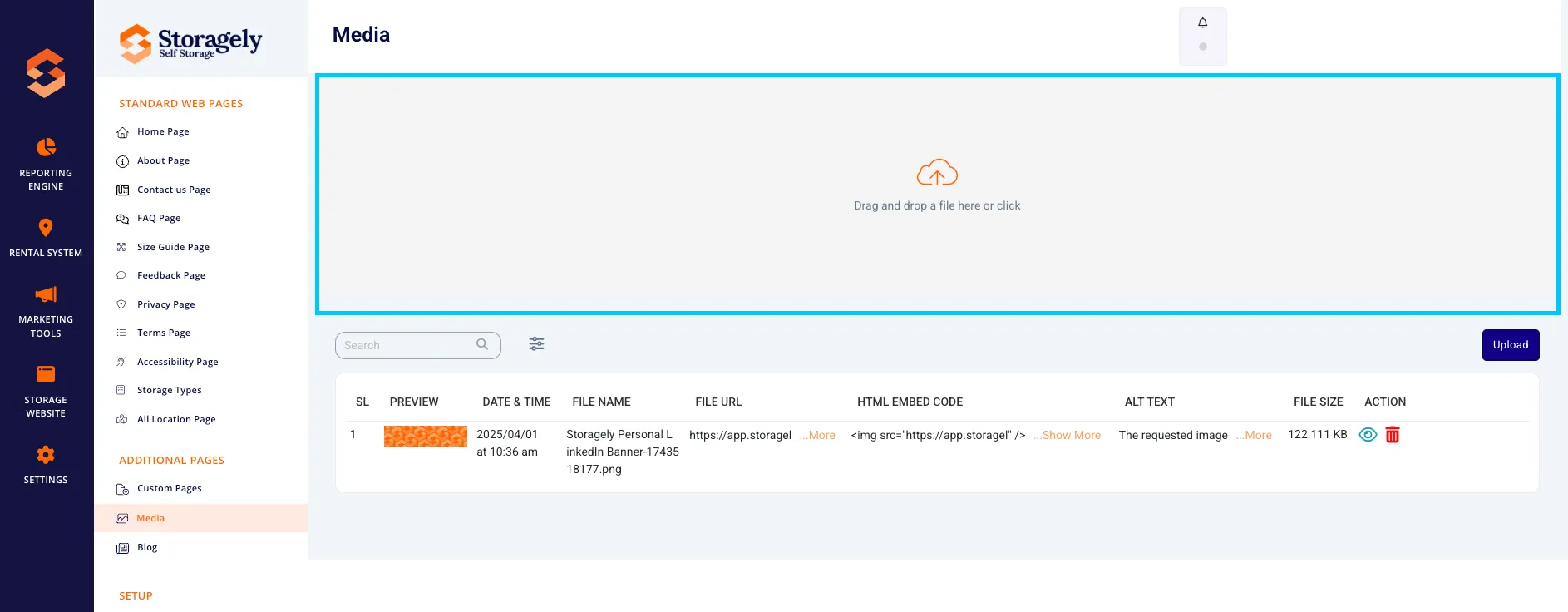
- Select the image or video file you want to upload.
- Click “Upload” to add the file to your media library.
Supported File Formats:
- Images: JPG, PNG, WebP
- Videos: MP4 (file size limits may apply)
B. Searching & Filtering Media Files
- Use the Search Bar to quickly locate a specific file.
- Click the Filter Icon to sort files by type, date, or size.

C. Managing Uploaded Media
- Rename files for better organization.
- Delete unwanted files to keep storage clean.
- Replace existing images in active pages or sections.

4. How to Upload and Manage Media
Step 1: Upload a Media File
- Click the “Upload” button.
- Drag and drop the file into the upload area or click to select a file from your device.
- Click “Upload” to add the file to the media library.
Step 2: Search & Filter Media
- Use the Search Bar to find a specific file by name.
- Apply filters to sort files by type, date, or size.
Step 3: Delete a Media File
- Locate the file in your media library.
- Click the Delete icon.
- Confirm deletion (this action cannot be undone).
Step 4: Replace an Existing Media File
- Locate the file in use on a page or section.
- Click the Replace button.
- Select and upload a new file.
5. Best Practices for Media Management
✅ Use high-quality images for a professional look. ✅ Optimize file sizes to ensure fast website loading times. ✅ Organize media files by naming them clearly (e.g., “facility-hero-image.jpg”). ✅ Delete old and unused files to maintain a clean media library.
6. FAQs & Troubleshooting
Q1: What file types are supported? A: Storagely supports JPG, PNG, WebP for images and MP4 for videos.
Q2: How do I delete an image from my media library? A: Locate the file, click the Delete button, and confirm deletion.
Q3: Can I replace an existing image without re-uploading it? A: Yes! Click Replace and select a new file to overwrite the existing one.
Q4: What should I do if my upload fails? A: Ensure the file is in the correct format and does not exceed the size limit.
Q5: How do I organize my media files? A: Use the Search Bar and Filters to categorize and find media files easily.
As always, if you have any questions during this process, our Customer Success Team is here to help. The best way to reach us is by submitting a support ticket.