Rental System Settings
Introduction
The Rental System Settings in the Storagely Dashboard allow facility operators to configure various aspects of the rental and reservation system. These settings control how units are rented, reserved, and displayed to customers, along with additional features like promotions, insurance, and chat functionality.
This guide provides an overview of the different settings and instructions on how to configure them effectively.
Important Notice:
- Future move-in and reservation settings must match the settings in the Facility Management Software (FMS). Storagely does not override the FMS—if these settings differ, the FMS settings will take priority.
- Operators should ensure that future move-in days and future reservation days in Storagely align with the FMS settings to prevent conflicts.
2. Navigating to Rental System Settings
To access the Rental System Settings:
- Log in to your Storagely Dashboard.
- In the left sidebar menu, click on Rental System.
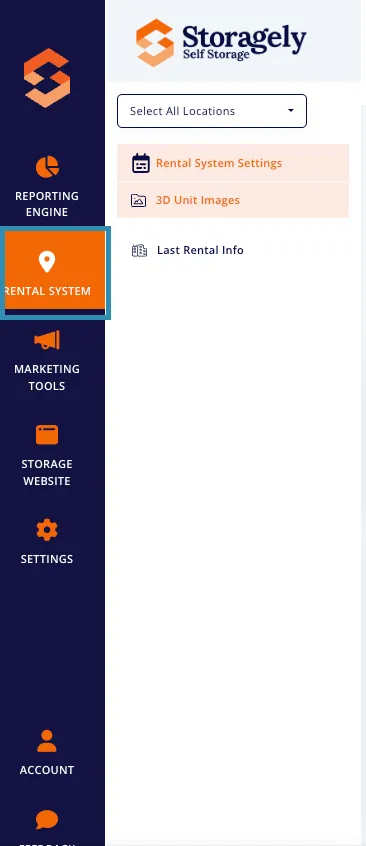
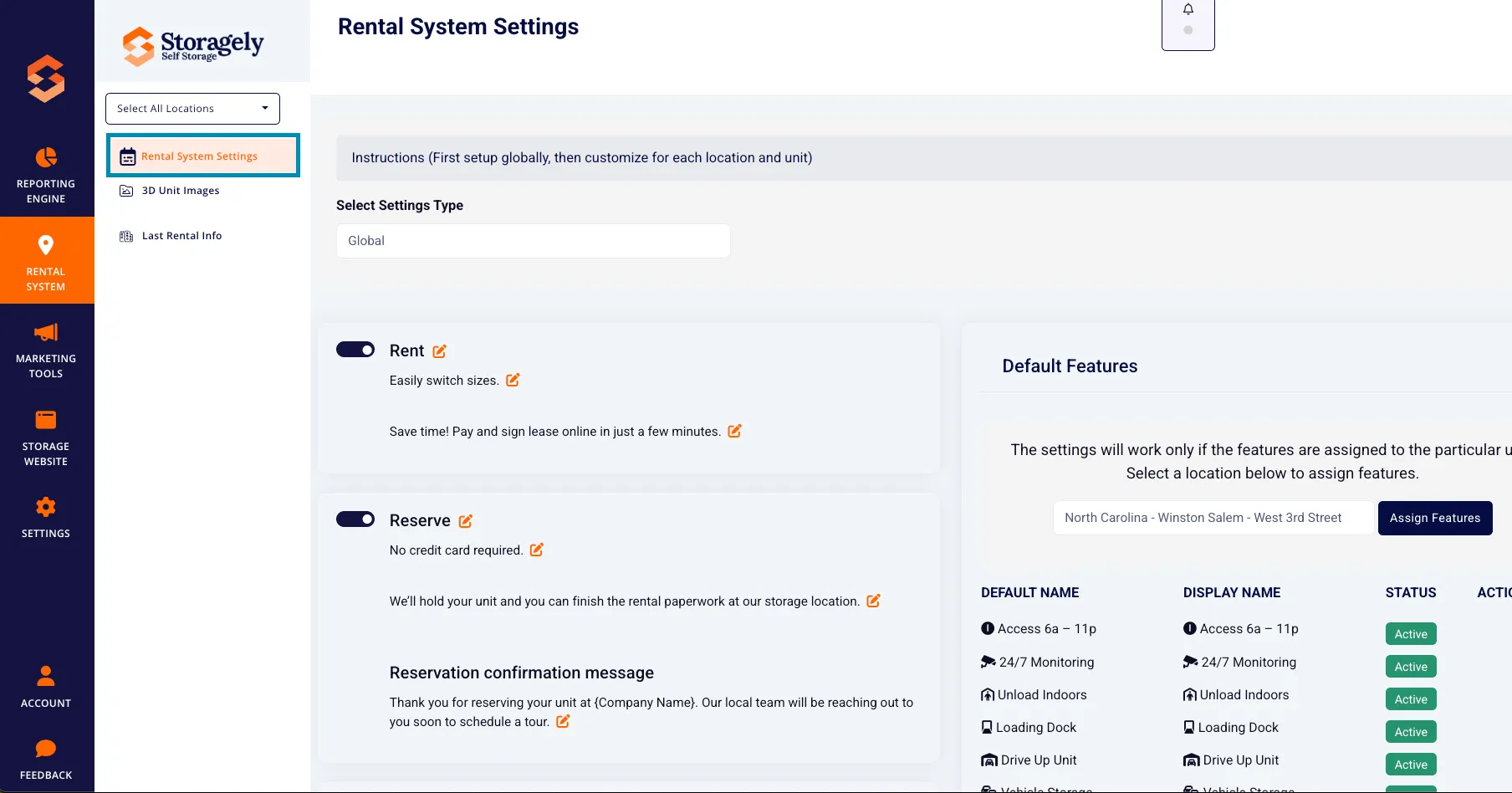
- Select Rental System Settings from the available options.
3. Understanding the Rental System Settings Interface
The Rental System Settings page is divided into multiple sections, allowing operators to configure different aspects of the rental system. Items on this page can be applied Globally (All locations) or Location Based (specific locations).
Before making changes, you will need to determine if the change being made should apply Globally or Location Based.
Under the 'Select Setting Type' section, choose Global (default) or choose Location Based.
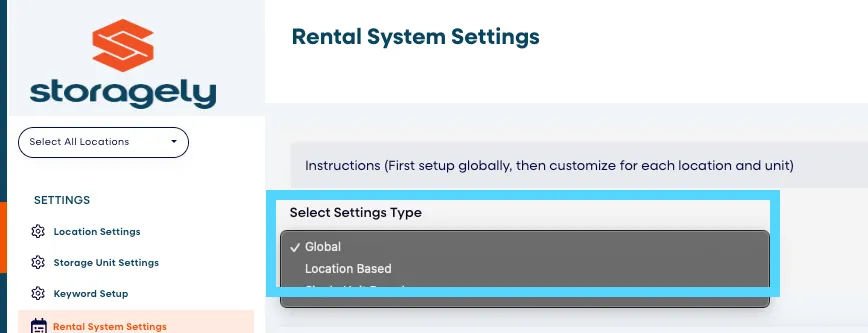
First setup globally, then customize for each location and unit. Otherwise, location/unit settings will override global settings.
A. Rental & Reservation Button Customization
Operators can customize the text and tooltips for the following buttons:
- Rent Button - Customize the rent button text and tooltip (e.g. "Easily switch sizes").
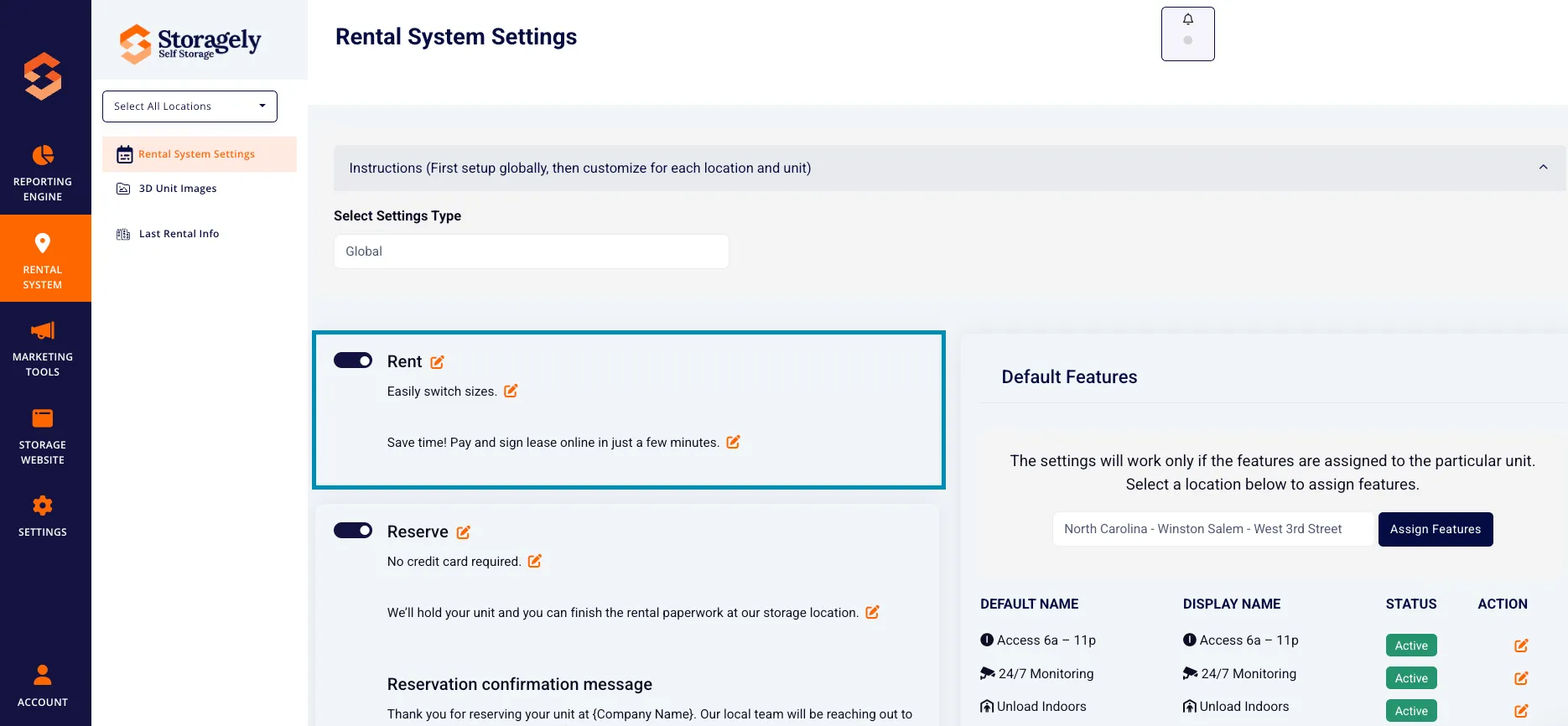
- Reserve Button - Modify the reserve button text and tooltip (e.g. "No credit card required").
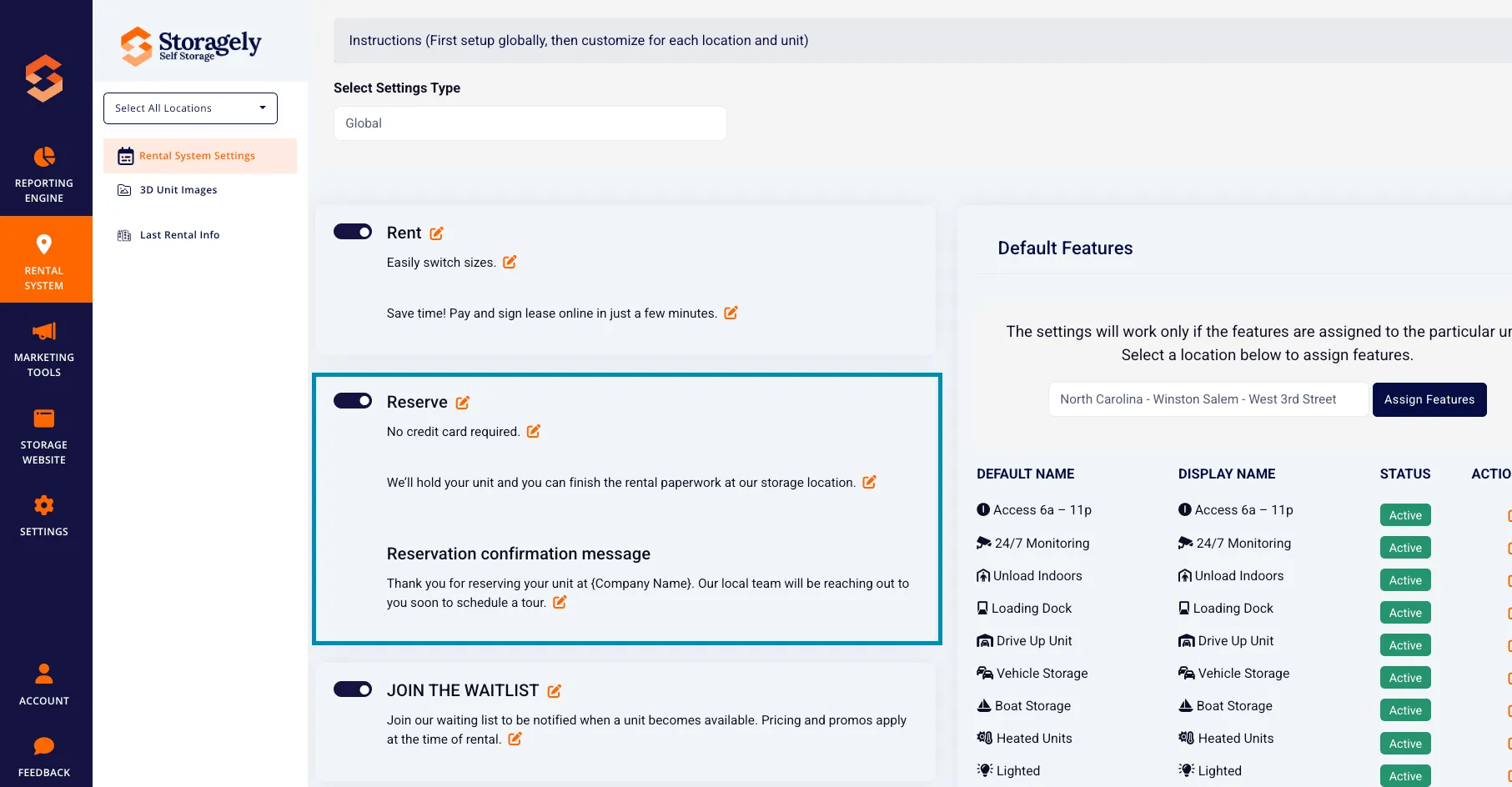
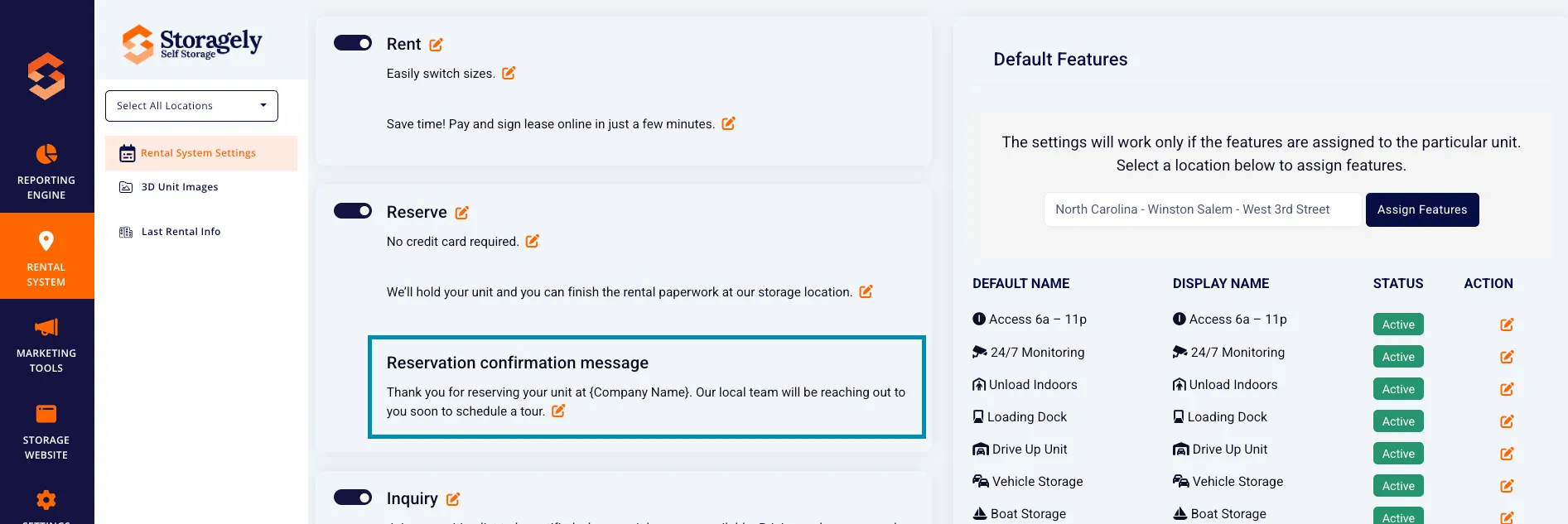
- Reservation Confirmation Message – Edit the text customers receive after making a reservation.
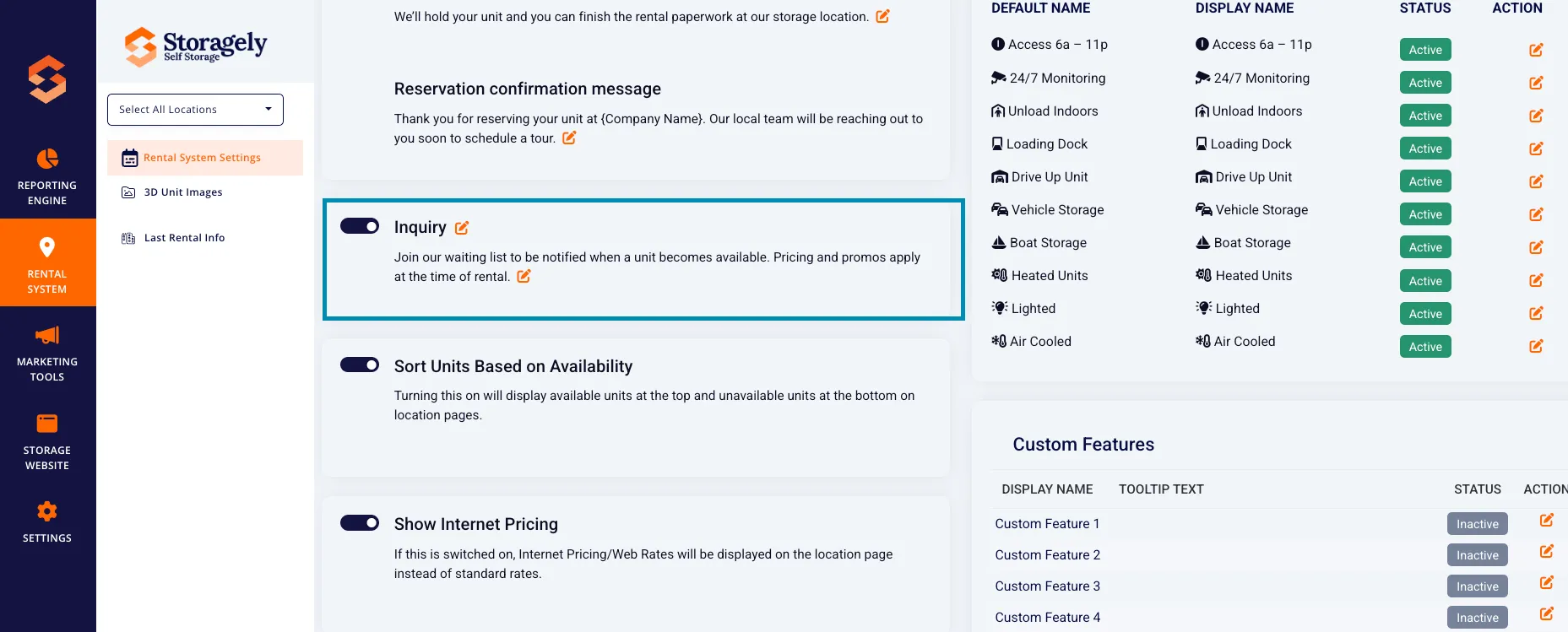
B. Inquiry or Join the Waitlist Button
Turning this on will display units with no available inventory on your unit table and give customers the option to "Join the Waitlist" for that size. You can also modify the text and tooltip for customer inquiries. (e.g., “Join the WaitList”).
C. Sort Units Based on Availability
Turning this on will display available units at the top and unavailable units at the bottom on location pages.
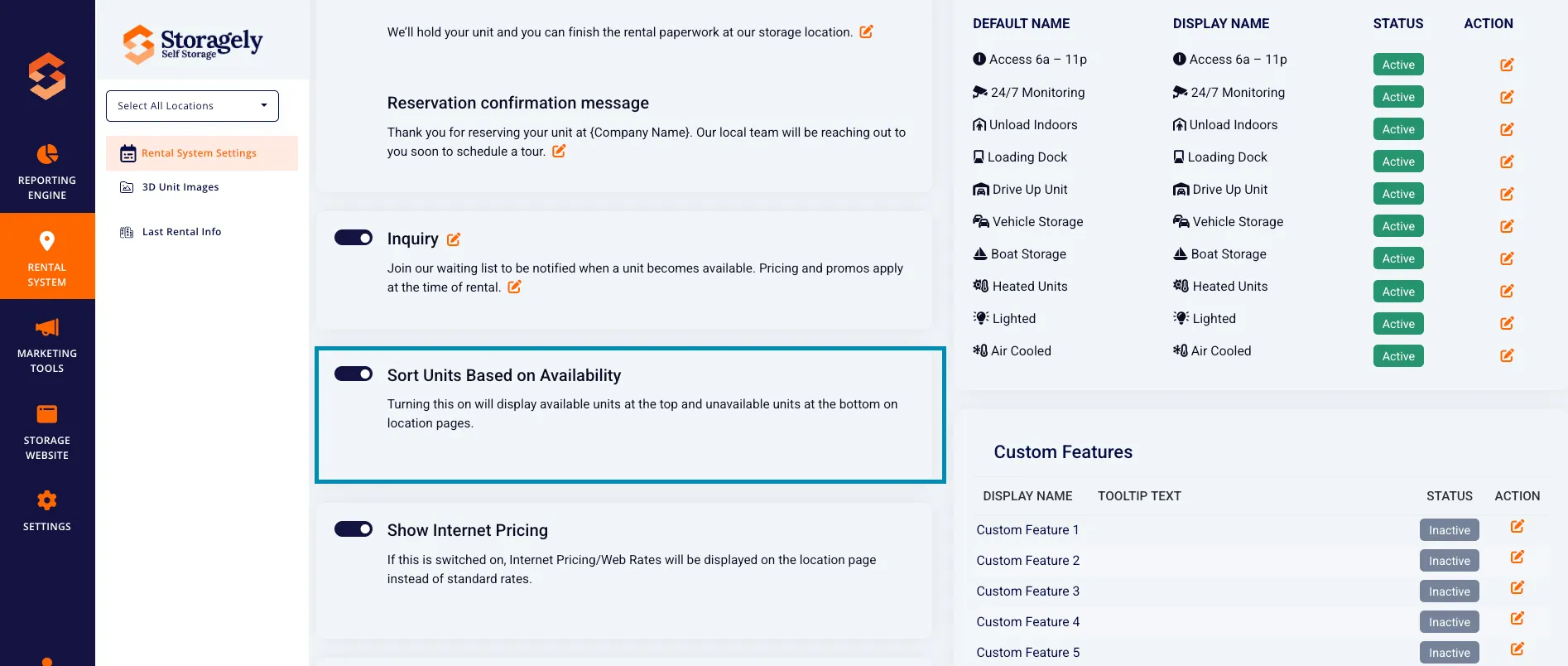
Note: The toggle settings for the following buttons directly impact which form is displayed within the pricing grid
- Rent – Enables online move-ins for available units.
- Reserve – Enables online reservations for available units.
- Inquiry – Displays fully occupied units and submits an inquiry lead form.
Changing the state of any of these toggles will update the form behavior on the website accordingly.
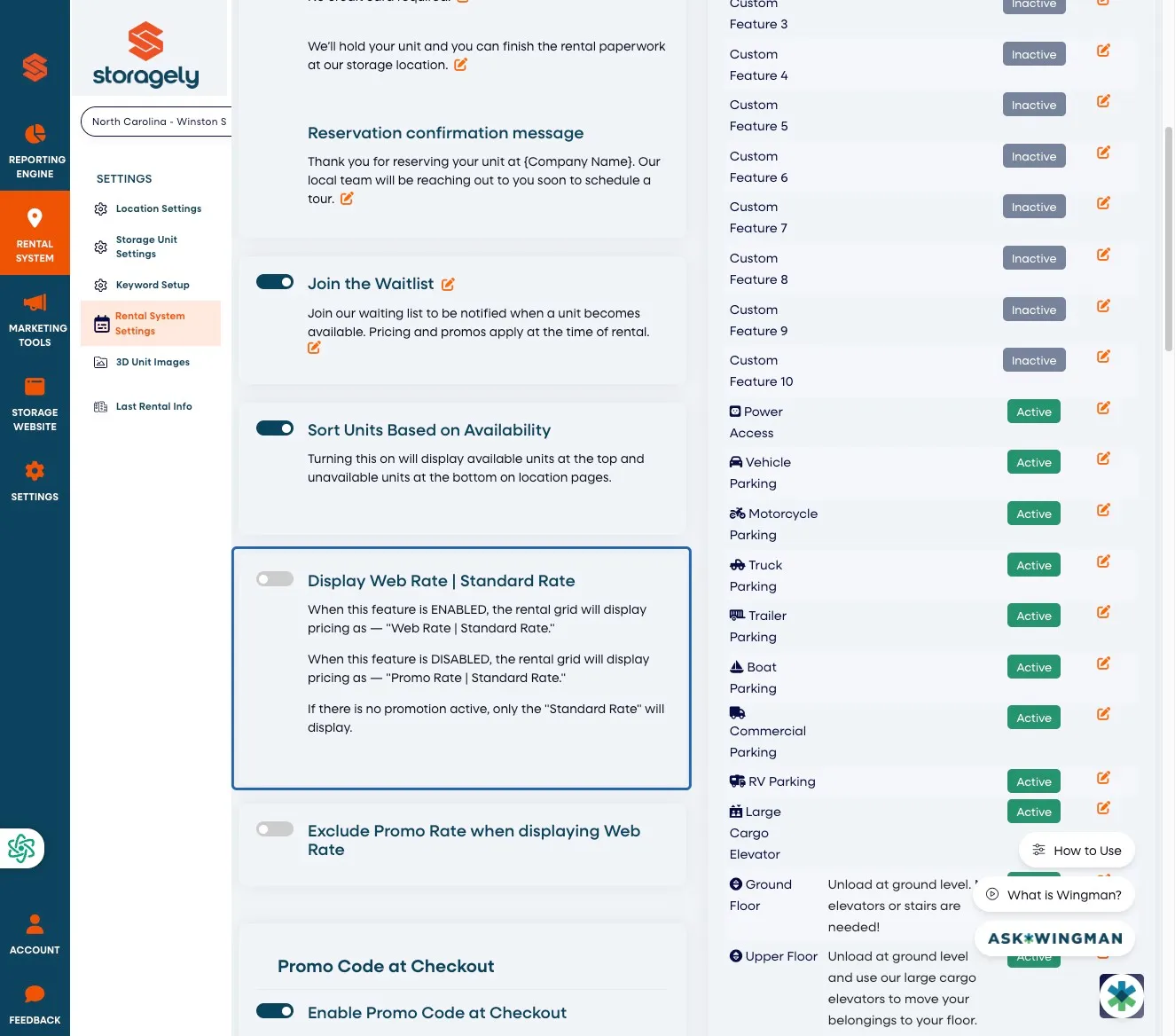
D. Display Web Rate | Standard Rate
When enabled, unit pricing will display as “Web Rate | Standard Rate.” When disabled, pricing will display as “Promo Rate | Standard Rate.”
- If no promotion is active, only the Standard Rate will display.
- This setting helps control whether customers see web-only pricing or promotional language first.
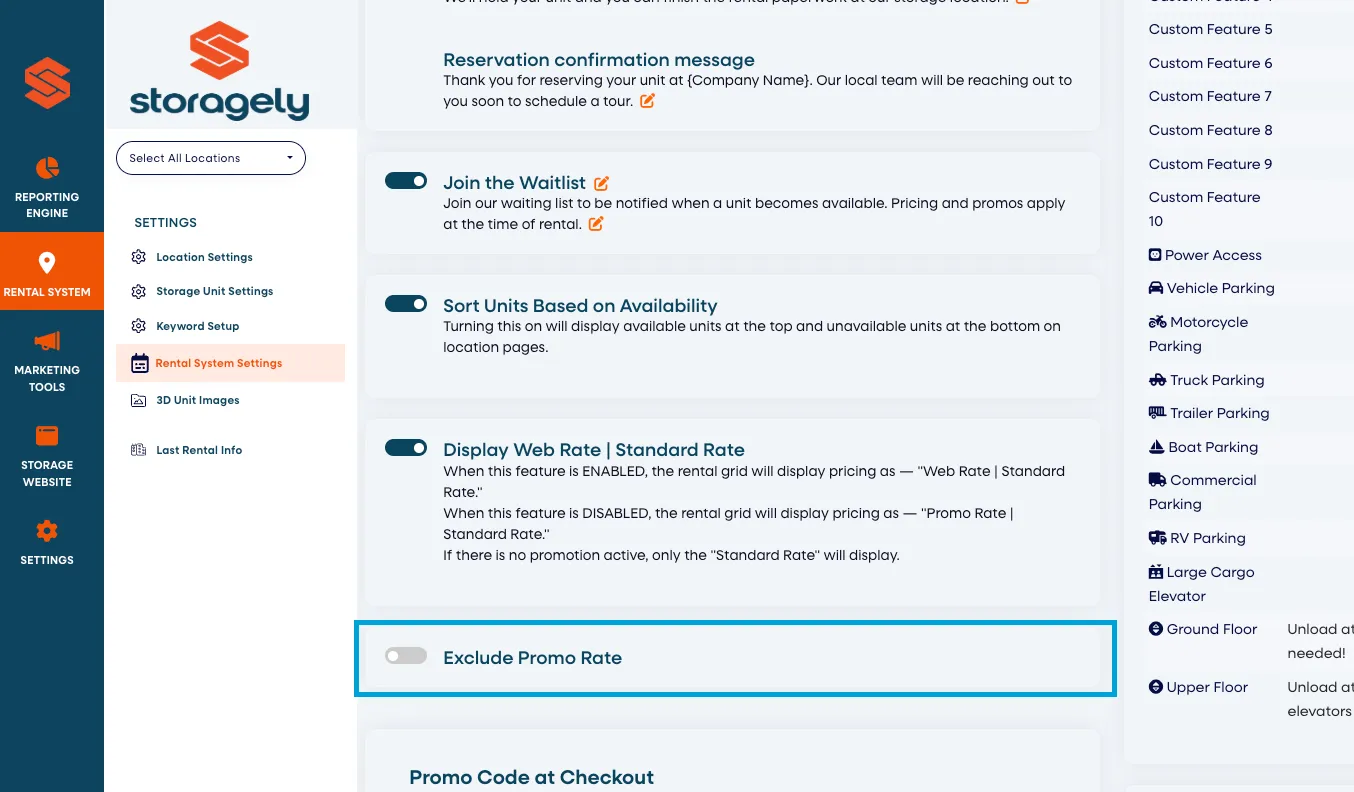
E. Exclude Promo Rate
When the Exclude Promo Rate is enabled, the promotional rate can be hidden while still displaying the promotional text. This helps simplify pricing presentation and reduces potential customer confusion.
Below is how pricing is displayed based on the Web Rate Toggle and Exclude Promo Rate settings.
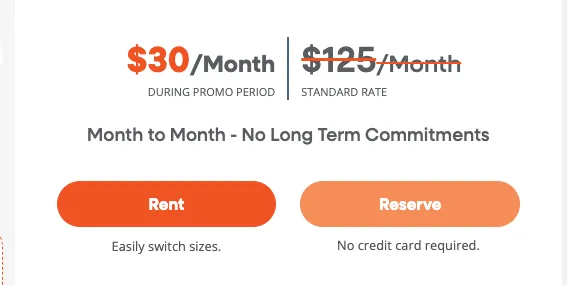
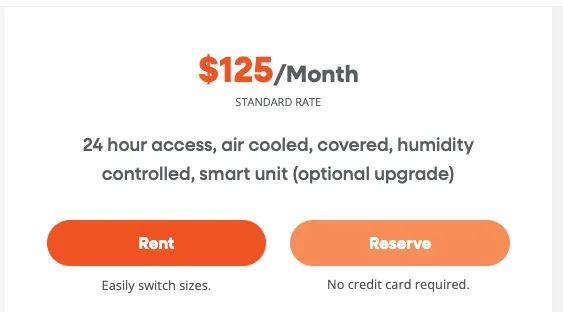
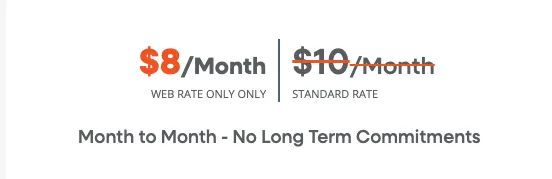
Setting: Web Rate Toggle = ON, Exclude Promo Rate = OFF
If the unit has a promotion:
- Promo Rate (left) + Web Rate (right)
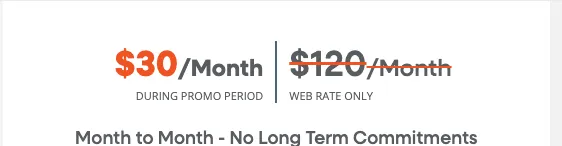
If the unit does not have a promotion:
- Web Rate (left) + Standard Rate (right)
These options are especially useful for facilities that run frequent promotions or want to clearly differentiate online pricing from in-store rates.
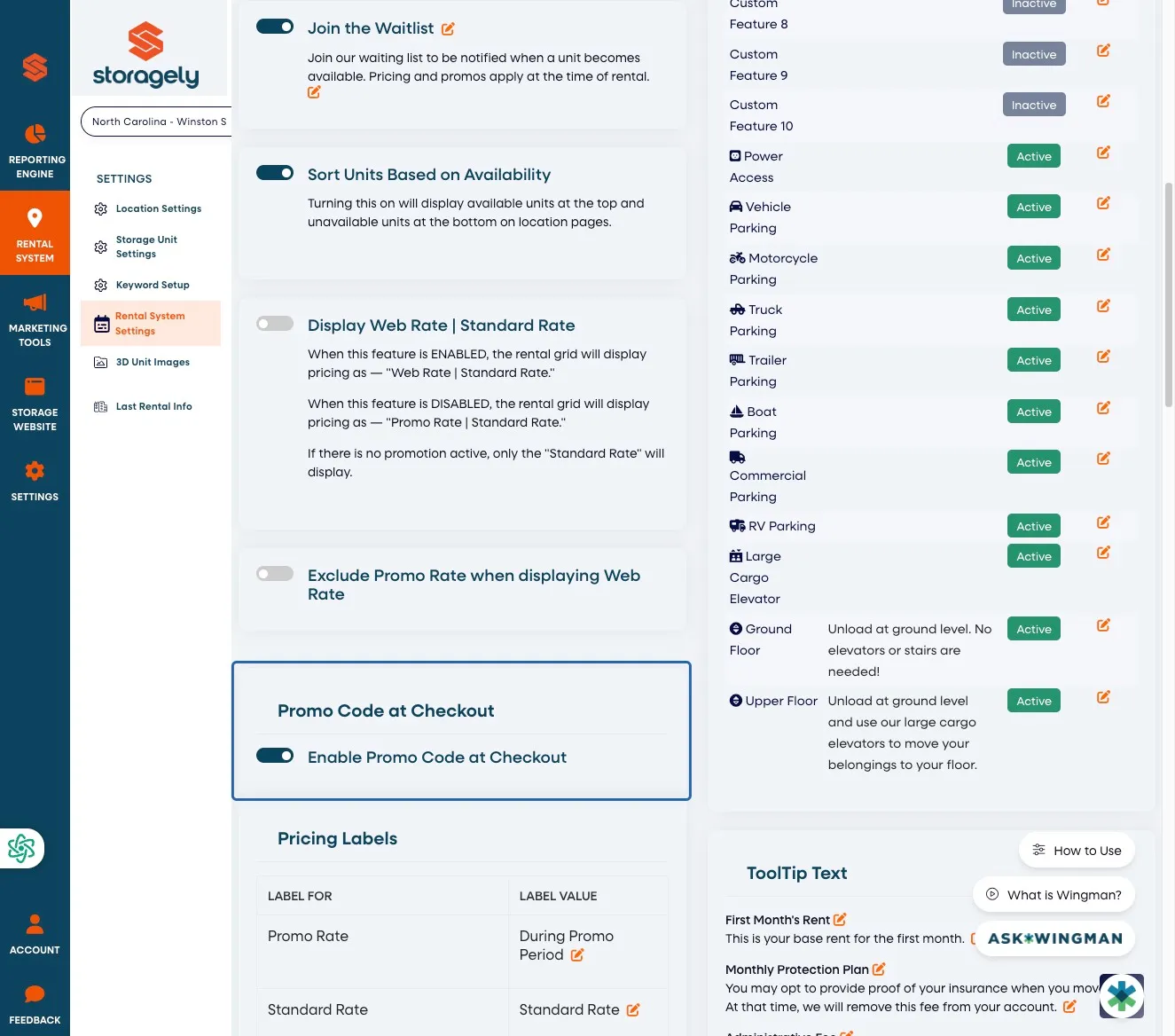
F. Enable Promo Code at Checkout
The Enable Promo Code at Checkout toggle controls whether customers can manually enter a promo or discount code during the checkout process.
When this setting is enabled:
- A Promo Code field will appear in the customer’s checkout flow.
- Customers can manually enter a valid discount or promotion code.
- The promo code is sent to the Facility Management Software (FMS) for validation and application.
This feature is commonly used in the following scenarios:
- Applying a discount when no promotion is displayed on the unit. If a unit does not have an active promotion shown in the rental grid, customers can still apply a valid promo code during checkout.
- Stacking promotions through the FMS. In some cases, entering a promo code allows the FMS to stack multiple discounts (for example, an online promotion plus a manager-issued discount), depending on the FMS rules and configuration.
Important:
- Promo code validation and stacking behavior are controlled entirely by the Facility Management Software (FMS).
- Storagely does not determine whether discounts can be combined; it only passes the promo code to the FMS.
- If a promo code is invalid or not eligible, the FMS will reject it, and the discount will not be applied.
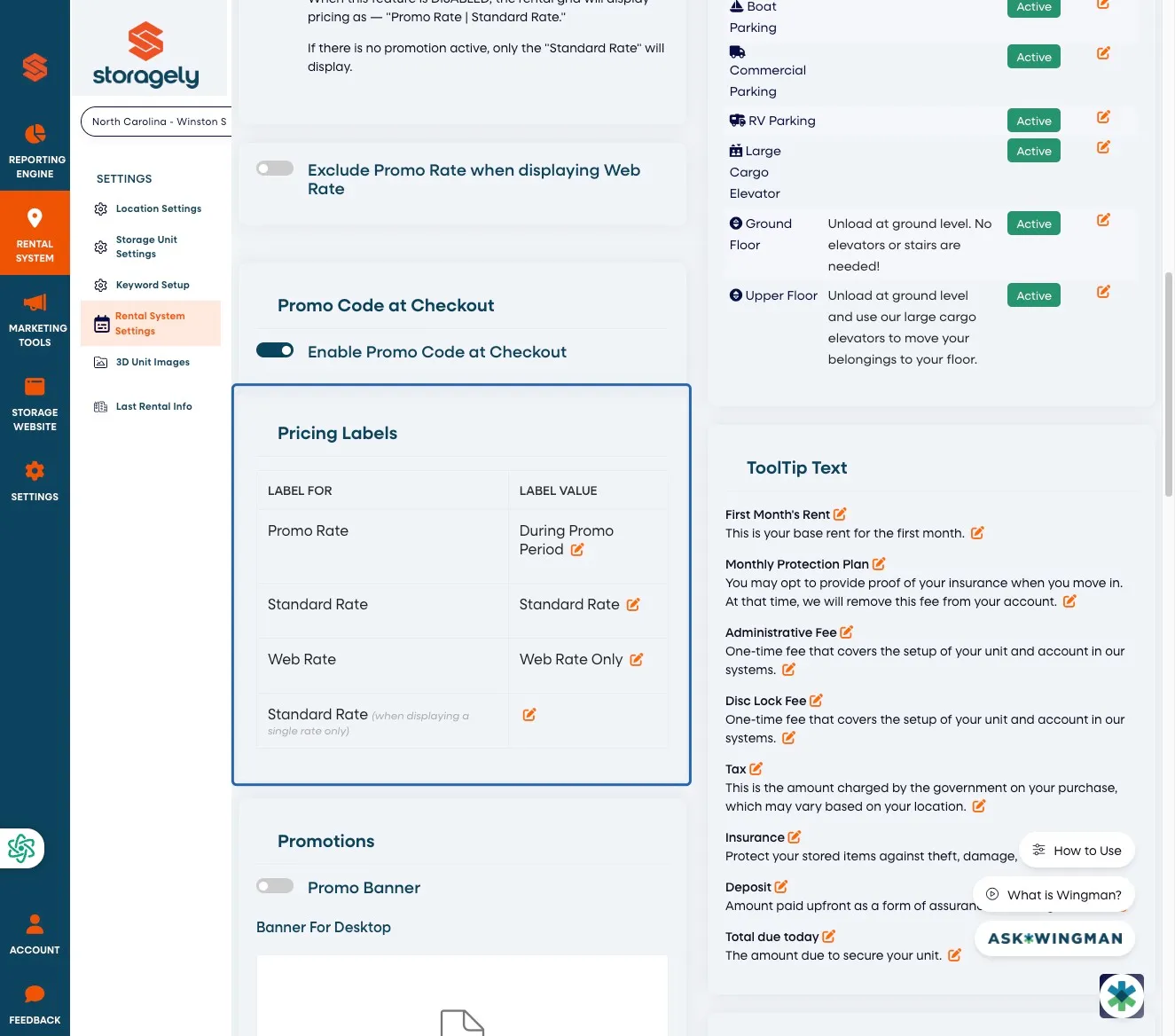
G. Pricing Labels
When this setting is disabled, customers will not see a promo code field at checkout and will only receive promotions that are automatically applied to the unit.
The Pricing Labels section allows you to customize the text used for different pricing types throughout the rental grid.
You can configure labels for:
- Promo Rate – Example: During Promo Period
- Standard Rate – Example: Standard Rate
- Web Rate – Example: Web Rate Only
- Standard Rate (Single Rate Display) – Used when only one rate applies and no comparison is needed
Updating these labels helps ensure pricing language aligns with your facility’s branding and reduces customer questions during the rental process.
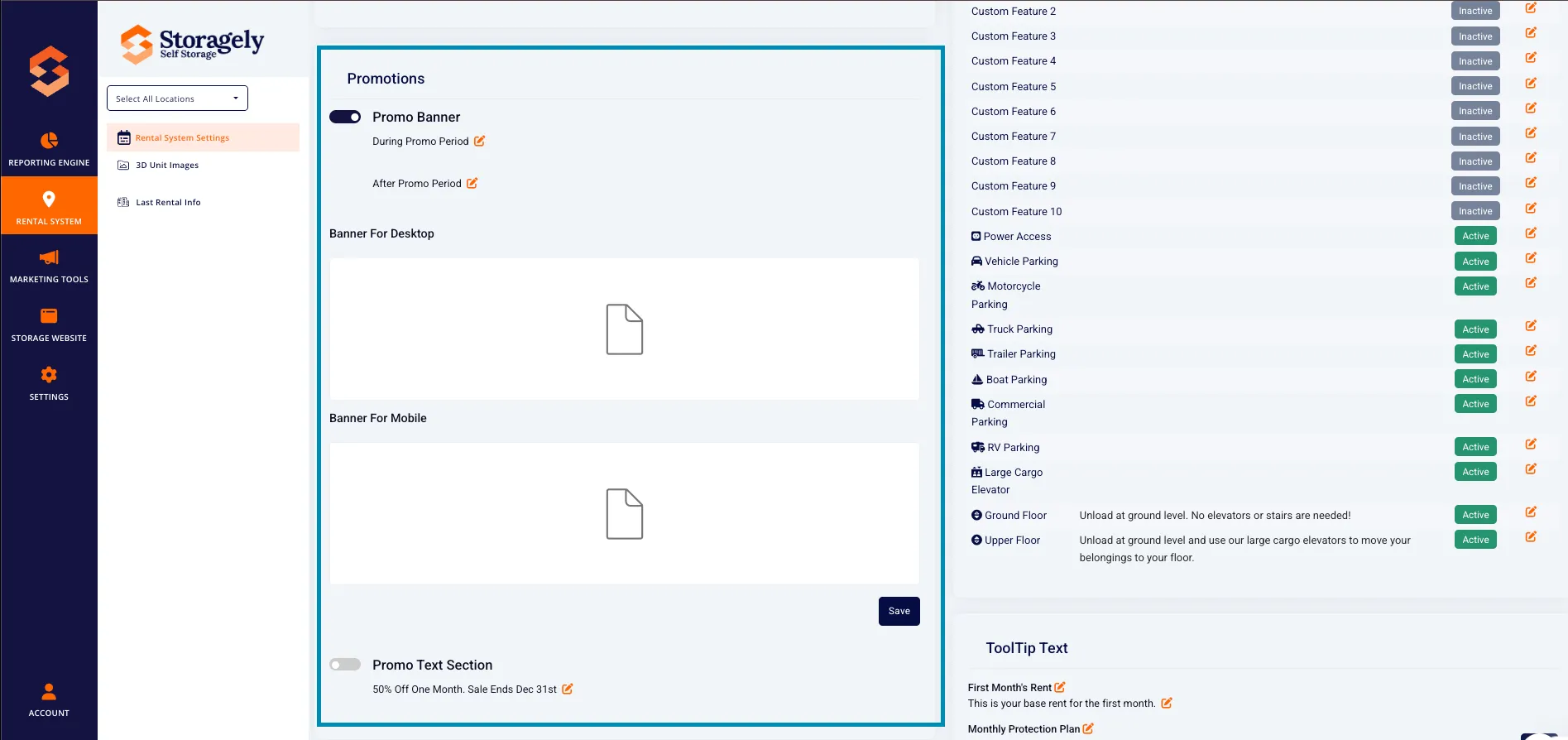
H. Promotions & Discounts Banners
- Enable or Disable Promo Banners – Display promotional banners on the website.
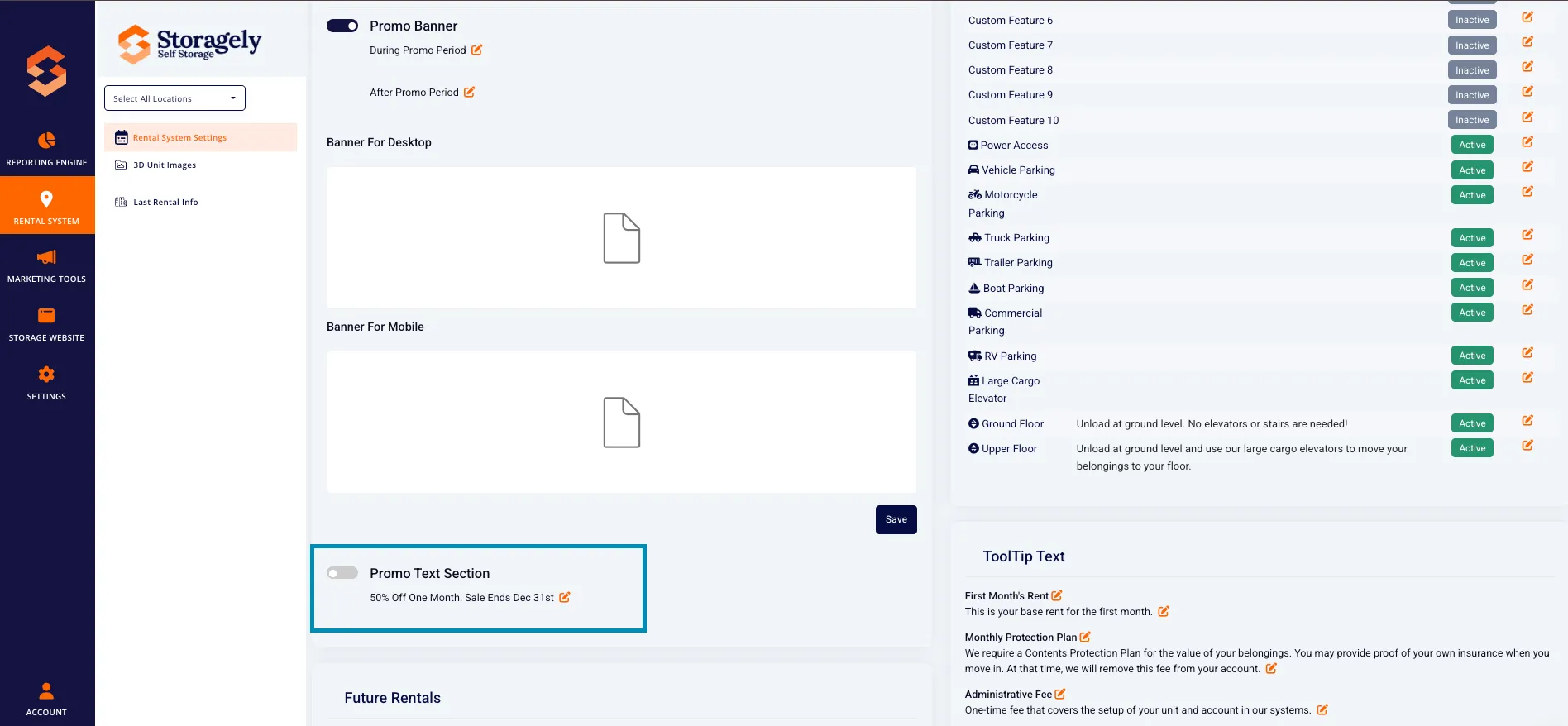
- Set Custom Promo Text – Configure messages such as "50% Off First Month!"
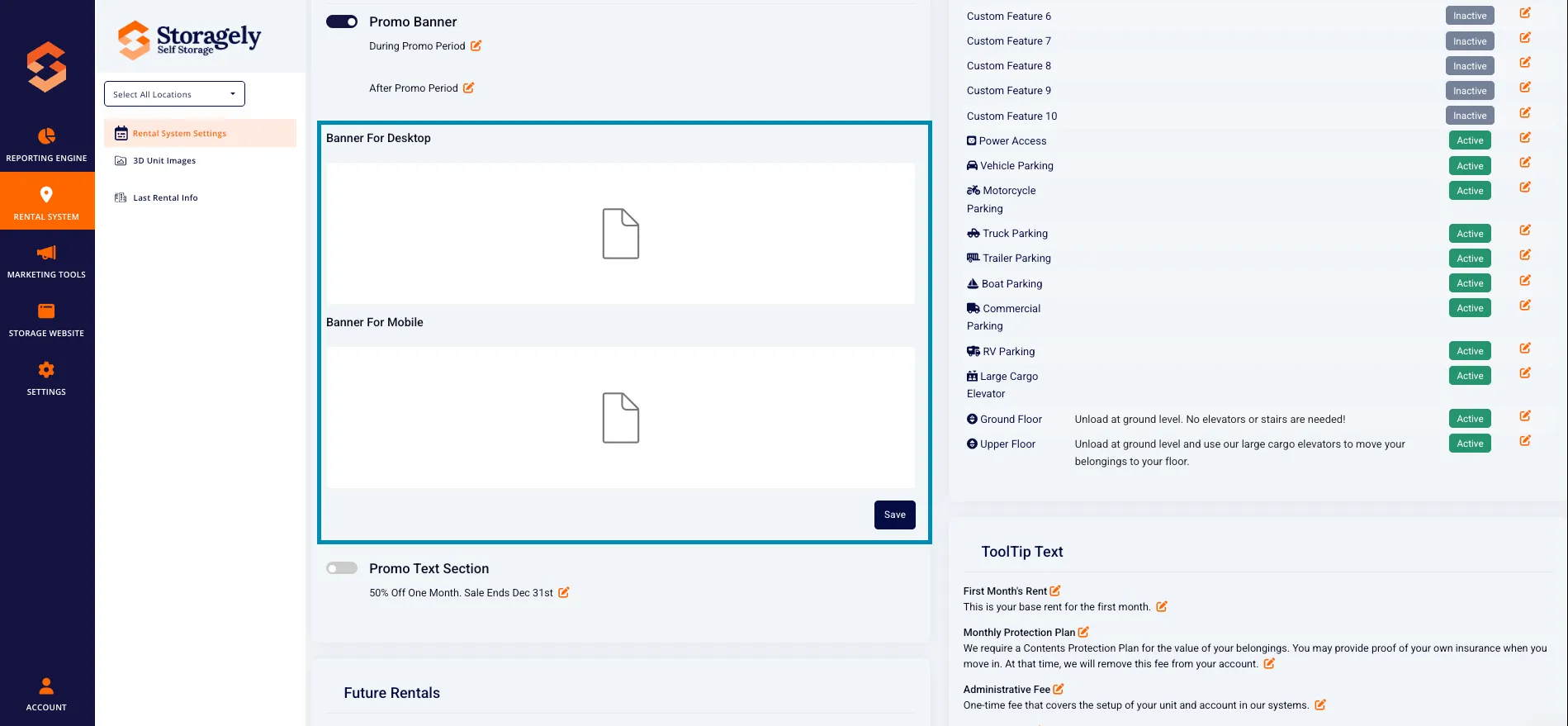
- Upload Promo Banners – Add desktop and mobile promotional images.
- Dimensions:
- Desktop: 1200px X 110px
- Mobile: 600px X 150px
I. Future Rental & Reservation Settings
Operators can configure rental and reservation settings such as:
- Number of Days for Future Rentals – Select the number of days customers can rent in advance.
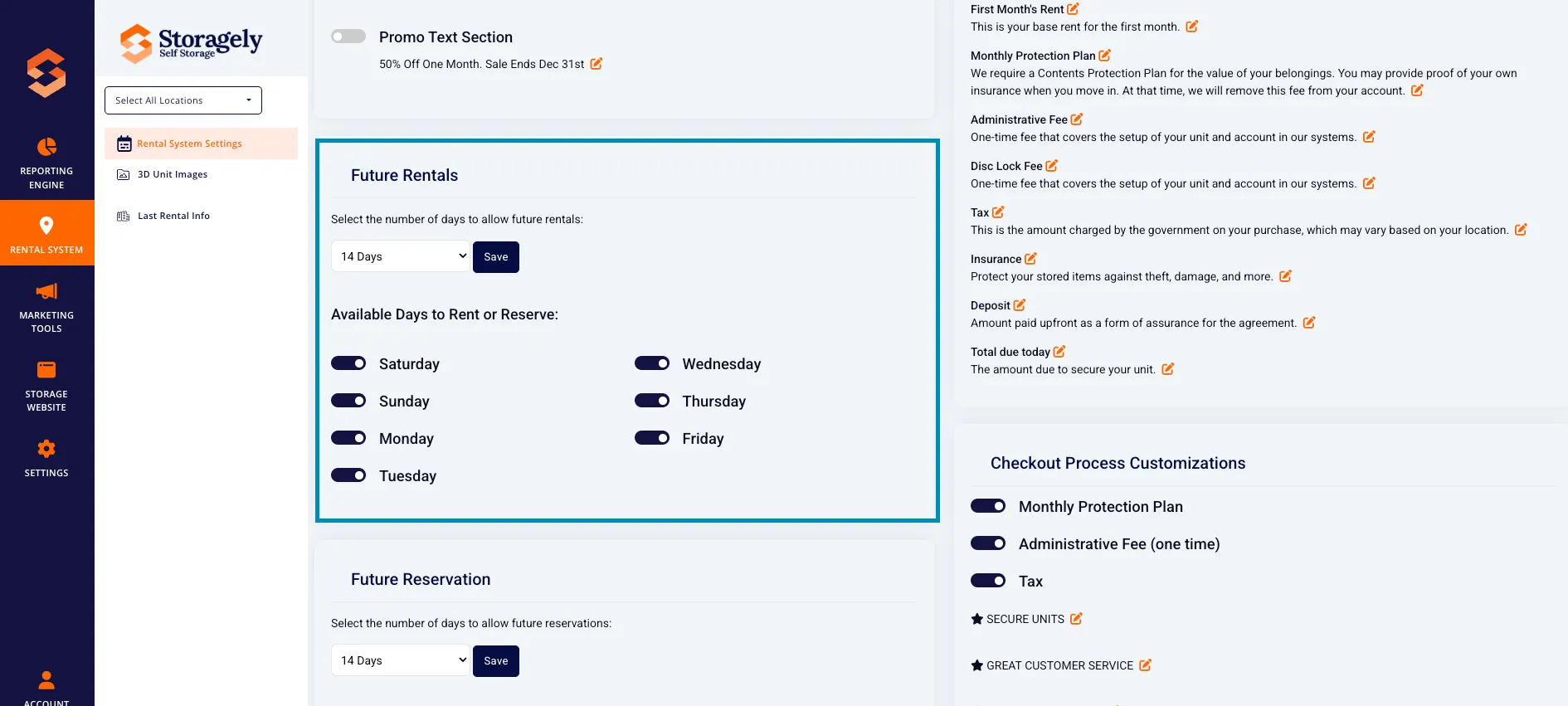
- Number of Days for Future Reservations – Configure how far in advance customers can reserve a unit.
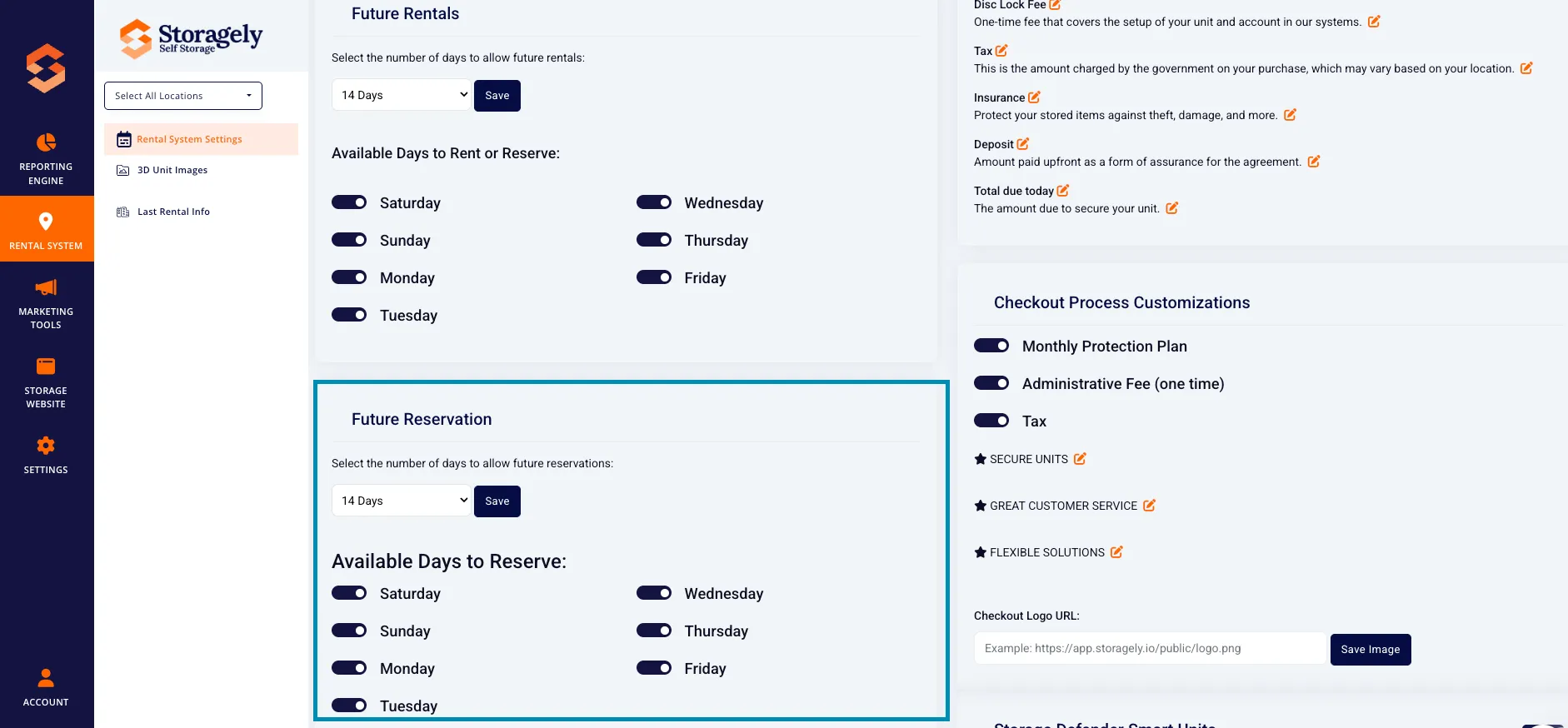
- Available Days to Rent or Reserve – Toggle which days customers can rent or reserve units.
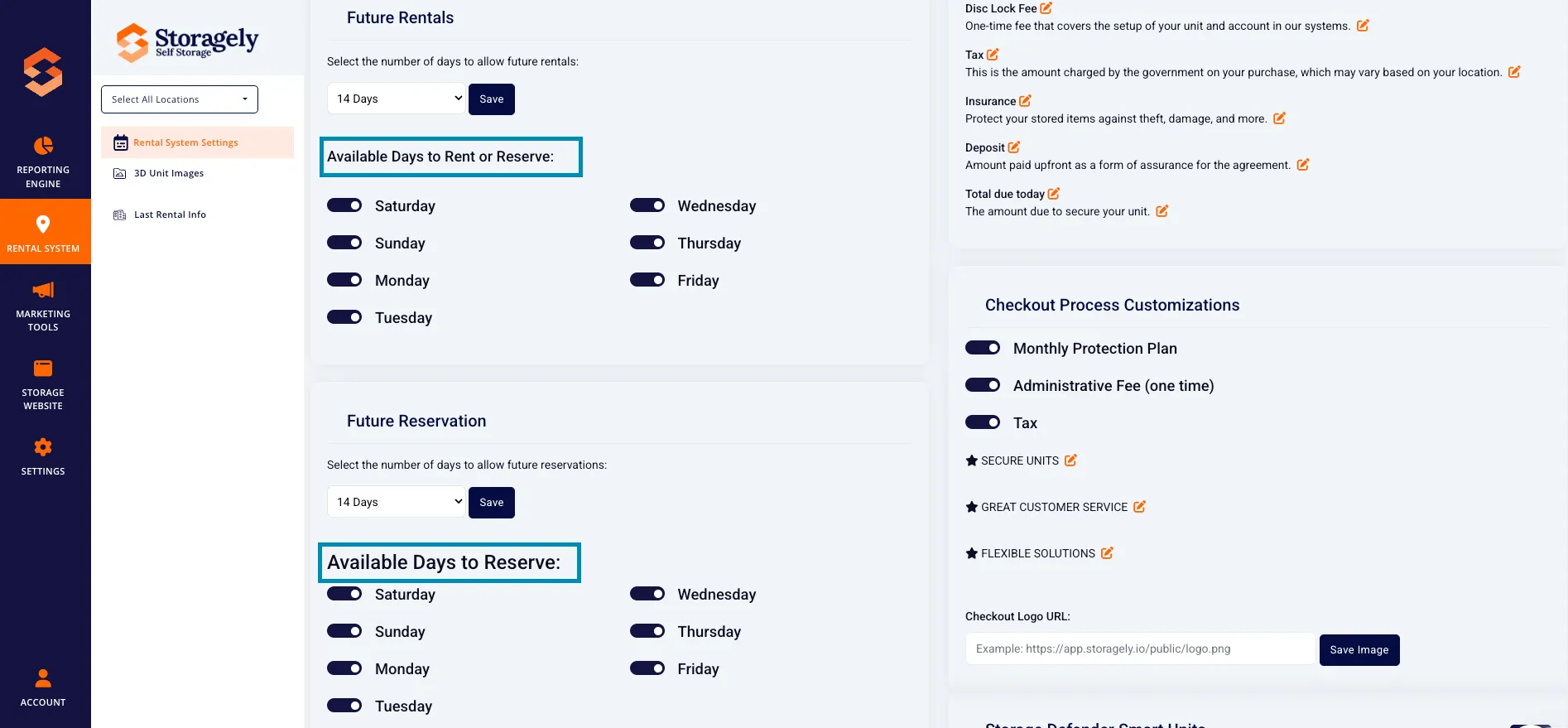
Reminder: These settings must match the settings in the Facility Management Software (FMS). If Storagely allows a longer or shorter rental/reservation period than the FMS, the FMS settings will override Storagely.
J. Features Configuration
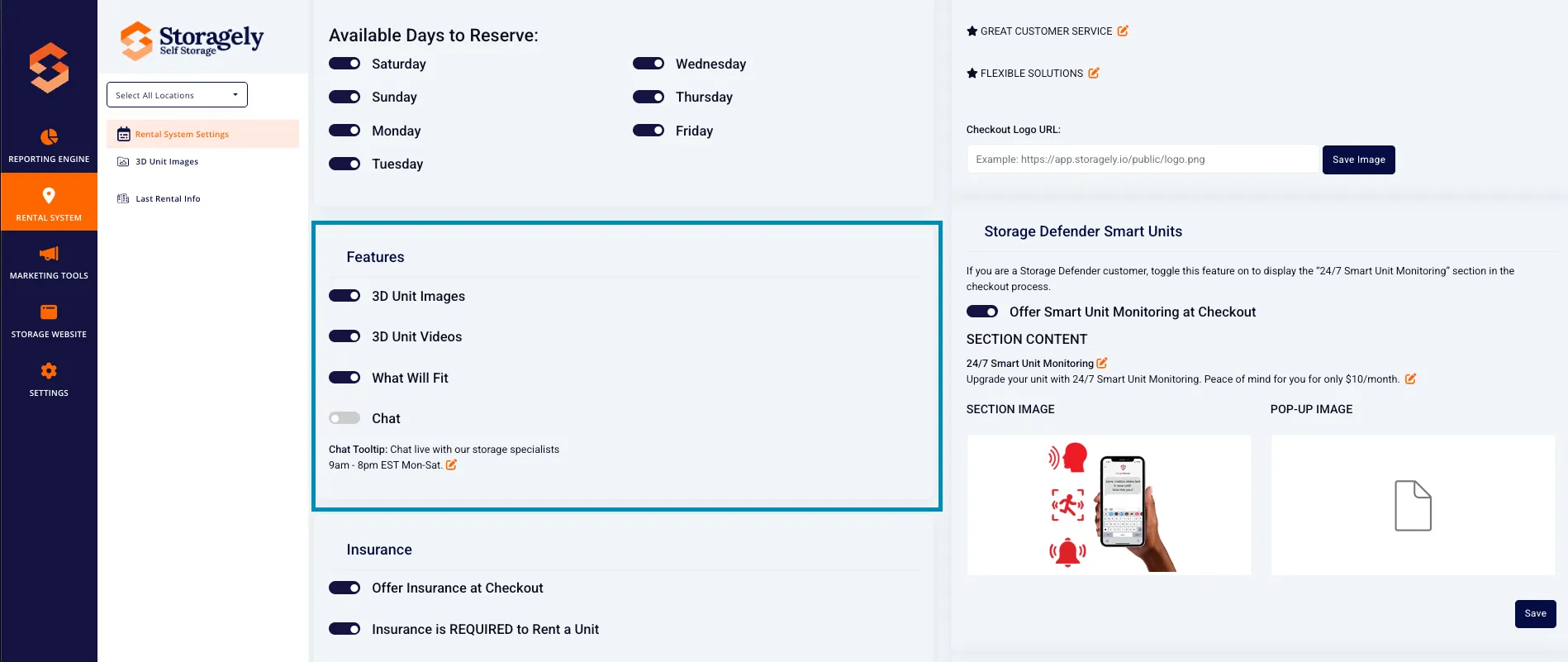
Operators can enable or disable various features, including:
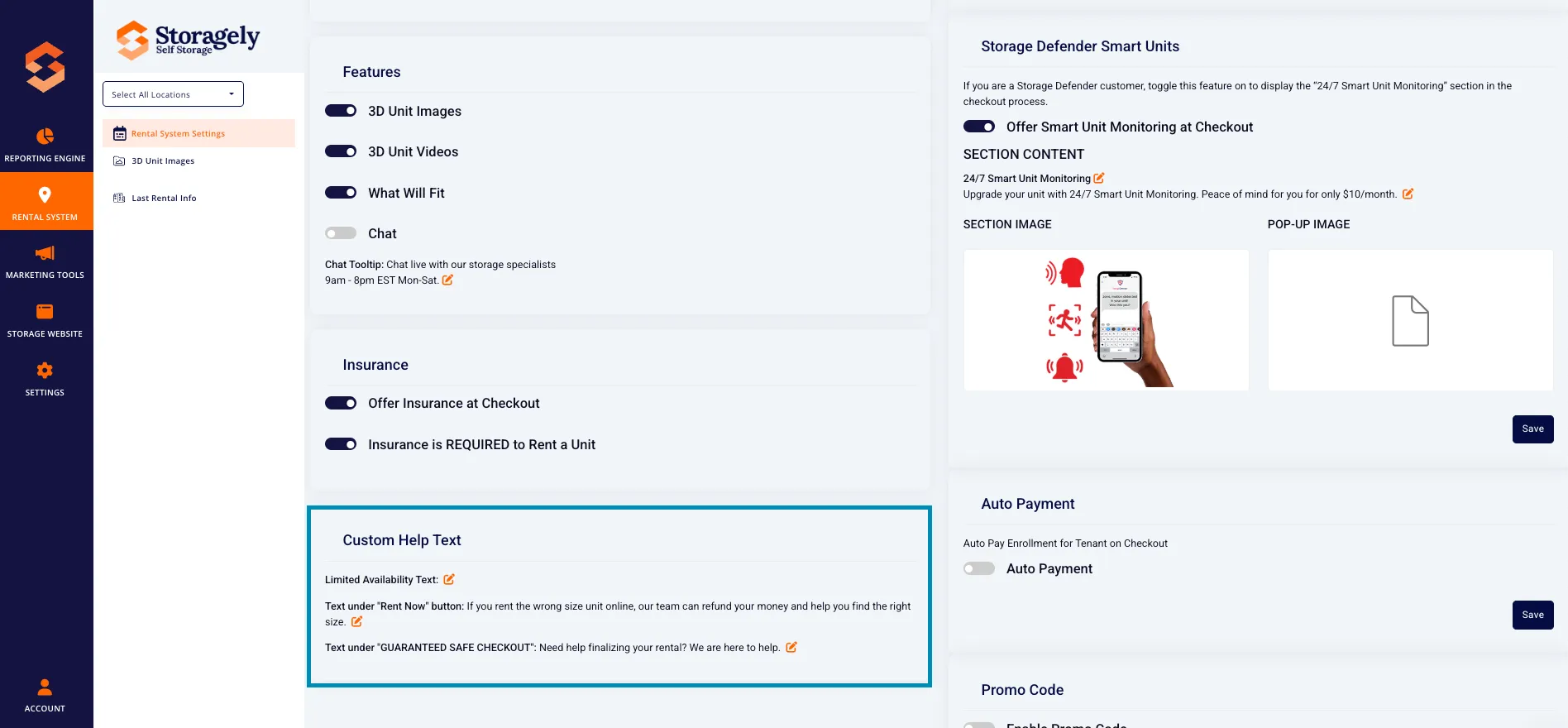
- 3D Unit Images & Videos – Toggle the display of 3D images and videos of units.
- What Will Fit Tool – Enable a feature that helps customers visualize what fits in a unit.
- Chat Functionality – Activate a live chat feature for customer support.
K. Insurance Settings
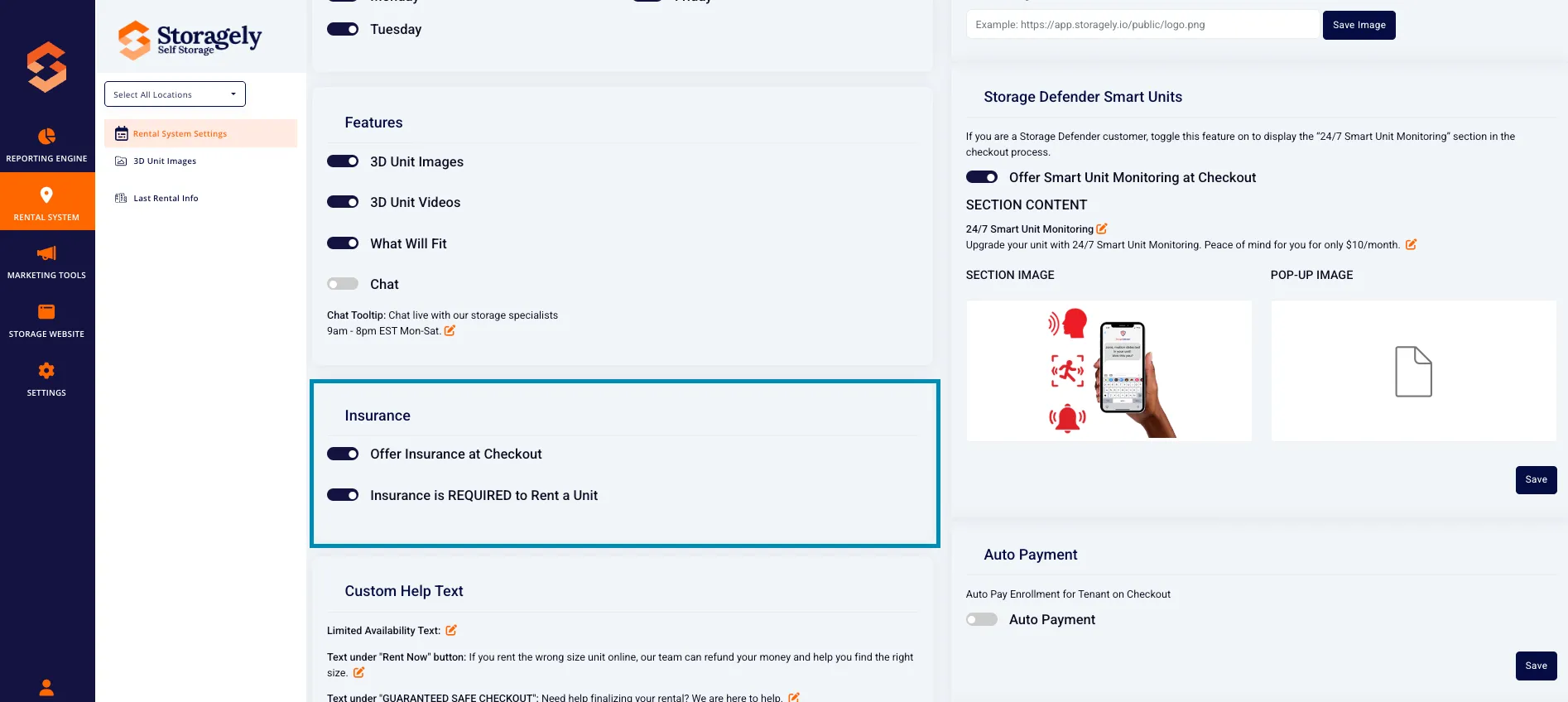
- Offer Insurance at Checkout – Enable or disable optional insurance during checkout.
- Require Insurance for Rentals – Make insurance mandatory for all rentals.
L. Custom Help Texts
Operators can customize additional text displayed to customers, including:
- Limited Availability Text – Display a message for units with limited stock/inventory.
- Text Under "Rent Now" Button – Customize information displayed under the rent button.
- Guaranteed Safe Checkout Message – Edit the reassurance message during checkout.
M. Default Features for Units
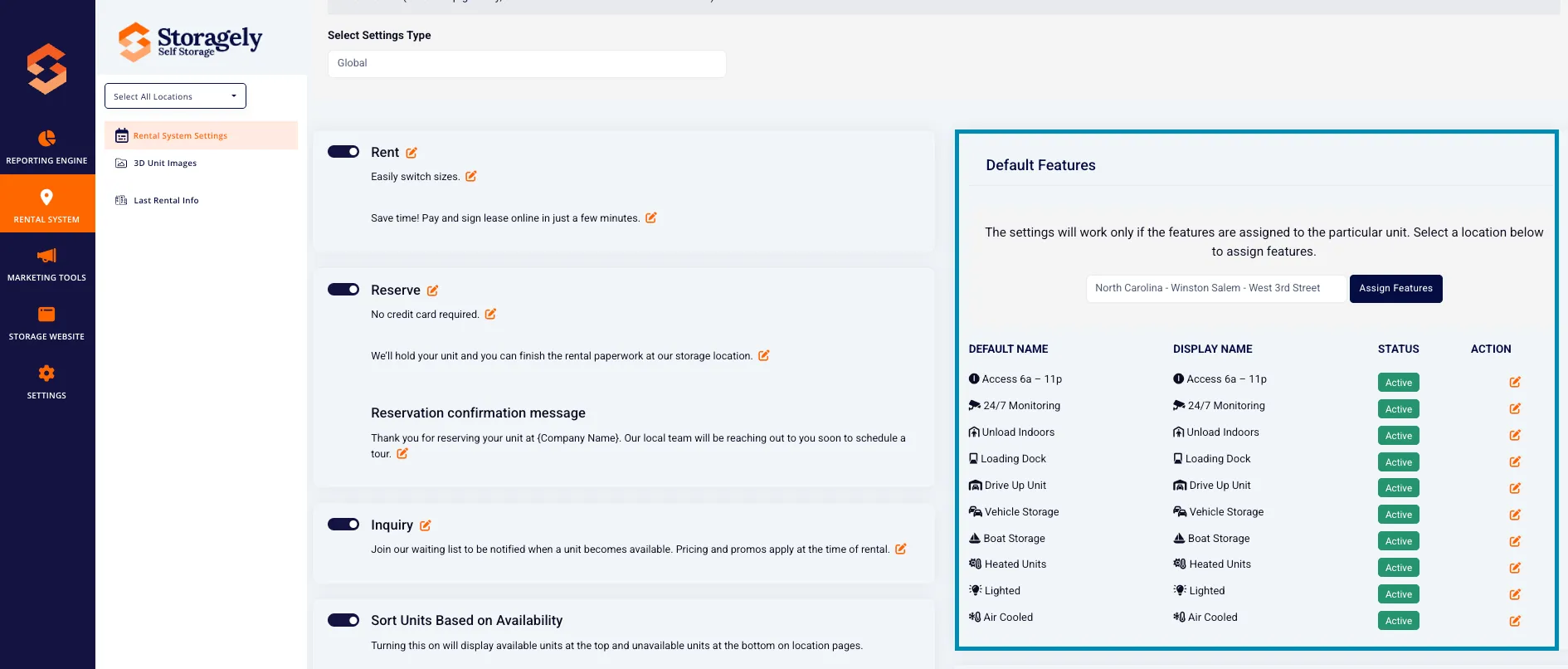
- Assign default features such as climate control, security features, and access hours.
- Select custom features to highlight for each unit.
- Assign features based on location and unit type.
N. Smart Unit Monitoring
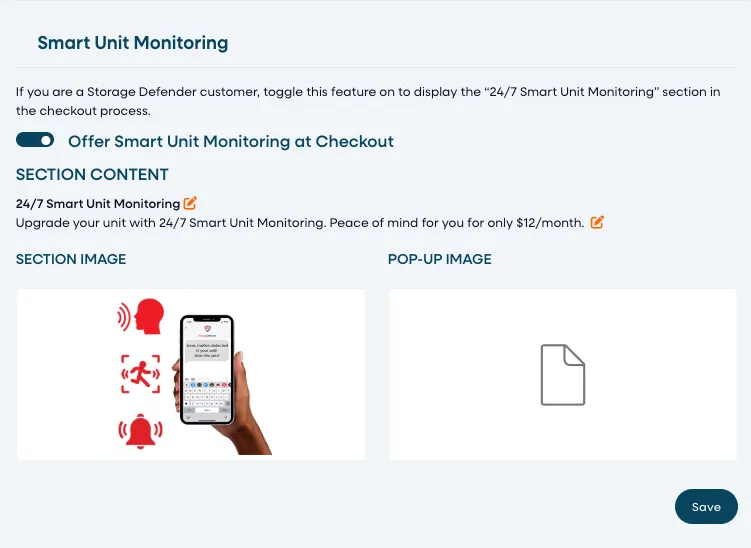
Storagely partners with Storage Defender to offer 24/7 Smart Unit Monitoring, which can be seamlessly integrated into the rental checkout experience. When enabled, this feature highlights enhanced unit security during checkout, helping customers feel more confident about their rental decision.
If you are an existing Storage Defender customer, you can enable this feature by toggling it on. Once activated, the “24/7 Smart Unit Monitoring” section will appear during the checkout process, clearly communicating the added security benefits to renters.
The Storagely Onboarding and Support Team will assist you with setup and ensure the integration is configured correctly for your facility.
Learn more: How to Set Up Smart Unit Monitoring on Your WebsiteArticle about this
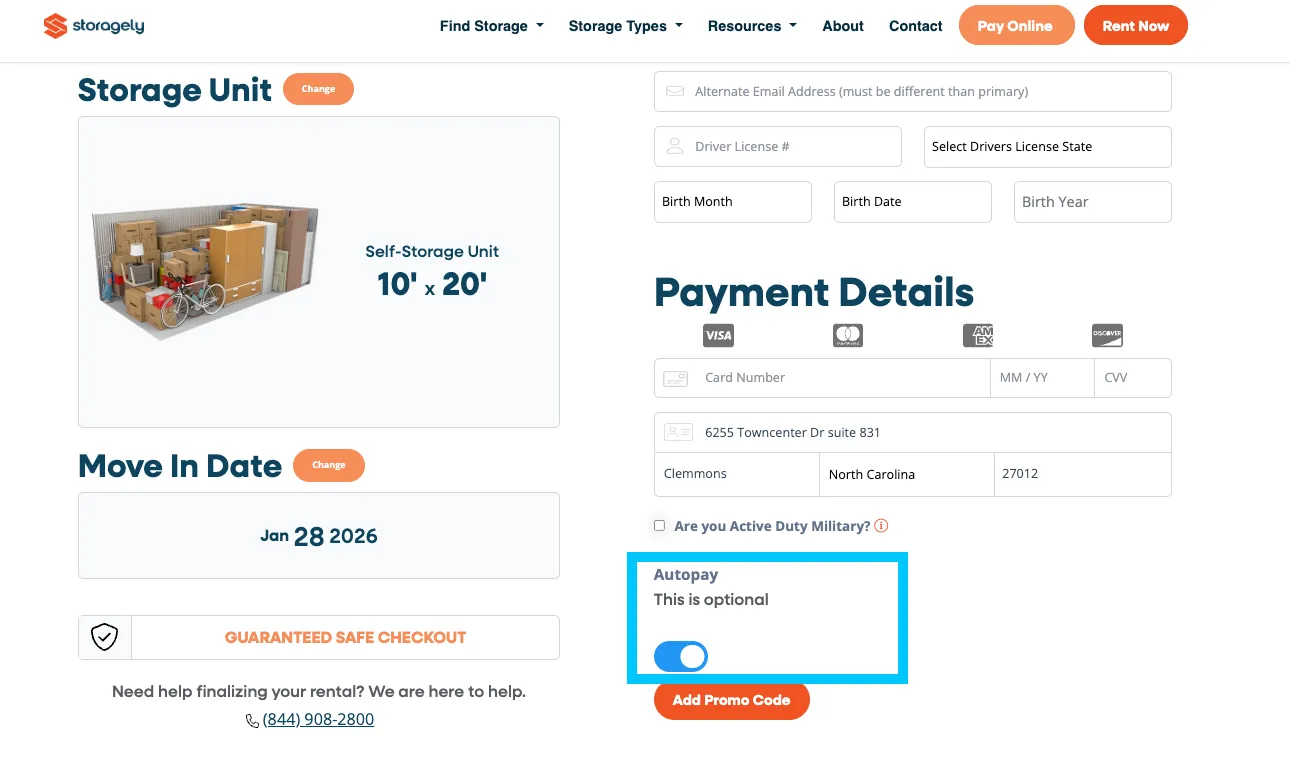
O. Auto Payment
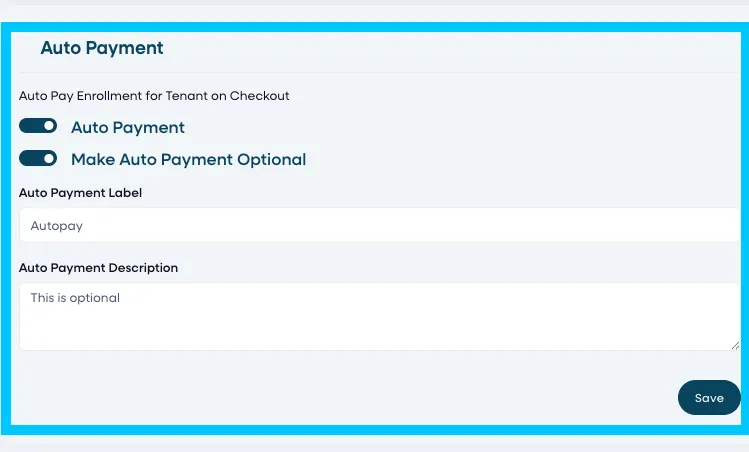
By enabling this feature, customers will have the option to enroll in AutoPay, making billing more convenient and reducing missed payments. If you prefer AutoPay to be optional rather than required, you can enable the “Make Auto Payment Optional” toggle.
You can also customize the Auto Payment label and description to better align with your facility’s messaging and clearly explain the benefits to customers during checkout.
This feature is a Global-only setting, meaning any changes made will apply across all locations and cannot be configured on a per-location basis.
If AutoPay is enabled in Storagely, your FMS must also support and allow AutoPay for the feature to function as expected. Consult with your FMS provider before enabling this feature.
P. Location Pre/Post Unit Grid Banner
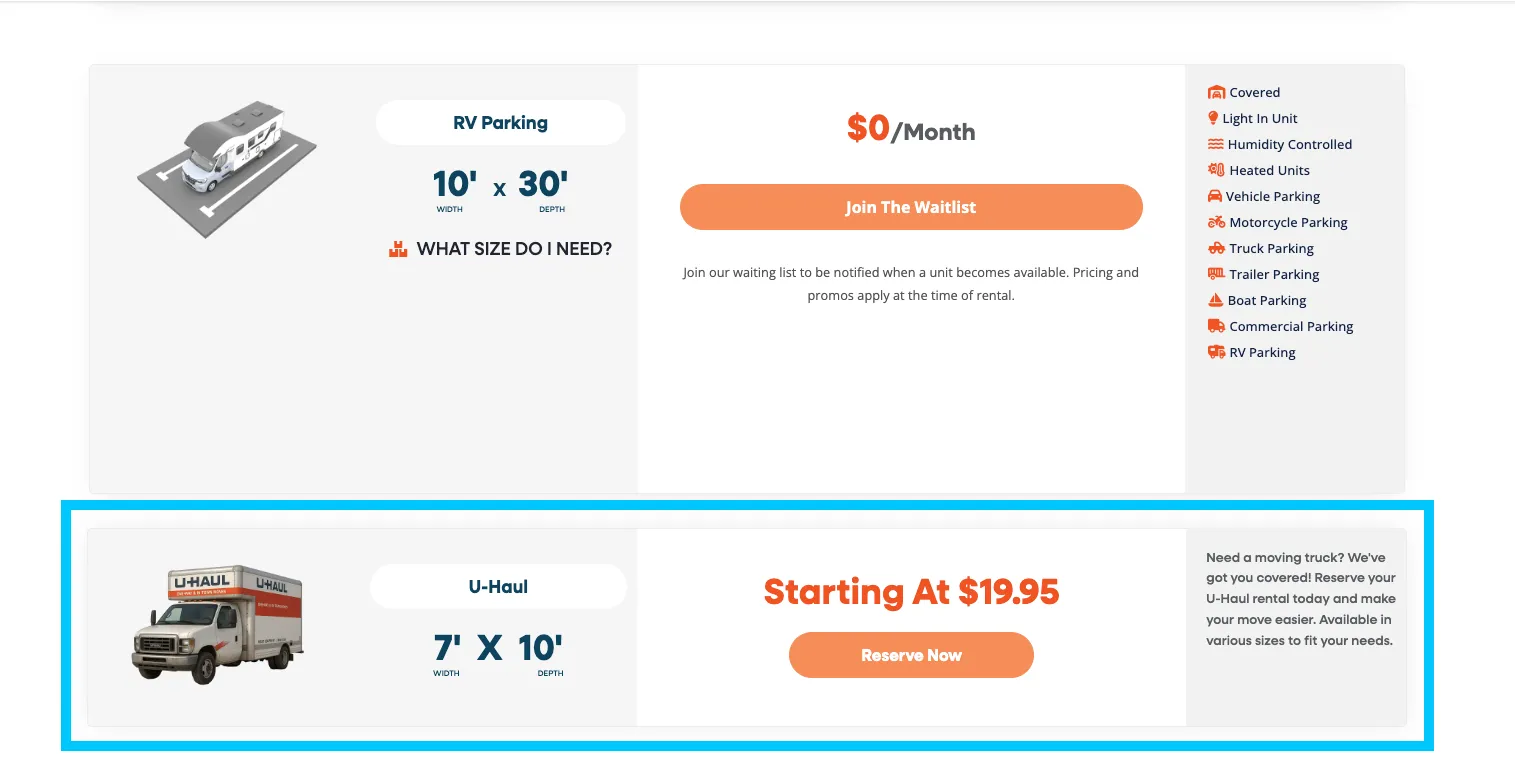
You can add custom banners above or below the Unit Grid on your location pages. These banners are part of the Unit Grid section and are not related to standard website banner images.
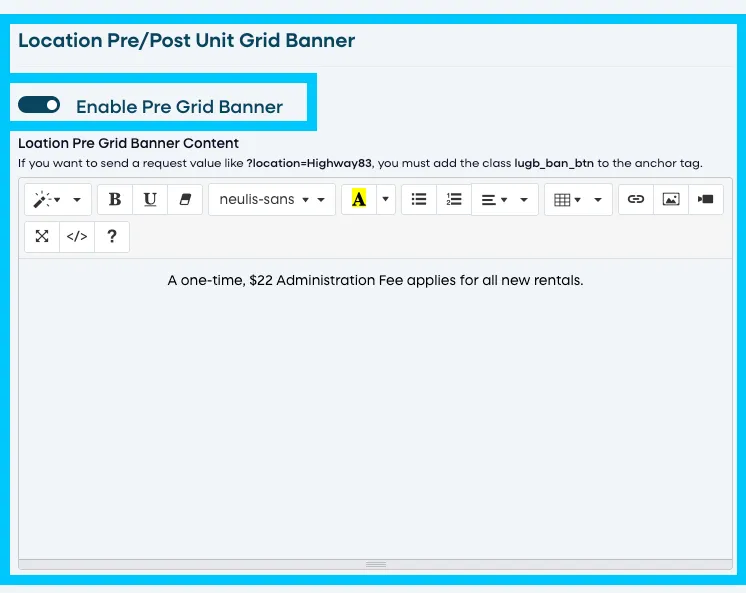
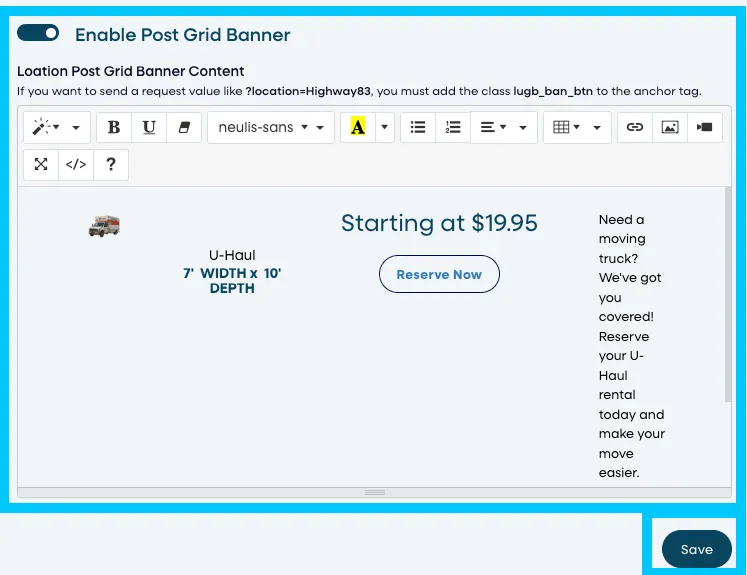
You’ll see two banner options, each with its own toggle and editor:
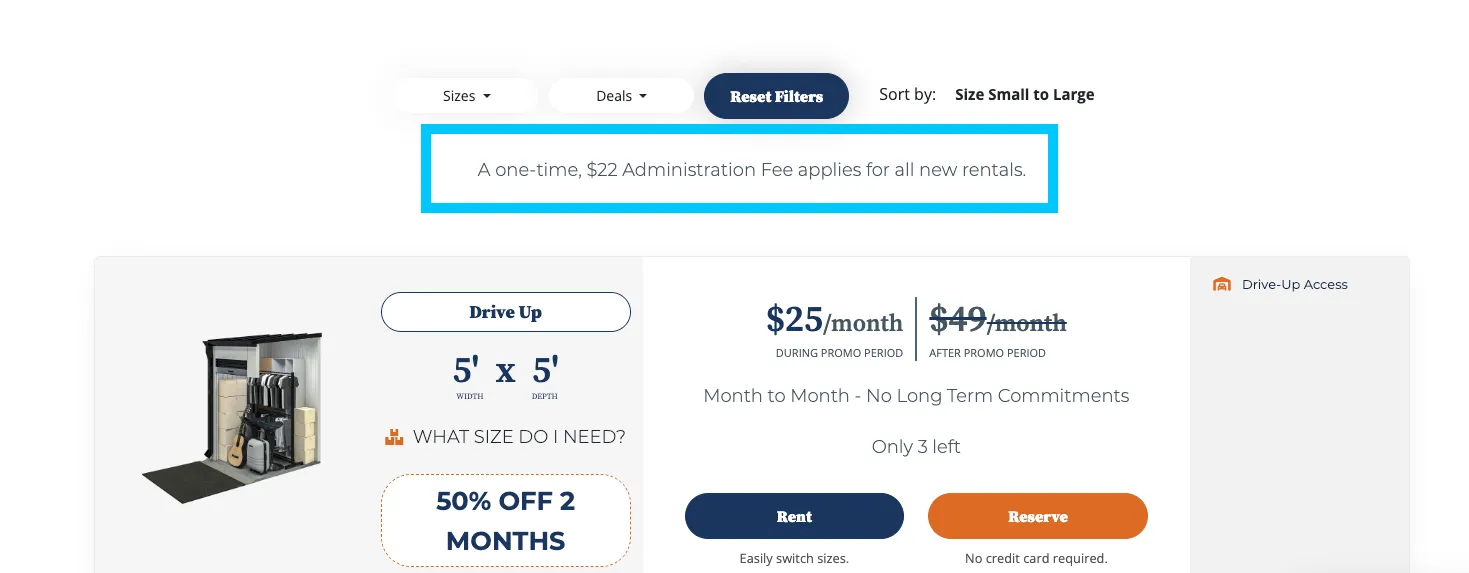
- Pre Grid Banner – Displays content above the Unit Grid
- Post Grid Banner – Displays content below the Unit Grid
Both options work the same way and can be enabled independently.
How to Add a Banner for All Locations (Global)
- Enter your banner content in the editor window.
- Turn On the toggle for Pre Grid Banner or Post Grid Banner.
- Save your changes.
- The banner will now appear on the Unit Grid for all locations.
How to Hide a Global Banner for a Specific Location
- Go to Rental System Settings → Location Based.
- Select the location.
- Turn the banner toggle Off for that location.
- Save your changes.
- The banner will not appear on that specific location’s page
How to Add a Banner for a Single Location Only
- Go to Rental System Settings → Location Based.
- Select the desired location.
- Turn the banner toggle On.
- Enter location-specific content in the editor window.
- Save your changes.
- The banner will display only on that location’s Unit Grid. If location-specific content is added, it will override the global banner for that location.
Pre Grid Banner Example:
Post Grid Banner Example
4. How to Configure Rental System Settings
Step 1: Customize Rental & Reservation Buttons
- Navigate to the Rental System Settings page.
- Locate the Rent, Reserve, and Inquiry Button Settings section.
- Click on the edit icon next to each button text or tooltip.
- Enter the desired text and click Save.
Step 2: Configure Future Rentals & Reservations
- Scroll to the Future Rentals & Reservations section.
- Select the number of days in advance that customers can rent or reserve.
- Choose the available days for rentals and reservations.
- Click Save to apply changes.
Step 3: Manage Promotions & Discounts
- Locate the Promotions section.
- Toggle the promo banner display on or off.
- Enter a promo message or upload a banner image.
- Click Save to update promotional content.
Step 4: Enable or Disable Features
- Scroll to the Features Section.
- Toggle 3D unit images, videos, chat, and other features on or off.
- Click Save to apply the changes.
Step 5: Configure Insurance Options
- Navigate to the Insurance Section.
- Toggle insurance availability at checkout.
- Enable or disable mandatory insurance for rentals.
- Click Save to confirm settings.
Step 6: Assign Default Features to Units
- Locate the Default Features section.
- Select a location from the dropdown menu.
- Assign default features such as climate control, security access, and lighting.
- Click Save to apply the settings.
5. Best Practices for Managing Rental System Settings
✅ Use Clear and Informative Button Text – Ensure customers understand what each button does. ✅ Set Realistic Future Rental & Reservation Limits – Avoid setting overly restrictive limits. ✅ Highlight Important Promotions – Regularly update promo banners and discount messages. ✅ Enable Customer-Friendly Features – Use chat, 3D images, and fit guides to improve conversions. ✅ Ensure Accurate Insurance Settings – Clearly communicate whether insurance is required or optional.
6. FAQs & Troubleshooting
Q1: How do I change the default rental button text? A: Navigate to the Rental System Settings, locate the Rent Button section, and click the edit icon to update the text.
Q2: How do I update the number of days for future rentals? A: Scroll to the Future Rentals & Reservations section, select the desired number of days, and click Save. Ensure the setting matches the Facility Management Software (FMS).
Q3: Can I enable promotions for specific locations only? A: Yes, global promotions apply to all locations, but location-specific settings can override global ones.
Q4: How do I make insurance required for all rentals? A: In the Insurance Section, toggle "Require Insurance for Rentals" and save the setting.
Q5: How do I reset settings for a specific location? A: Select Location-Based Settings instead of Global Settings to configure location-specific options.
Q6: Can customers apply a promo code if a unit already has a promotion? A: Yes — if Enable Promo Code at Checkout is turned on, customers can enter a promo code during checkout. Whether the discounts stack depends on the Facility Management Software (FMS) rules.
As always, if you have any questions during this process, our Customer Success Team is here to help. The best way to reach us is by submitting a support ticket.