How to: Manage and Display Unit Attributes (Amenities)
Background
Unit attributes, also known as amenities, can be displayed on your website’s unit grid to help customers better understand what each unit offers. These details—such as climate control, drive-up access, or security features—can be managed either through your Facility Management Software (FMS) or directly in the Storagely Dashboard.
Add or Edit Unit Amenities from your FMS
Storable SiteLink:
Storable Sitelink Document: Amenities in Storable SiteLink
If you manage unit attributes through SiteLink, follow the steps below:
Step 1: Open Modify Units
- In SiteLink Web Edition, navigate to Company → Modify Units.
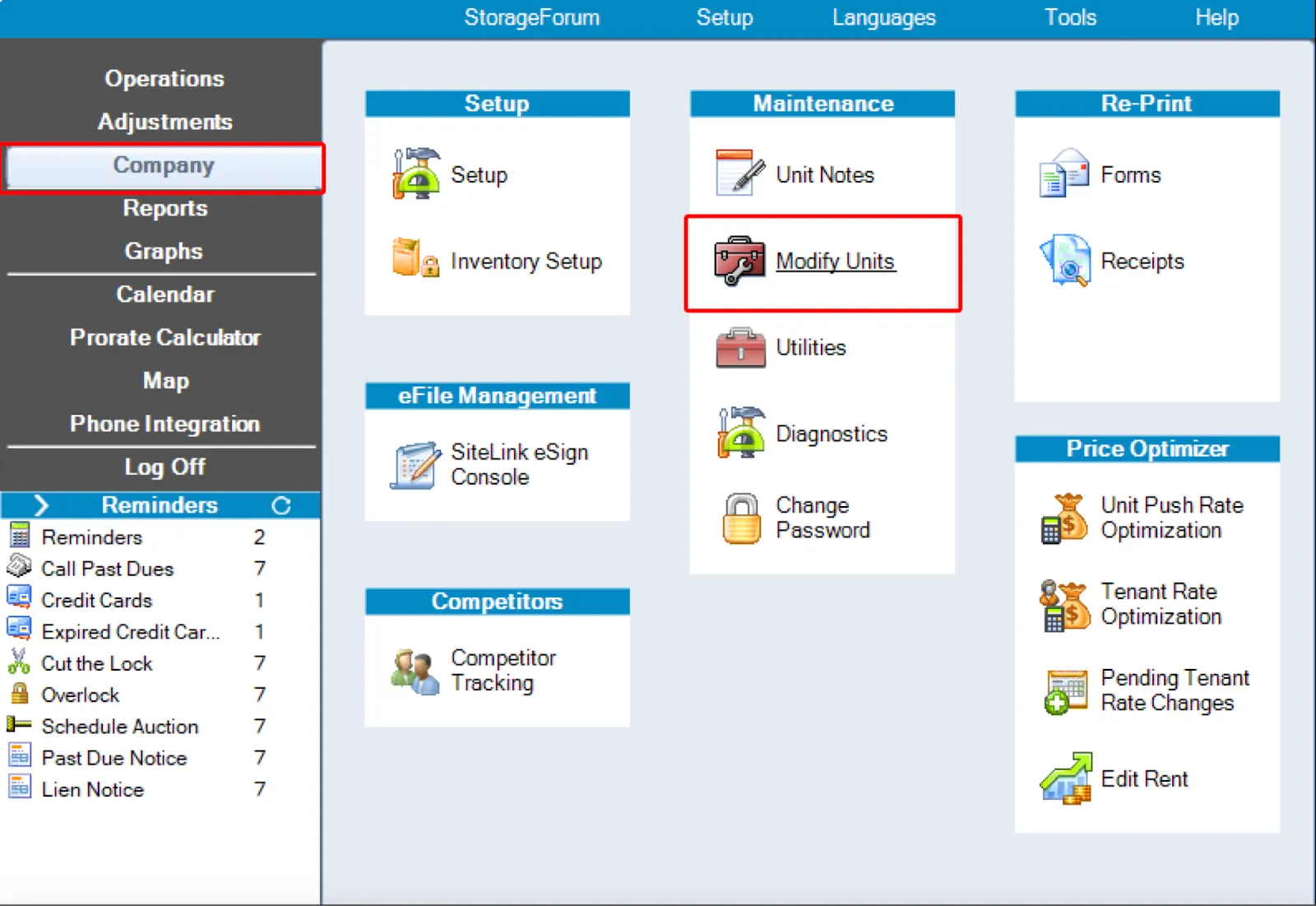
Step 2: Select and Edit Units
- Select the unit(s) you want to modify.
- Tip: Use the Wizard to select groups of units instead of editing them individually.
- Click Edit Selections to begin making updates to the selected units.
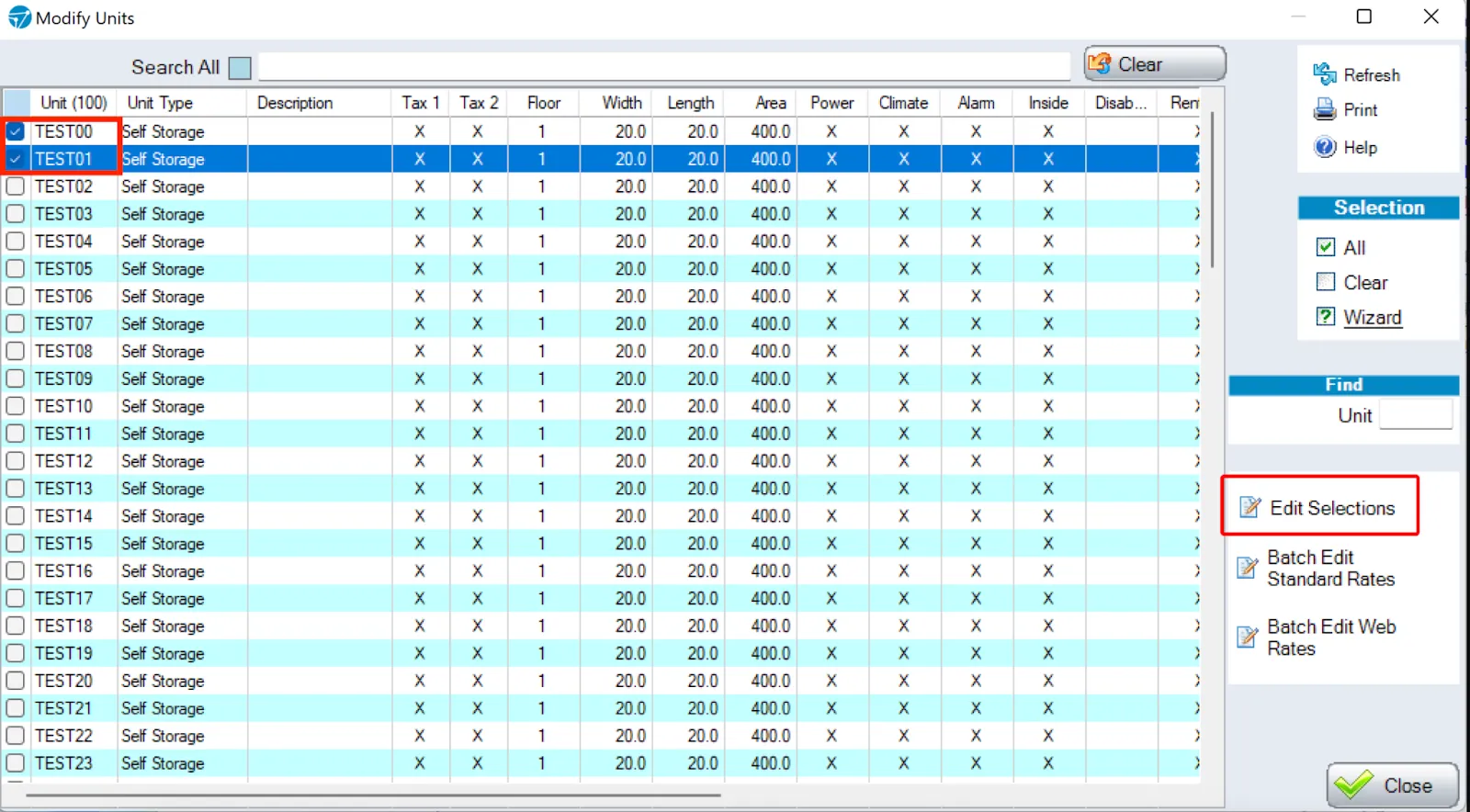
Step 3: Update Unit Attributes
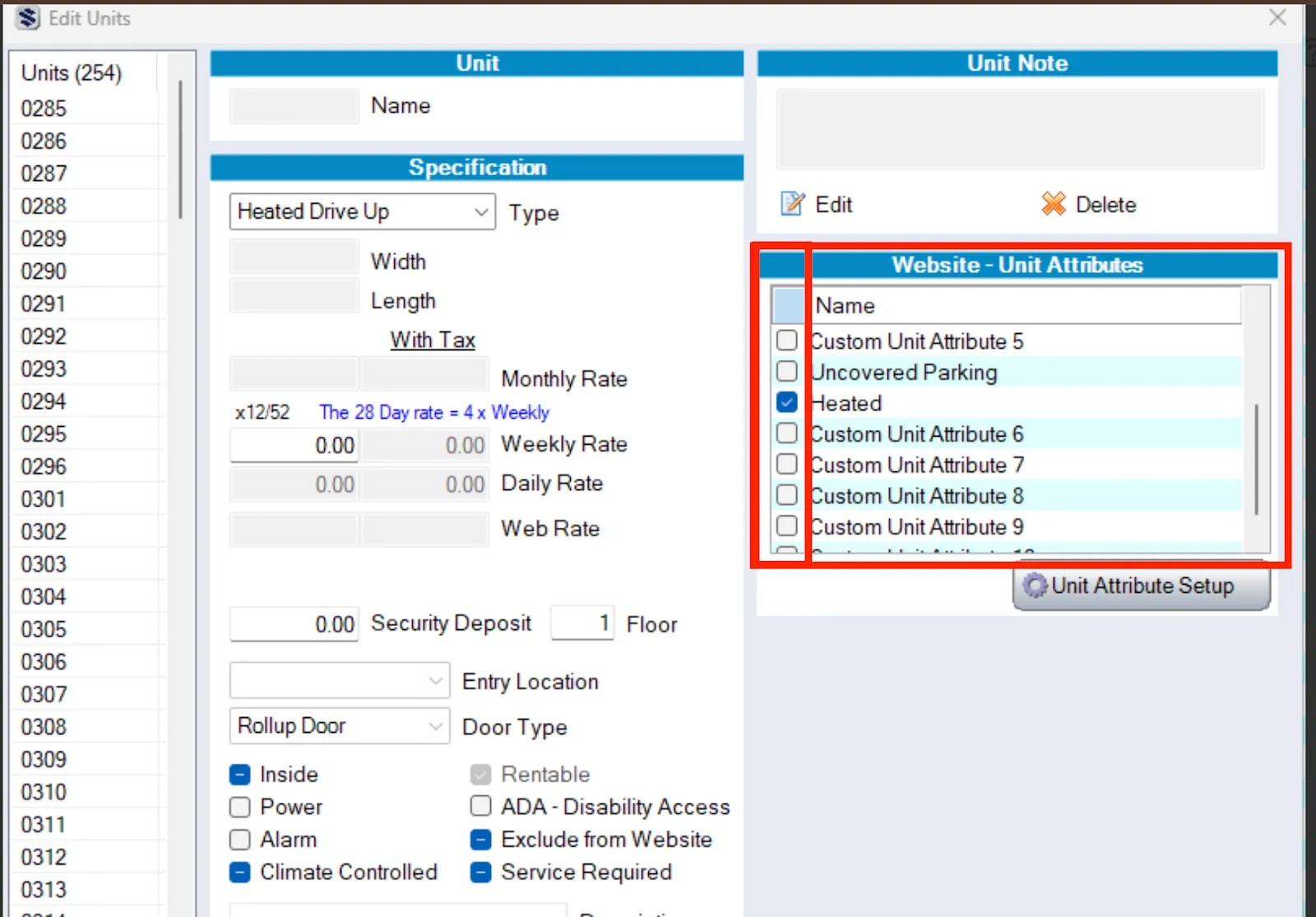
- Locate the Website – Unit Attributes section.
- This is where you can assign or adjust which attributes (or amenities) are displayed on your website via the SiteLink API.
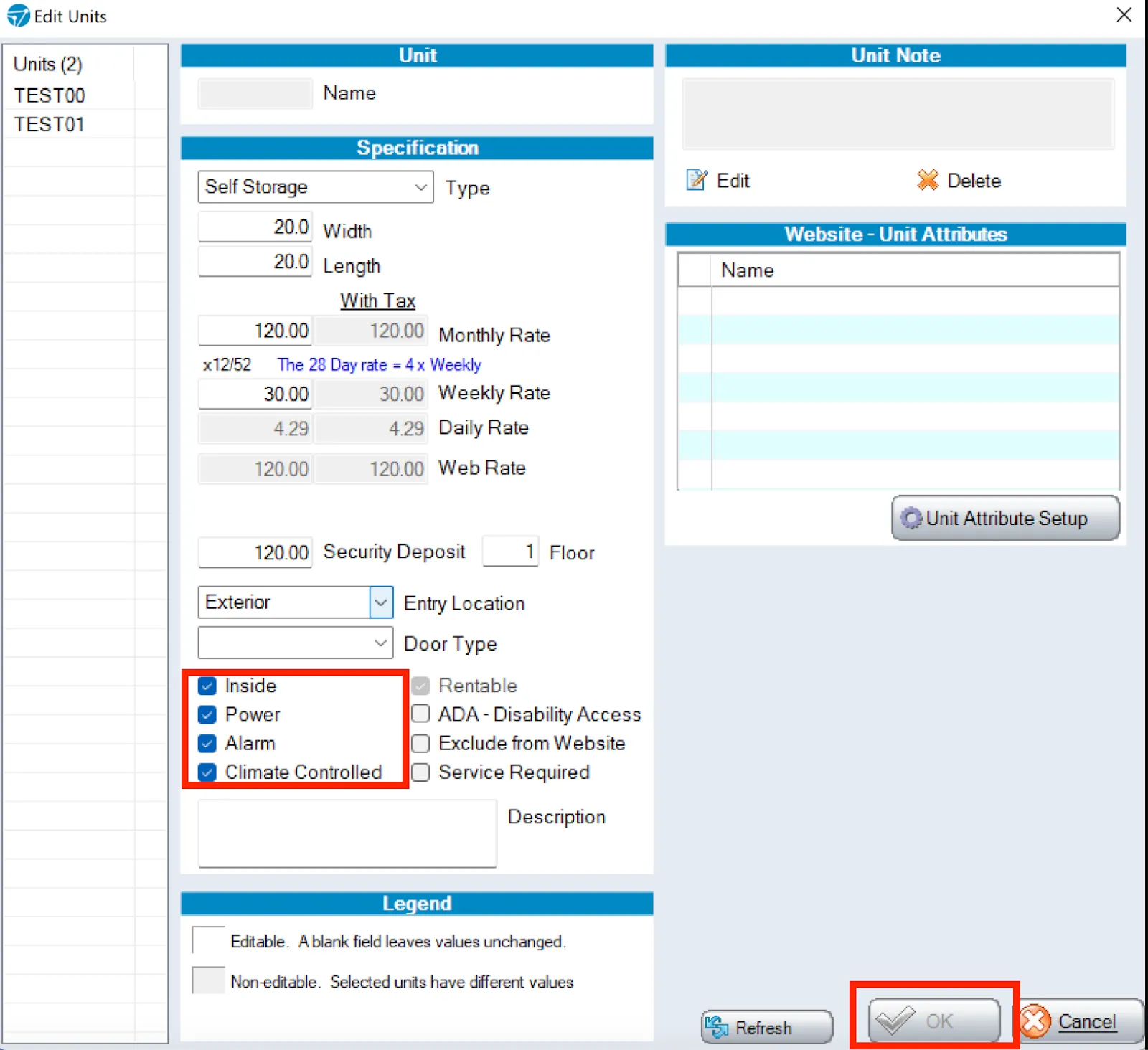
- There are other built-in attributes that you can choose to add to the "Website - Unit Attributes" list to select from. To do so, follow the steps below:
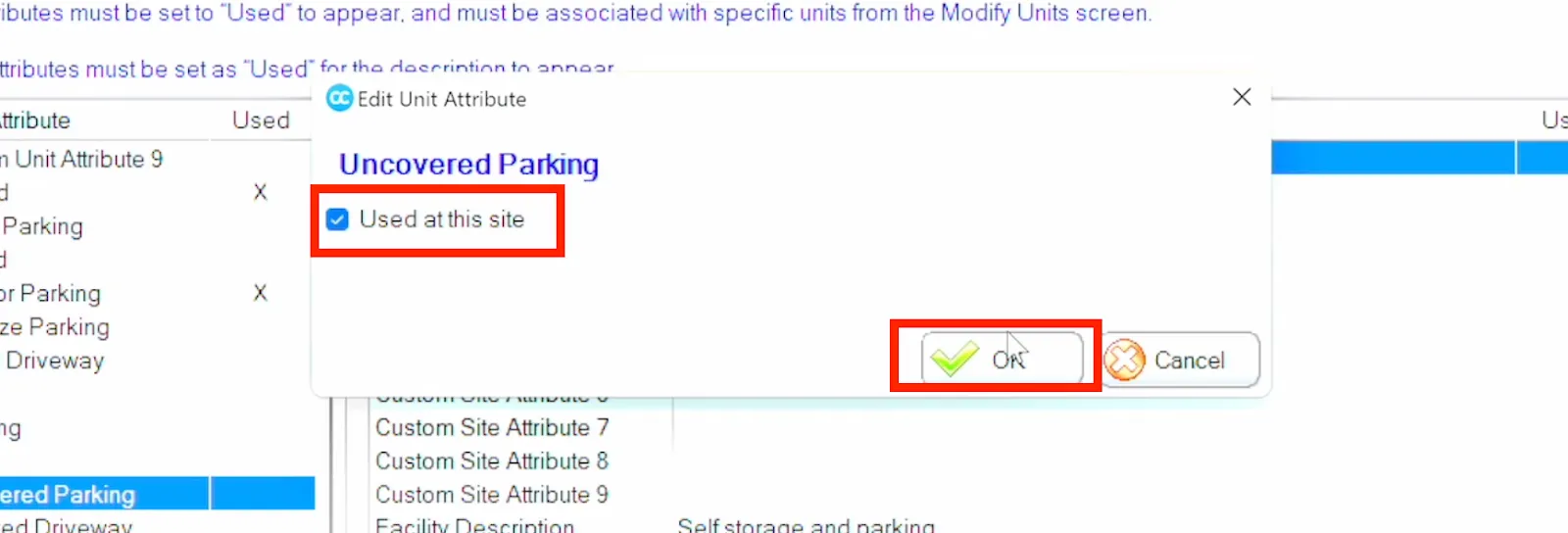
- Click Unit Attribute Setup
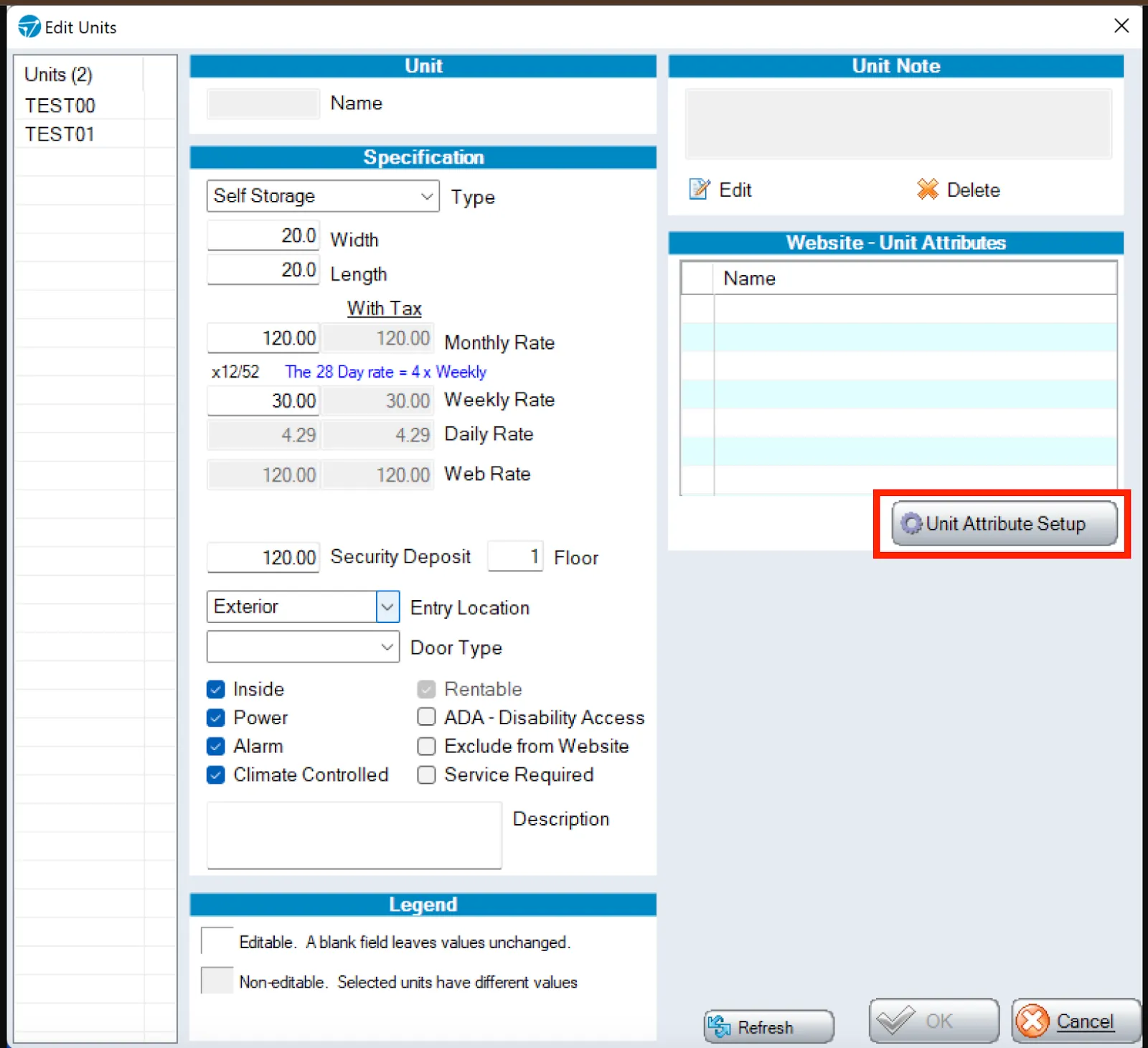
- Select an attribute from the 'Attribute' list on the left
- Check the 'Used at this site' box
- Click Ok
Create or Assign Custom Attributes
You can also create Custom Attributes if you’d like to display a unique feature or amenity for the selected units—such as “Video Surveillance” or “Elevator Access.”
To create a Custom Attribute:
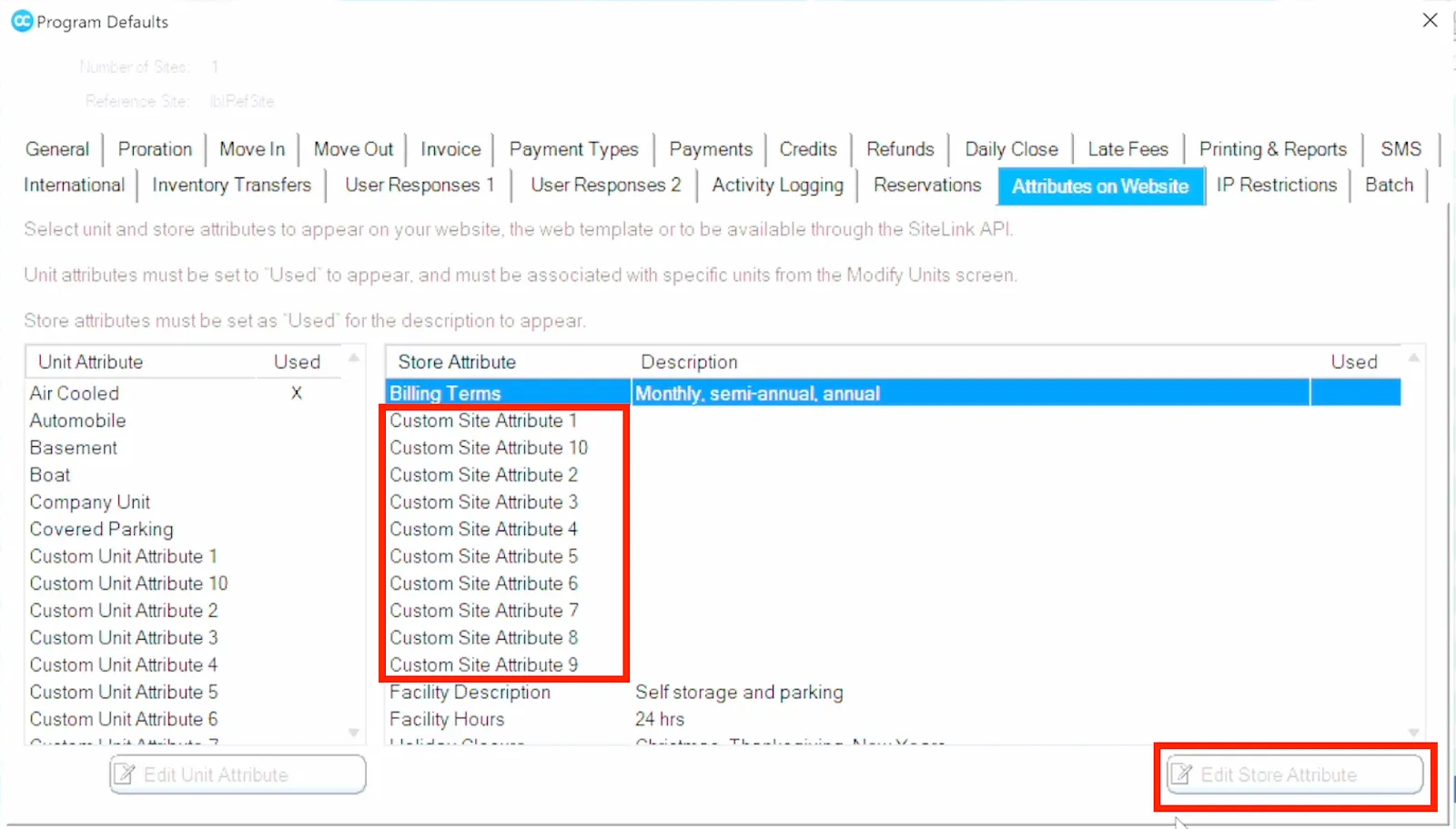
- Select Custom Site Attribute (1–10) from the list.
- Click Edit Store Attribute.
- Add your custom amenity name to the Description field.
- Once the custom attribute has been created, select it from the Website – Unit Attribute list.
- Click OK to save your changes.
Note: If you’ve selected units with different existing values (e.g., varying sizes, types, or amenities), any non-matching fields cannot be edited simultaneously.
Notify Storagely:
After creating and selecting a custom attribute, send the information to Storagely Support so we can ensure the attributes are configured correctly in your Storagely Dashboard. Your new or updated amenities sync to your Storagely website after the next scheduled data sync.
Storable EDGE:
Storable EDGE Document: Amenities in Storable EDGE
If you manage unit attributes through Storable Edge, follow the steps below:
Storable Edge allows you to create and manage custom unit amenities to help identify the characteristics and features of each unit. This ensures your staff — and your website visitors — have accurate, detailed information about what each unit offers.
For example, amenities can include Climate Controlled, Heated, Covered Parking, or other specific features unique to your facility.
About Unit Amenities
A basic set of unit amenities is configured when your Storable Edge account is first created. From there, you can easily add, edit, or disable amenities at any time to keep your listings accurate and up to date.
Accessing Unit Amenity Settings
To manage your company’s unit amenities:
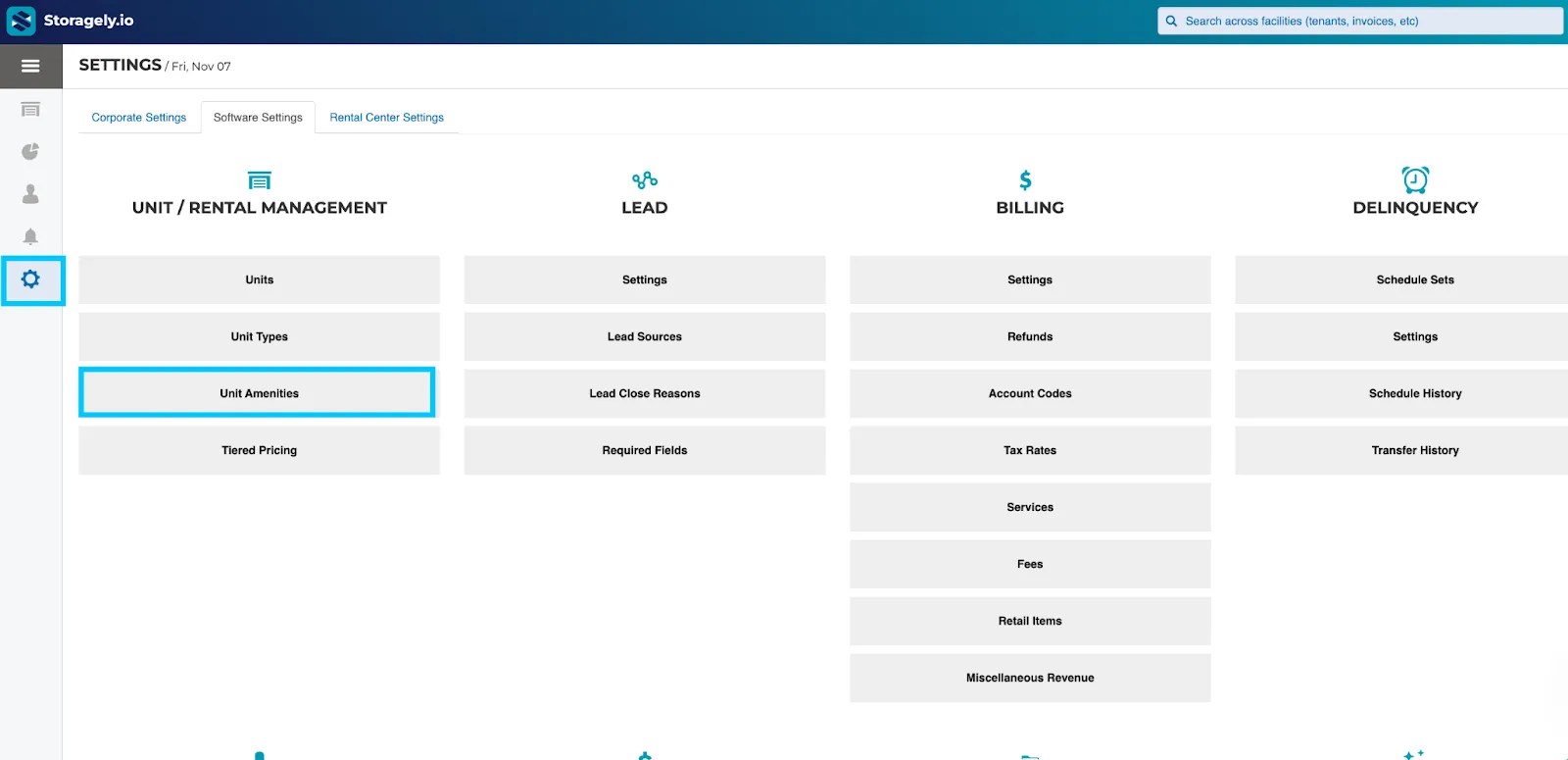
- Click the Corporate button in the upper-right corner of your Storable Edge screen.
- From the Settings tab, click Software Settings.
- Select Unit Amenities to view and manage your current list.
Add/Edit a New Unit Amenity
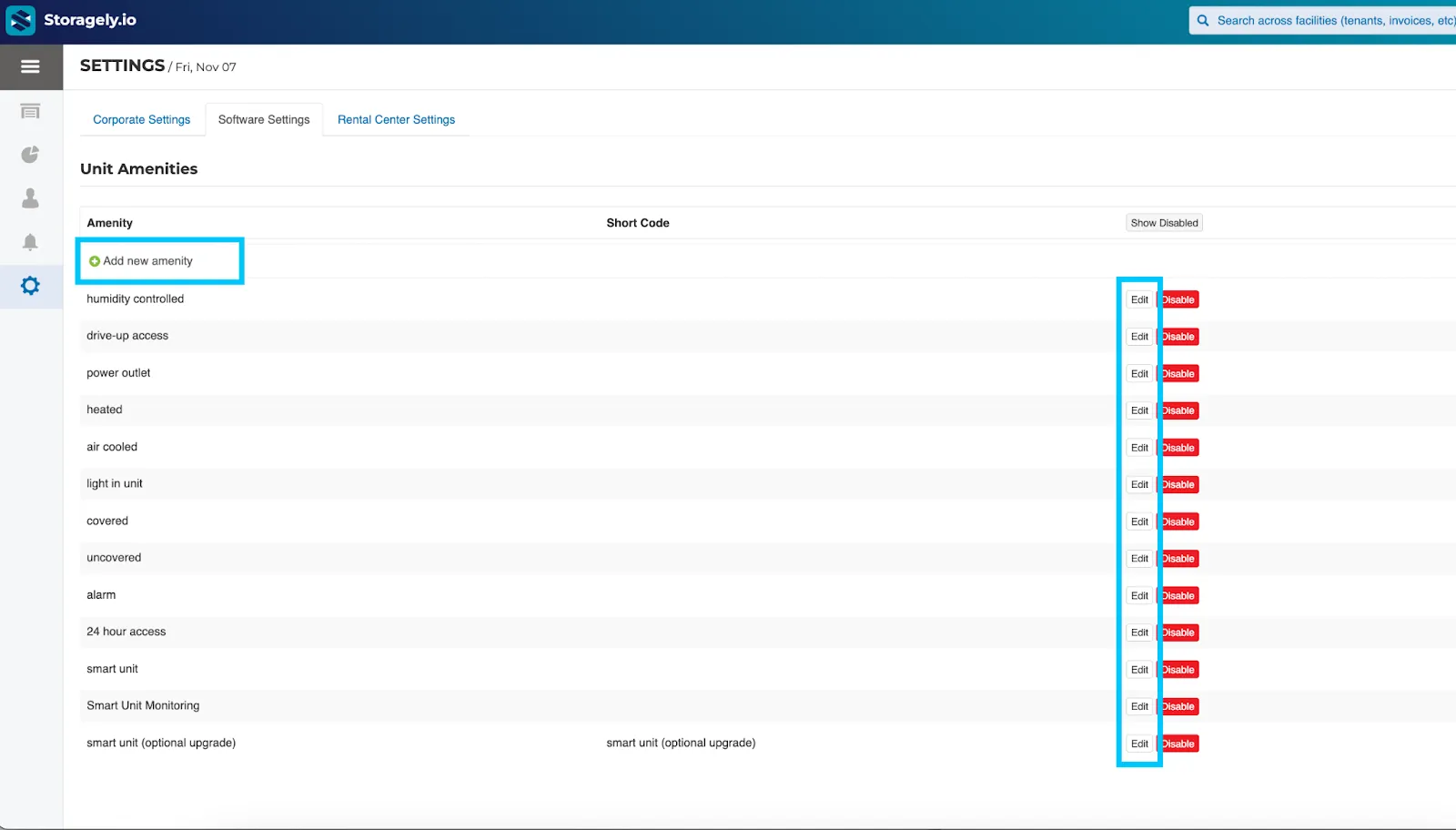
- Click the ⊕ New Unit Amenity or Edit button.
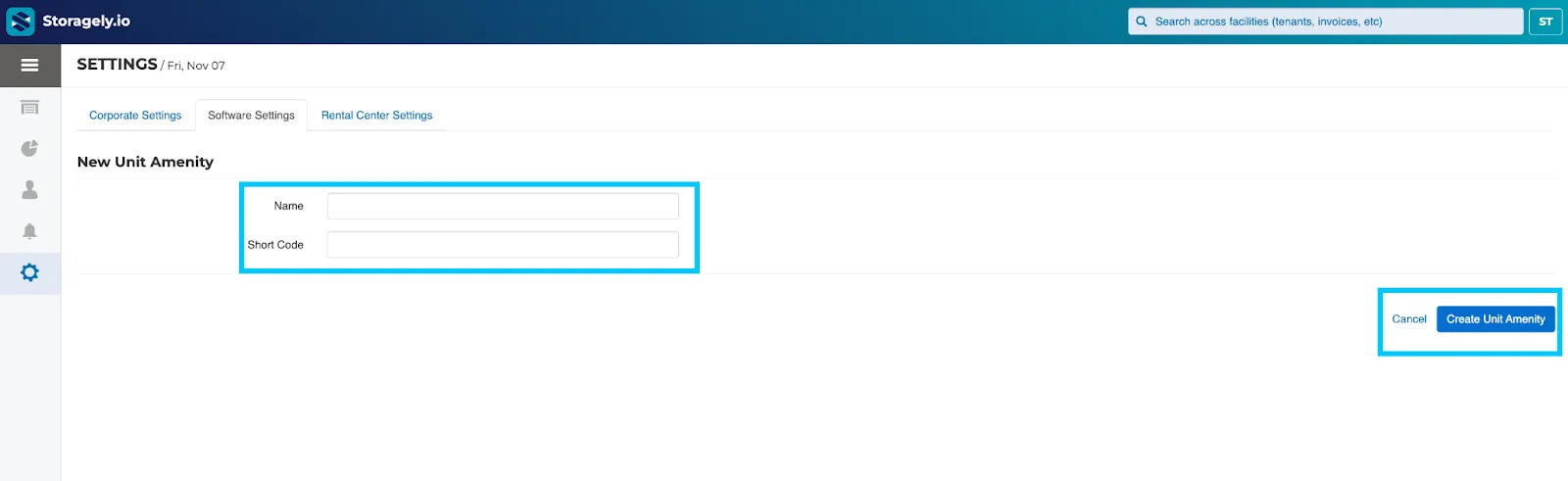
- Enter the Name you’d like to use for the amenity (e.g., Climate Controlled).
- Enter a Shortcode, which is a two- or three-letter abbreviation (e.g., CC for Climate Controlled or DU for Drive-Up).
- Click Save to add the new amenity to your list.
Assigning or Removing Unit Amenities
Once you’ve created a new unit amenity, you’ll need to assign it to the appropriate units:
- Go to your Facility Settings.
- Click on the Units button.
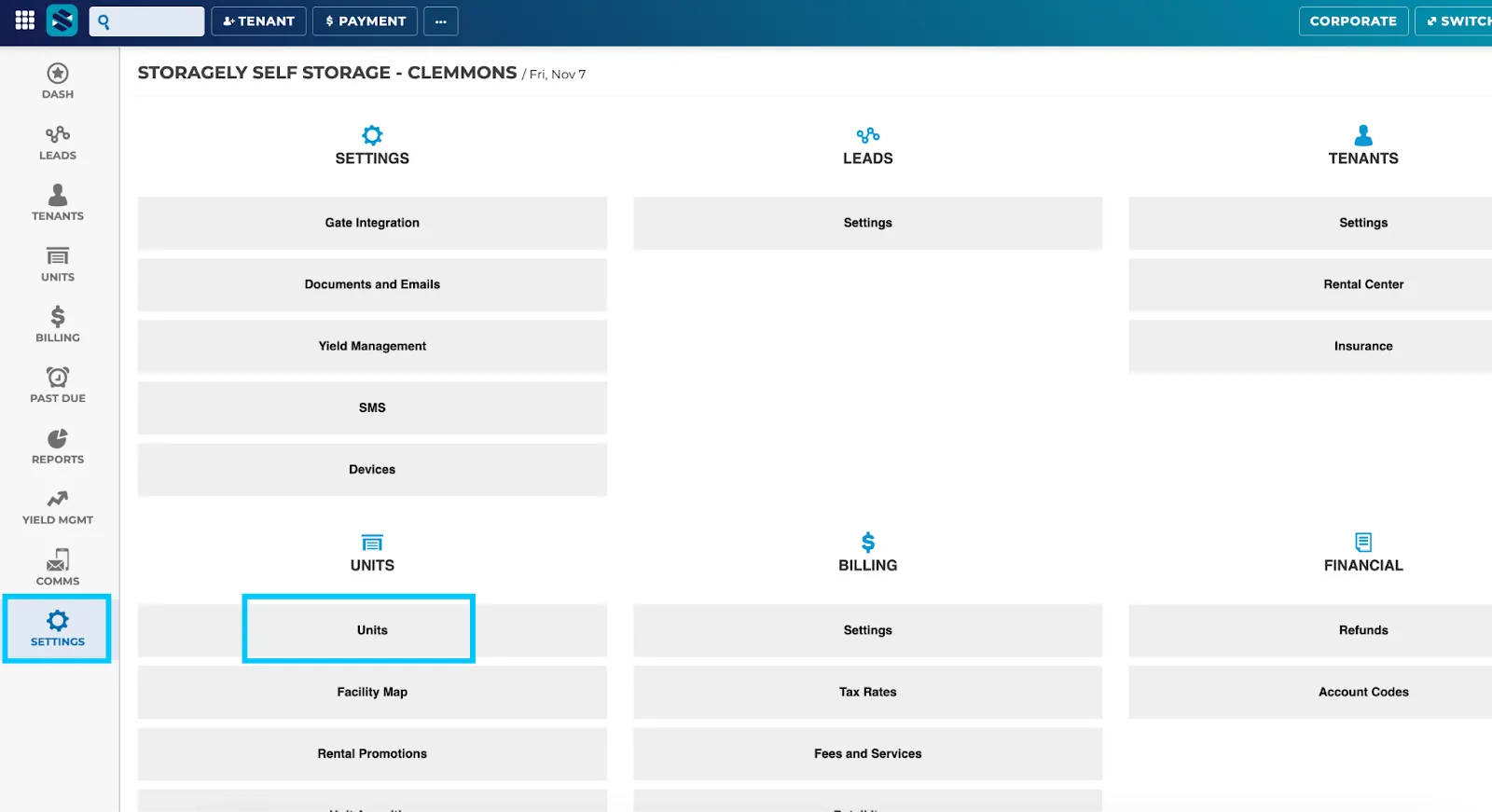
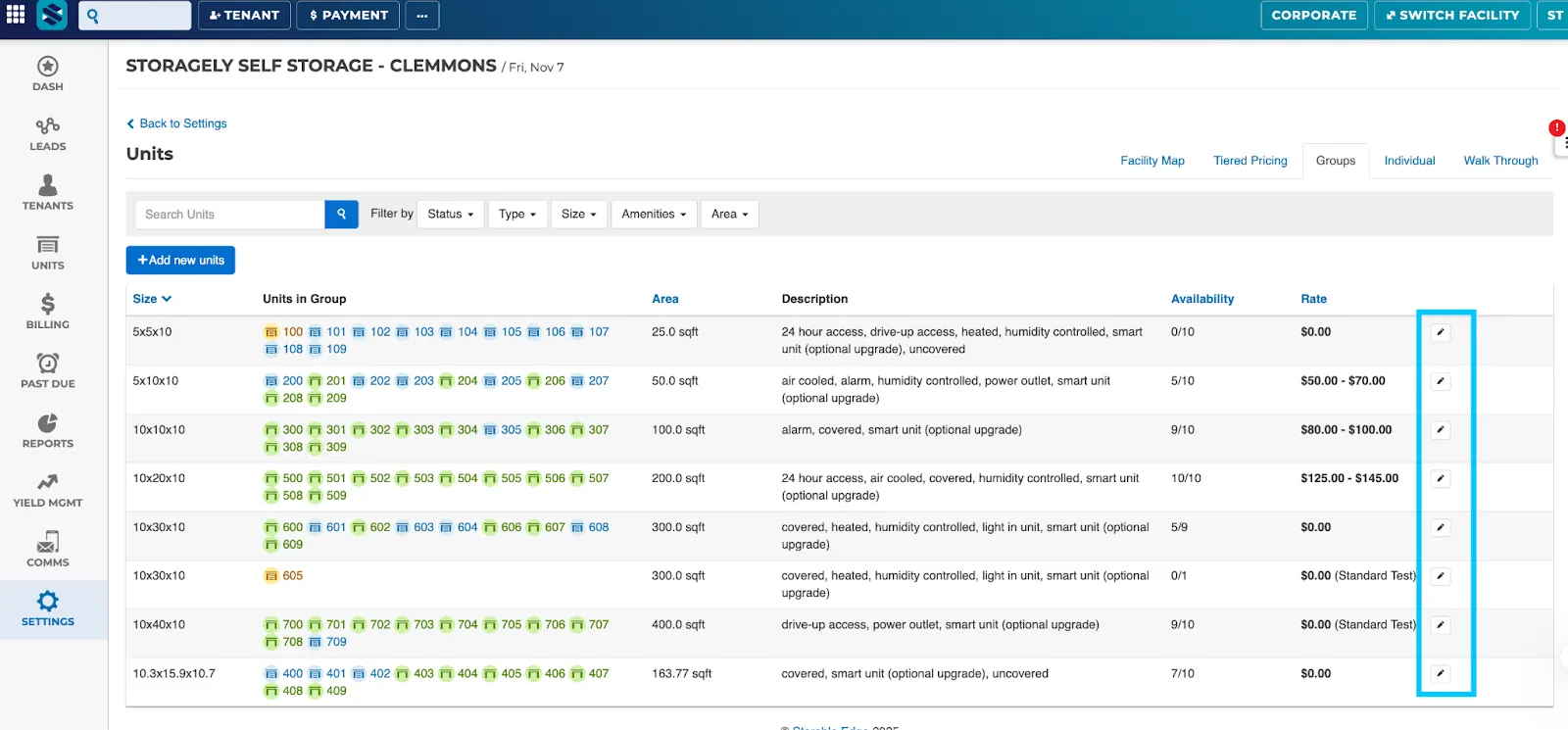
- Edit each unit or group of units where the new amenity applies.
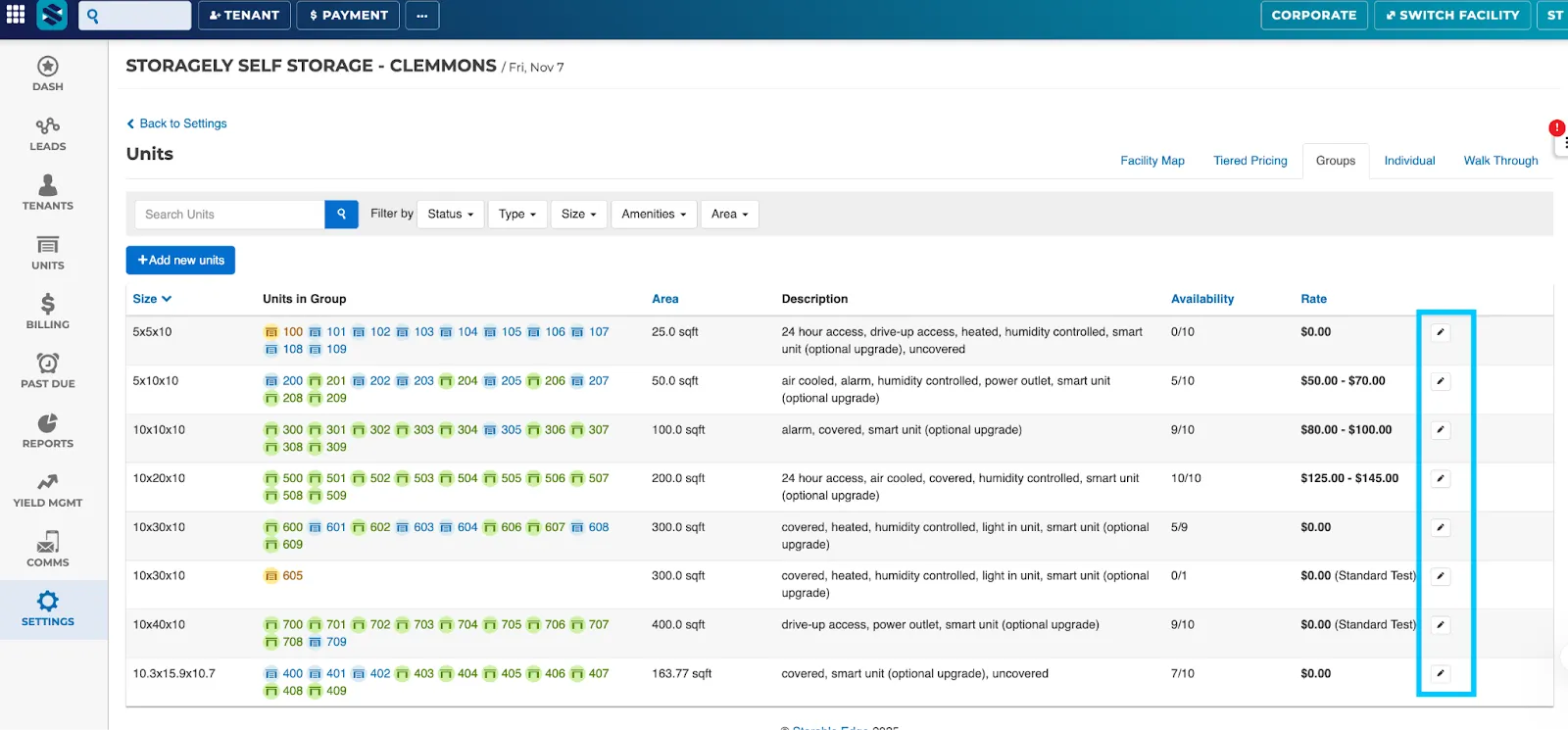
- Select the newly created amenity you would like to add/remove and save your changes.
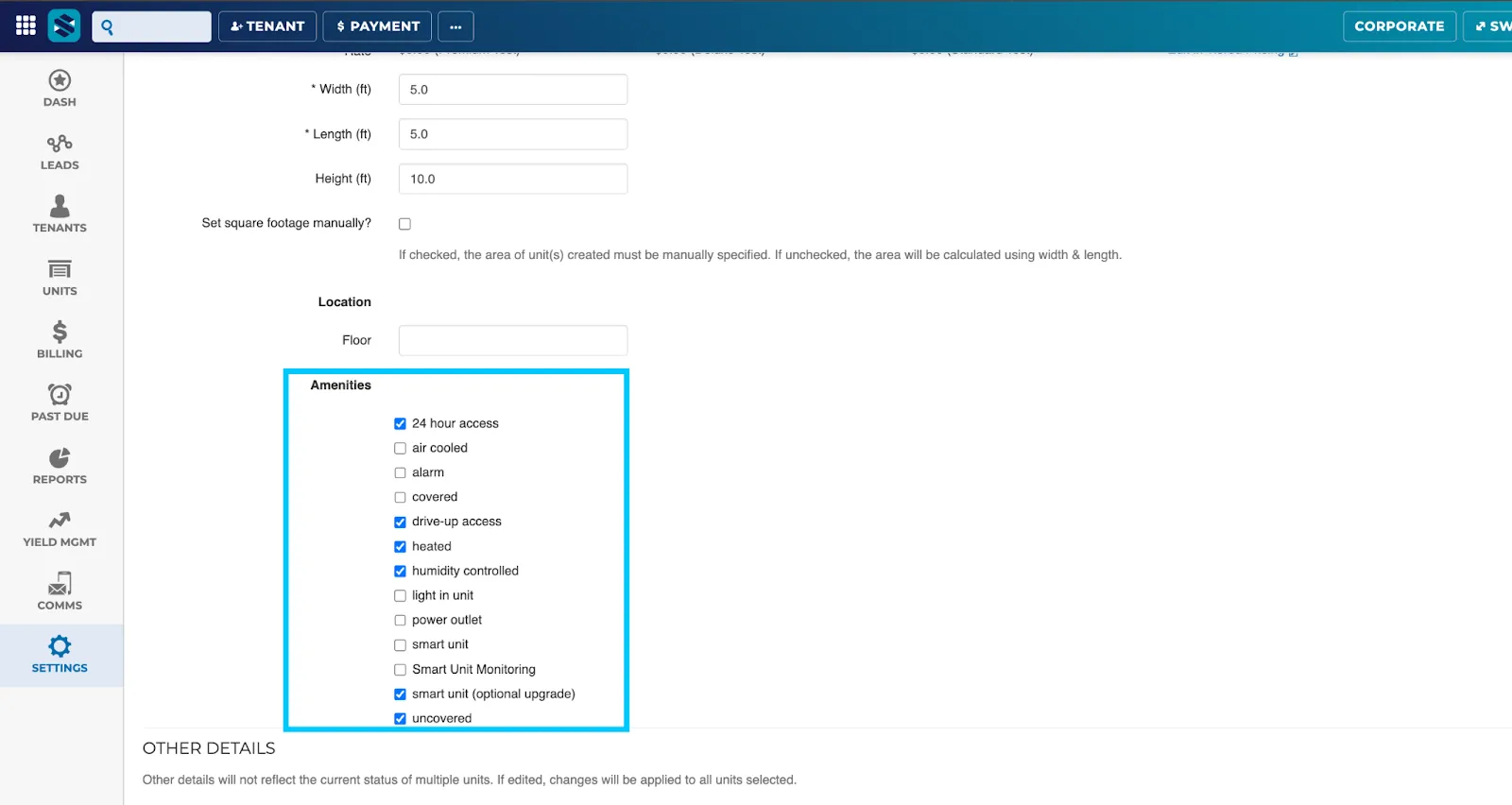
Editing Unit Amenities
- You can update the amenities of an existing unit at any time.
Important: Changes to a unit amenity will only affect reports moving forward from the date of the edit. Past reports will not be retroactively updated.
Disabling Unit Amenities
If an amenity is no longer applicable:
- Go to Facility Settings → Units.
- Edit all units currently using that amenity.
- Uncheck (remove) the amenity and save your changes.
- Return to the Unit Amenities list and disable the outdated amenity.
Best Practices
- Keep amenity names short, clear, and consistent (e.g., “Climate Controlled” instead of “Climate Controlled – Heated”).
- Review amenities regularly to ensure they reflect current offerings.
Adding or Editing Unit Attributes in Storagely
You can easily create or edit these attributes directly within the Storagely Dashboard to ensure your online listings stay accurate and informative.
Note: This attribute applies globally to all units and cannot be assigned individually. If specific units require unique amenities, those should be managed and applied directly through the FMS. Wherever possible, amenities that you’d like displayed on your website should live in your FMS, as it serves as the source of truth for your data. Managing amenities within your FMS eliminates the need for manual updates between systems and ensures your website stays automatically synced and accurate.
Steps to Add or Edit Unit Attributes
- Log in to your Storagely Dashboard.
- From the left-hand menu, click on Rental System → Rental System Settings.
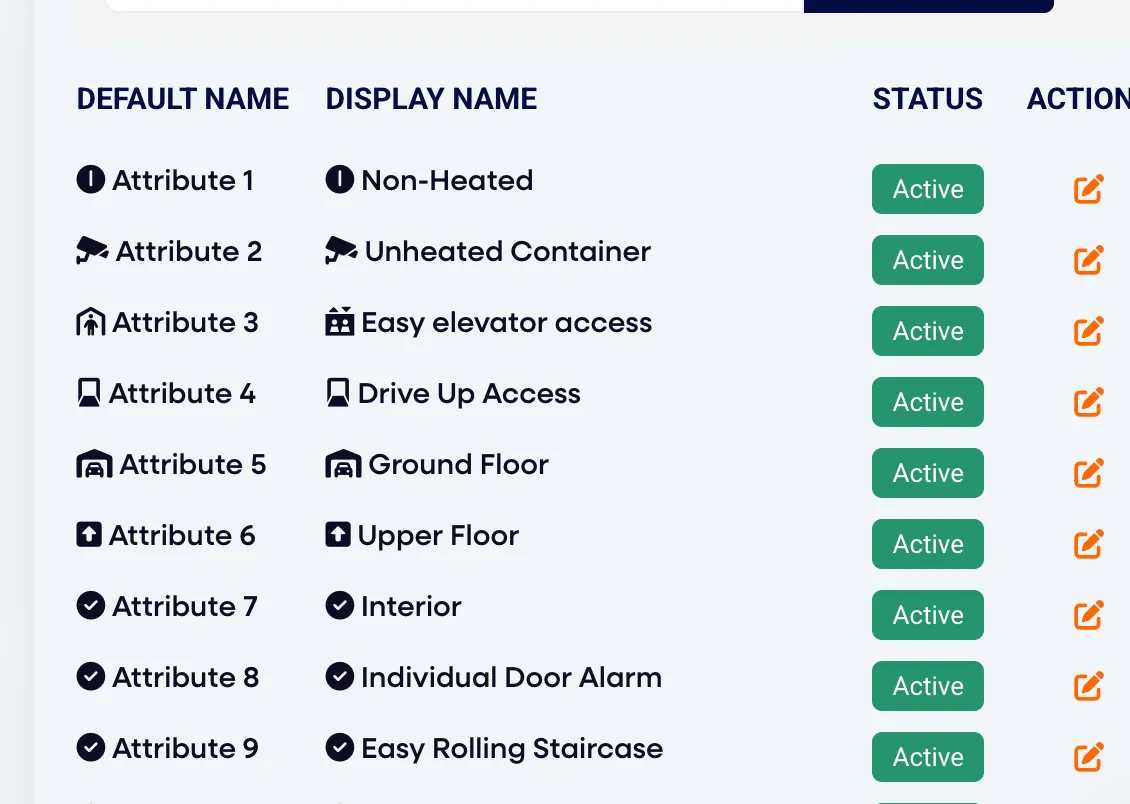
- On the right-hand side of the page, locate the Custom Unit Attributes section.
- Click the Edit (✎) icon next to the attribute you’d like to add or update globally.
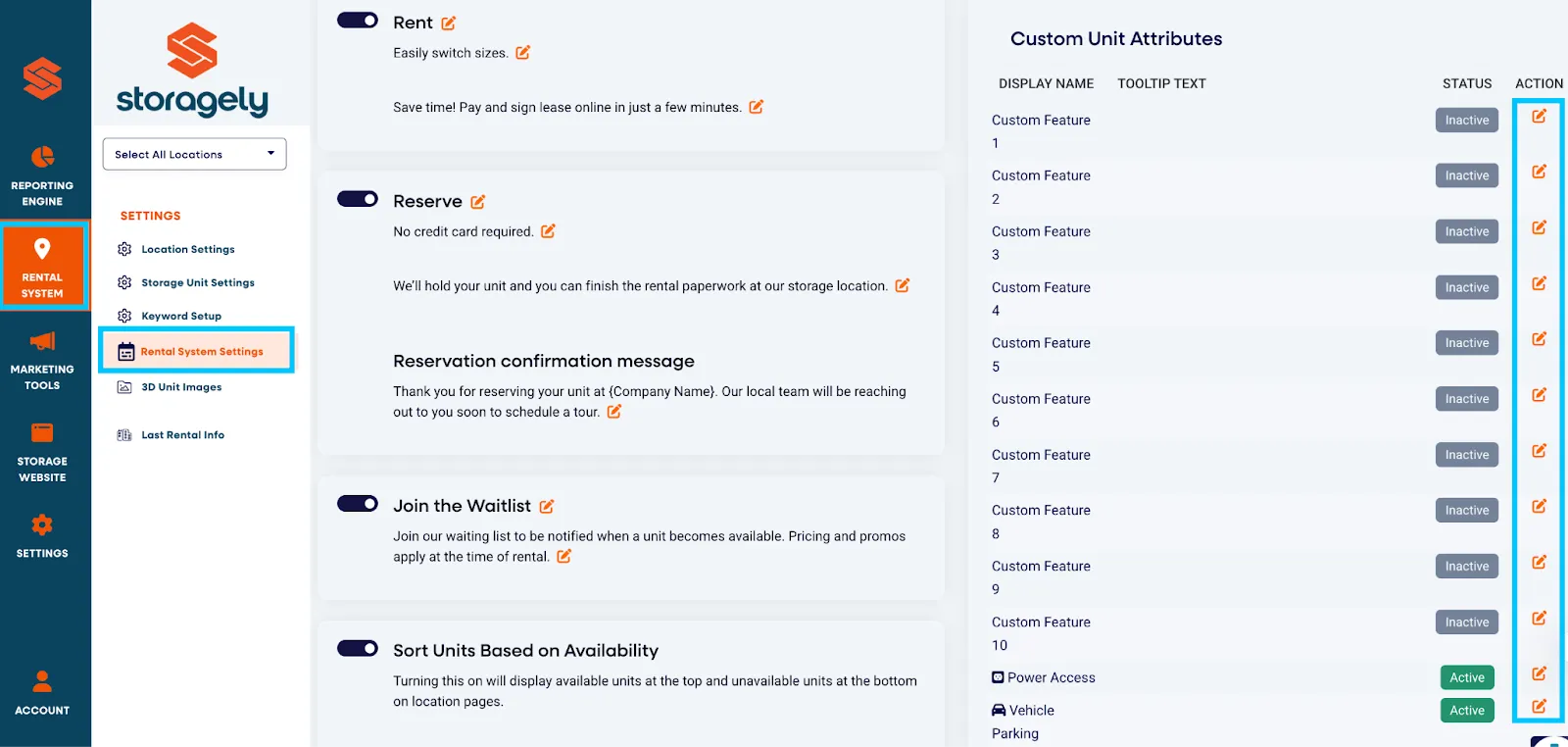
- Update the name of the attribute to match your desired description (e.g., “Heated,” “Covered Parking,” “Video Surveillance”). Click Save to apply your changes.
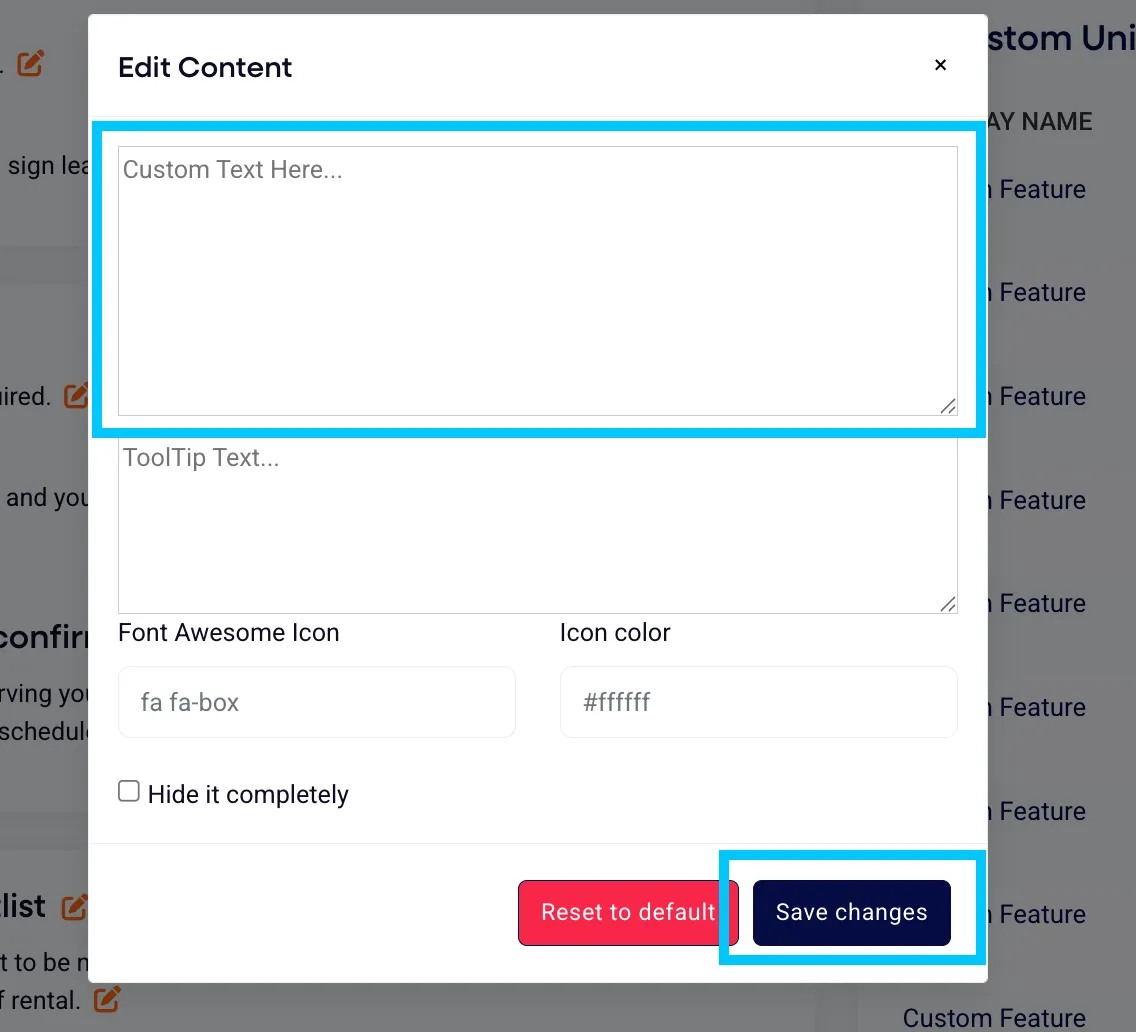
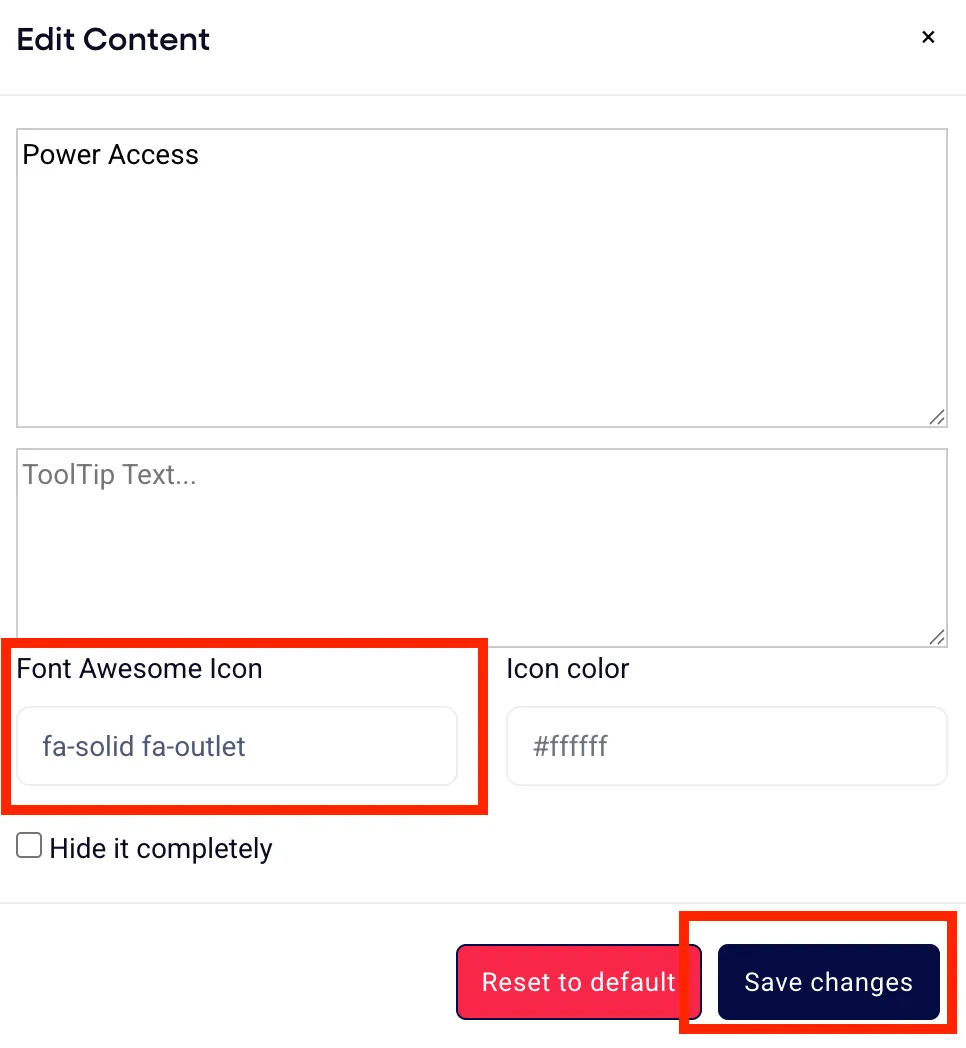
- You can include a Font Awesome icon to represent your new amenity visually. Use the link below to find and copy the best icon code to match your attribute:
- Paste the appropriate icon code in the corresponding field within Storagely to enhance the visual display of your amenities in the pricing grid.
Tips & Best Practices
- Use concise, descriptive names for attributes to make them clear to customers.
- Only include features that are relevant and available at your facility.
- Review your unit attributes periodically to ensure they match your current offerings.
As always, if you have any questions during this process, our Customer Success Team is here to help. The best way to reach us is by submitting a support ticket.