Users (For Administrators & Internal Team Members)
1. Overview
The Users section in the Storagely Dashboard is exclusively for Storagely team members. This section allows administrators to manage user accounts, assign roles, update permissions, and oversee access levels for internal users.
⚠ Important Notice:
- This section is NOT accessible to facility operators.
- All user management functions are restricted to authorized Storagely team members.
- Changes to user access levels should be made carefully to maintain security and operational integrity.
2. Accessing the Users Section
Since user management is a restricted function, only authorized Storagely administrators can access this section.
Steps to Access the Users Section
- Log in to the Storagely Dashboard.
- Navigate to Account > Users.
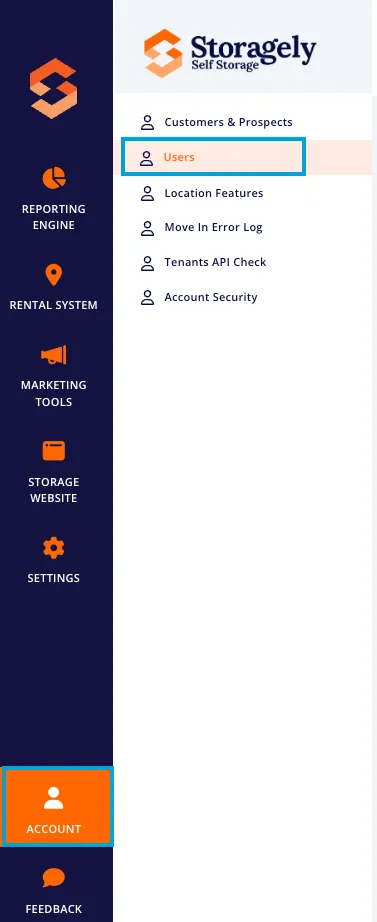
- If access is denied, contact a Storagely system administrator.
3. Managing Users in Storagely
A. Viewing User Accounts
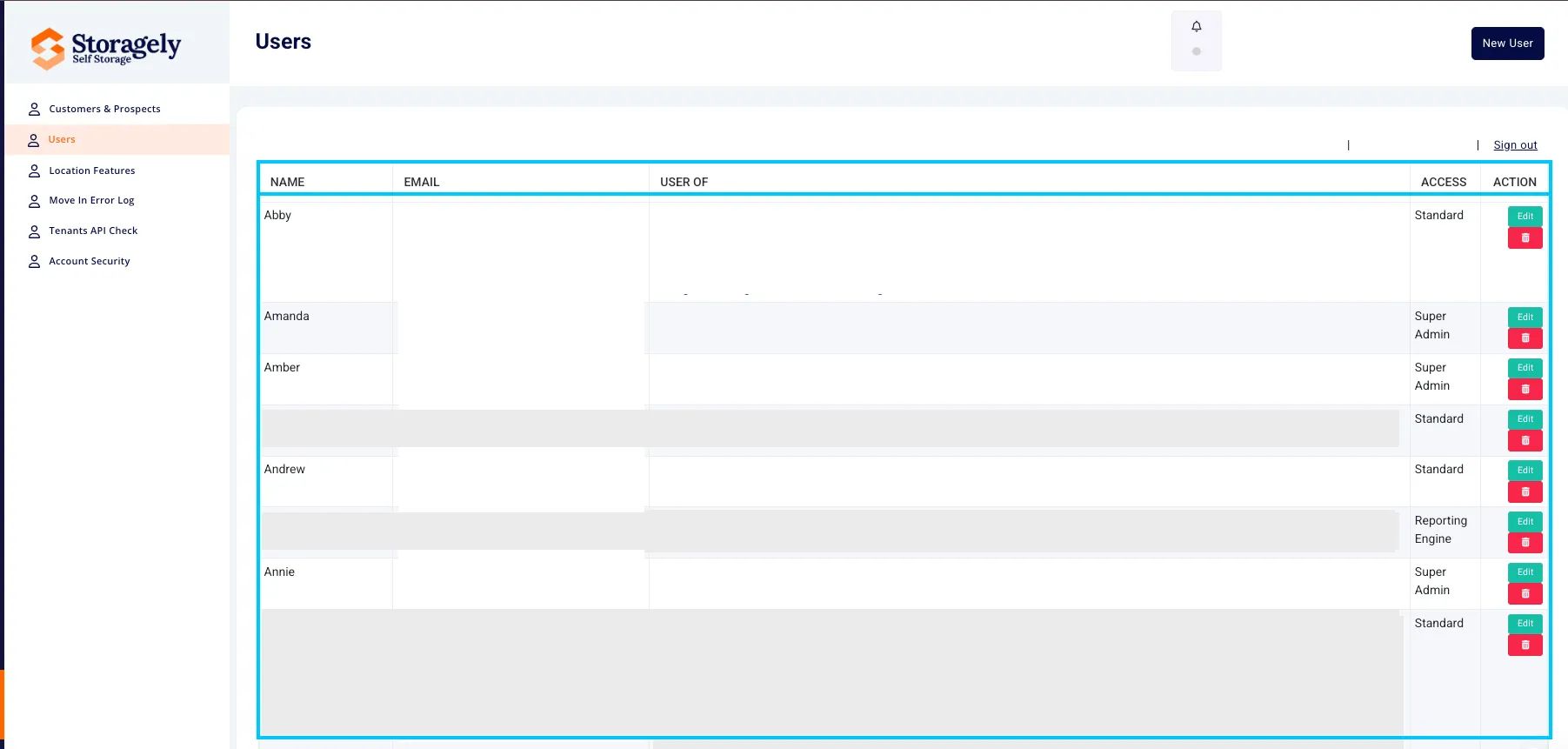
The Users section displays a list of all active Storagely team members with the following details:
- Name – The full name of the user.
- Email Address – The email associated with the user account.
- Access Level – Defines the user’s role (e.g., Standard, Super Admin, Reporting Engine Access).
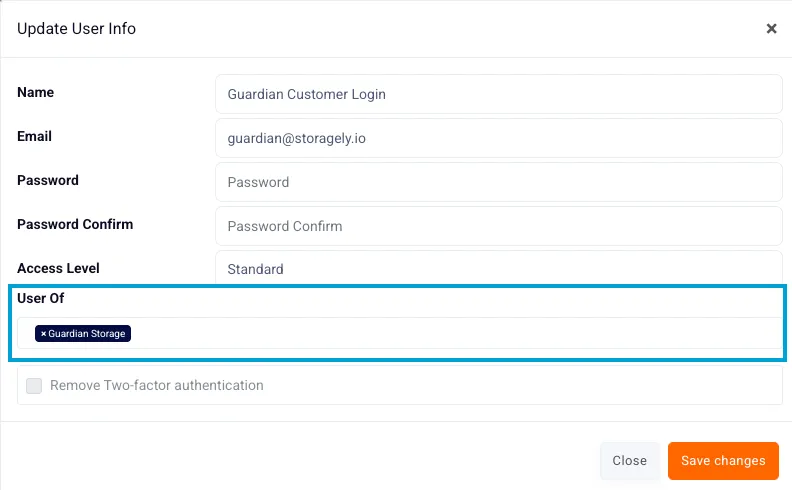
- Assigned Companies or Locations – Lists the accounts or properties they manage.
B. Adding a New User
- Click the New User button.

- Fill out the required fields:
- Name
- Email Address
- Password (for account creation)
- Confirm Password
- Access Level (e.g., Standard User, Super Admin)
- Assigned Companies or Locations
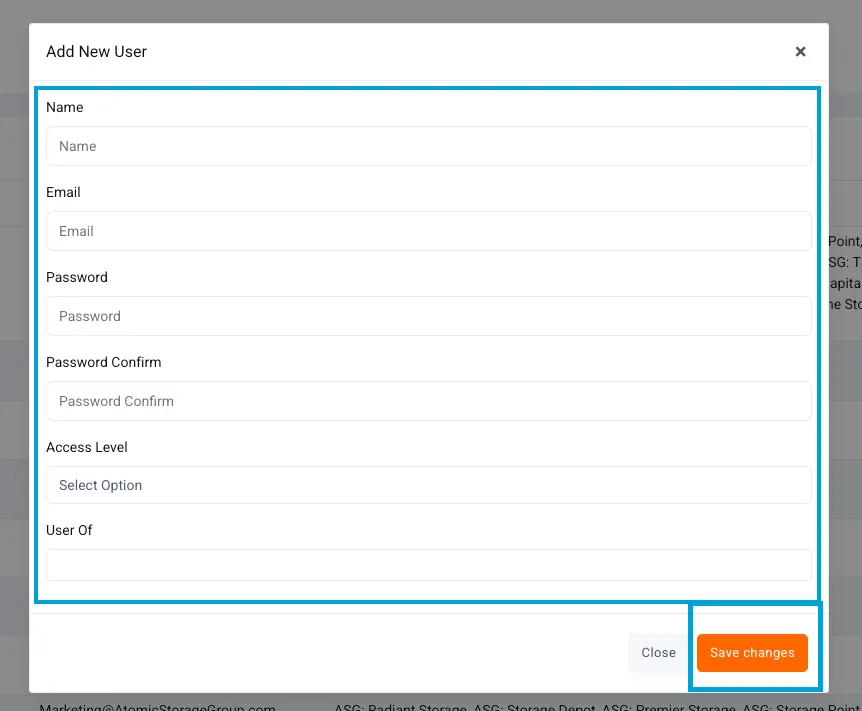
- Click "Save Changes" to create the user account.
C. Editing User Details
- Locate the user in the list.
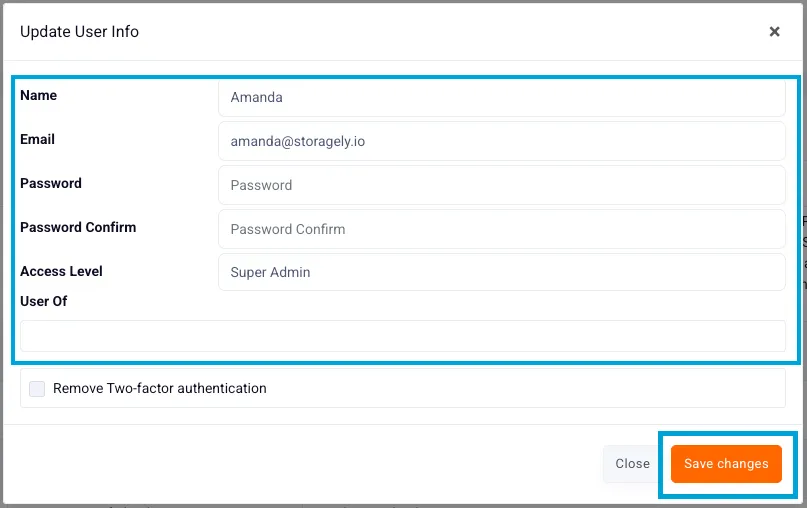
- Click "Edit" next to their name.

- Update necessary fields, such as email, access level, or assigned locations.
- Click “Save Changes” to apply the updates.
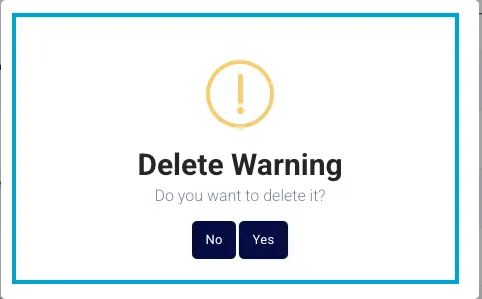
D. Deleting a User
- Select the user to remove.
- Click “Delete” and confirm the action.

4. Assigning & Managing User Permissions
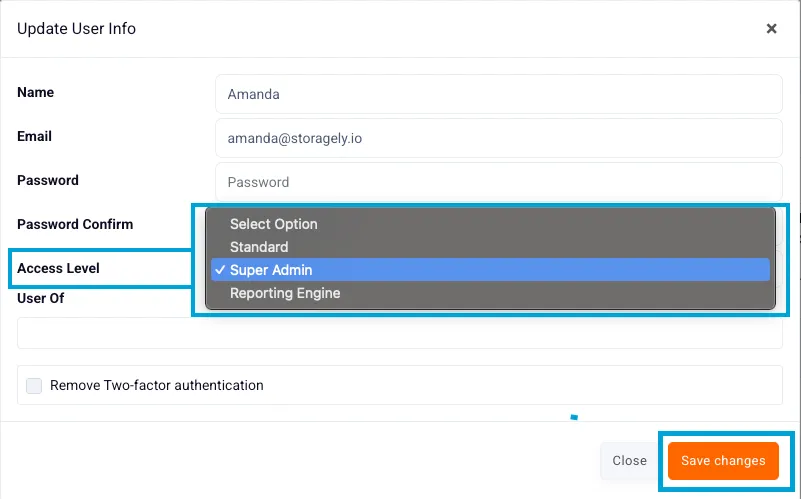
A. Access Levels & Permissions
Administrators can assign different access levels:
- Standard User – Basic access with limited permissions.
- Super Admin – Full administrative rights, including user and system settings.
- Reporting Engine – Grants access to reporting tools only.
B. Updating User Access
- Select a user from the list.
- Click "Edit" and adjust their access level.
- Assign them to the appropriate companies or locations.
- Click “Save Changes”.
C. Restricting User Access
To revoke or limit user access:
- Navigate to User Permissions.
- Locate the user and uncheck access to specific sections.
- Click “Save Changes” to finalize updates.
5. Troubleshooting & FAQs
Issue | Possible Cause | Solution |
|---|---|---|
User Cannot Log In | Incorrect credentials or access restrictions | Verify user details and reset password |
Access Denied to Certain Features | Insufficient permissions | Update user’s access level |
Unable to Delete a User | Account is assigned to active tasks | Reassign responsibilities before deleting |
New User Not Receiving Invitation Email | Email filters or incorrect email address | Resend invitation or check spam folder |
6. Best Practices for User Management
✅ Regularly review user access levels to prevent unauthorized access. ✅ Limit administrative privileges to essential team members only. ✅ Ensure users are assigned to the correct locations and companies. ✅ Immediately deactivate users who no longer require access.
For further assistance, please reach out to your direct supervisor.