Storage Unit Settings
1. Introduction
The Storage Unit Settings section in the Rental System Settings of the Storagely Dashboard allows facility operators to manage individual storage unit details, including unit types, descriptions, visibility, and features. This section is essential for maintaining an up-to-date and well-organized rental inventory.
- Operators should primarily use the Facility Management Software (FMS) for updates to unit information. The FMS is the source of truth, and any updates made in the Storagely Dashboard will not sync back to the FMS.
- Changes made in the FMS will be updated in the Storagely Dashboard during the next scheduled data sync or by manually syncing the data.
2. Navigating to Storage Unit Settings
To access the Storage Unit Settings:
- Log in to your Storagely Dashboard.
- In the left sidebar menu, click on Rental System.
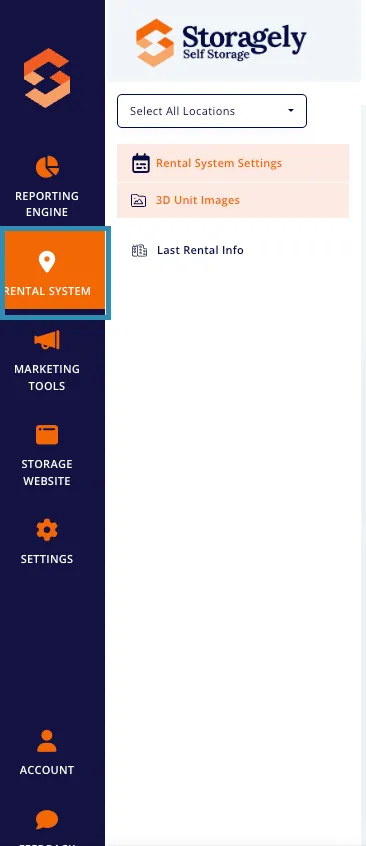
- First, find a specific location and then select Storage Unit Settings from the available options.
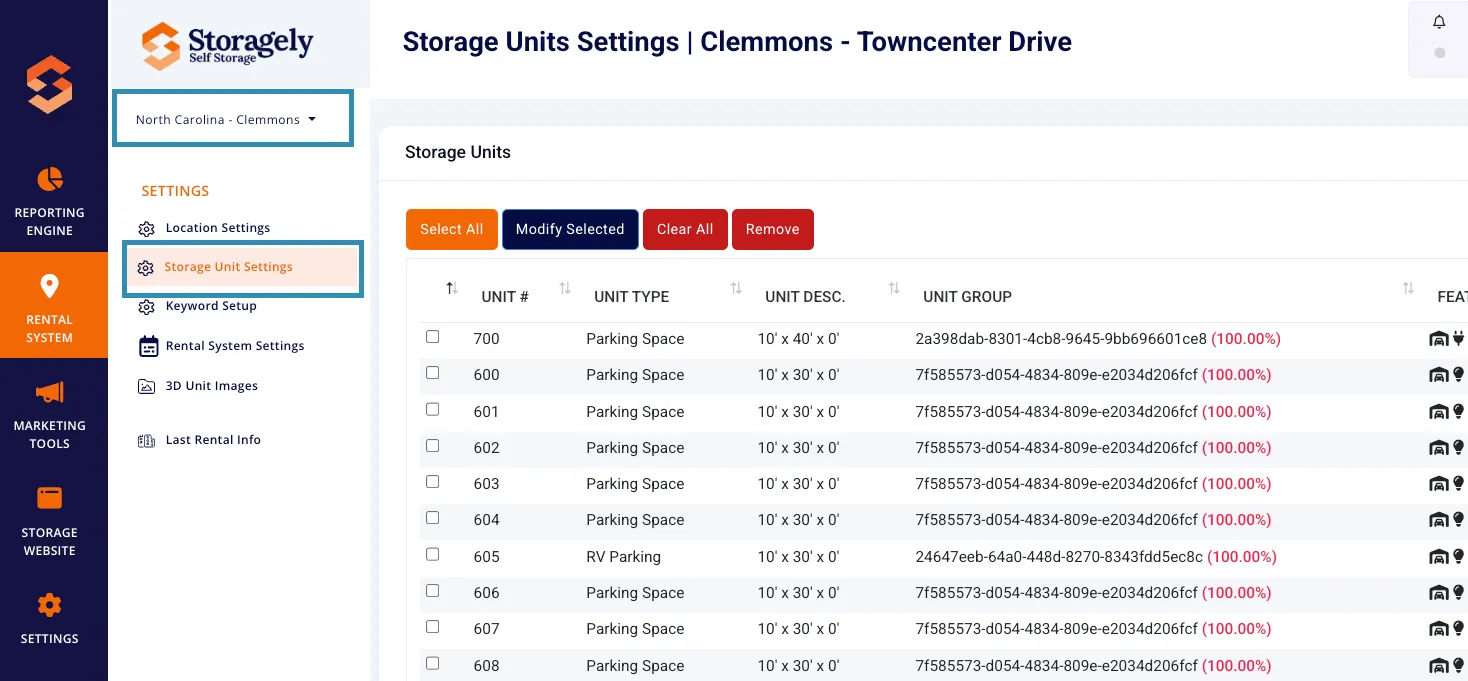
3. Understanding the Storage Unit Settings Interface
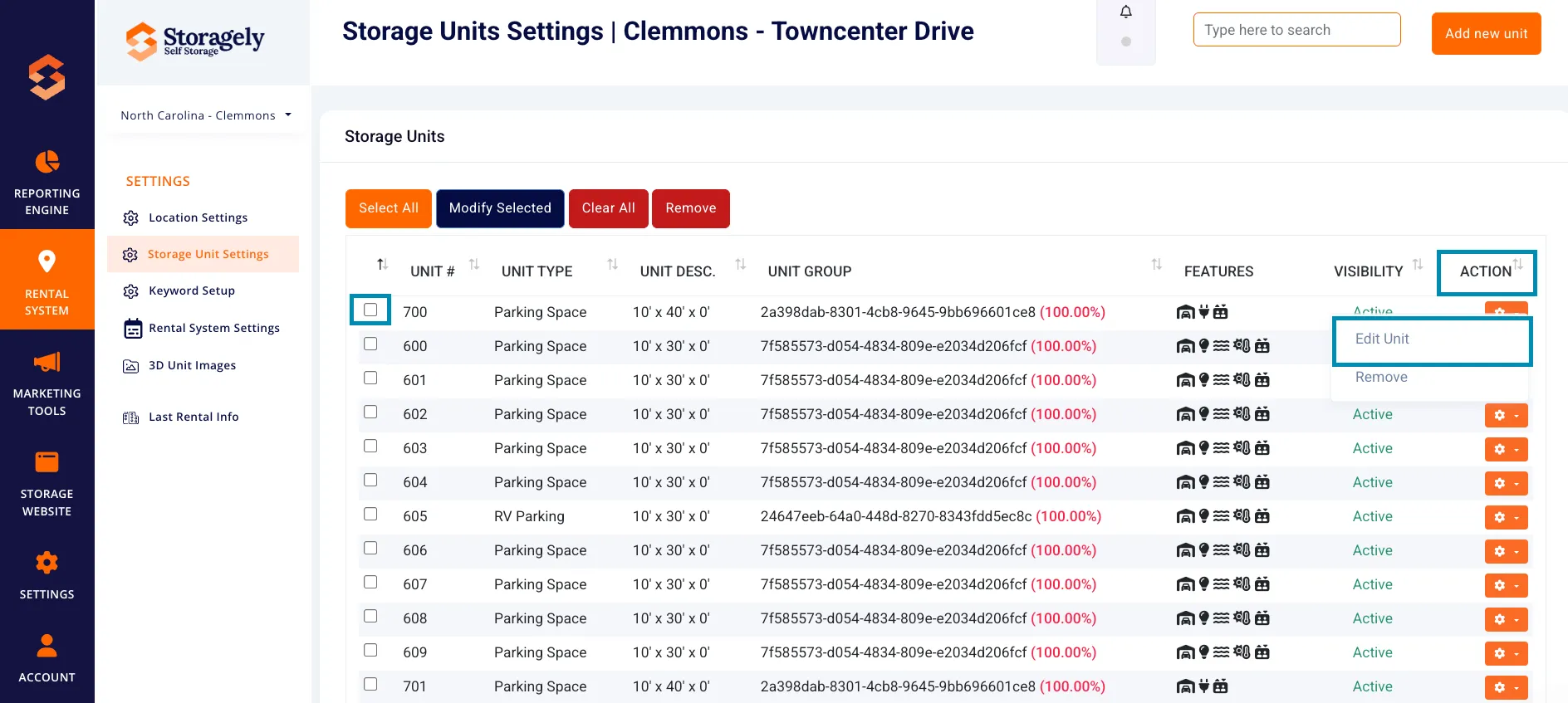
The Storage Unit Settings page provides a structured table listing all storage units at a location. Each row contains important details about individual units, such as:
A. Unit Information
- Unit Number – Unique identifier for the unit.
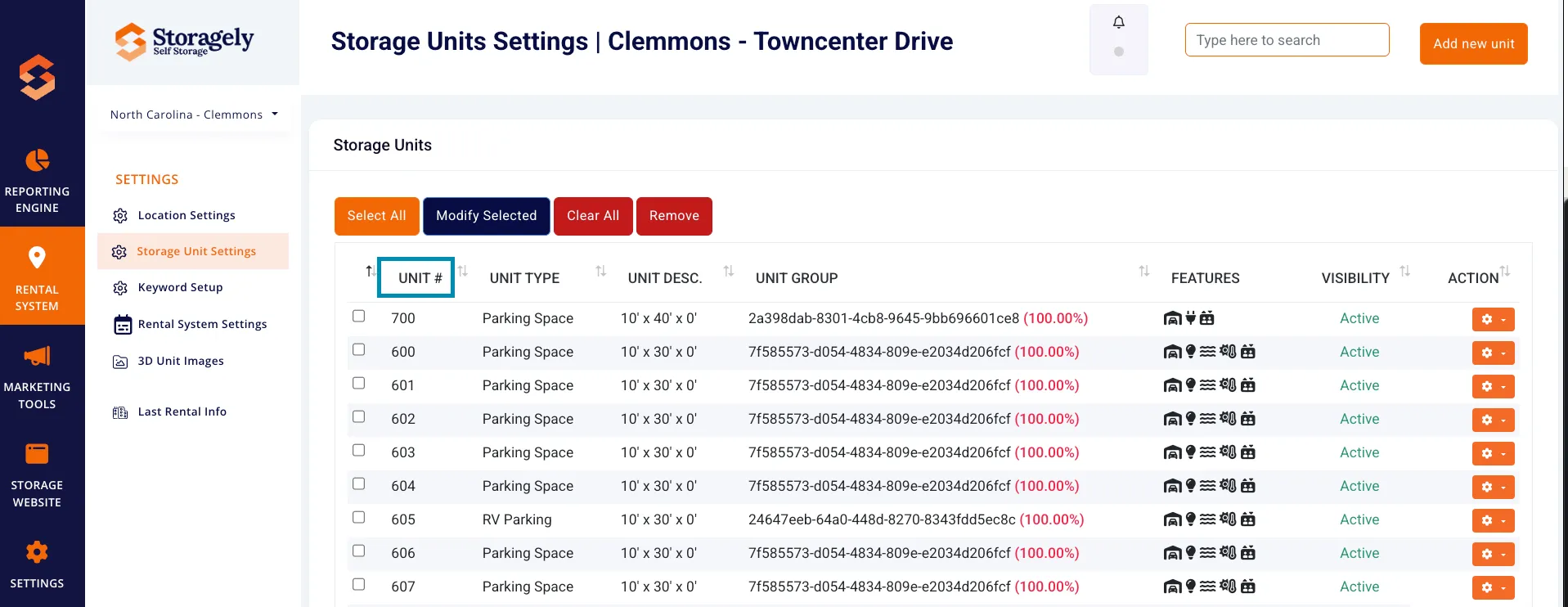
- Unit Type – The type of storage unit (e.g., Climate Controlled, Drive-Up Access).
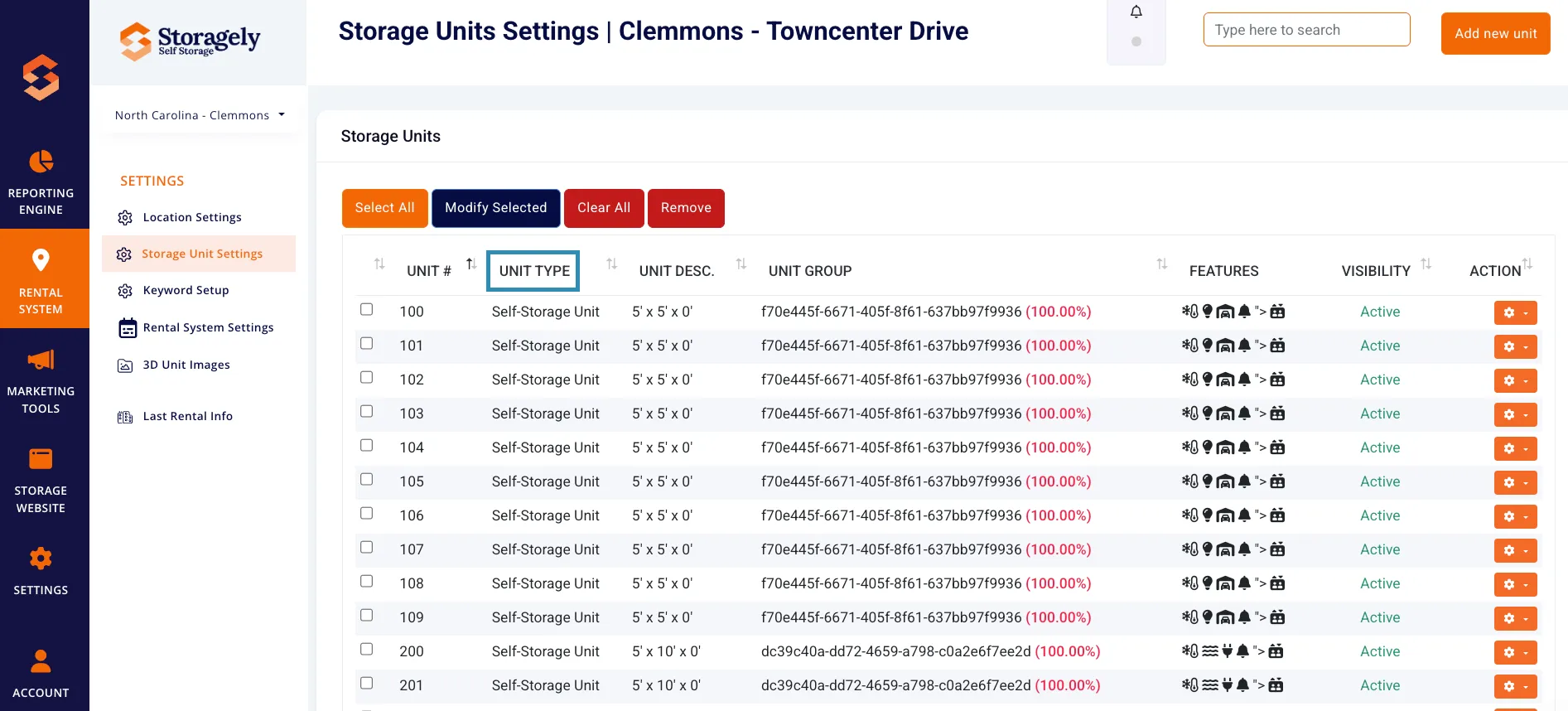
- Unit Description – Dimensions and any additional details.
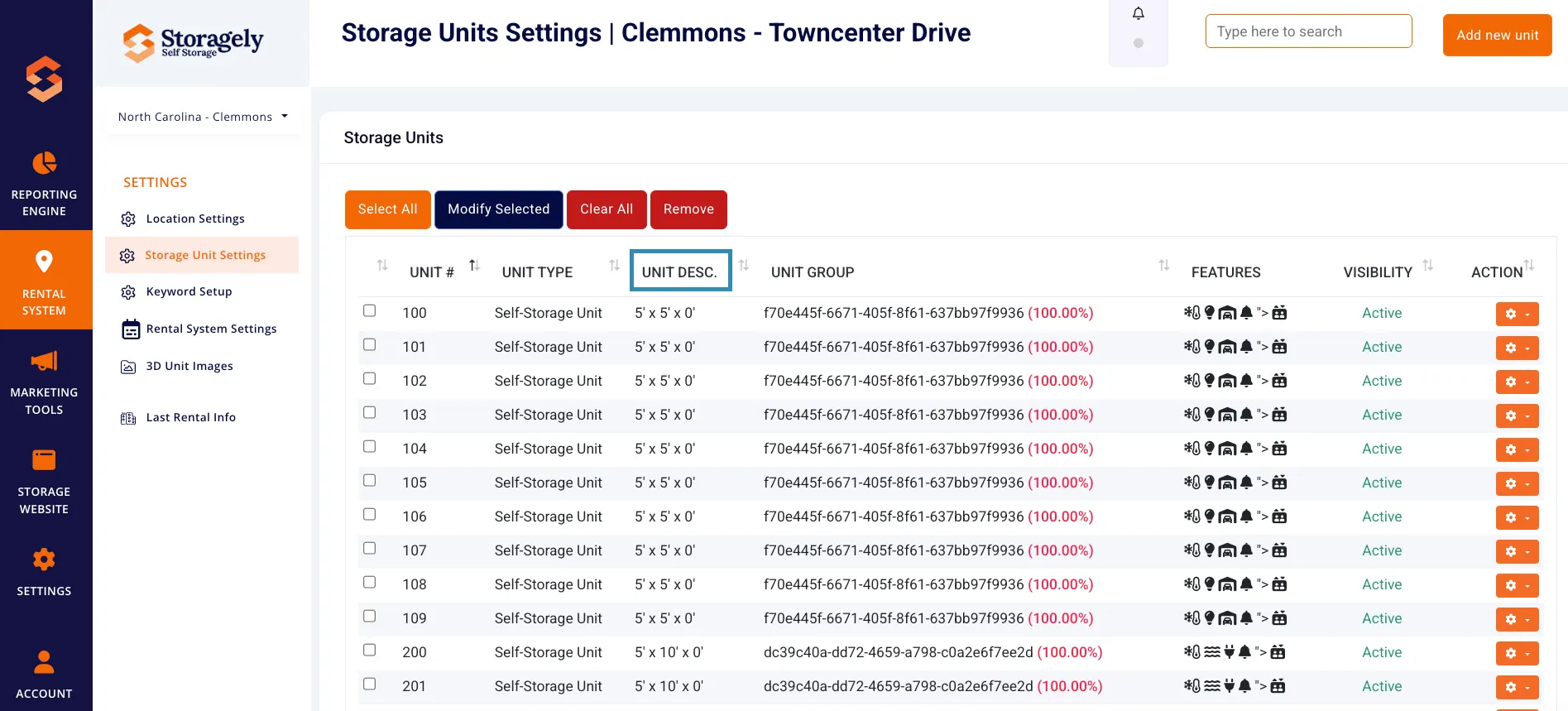
- Unit Group – Group classification for organizational purposes.
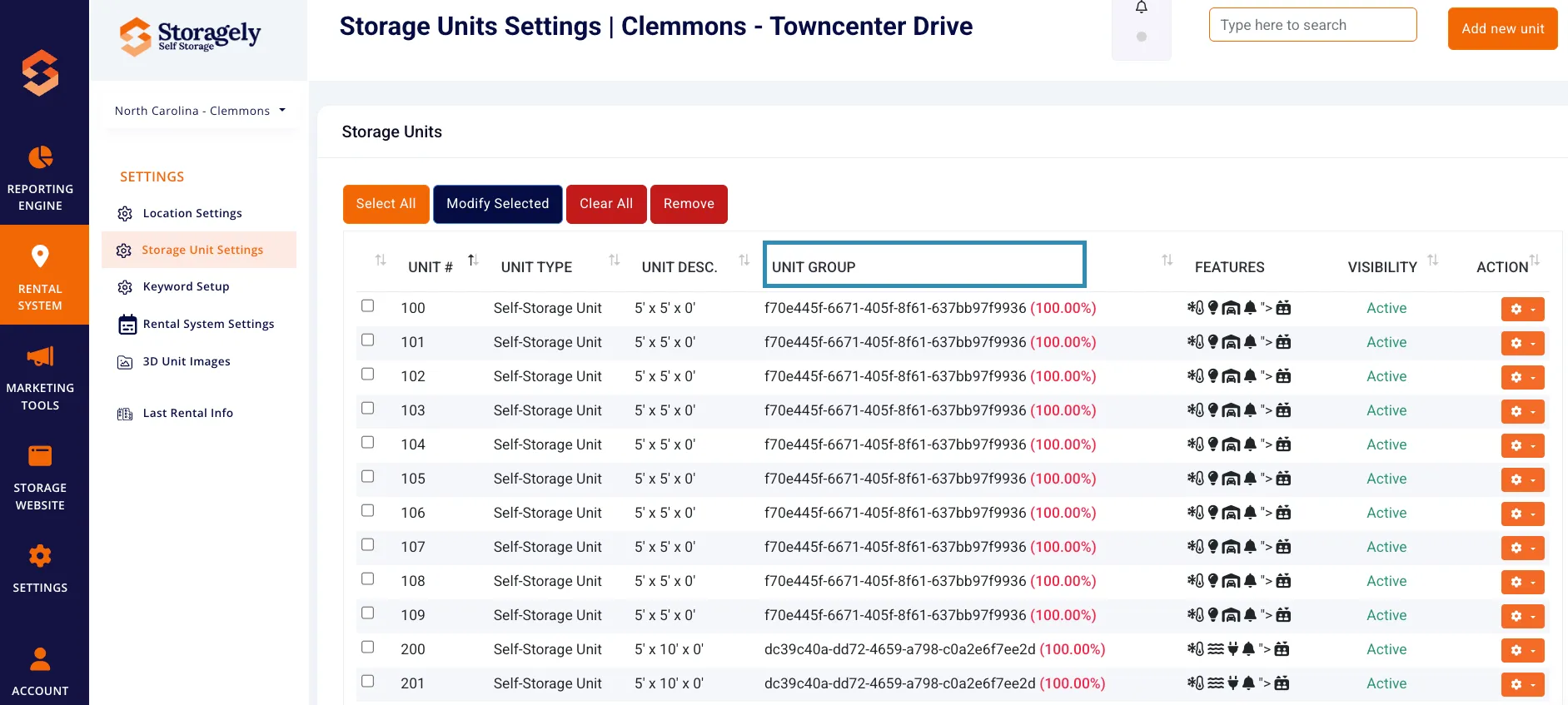
- Features – Special attributes such as first-floor access, security features, or climate control.
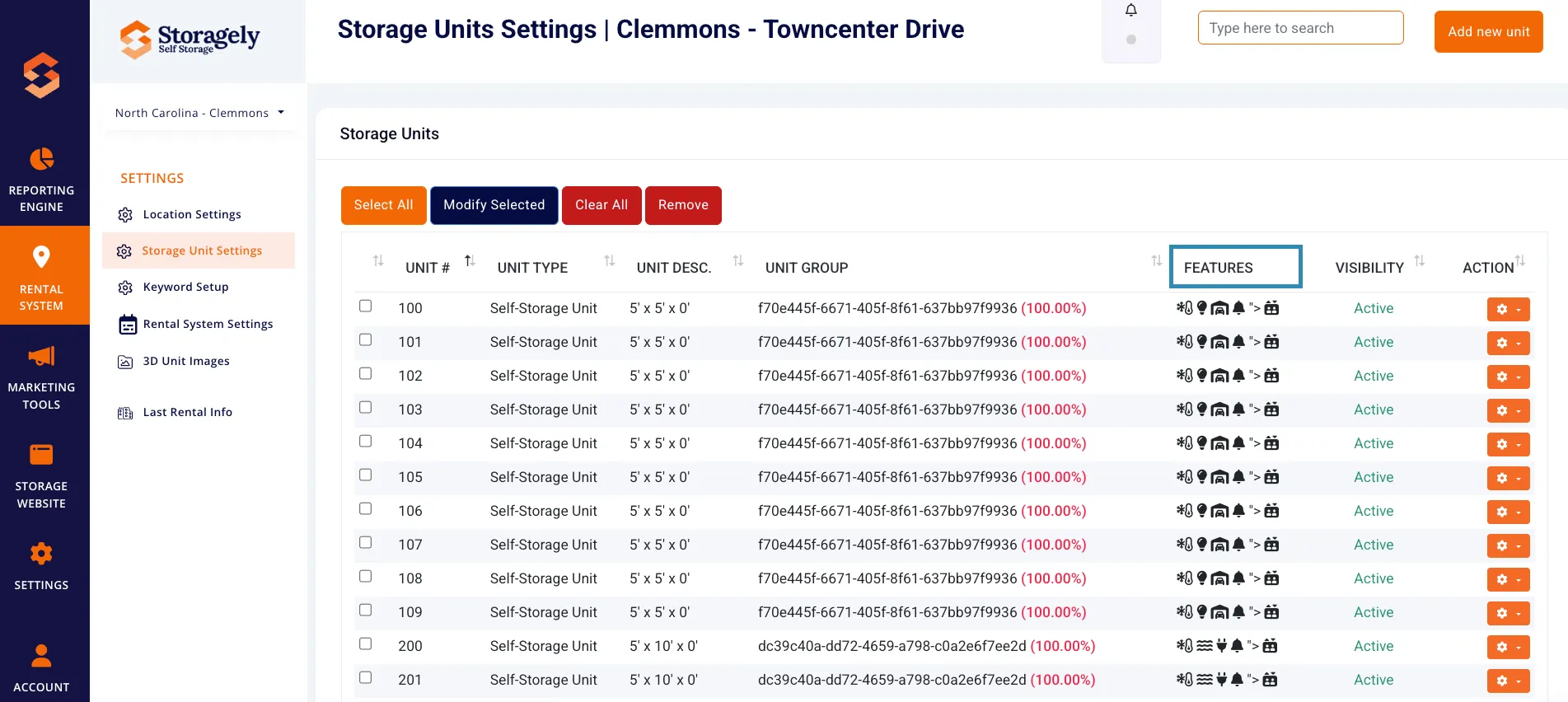
B. Visibility Settings
- Active/Inactive Status – Displays whether a unit is available for rent.
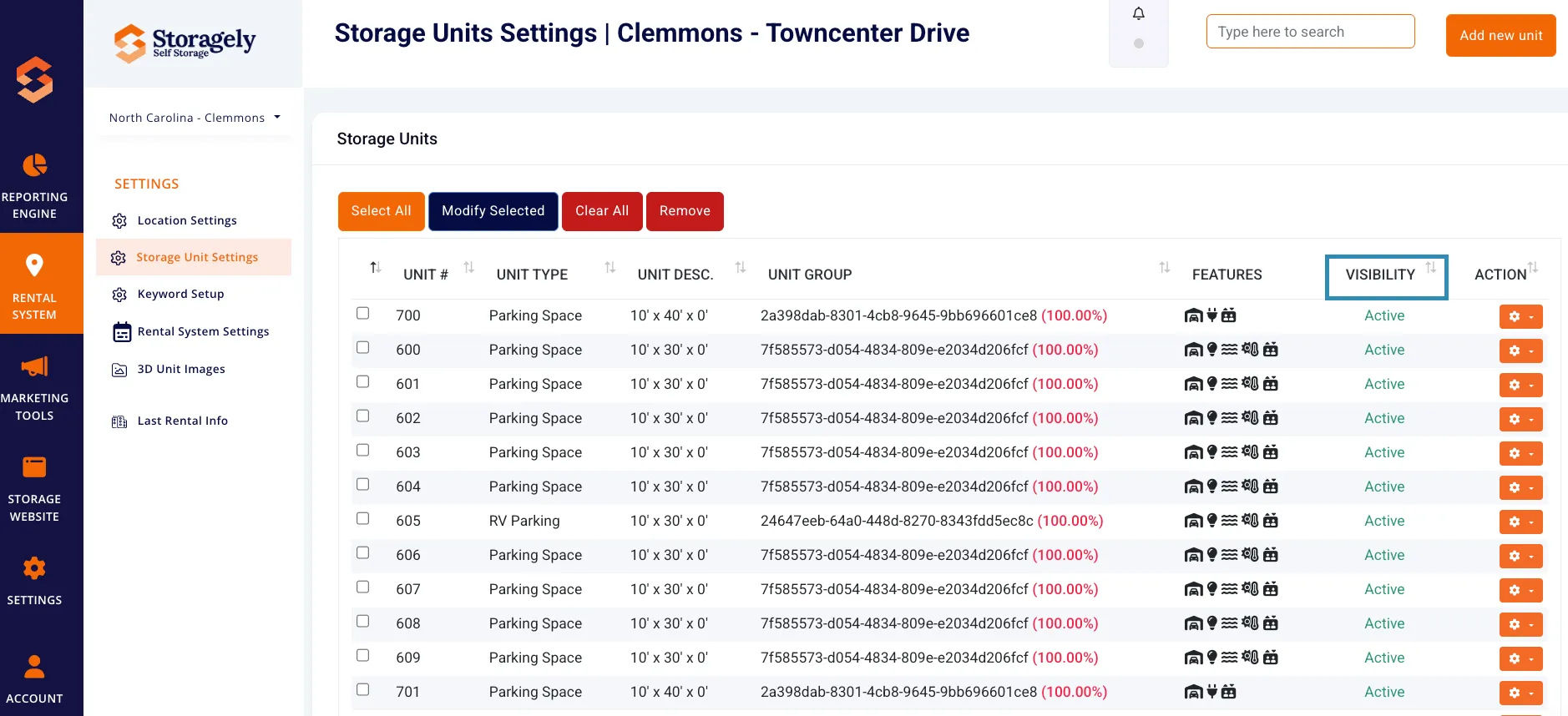
C. Action Menu
- Select Unit - Click the checkbox to the left of the unit, then click the gear button to make changes.
- Edit Unit – Modify unit details such as size, type, pricing, and features.
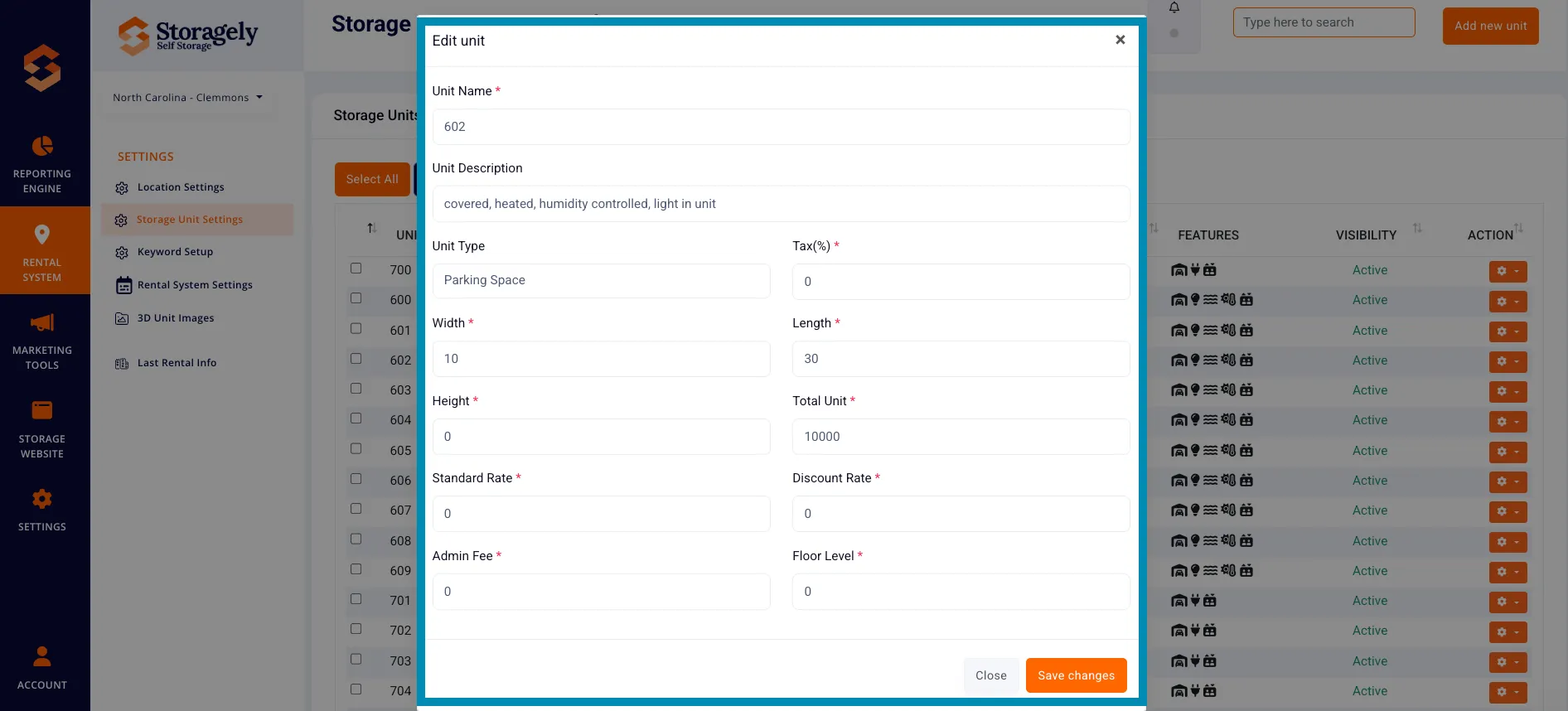
Reminder: Changes made here do not update the FMS. If the unit needs a permanent update, make the changes in the Facility Management Software first.
4. Managing Storage Units
A. Adding a New Unit
To add a new storage unit:
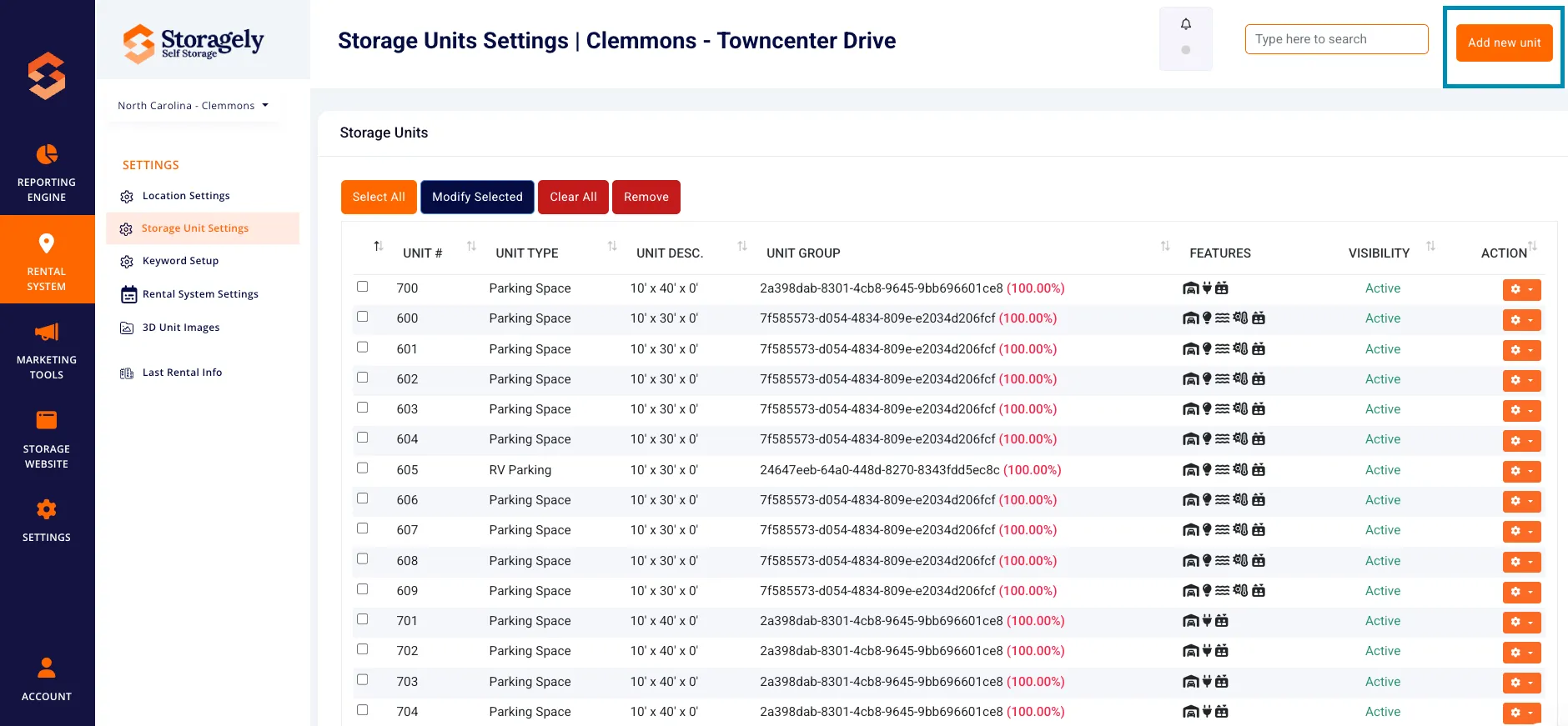
- Click the "Add New Unit" button at the top of the page.
- Fill out the required details:
- Unit Number
- Unit Type (e.g., Drive-Up, Climate Controlled, Indoor)
- Unit Description (size, height, width, depth)
- Features (e.g., Elevator Access, 24/7 Access, Security Cameras)
- Visibility Status (Available or Unavailable)
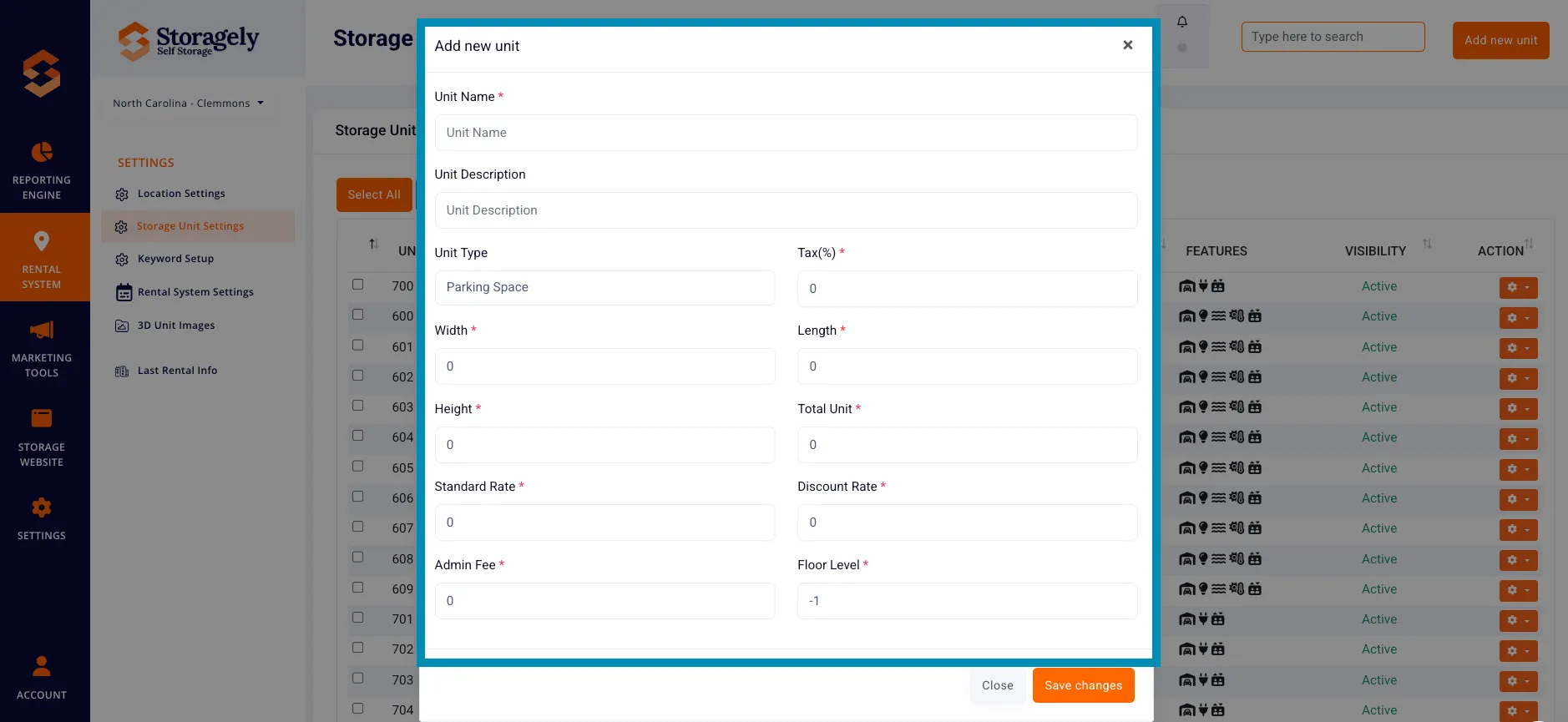
- Click "Save" to add the unit to your inventory.
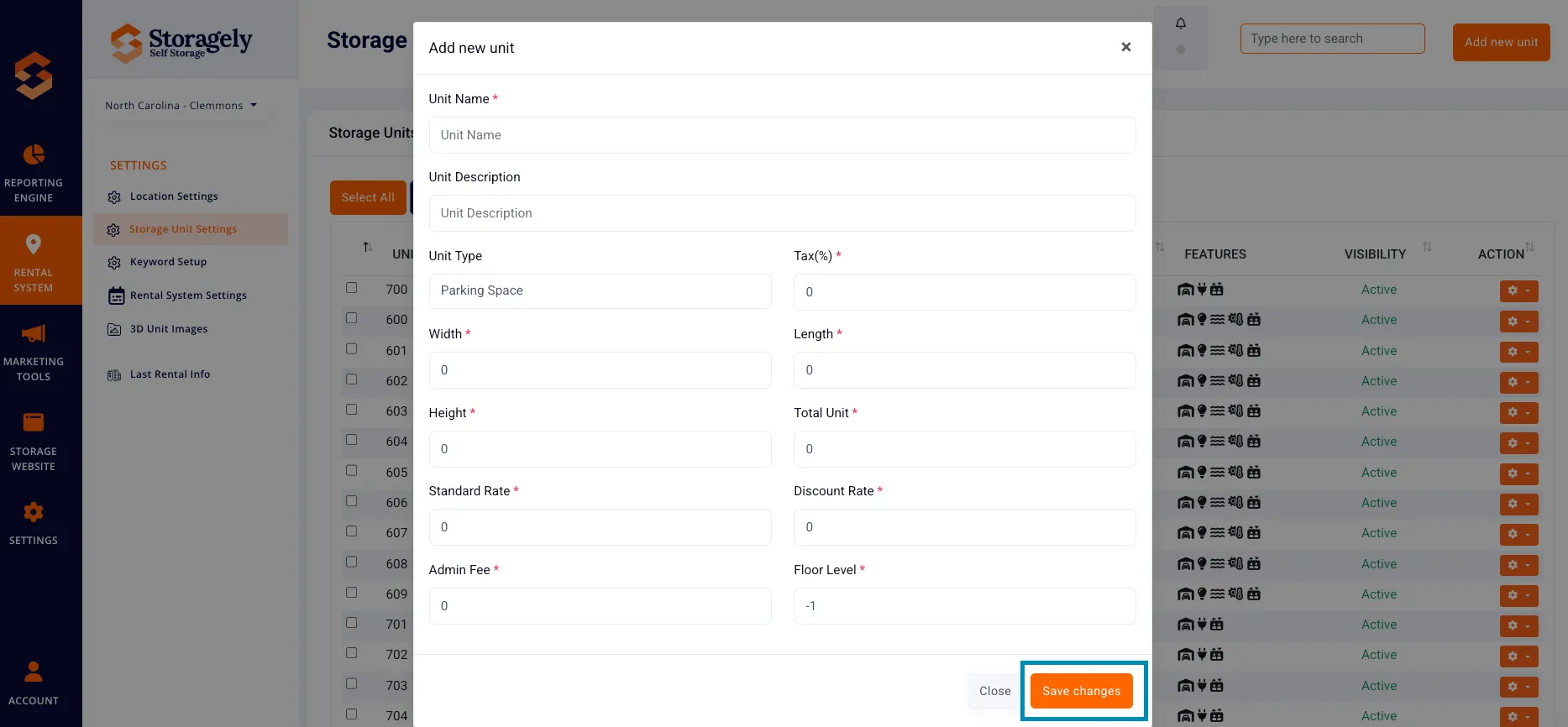
Reminder: If this unit was not added in the Facility Management Software (FMS), it will not sync back to the FMS, and any future FMS updates may overwrite changes made manually in Storagely.
C. Bulk Modifying Units
Operators can apply changes to multiple units at once:
- Select multiple units using the checkboxes next to each unit.
- Click the "Modify Selected" button.
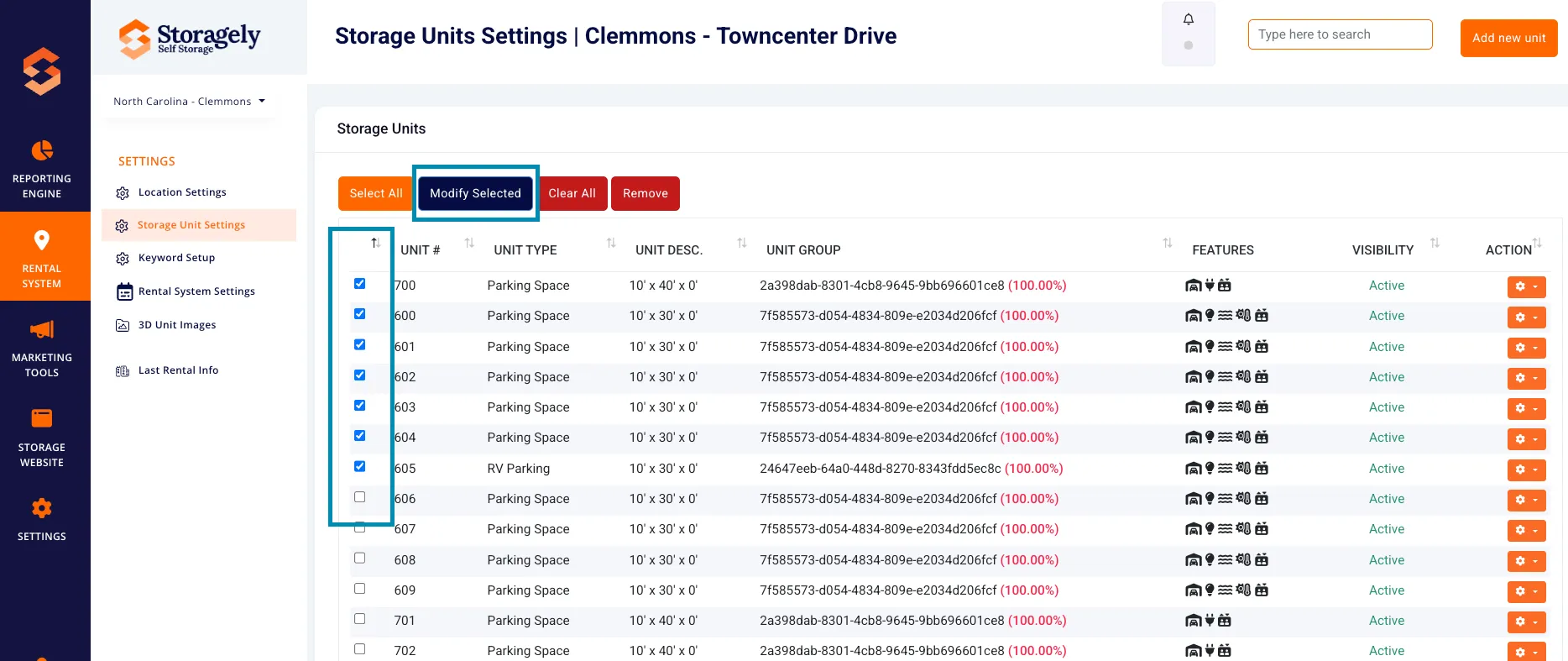
- Choose which features or settings to apply across selected units.
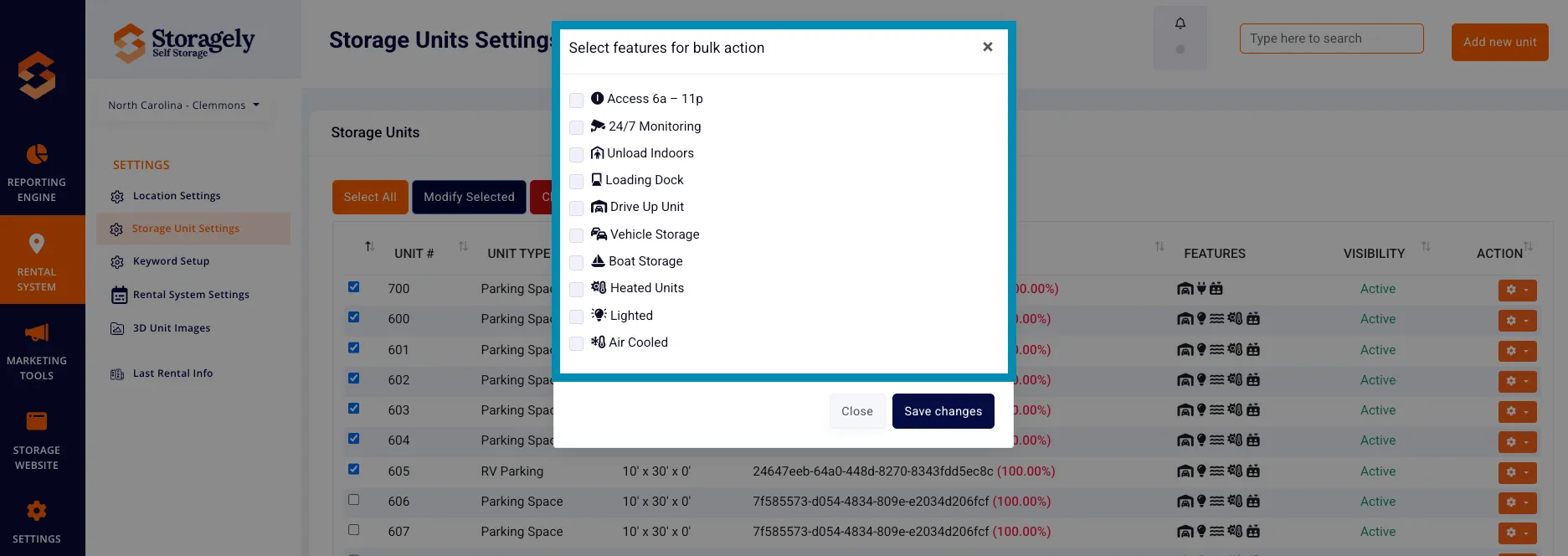
- Click "Save" to apply the changes in bulk.
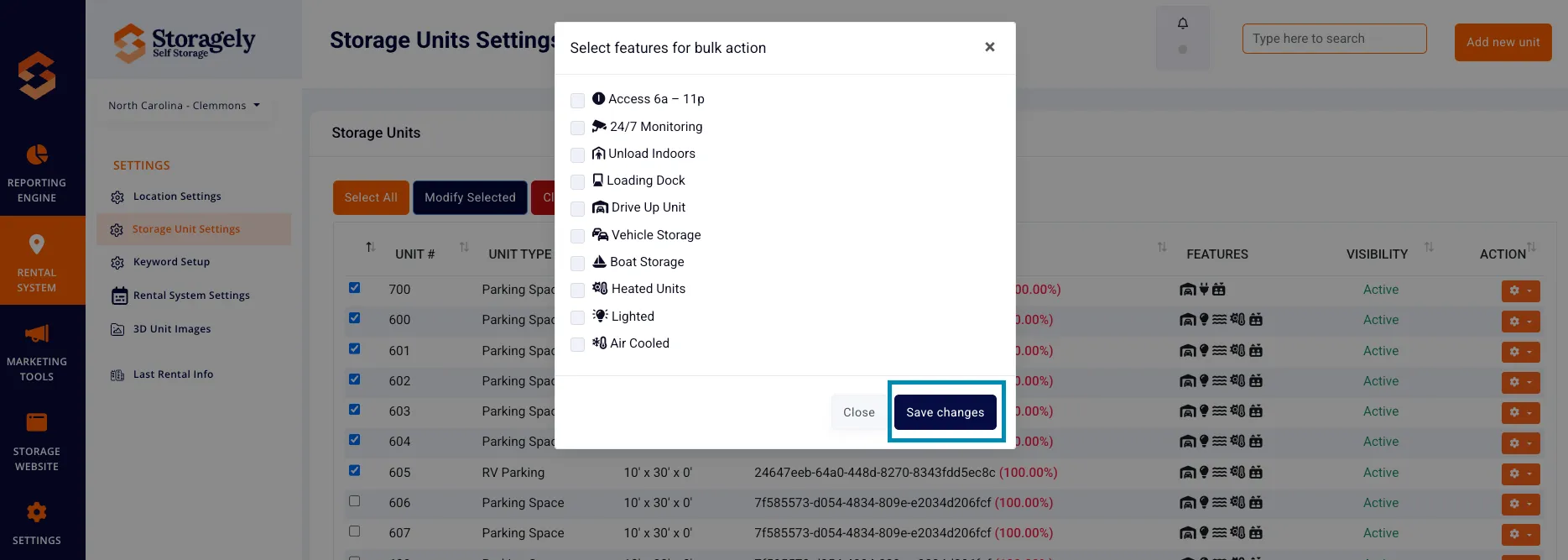
Reminder: Changes made here do not update the FMS. If the unit needs a permanent update, make the changes in the Facility Management Software first.
D. Removing a Unit
- Find the unit you want to remove.
- Click the Remove option from the action menu.
- Confirm the removal to delete the unit from inventory.
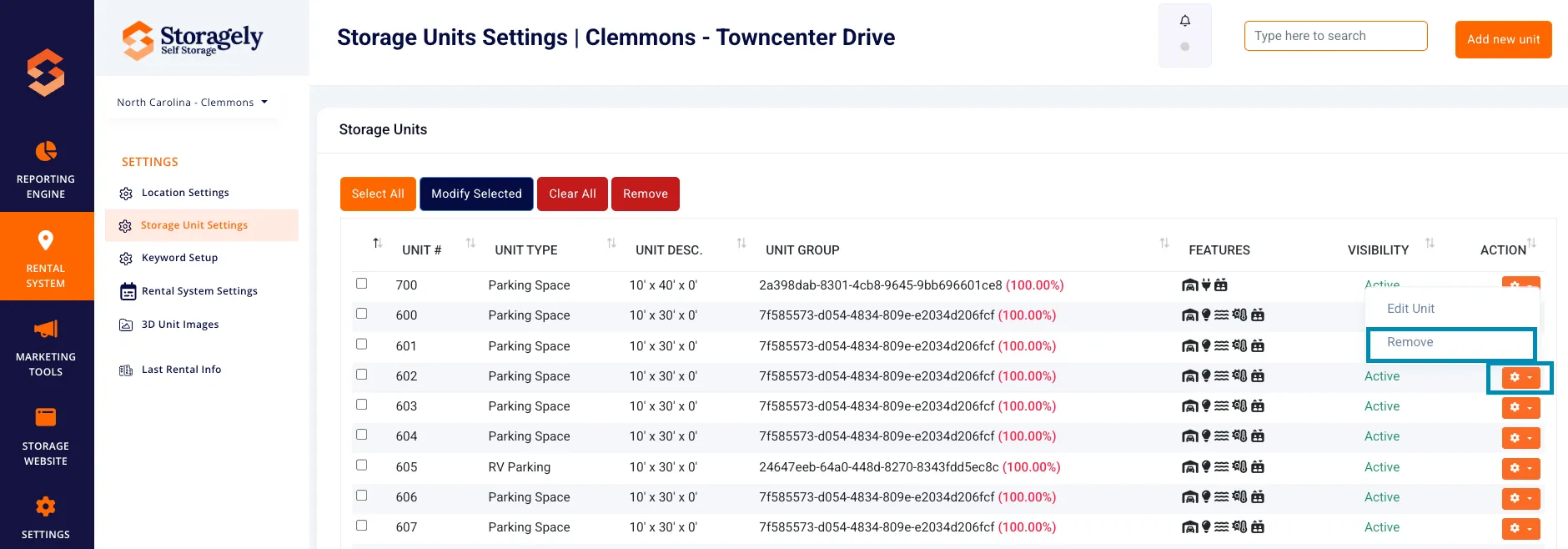
Reminder: Deleting a unit in the Storagely Dashboard does not remove it from the FMS. If the unit needs to be permanently removed, delete it in the Facility Management Software first.
5. Data Syncing Between Storagely and the Facility Management Software (FMS)
- The FMS is the primary source of truth for all unit data.
- Changes made in the FMS (e.g., price updates, unit availability, new units) will automatically sync to Storagely during the next scheduled data sync.
- If needed, users can manually trigger a data sync to immediately update Storagely with the latest FMS data.
6. Best Practices for Managing Storage Units
✅ Always make updates in the Facility Management Software (FMS) first. Storagely reflects changes from the FMS, not the other way around. ✅ Always make sure there is not a checkmark in the "Excuded from the API" box. ✅ Use the visibility toggle to manage unit availability instead of making changes that won’t sync with the FMS. ✅ Bulk edit similar units to save time when updating features or descriptions. ✅ Regularly verify unit data in Storagely after FMS syncs to ensure accuracy. ✅ Manually sync unit data in Storagely after making important changes in the FMS to see updates faster.
7. FAQs & Troubleshooting
Q1: How do I make a unit unavailable without deleting it? A: Toggle the Active/Inactive status instead of removing the unit.
Q2: Can I edit multiple units at once? A: Yes, use the bulk modify feature to apply changes across multiple units.
Q3: What happens if I delete a unit in Storagely? A: The unit is only removed from Storagely but will not be deleted from the FMS.
Q4: How do I ensure my unit changes sync correctly? A: Make changes in the FMS first, then wait for the next scheduled sync or manually trigger a sync.
Q5: Can I add a unit in Storagely if it's not in the FMS? A: Yes, but the unit will not sync to the FMS and may be overwritten by the next FMS sync.
As always, if you have any questions during this process, our Customer Success Team is here to help. The best way to reach us is by submitting a support ticket.