About Page Settings
1. Introduction
The About Page Settings section in the Standard Web Pages section of the Storagely Dashboard allows facility operators to customize the content, layout, and branding of their website’s About Page. This section is critical for communicating the company's story, mission, values, and services to potential renters.
2. Navigating to About Page Settings
To access the About Page Settings:
- Log in to your Storagely Dashboard.
- In the left sidebar menu, click on Storage Website.
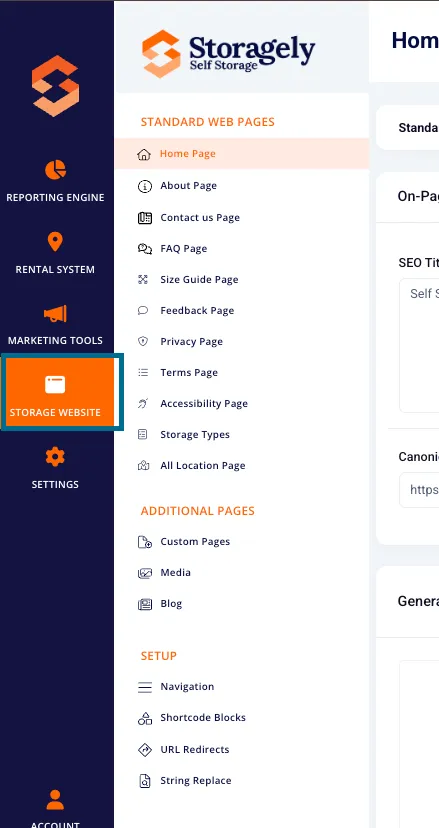
- Select Standard Web Pages → About Page from the available options.
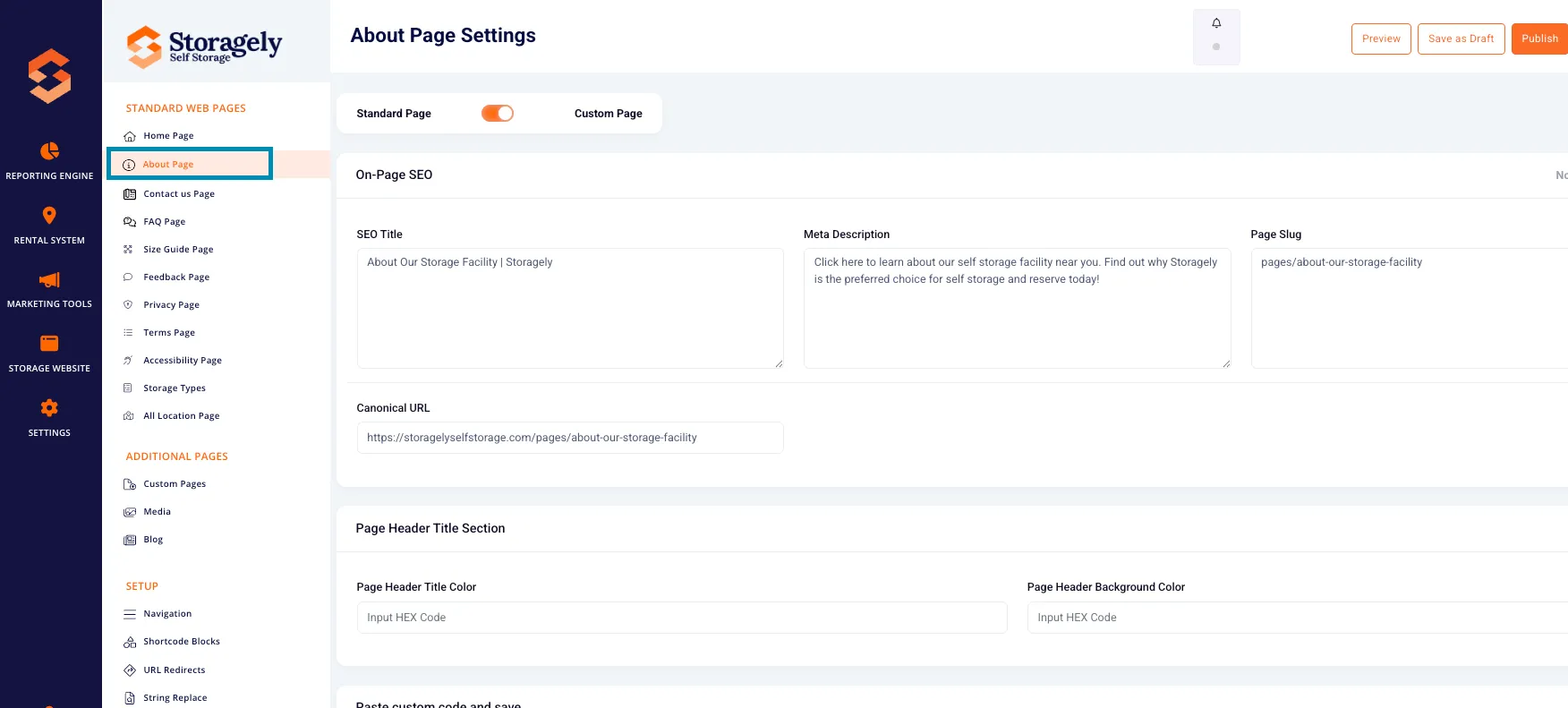
3. Understanding the About Page Settings Interface
The About Page Settings page allows users to customize various sections, including:
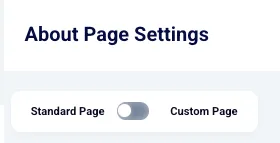
A. Page Type Selection
- Standard Page – Uses the default About Page layout and settings.
- Custom Page – Enables custom HTML and CSS modifications.
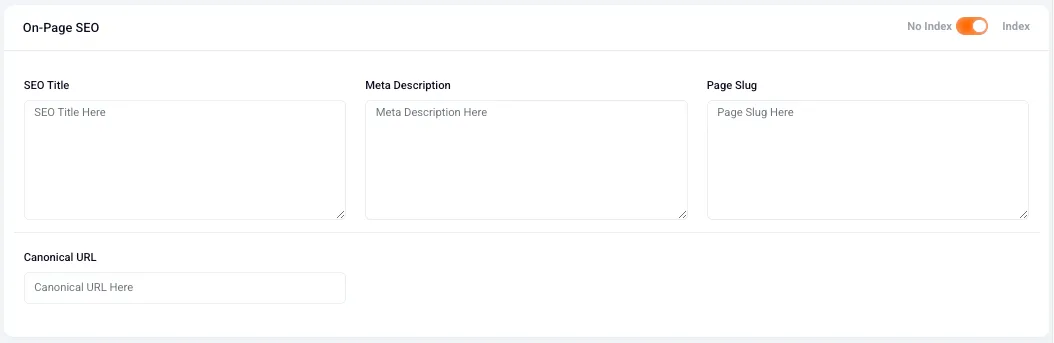
B. SEO Settings
- SEO Title – Defines the page title appearing in search engine results.
- Meta Description – A short description that helps improve search visibility.
- Page Slug – The URL path for the About Page (e.g., /about).
- Canonical URL – Helps search engines determine the preferred version of the page.
- No Index Toggle – Prevents search engines from indexing the page when enabled.
C. Page Header Section
- Page Header Title – Customize the title displayed at the top of the About Page.
- Header Title Color – Modify the text color of the header.
- Header Background Color – Change the background color of the page header.

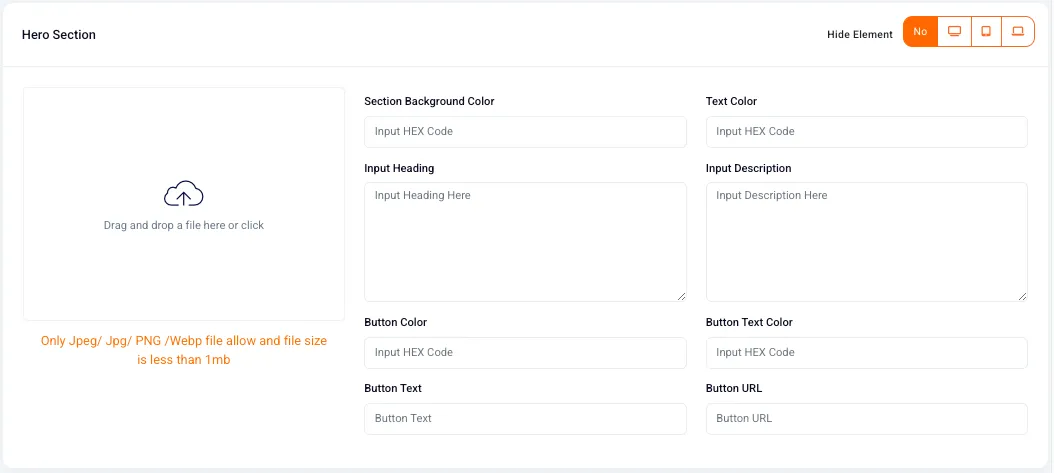
D. Hero Section
- Upload a Hero Image (JPEG, PNG, WebP up to 1MB).
- Set Section Background Color – Choose a color to display behind the hero section.
- Headline & Description Text – Customize the introduction to the About Page.
- Call-to-Action (CTA) Button:
- Set button text and colors.
- Add a destination URL.
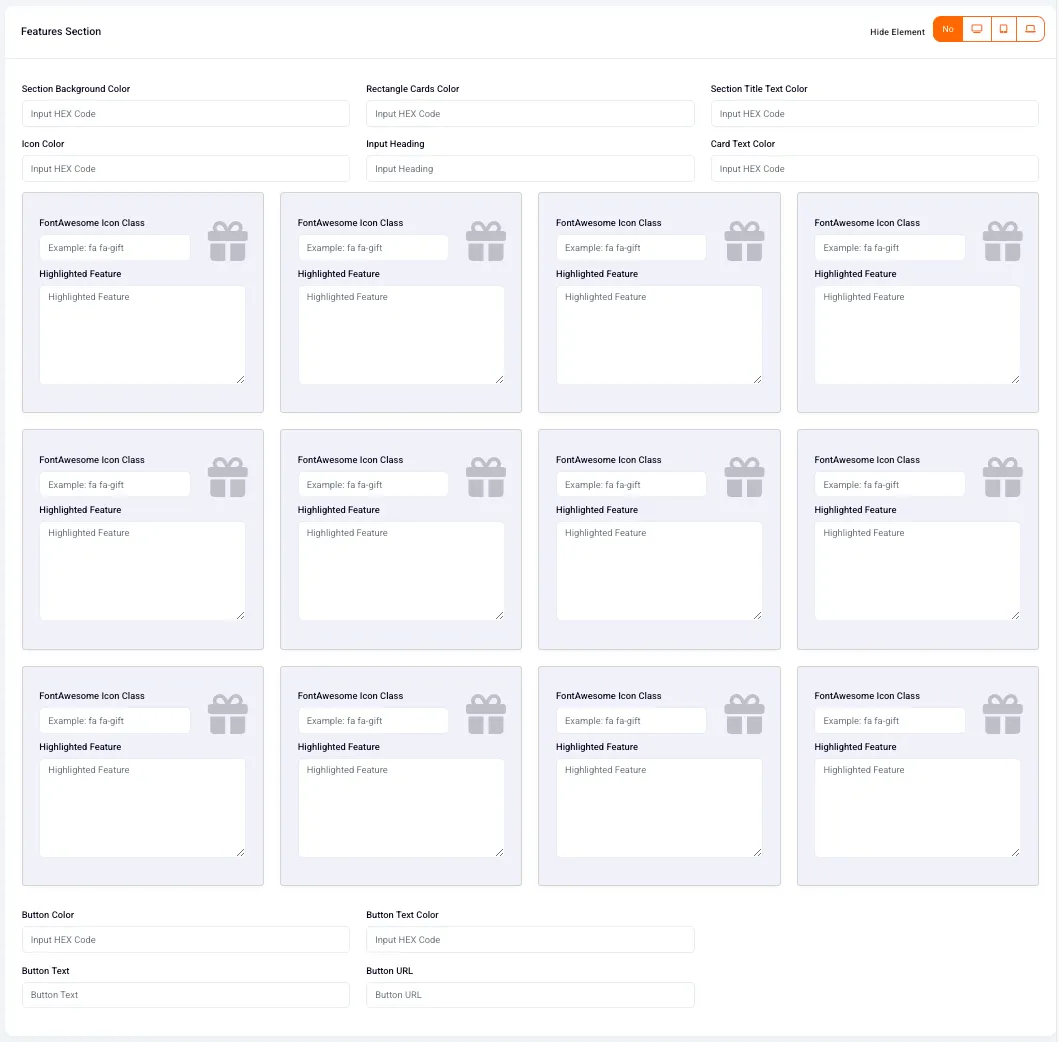
E. Features Section
- Highlight key business values, services, or features.
- Customize icons, descriptions, and background colors.
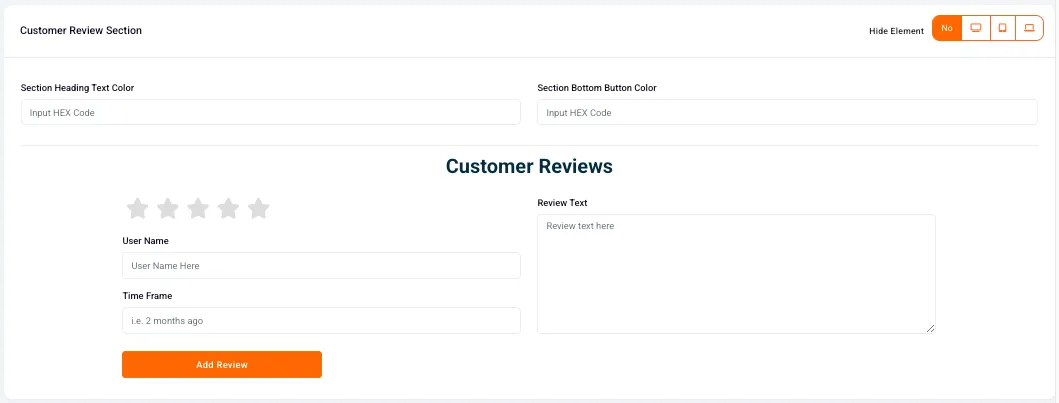
F. Customer Reviews Section
- Display customer testimonials to build trust.
- Operators can manually add and edit reviews.
- Customize star ratings and text.
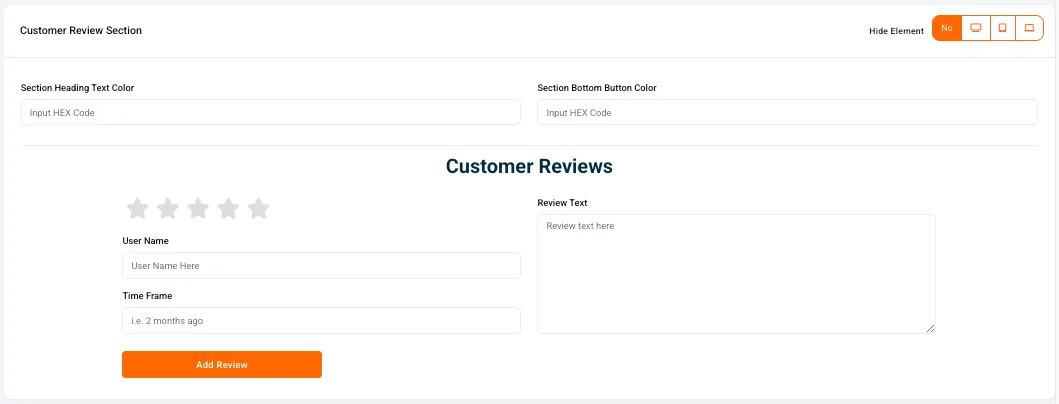
G. Find Us Section
- Add facility contact information (email, phone number, address).
- Customize call-to-action buttons and colors.
H. Custom Code Section
- Add custom HTML and CSS for advanced design customization.
4. How to Customize the About Page
Step 1: Select Page Type
- Choose between Standard Page or Custom Page.
- If using Custom Page, manually configure sections and content.
Step 2: Optimize SEO Settings
- Enter an SEO-friendly title and meta description.
- Set the Page Slug (default is "/about").
- If needed, add a Canonical URL to avoid duplicate content issues.
- Choose whether the page should be indexed by search engines.
Step 3: Customize the Page Header Section
- Edit the Page Header Title.
- Set the Header Title Color and Background Color.
Step 4: Customize the Hero Section
- Upload a Hero Image (JPEG, PNG, WebP).
- Adjust the Section Background Color.
- Set the Headline and Description text.
- Configure the CTA Button:
- Set button text and color.
- Add a destination URL.
Step 5: Configure the Features Section
- Add or edit highlighted business features or values.
- Customize icons, descriptions, and background colors.
Step 6: Enable the Customer Reviews Section
- Add testimonials from satisfied customers.
- Customize star ratings and text.
Step 7: Update the Find Us Section
- Add email, phone, and contact details.
- Customize call-to-action buttons.
Step 8: Save and Publish the Page
- Click “Preview” to review changes before publishing.
- Select “Save as Draft” to store changes without publishing.
- Click “Publish” to make the About Page live.
5. Best Practices for About Page Customization
✅ Use high-quality images to create a professional and welcoming experience. ✅ Ensure the About Page aligns with your brand's mission and values. ✅ Highlight customer testimonials to build credibility. ✅ Use the features section to emphasize key benefits. ✅ Make contact information easy to find in the "Find Us" section. ✅ Only enable indexing in SEO settings if the page is complete and ready for search engines.
6. FAQs & Troubleshooting
Q1: How do I hide a section from the About Page? A: Click the Hide Element toggle in the corresponding section settings.
Q2: What happens if I leave the SEO settings blank? A: Default values will be used, but optimizing SEO settings is recommended for better search visibility.
Q3: How can I reset the About Page to default settings? A: Switch to Standard Page mode and save the changes.
Q4: How do I make the About Page changes live? A: Click “Publish” after making updates.
As always, if you have any questions during this process, our Customer Success Team is here to help. The best way to reach us is by submitting a support ticket.