Google Map Scraper (For Administrators & Internal Team Members)
1. Overview
The Google Map Scraper in the Storagely Dashboard is a tool exclusively available to Storagely administrators and internal team members. This tool automates the collection of Google Maps data, allowing users to analyze local competitors, storage facility presence, and market trends within a specified geographic region.
Important Notice:
- This feature is NOT accessible to facility operators.
- It is used for internal market research and competitive analysis.
- Use responsibly to ensure compliance with Google’s terms of service.
2. Accessing the Google Map Scraper
Since this feature is restricted, only authorized Storagely administrators can access it.
Steps to Access Google Map Scraper
- Log in to the Storagely Dashboard.
- Navigate to Account Settings > Google Map Scraper.

- If access is denied, contact a Storagely system administrator.
3. Using the Google Map Scraper
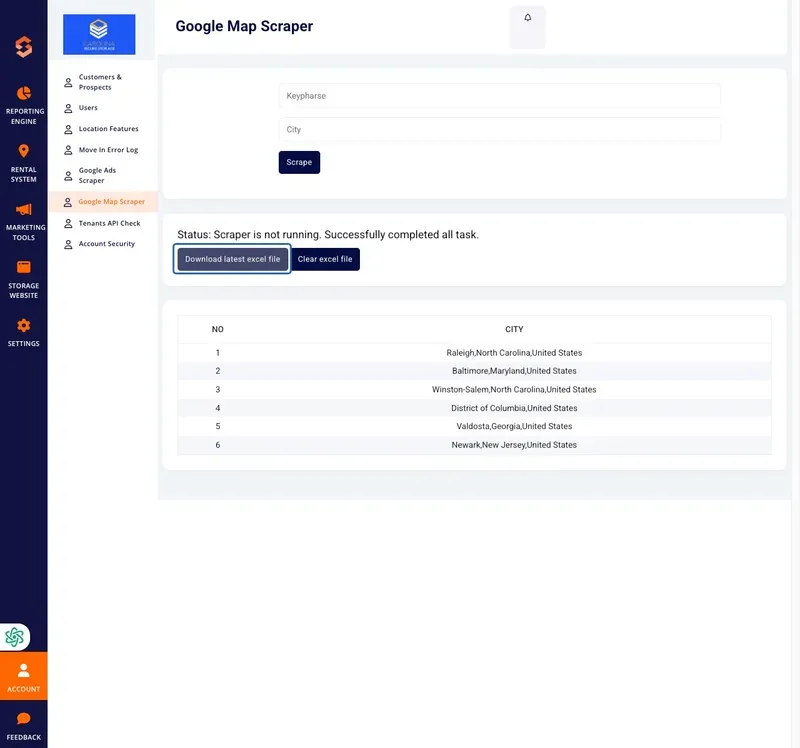
The Google Map Scraper allows users to extract location-based business data based on keywords and geographic locations, helping administrators analyze competitor presence, business listings, and market saturation.
A. Entering Search Parameters
- Keyword Input:
- Enter a specific keyword related to self-storage services (e.g., "self-storage near me," "climate-controlled storage").
- Location Input:
- Enter a city or region to target businesses within a specific geographic area.
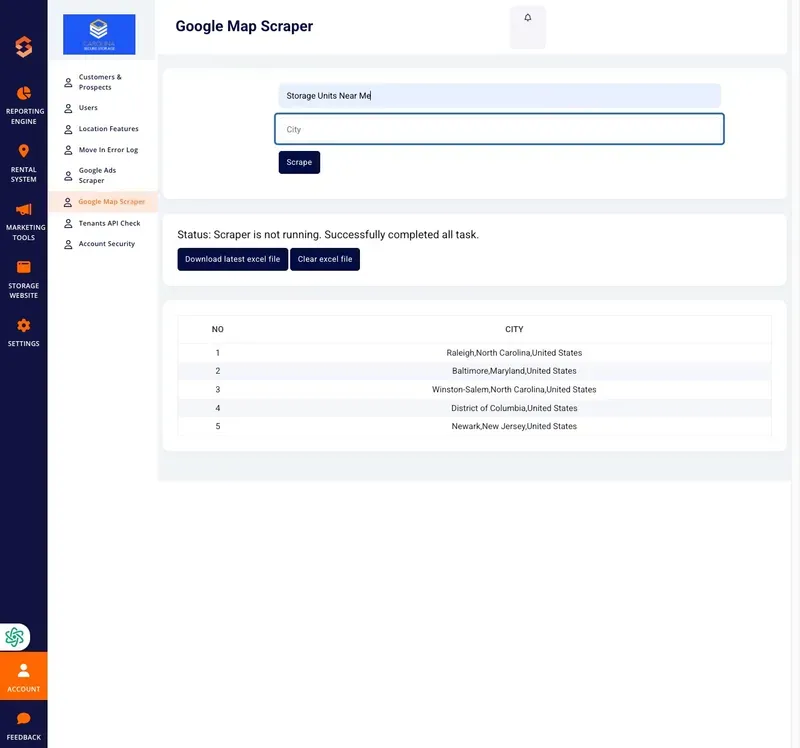
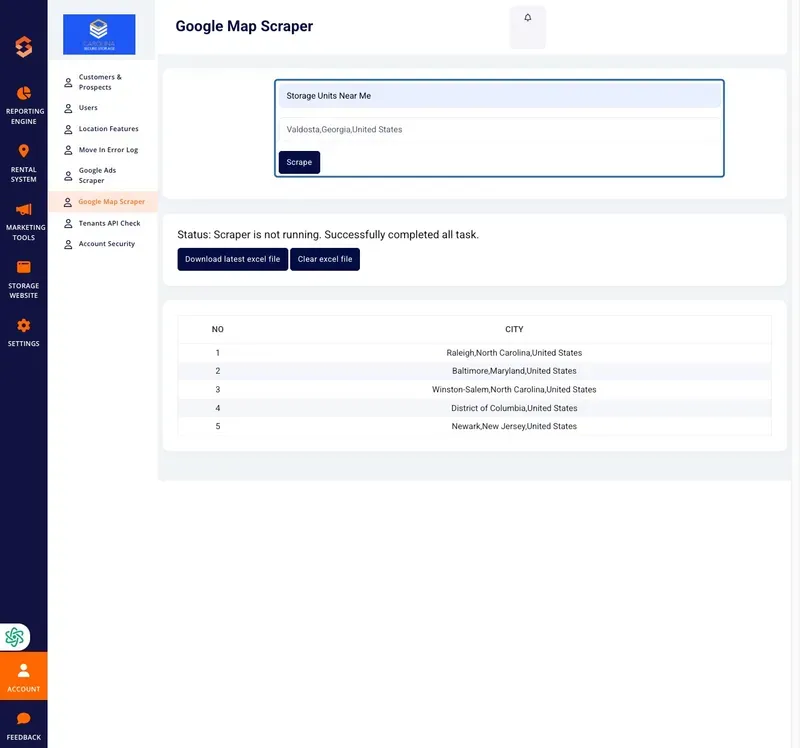
B. Running the Scraper
- After entering the required search parameters, click the "Scrape" button.
- The system will retrieve Google Maps data, including:
- Business Names
- Addresses
- Phone Numbers
- Website URLs (if available)
- Google Ratings and Review Counts
- Once complete, a status message will confirm whether the scraper successfully retrieved data.
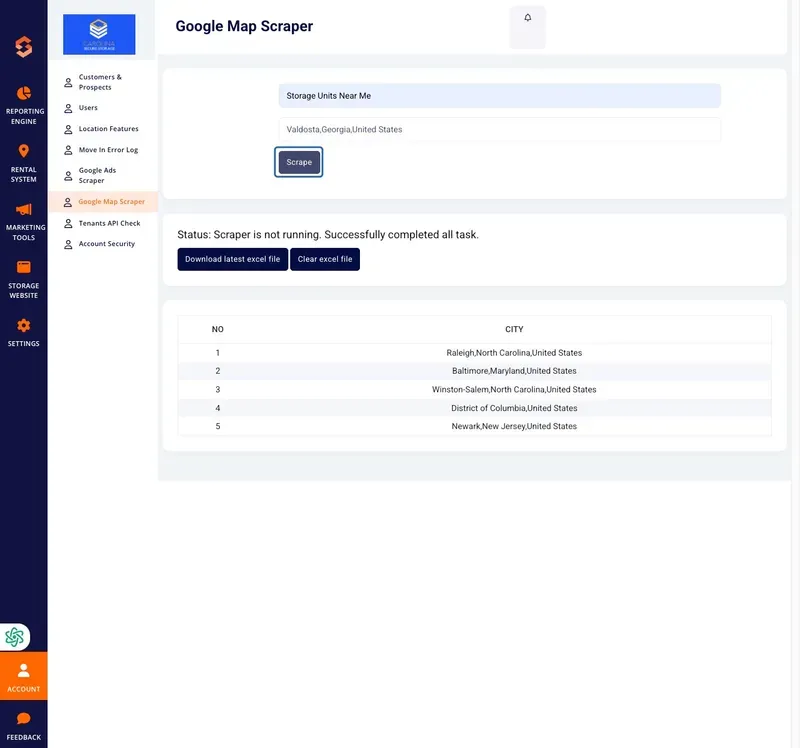
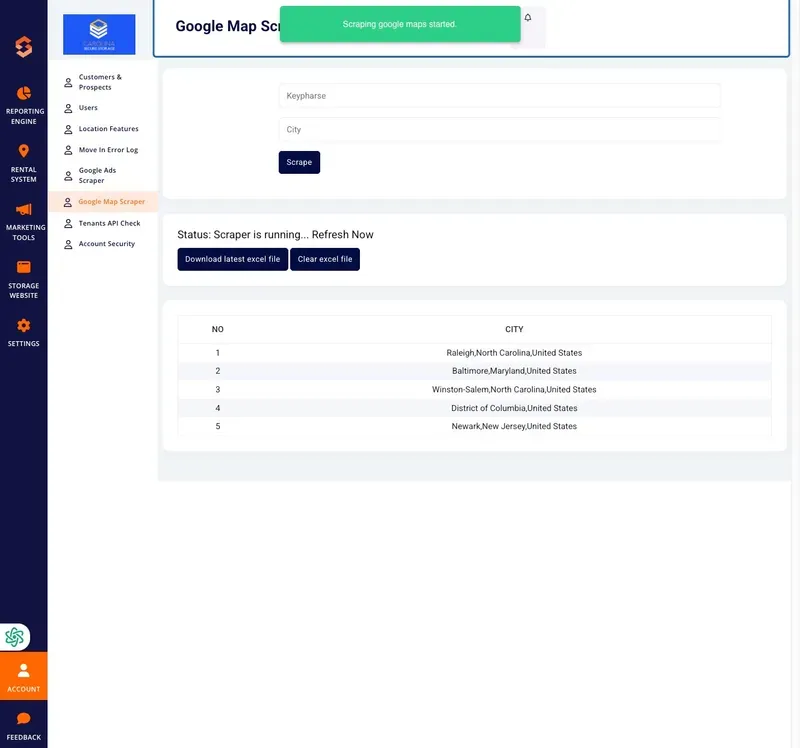
4. Downloading Scraped Data
- After a successful scrape, locate the "Download latest Excel file" button.
- Click the button to download a detailed report in Excel format.
- Open the file to analyze market trends, competitor details, and geographic data.
5. Clearing Scraped Data
To reset or remove previous scraped data:
- Click "Clear Excel File" in the dashboard.
- Confirm the action in the prompt. ⚠ Warning: Clearing the file permanently deletes all stored data from the previous scrape.
6. Troubleshooting & FAQs
Issue | Possible Cause | Solution |
|---|---|---|
Scraper is not running | System process is idle | Ensure proper search parameters and retry |
No businesses found for keyword/location | Limited business activity in the area | Try a broader keyword or a different location |
Download button not available | No recent successful scrapes | Run a new scrape and try again |
Access Denied | User permissions not enabled | Contact a Storagely administrator |
7. Best Practices for Google Map Scraping
✅ Use targeted keywords that match high-intent search queries. ✅ Monitor competitor locations to adjust marketing strategies. ✅ Download and analyze reports regularly for actionable insights. ✅ Ensure ethical use of scraped data to comply with platform guidelines.
For further assistance, please reach out to your direct supervisor.