Blog Settings
1. Introduction
The Blog Settings in the Storagely Dashboard allow facility operators to create, manage, and publish blog posts on their website. This feature helps businesses share valuable insights, improve search engine visibility, and engage with customers.
2. Navigating to Blog Settings
To access the Blog Settings:
- Log in to your Storagely Dashboard.
- In the left sidebar menu, click on Storage Website.
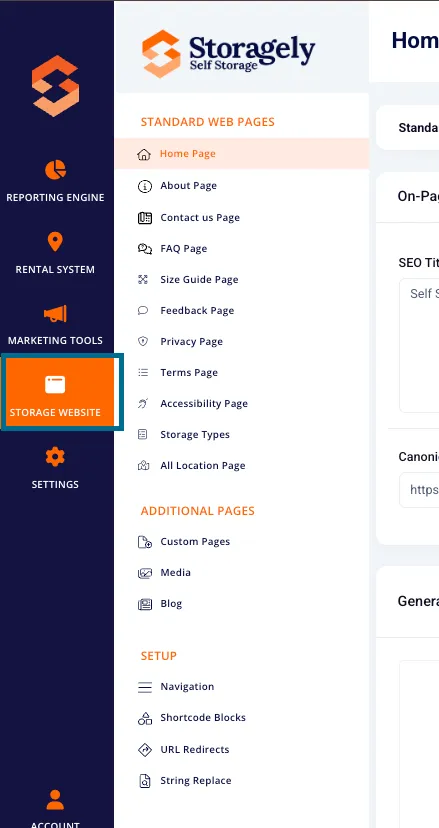
- Select Blog from the available options.
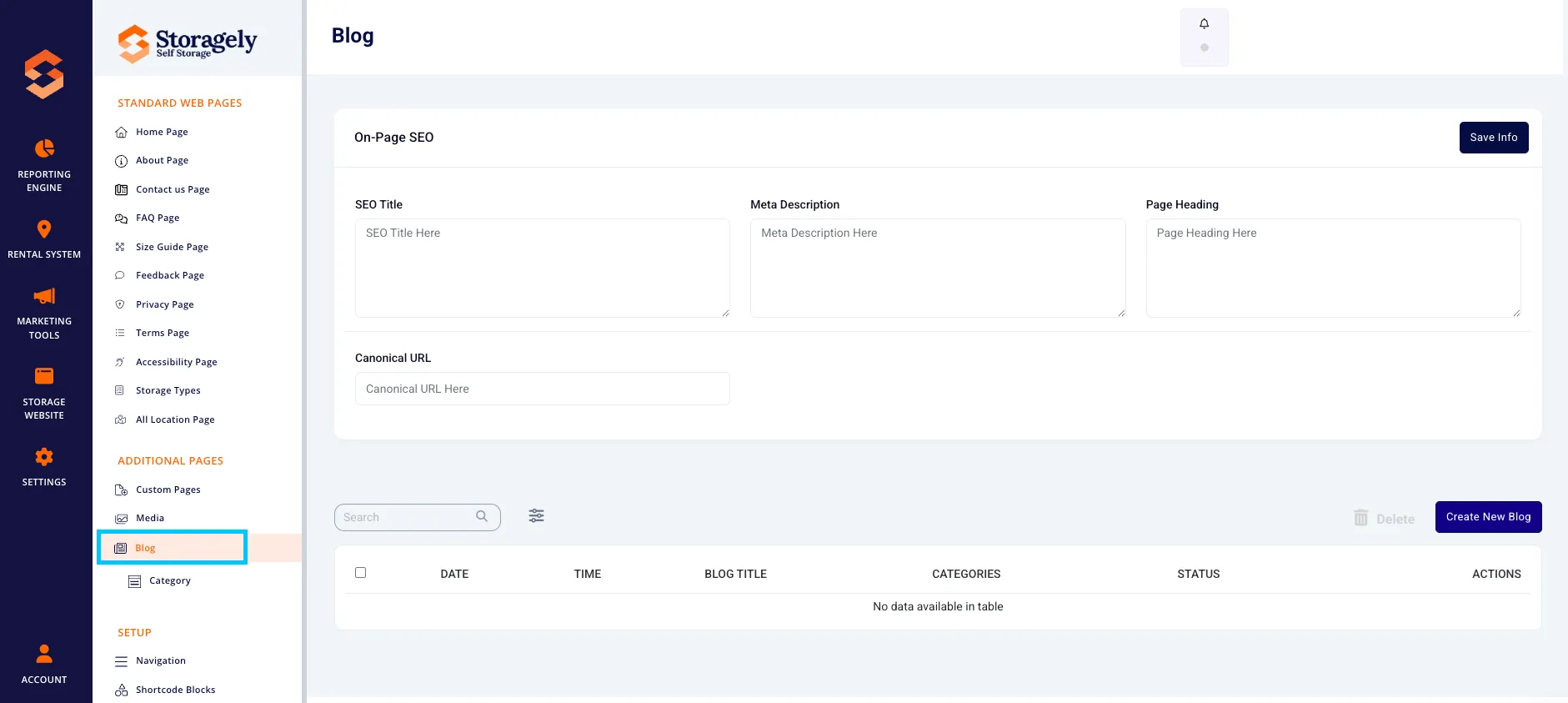
Note: If you do not see Blog listed under ADDITIONAL PAGES, your account has been converted to our new blog posting and editing tool. See this resource for your blog posting instructions.
3. Understanding the Blog Settings Interface
A. Blog Management Overview
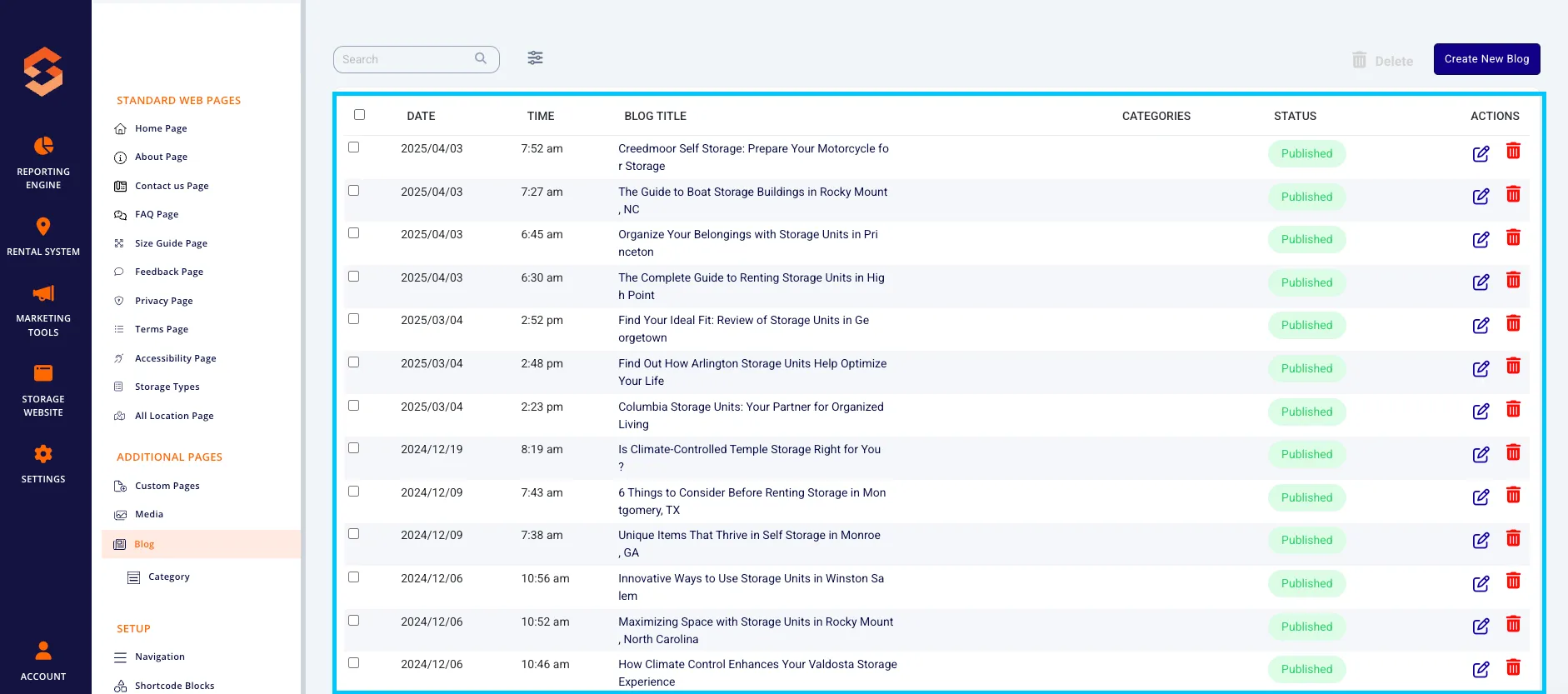
The main screen displays a list of all created blog posts with the following columns:
- Date & Time – When the blog was published or last updated.
- Blog Title – The title of the blog post.
- Categories – The category assigned to the blog.
- Status – Published or Unpublished.
- Actions – Options to edit or delete a blog post.
To create a new blog post, click the "Create New Blog" button.
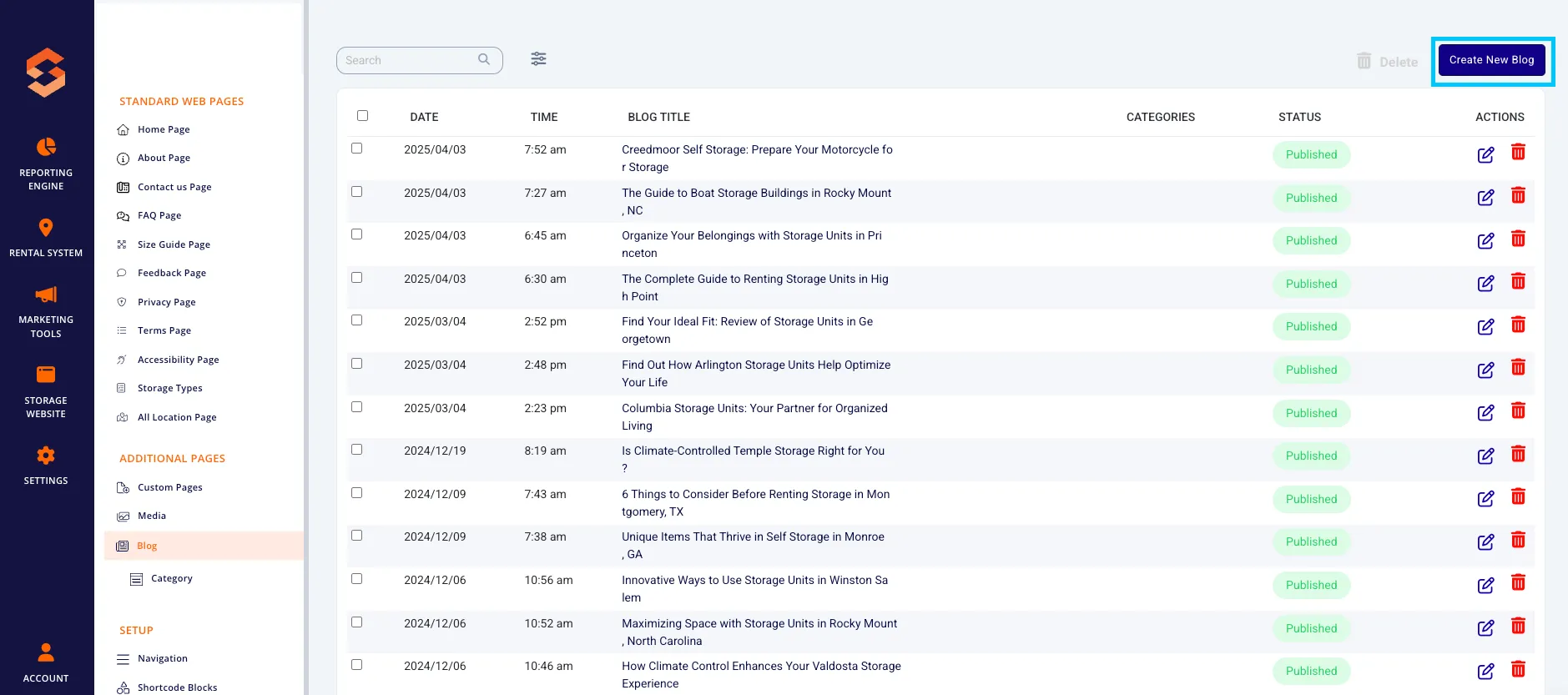
4. Creating a New Blog Post
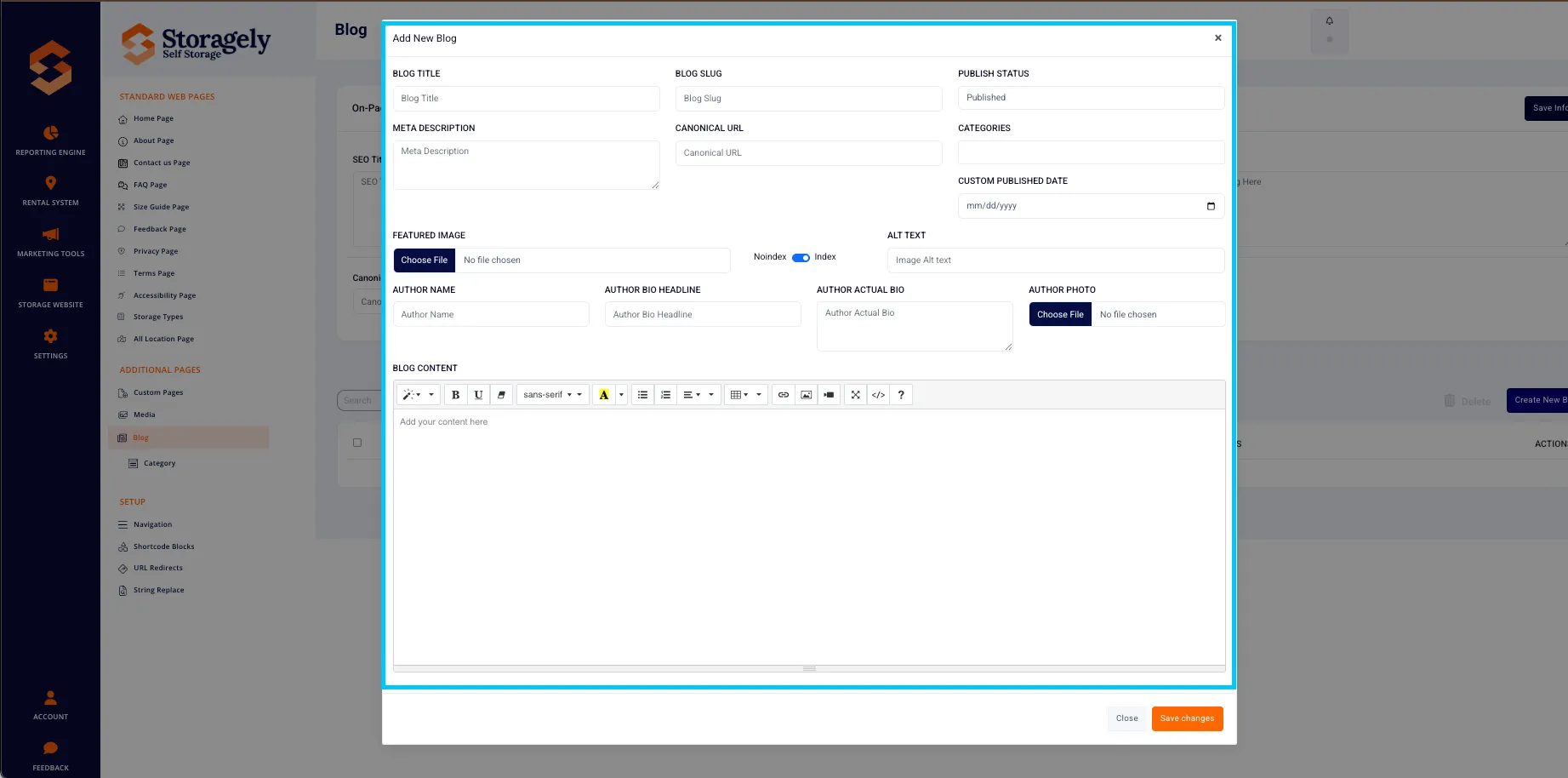
Clicking "Create New Blog" opens the blog editor with the following fields:
A. Blog Information
- Blog Title – The main title of the blog post.
- Blog Slug – The URL path for the blog post (e.g., /blog/how-to-pack-for-storage).
- Meta Description – A short description that helps improve search visibility.
- Canonical URL – Helps search engines determine the preferred version of the page.
- Categories – Assign one or more categories to organize the blog post.
- Custom Published Date – Set a custom publication date if necessary.
B. SEO & Visibility
- Noindex / Index Toggle – Determines whether search engines should index the page.
- Publish Status – Set the post as Published or Draft.
C. Featured Image & Author Details
- Featured Image – Upload an image to represent the blog post.
- ALT Text – Provide an alternative text description for accessibility and SEO.
- Author Name – Enter the name of the blog author.
- Author Bio Headline – A short professional title for the author.
- Author Actual Bio – A brief biography of the author.
- Author Photo – Upload an image of the author.
D. Blog Content
- Use the rich text editor to format text, add images, and insert links.
E. Save & Publish
- Click "Save Changes" to save as a draft.
- Click “Publish” to make the blog post live.
5. Editing & Managing Blog Posts
A. Editing an Existing Blog Post
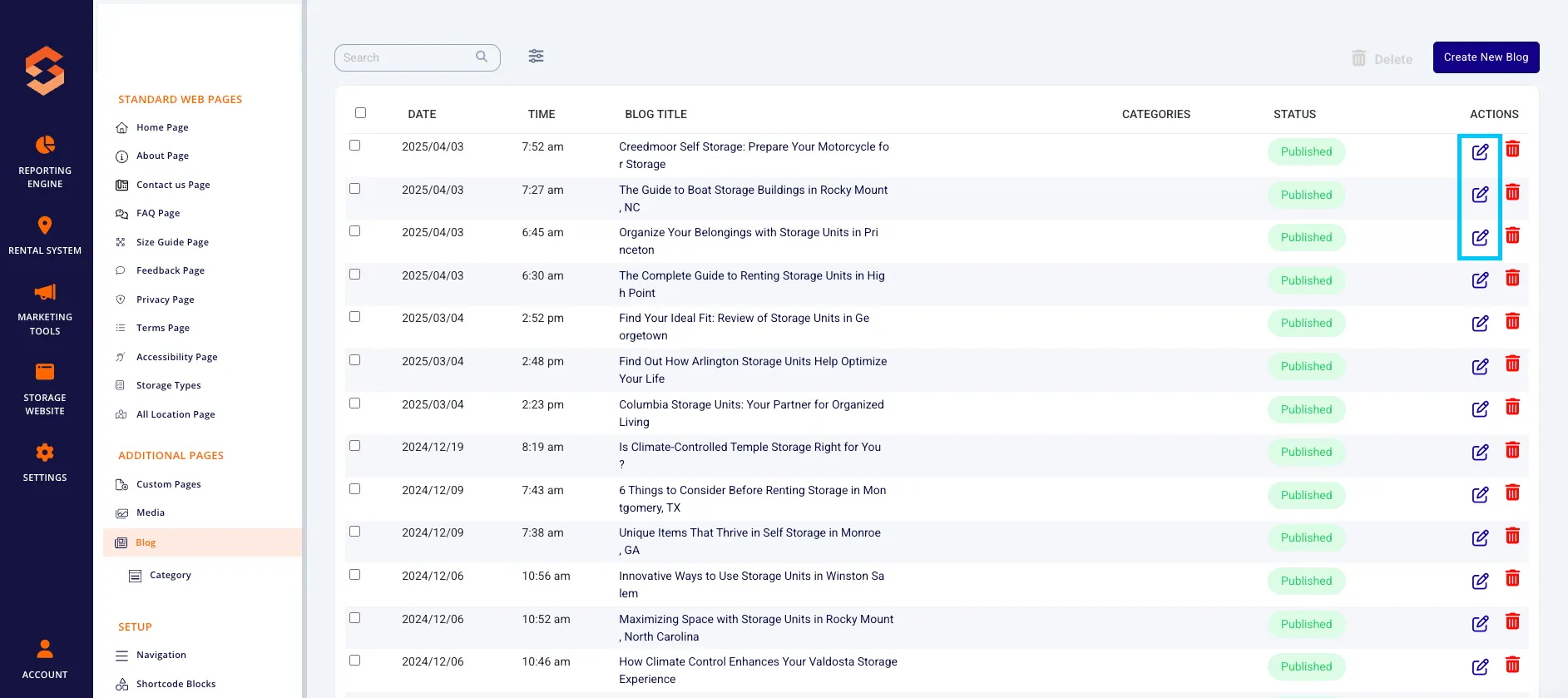
- From the Blog List, locate the post you want to edit.
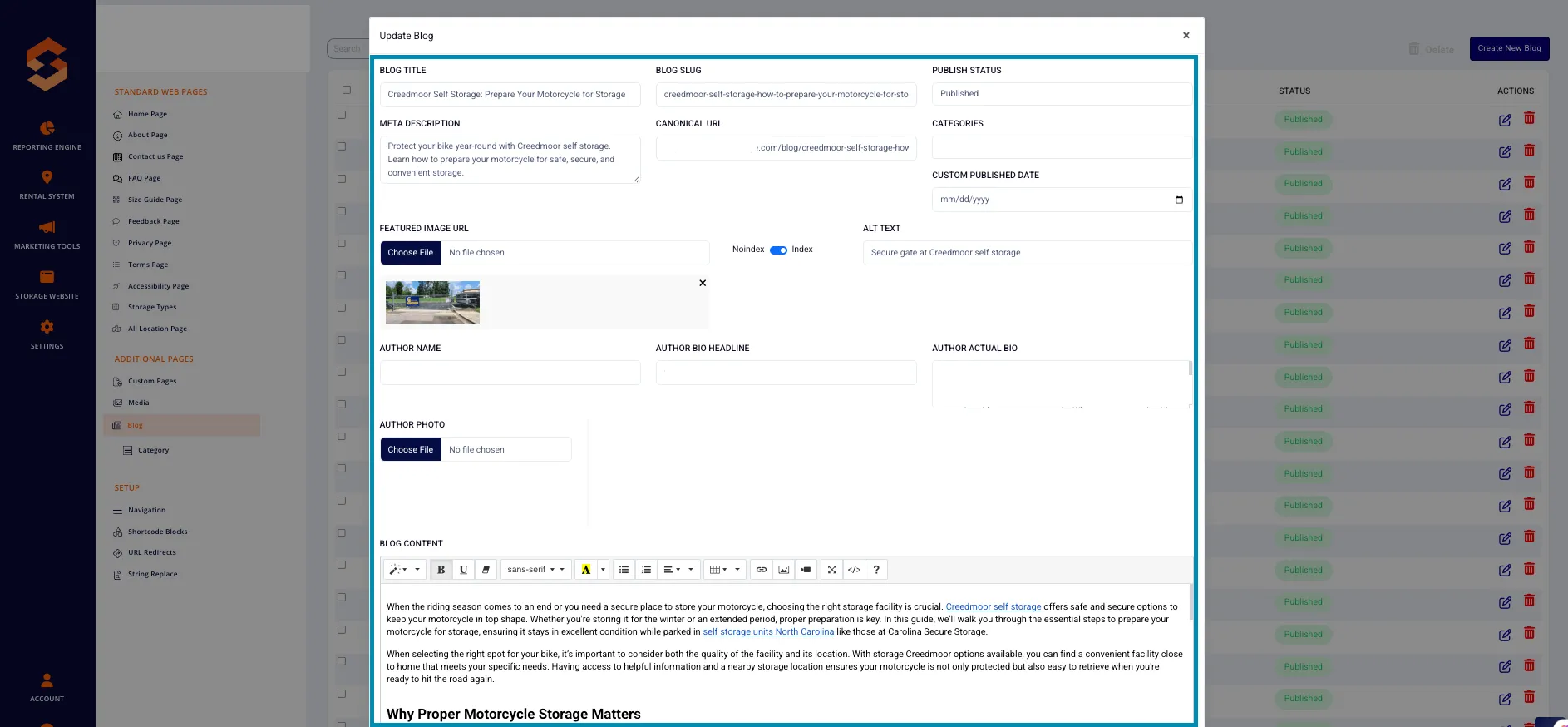
- Click on Edit in the actions column to open the editor.
- Modify any section as needed.
- Click “Save Changes” or “Publish” to apply updates.
B. Deleting a Blog Post
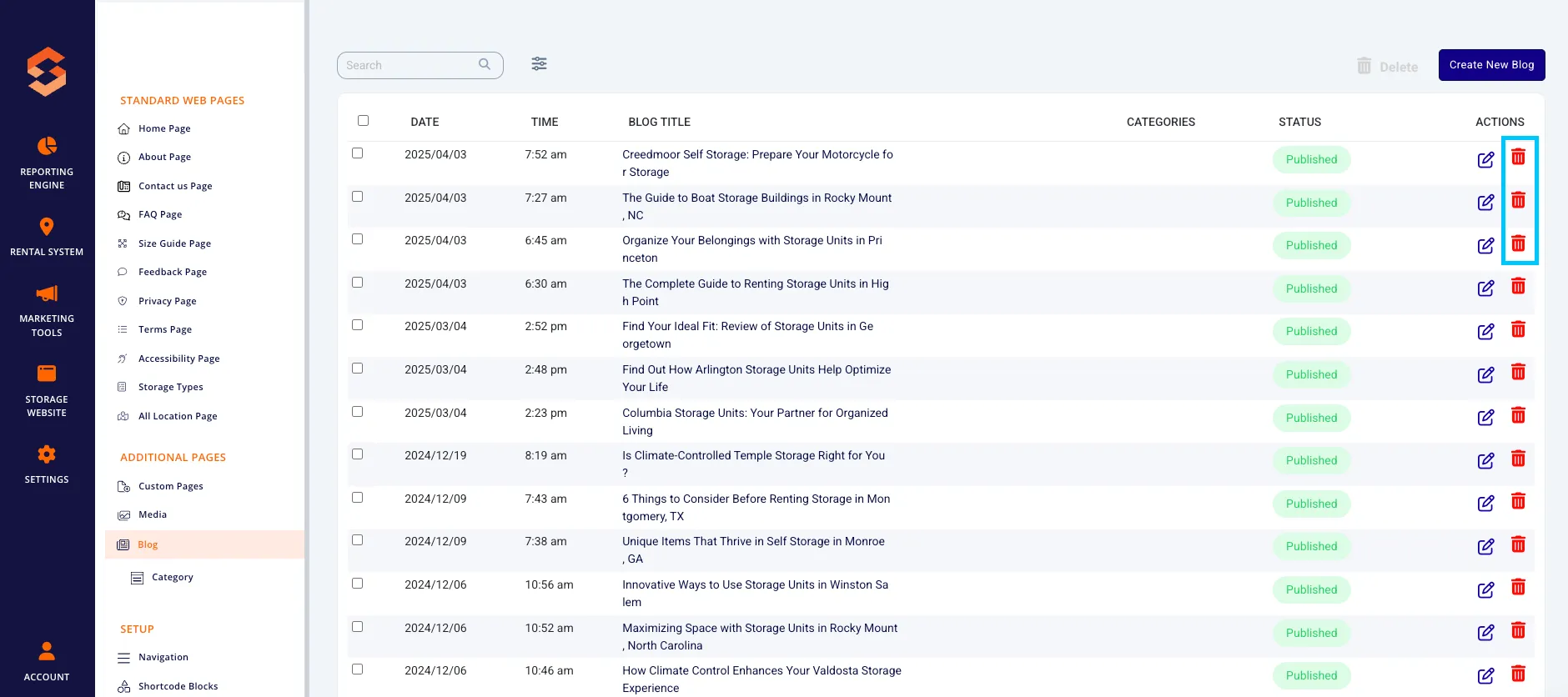
- Click the Actions menu next to the blog post you want to delete.
- Select “Delete”, then confirm the deletion.
6. Best Practices for Blog Posts
✅ Use engaging blog titles to capture the reader's attention. ✅ Optimize SEO settings to improve search rankings. ✅ Include high-quality images with appropriate ALT text. ✅ Ensure content is well-formatted for readability. ✅ Regularly update content to keep it relevant.
7. FAQs & Troubleshooting
Q1: How do I add a new blog post? A: Click "Create New Blog", fill in the required details, and click "Save Changes" or "Publish".
Q2: How do I delete a blog post? A: Click the Actions menu next to the blog post and select "Delete".
Q3: What happens if I leave the SEO settings blank? A: Default values will be used, but optimizing SEO settings is recommended for better search visibility.
Q4: How do I make a blog post live? A: Click “Publish” after making updates.
As always, if you have any questions during this process, our Customer Success Team is here to help. The best way to reach us is by submitting a support ticket.