Move In Error Log (For Administrators & Internal Team Members)
1. Overview
The Move-In Error Log section in the Storagely Dashboard is a diagnostic tool exclusively for Storagely administrators and internal team members. It captures errors encountered during the move-in process, allowing administrators to identify, troubleshoot, and resolve issues related to online rentals.
Important Notice:
- This section is NOT accessible to facility operators.
- Errors logged here may include payment failures, unavailable units, or system communication failures.
- Regular monitoring of this log is essential to ensure a seamless rental process.
2. Accessing the Move-In Error Log
Since this feature is restricted, only authorized Storagely administrators can access it.
Steps to Access the Move-In Error Log
- Log in to the Storagely Dashboard.
- Navigate to Account Settings > Move In Error Log.
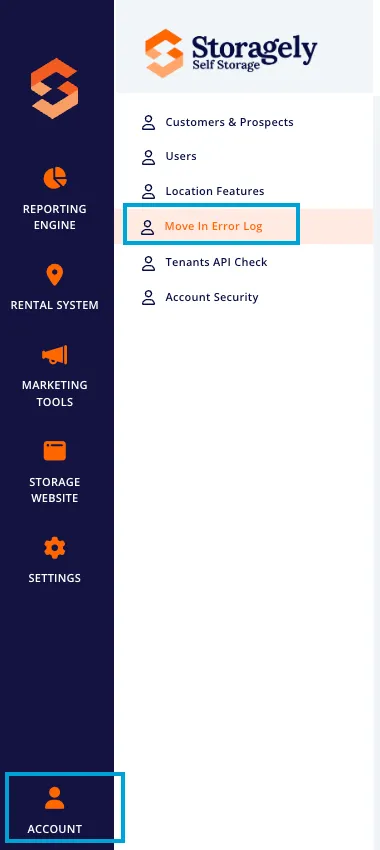
- If access is denied, contact a Storagely system administrator.
3. Understanding the Move-In Error Log
The log provides detailed error messages, timestamps, and customer details related to move-in failures.
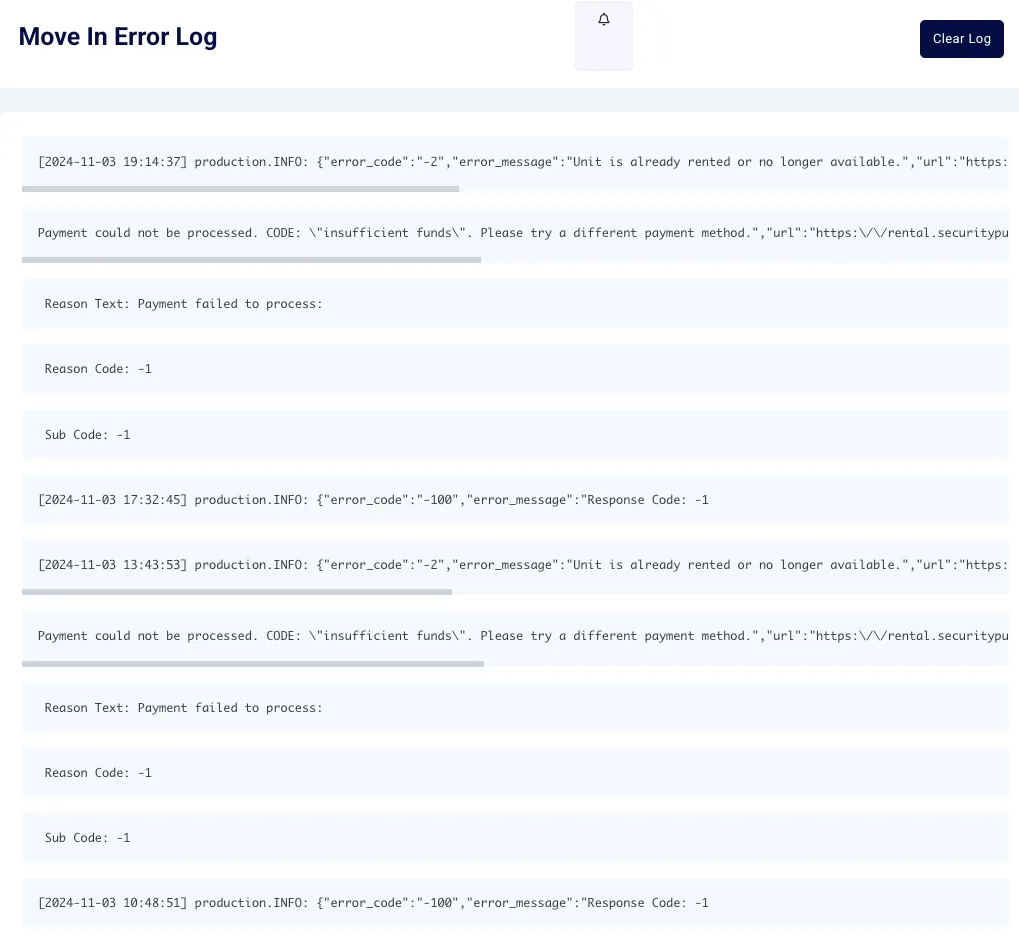
A. Common Move-In Error Types
Error Type | Possible Cause | Resolution Steps |
|---|---|---|
Unit is already rented or no longer available | The unit was taken before the transaction completed. | Verify unit availability and assist the customer with selecting another unit. |
Payment could not be processed (Insufficient Funds, Incorrect CVV, Invalid Card Number, etc.) | The customer’s payment method was declined. | Instruct the customer to use a different payment method. |
Failed to save the move-in | Data sync issue between Storagely and the Facility Management Software (FMS). | Check system logs and manually sync data if necessary. |
Payment amount must be greater than zero | The system did not register a valid payment amount. | Ensure correct pricing and verify FMS integration settings. |
Declined by card-issuing bank (Generic Decline, Closed Account, etc.) | The bank rejected the payment. | Advise the customer to contact their bank or use another payment method. |
4. Resolving Move-In Errors
Step 1: Identify the Error Type
- Review the Move-In Error Log for the most recent error entries.
- Identify the error code and message associated with the failed transaction.
Step 2: Investigate the Cause
- If the issue is payment-related → Advise the customer to use an alternative payment method.
- If the unit is unavailable → Guide the customer in selecting another unit.
- If a system error occurred → Check data synchronization between Storagely and the FMS.
Step 3: Take Corrective Action
- Retry the transaction manually in the Storagely system or FMS.
- Advise the customer on next steps (e.g., update payment details, choose another unit).
- Sync data if discrepancies exist between Storagely and the facility’s FMS.
Step 4: Clear the Error Log (If Needed)
- Click “Clear Log” to remove outdated entries.
- Only clear the log after confirming that errors have been addressed.
5. Troubleshooting & FAQs
Issue | Possible Cause | Solution |
|---|---|---|
Recurring unit availability errors | The FMS is not updating correctly. | Check integration settings and sync manually. |
Multiple payment failures from the same customer | The customer’s bank is rejecting transactions. | Suggest an alternate payment method. |
Move-in errors despite valid payment details | API communication failure. | Contact Storagely Support for assistance. |
Unable to clear the error log | Insufficient permissions. | Verify administrative access settings. |
6. Best Practices for Managing Move-In Errors
✅ Monitor errors regularly to prevent recurring issues. ✅ Communicate with customers quickly when errors occur. ✅ Ensure integration settings are correct to avoid data mismatches. ✅ Use manual sync options to resolve FMS-related issues. ✅ Document recurring issues and report them to Storagely Support for system improvements.
For further assistance, please reach out to your direct supervisor.