Location Settings
Introduction
The Location Settings section in the Rental System tab of the Storagely Dashboard allows facility operators to manage and update key details about their storage locations. Users can configure general site information, contact details, SEO settings, notifications, tenant access hours, office hours, images, and features for each facility.
Important Notice:
- When adding new facility photos, operators should contact their Storagely Account Manager to ensure proper SEO tagging for improved search engine visibility.
- SEO Settings should not be updated unless the operator or their team has SEO expertise. If unsure, reach out to your Storagely Account Manager before making changes.
Navigating to Location Settings
To access the Location Settings:
- Log in to your Storagely Dashboard.
- In the left sidebar menu, click on Rental System.
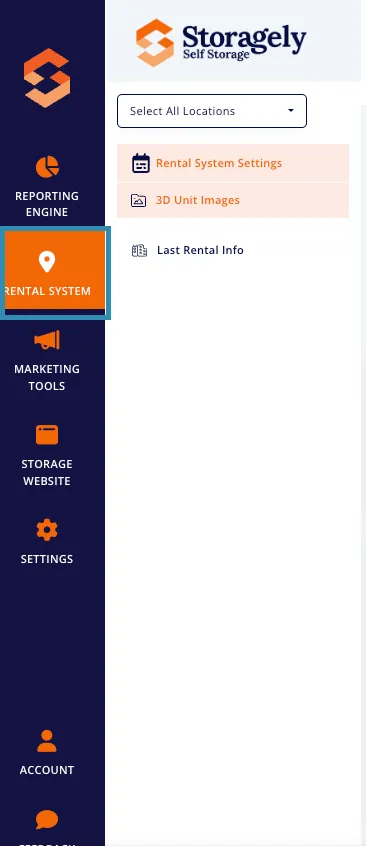
- First, find a specific location and then select Location Settings from the available options.
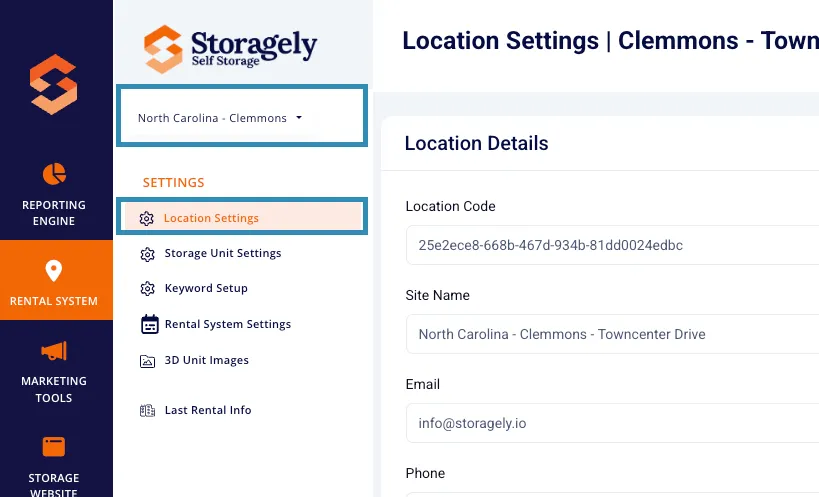
Understanding the Location Settings Interface
The Location Settings page is divided into multiple sections, allowing operators to configure different aspects of their facility settings.
Location Details
This section allows users to update basic location information, including:
- Location Code – Unique identifier for the facility obtained from the facility management software (FMS).
- Site Name – Official name of the storage location.
- Email – Contact email for customer inquiries.
- Phone – Primary contact number for the facility.
- Address, City, State, Postal Code – Physical location details.
- Google Maps URL – Direct link to the facility on Google Maps.
- Google Reviews URL – Link to customer reviews for the facility.
Edit General Location Details
- Click on the Location Details section.
- Update fields such as Site Name, Email, Phone, and Address.
- Click Update to save changes.
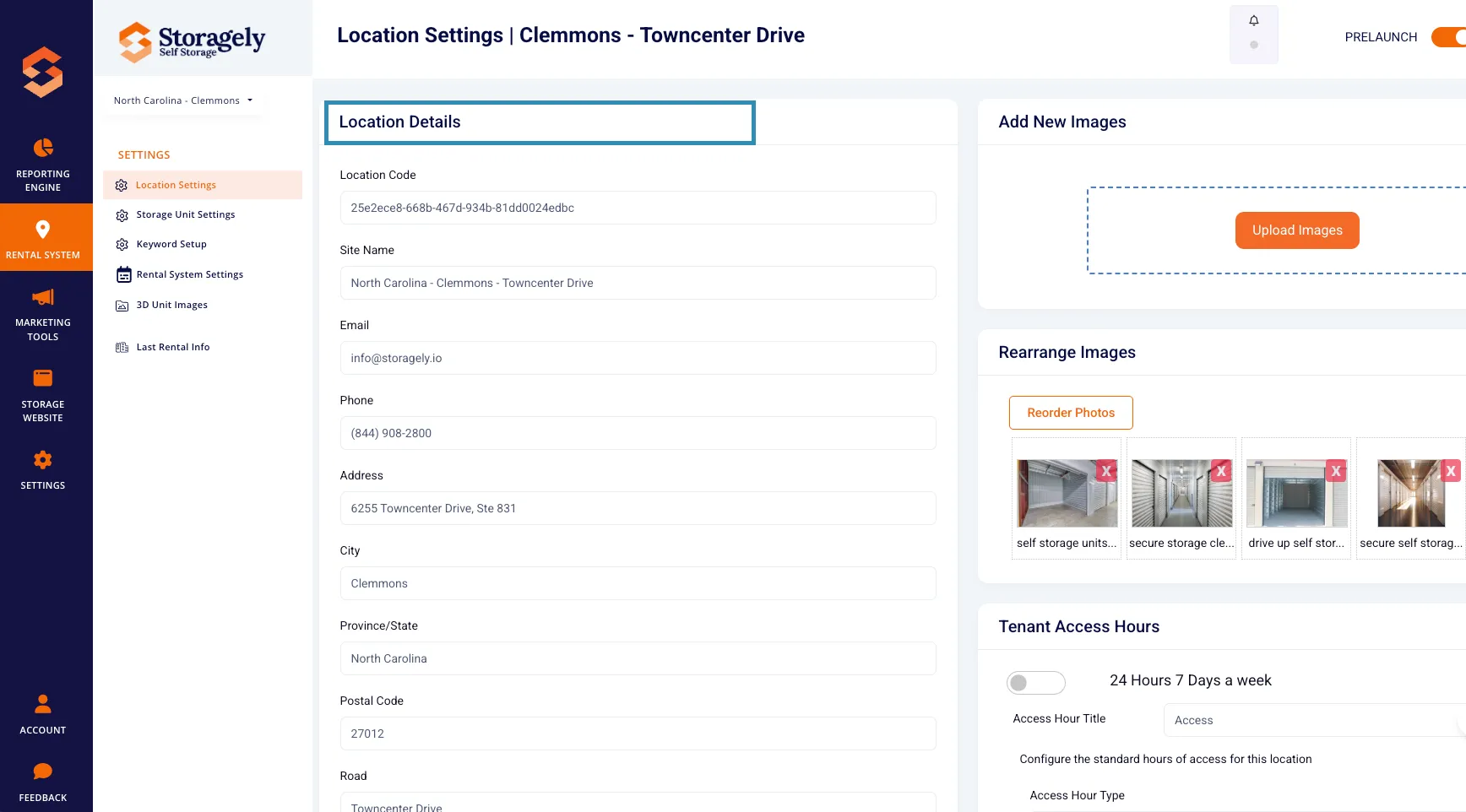
Use caution when updating these settings. We recommend consulting with the Storagely team before making any changes
Office Hours & Tenant Access Hours
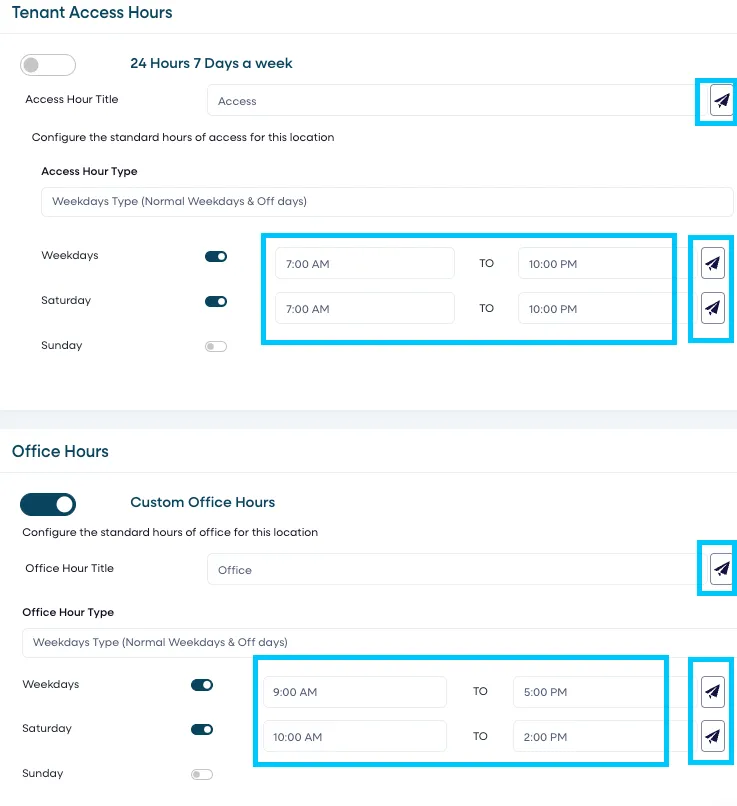
The Office & Tenant Access Hours section lets you define when your office is open and when tenants can access the facility. These hours are displayed on your website’s location pages and help set clear expectations for customers before they rent or visit:
- Office hours indicate when facility staff are available for in-person assistance.
- Users can configure hours for each day of the week.
- If the office is closed on specific days, users can set those days as "Closed".
- Tenant access hours define when renters can enter the facility.
- This can be 24/7 or set to specific times based on facility rules.
- Changes to tenant access hours should be communicated to existing customers.
How to update Tenant Access & Office Hours
- Locate the Office & Tenant Access Hours section
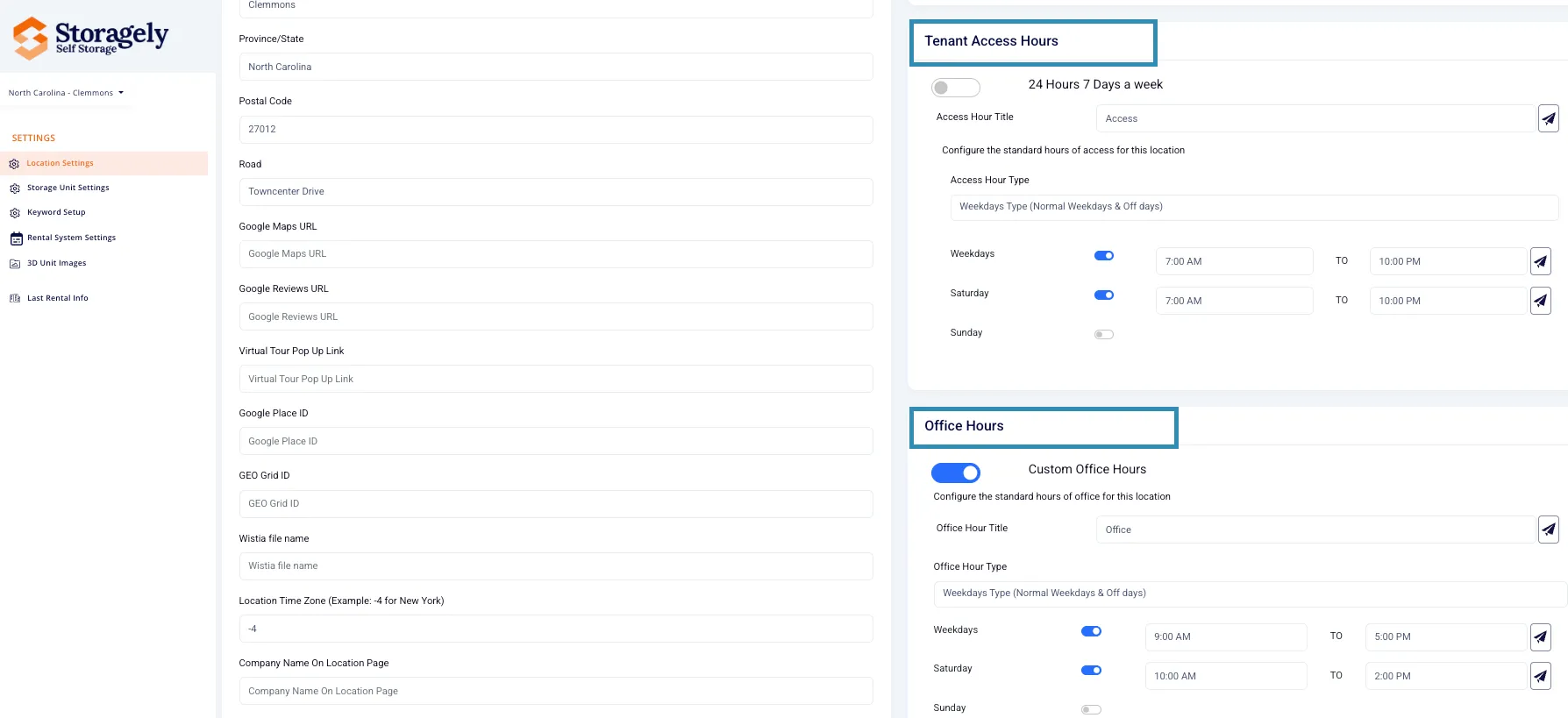
- Adjust hours for each day of the week
- Set opening and closing times individually for each day.
- If your office or access hours vary by day, be sure to reflect those differences accurately.
- You can also close a day entirely if the office is not open.
- After entering the time in each field, be sure to click the airplane icon to save and apply the update for that day.
SEO Settings (Use with Caution)
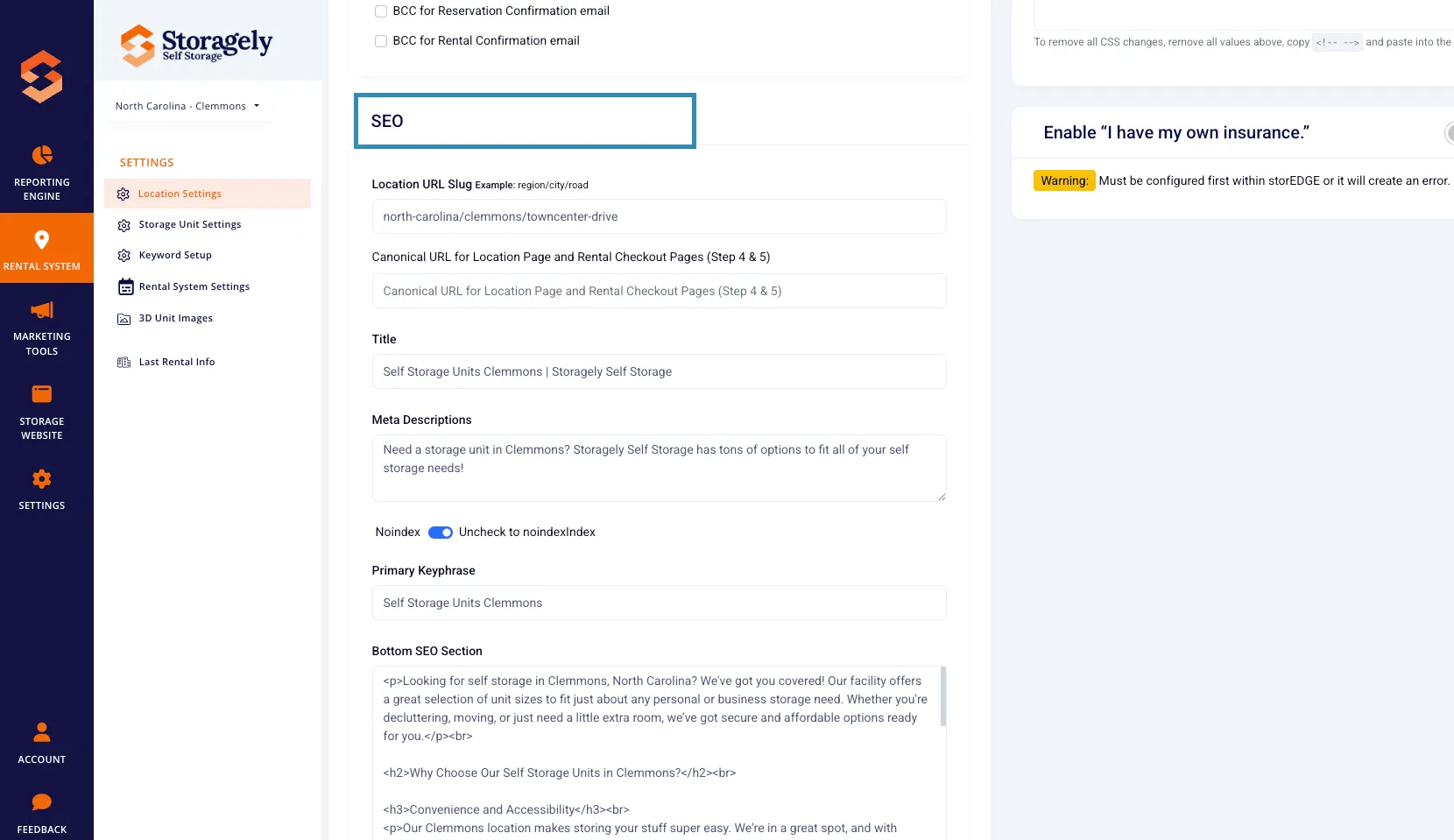
Users can manage SEO-related settings to improve Google search rankings for their facility. However, updating SEO settings requires SEO expertise.
SEO settings include:
- Location URL Slug – Defines how the facility’s URL appears on the website.
- Canonical URL – Ensures search engines direct users to the correct page.
- Title & Meta Descriptions – Optimize search results with relevant keywords.
- Primary Keyphrase – Main keyword associated with the facility’s SEO strategy.
- Noindex Toggle – Allows users to prevent search engines from indexing certain pages.
Configure SEO Settings
- Navigate to the SEO Settings section.
- If unsure, DO NOT edit SEO settings—contact your Storagely Account Manager.
- Click Update to apply SEO changes.
Recommendation:
- Operators should NOT update the SEO settings unless they or their team are experienced in SEO best practices.
- If SEO changes are needed, contact your Storagely Account Manager to ensure optimal keyword placement and search engine indexing.
Email Notifications
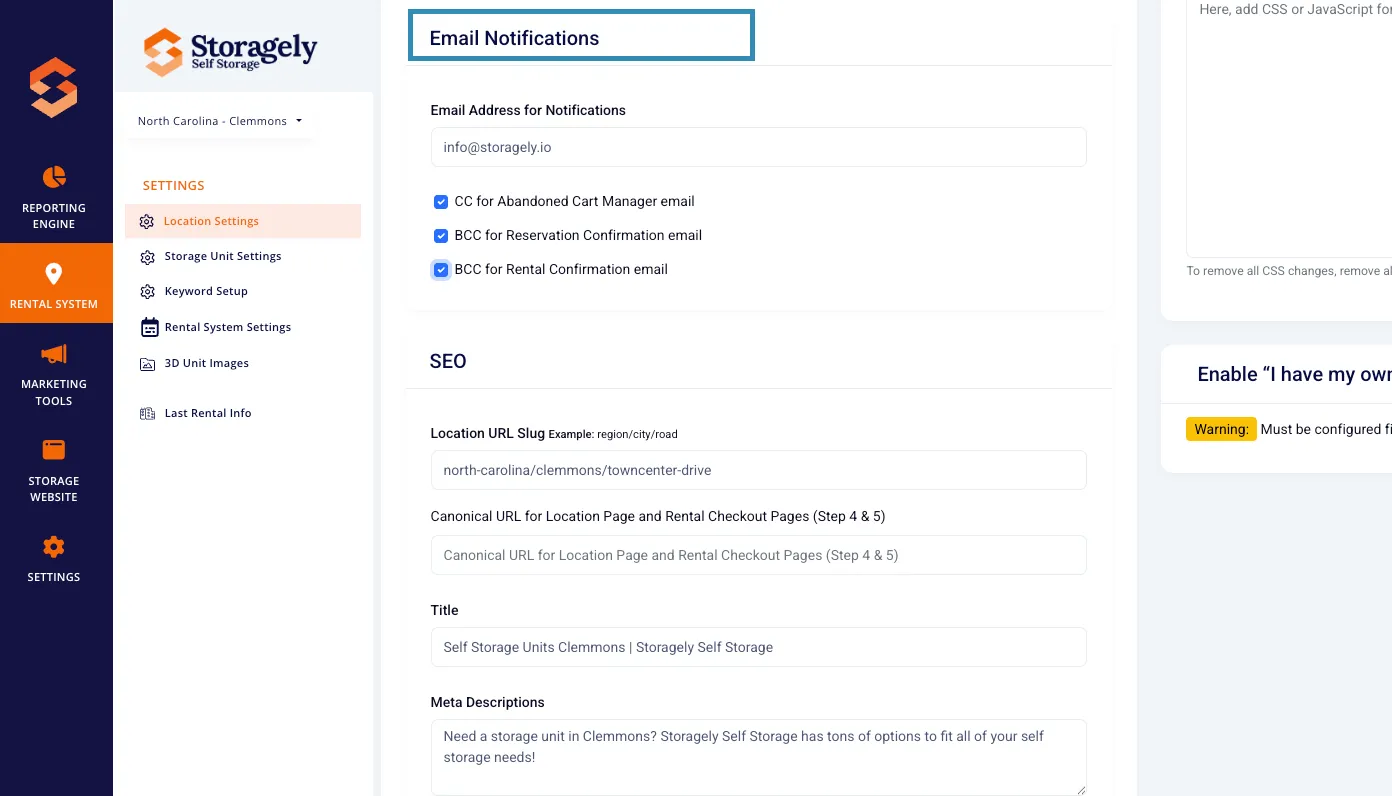
Users can configure email notifications for important facility updates:
- Notification Email Address – Specify an email to receive location-related notifications.
- CC for Abandoned Cart Emails – Enable or disable CC notifications for abandoned rentals.
- BCC for Reservation & Rental Confirmations – Automatically copy specific emails for tracking purposes.
Manage Email Notifications
- Locate the Email Notifications section.
- Enter the notification email address.
- Toggle settings for CC and BCC email notifications.
- Click Update to save changes.
Virtual Tour & Media Settings
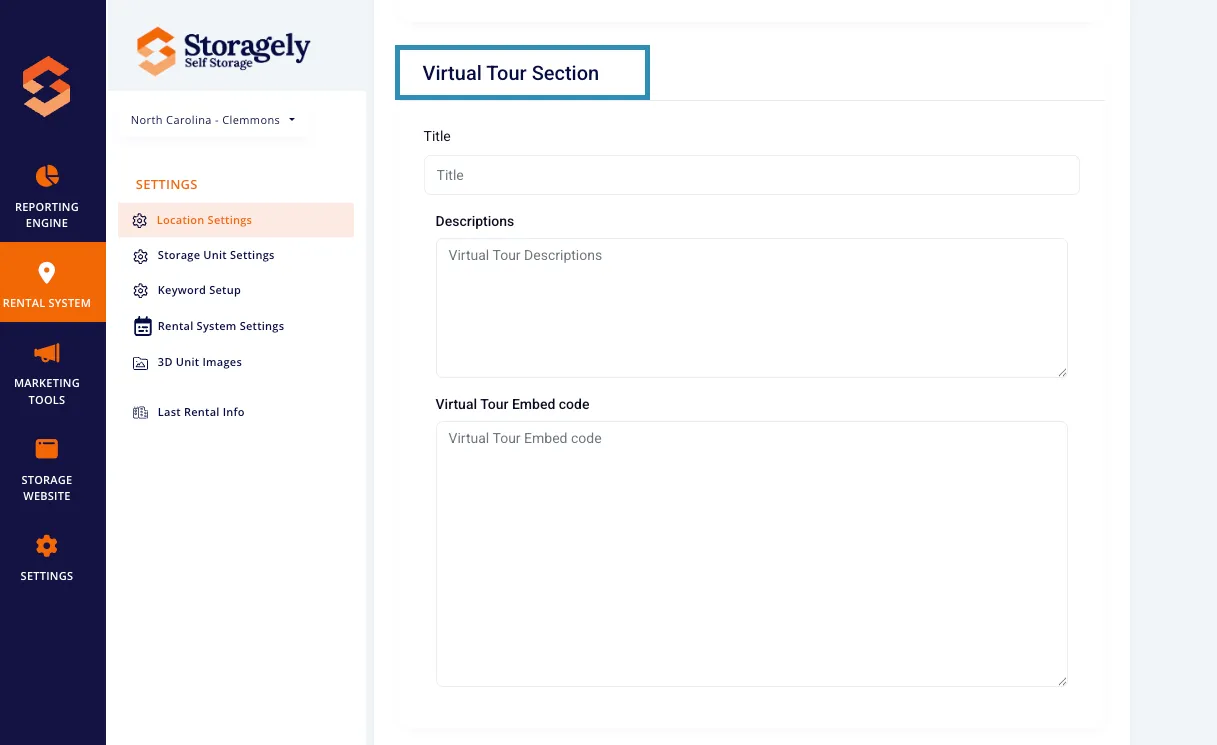
Users can configure media content related to the location:
- Virtual Tour Link – Embed virtual tours of the facility.
- 3D Unit Images – Upload or modify images representing unit layouts.
Location Features
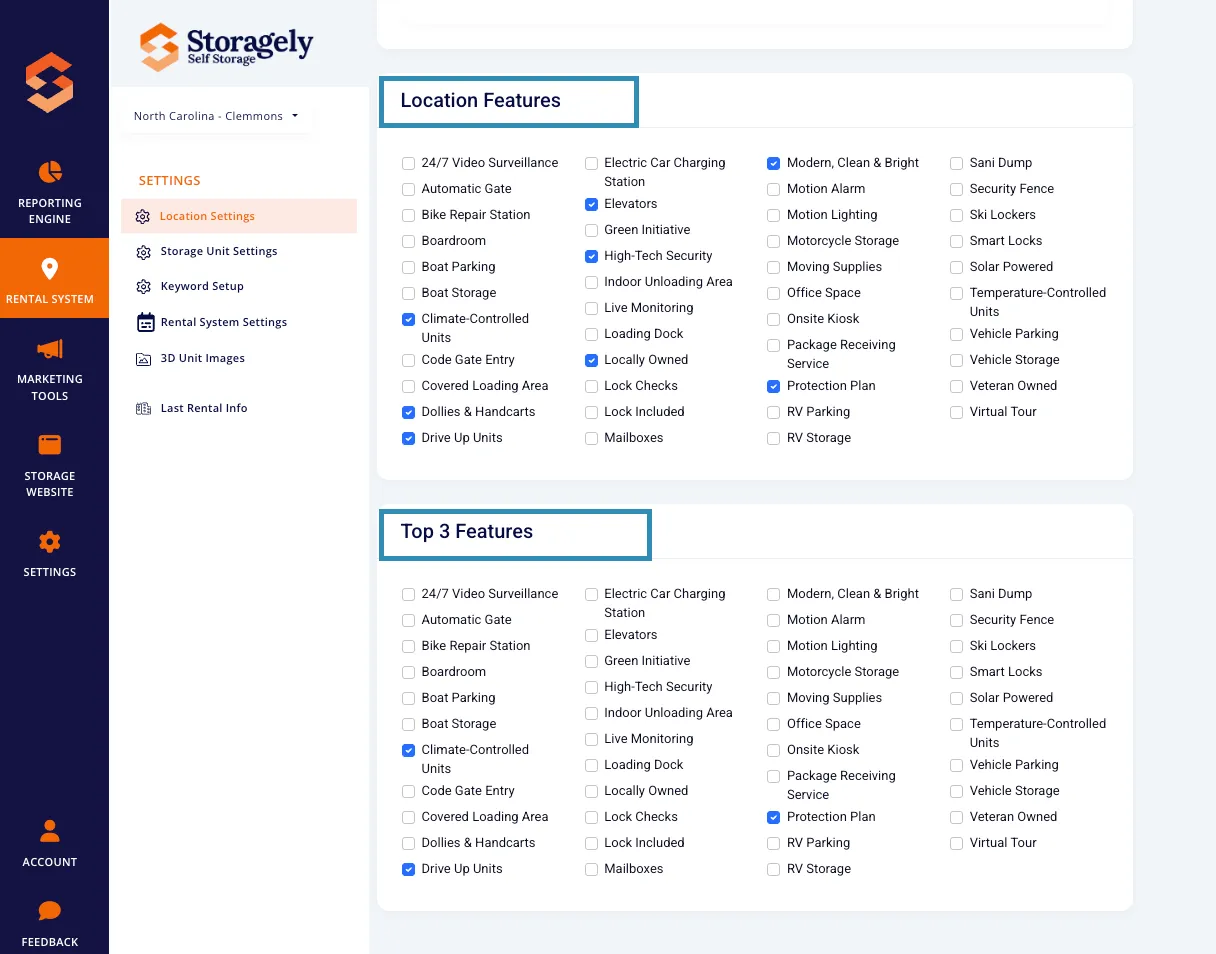
Operators can select features available at the facility, such as:
- 24/7 Video Surveillance
- Climate-Controlled Units
- Drive-Up Access
- Security Fencing
- Automatic Gates
- Package Receiving Services
- Electric Car Charging Stations
Enable or Disable Location Features
- Go to the Location Features section.
- Select or deselect available features for the facility.
- Choose Top 3 Features for display on the website.
- Click Update to save feature selections.
Managing Images
Adding New Images
Users can upload new images to showcase the facility. There must be a minimum of 3 images in the carousel.
Important SEO Notice:
- After uploading images, contact your Storagely Account Manager to ensure the images are properly tagged for SEO.
- Properly tagged images help improve search visibility and rankings.
- Scroll to the "Add New Images" section.
- Click the "Upload Images" button.
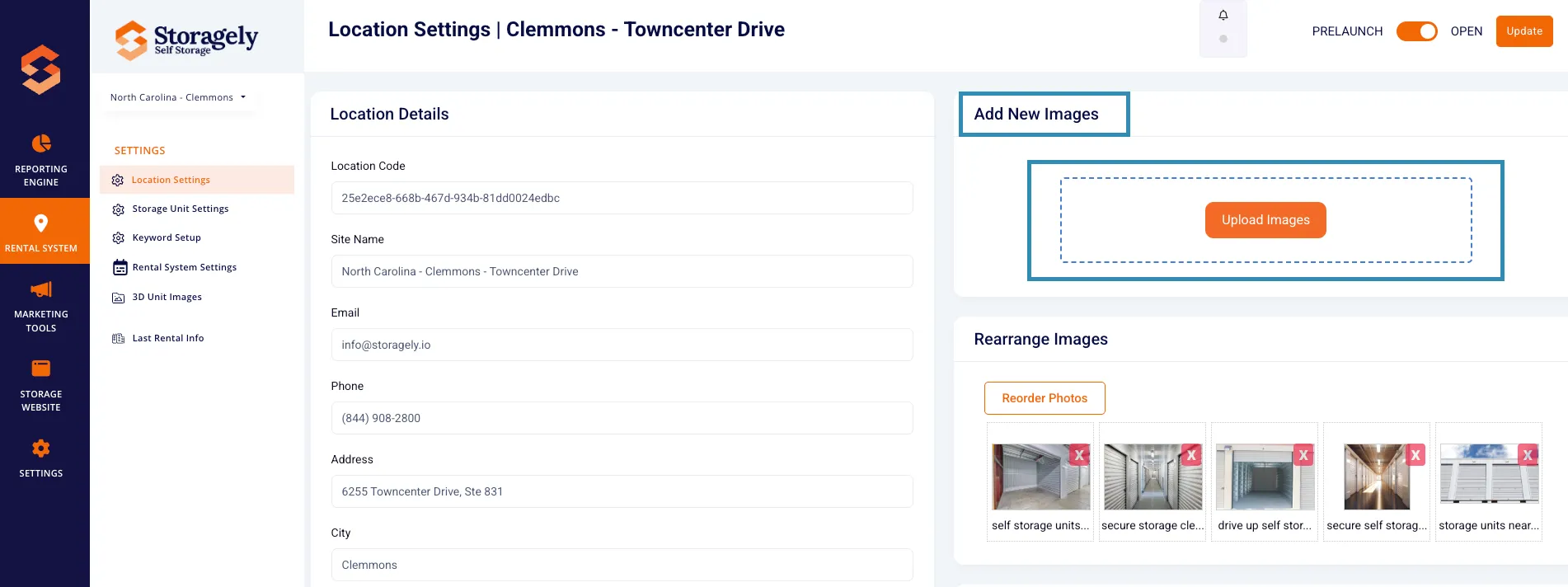
- Select images from your device and confirm the upload.
- Images will be added to the facility's media gallery.
- Contact your Storagely Account Manager to ensure images are tagged correctly.
Rearranging Images
Users can change the order in which images appear on the website:
- Navigate to the "Rearrange Images" section.
- Click the "Reorder Photos" button.
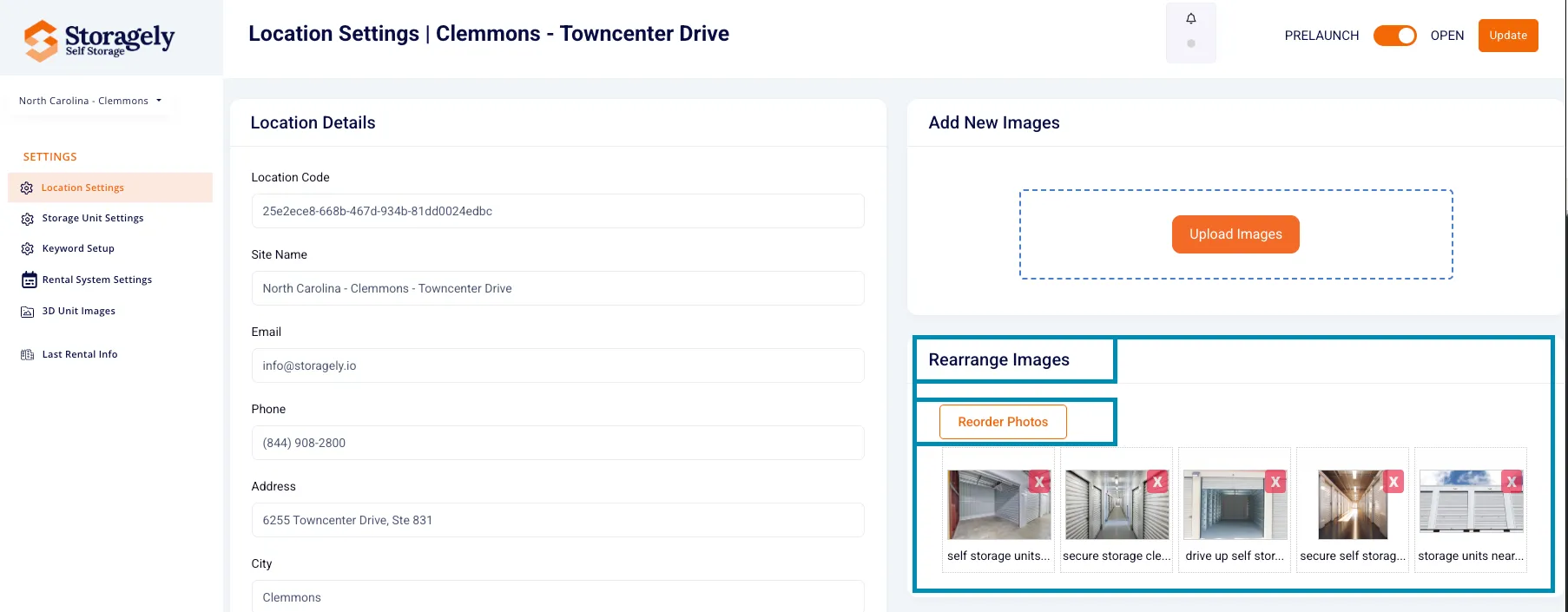
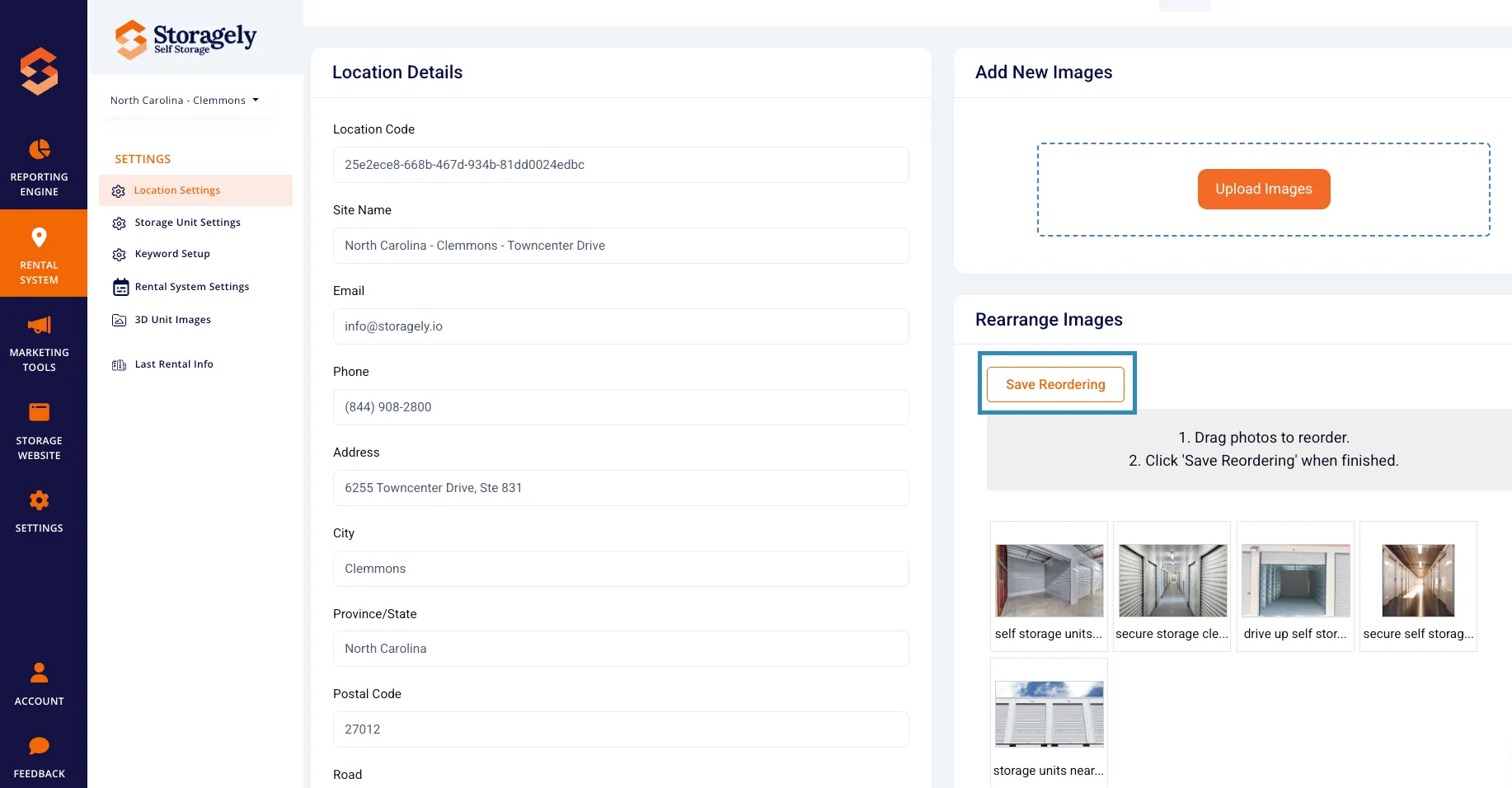
- Drag and drop images to adjust their order.
- Click "Save Reordering" to finalize changes.
Deleting Images
To remove an image from the gallery:
- Click the "X" button on the image you wish to delete.
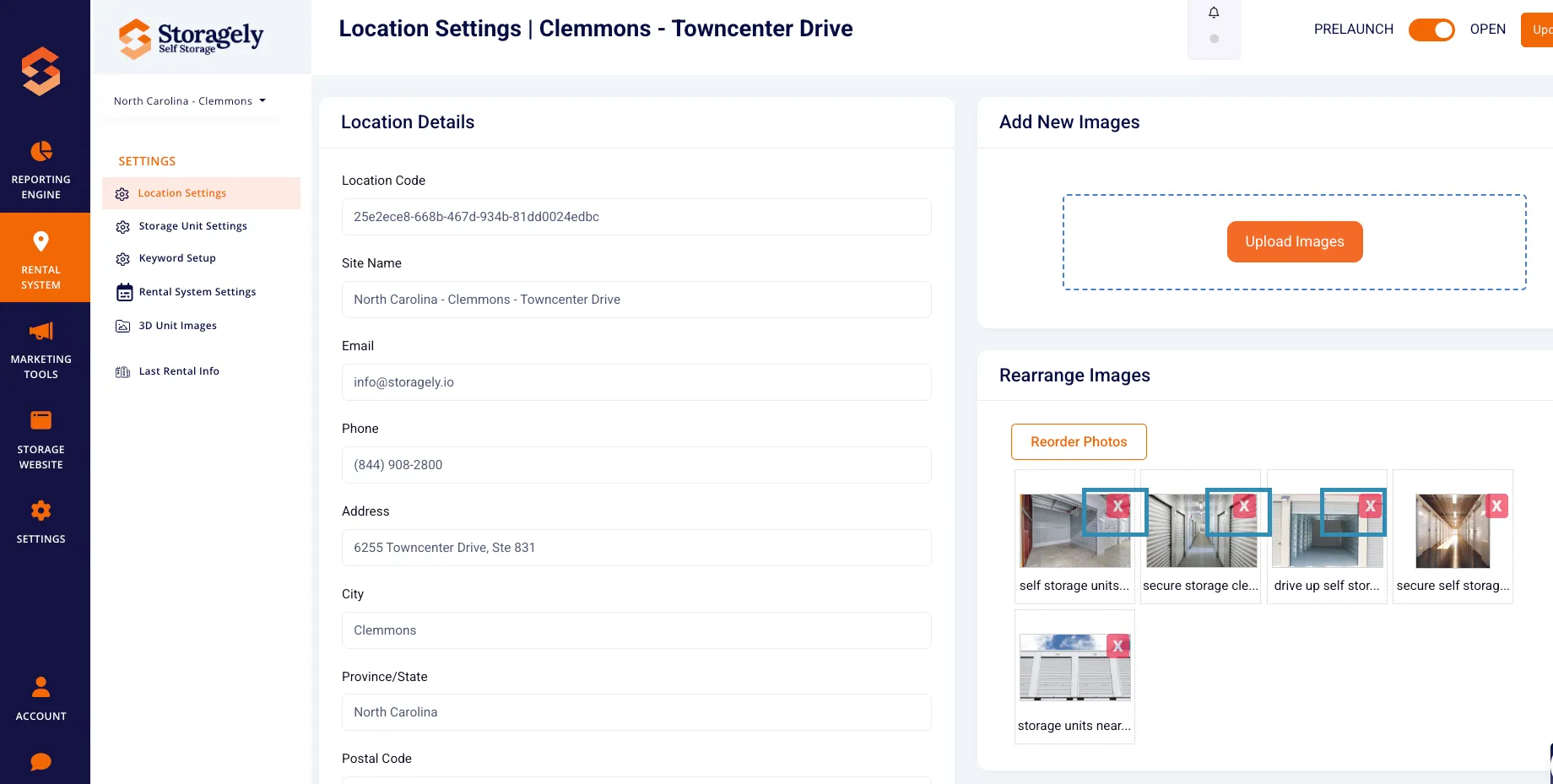
- Confirm the deletion to permanently remove the image.
Best Practices for Managing Location Settings
- Keep contact details up to date to ensure smooth communication with customers.
- Optimize SEO settings only if you have SEO expertise. If unsure, contact your Storagely Account Manager.
- Enable important email notifications to stay informed about customer activity.
- Highlight key location features to attract potential renters.
- Regularly update images and ensure they are properly tagged for SEO.
- Set accurate office and access hours to prevent confusion among customers.
FAQs & Troubleshooting
Q1: Why can’t I update my location details? A: Ensure you have the correct user permissions to make changes.
Q2: How can I reset my settings? A: If needed, manually re-enter previous values or contact Storagely Support.
Q3: How do I improve my location’s Google rankings? A: Use the SEO settings to optimize your title, meta description, and keyphrase.
Q4: How can I upload or reorder images? A: Navigate to the Images Section to upload, rearrange, or delete facility images.
Q5: Can I customize email notifications for multiple recipients? A: Yes, you can add multiple emails in the notification email address field.
For any issues related to image SEO tagging or SEO settings, contact your Storagely Account Manager before making changes.
As always, if you have any questions during this process, our Customer Success Team is here to help. The best way to reach us is by submitting a support ticket.