Reporting Engine Dashboard
1. Introduction
The Dashboard in the Reporting Engine provides a comprehensive overview of key rental performance metrics. Users can analyze trends, track rental activity, and gain insights into their storage locations quickly and efficiently.
This dashboard eliminates the need to manually pull multiple reports from facility management software across different time ranges by consolidating critical data in one place.
2. Navigating to the Dashboard
To access the Dashboard:
- Log in to your Storagely Dashboard.
- In the left sidebar menu, click on Reporting Engine.
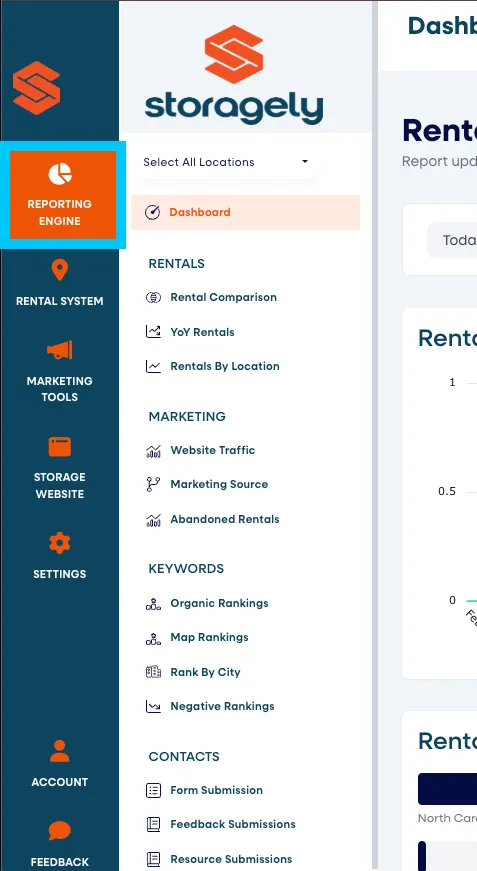
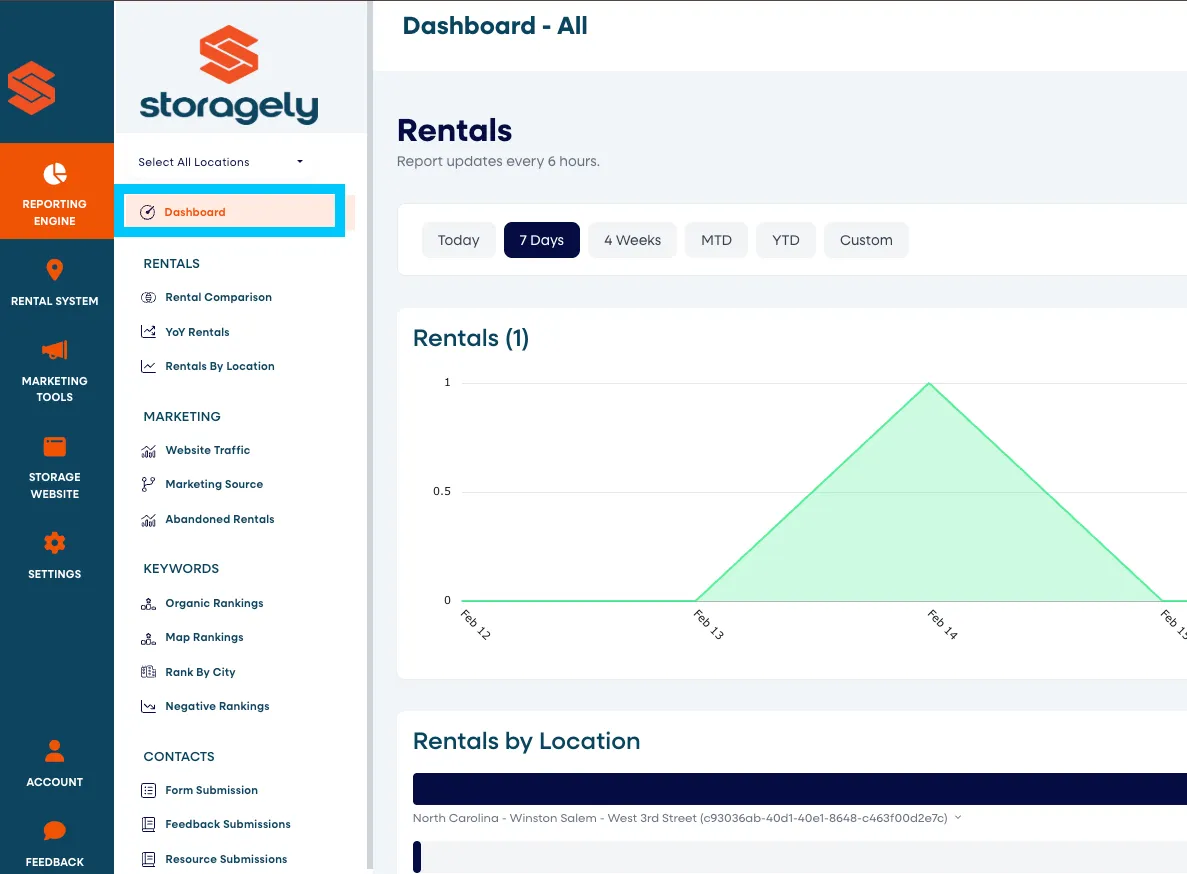
- Select Dashboard from the list.
3. Understanding the Interface
Selecting Locations
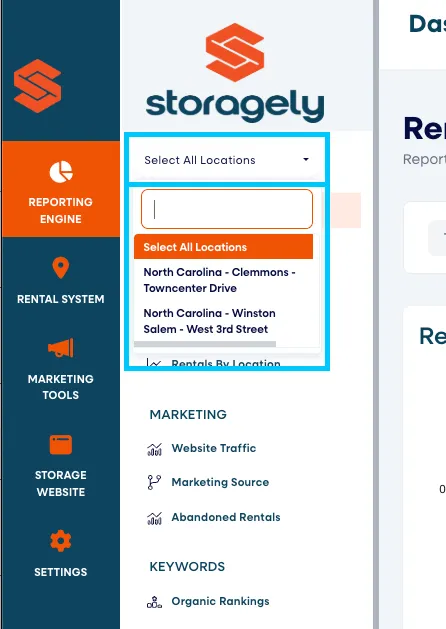
Users can view data for a single location or all locations using the dropdown in the top left corner of the screen. This allows for flexible reporting, from specific locations to a company-wide overview.
Date Range Filters
At the top of the dashboard, users can select a time range for reporting:
- Month to Date
- Today
- This Week
- This Month (Default)
- Custom Date Range (Choose specific start and end dates)
Key Metrics Displayed
The dashboard provides an at-a-glance view of key performance indicators:
- Total Rentals: The number of rentals during the selected time period.
- Future Rentals: Reservations or scheduled rentals for upcoming dates.
- Rentals by Location: A breakdown of rental performance per facility, sortable by name, short name, or quantity.
- Rental Trends: A graphical representation of rental activity over time.
- Marketing Sources Metrics: This breakdown helps operators measure marketing performance and prioritize channels that deliver the highest return.
- Marketing Source Attribution: Shows which sources (e.g., Google Organic Search, SpareFoot, etc.) generated rentals during the selected period.
- Rental Count by Source: Displays the number of rentals originating from each marketing channel.
- Revenue by Source: Breaks down the revenue generated by each source, helping operators understand which platforms are driving value.
- No Source Available: Highlights any rentals that could not be attributed to a specific source, indicating areas for tracking improvement.
4. How to Use the Dashboard
Selecting Locations
Use the location dropdown in the top left corner to choose between viewing data for a specific facility or an aggregated view of all locations.
- Selecting “All locations” provides a consolidated dashboard view, helping you evaluate overall business performance across your portfolio.
Choose a Time Range
Select a predefined or custom date range to filter data accordingly.

Selecting a Custom Time Range To review performance for a specific date range:
- Click the date range box in the upper right corner of the dashboard.
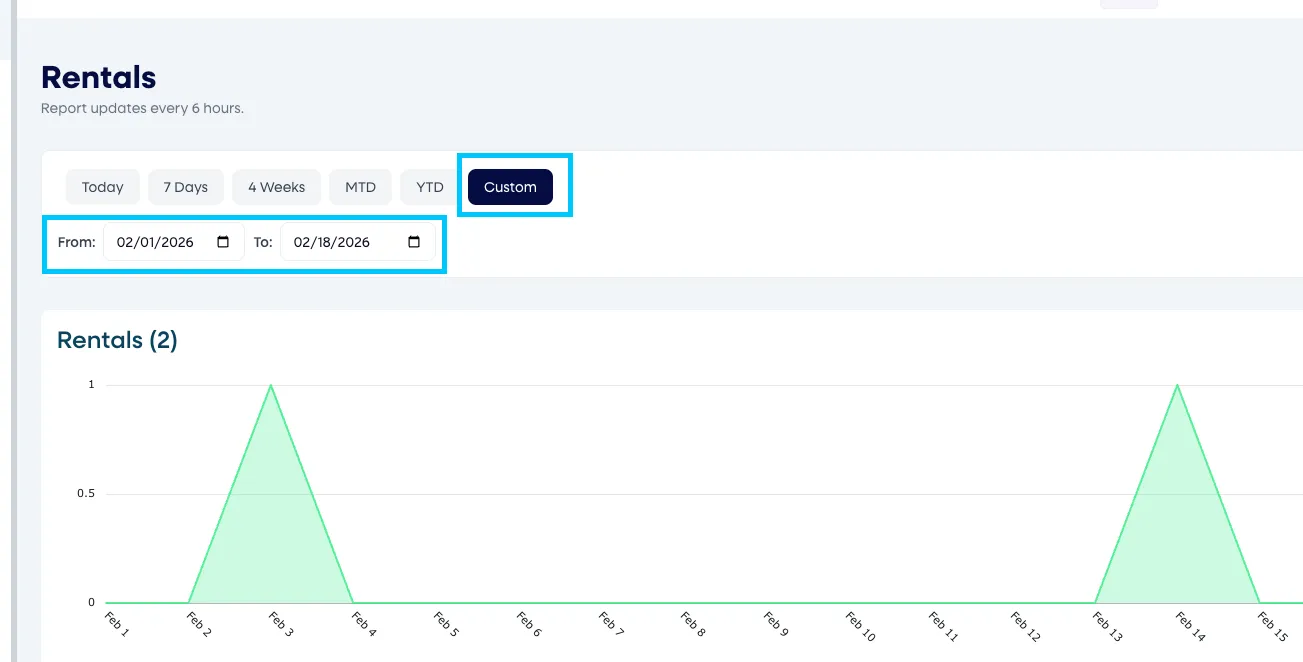
- Select your desired start and end dates using the calendar tool.
Your dashboard will update automatically to display rentals and trends for the selected time period.
Analyze Key Metrics
Review Total Rentals, Future Rentals, and other displayed insights to understand current trends.
Note: Data for Future Rentals is not currently available in the dashboard. This data will be added to the dashboard in a future release. At that time, if future rentals are enabled for your facility, you will see future rental data.
Sort and Compare Data
When viewing data for all locations, you can use sorting options in the Rentals by Location section to compare different locations efficiently. Available sorting options are by name, short name, or quantity.

Utilize Rentals by Date for Deeper Insights
- Identify high-demand days to optimize staffing and resource allocation.
- Detect seasonal trends and adjust marketing campaigns or strategies accordingly.
- Spot anomalies or drops in rentals that may require operational adjustments.
Best Practices for Data Analysis
- Use location selection to analyze performance at an individual site level versus company-wide trends.
- Compare data across different time periods to identify seasonality or performance shifts.
- Utilize graphical rental trends and Rentals by Date data to make data-driven decisions about marketing, pricing, and operations.
6. FAQs & Troubleshooting
Q1: Why is my location missing from the dropdown? A: First, ensure that you have the appropriate permissions to view that location.
- Customers with company-level permissions should have visibility into all locations, as their access is not restricted by individual facility settings.
- If a location is missing, it’s often because the facility ID was not provided during onboarding or was accidentally omitted from the platform’s configuration.
- Locations must be listed in the Integrations section under Settings in order to appear in the dashboard dropdown.
Note: Customers do not have access to the Integrations section. A member of the Storagely team (typically Kevin) will need to confirm whether the missing facility ID is listed and properly integrated. If you’re missing a location, please contact your Storagely Account Manager or reach out to our support team using one of the methods listed at the bottom of this support article.
Q2: How can I reset my filters? A: Refresh the page or manually reset filters by selecting a new date range.
Q3: Can I download the dashboard data? A: Currently, the dashboard does not support direct downloads, but individual reports may be available for export in other sections.
As always, if you have any questions during this process, our Customer Success Team is here to help. The best way to reach us is by submitting a support ticket.