Storagely Account Security with Two-Factor Authentication
1. Overview
The Account Security section in the Storagely Dashboard allows all users—including operators and team members—to manage security settings for their accounts. This includes updating passwords, monitoring login activity, and enabling Two-Factor Authentication (2FA) for enhanced security.
⚠ Important Notice:
- All Storagely users have access to this section.
- Enabling 2FA is highly recommended to protect accounts from unauthorized access.
2. Accessing Account Security Settings
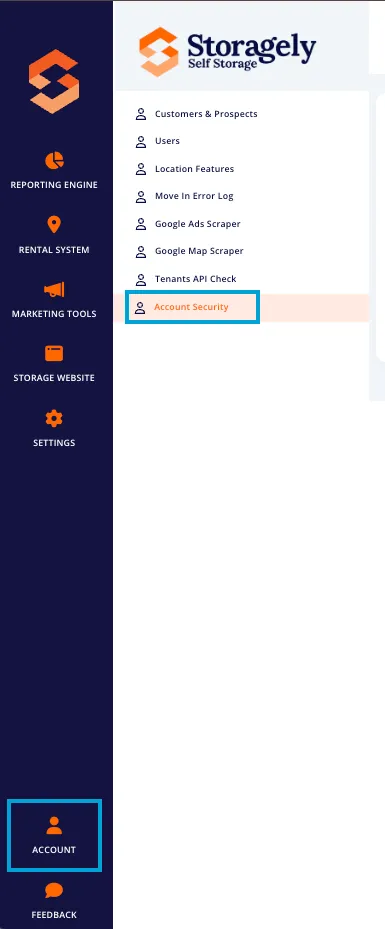
- Log in to the Storagely Dashboard.
- Select Account > Account Security.
3. Enabling Two-Factor Authentication (2FA)
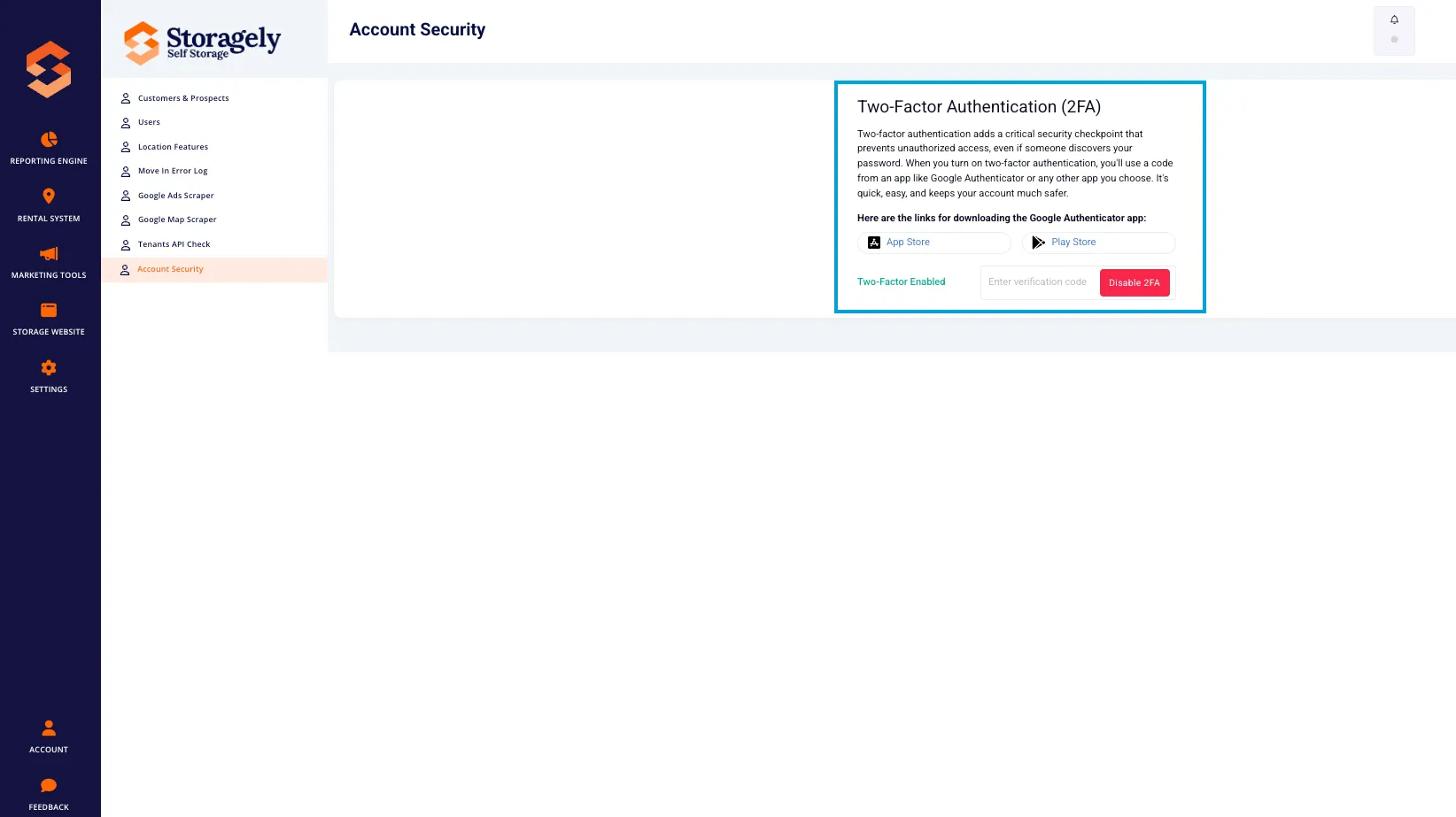
Two-Factor Authentication (2FA) adds an extra layer of security by requiring a unique code from an authentication app whenever you log in.
Step 1: Download an Authentication App
Before enabling 2FA, download an authenticator app such as:
- Other options: Microsoft Authenticator, Authy, LastPass Authenticator
Step 2: Enable 2FA in Storagely
- Navigate to Account Security settings.
- Find the Two-Factor Authentication (2FA) section.
- Click “Enable 2FA”.
Step 3: Scan the QR Code
- Open your authentication app.
- Tap “+” or “Add New” to set up an account.
- Select “Scan a QR Code” and scan the code displayed in Storagely.
Step 4: Enter the Verification Code
- Your authentication app will generate a 6-digit code.
- Enter this code into Storagely and click Verify.
- 2FA is now enabled—you’ll need to enter a code each time you log in.
4. Updating Your Password
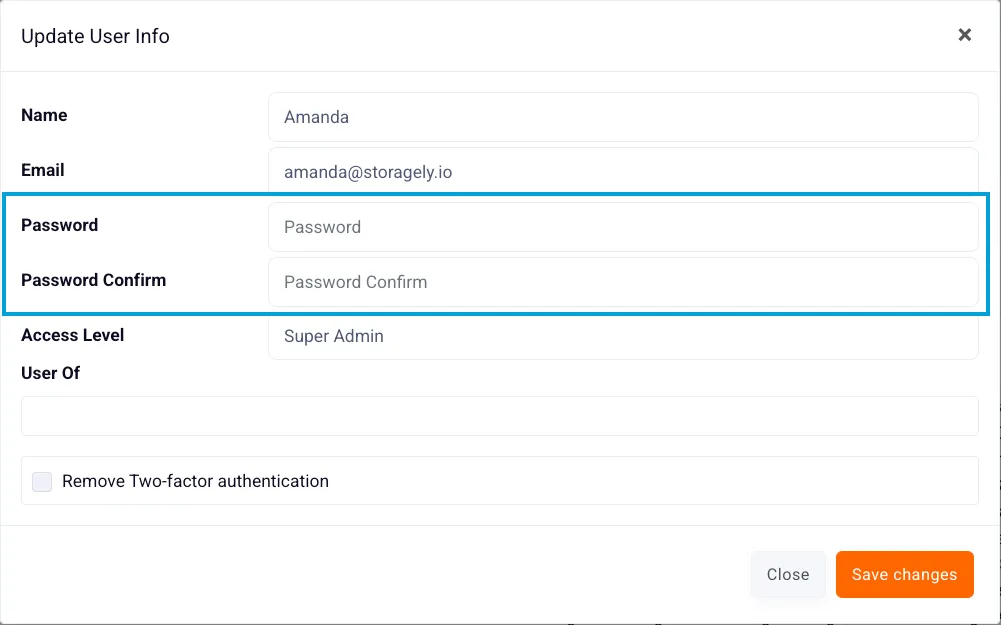
To change the customer's password:
- Go to Account > Select the user
- Enter a new password and confirm it.
- Click Save Changes.
Password Requirements:
- At least 8 characters
- A mix of uppercase & lowercase letters
- At least one number or special character
5. Troubleshooting & FAQs
Issue | Possible Cause | Solution |
|---|---|---|
Can’t enable 2FA | QR code expired | Refresh and scan again |
Lost access to the authentication app | Phone lost/reset | Contact Storagely Support to disable 2FA |
2FA code not working | Time sync issue | Ensure your phone’s clock is set to automatic time |
Forgot password | Incorrect login details | Use the password reset option on the login page |
6. Best Practices for Account Security
✅ Enable 2FA to prevent unauthorized logins. ✅ Use a strong password and avoid reusing passwords. ✅ Update your password periodically to enhance security.
As always, if you have any questions during this process, our Customer Success Team is here to help. The best way to reach us is by submitting a support ticket.