Rental Comparison Report
1. Introduction
The Rental Comparison Page in Storagely provides insights into rental performance across different locations and time periods.
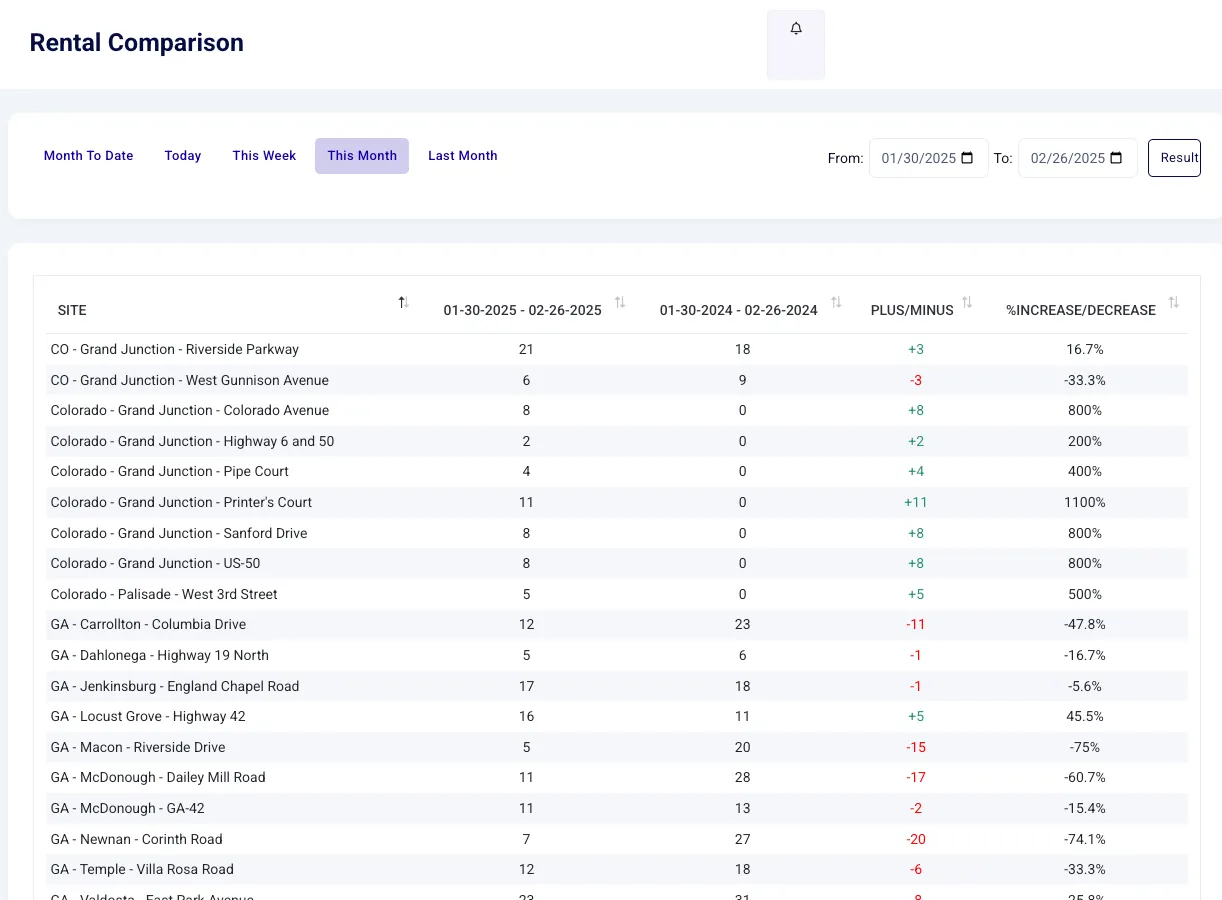
This report makes quick work of pulling data that would normally require significant time to gather manually from the facility management summary. Often, retrieving this level of data requires pulling multiple reports, covering multiple date ranges, and consolidating information from various sources. With the Rental Comparison Page, users can efficiently track changes in rental numbers, compare data from previous periods, and analyze trends to make data-driven decisions.
2. Navigating to the Rental Comparison Page
To access the Rental Comparison Page:
- Log in to your Storagely Dashboard.
- In the left sidebar menu, click on Reporting Engine.
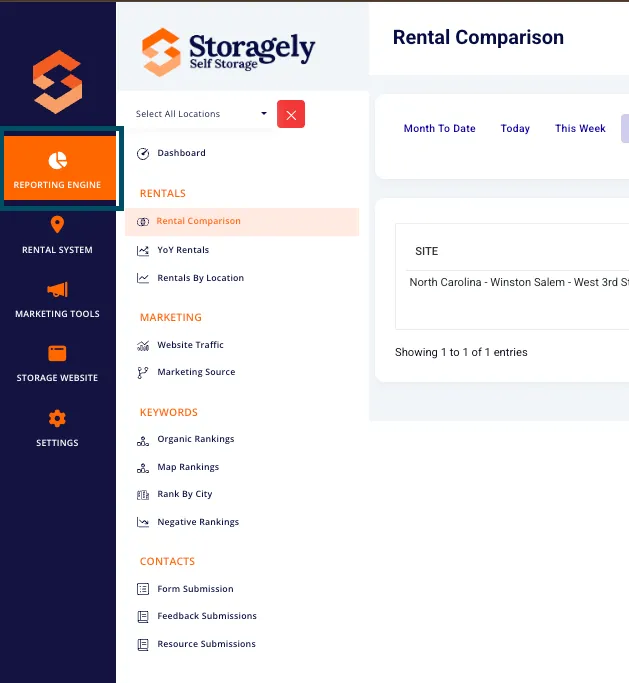
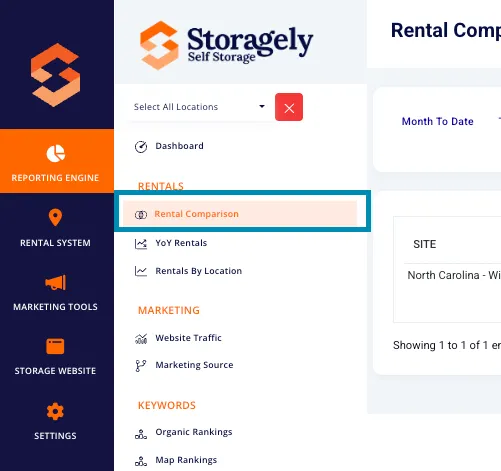
- Select Rental Comparison from the list.
3. Understanding the Interface
Date Selection Filters
At the top of the page, you’ll see various options for selecting time periods:
- Month to Date
- Today
- This Week
- This Month (Default)
- Last Month
- Custom Date Range (Choose specific start and end dates)

Comparison Table Layout
The main table on the page compares rental data over two selected periods:
- Current Period Rentals: Number of rentals for the selected time range.
- Previous Year Rentals: Number of rentals during the same time range in the previous year.
- Plus/Minus Difference: The net change in rental numbers.
- % Increase/Decrease: Percentage change compared to the previous period.
Sorting Data
Users can sort the data in the table by clicking the up/down arrows in the column headers. Sorting is available for the following columns:
- Site Name
- Current Period Rentals
- Previous Year Rentals
- Plus/Minus Difference
- % Increase/Decrease
Clicking the column header once will sort in descending order, clicking again will sort in ascending order.
4. How to Use the Rental Comparison Page
Use the radio buttons or date picker to choose the time period for comparison.
The table displays location-wise rental data, highlighting trends and changes.
- Locations with growth show green percentage increases.
- Locations with decline show red percentage decreases.
5. Best Practices for Data Analysis
- Compare multiple time periods for deeper insights.
- Identify underperforming locations and strategize improvements.
- Use rental trends to adjust pricing and marketing efforts.
6. FAQs & Troubleshooting
Q1: Why don’t I see data for certain locations? A: Ensure the correct location is selected in the dashboard.
Q2: How can I reset my filters? A: Refresh the page or manually reset filters by selecting a new date range.
As always, if you have any questions during this process, our Customer Success Team is here to help. The best way to reach us is by submitting a support ticket.