Data Sync
1. Introduction
The Data Synchronization section in the Storagely Dashboard allows facility operators to monitor and manually sync data between Storagely and integrated third-party platforms such as Facility Management Software (FMS), Marketing Tools, and WhatConverts.
Important Notice:
- Data syncs are automated by the Storagely platform and typically occur in the background without user intervention.
- Users can check the Last Update column to see when the most recent sync was completed.
- If necessary, users can force a manual refresh by clicking the Synchronization button next to the data type.
2. Navigating to Data Synchronization Settings
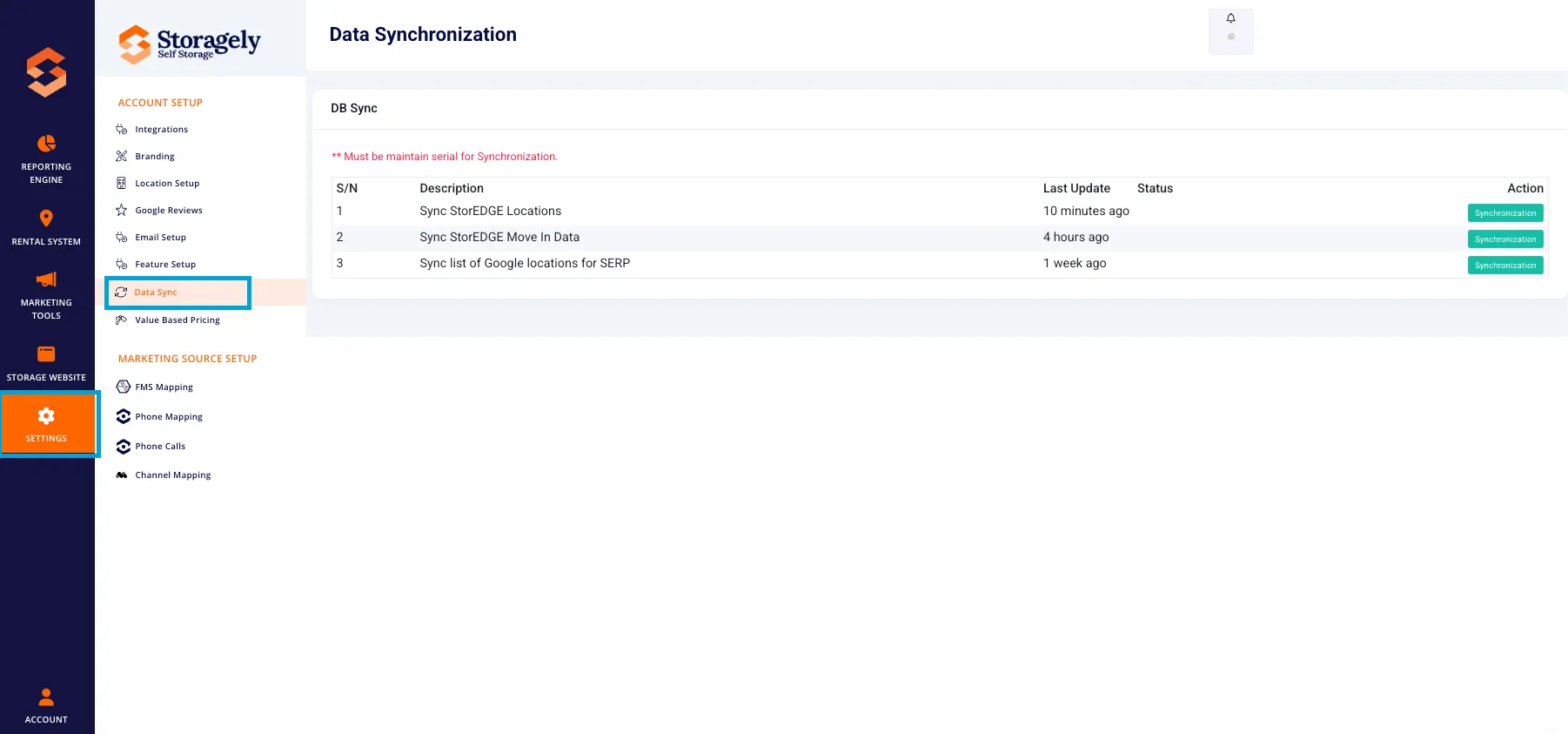
To access the Data Synchronization:
- Log in to your Storagely Dashboard.
- In the left sidebar menu, click on Settings.
- Select Account Setup → Data Sync.
3. Understanding the Data Synchronization Interface
A. Data Synchronization Table
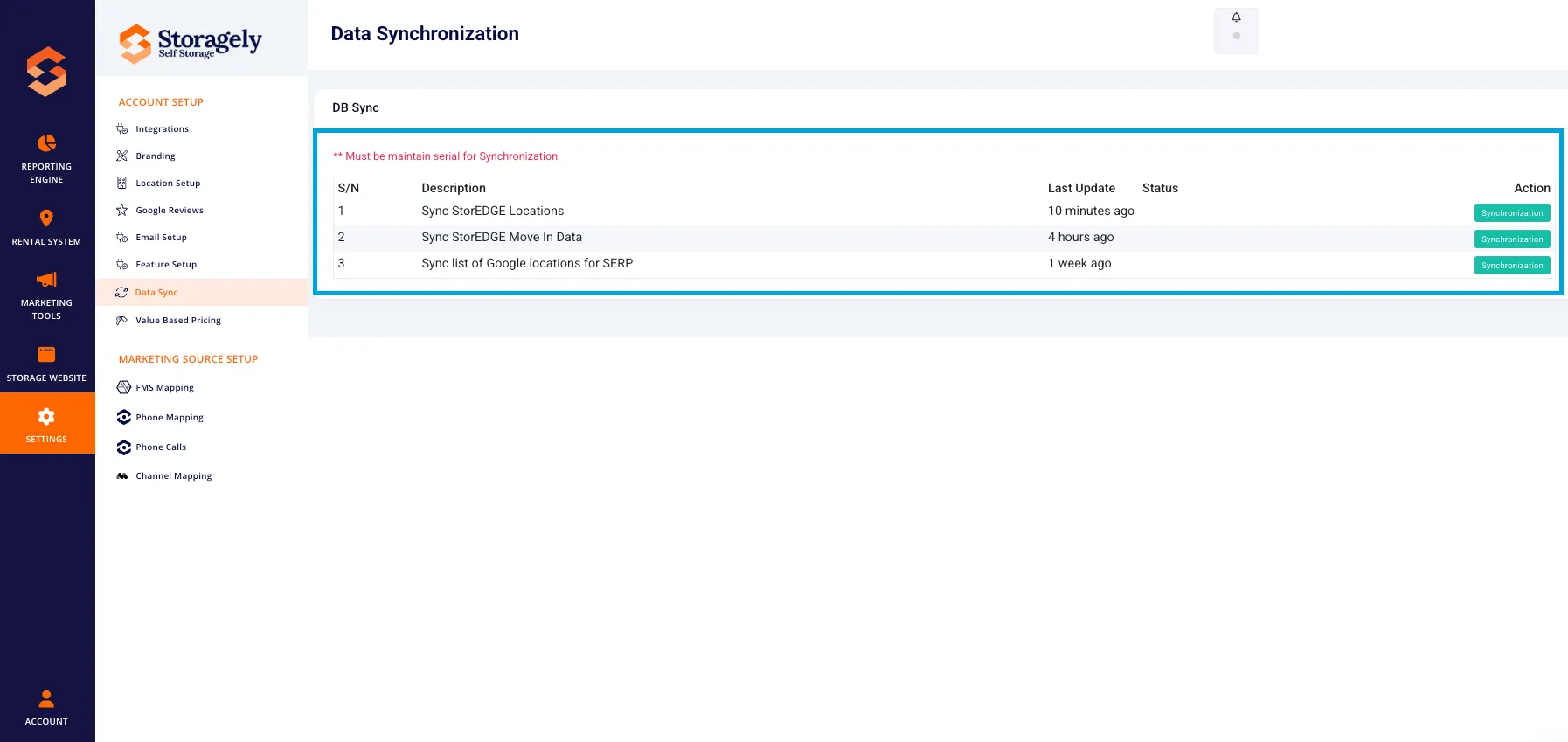
The table displays the following columns:
- S/N (Serial Number) – The order in which sync processes should be executed.
- Description – The type of data being synchronized.
- Last Update – The most recent time this sync was completed.
- Status – Displays whether the sync is active or pending.
- Action – A Synchronization button to manually trigger the sync process if needed.
B. Available Synchronization Options
Users can sync the following data types:
- Sync StorEDGE/SiteLink/SSM Locations – Updates facility location details from StorEDGE.
- Sync StorEDGE/SiteLink/SSM Move-In Data – Updates tenant move-ins from StorEDGE.
- Sync WhatConverts Data Store – Synchronizes lead data from WhatConverts.
- Sync WhatConverts Source Data Store – Updates marketing source data from WhatConverts.
- Sync Marketing Source Report – Ensures that marketing source reporting is accurate.
Each sync request must be performed in order, as indicated by the serial number column.
4. How to Perform a Manual Synchronization
Step 1: Review the Last Sync Time
- Check the Last Update column to determine when the most recent sync was completed.
- If the data is current, no action may be needed.
Step 2: Initiate the Sync Process (if needed)
- Locate the data type you want to sync.
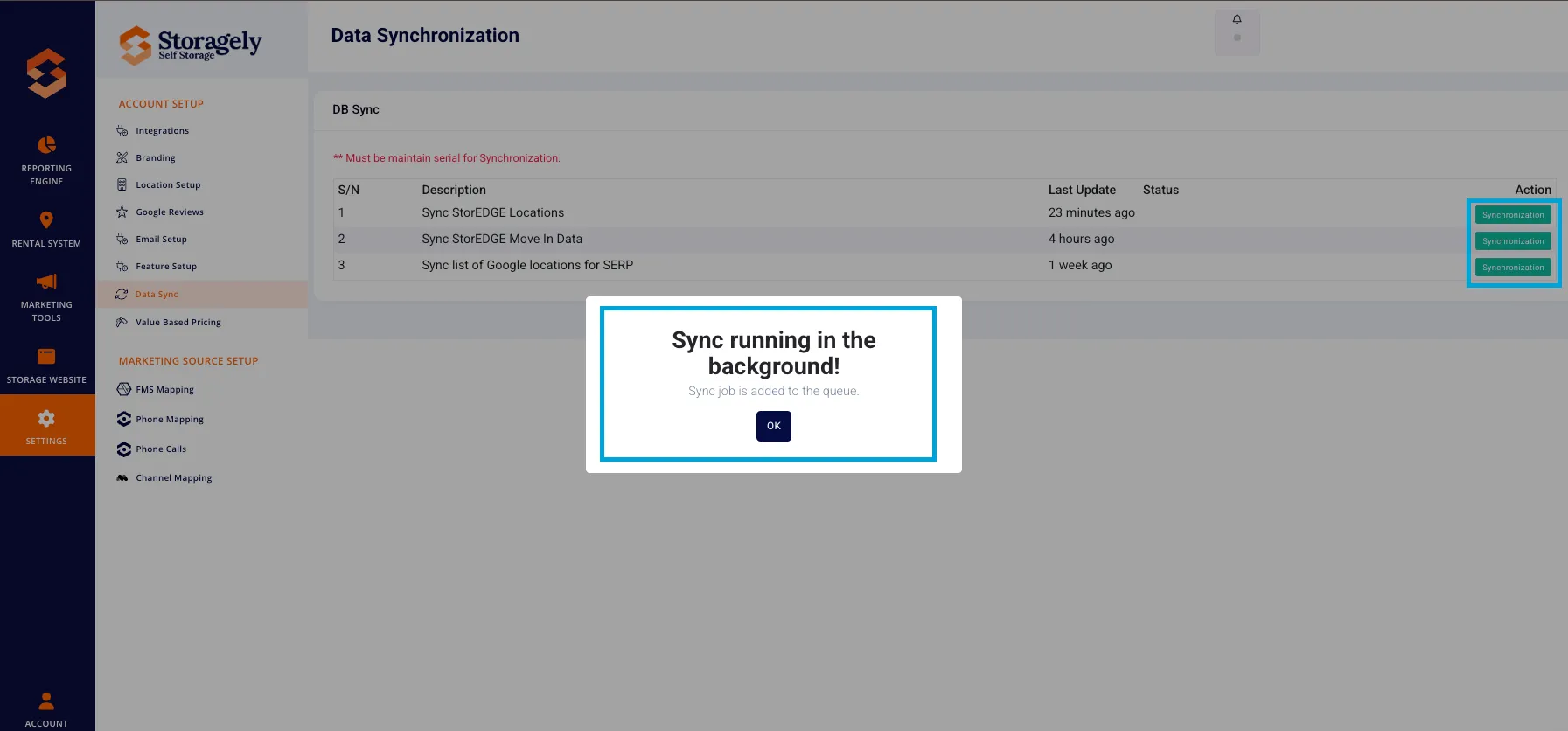
- Click the "Synchronization" button in the Action column.
- A confirmation prompt may appear—click “Ok” to proceed.
Step 3: Monitor the Sync Progress
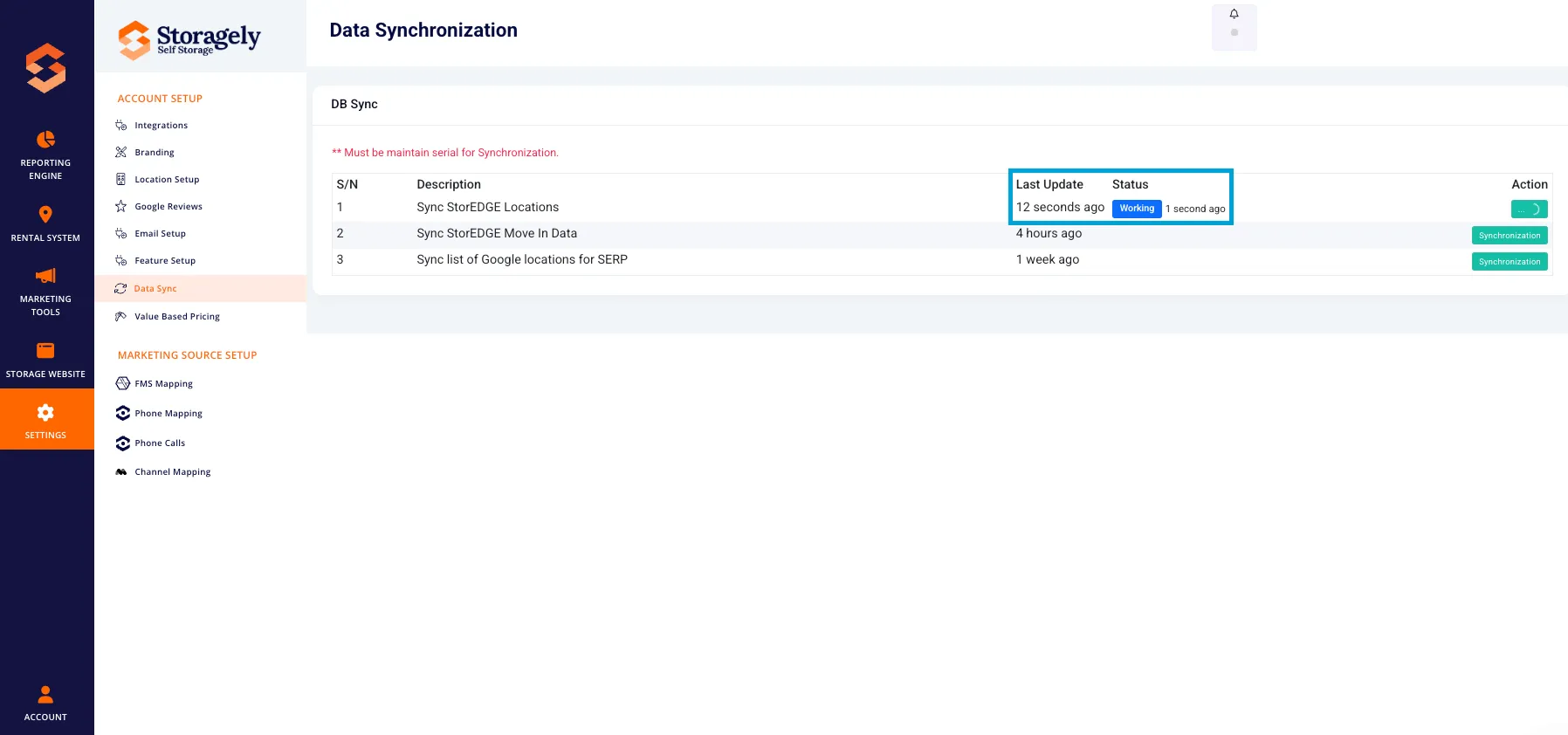
- The sync will run in the background.
- Refresh the page or wait for the Last Update timestamp to change.
- If an error occurs, contact your Storagely Account Manager.
5. Best Practices for Data Synchronization
✅ Allow automated syncs to run before manually refreshing data to avoid unnecessary sync requests. ✅ Check the "Last Update" column before forcing a sync to ensure a manual refresh is necessary. ✅ Follow the synchronization order (S/N 1 to S/N 5) if manually syncing data. ✅ Monitor last update timestamps to confirm successful syncs. ✅ Avoid running multiple syncs at the same time to prevent data conflicts.
6. FAQs & Troubleshooting
Q1: What should I do if the sync fails? A: Contact your Storagely Account Manager for troubleshooting assistance.
Q2: How often does the platform sync data automatically? A: Syncs are automated at regular intervals. Check the Last Update column to see the most recent sync time.
Q3: When should I manually force a sync? A: Only force a sync if data appears outdated or if a recent change has not yet been updated.
Q4: What happens if I skip a synchronization step? A: Skipping steps can cause outdated or incorrect data in reports and dashboards.
As always, if you have any questions during this process, our Customer Success Team is here to help. The best way to reach us is by submitting a support ticket.