Accessing the Storagely Website Editor
6 min
Introduction
Before you can begin editing pages, adding images, or updating your design, you need to access the Storagely Website Editor. This guide walks you through how to launch the editor from the Storagely Dashboard and highlights an important detail: your edits will happen in a new browser window.
Best Practices:
- Use a modern browser like Chrome for the best performance.
- Allow pop-ups in your browser if the editor doesn’t open in a new window.
Bookmark the Storagely Website tab for quick access later and always launch it via the Storagely dashboard to avoid session timeouts.
Recommended Items for Updating by Client:
- Text changes
- Image changes
- Addition or update of links
- Cloning pages to create similarly structured pages
Client can complete with Caution
- Forms and form settings.
- SEO updates
Recommended Items for Updating by Storagely Only
- Updates to the global styling of the site:
- Fonts
- Text Sizing
- Button Styling
- Colors
- Anything that changes the structure of a page
- Creation of new page layouts (depending on how comfortable the client is with the builder)
Navigating to the Editor
- Open your Storagely Dashboard.
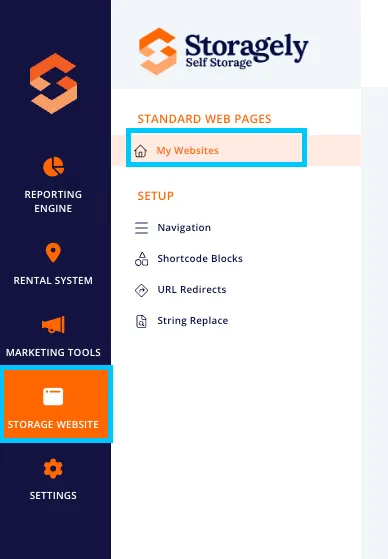
- Navigate to the Storage Website tab and select "My Websites"
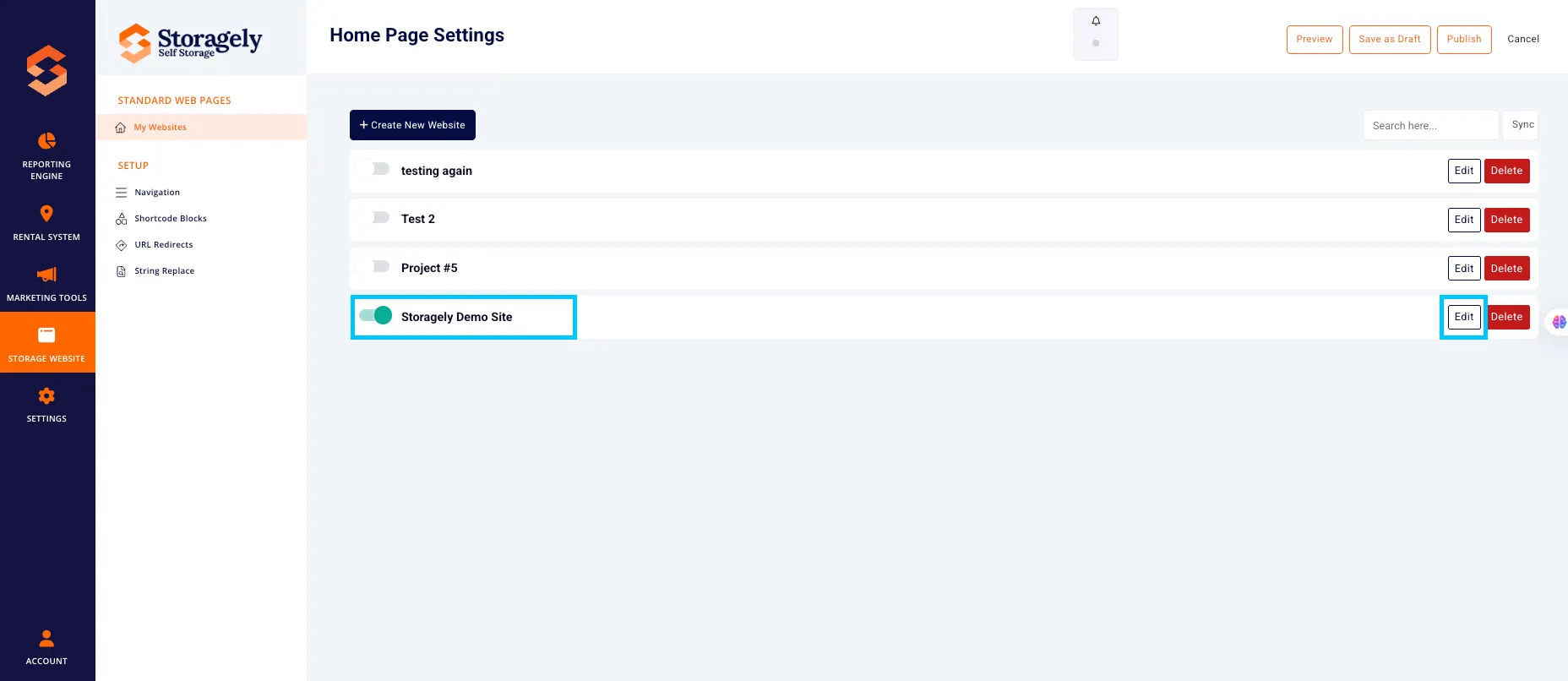
- Select the website you want to edit from the list
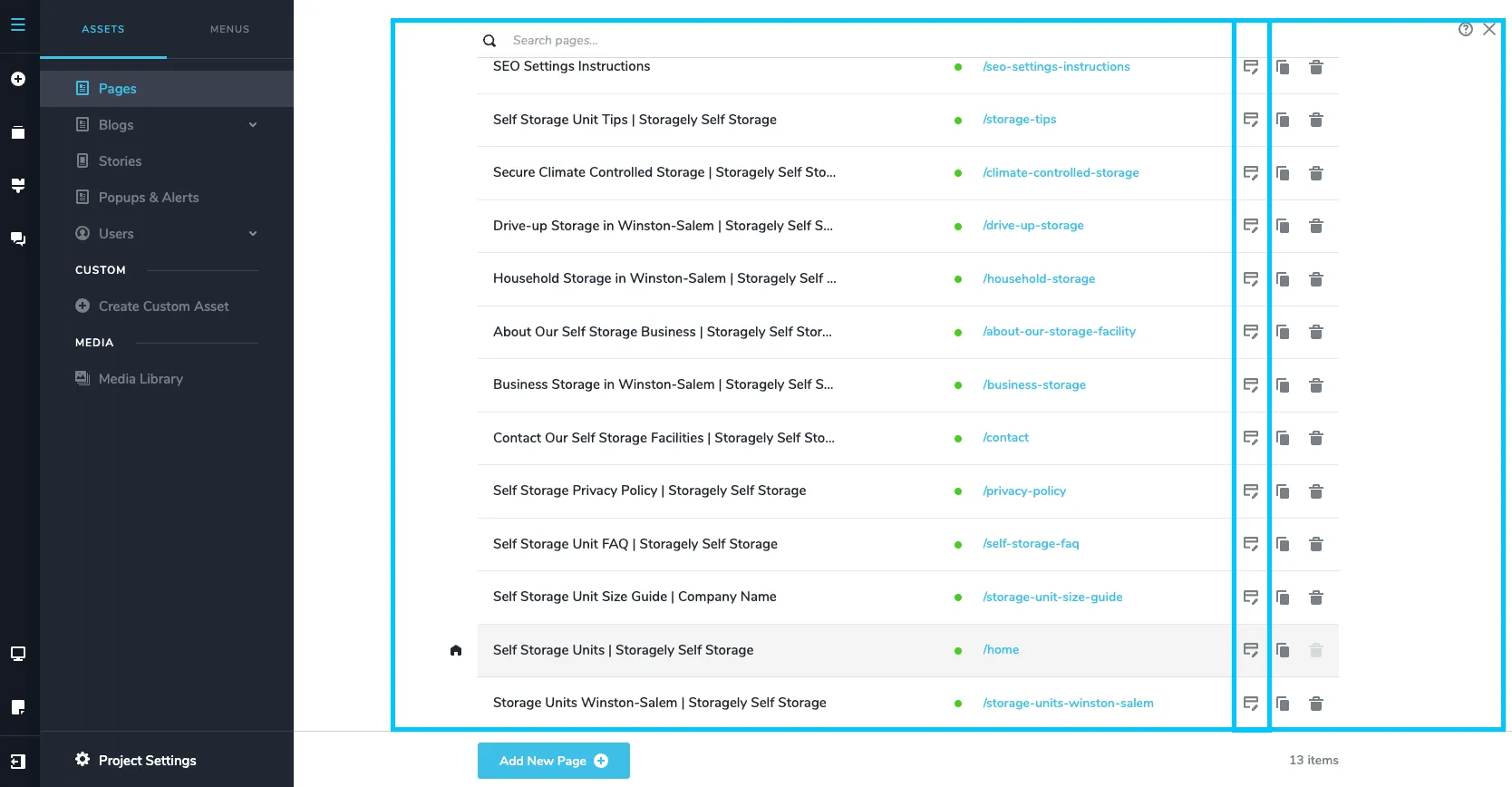
- Click the top left CMS icon

- Click the page containing the information or details you’d like to update.
- Click the “Open Website Editor” Button:
- This will launch the Storagely Website Editor in a new browser window.
Important Notes About the Website Editor
- The Website Editor opens in a new tab or window. It is not built directly into the Storagely Dashboard. When you click “Open Website Editor,” your browser will launch it separately.
- If nothing happens after clicking “Open Website Editor,” Make sure your browser isn't blocking pop-ups. Adjust your settings or allow pop-ups from your dashboard URL.
- You’re ready to start editing! Use the step-by-step articles in this Help Center to customize pages, update content, and adjust your layout.
- Click “Update” to save your changes. All changes must be saved by clicking the “Update” button in the lower-right corner of the page. If you close the tab without updating, your edits will be lost.
- Always check your changes across all device sizes. Use the built-in preview tools to confirm your layout looks great on desktop, tablet, and mobile.
🎥 Watch Tutorial Video:
As always, if you have any questions during this process, our Customer Success Team is here to help. The best way to reach us is by submitting a support ticket.
Have a question?
Our super-smart AI, knowledgeable support team and an awesome community will get you an answer in a flash.
To ask a question or participate in discussions, you'll need to authenticate first.