How to: Create Popups
Overview
Popups and alerts are powerful, high-visibility tools in the Storagely WebBuilder that allow you to announce important updates, promote sales or special offers, collect leads and emails, provide location-specific information, and display time-sensitive alerts.
With Storagely, popups are fully customizable, can be displayed only on specific pages, and can be triggered by various user behaviors—including timing delays, scroll depth, exit intent, or interaction.
Navigate to the Editor
- Open your Storagely Dashboard.
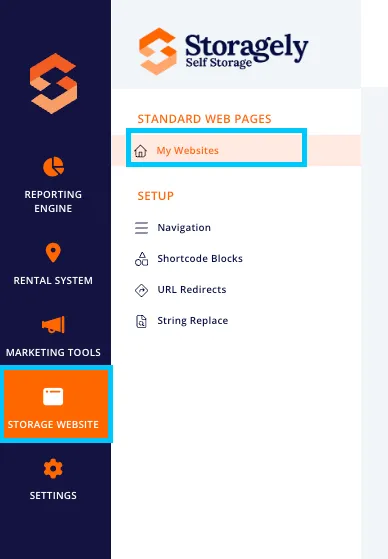
- Navigate to the Storage Website tab and select "My Websites"
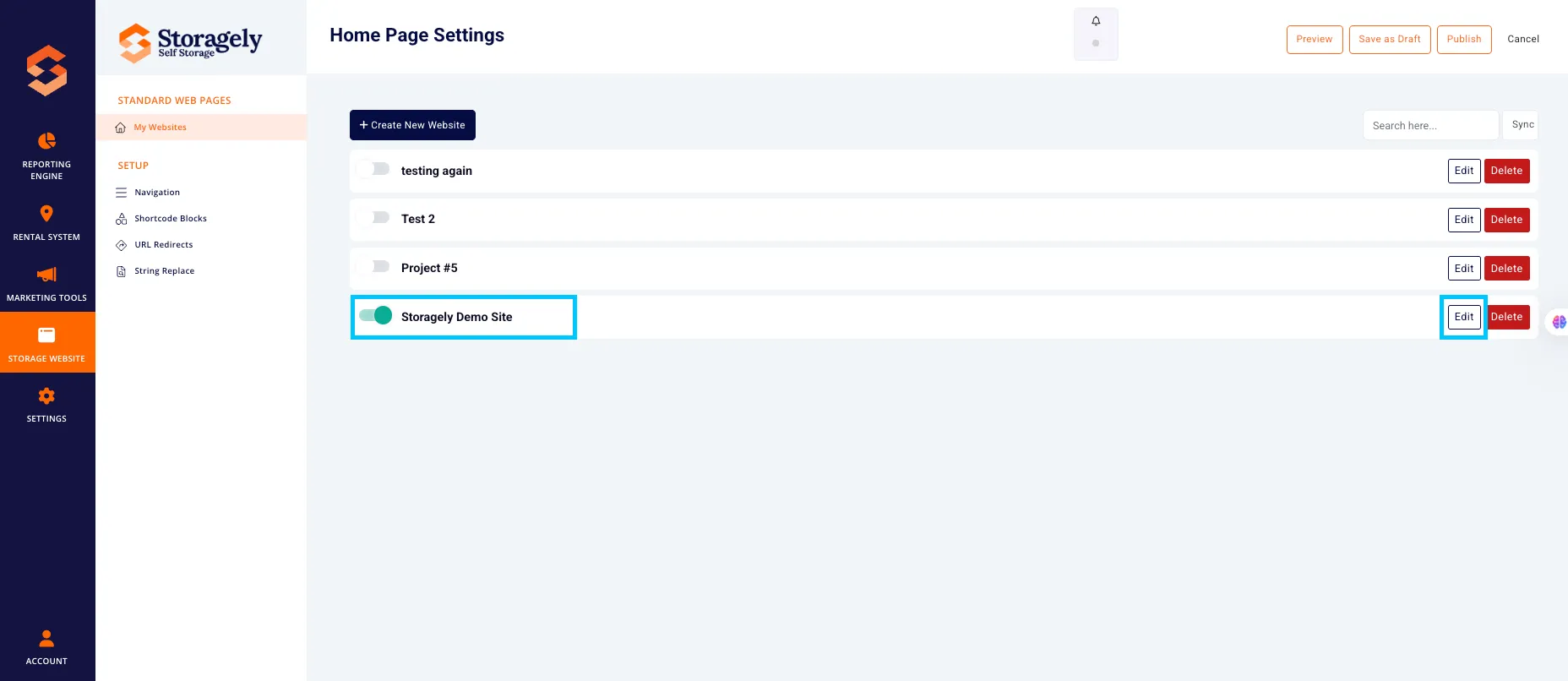
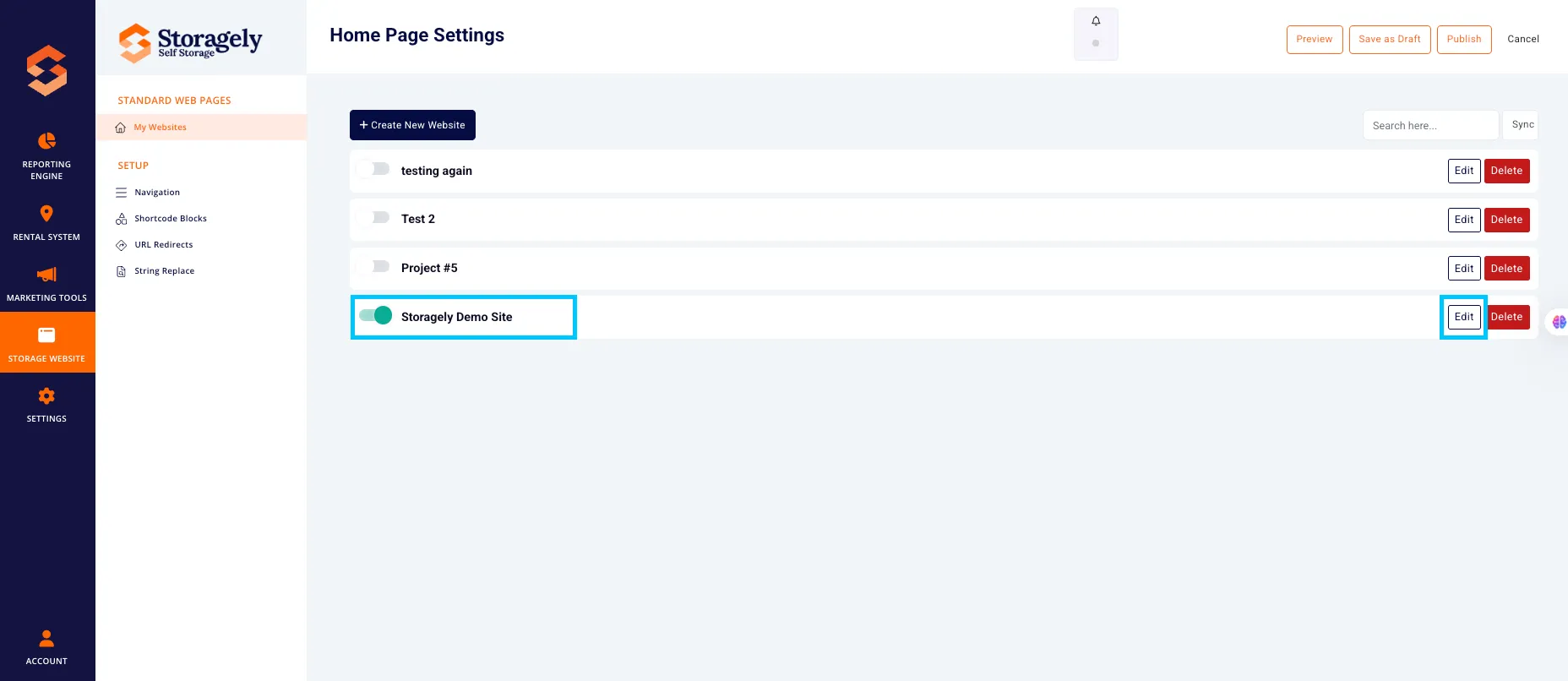
- Select the website you want to edit from the list
Create or Edit a Popup
Access Your Popups
- From the Storagely Website Editor, select the website you want to manage.
- In the top-left corner, click the CMS icon.

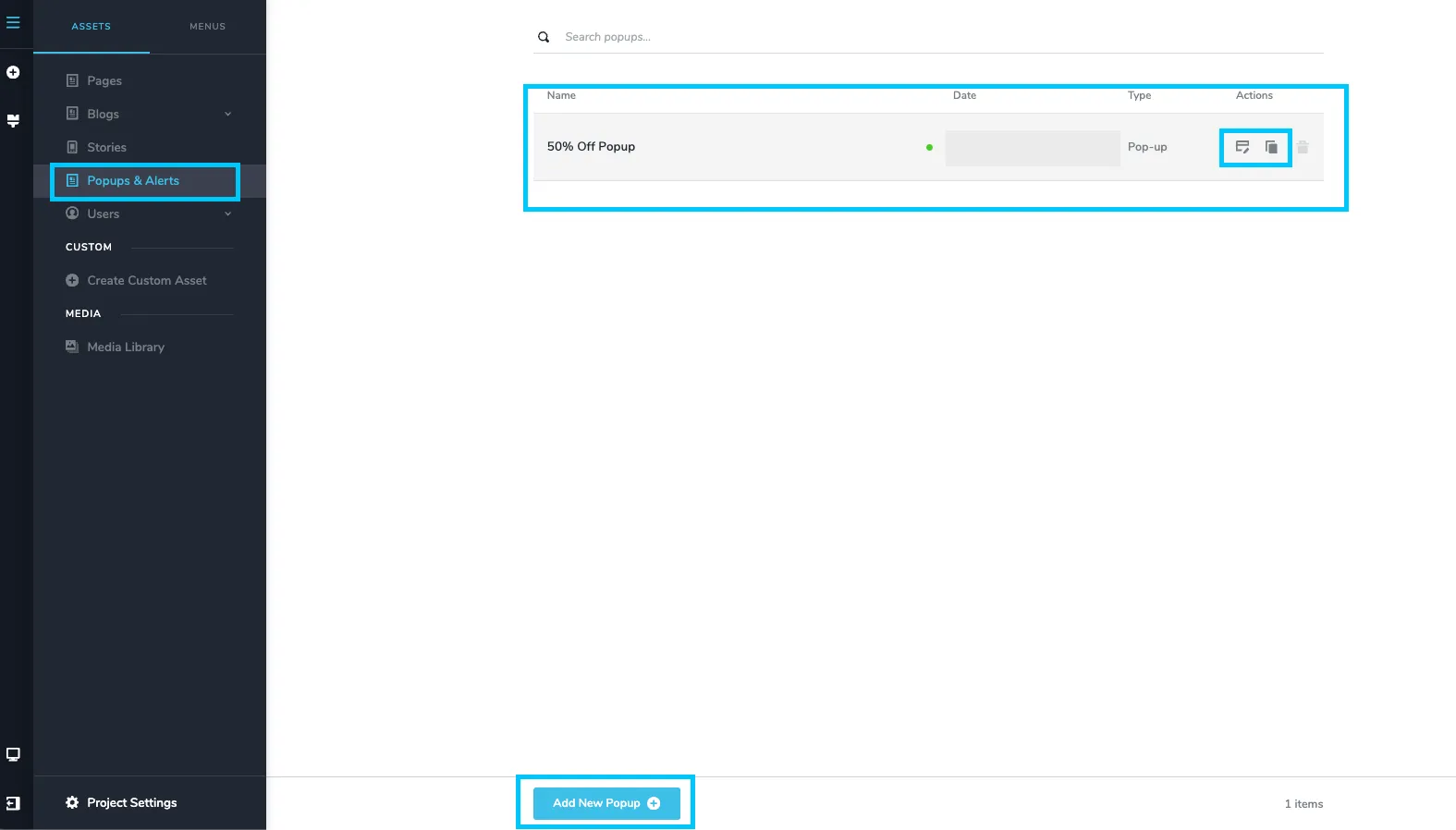
- Select Popups & Alerts.
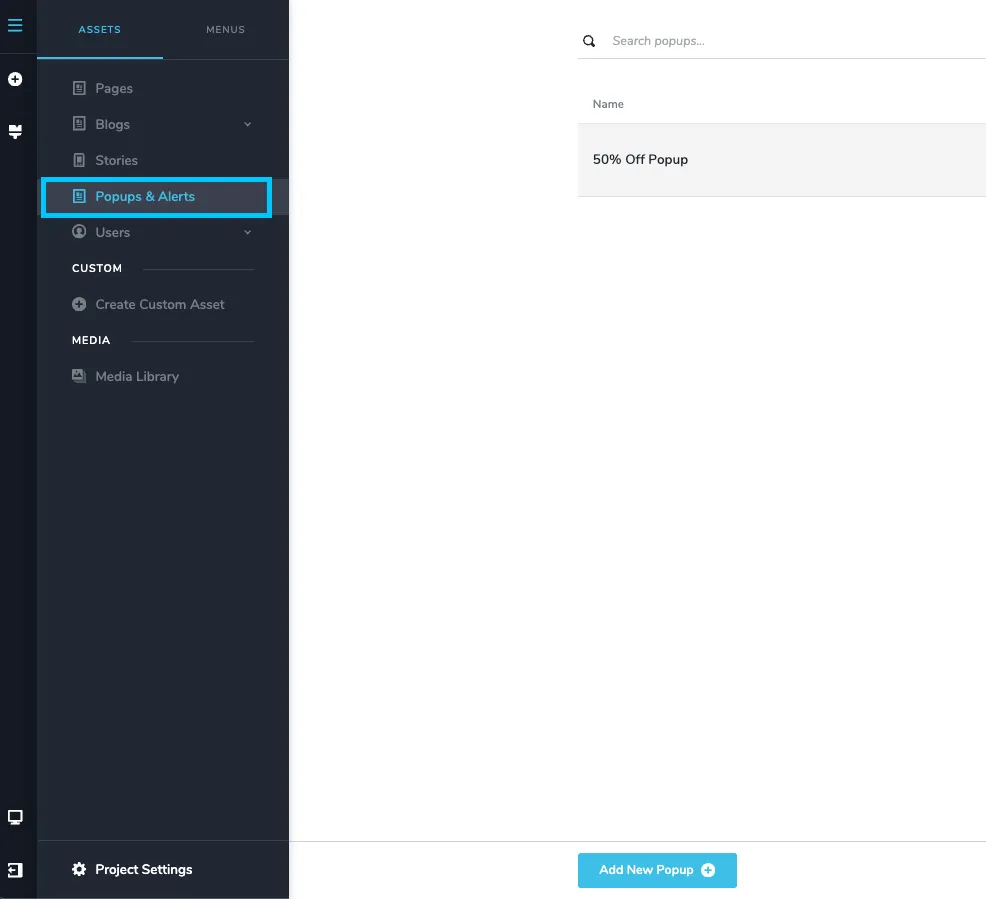
You will see:
- All existing popups
- Options to edit, delete, clone, or create new popups
Creating a Popup
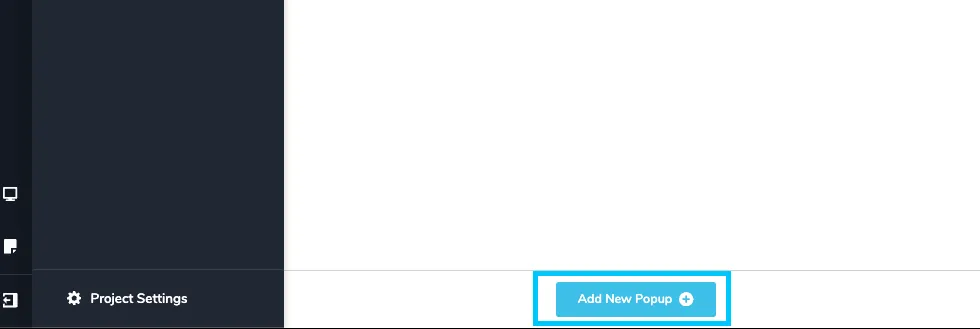
- Click "Add New Popup" at the bottom of the page to create a new pop-up.
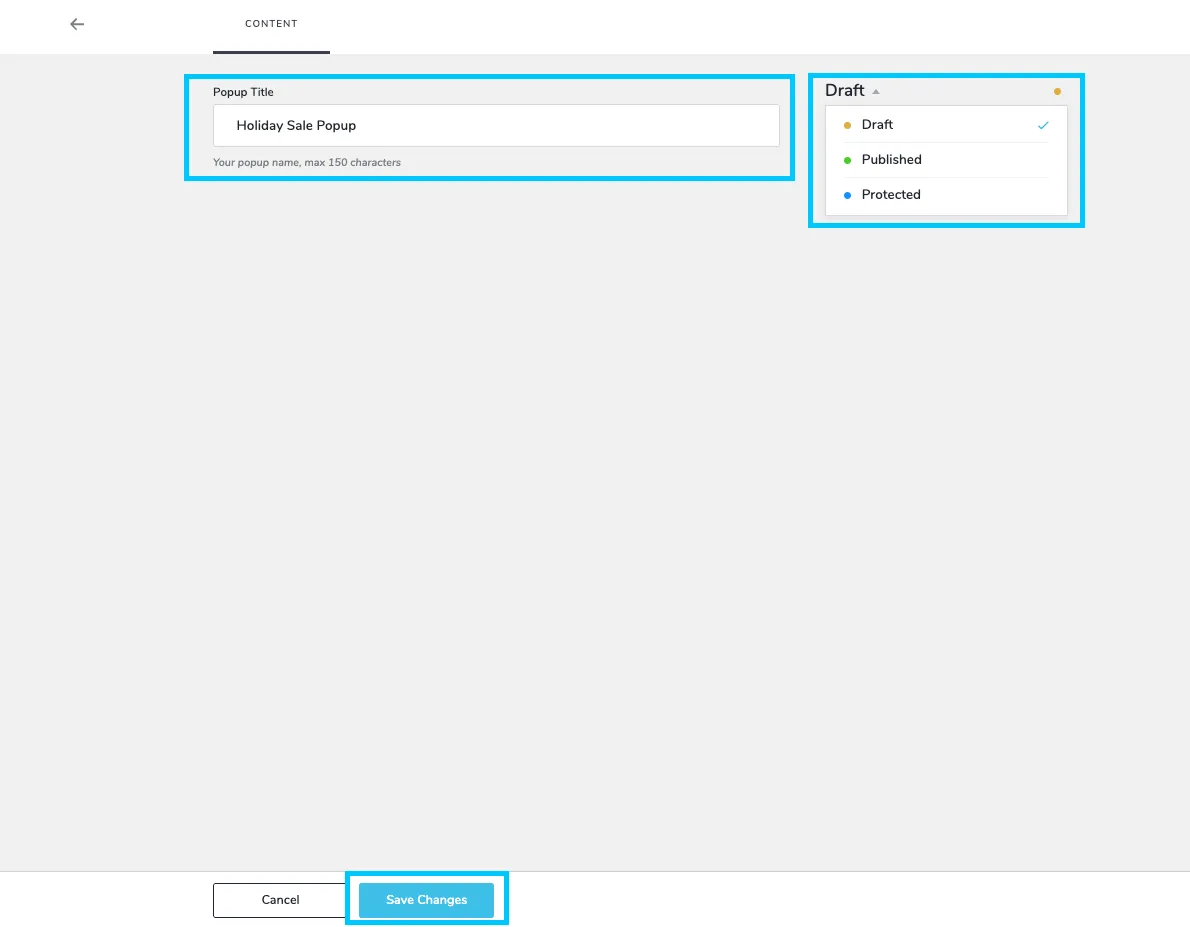
- Enter a name for your popup — choose something descriptive so you can easily find it later (e.g., “Location Opening Sale”, “Holiday Hours Alert”).
- At this stage, your popup will be saved as a Draft, which is perfectly fine while building.
- Click Save Changes
Designing Your Popup
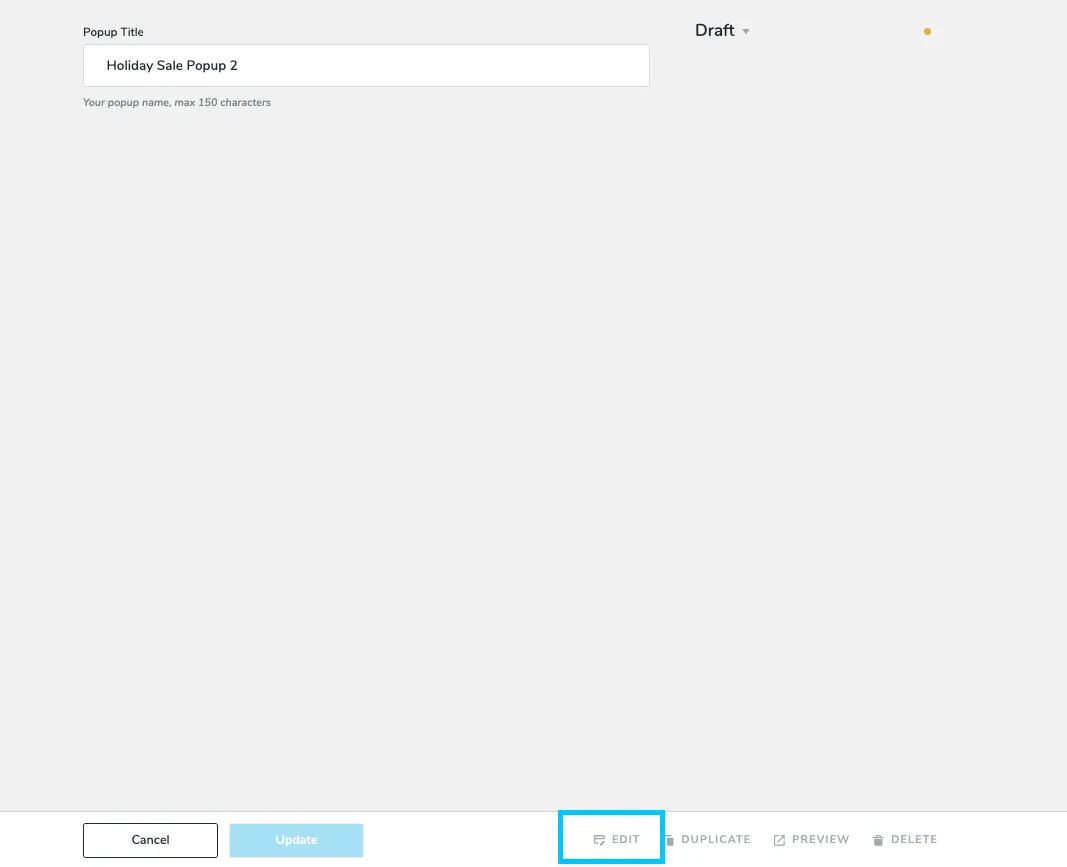
- Once saved, click Edit at the bottom of the popup card.
- Click + to begin building your popup.
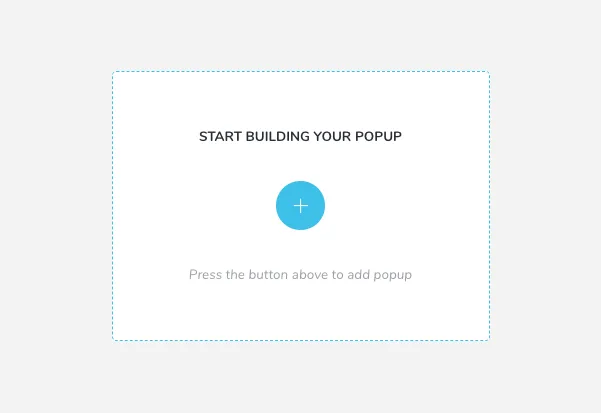
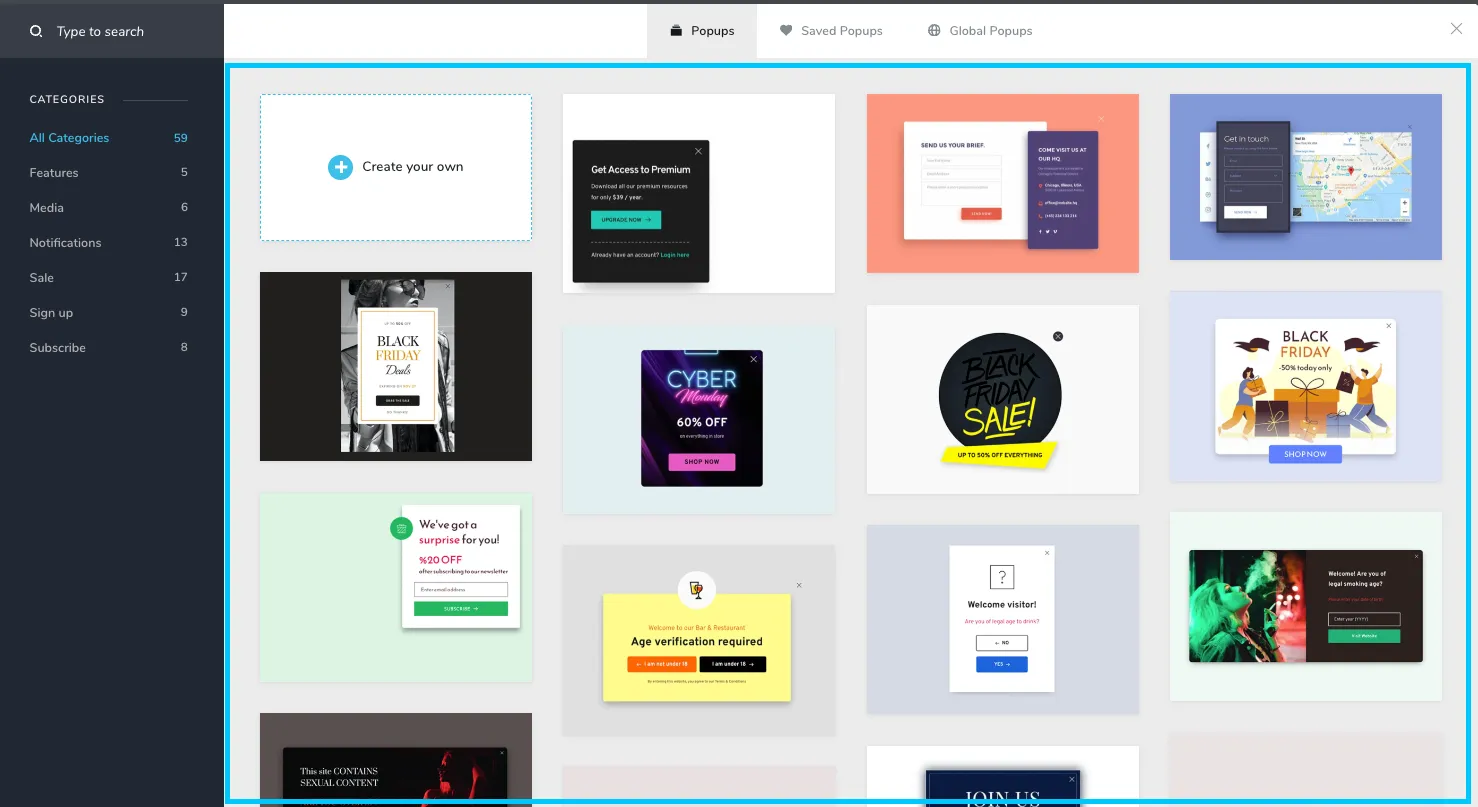
- Choose one of the following:
- Start from a template (recommended for speed and consistency)
- Build a custom popup using your own style elements such as text, images, icons, buttons, forms, spacing, and backgrounds
✔️ Important: Popups MUST Be Published
A popup will not show on your website until it is published.
Before you set triggers or display conditions, Publish the popup:
- Locate the popup’s Status in the bottom right corner.
- Change Save Draft → Published Page.
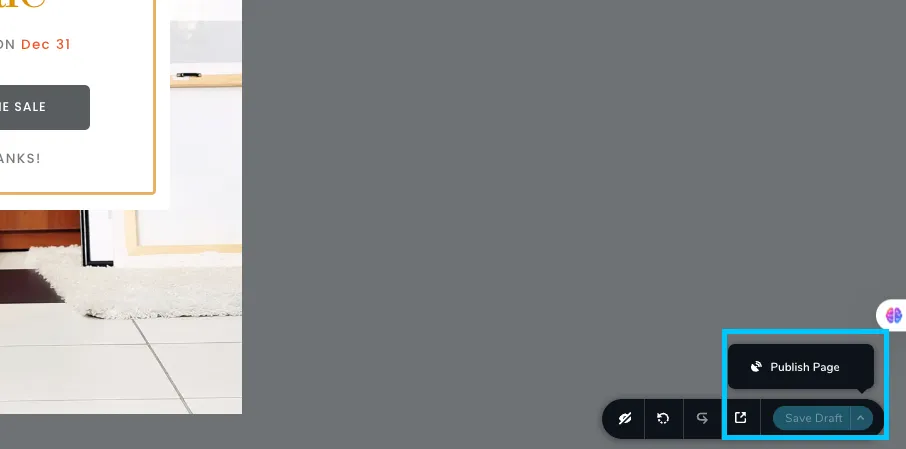
If you skip this step, your popup will never display, even if all conditions are set correctly.
Setting Popup Triggers (When the Popup Appears)
Triggers define how and when the popup will appear to a visitor.
How to Access Trigger Settings
- Open your popup.
- Click Settings in the top right corner
- Select Display Conditions in the top right.
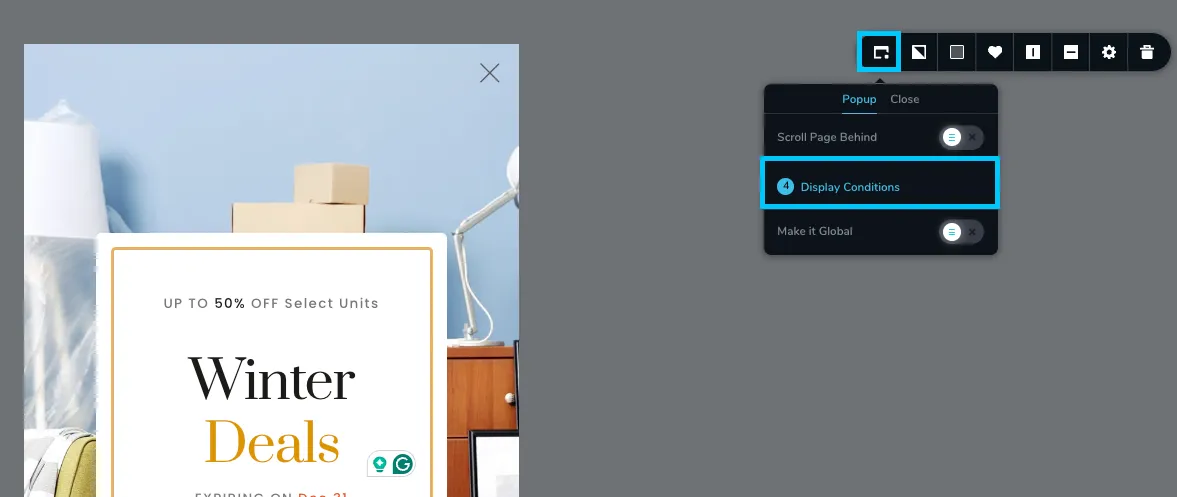
- Select the Triggers tab.
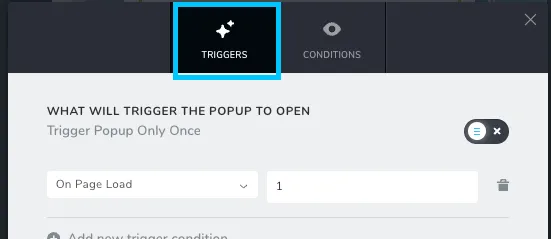
Available Popup Triggers
Storagely supports a wide variety of popup triggers:
Time-Based Triggers
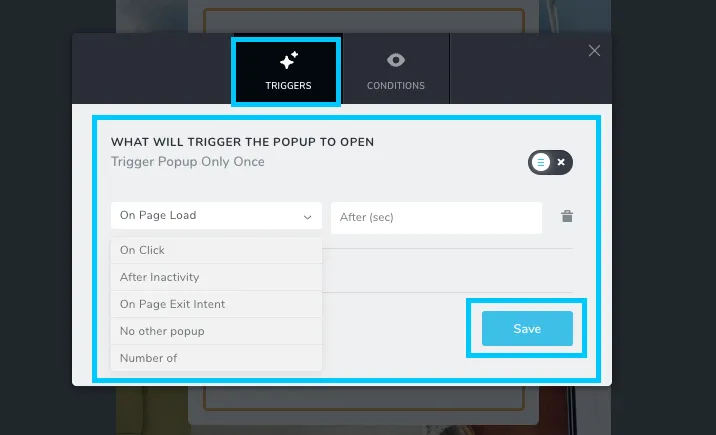
- On Page Load (After X seconds) - Show popup after 1 second when someone loads the page.
- After Inactivity - Show when the visitor has been idle for a set amount of time.
Behavior-Based Triggers
- On Click - Popup appears after a user clicks a linked element.
- After Scroll - Show after scrolling 30% down the page.
- Exit Intent (Desktop Only) - Triggered when the visitor moves the mouse toward closing the page.
Conditional Triggers
- If No Other Popup Has Shown
- Device-Specific (Desktop or Mobile)
- Arriving on Specific URLs
Frequency Control
You can also select “Show Once Per Session” - this prevents the popup from repeatedly appearing every time the visitor reloads the page.
Setting Display Conditions (Where the Popup Appears)
Display Conditions determine which pages or areas of the website show the popup.
How to Access Display Conditions
- Open the popup.
- Click Settings in the top right corner
- Select Display Conditions in the top right.
- Select the Conditions tab
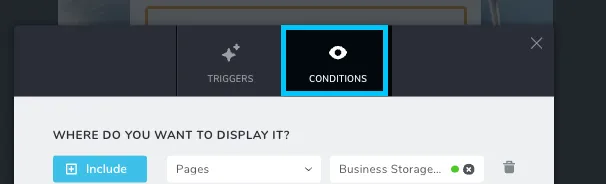
Where Can You Include or Exclude Popups
- Sitewide (all pages)
- Specific Internal pages (e.g., “Business Storage Page”)
- Blogs
- Popups & Alerts only (used for chaining or advanced setups)
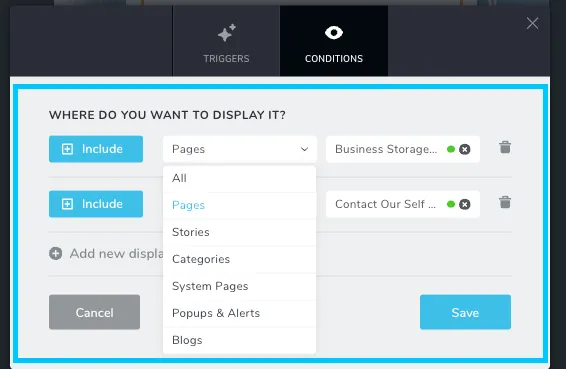
This gives you full control over placement—for example:
- Show a “Grand Opening Discount” only on the new location page
- Show a “Holiday Hours Alert” sitewide
- Show a “10% Off Storage” popup only on Pricing pages
How to Test Your Popup
After setting up both triggers and conditions:
- Navigate to the page where the popup should appear.
- Refresh the page.
- If your trigger is set to On Page Load → After 1 second, wait one second.
- Confirm that the popup appears exactly where and when expected.
If using “Show Once Per Session,” test in:
- Incognito mode
- After clearing browser cache
- Or using a different browser
Troubleshooting Tips
If your popup does NOT appear:
- Check if it is Published, not Draft
- Make sure you have a trigger set
- Confirm at least one display condition is active
- Clear browser cache
- Disable “Show only once” (for testing)
Best Practices
- Use popups sparingly and strategically. Too many popups reduce engagement.
- Keep popup content short, clear, and action-oriented.
- Always include a strong CTA (e.g., “Reserve Now,” “Get the Discount”).
- Avoid clutter—use clean design and simple messaging.
- Test every popup on mobile and desktop, as layout should adapt.
As always, if you have any questions during this process, our Customer Success Team is here to help. The best way to reach us is by submitting a support ticket.