How to Create & Use Global Blocks in Storagely
Overview
Global Blocks allow you to reuse the same content across multiple pages and keep it perfectly consistent everywhere it appears. This is useful for sections like FAQs, contact information, or quick links that should look and behave the same on every page.
This article explains what Global Blocks are, when to use them, and how to manage them properly.
What Is a Global Block?
A Global Block is a reusable section that stays synchronized across multiple pages.
- If you edit a Global Block on one page, it updates everywhere it’s used.
- Global Blocks are ideal for content that should always stay the same, such as:
- Contact sections
- FAQs
- Quick links
- Legal or compliance messaging
Global Blocks should only be used when the content, background color, and layout are identical across all pages.
If a section needs a different background color, text, or styling on different pages, it should not be a Global Block.
Navigate to the Editor
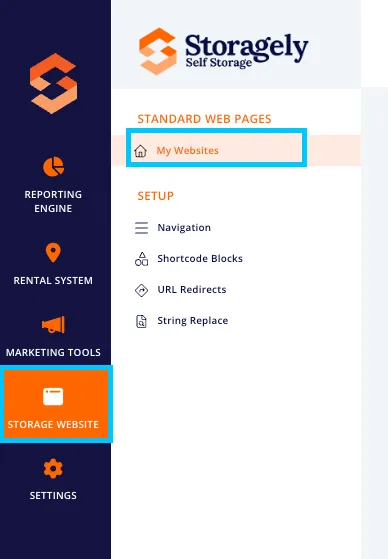
- Open your Storagely Dashboard.
- Navigate to the Storage Website tab and select "My Websites"
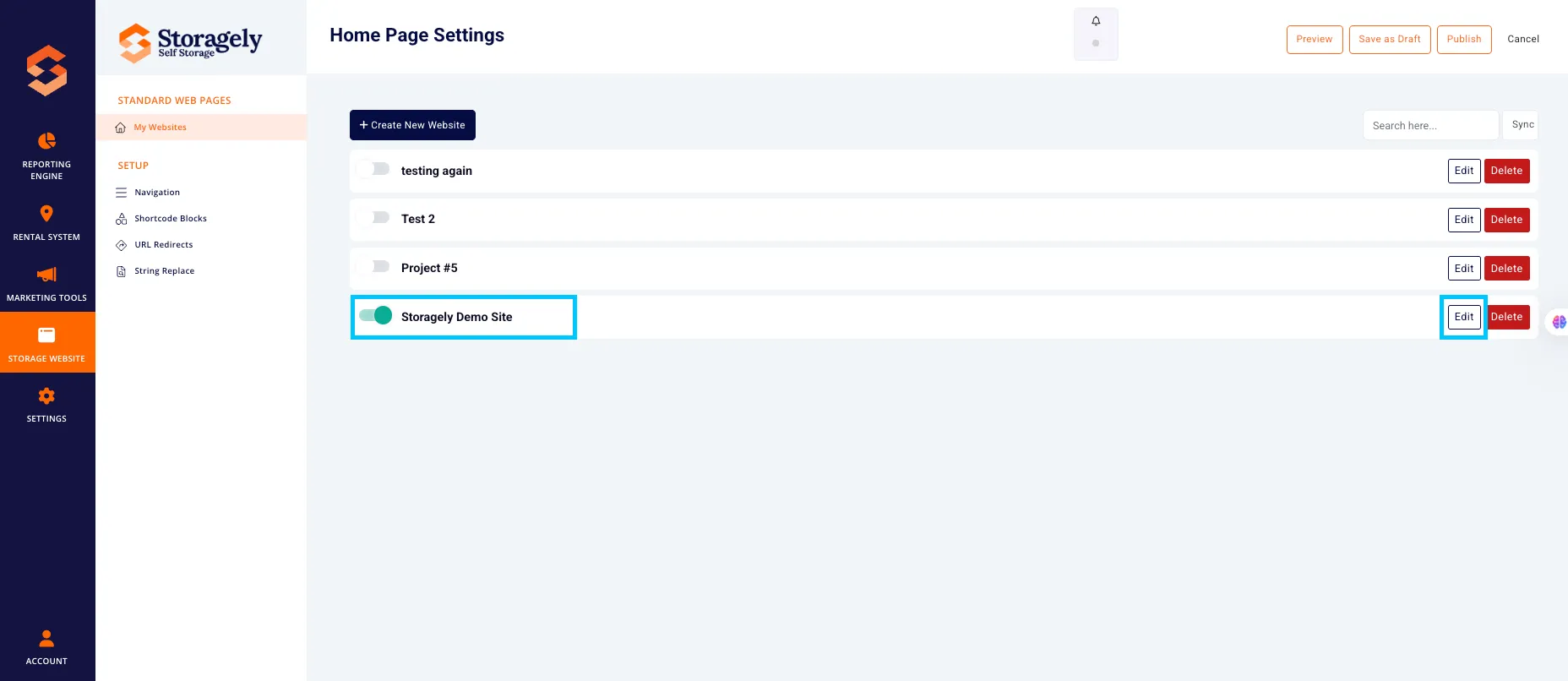
- Select the website you want to edit from the list
How to Identify a Global Block
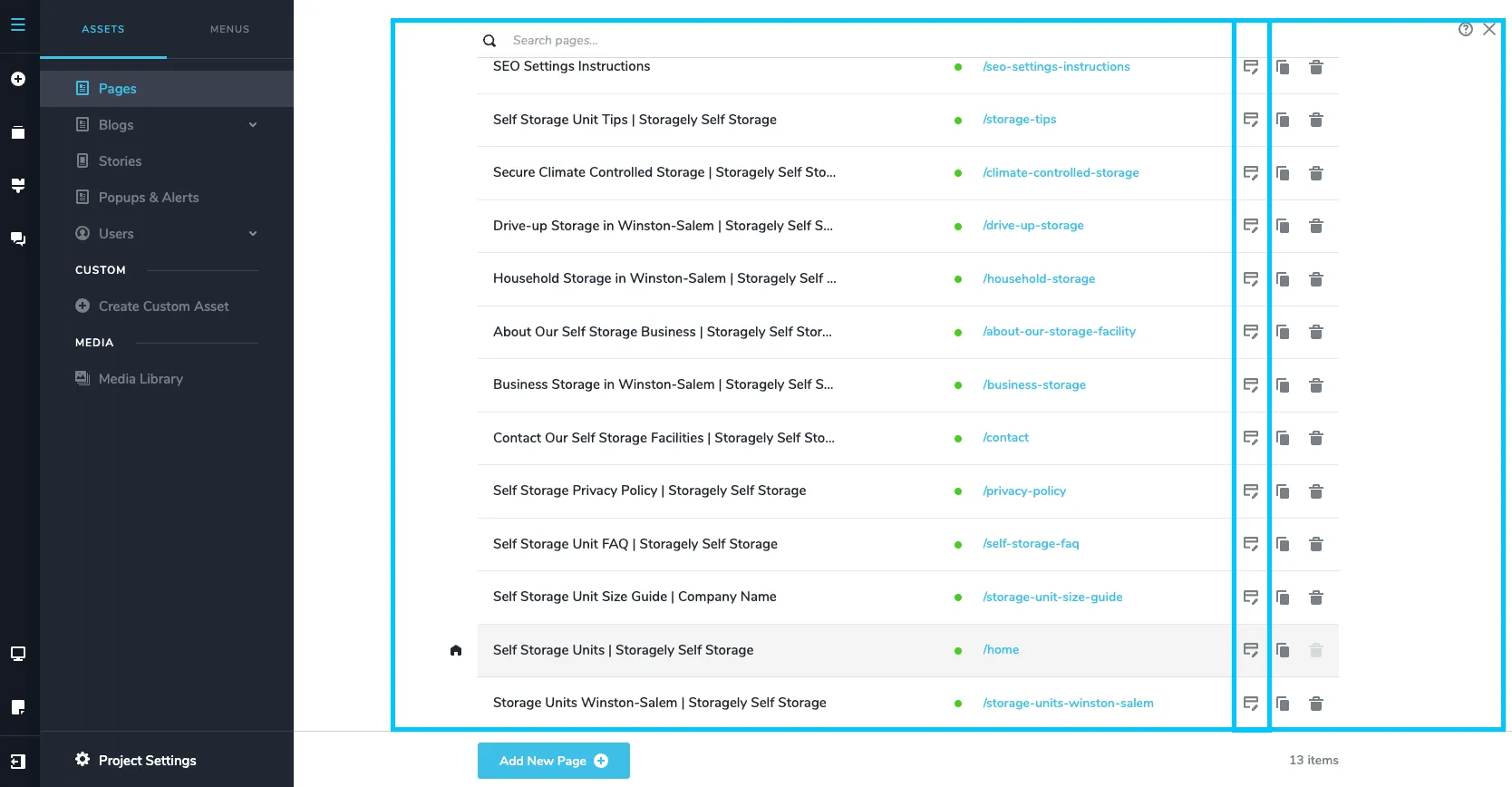
- Open a page in the Website Editor by clicking the top left CMS icon

- Click the page containing the block you’d like to make global.
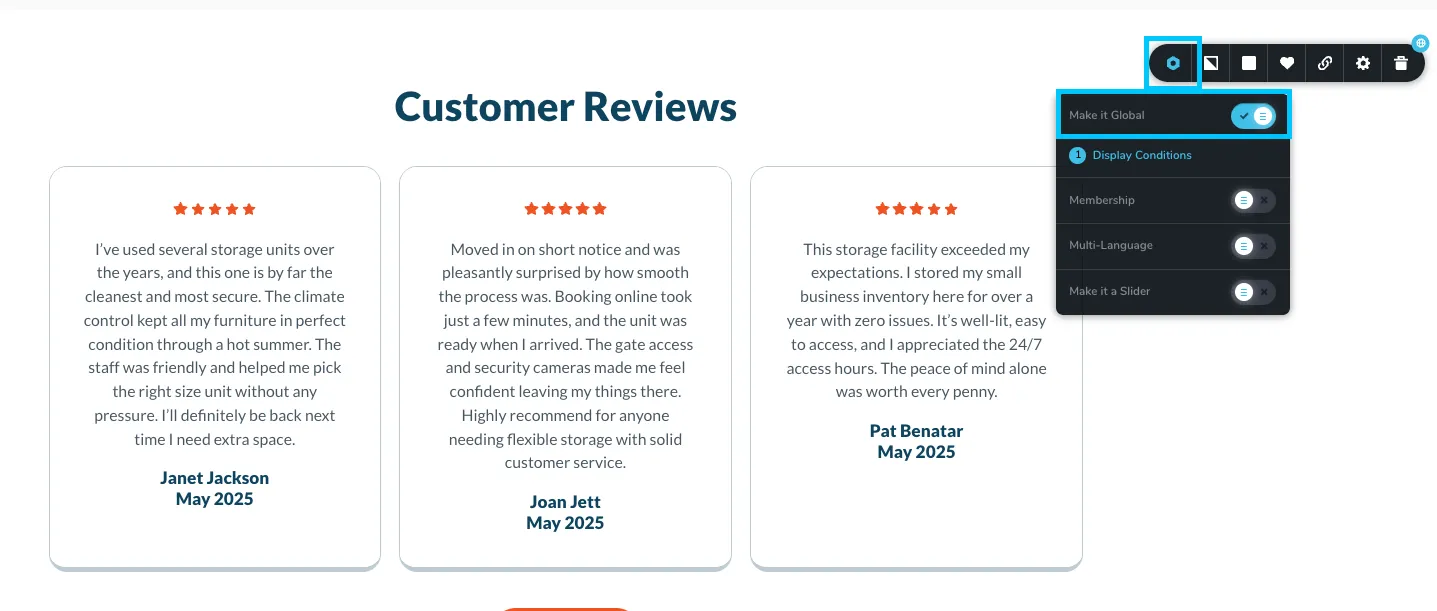
- Look for sections highlighted in blue — this indicates a Global Block.
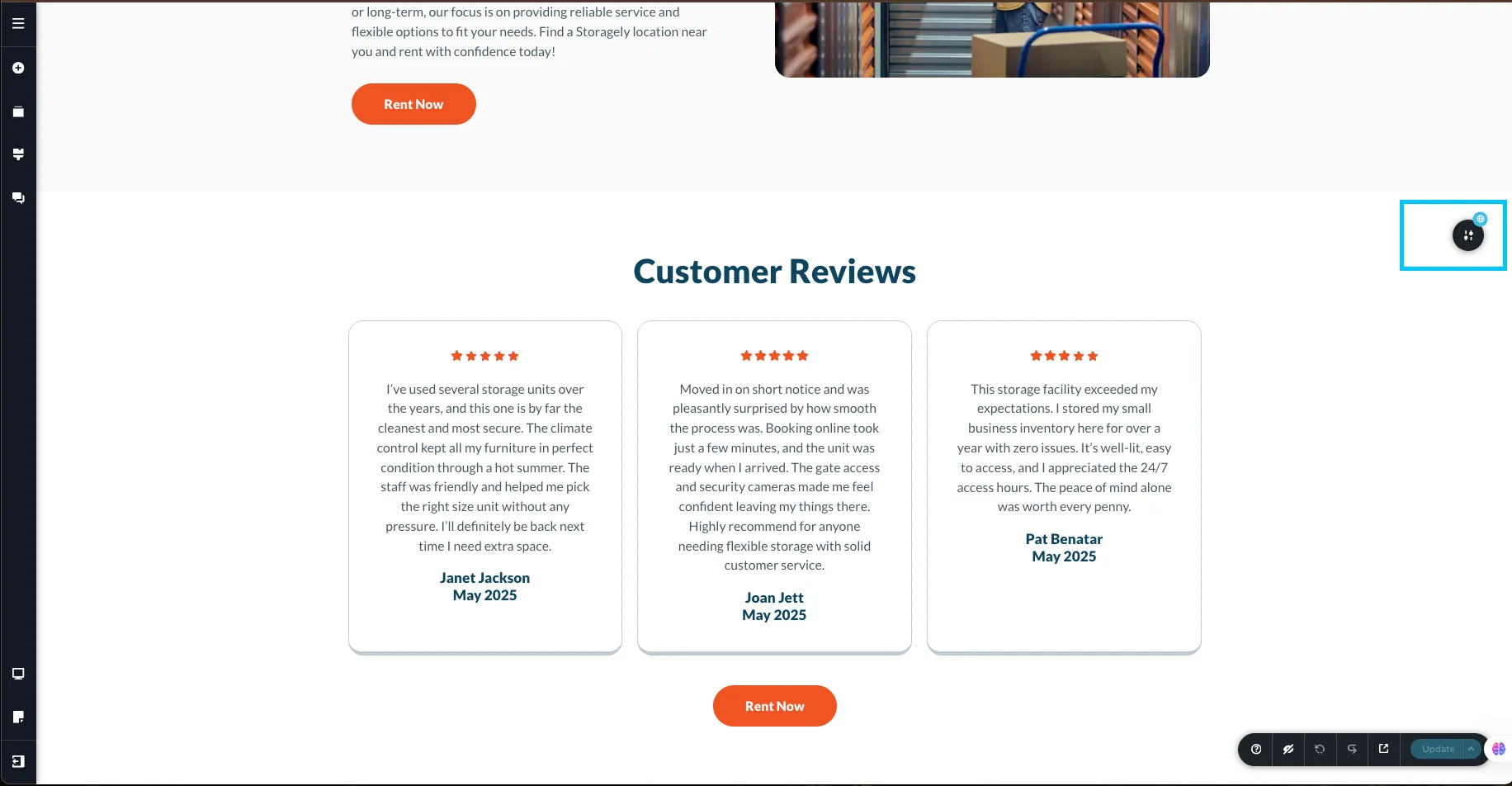
- Click the Block section icon.
- In the settings panel, confirm that Make it Global is toggled on.
Viewing Where a Global Block Is Used
To see which pages a Global Block appears on:
- Click the Global Block.
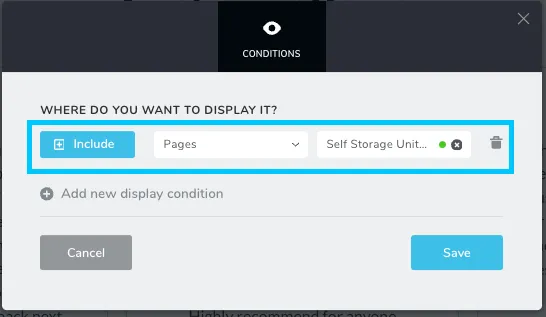
- Open Display Conditions.
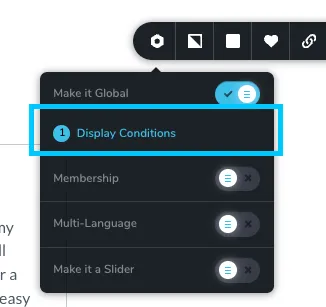
- This list shows every page that will be updated if you edit this block.
How to Add an Existing Global Block to a Page
If a page is missing a Global Block:
- Click Add New Block.
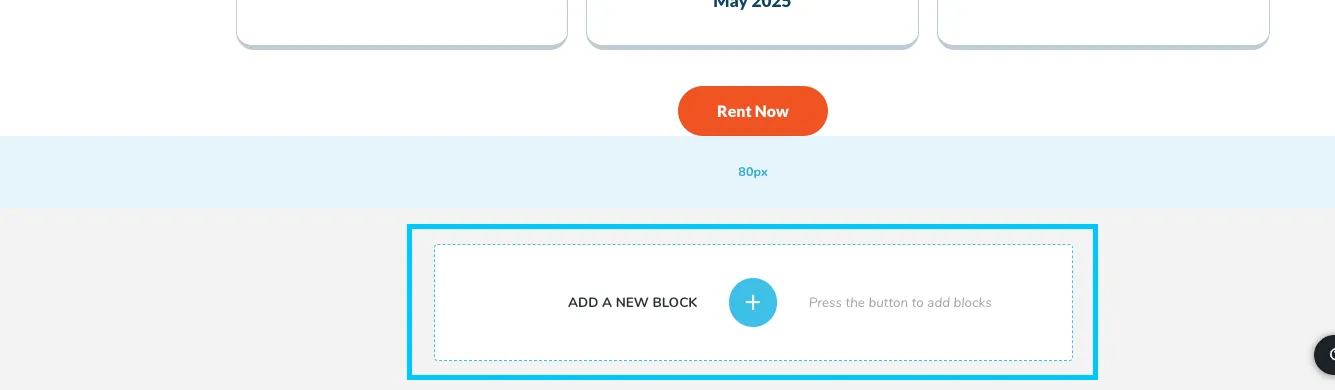
- Select Global Blocks.
- Choose the block you want to insert.
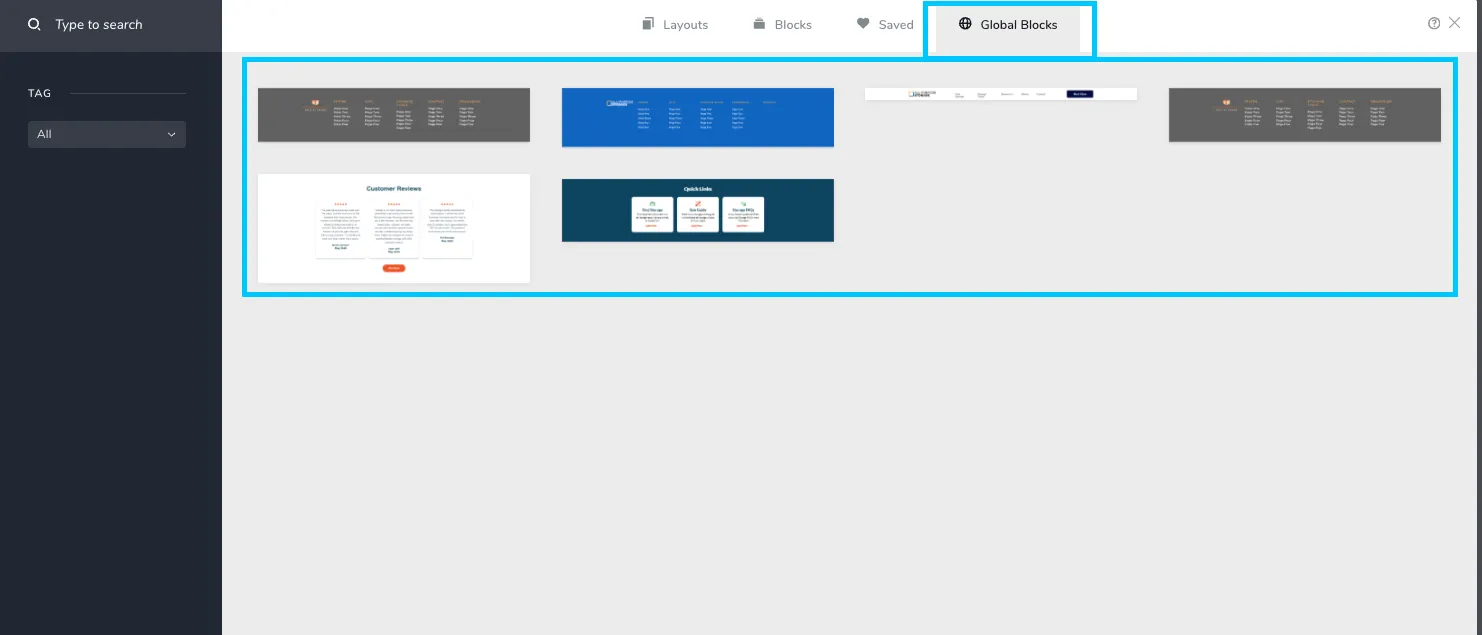
The block will now appear on that page and remain synced with all other instances.
How to Remove a Global Block from a Specific Page
To remove a Global Block from just one page:
- Click the Global Block.
- Open Display Conditions.
- Remove or delete the condition for that page.
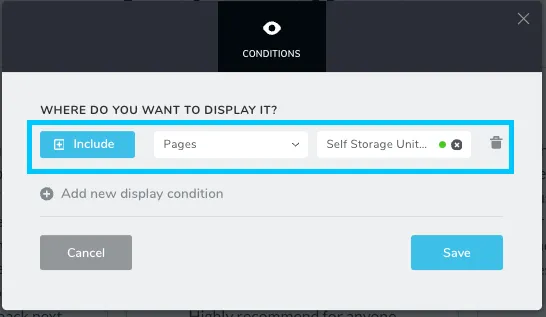
This removes the block from that page only — it does not delete the block globally.
Important Note About Duplicating Pages
When you duplicate a page:
- All normal blocks transfer over.
- Global Blocks do not always transfer automatically.
After duplicating a page (for example, when creating a new city or location page), always:
- Open the new page.
- Check whether required Global Blocks are present.
- Manually add them if needed using Add New Block → Global Blocks in a previous step.
✅ Best Practices
- Use Global Blocks only for content that should always be identical across pages.
- Do not use Global Blocks for sections that alternate background colors or layouts.
- Always review Display Conditions before editing a Global Block.
- After duplicating a page, check for missing Global Blocks.
Use Global Blocks for consistency, not convenience — only when shared content truly makes sense.
As always, if you have any questions during this process, our Customer Success Team is here to help. The best way to reach us is by submitting a support ticket.