How to Create a New Page or Clone an Existing Page
Introduction
Creating new pages—or cloning existing ones—is a powerful way to expand and maintain your Storagely website efficiently. Whether you're building a landing page or replicating a layout you've already fine-tuned, the Storagely CMS makes it easy to get started. This guide walks you through both methods, helping you save time and maintain design consistency across your site.
Navigating to the Editor
- Open your Storagely Dashboard.
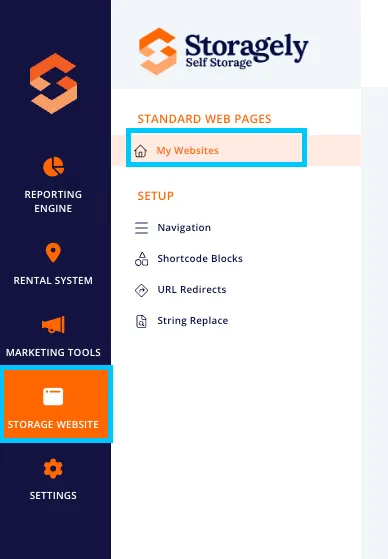
- Navigate to the Storage Website tab and select "My Websites"
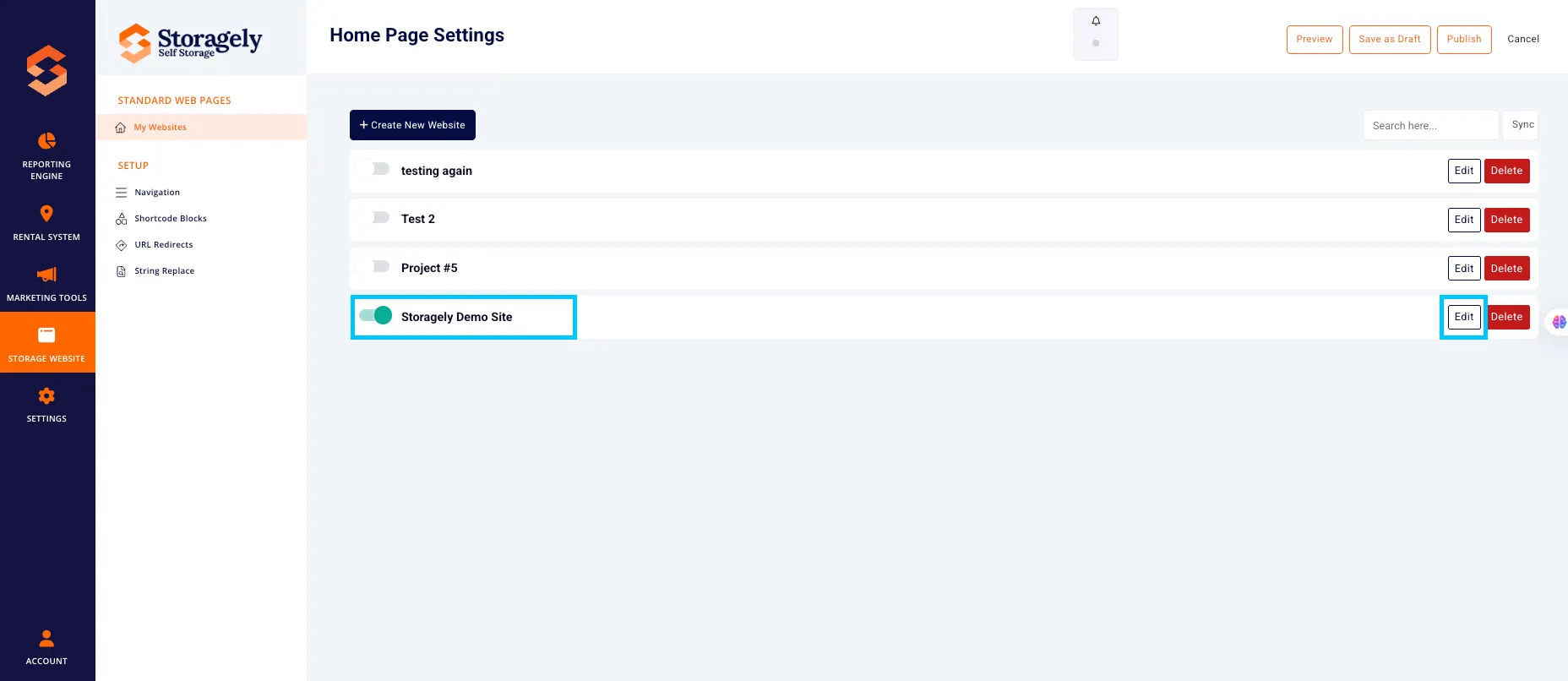
- Select the website you want to edit from the list
- Click the top left CMS icon

Steps to create a New Page:
- Click “Add New Page” at the bottom of the window.

- Enter a page title, complete the description/meta information, and choose the page status:
- Select “Published” to make it live immediately
- Or choose “Draft” to continue editing before going live
- Then, click “Save Changes” to apply your settings.

- Scroll to the newly created page, then click “Edit” to open it in the Website Editor and begin customizing the content.

🎥 Watch Tutorial Video:
Steps to clone an existing page:
- In your Storagely Website dashboard, navigate to Pages > All Pages

- Locate the page you want to duplicate, then click “Duplicate” to create a copy of the page for editing.

- Enter a page title, complete the description/meta information, and choose the page status:
- Select “Published” to make it live immediately
- Or choose “Draft” to continue editing before going live
- Then, click “Save Changes” to apply your settings.
- Scroll to the newly cloned page, then click “Edit” to open it in the Website Editor and begin customizing the content.
🎥 Watch Tutorial Video:
Best Practices for Creating or Cloning Pages
✅ Use cloning to maintain design consistency: Cloning an existing page ensures the new page follows the same layout, styles, and formatting—ideal for creating location pages, service variations, or campaign landing pages.
✅ Update all page-specific content after cloning: Be sure to change headlines, images, internal links, and SEO metadata (title, description, slug) so the new page is unique and relevant.
✅ Use meta descriptions to boost visibility: Meta descriptions should be 150–160 characters, summarize the page content, and include a call to action or key phrase. This text shows up below your title in search engine results.
- Example: Find secure, climate-controlled storage units in [city name] with easy online booking and great rates. Reserve today!
✅ Set status to “Draft” while building: Keep your new or cloned page in Draft mode until it's ready to publish. This gives you time to review and test across devices without making the page public.
✅ Preview your page on all devices before publishing: Always review the new page in Desktop, Tablet, and Mobile views to catch any layout or formatting issues before going live.
As always, if you have any questions during this process, our Customer Success Team is here to help. The best way to reach us is by submitting a support ticket.