Update Fonts in Storagely Website CMS
7 min
Introduction
Fonts help define the look and feel of your website. Choosing the right styles and sizes makes your content easier to read and keeps your site looking professional. In Storagely’s Website CMS, you can quickly update fonts to match your brand and improve the user experience. This guide shows you how.
Navigating to the Editor
- Select the website you want to edit from the list
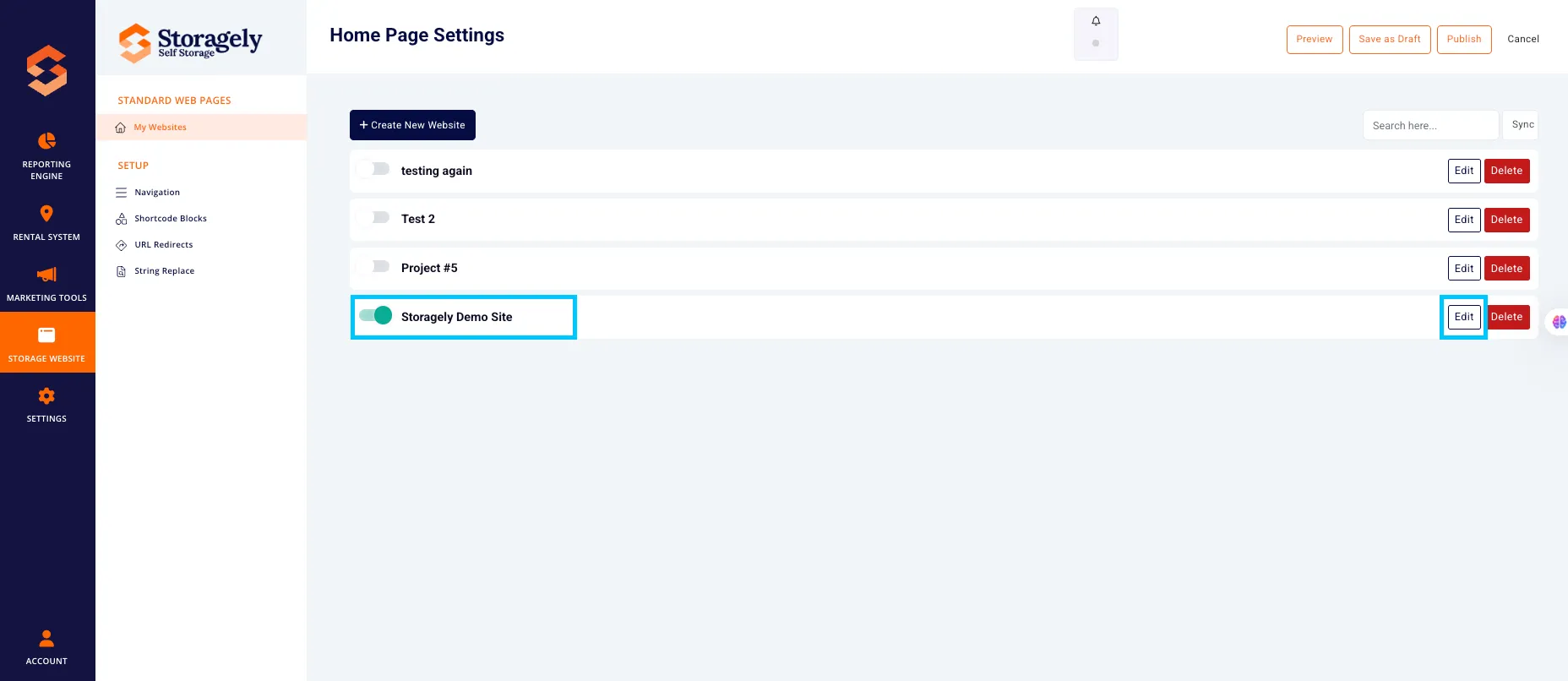
- Click the top left CMS icon

- Click the page containing the Font you’d like to update.
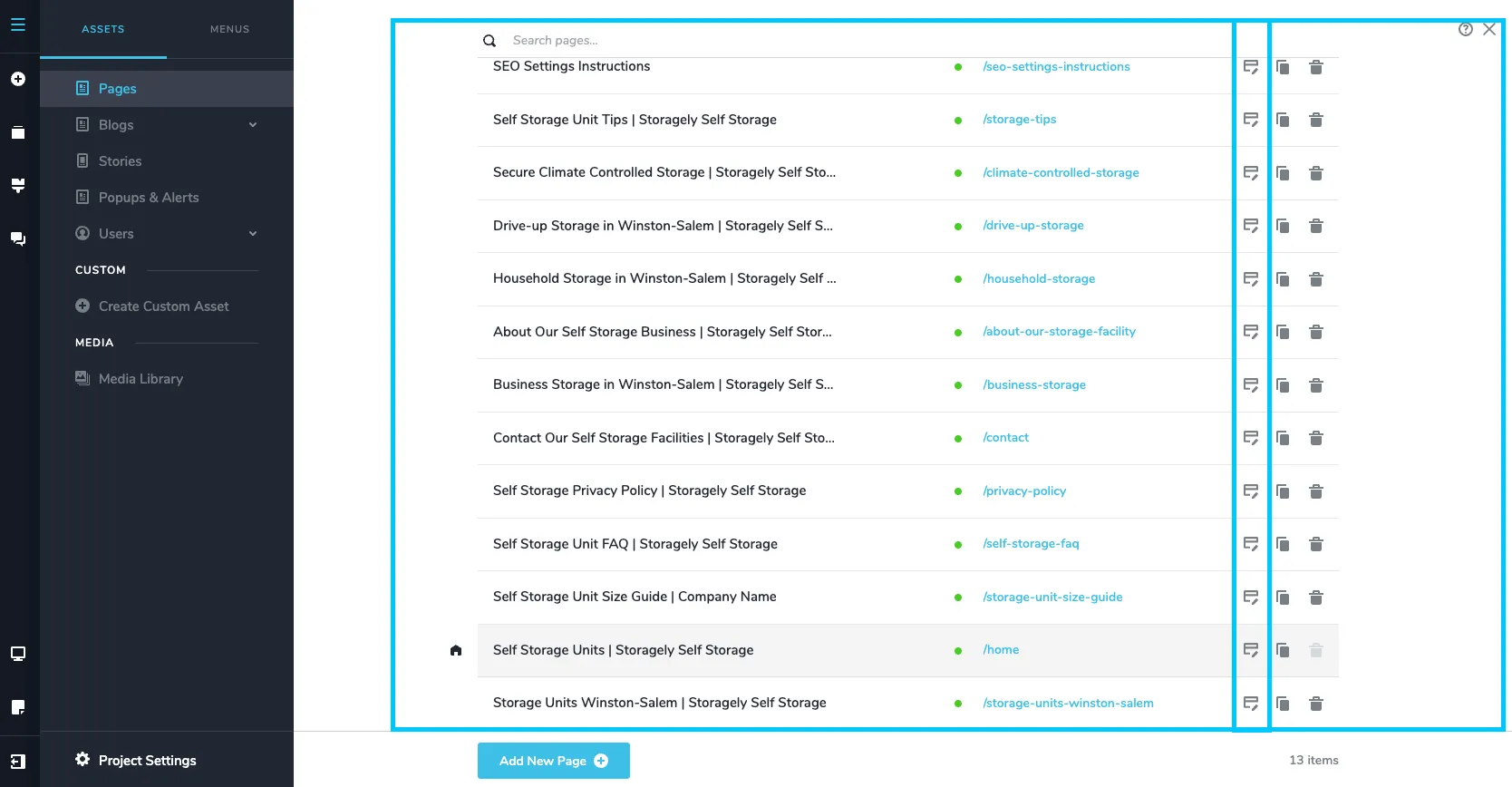
- Click the page containing the Font you’d like to update.
To change fonts on one element:
- Adjust size, weight, line height, and spacing as needed.

- Review the changes made in all 3 device types (Desktop, tablet, mobile) to ensure they look correct.
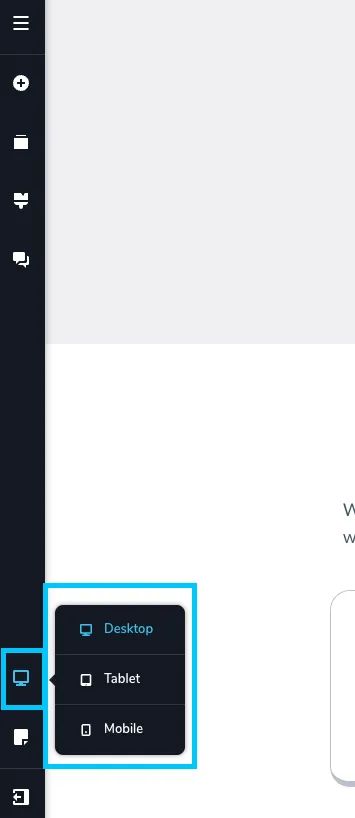
- If you want to save the update made, select “Update” in the bottom right corner of the window. Then Close the tab.
🎥 Watch Tutorial Video:
To change global fonts:
- Click the paint roller icon in the bottom-left corner.
- Select Typography.
- Modify the Primary, Secondary, and Paragraph font styles.
- All text blocks using global styles will update automatically.

- Review the changes made in all 3 device types (Desktop, tablet, mobile) to ensure they look correct.
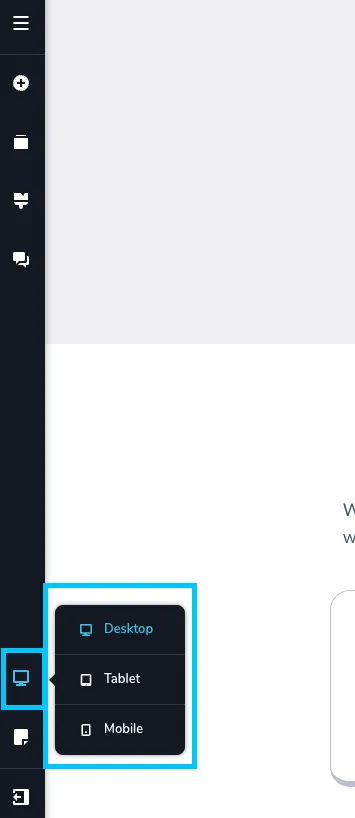
- If you want to save the update made, select “Update” in the bottom right corner of the window. Then Close the tab.
🎥 Watch Tutorial Video:
Best Practices for Updating Fonts:
- ✅ Global fonts help maintain brand consistency: Setting global fonts ensures a uniform look across all pages. This is a simple way to strengthen your brand identity and save time on styling.
Have a question?
Our super-smart AI, knowledgeable support team and an awesome community will get you an answer in a flash.
To ask a question or participate in discussions, you'll need to authenticate first.