How to Update Colors
Introduction
Colors play a key role in shaping your website’s visual identity and overall user experience. From buttons and text to backgrounds and callouts, consistent color usage reinforces your brand and helps guide visitors' attention. In the Storagely Website CMS, you can easily update colors across sections to match your branding, improve readability, and create a polished, professional look. This guide walks you through how to adjust color settings effectively throughout your site.
NOTE: Colors are chosen during onboarding and will impact the consistency of your entire site, including location pages and rental system. If you need assistance with color changes, please consult with Storagley to complete this.
To change an element's color:
- Click on the element (text, button, icon, etc.).
- In the toolbar, click the color circle.
- Use the color picker or paste in a HEX/RGB code.

- Review the changes made in all 3 device types (desktop, tablet, mobile) to ensure they look correct.
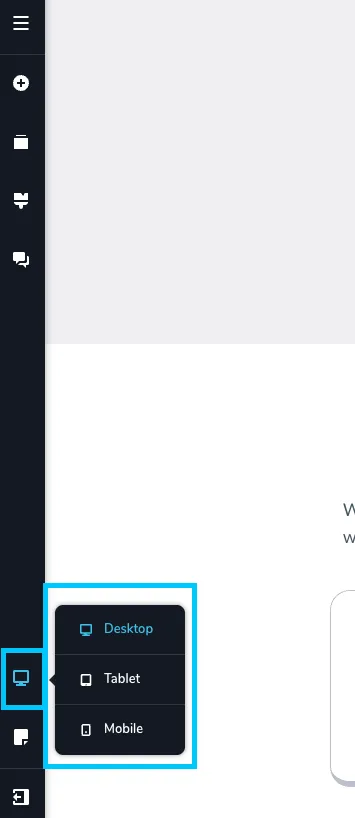
- If you want to save the update made, select “Update” in the bottom right corner of the window. Then close the tab.
🎥 Watch Tutorial Video:
To edit global color swatches:
- Click the paint roller icon in the top-left of the Website Editor, and click the paint roller icon to open global design settings.
- Click any swatch color to change it.
- New swatch values apply everywhere that the swatch color is used site-wide.

- Review the changes made in all 3 device types (Desktop, tablet, mobile) to ensure they look correct.
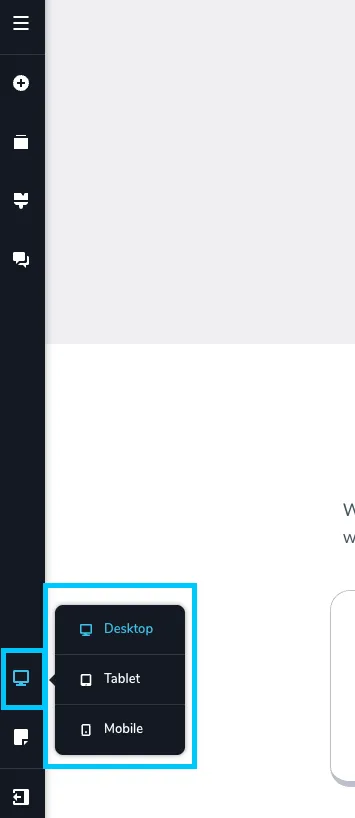
- If you want to save the update made, select “Update” in the bottom right corner of the window. Then close the tab.
🎥 Watch Tutorial Video:
Best Practices for Editing Color Swatches
✅ Use your brand’s official color palette: Stick to your primary and secondary brand colors for consistency across your website, marketing materials, and signage. If available, use exact HEX or RGB codes from your brand guide.
✅ Update swatches instead of individual elements: Always edit global swatches when possible. This ensures consistency and saves time—every element using that swatch will update automatically across the site.
✅ Preview changes across all devices: Color visibility and contrast can appear differently on smaller screens. Always test updates in desktop, tablet, and mobile views before publishing.
As always, if you have any questions during this process, our Customer Success Team is here to help. The best way to reach us is by submitting a support ticket.