Phone Calls Settings
1. Introduction
The Phone Calls section in the Storagely Dashboard provides facility operators with a detailed overview of inbound phone call data, lead tracking, and marketing source attribution. This feature helps businesses analyze call volume, customer interactions, and the effectiveness of their marketing channels while also allowing data filtering and export functionality for further insights.
2. Navigating to Phone Calls Settings
To access the Phone Calls report:
- Log in to your Storagely Dashboard.
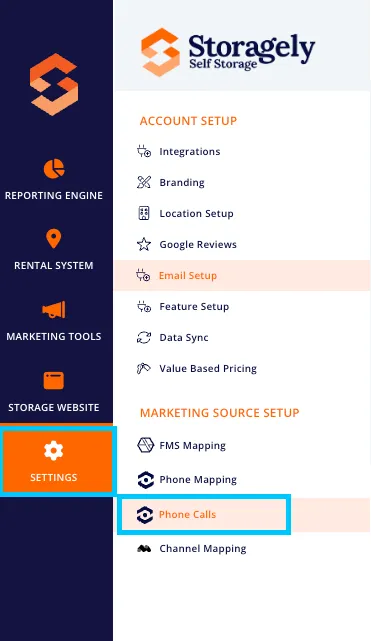
- In the left sidebar menu, click on Marketing Source Setup.
- Select Phone Calls.
3. Understanding the Phone Calls Interface
A. Phone Call Data Table (Displayed in the Dashboard)
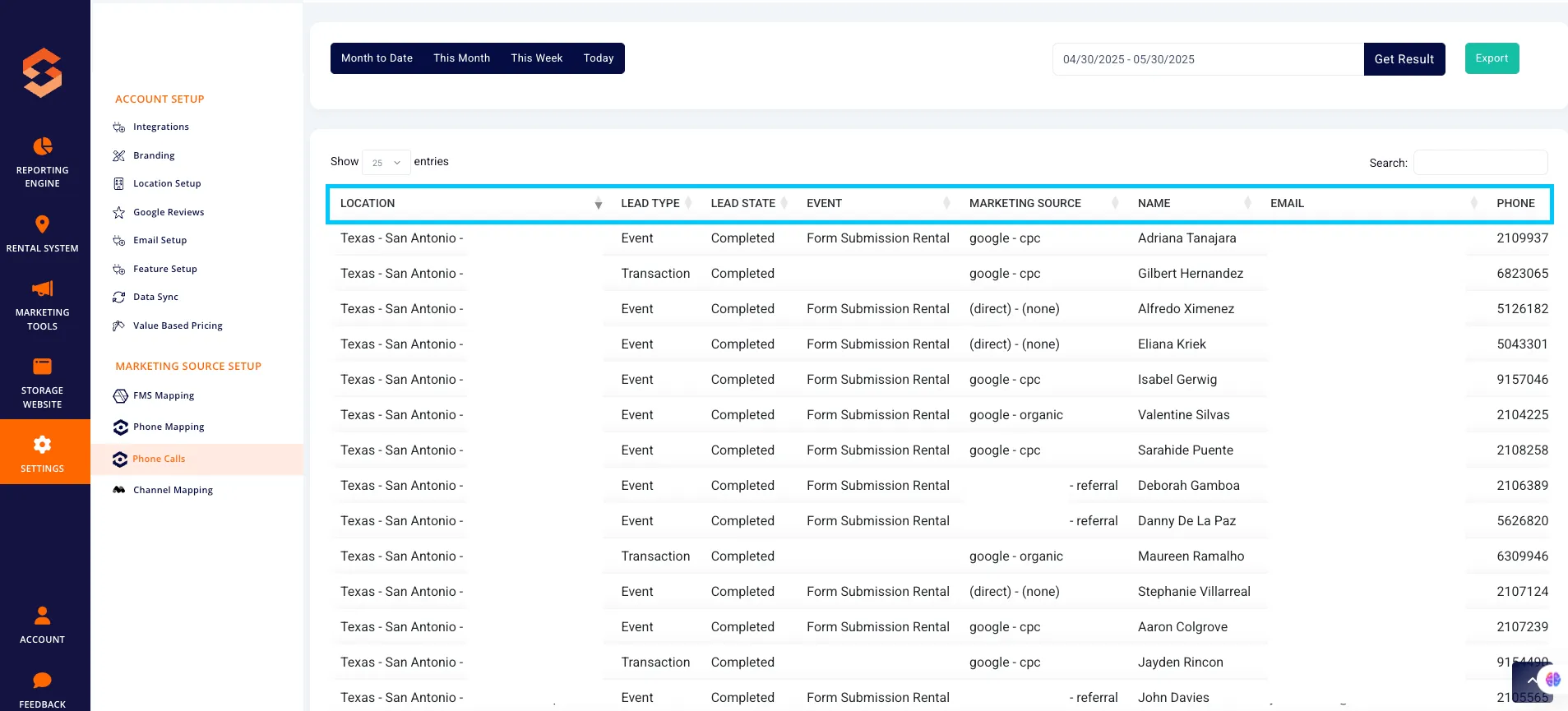
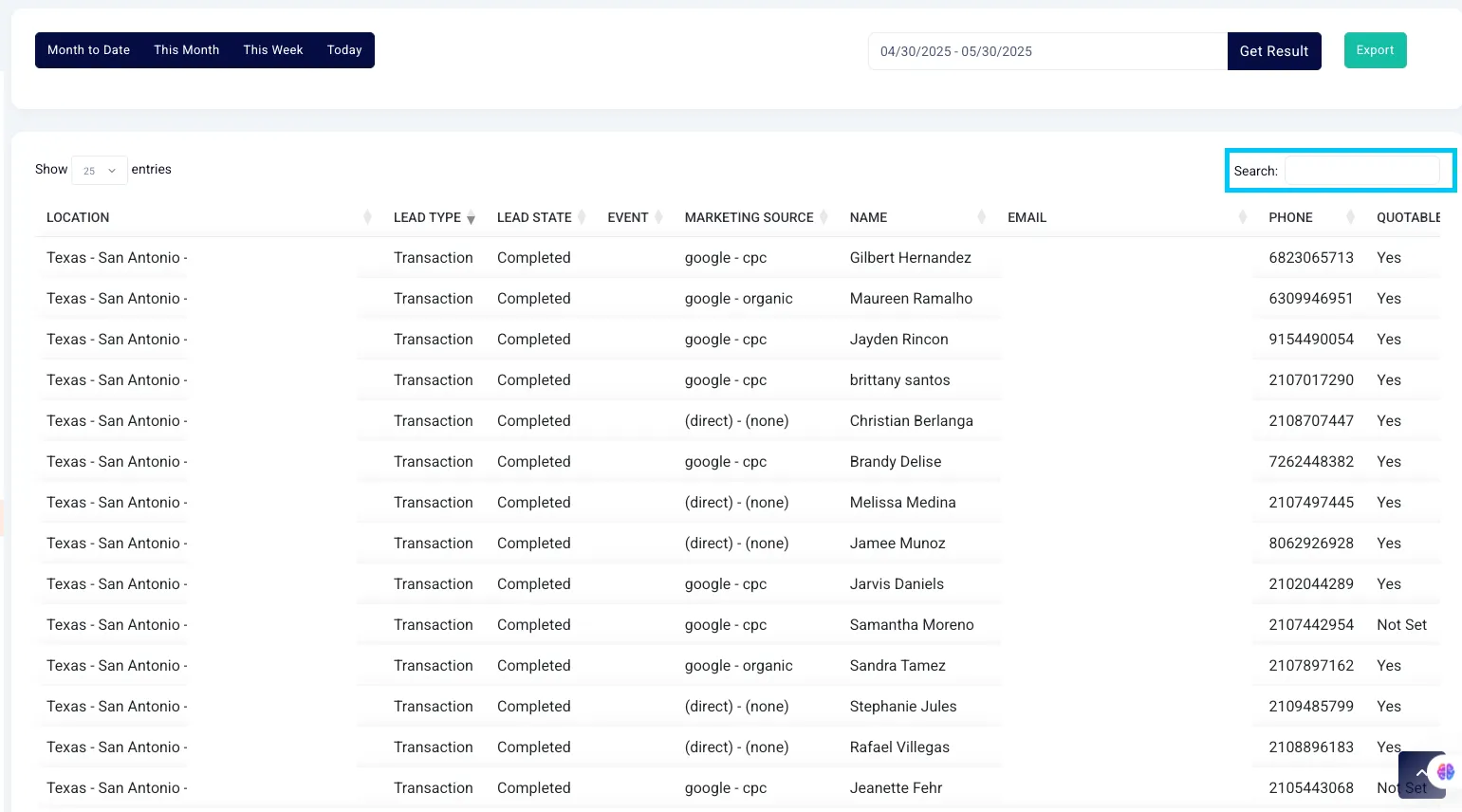
The table provides real-time call tracking data with the following columns:
- Location – The storage facility where the call was directed.
- Lead Type – The type of interaction (Phone Call, Transaction, or Event).
- Lead State – Status of the lead (e.g., Completed, In Progress, Missed).
- Event – The specific event associated with the call (e.g., Form Submission Rental, Call Inquiry).
- Marketing Source – The source that led to the call (Google Organic, Google Ads, Direct Traffic, Referral Sites).
B. Filtering & Searching Calls
Operators can:
- Filter calls by date range using the date selector.
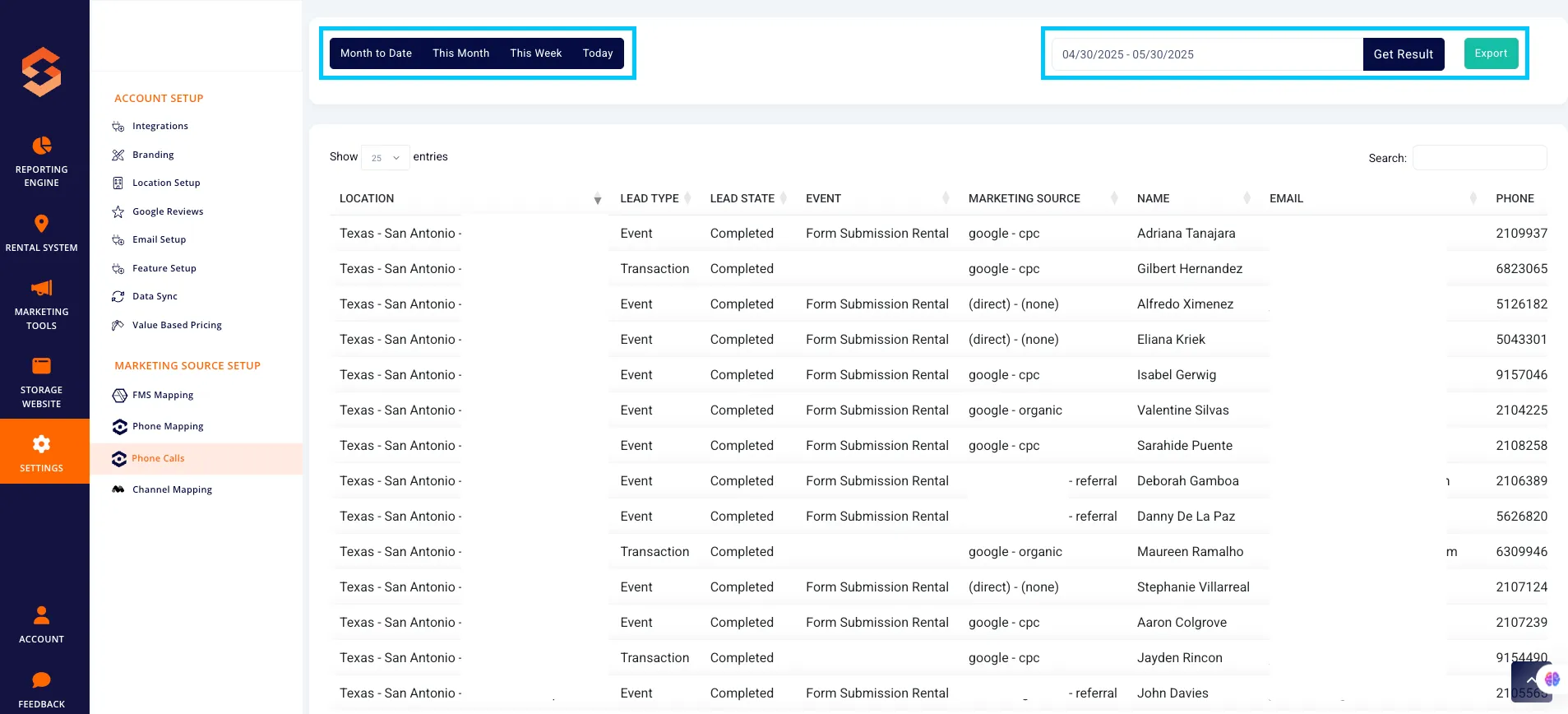
- Sort by column headers to organize data (e.g., sort by Lead Type or Marketing Source).
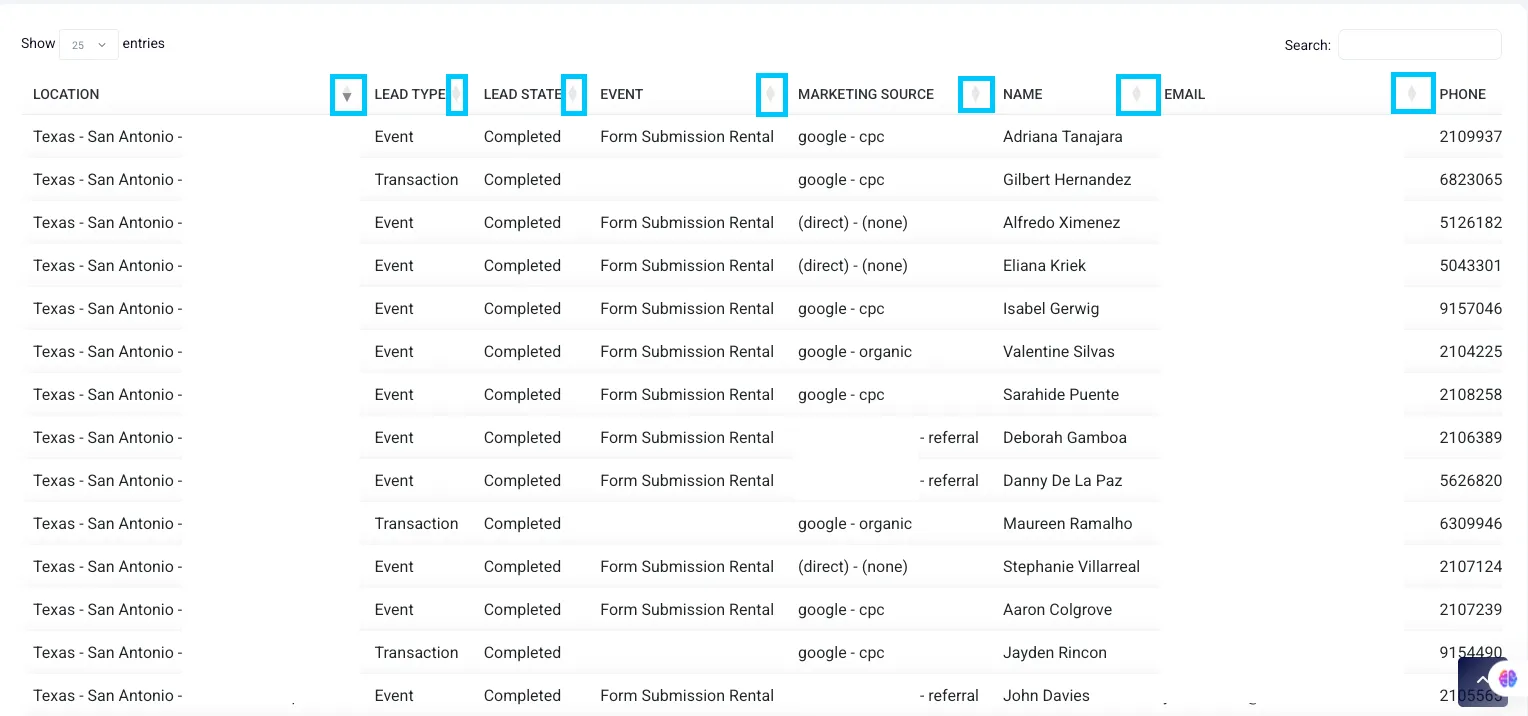
- Search for specific leads by entering a keyword, phone number, or marketing source.
C. Exporting Call Data
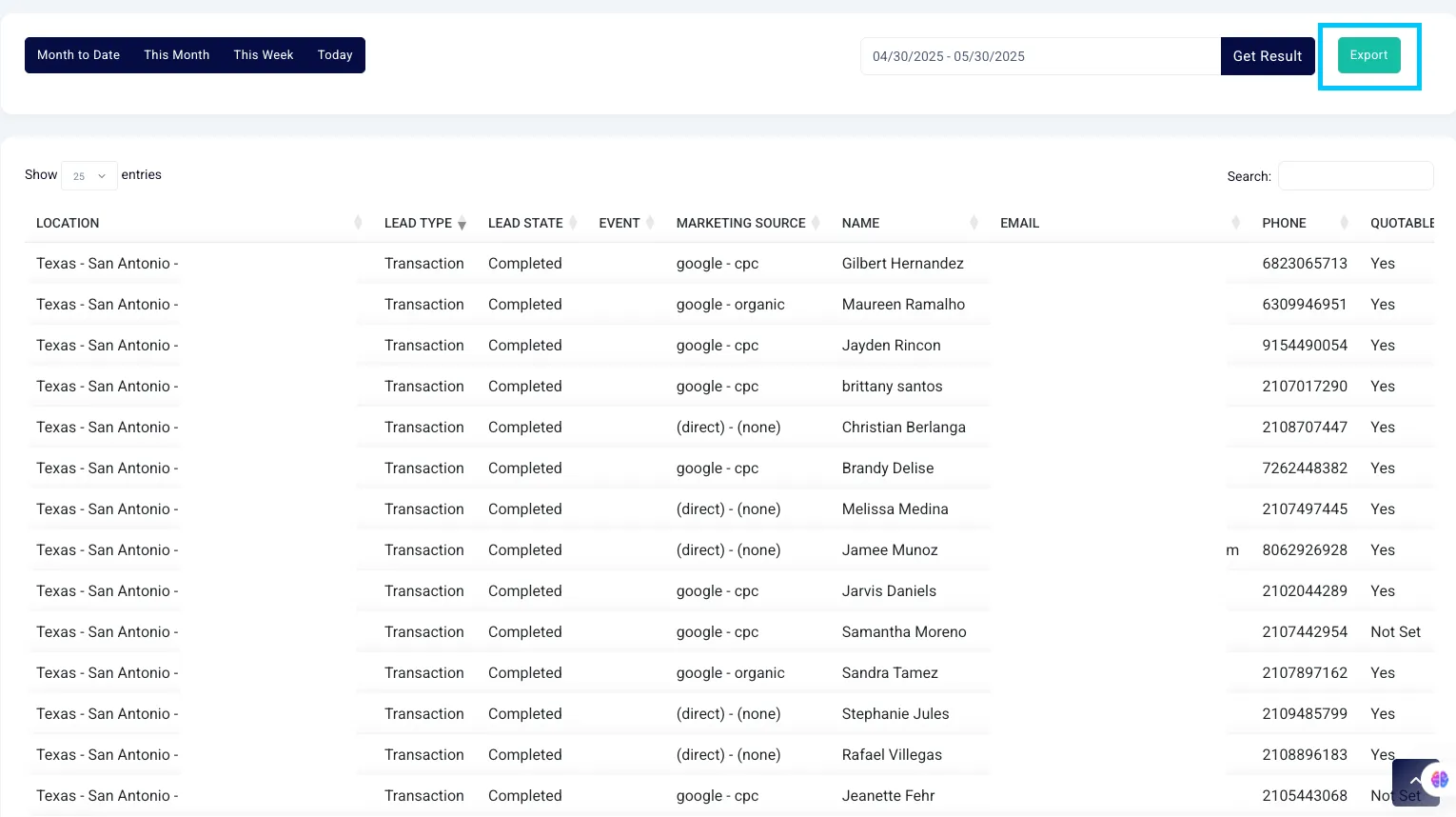
Users can export call data by clicking the “Export” button, which generates a CSV file containing more detailed call tracking data.
4. How to Use the Phone Calls Report
Step 1: Review Call Data in the Dashboard
- Navigate to the Phone Calls section.
- Use the column filters to analyze lead type, marketing attribution, and completion status.
Step 2: Filter & Search Calls
- Use the date range selector to filter calls within a specific time frame.
- Click on column headers to sort data (e.g., by Lead Type or Marketing Source).
- Use the search bar to locate calls by marketing source, location, or event type.
Step 3: Export Call Data for Analysis
- Click the “Export” button at the top of the table.
- Select the preferred date range for the export.
- The system will generate a CSV file containing all call-related data.
5. Understanding Exported Call Data
The exported CSV file contains additional details beyond what is visible in the dashboard.
Exported Data Columns:
- Call Date & Time – The timestamp of the call.
- Location Name – The facility where the call was directed.
- Marketing Source – The marketing attribution for the call.
- Lead Type – Indicates whether the call is a new lead, returning inquiry, or transaction.
- Lead Status – Status of the call (Completed, In Progress, Missed).
- Event Type – The specific event linked to the call (Move-In Inquiry, Form Submission Rental).
- Sales Value – If applicable, the estimated value associated with the lead.
6. Best Practices for Call Tracking
✅ Use lead source data to optimize marketing spend on high-performing channels. ✅ Regularly review completed calls to assess customer interactions and service quality. ✅ Ensure marketing sources are mapped correctly to avoid misattribution. ✅ Export and analyze call data frequently to refine customer outreach strategies.
7. FAQs & Troubleshooting
Q1: Why is some call data missing? A: Some calls may not have marketing source data if the tracking system was unable to identify the origin.
Q2: How can I track which marketing source led to the call? A: The Marketing Source column provides attribution details for each call.
Q3: What should I do if call data isn’t updating? A: Ensure that data synchronization is running properly or contact Storagely Support for assistance.
Q4: What’s the difference between the dashboard data and the exported data? A: The dashboard view provides a summary of recent calls, while the exported file contains more detailed fields such as lead status and estimated sales value.
As always, if you have any questions during this process, our Customer Success Team is here to help. The best way to reach us is by submitting a support ticket.