Location Setup Settings
1. Introduction
The Location Setup section in the Storagely Dashboard allows facility operators to manage storage facility locations, add new custom locations, update existing details, and maintain accurate location-specific settings.
2. Navigating to Location Setup
To access the Location Setup:
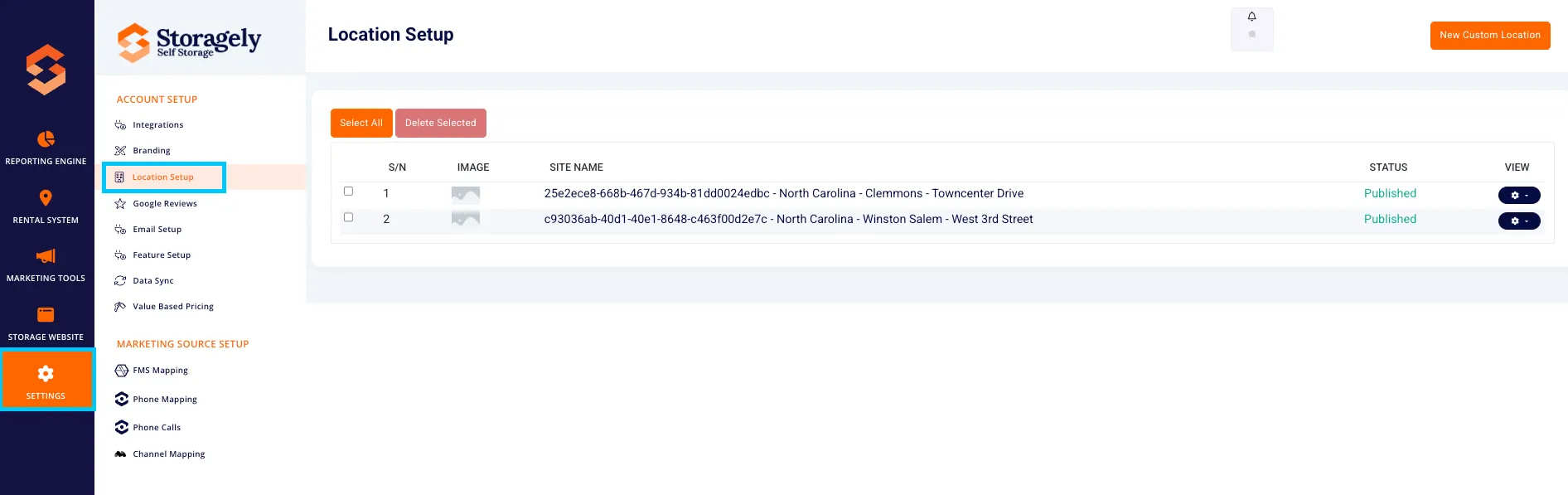
- Log in to your Storagely Dashboard.
- In the left sidebar menu, click on Settings.
- Select Account Setup → Location Setup.
3. Understanding the Location Setup Interface
A. Location List View
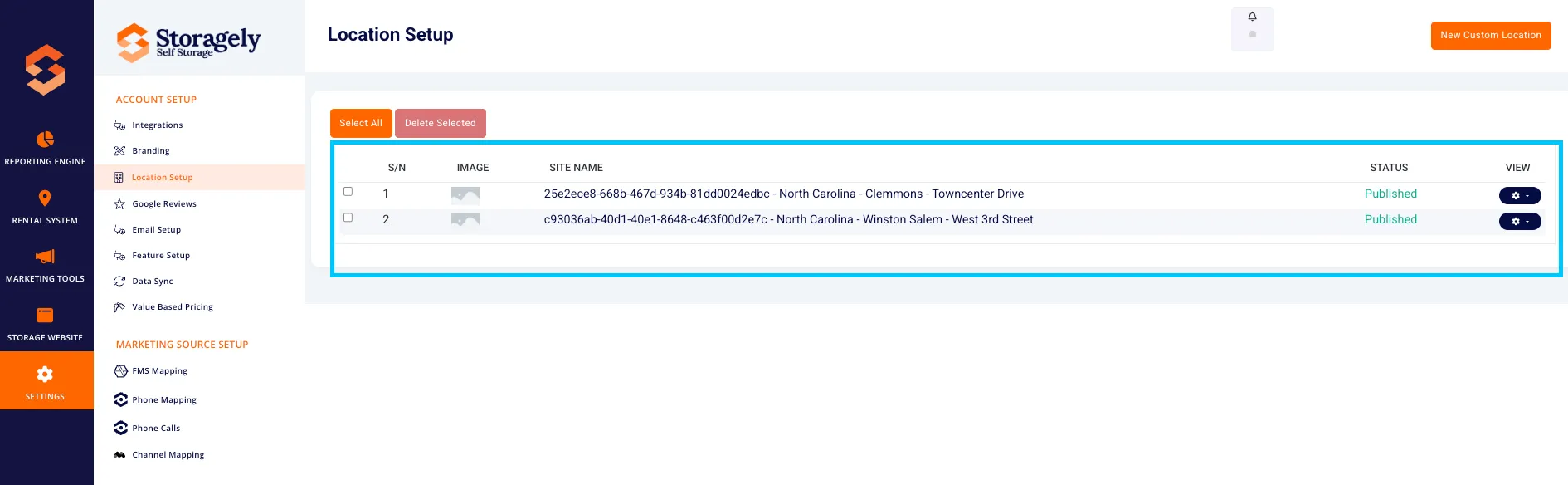
The main screen displays a list of all storage locations with the following columns:
- S/N (Site Number) – Unique identifier for each location.
- Image – Thumbnail image of the storage facility.
- Site Name – The name and address of the facility.
- Status – Displays whether the location is Published or Unpublished.
- Actions – Options to Edit, View, or Delete the location.
B. Bulk Actions
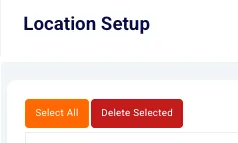
- Select All – Allows users to select multiple locations at once.
- Delete Selected – Deletes all selected locations (requires confirmation).
C. Creating a New Custom Location
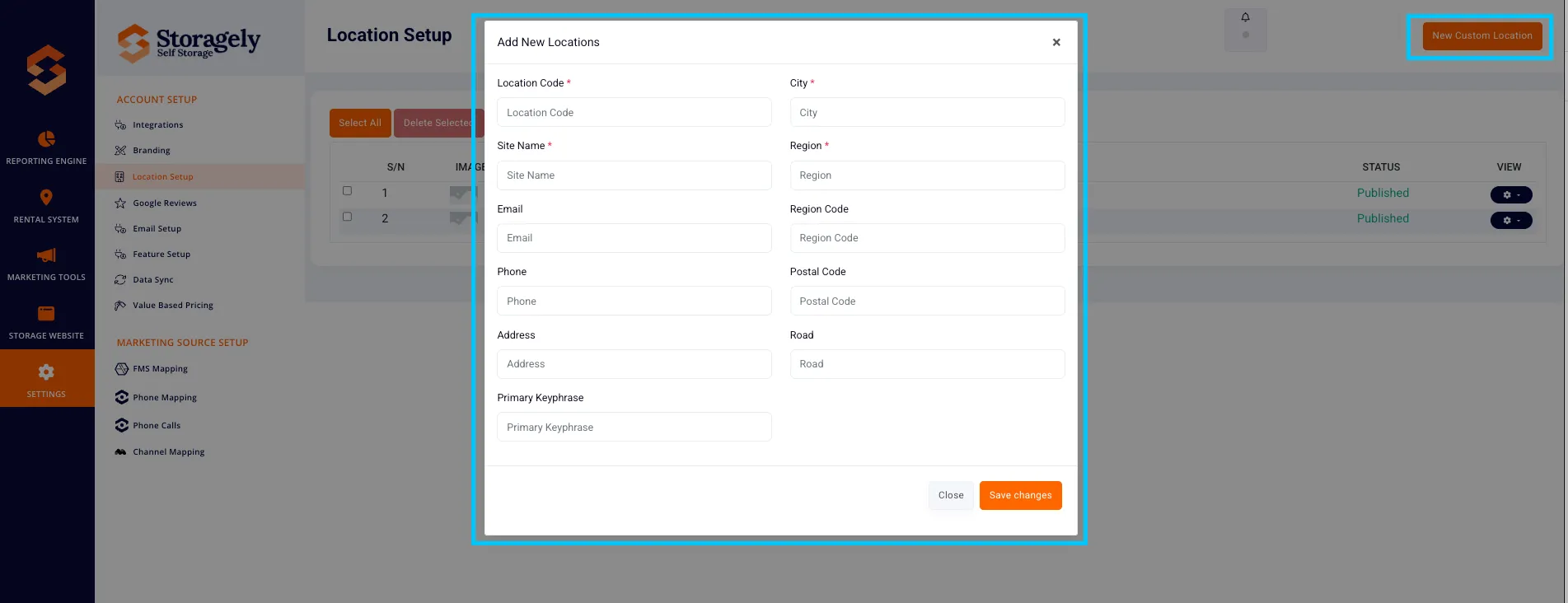
Clicking the "New Custom Location" button opens the Add New Location form, which requires the following details:
- Location Code* – A unique identifier for the storage facility.
- City* – The city where the facility is located.
- Site Name* – The official name of the facility.
- Region* – The state or region of the location.
- Email – Contact email for the facility.
- Phone – Primary contact number for the facility.
- Address – Full street address of the facility.
- Region Code – A numerical or alphabetical code representing the region.
- Postal Code – The ZIP or postal code of the facility.
- Road – The specific road name where the facility is located.
- Primary Keyphrase – A keyword or phrase used for SEO purposes.
4. Adding & Managing Locations
A. Adding a New Custom Location
- Click “New Custom Location” at the top-right.
- Fill in the required fields:
- Location Code, City, Site Name, and Region (mandatory fields).
- Enter additional location details (optional but recommended).
- Click “Save Changes” to create the new location.
B. Editing an Existing Location
- Locate the location in the list.
- Click on Edit Location Details under the Actions menu.
- Update any necessary fields (e.g., address, contact details, status).
- Click “Save Changes” to apply updates.
C. Deleting a Location
- Click on Delete next to the location in the list.
- Confirm the deletion (this action is irreversible).
5. Best Practices for Location Setup
✅ Ensure accurate addresses and contact details for each location. ✅ Use high-quality facility images for better visibility. ✅ Regularly update location statuses to ensure only active locations appear on the website. ✅ Publish locations only when they are ready for customer interactions. ✅ Use clear and consistent location codes for easier management.
6. FAQs & Troubleshooting
Q1: How do I add a new location? A: Click "New Custom Location", enter the required details, and save the location.
Q2: What happens if I leave required fields blank? A: You will receive an error message indicating which fields need to be filled before saving.
Q3: Can I edit a location after publishing it? A: Yes! Click Edit next to the location and update the details.
Q4: Why is my location not appearing on the website? A: Ensure the location status is Published in the settings.
Q5: How do I make bulk updates to multiple locations? A: Contact Storagely Support for assistance with bulk location updates.
As always, if you have any questions during this process, our Customer Success Team is here to help. The best way to reach us is by submitting a support ticket.