Google Reviews Settings
1. Introduction
The Google Reviews section in the Storagely Dashboard allows facility operators to view and manage customer feedback collected through Google Reviews. This feature provides insights into customer experiences and helps improve the business's online reputation.
2. Navigating to Google Reviews Settings
To access the Google Reviews Settings:
- Log in to your Storagely Dashboard.
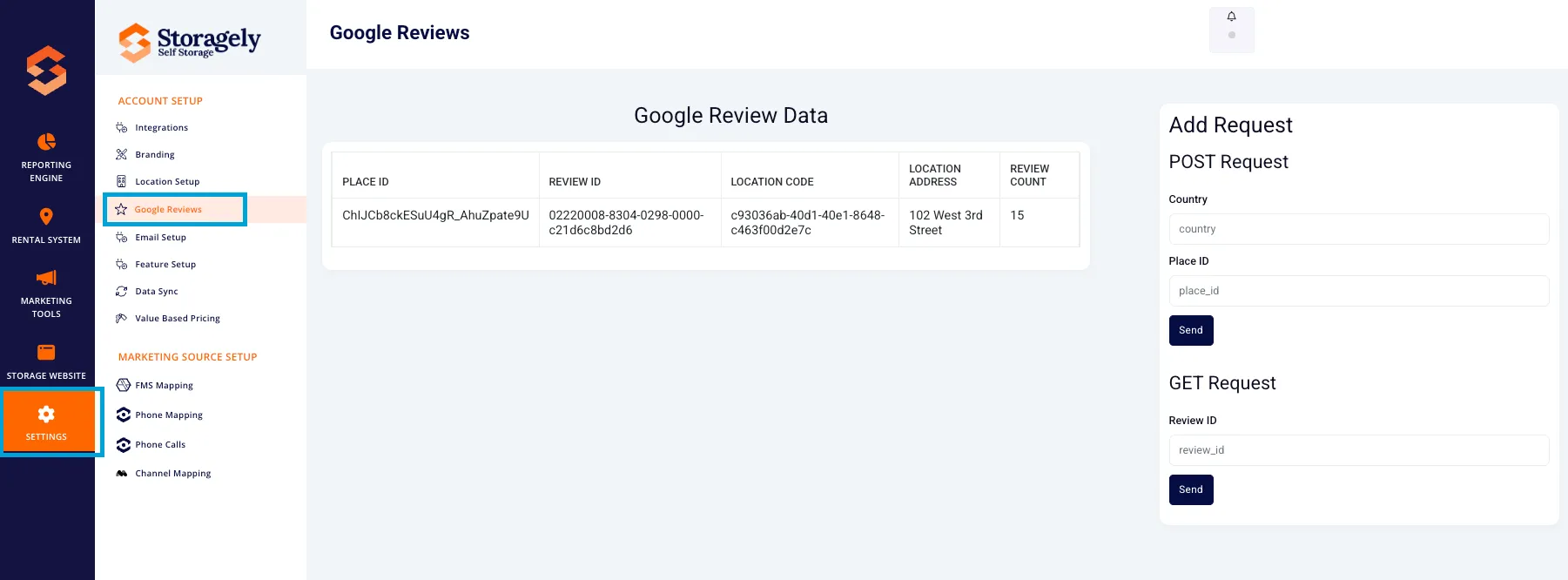
- In the left sidebar menu, click on Settings.
- Select Account Setup → Google Reviews.
3. Understanding the Google Reviews Interface
A. Google Review Data Table
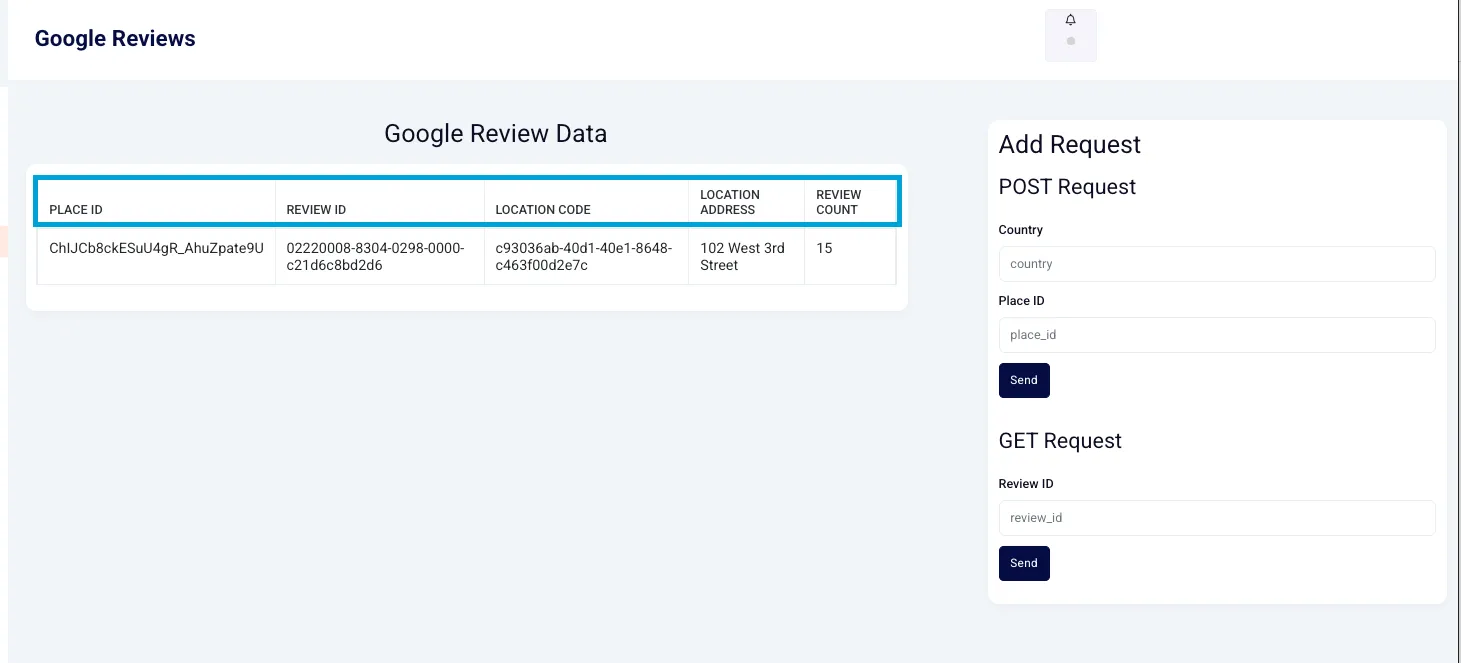
The Google Review Data Table displays a list of Google reviews linked to storage facility locations. The table includes the following columns:
- Place ID – The unique identifier for the business location in Google.
- Review ID – The unique identifier for each Google Review.
- Location Code – The internal identifier for the storage facility.
- Location Address – The full address of the facility.
- Review Count – The total number of reviews associated with the location.
B. Adding a Google Reviews Request
There are two request options available:
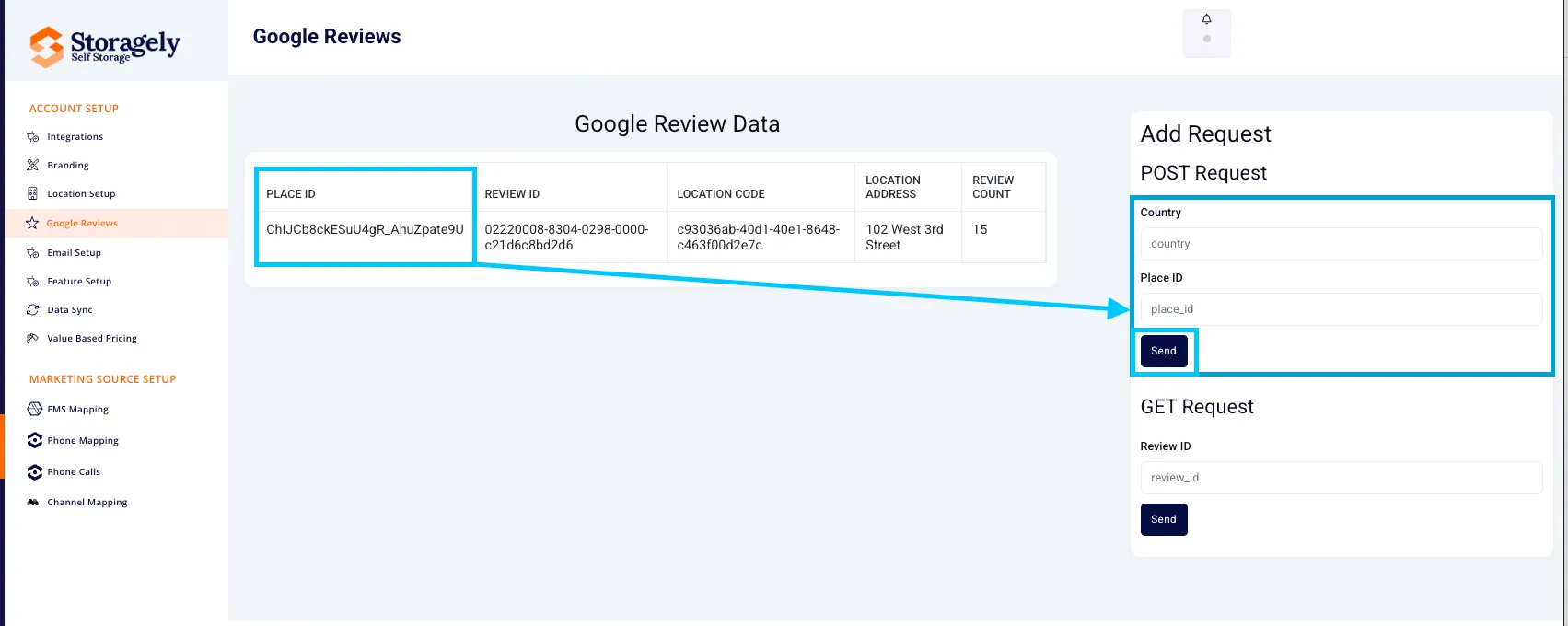
- Allows users to add new review data by submitting:
- Country
- Place ID (Google business identifier)
- Click “Send” to submit the request.
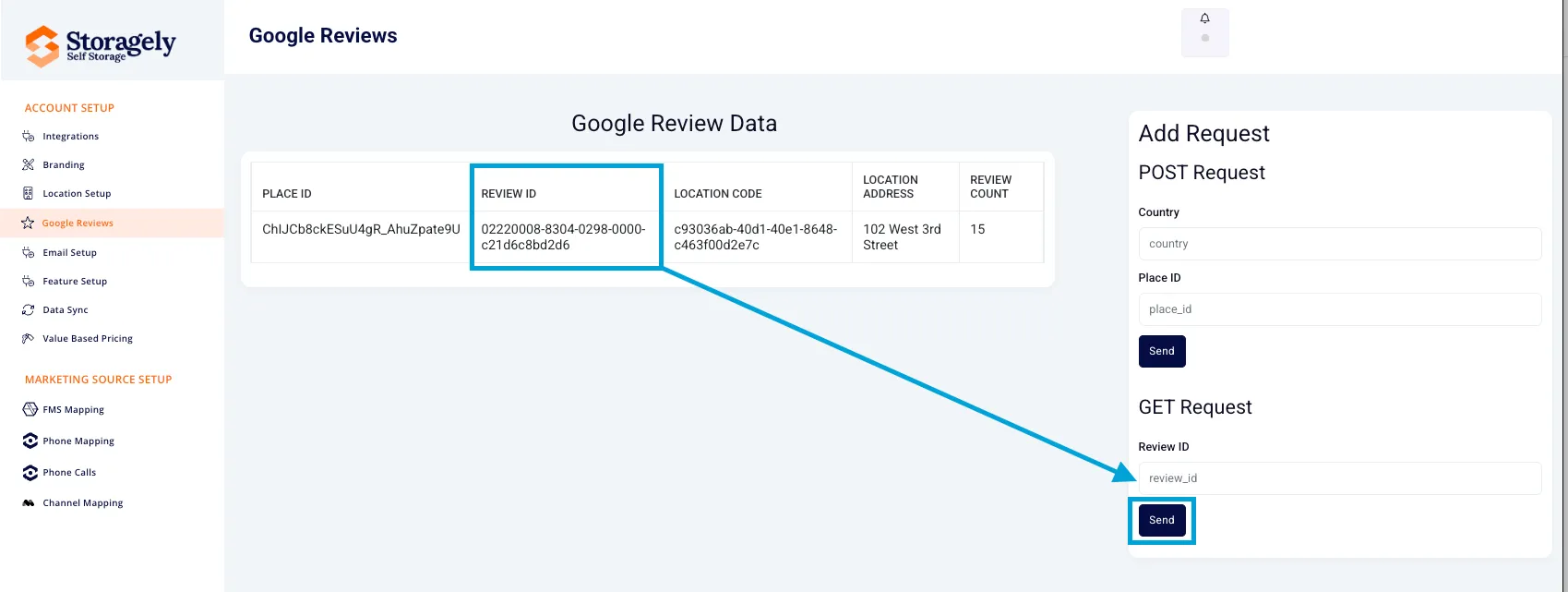
- Allows users to retrieve existing review data by entering:
- Review ID
- Click “Send” to fetch the data from Google.
4. How to Use Google Reviews Settings
Step 1: Viewing Review Data
- Navigate to the Google Reviews page.
- Review the table containing facility review data.
- Sort or filter reviews by location, review count, or other criteria.
Step 2: Adding a Google Reviews Request (POST Request)
- Enter the Country and Place ID into the form fields.
- Click "Send" to submit the request.
- Wait for confirmation that the data has been successfully added.
Step 3: Fetching Review Data (GET Request)
- Enter a Review ID in the provided field.
- Click "Send" to retrieve the review details.
- The system will display the fetched review data.
5. Best Practices for Managing Google Reviews
✅ Monitor reviews regularly to identify trends in customer feedback. ✅ Encourage satisfied customers to leave positive reviews. ✅ Respond to reviews professionally to build customer trust. ✅ Use feedback insights to improve facility operations.
6. FAQs & Troubleshooting
Q1: How do I find my Place ID? A: You can find your Google Place ID using Google’s Place ID Finder.
Q2: Why isn’t my review data updating? A: Ensure you have entered the correct Place ID or Review ID and try again.
Q3: Can I delete a negative review? A: Google does not allow direct removal of reviews, but you can flag inappropriate reviews for removal.
Q4: What should I do if review data is missing? A: Submit a POST request with the correct Place ID to refresh the data.
As always, if you have any questions during this process, our Customer Success Team is here to help. The best way to reach us is by submitting a support ticket.