Branding Settings
1. Introduction
The Branding Settings in the Storagely Dashboard allow facility operators to customize their website’s branding elements, including logos, colors, and policy links. These settings help ensure a consistent and professional appearance across all web pages.
2. Navigating to Branding Settings
To access the Branding Settings:
- Log in to your Storagely Dashboard.
- In the left sidebar menu, click on Settings.
- Select Account Setup → Branding from the available options.
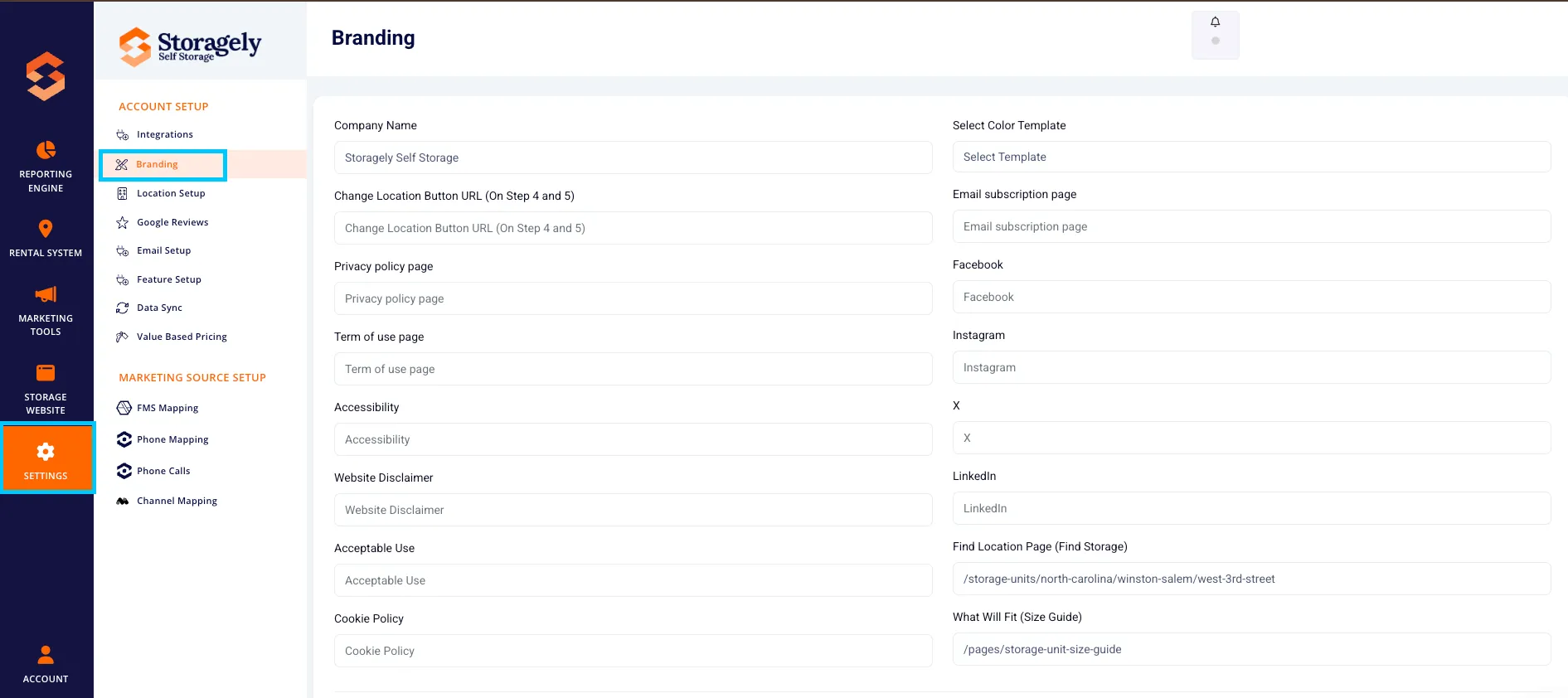
3. Understanding the Branding Settings Interface
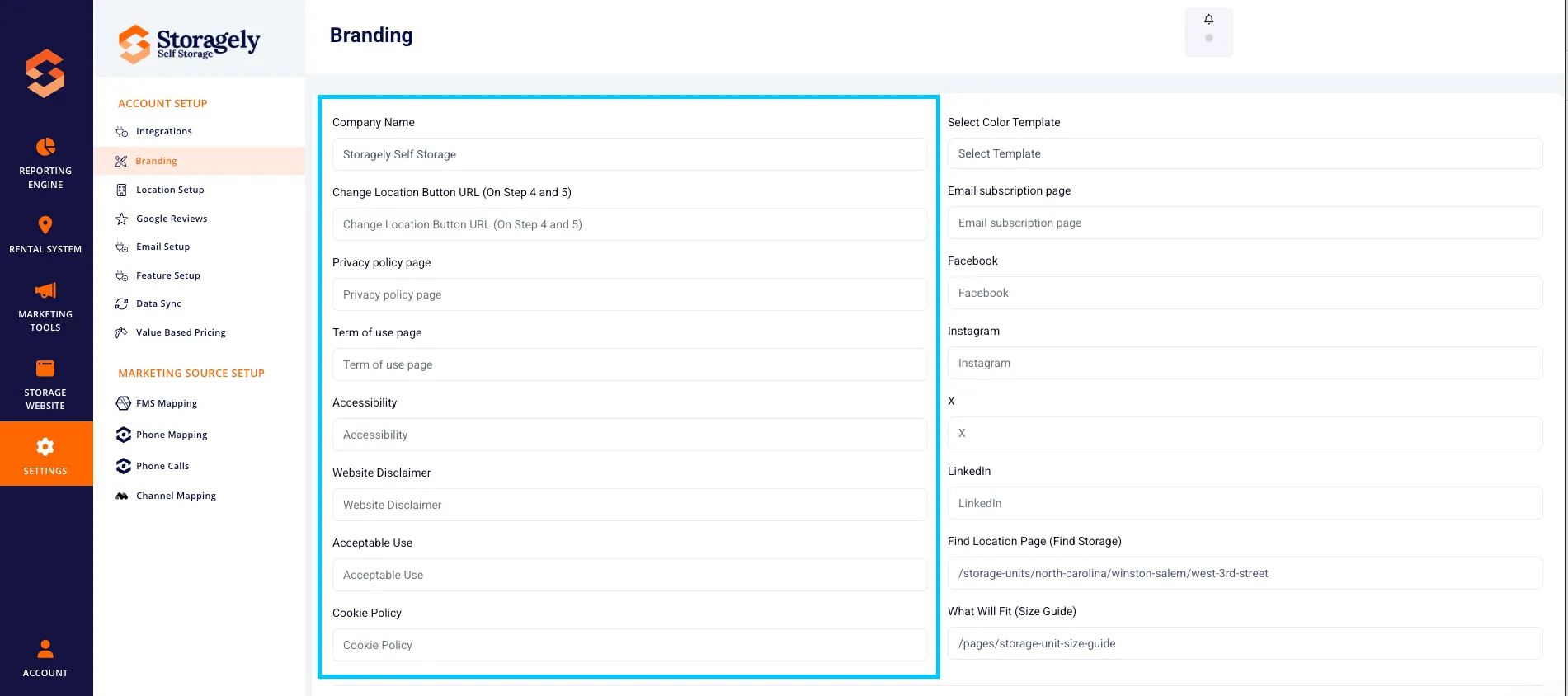
A. Company Information
- Company Name – The name of your business as displayed on the website.
- Change Location Button URL – A URL used in location selection steps.
- Privacy Policy Page URL – The link to your company’s privacy policy.
- Terms of Use Page URL – The link to your company’s terms and conditions.
- Accessibility Page URL – The link to your website’s accessibility statement.
- Website Disclaimer URL – The link to your website’s legal disclaimer.
- Acceptable Use Policy URL – A link to the policy governing acceptable website use.
- Cookie Policy URL – A link to your website’s cookie usage policy.
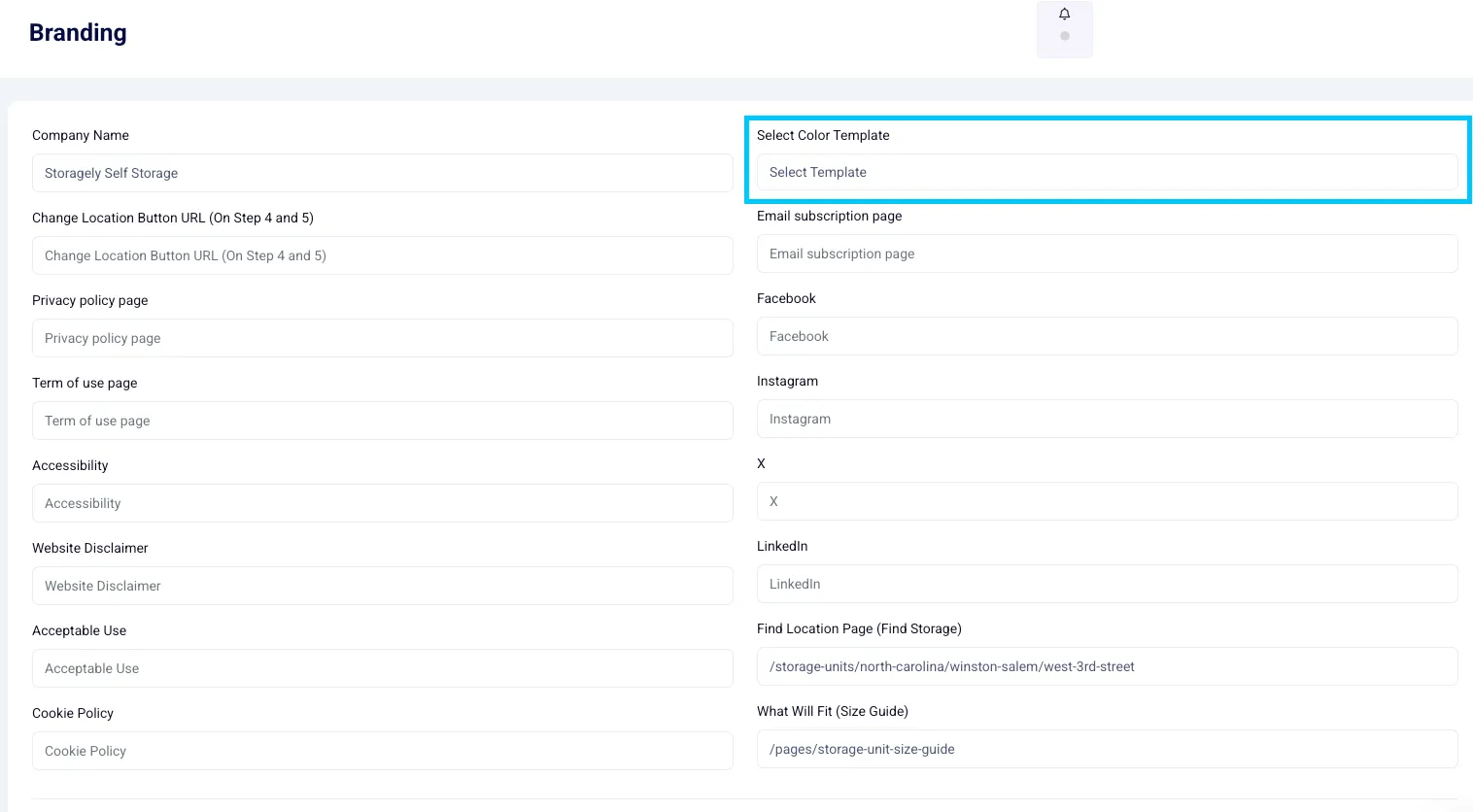
B. Color & Template Settings
- Select Color Template – Choose a predefined color theme for your website.
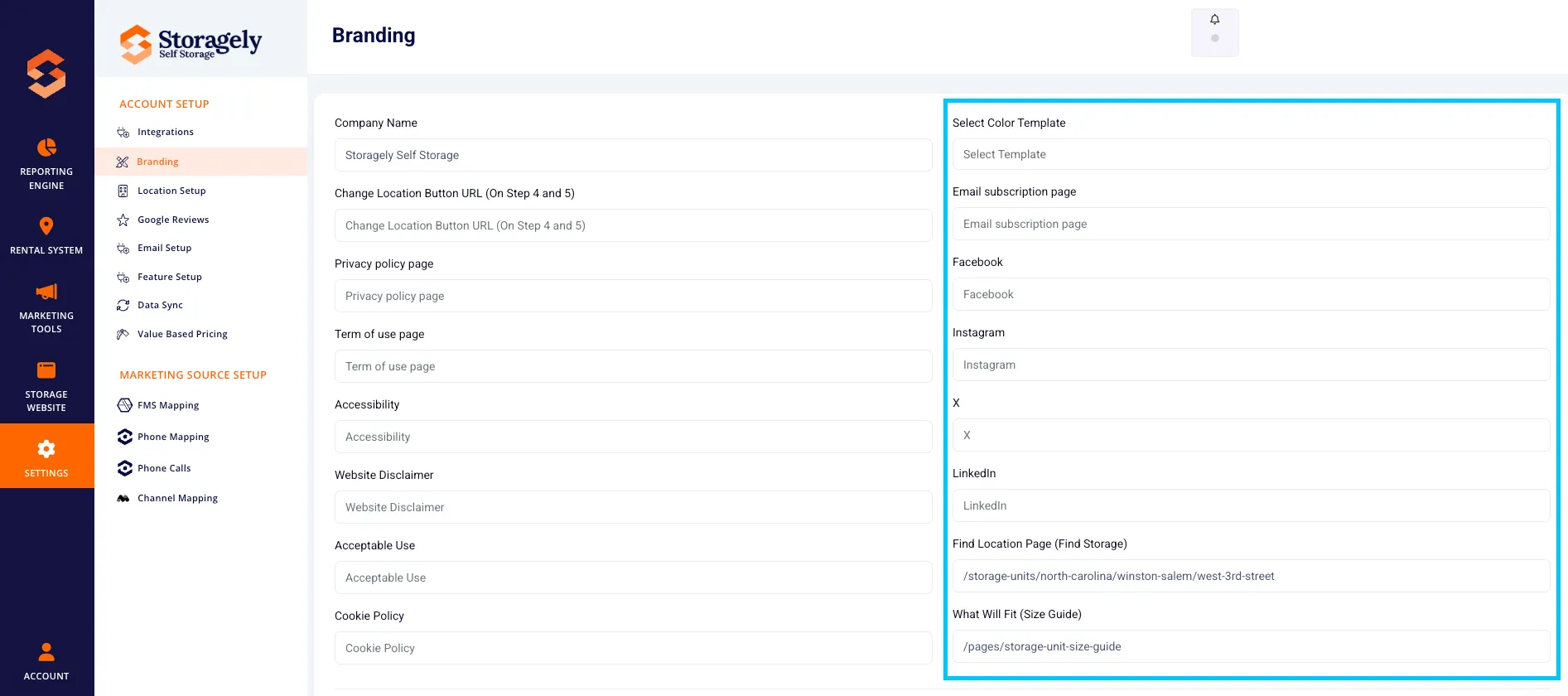
C. Social Media Links
- Facebook URL – Link to your business’s Facebook page.
- Instagram URL – Link to your Instagram profile.
- X (Twitter) URL – Link to your Twitter (X) account.
- LinkedIn URL – Link to your LinkedIn page.
D. Important Page Links
- Find Location Page URL – A link to the "Find Storage" page for customers.
- Size Guide Page URL – A link to the "What Will Fit" page to help users select storage sizes.
- Email Subscription Page URL – A link to a subscription form for marketing emails.
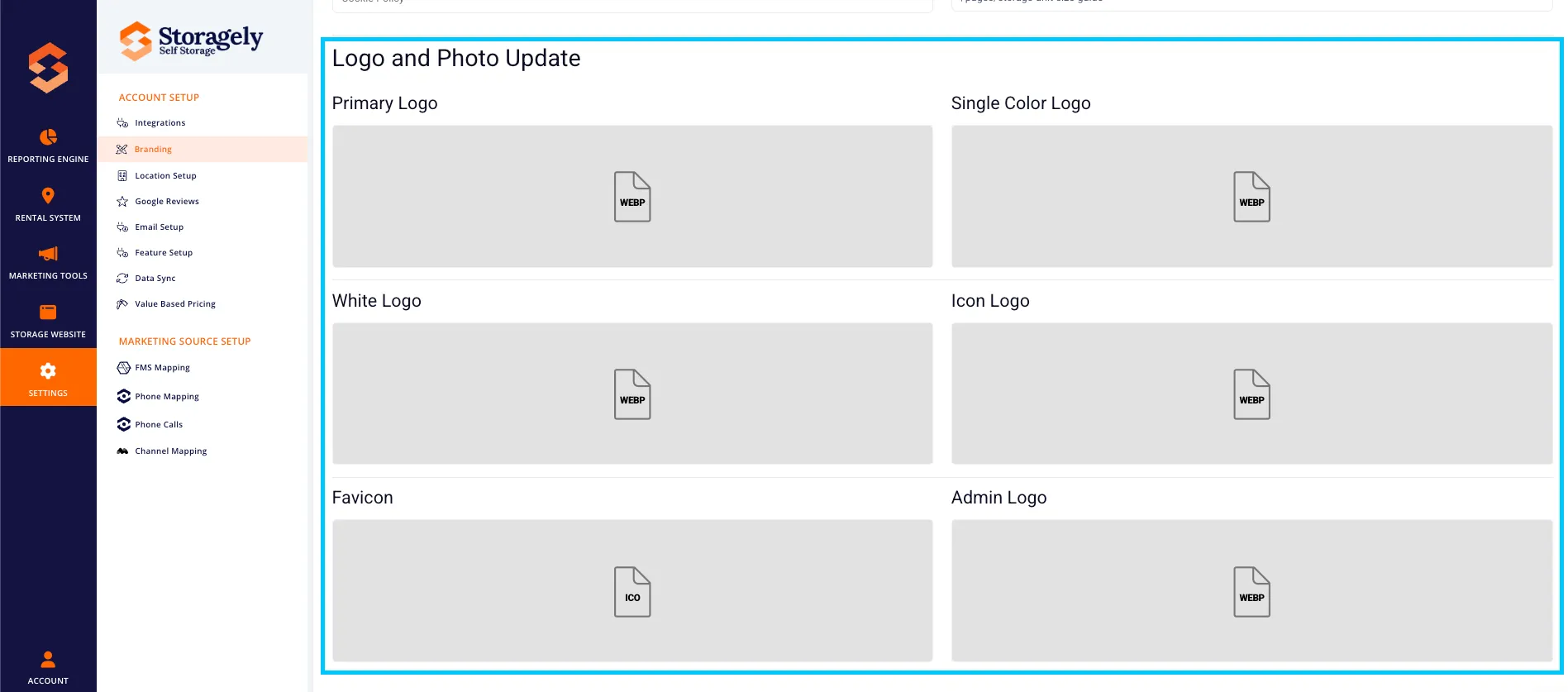
E. Logo & Image Settings
Operators can upload or update the following logos:
- Primary Logo – The main company logo used across the website.
- Single Color Logo – A monochrome version of the logo.
- White Logo – A white version of the logo for dark backgrounds.
- Icon Logo – A small icon version of the logo, often used in headers or footers.
- Favicon – The small icon displayed in browser tabs.
- Admin Logo – The logo displayed in the admin panel.
F. Customization & Advanced Settings
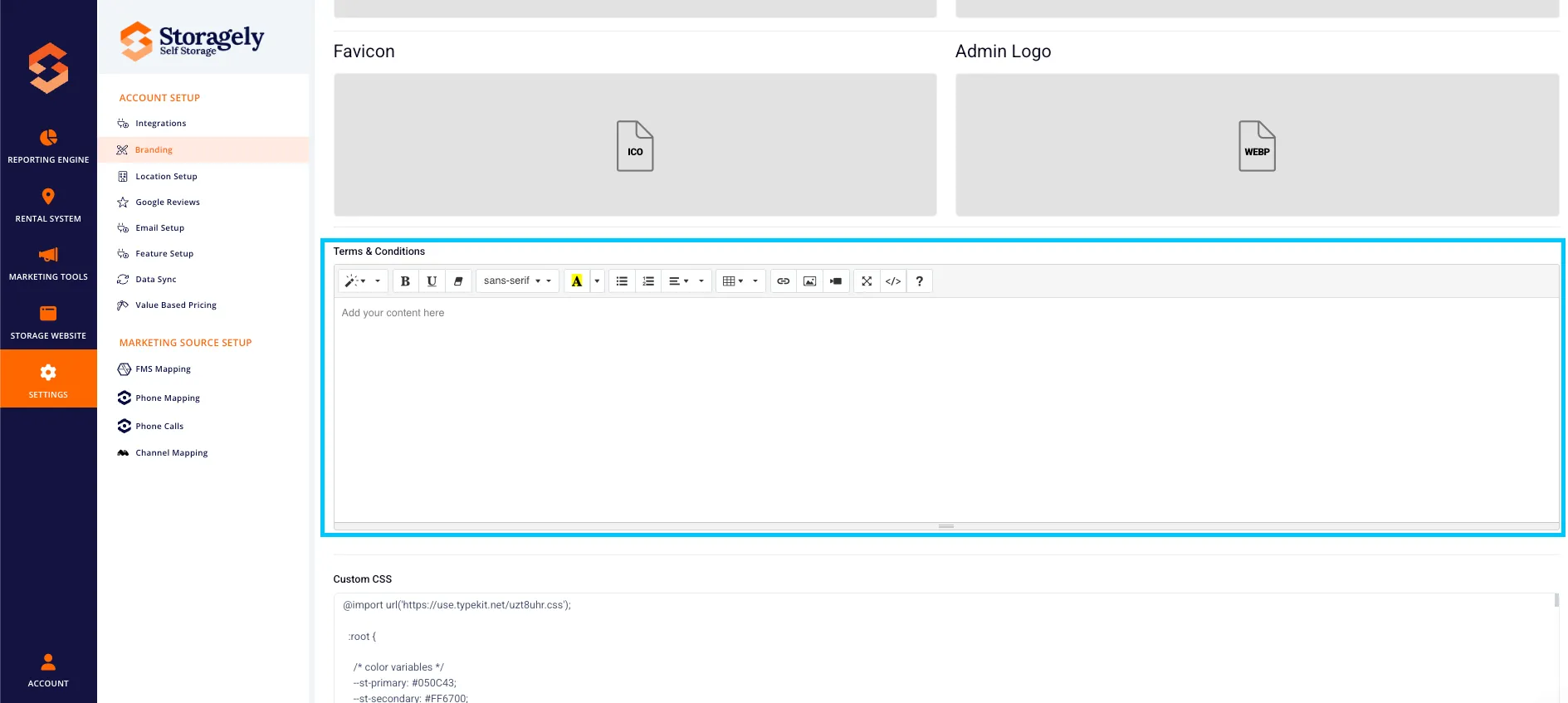
- Terms & Conditions Content – A text editor where you can enter your company’s terms and conditions.
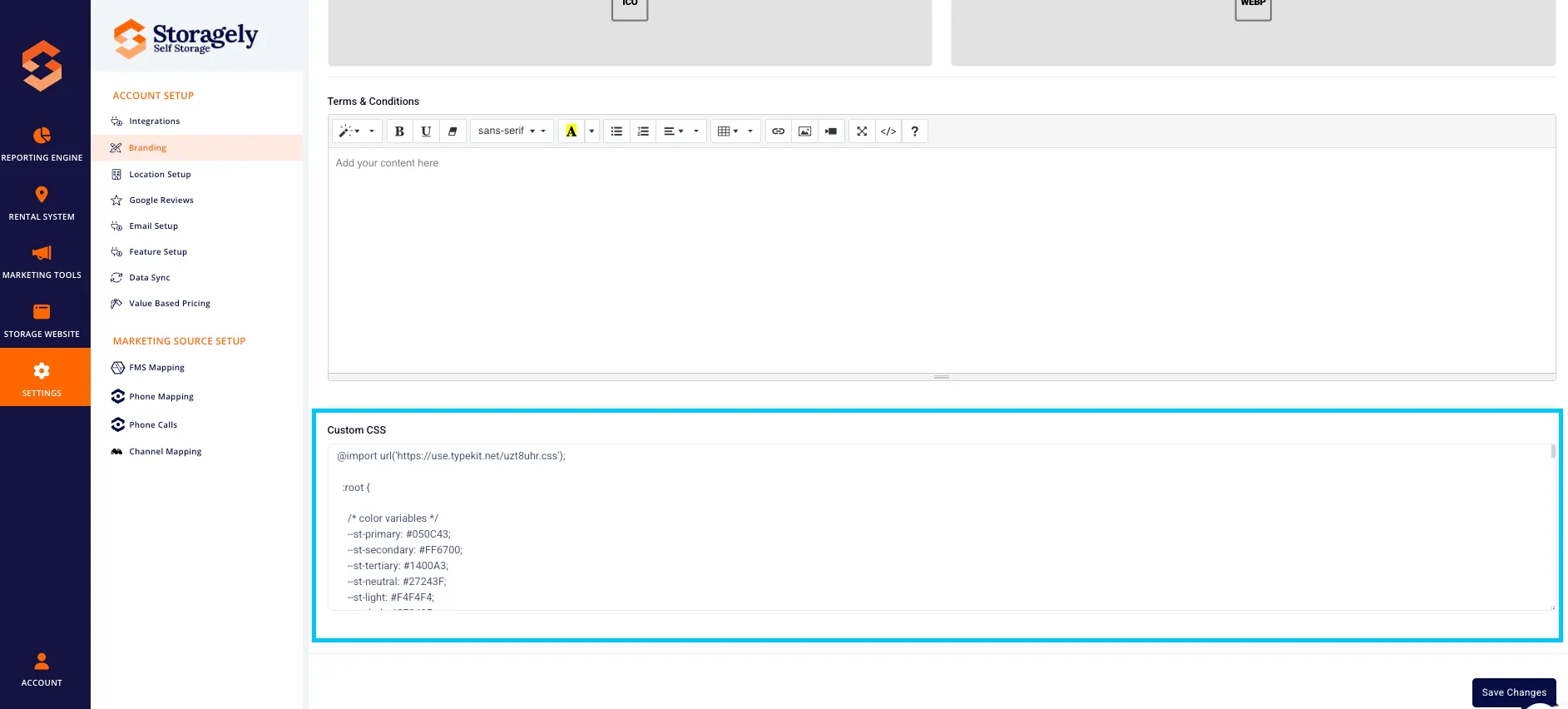
- Custom CSS – Allows users to add custom CSS styles to modify website appearance.
4. How to Update Branding Settings
Step 1: Update Company Information & Links
- Enter or update details such as the company name, privacy policy link, and terms of use.
- Ensure URLs are accurate for all policy pages and social media links.
Step 2: Select a Color Template
- Click the dropdown menu under Select Color Template.
- Choose a pre-designed color scheme that fits your branding.
Step 3: Upload or Update Logos
- Click the Upload button next to each logo field.
- Select a file from your computer.
- Ensure that the uploaded file meets format and size requirements.
- Click Save Changes to apply the new logo.
Step 4: Customize Website Appearance
- Enter custom CSS to apply specific styling rules.
- Edit the Terms & Conditions Content if necessary.
Step 5: Save and Apply Changes
- Click “Save Changes” to apply updates.
- Refresh the website to view the new branding.
5. Best Practices for Branding
✅ Use high-resolution logos for a professional look. ✅ Ensure all links to policies and social media are active and correct. ✅ Choose a color template that aligns with your brand identity. ✅ Keep your branding elements consistent across all marketing channels.
6. FAQs & Troubleshooting
Q1: How do I change my company logo? A: Upload a new logo in the Primary Logo field and click Save Changes.
Q2: What happens if I enter the wrong URL for policy pages? A: Users clicking the link will receive an error. Always test URLs before saving.
Q3: How can I preview branding changes before applying them? A: Save the changes, then view your website in an incognito browser window.
Q4: What file formats are accepted for logos? A: JPG, PNG, and WebP are accepted formats for logo uploads.
Q5: How do I reset branding settings to default? A: Contact Storagely Support to restore default branding settings.
As always, if you have any questions during this process, our Customer Success Team is here to help. The best way to reach us is by submitting a support ticket.