How To: Upload Your Profile Picture to Live Chat
3 min
This article will guide you through the steps to add a profile picture to your live chat account. Including a professional profile picture helps personalize your interactions and build trust with your customers.
Why Add a Profile Picture?
A professional profile picture makes your live chat more personable, creating a stronger connection with anyone who initiates a chat. It also enhances your business’s professionalism and credibility.
Steps to Add Your Profile Picture
- Log In to Your Live Chat Account: Start by logging into your live chat software.
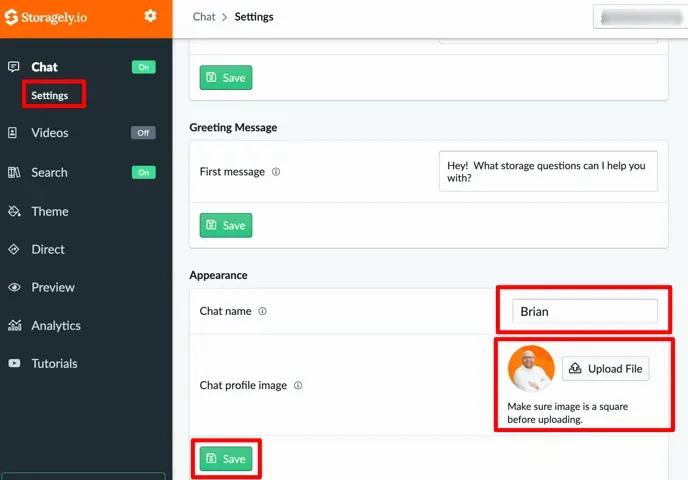
- Navigate to Chat Settings:
- Click on Chat from the menu on the left-hand side.
- Select Settings from the dropdown options.
- Edit Your Chat Profile:
- In the settings menu, locate the option to update your profile information.
- Modify your name if needed:
- You can use just your first name or both your first and last name for clarity.
- Upload Your Profile Picture:
- Click the option to upload a photo.
- Select a professional picture that reflects your business's tone and brand.
- Save Your Changes:
- Click Save to apply the updates to your profile.
Best Practices for Your Profile Picture
- Use a clear, high-quality image.
- Choose a picture with a professional background.
- Wear business-appropriate attire to align with your company’s image.
Conclusion
Adding a profile picture to your live chat is a simple but impactful way to make your interactions more engaging and professional. Follow these steps to personalize your chat profile and create a more welcoming experience for your customers.
Have a question?
Our super-smart AI, knowledgeable support team and an awesome community will get you an answer in a flash.
To ask a question or participate in discussions, you'll need to authenticate first.