How To: Change Availability Hours on Live Chat
3 min
This article will guide you through the process of updating your live chat schedule to ensure it aligns with your availability.
Important Notes
- The chat schedule is global, meaning it applies to all users managing the chat.
- If you are unavailable during the specified hours, the chat will automatically notify visitors that live support is currently unavailable.
Steps to Update the Live Chat Schedule
- Log In to Your Live Chat Account: Begin by logging into your live chat platform.
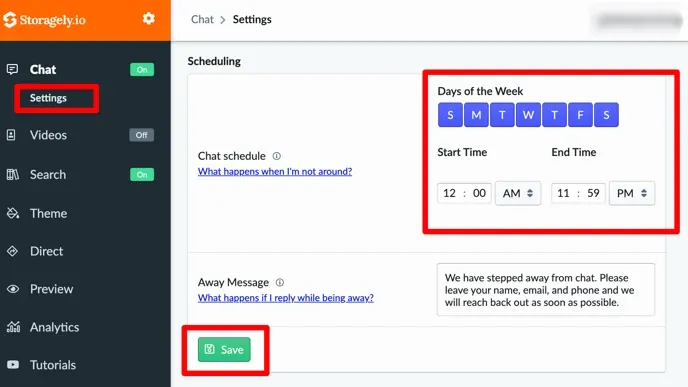
- Access Chat Settings:
- Click on Chat from the left-hand menu.
- Select Settings from the dropdown options.
- Adjust Your Schedule:
- Modify the days of the week to reflect your desired availability.
- Set the Start Time and End Time for each day.
- Save Your Changes:
- Once you’ve updated the schedule, click Save to apply the changes.
Tips for Managing Your Chat Schedule
- Be Transparent: Ensure your chat schedule aligns with your business hours to set clear expectations for customers.
- Set Notifications: Use browser or email notifications to stay informed of any missed chats outside your availability.
- Review Regularly: Update the schedule as needed to accommodate changes in staffing or availability.
Conclusion
By customizing your live chat schedule, you can ensure a better experience for your customers while managing your team's availability effectively. Follow these steps to keep your live chat operating smoothly and professionally.
Have a question?
Our super-smart AI, knowledgeable support team and an awesome community will get you an answer in a flash.
To ask a question or participate in discussions, you'll need to authenticate first.