How to Change Button Styling
Introduction
Buttons play a critical role in guiding visitors through your website and encouraging actions like renting a unit, contacting your facility, or making a payment. With Storagely’s Website Editor, you can fully customize button styling—including colors, text, size, and shape—to match your brand and improve user engagement. This guide walks you through how to update button styles across different sections and devices to ensure consistency and clarity throughout your site.
NOTE: If updating styling of one button, you will need to manually update all button styling on all pages.
To style a button:
- Click the button element.
- Use the toolbar to make the following changes:

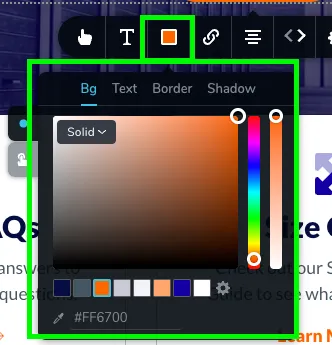
- Text Color defines the color of any written content of the button
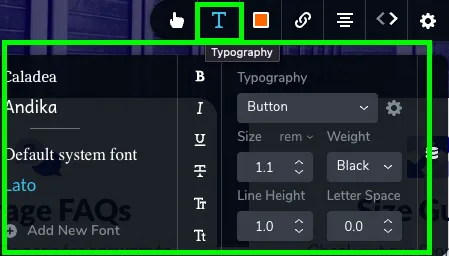
- Font and Font Size - The font used in a button determines the style and personality of the text. Font size controls how large the button text appears.
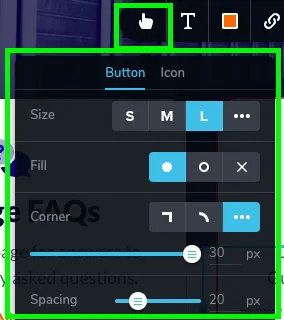
- Border Radius for rounded corners - controls how rounded the corners of a button (or any element) appear.
- Padding for internal spacing - refers to the internal spacing inside an element—it’s the space between the element’s content (like button text) and its border. For example, in a button, padding controls how much space surrounds the text inside the button.
- Icon placement refers to the position of an icon in a block. By adjusting this setting, you can move the icon to the left, right, or center of the block. You can also move the button without needing to recreate the button entirely. This helps you fine-tune the layout for a cleaner and more balanced design.

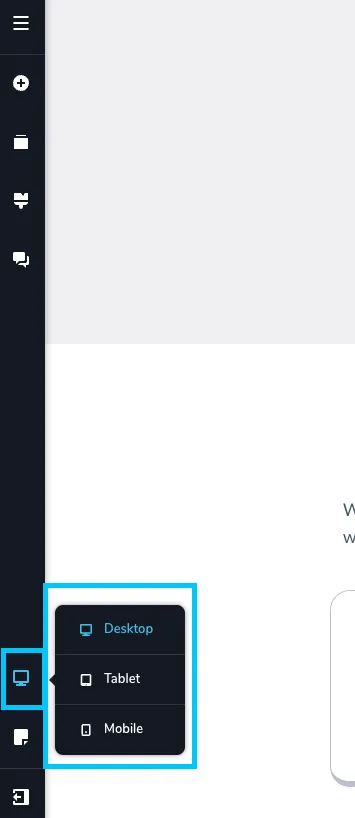
Review the changes made in all 3 device types (desktop, tablet, mobile) to ensure they look correct.
- To save the update, select “Update” in the bottom right corner of the window. Then close the tab.
🎥 Watch Tutorial Video
Button Styling Best Practices
✅ Keep button text short and action-oriented: Use clear, concise phrases like “Reserve Now”, “Pay Online”, or “Contact Us” to prompt user interaction. Avoid vague labels like “Click Here.”
✅ Choose high-contrast colors for visibility: Ensure your button color stands out from the background. Use your brand’s primary color for action buttons, and test for readability on light and dark backgrounds.
✅ Test on all devices: Always preview button alignment, text wrapping, and size in Desktop, Tablet, and Mobile views to ensure a polished look across screen types.
As always, if you have any questions during this process, our Customer Success Team is here to help. The best way to reach us is by submitting a support ticket.