How to Add Links in Storagely Website Editor
Introduction
Adding links is a crucial part of building a helpful and easy-to-navigate website. Whether you're linking to another page, a downloadable file, or an external site, Storagely makes the process quick and straightforward. You can add links to text or buttons, choose how they open, and help guide visitors to the information or actions they need. This guide will show you how to create and manage links across your site.
Navigating to the Editor
- Open your Storagely Dashboard.
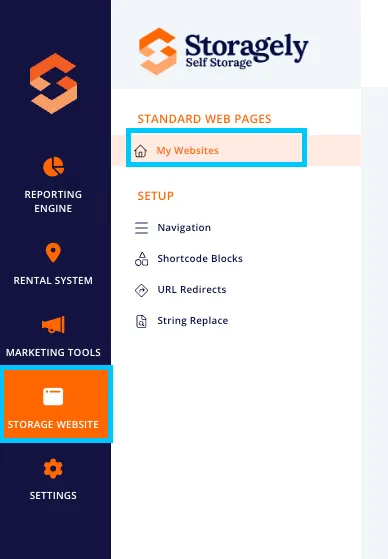
- Navigate to the Storage Website tab and select "My Websites"
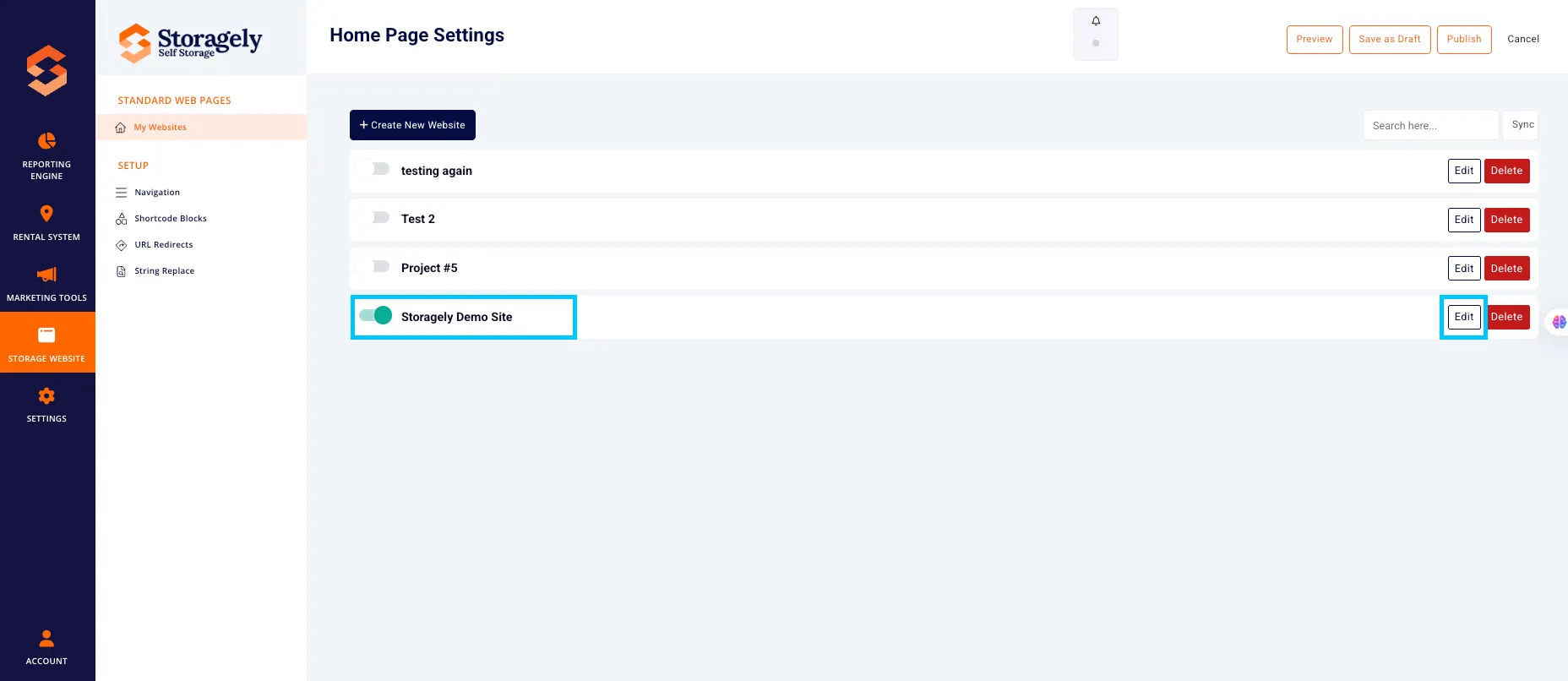
- Select the website you want to edit from the list
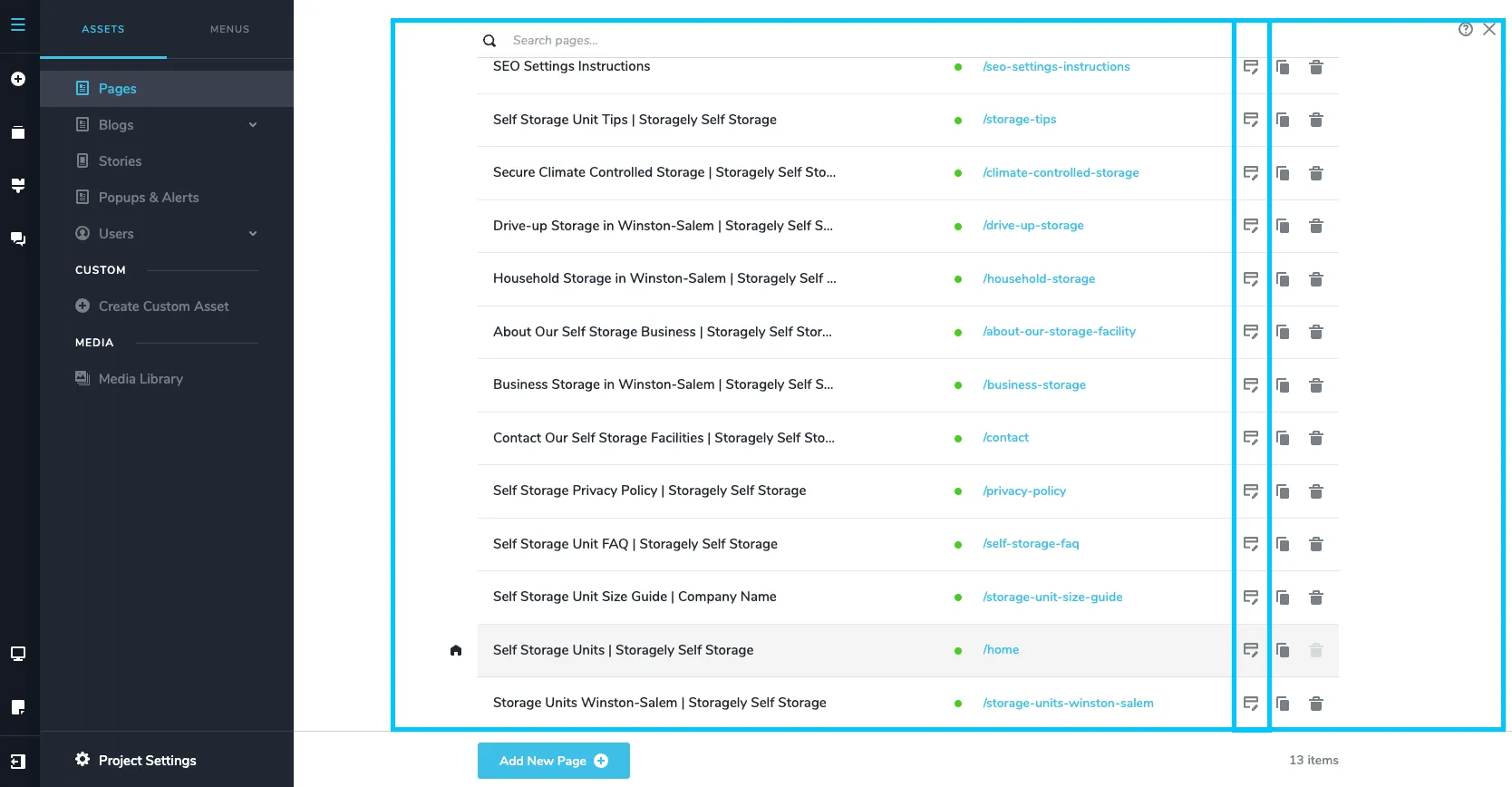
- Click the top left CMS icon

- Click the page containing the details you’d like to update.
- Scroll to the section or block on the page preview.
Adding a text link:
- Highlight the text you want to turn into a link.
- Click the link icon in the floating toolbar.

- Paste in a URL, or choose an internal page from the dropdown.

Adding a link to a button or image:
- Click on the button or image.
- In the toolbar, click the link icon.

- Choose your destination:
- URL - web address that directs users to a specific page on the internet.
- Page – Refers to an internal page on your website that you want to direct the user to. This is used when linking to another section or page within the same site.
- Block/Anchor – A specific section or element on a webpage that you can link to directly. It allows users to jump to a particular part of the page without scrolling. Often used for things like FAQs, contact sections, or feature highlights.lock/Anchor - specific area or section of a web page to quickly direct a user to
- Popup – A small window, image, or icon that appears when a user clicks a button. Popups are often used to display additional information, forms, or media without leaving the current page.
- File - A downloadable document (such as a PDF, image, or spreadsheet) that opens or downloads when a user clicks the button. Commonly used for brochures, forms, guides, or any resource you want to make available directly from your website.

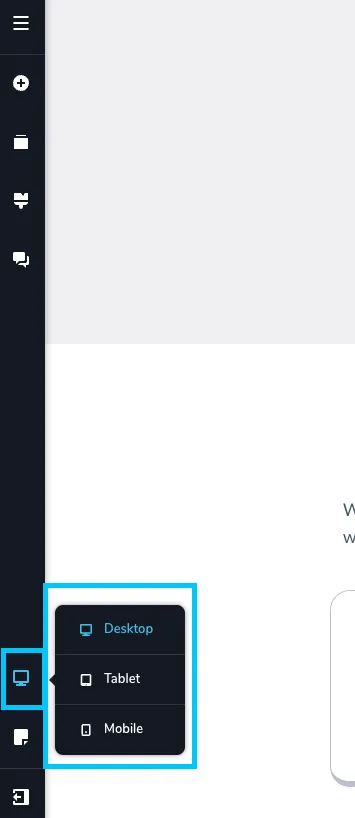
- Review the changes made in all 3 device types (desktop, tablet, mobile) to ensure they look correct.
To save the update, select “Update” in the bottom right corner of the window. Then close the tab.
✅ Link Management Best Practices
✅ Use clear, descriptive link text: Instead of “Click here,” use meaningful phrases like “View Storage Options” or “Download Lease Agreement” to tell users what to expect.
✅ Open external links in a new tab: For links that go to outside websites, set them to open in a new tab so users don’t lose their place on your site.
✅ Check for broken links regularly: Make sure all links are working and point to the correct destination—especially after making updates or launching new pages.
✅ Don’t overlink: Too many links on one page can overwhelm users. Link only where it adds value or guides users toward your goals.
🎥 Watch Tutorial Video:
As always, if you have any questions during this process, our Customer Success Team is here to help. The best way to reach us is by submitting a support ticket.