How to Change a Background Image
5 min
Introduction
Background (hero) images are often the first visual element a visitor sees. Updating this image keeps your website looking current, branded, and engaging. Replacing or updating images in the Storagely Website CMS is easy.
Navigating to the Editor
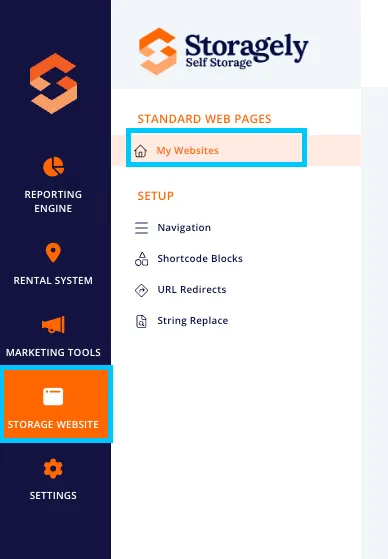
- Open your Storagely Dashboard.
- Navigate to the Storage Website tab and select "My Websites"
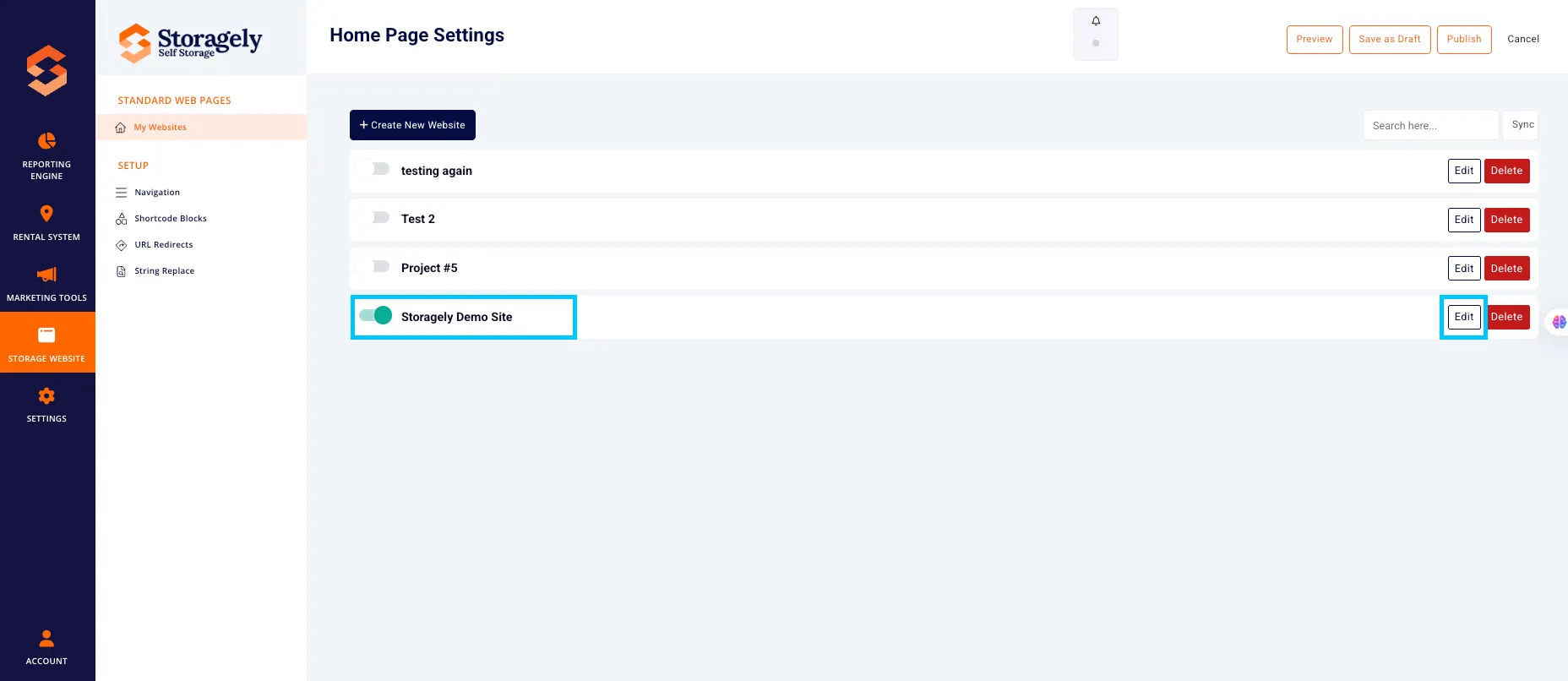
- Select the website you want to edit from the list
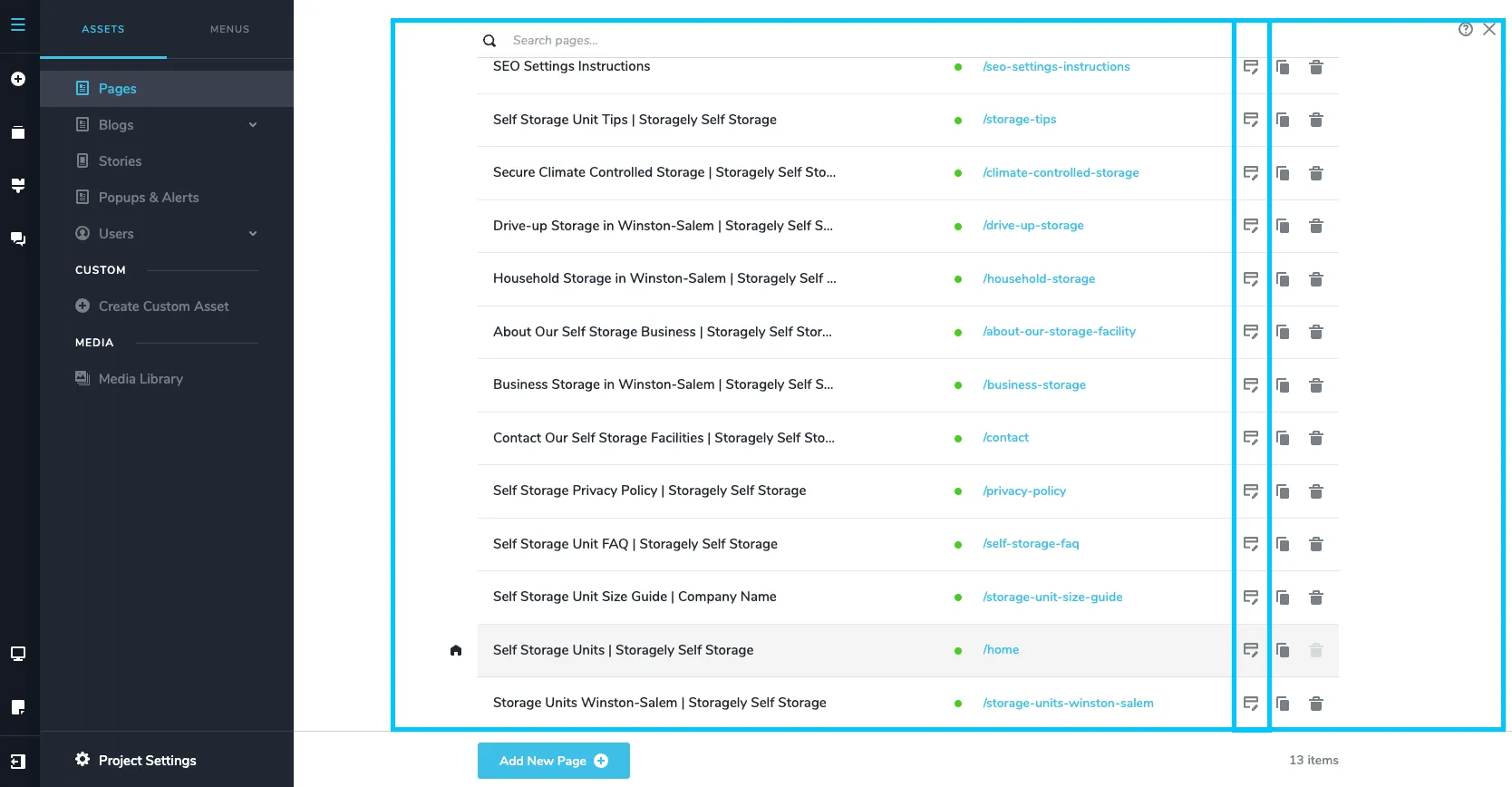
- Click the top left CMS icon

- Click the page containing the details you’d like to update.
- Scroll to the Hero section on the page preview.
Step-by-step instructions to change a background image (hero section):
- Hover over the image block you want to change.
- Click on the black circle in the top right corner.

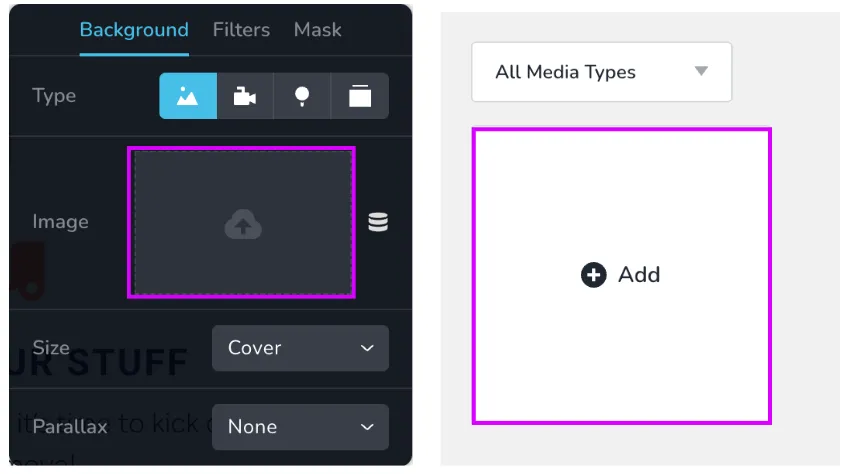
- Click on the Background icon

- Click the "X" to remove the image

- Click the Upload icon and then the Add icon to upload your new image.
- Review the changes made in all 3 device types (Desktop, tablet, mobile) to ensure they look correct.
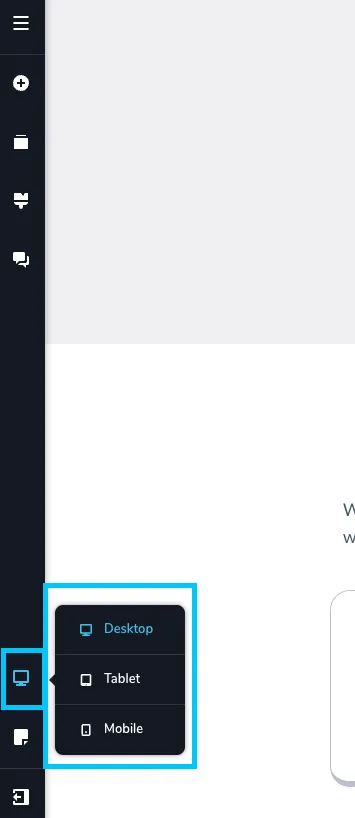
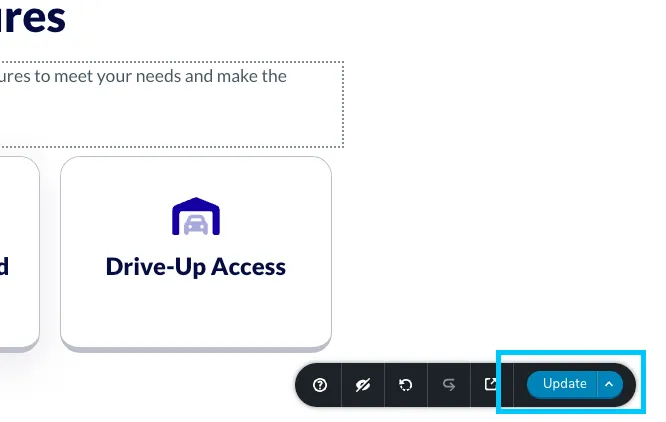
- To save the update, select “Update” in the bottom right corner of the window. Then close the tab.
✅ Best Practices for Background Images
- ✅ Use high-res, optimized images (<200KB) Keep images sharp but lightweight. Use compressed formats like WebP or JPEG to maintain fast load times.
- Use tools like Online-Convert to formate images. Here is a link to use.
- ✅ Adjust overlay color and opacity for readability Apply a semi-transparent overlay to ensure text stands out clearly against the background image.
- ✅ Preview on all devices Use the preview toggle in Storagely to check how your image looks on desktop, tablet, and mobile. Crop and alignment may vary.
- ✅ Name image files with SEO keywords Rename files before uploading using relevant keywords (e.g., climate-controlled-storage.jpg). Use hyphens instead of spaces to improve search visibility.
🎥 Watch Tutorial Video of this process:
As always, if you have any questions during this process, our Customer Success Team is here to help. The best way to reach us is by submitting a support ticket.
Have a question?
Our super-smart AI, knowledgeable support team and an awesome community will get you an answer in a flash.
To ask a question or participate in discussions, you'll need to authenticate first.