How To: Give Storagely Access to StorEDGE Discounts
6 min
Storagely dynamically pulls your discounts and promotions directly from StorEDGE to display them on your website.
Follow the steps below to grant us access and ensure your promotions are displayed correctly.
Step 1: Log In to Your StorEDGE Account
- Go to storedgefms.com.
- Log in with your account credentials.
Step 2: Navigate to Corporate Control Settings
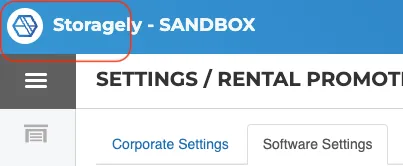
- Click on the Storable logo in the top-left corner of the screen.
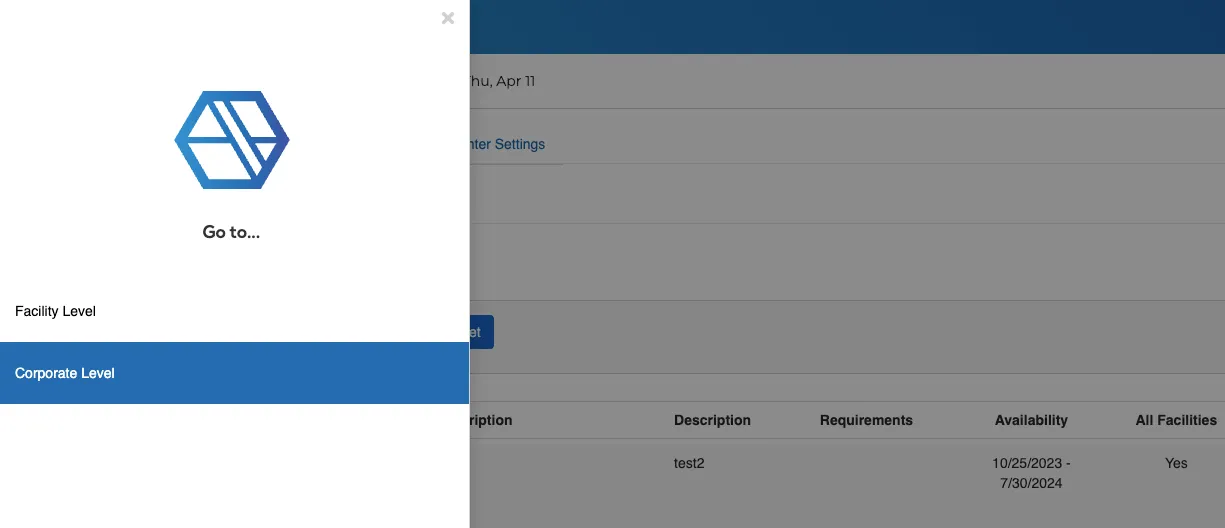
- Select Corporate Level to access corporate settings.
Step 3: Access Rates & Promotions Settings
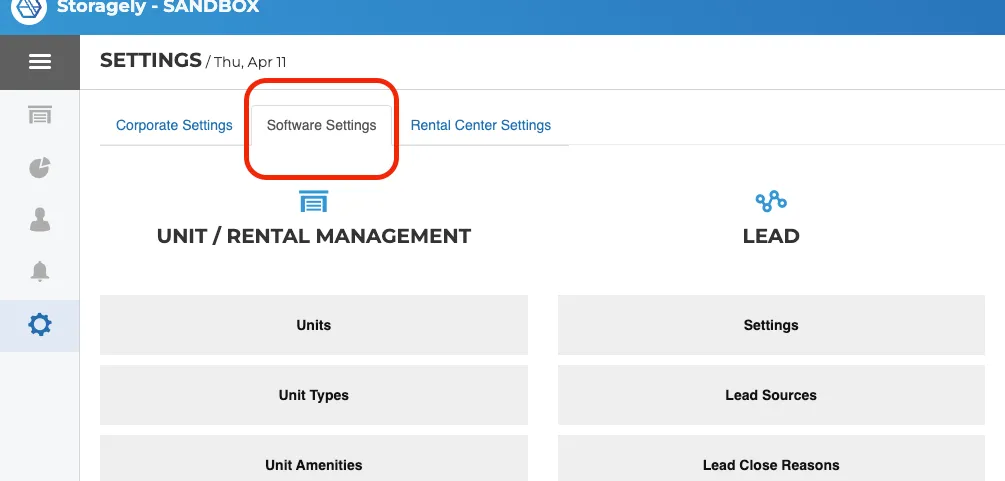
- From the left-hand menu, click Settings under Corporate Level.
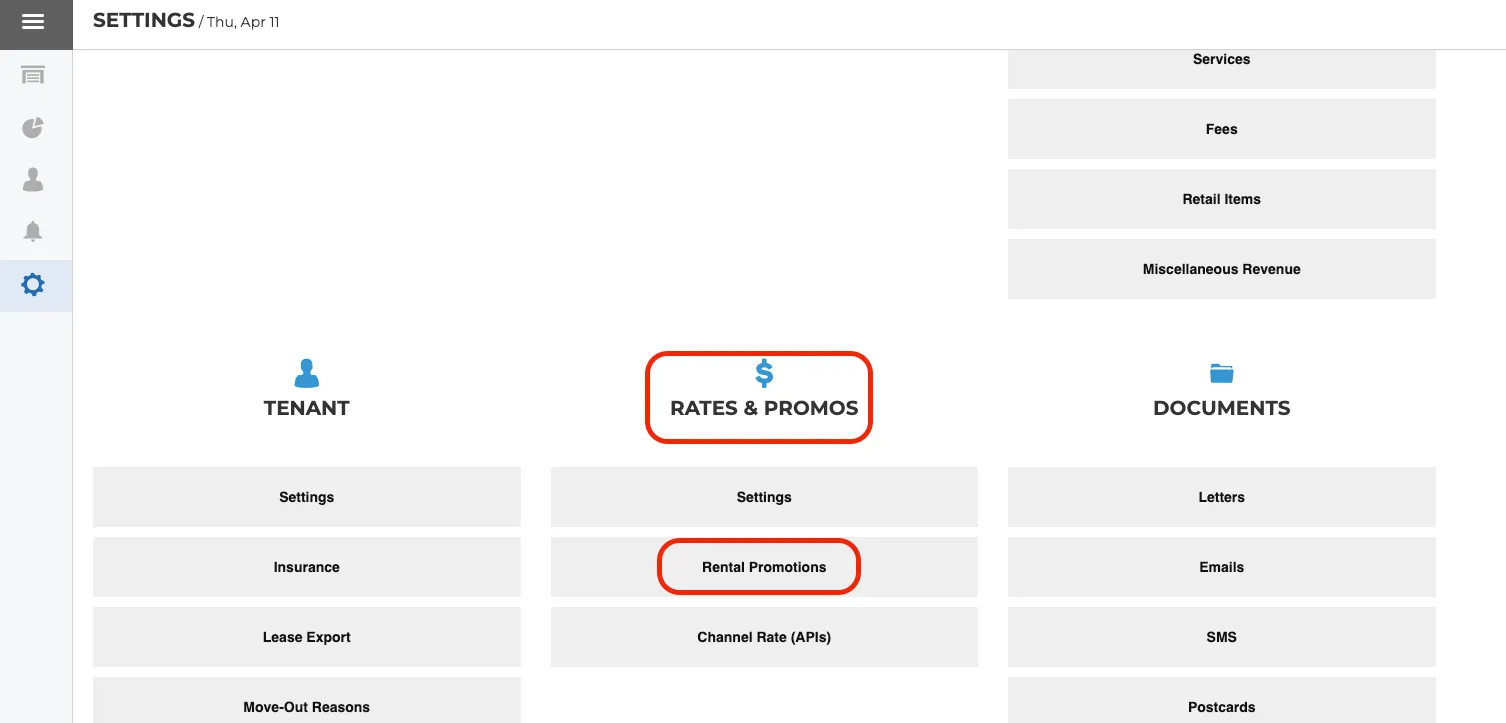
- Go to Software Settings and select Rates & Promos.
- Click on Rental Promotions.
Step 4: Edit Promotions for Website Display
- Locate the promotions or discounts you want to display on your website.
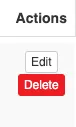
- Click Edit to modify the selected promotion.
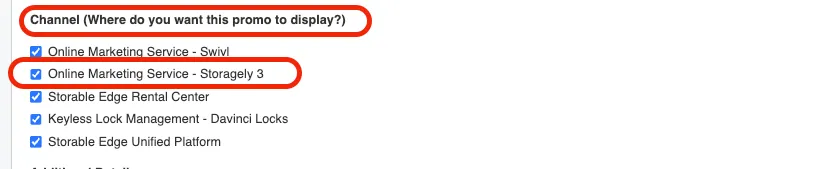
- Scroll down to the section labeled Channel (Where do you want this promo to display?)
- Check the box for Online Marketing Service - Storagely 3.
Step 5: Repeat for All Relevant Promotions
Repeat Step 4 for every promotion or discount you want to display on your website.
Next Steps
Once you've completed these steps, Storagely will sync the selected promotions and display them dynamically on your website. If you encounter any issues, please reach out to your onboarding specialist for assistance.
As always, if you have any questions during this process, our Customer Success Team is here to help. The best way to reach us is by submitting a support ticket.