How to: Provide Access to Google Analytics
5 min
Background
One of Storagely’s most powerful capabilities is our reporting and analytics suite. To give you the most accurate insights—especially around website performance and conversion tracking—we’ll need access to your Google Analytics account.
Google Analytics helps us understand key metrics such as:
- Conversion rates (how many visitors become leads or paying customers)
- User behavior on your website
- Traffic sources
- Performance of marketing channels
Granting Storagely access ensures we can provide you with accurate, actionable data that supports your success.
Before You Begin
Your Google Analytics account is tied to your Gmail/Google account. Please log in with the Gmail account used when Google Analytics was created.
How to Find and Share Access to Your Google Analytics Account
Step 1 — Log in to Google Analytics
- Visit analytics.google.com
- Log in using your Google username and password
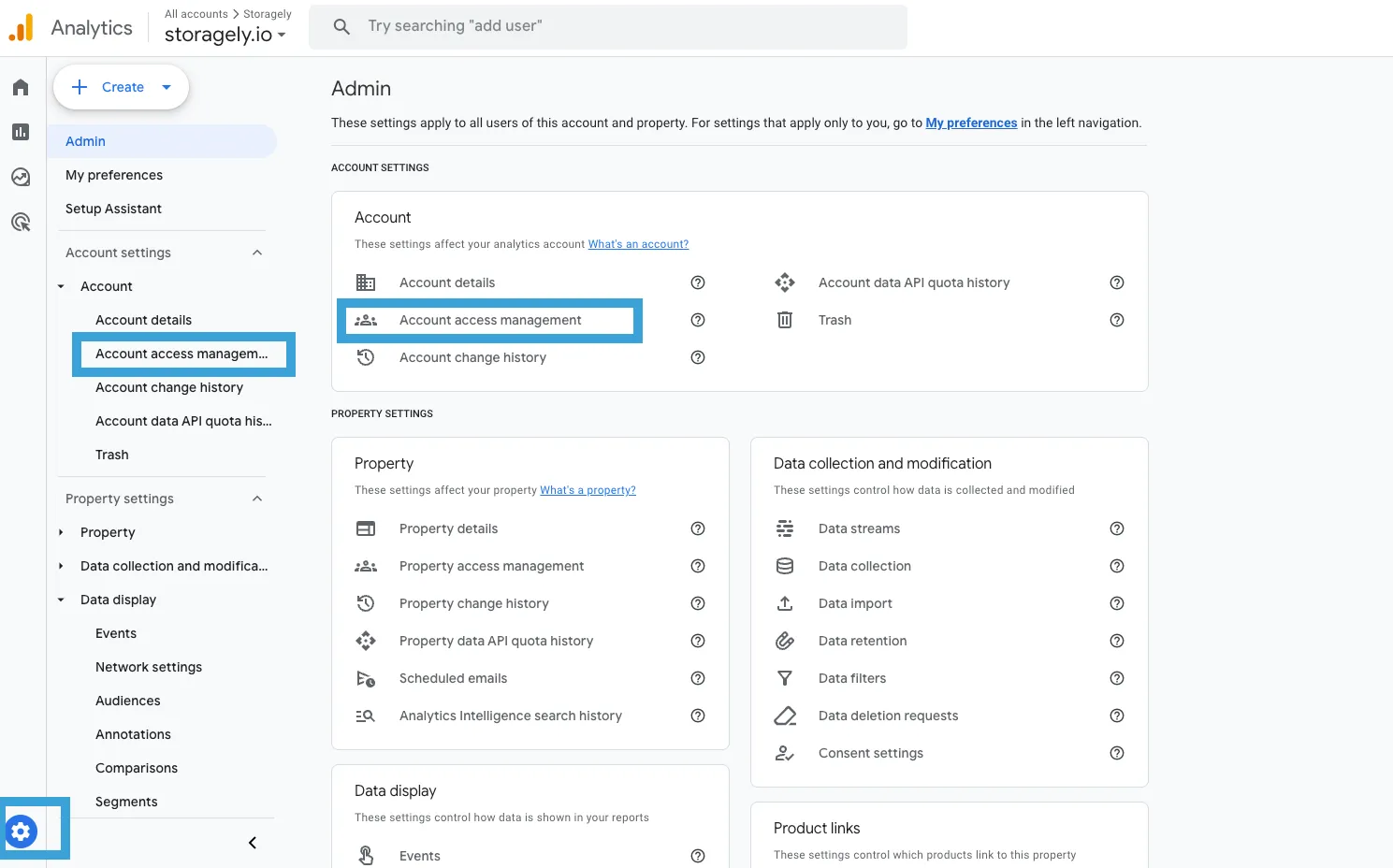
Step 2 — Open the Admin Settings
- In the bottom-left corner, click Admin (This is located at the very bottom of the left-hand navigation menu.)
Step 3 — Go to Account Access Management
- In the Account column (left-most of the three columns)
- Click Account Access Management
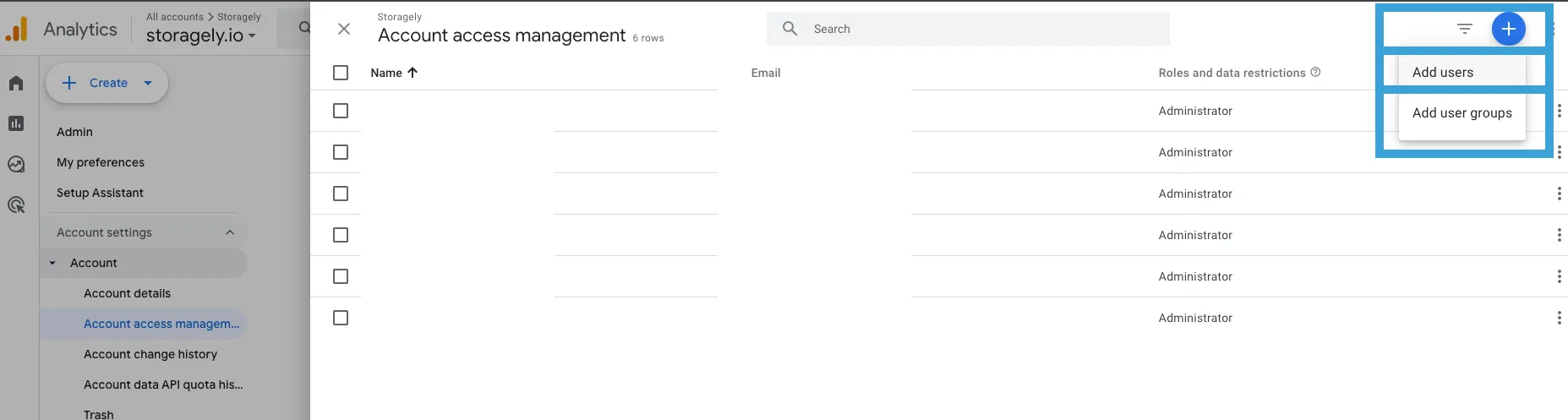
Step 4 — Add a New User
- Click the blue plus (+) icon in the top-right
- Select 'Add user'
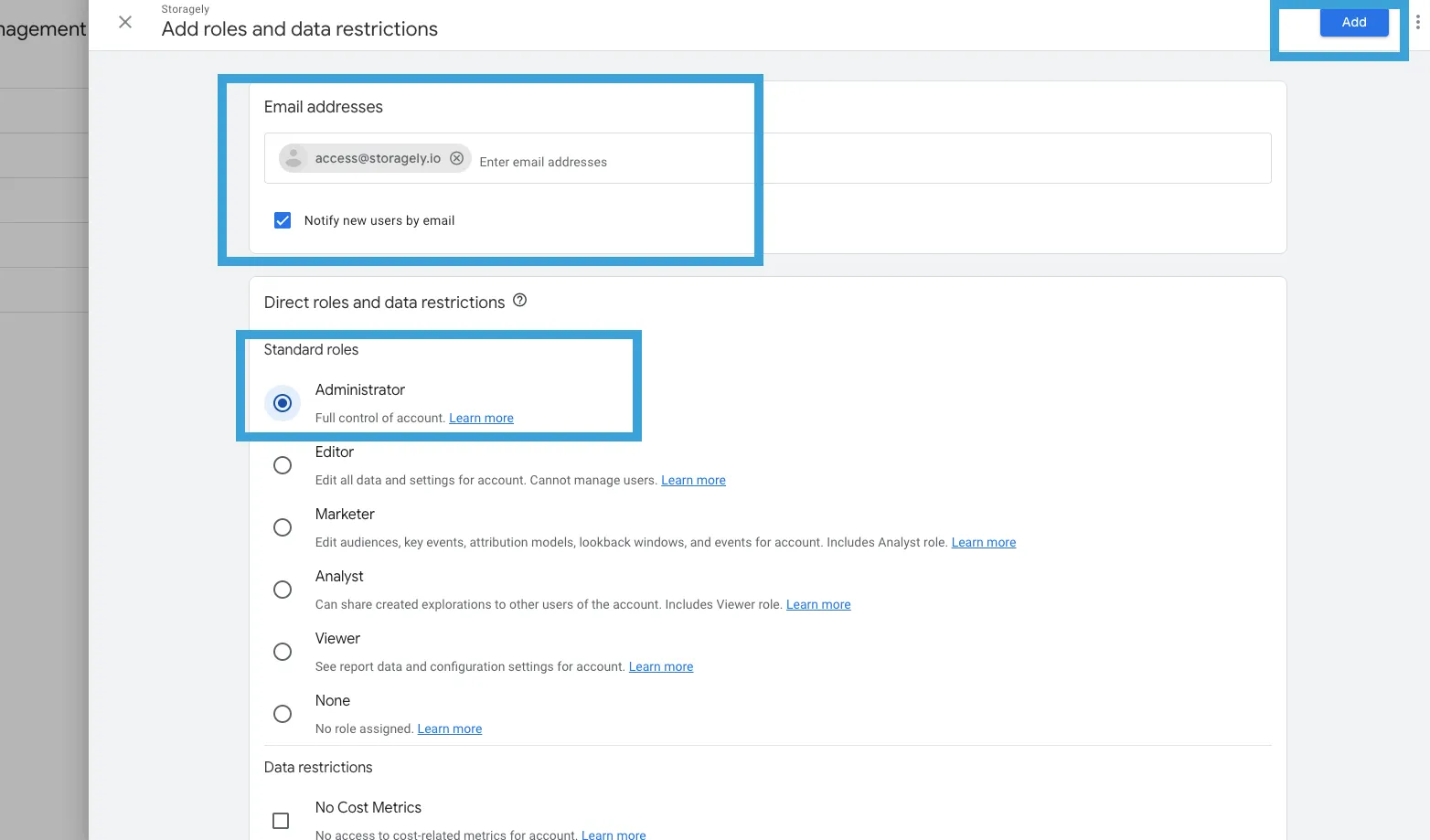
Step 5 — Grant Storagely Access
- In the email field, enter: [email protected]
- Under Direct Roles, select Administrator
- This level of access enables us to thoroughly review and configure the necessary settings for accurate reporting.
- Click the Add button in the top-right to save.
As always, if you have any questions during this process, our Customer Success Team is here to help. The best way to reach us is by submitting a support ticket.