How To: Invite a delegate to access my GoDaddy account
3 min
You can grant delegate access to trusted individuals or organizations, like Storagely, to manage your GoDaddy domains. Delegates can use your products and settings but cannot view or modify sensitive account information, such as payment methods or passwords.
For a detailed explanation of what delegates can and cannot do, refer to GoDaddy's Delegate Access Guide.
Steps to Invite a Delegate
- Click GoDaddy Delegate Access Page to get started.
- If prompted, sign in to your GoDaddy account.
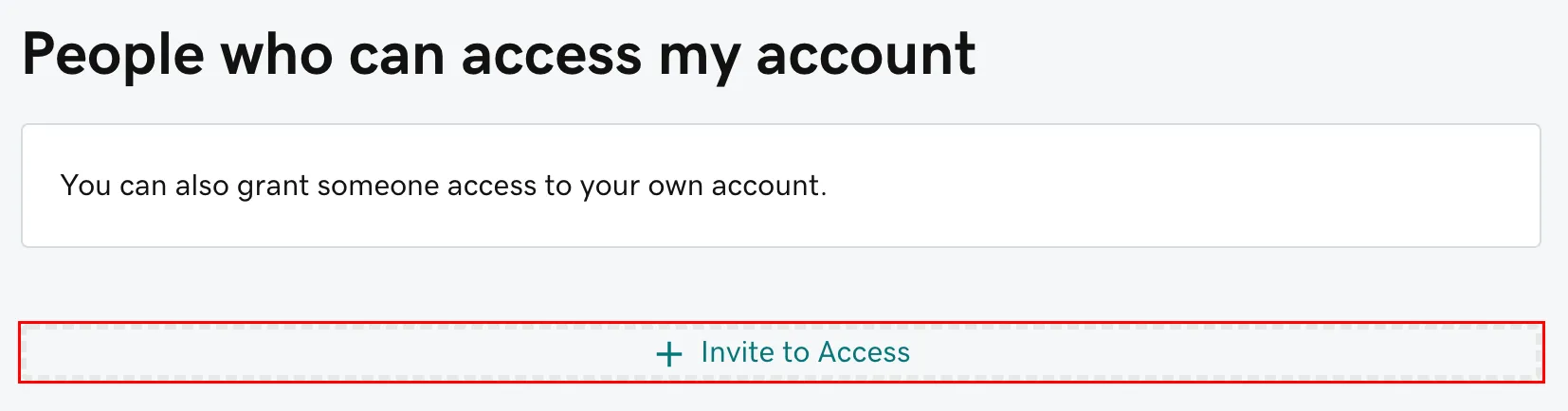
- On the right-hand side, locate the ‘People Who Can Access My Account’ section.
- Click ‘+ Invite to Access’ to proceed.
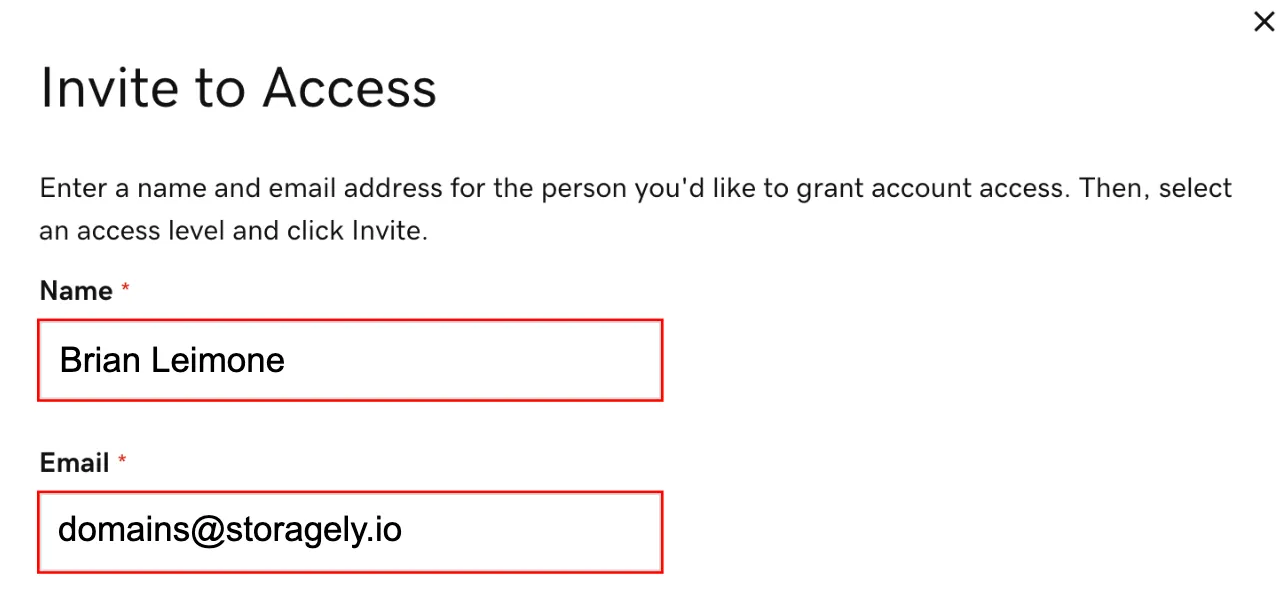
- Provide the following information for the delegate:
- Name: Brian Leimone
- Email: [email protected]
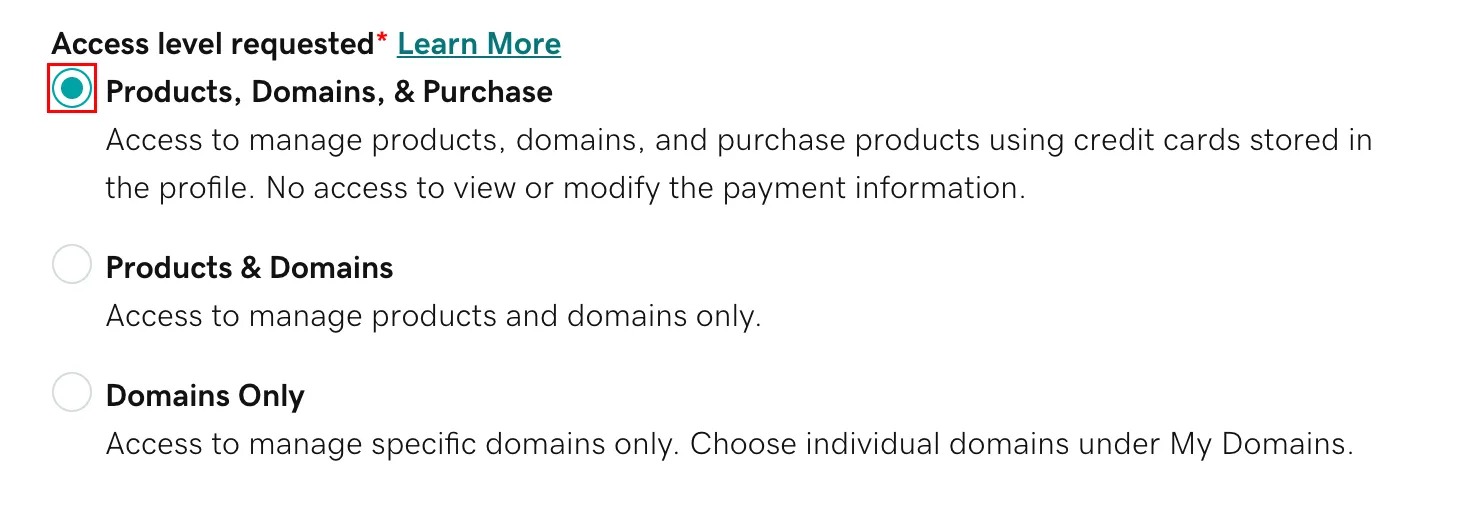
- Select the appropriate access level for the delegate.
- If you are unsure which level to choose, review GoDaddy’s Access Level Explanation for more details.
- Click Invite to send an email invitation to the delegate.
- GoDaddy will notify you once the invitation has been accepted.
Additional Information
- Pending Invitations:
- Invitations expire after 48-72 hours if not accepted.
- To cancel a pending request, go to the Delegate Access page and select Cancel.
- Change or Remove Access:
- You can update a delegate's access level or remove them from your account at any time through the Delegate Access settings.
- Delegates Without Accounts:
- If the invited delegate doesn’t have a GoDaddy account, they will be prompted to create one during the acceptance process.
- Domain Folder Permissions:
- If you’re looking to assign specific permissions for domain management, refer to GoDaddy’s Guide on Delegate Folder Permissions.
Related Resources
As always, if you have any questions during this process, our Customer Success Team is here to help. The best way to reach us is by submitting a support ticket.