How To: Create a storEDGE User Account for Storagely
5 min
This guide provides a step-by-step process for creating a new user in Storedge FMS for Storagely access. Follow these instructions to ensure a smooth setup.
Step 1: Log in to Storedge FMS
- Navigate to storedgefms.com and log in with a user account that has permission to create new user roles and users.
Step 2: Granting Storagely Owner-Level Access
- The most efficient way to create a Storagely user is by assigning Owner-level access during the initial setup.
- If you prefer to assign custom access, skip to Step 4 to create a custom role first and assign it during the user creation process.
Step 3: Create a New User
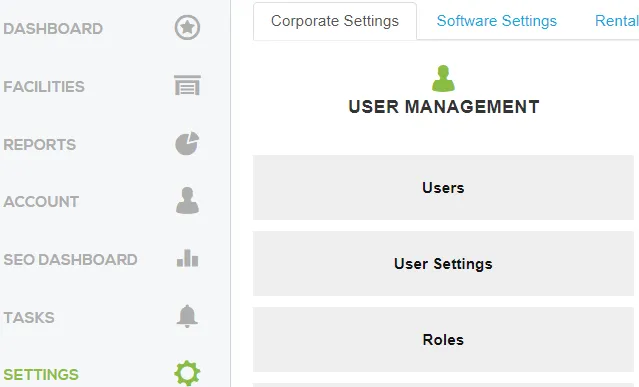
- Navigate to: Corporate Settings >> User Management >> Users.
- Click the NEW USER button.
- Fill in the following fields:
- First Name: Storagely
- Last Name: Access
- Email: Leave this field blank.
- Username: Create a username, such as: storagecompany-storagely.
- Password: Use a random password generator to create a secure password.
- Role: Assign Owner access.
- Assigned Facilities: Select Access to all facilities.
- Click Create User.
- 📣 Notify your onboarding specialist once the user has been created!
Step 4: Create a Custom Role
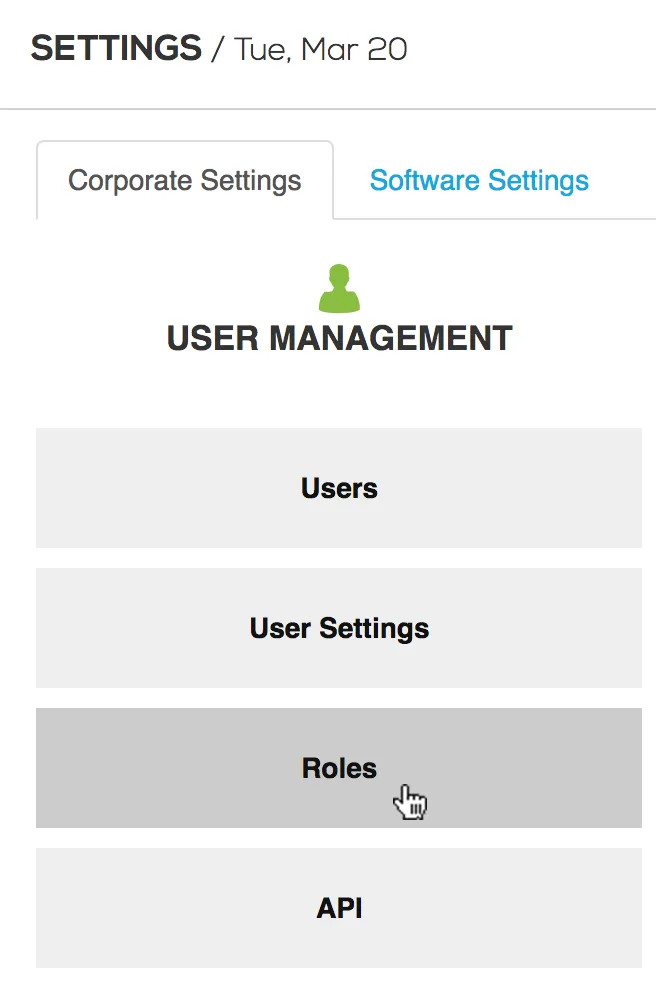
- Navigate to: Corporate Settings >> User Management >> Roles.
- Click the NEW ROLE button.
- Enter the following details:
- Name: Storagely or Storagely Access
- Click the Create Role button.
Step 5: Edit the Custom Role
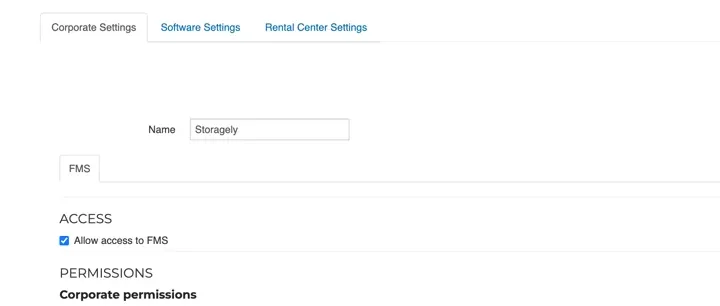
- Go back into the role by clicking the EDIT button.
- Select Allow Access to FMS.
- Refer to the provided image below for additional permissions and select all applicable options.
- Click Update Role.
- Repeat Step 3, assigning the newly created custom role to the Storagely user.

Next Steps
Once the user or role has been successfully created, please notify your onboarding specialist for further assistance.
As always, if you have any questions during this process, our Customer Success Team is here to help. The best way to reach us is by submitting a support ticket.