Premium Listings
1. Introduction
The Premium Listings section in the Storagely Listings Tool allows operators to manage their high-priority business listings on major online directories such as Google Maps, Facebook, Bing, Apple Maps, and Yelp. This section provides visibility into sync statuses, account connections, and publisher weights, ensuring that business listings are correctly managed and optimized for maximum exposure.
2. Accessing Premium Listings
- Log in to the Listings Tool.
- Click on Listings > Premium Listings to access the management page.
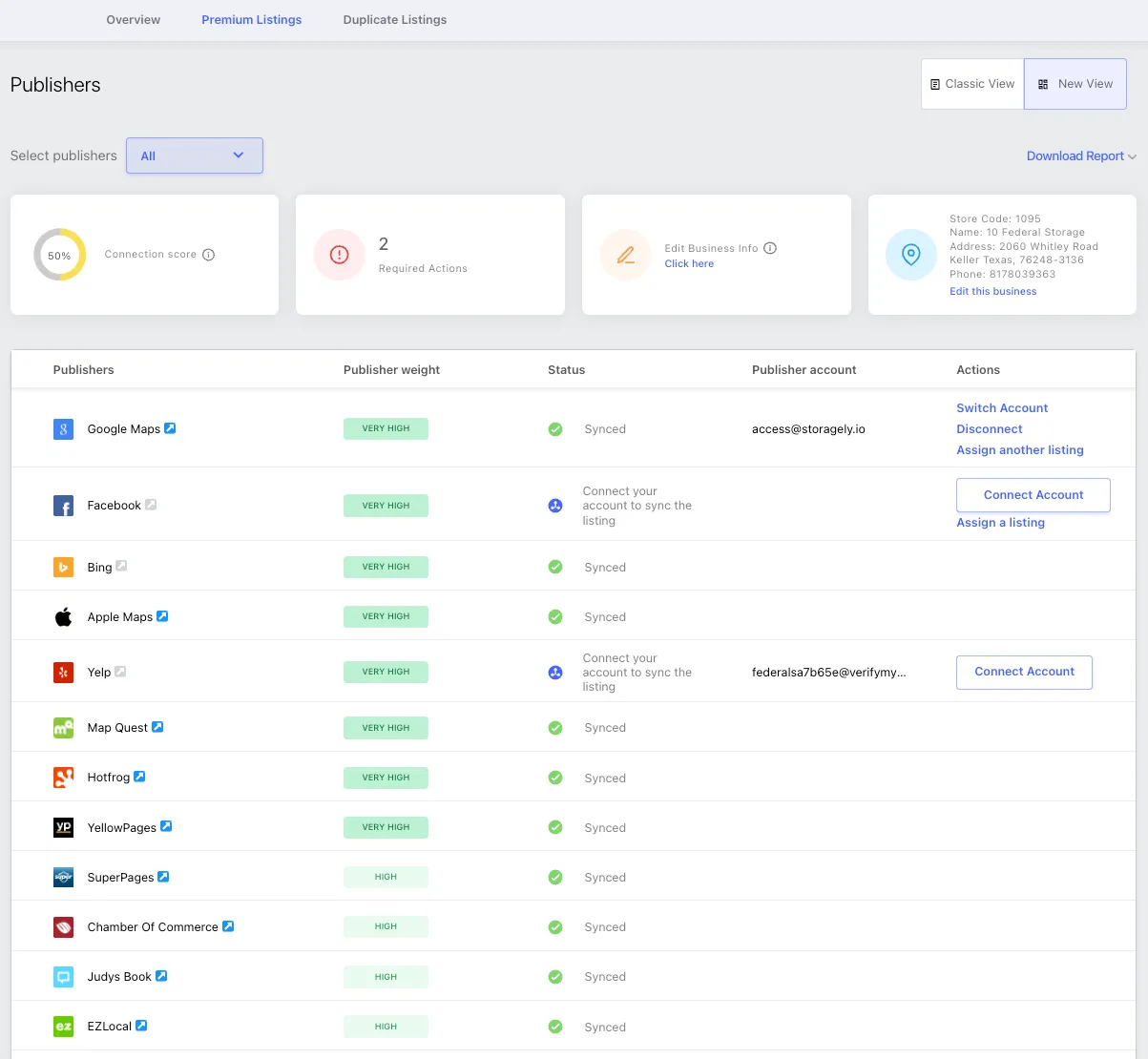
Important Note About Apple Maps Listings Apple Maps listings do not support a direct connection like other platforms (e.g., Yelp or Google). Even if a listing shows as “Synced” in the dashboard, this may not be accurate. • Apple Maps updates are handled manually through our Apple partner account, and only if access is granted (which is not always the case). • There is currently no connect option for Apple Maps listings. • Update timeline: Apple Maps listings can take up to 30 days to reflect changes. The facility website and listing information must match exactly for an update to occur. • If more than 30 days have passed and the listing still hasn’t updated, please escalate the issue to your Storagely Account Manager or the Support Team. For these reasons, we do not recommend relying solely on the sync status shown for Apple Maps in the Premium Listings section.
3. Understanding the Premium Listings Dashboard
A. Key Metrics & Insights
At the top of the Premium Listings page, operators will see important listing performance indicators:
- Connection Score (%) – Reflects the overall sync health of listings across publishers.
- Required Actions – Displays the number of listings needing operator attention.
- Edit Business Info – Allows operators to update location details.
- Store Code & Business Info – Displays business name, address, and phone number with an edit option.

B. Publishers & Listings Sync Status
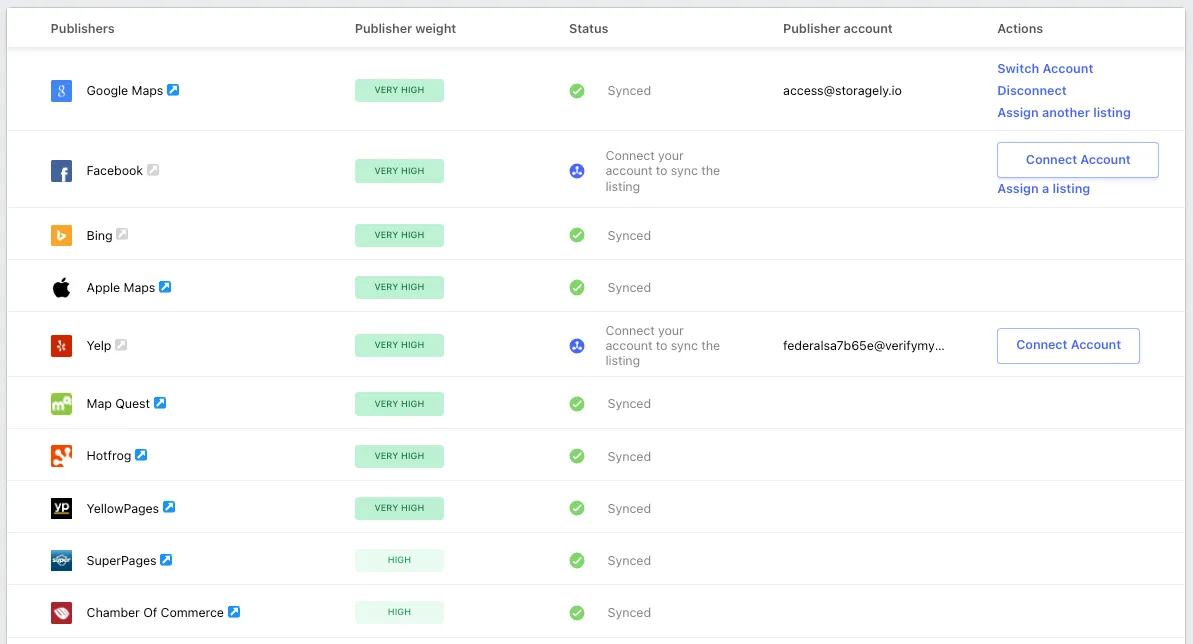
The Publishers Table displays the status of each listing across major platforms. The table includes:
Column | Description |
|---|---|
Publishers | Directory where the listing appears (e.g., Google Maps, Facebook, Yelp, Bing). |
Publisher Weight | Importance of the directory for local search rankings (Very High, High). |
Status | Indicates if the listing is Synced or requires action (Not Connected). |
Publisher Account | Shows the email or account linked to the listing, if applicable. |
Actions | Provides options to Connect, Assign, Switch, or Disconnect a listing. |
4. Managing Premium Listings
Operators can perform the following actions from the Premium Listings page:
✅ Connecting Listings
- If a listing is not yet synced, click "Connect Account" to link it to the correct publisher account.
- Some listings (e.g., Google Business Profile) may require verification before syncing.
✅ Assigning a Listing
- If a listing is not linked to the correct account, use the "Assign a Listing" option to update it.
✅ Switching or Disconnecting an Account
- If a listing is linked to the wrong account, click "Switch Account" to change it.
- Use "Disconnect" to remove an incorrect connection and reassign the correct one.
✅ Editing Business Information
- Operators can update their business details (name, address, phone number) by clicking "Edit this Business" in the top right section of the page.
✅ Viewing & Downloading Reports
- Click "Download Report" for an overview of all Premium Listings and their statuses.
5. What Operators Should Know
✅ What Operators CAN Do:
✔ Connect and sync their listings with publisher platforms. ✔ Update and assign listings to the correct business accounts. ✔ Edit business information to ensure listing accuracy. ✔ Monitor connection health and resolve any required actions.
❌ What Operators CANNOT Do:
✘ Premium placement or advertising on directories is not included. ✘ Some listings may require manual verification through Google Business Profile or Facebook. ✘ Listings may not sync properly if incorrect account details are provided. ✘ Certain account connection issues may require assistance from Storagely Support.
6. Best Practices for Premium Listings
📌 Regularly check sync statuses to ensure all listings are connected and active. 📌 Ensure all business details (NAP: Name, Address, Phone) are correct across all platforms. 📌 If a listing is not syncing, verify the associated account and credentials before reconnecting. 📌 Contact your Storagely Account Manager if you need help managing your listings or resolving connection issues.
As always, if you have any questions during this process, our Customer Success Team is here to help. The best way to reach us is by submitting a support ticket.