Inbox
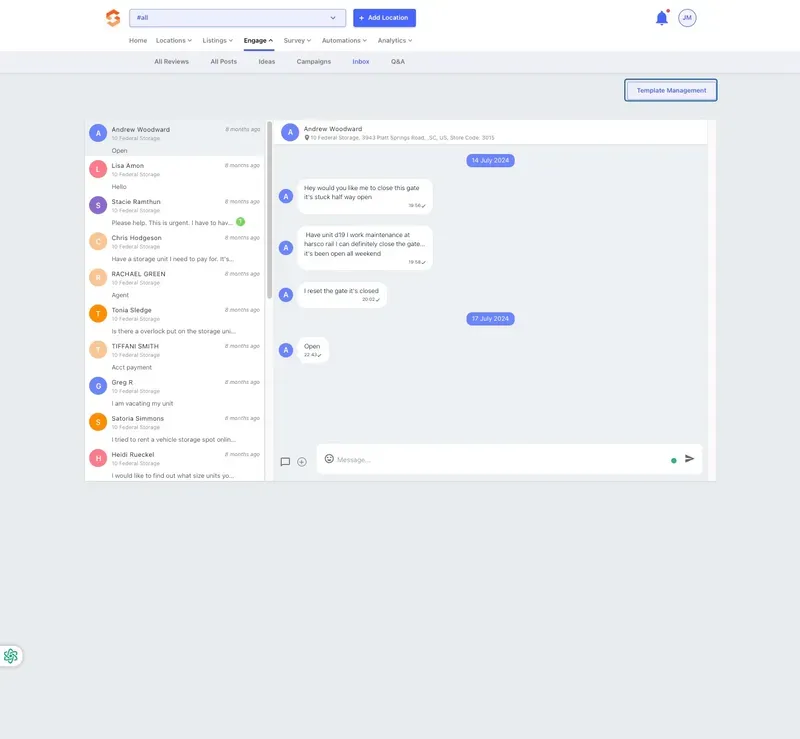
The Inbox section of the Engage menu in the Storagely Listings Tool allows operators to manage customer interactions across their business listings. Operators can use this section to read, respond to, and manage customer messages from various platforms where their business is listed.
- Navigate to Engage > Inbox:
- From the Storagely Listings Tool dashboard, click on Engage in the top menu.
- Select Inbox from the dropdown menu.
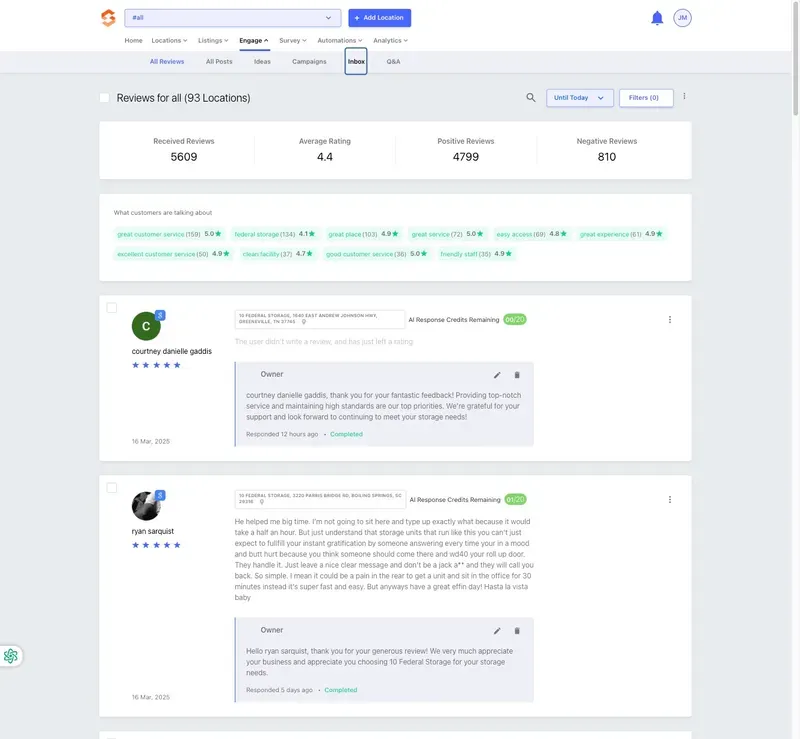
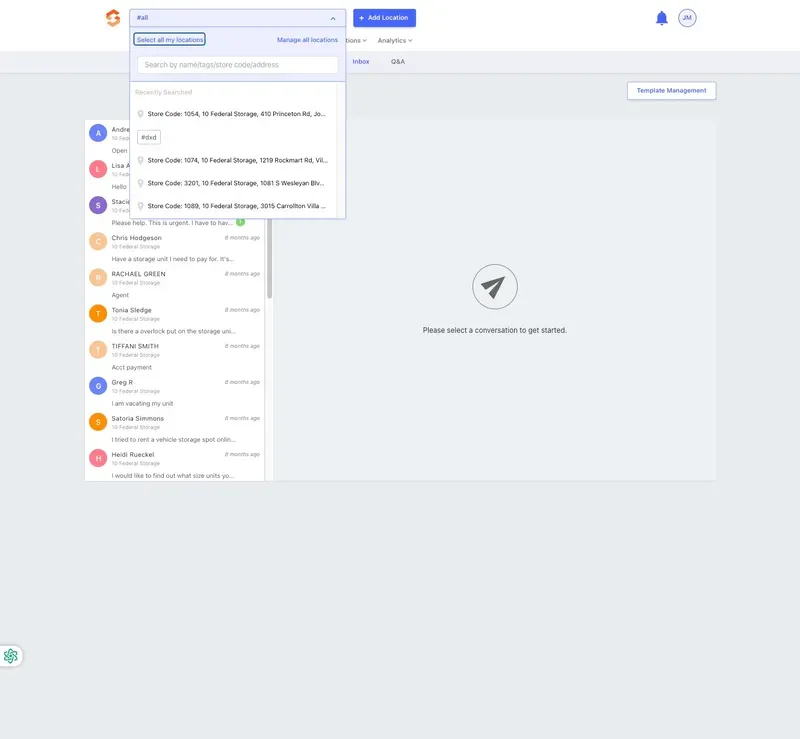
- Operators can filter the inbox for a single location or all locations by using the location dropdown at the top left corner of the screen.
- Selecting "All Locations" allows operators to manage messages across multiple locations at once.
- Selecting Locations:
- Viewing Messages:
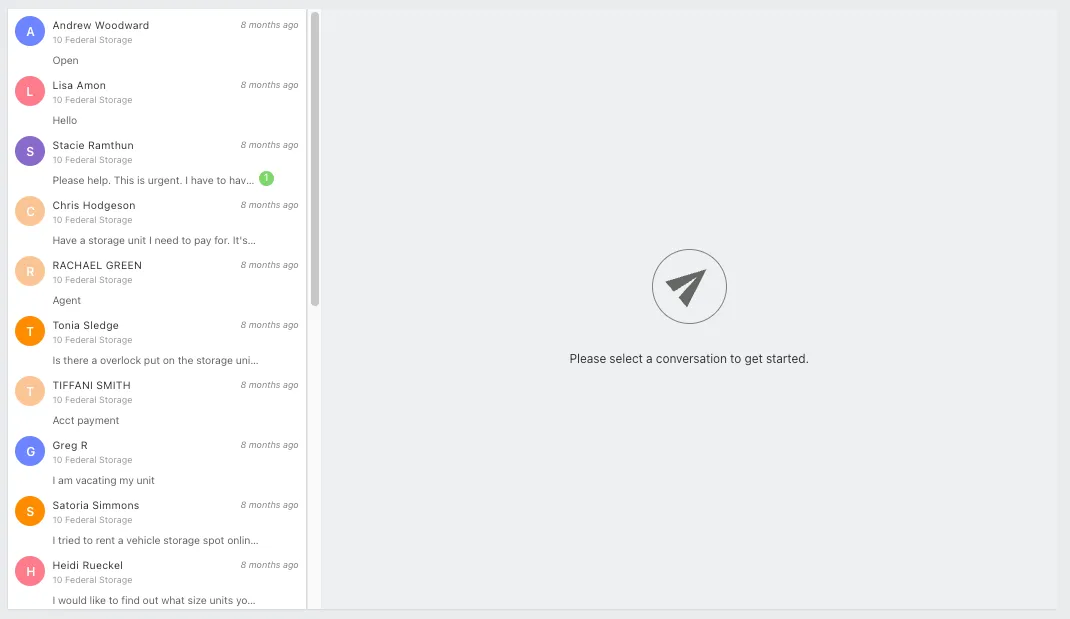
- The left panel displays a list of incoming messages, including:
- Sender name
- Business location
- Message preview
- Time since the message was received
- Unread messages are indicated with a green dot next to the message.
- Reading & Responding to Messages:
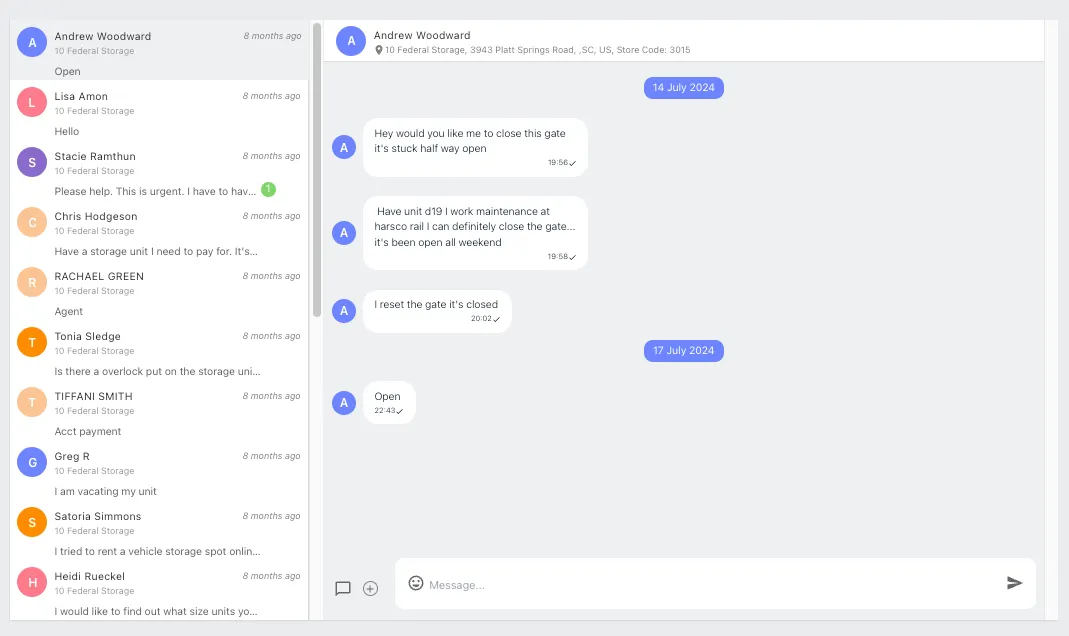
- Clicking on a message opens the full conversation in the right panel.
- Operators can respond directly within the inbox.
- Template Management:
- The Template Management button in the top right allows operators to create and manage pre-written responses for faster replies.
✅ Respond Promptly: Aim to respond to customer messages as quickly as possible to improve customer satisfaction. ✅ Use Professional Language: Keep messages clear, professional, and friendly. ✅ Leverage Message Templates: Use pre-set templates for frequently asked questions or common responses to save time. ✅ Verify Customer Information: Before providing sensitive details, confirm customer identity when necessary. ❌ Avoid Deleting Messages Unnecessarily: Keep message history for reference. ❌ Do Not Share Private Data: Never send customer-sensitive information (e.g., passwords, payment details) via inbox messages.
As always, if you have any questions during this process, our Customer Success Team is here to help. The best way to reach us is by submitting a support ticket.