All Posts
1. Introduction
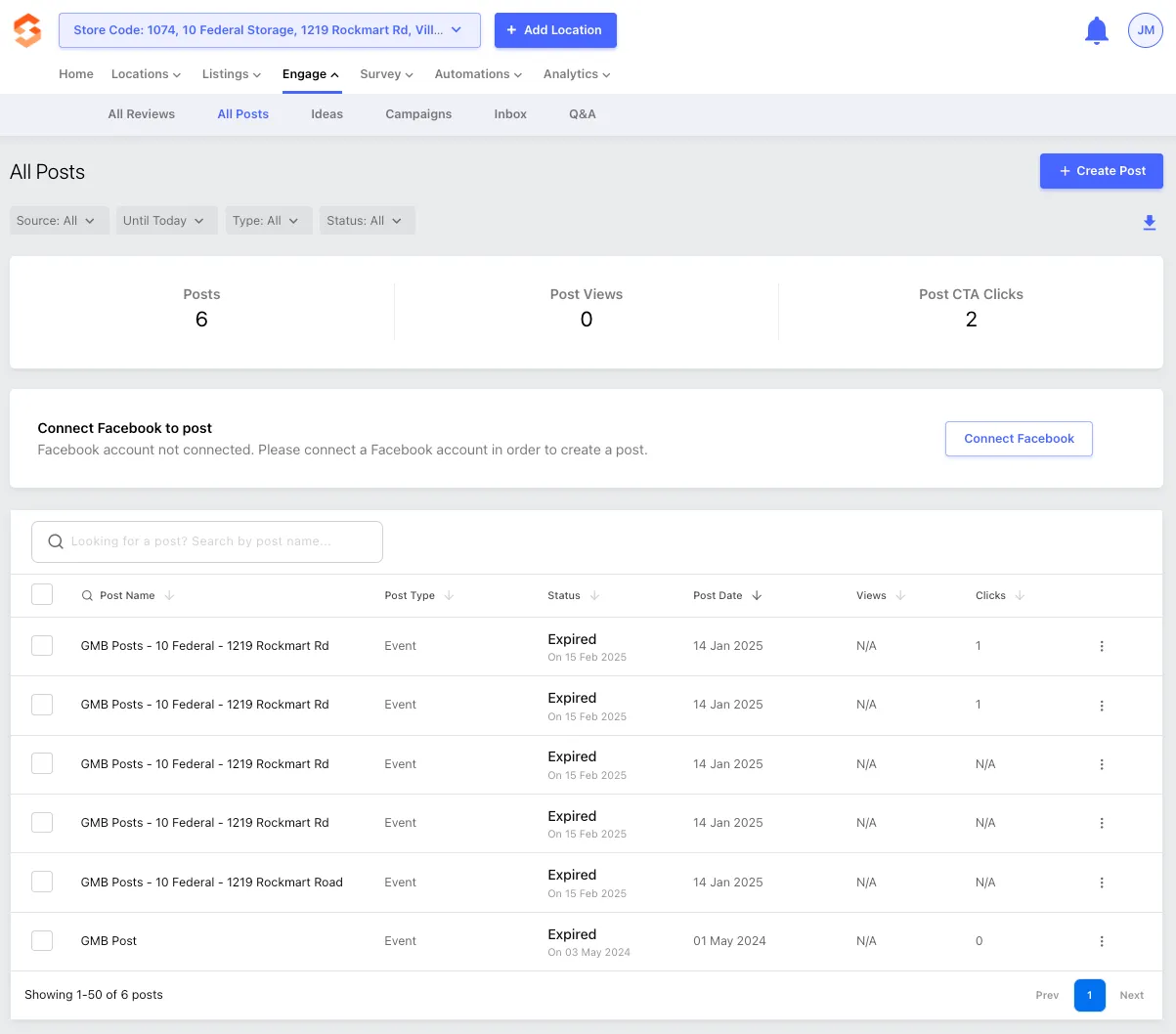
The All Posts section under Engage > All Posts in the Storagely Listings Tool allows operators to create, manage, and monitor posts across multiple online directories such as Google Business Profile and Facebook. This feature helps businesses engage with customers by sharing updates, promotions, and announcements directly within their listings.
2. Accessing All Posts
- Log in to the Storagely Listings Tool.
- Click on Engage > All Posts to open the post management dashboard.
3. Features of the All Posts Section
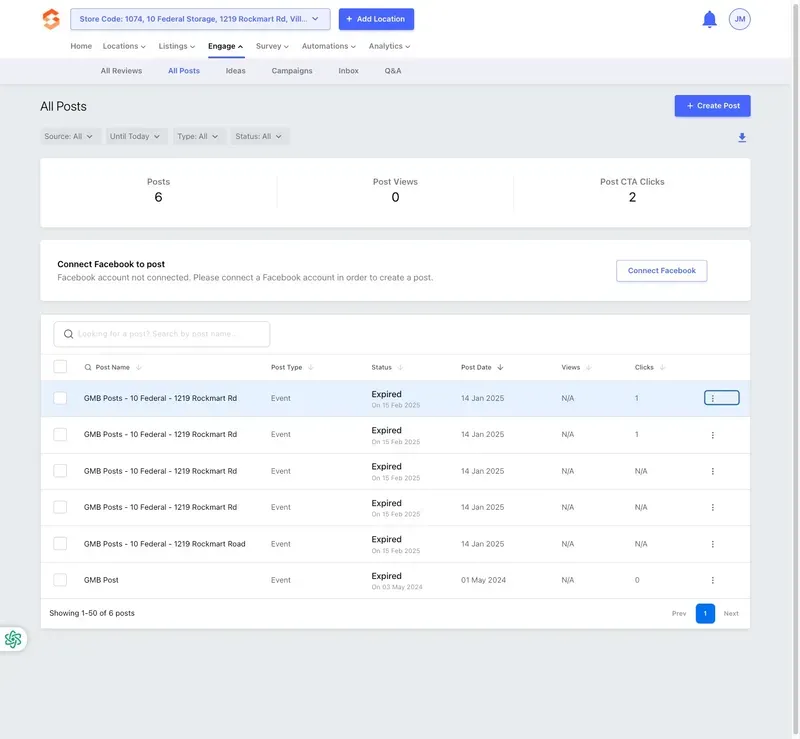
A. Overview Metrics
At the top of the All Posts screen, operators can see key engagement data:
- Total Posts – Number of posts published.
- Post Views – Total views on published posts.
- Post CTA Clicks – Number of times call-to-action (CTA) buttons were clicked.
B. Post Filtering & Sorting
Operators can filter and sort posts using these options:
- Source: Choose between Google Business Profile (GMB) or Facebook.
- Until Today: Set a date range to view posts within a specific timeframe.
- Type: Filter by event posts, offers, updates, and more.
- Status: View active, expired, or scheduled posts.
C. Connecting Facebook for Posting
- Operators will see a Facebook connection prompt if their account is not linked.
- Click "Connect Facebook" to enable Facebook posting within the Listings Tool.
Note: Operators can only post to platforms they have connected.

4. Creating a New Post
To publish a new post, follow these steps:
- Click the "+ Create Post" button.
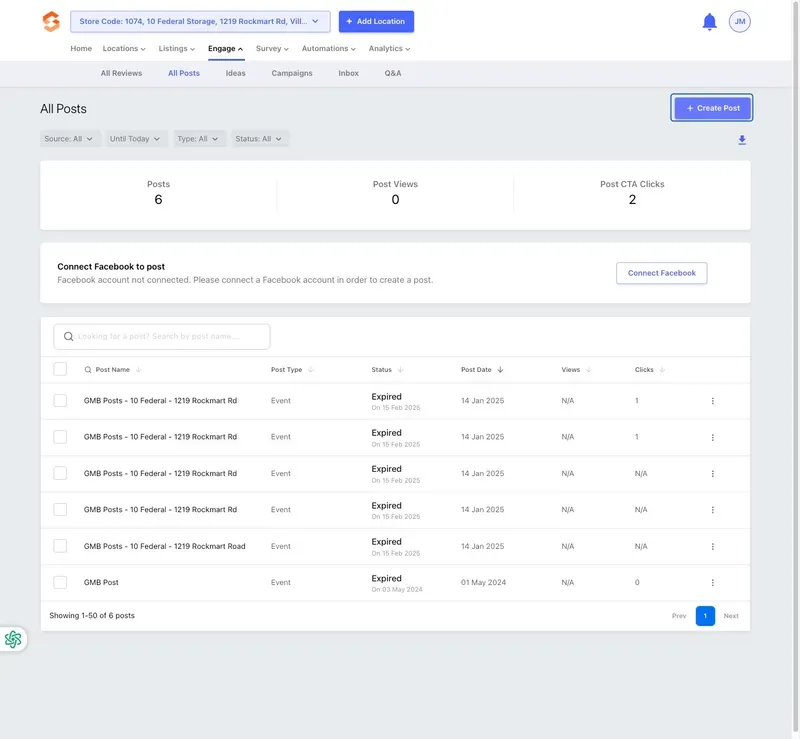
- Choose Facility: Select the facility to create the post for from the dropdown list.
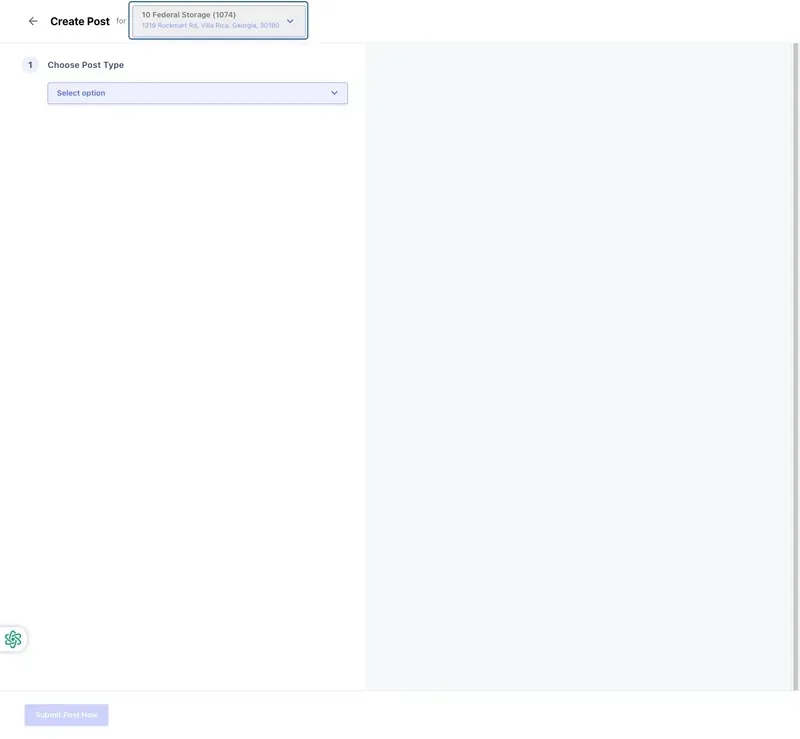
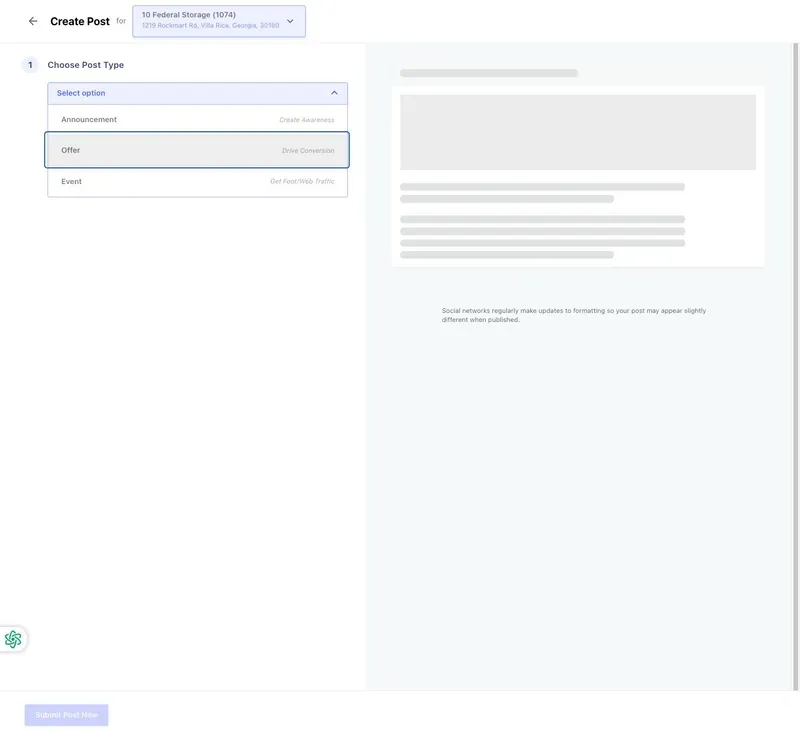
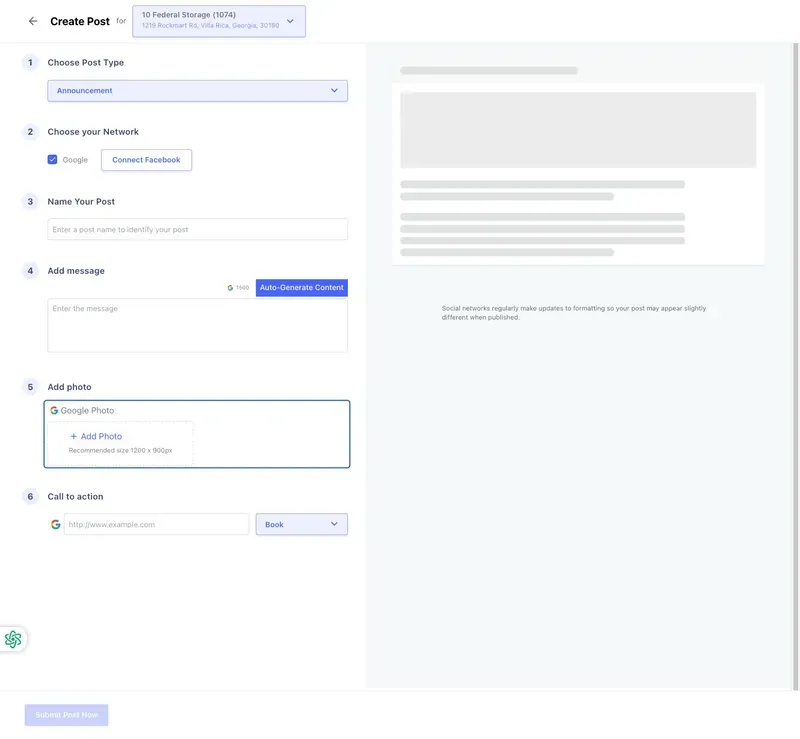
- Choose Post Type: Select the post category (e.g., Announcement, Event, Offer).
- Choose Your Network: Select the platform(s) (Google Business Profile, Facebook, etc.).
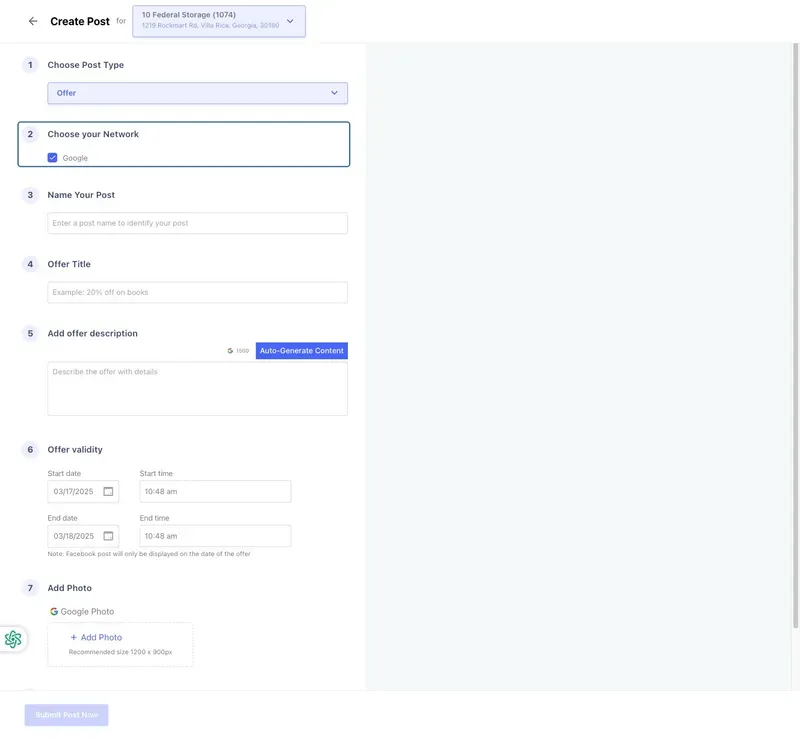
- Name Your Post: Enter a title to identify your post.
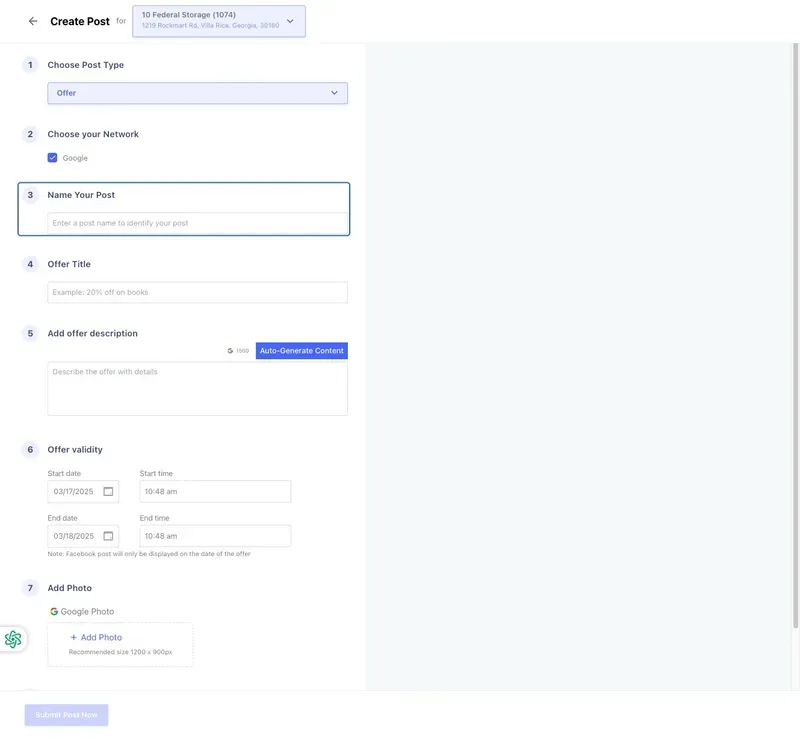
- Add Photo: Upload a 1200x900px image to enhance post engagement.
- Call to Action (CTA): Choose a CTA button (e.g., "Book," "Learn More," "Call Now") and enter the destination URL.
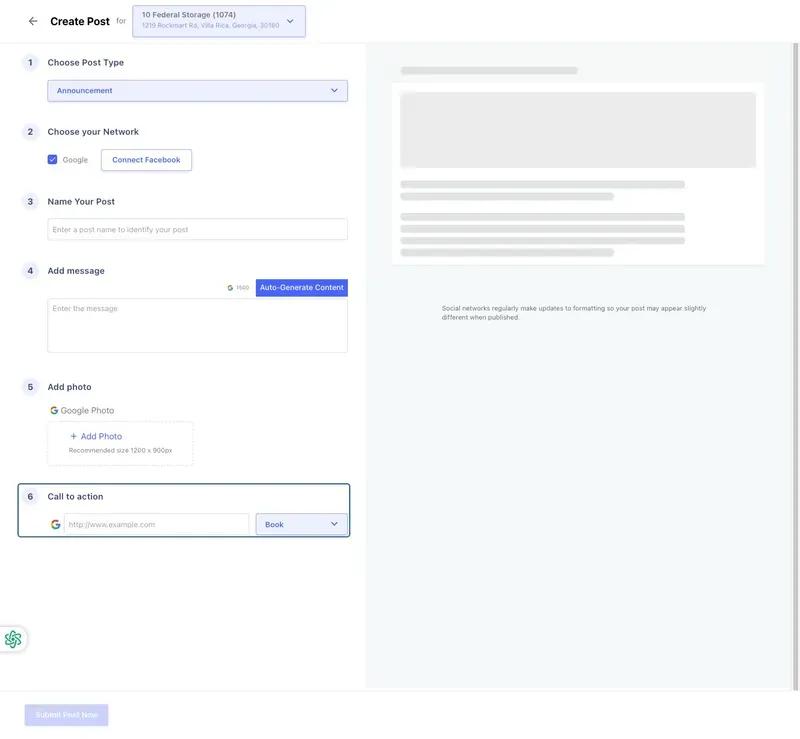
- Click "Submit Post Now" to publish immediately.
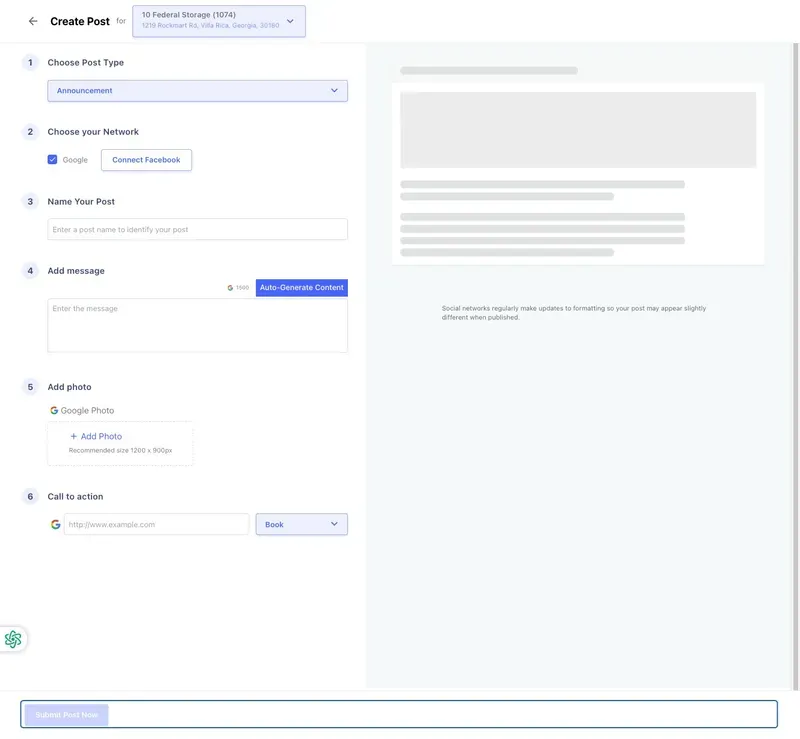
Best Practice: Use high-quality images and a strong CTA to drive customer action.
5. Viewing & Managing Posts
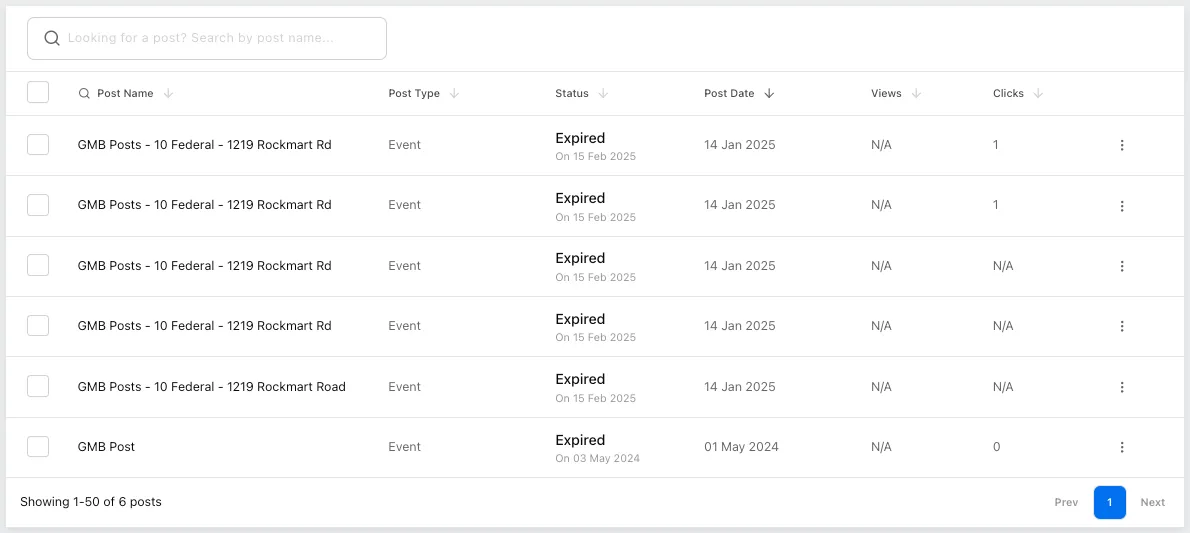
The post list displays all published, scheduled, and expired posts.
- Post Statuses:
- Active – Currently live on the selected platform.
- Expired – Posts that have reached their end date.
- Scheduled – Posts set to be published in the future.
- Engagement Metrics:
- Views – Tracks how many users saw the post.
- Clicks – Measures interactions with the post’s CTA.
6. Editing or Deleting Posts
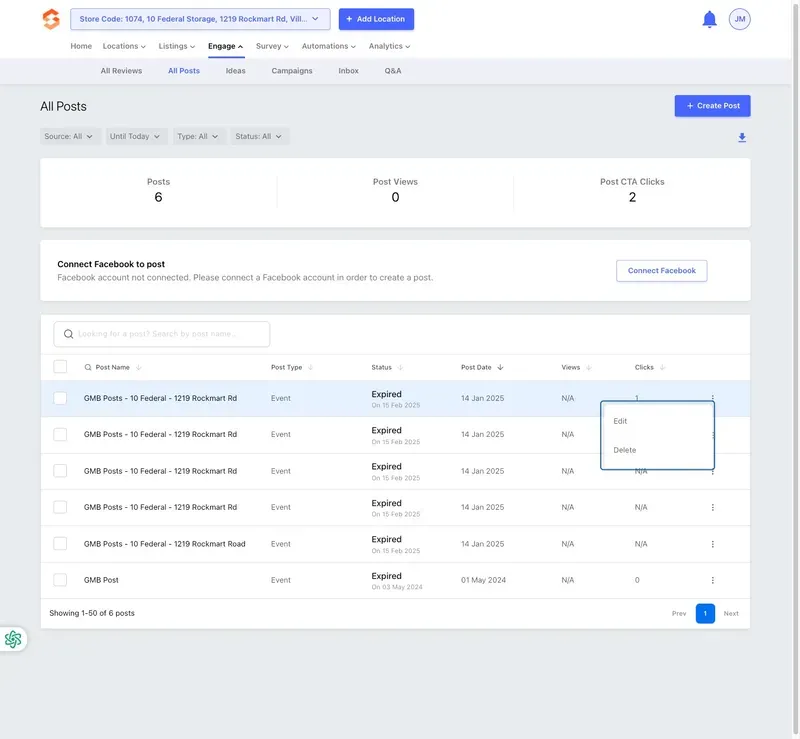
Operators can manage posts by:
- Editing a Post: Click the three-dot menu (⋮) next to a post to modify content.
- Deleting a Post: Remove outdated or incorrect posts from all platforms.
Note: Deleted posts cannot be restored.
7. What Operators Can & Cannot Do
✅ Operators CAN: ✔ Create and publish new posts to multiple platforms. ✔ View engagement metrics on existing posts. ✔ Edit or delete posts as needed. ✔ Schedule future posts for consistent updates.
❌ Operators CANNOT: ✘ Automate recurring posts without Storagely Support assistance. ✘ Retrieve deleted posts (once removed, they cannot be restored). ✘ Post to platforms that are not supported by the Listings Tool.
8. Best Practices for Posting
✅ Use engaging images and strong CTAs to drive customer action. ✅ Keep posts relevant and up-to-date with current promotions and facility news. ✅ Schedule posts strategically to maintain a consistent presence. ✅ Monitor engagement metrics and adjust content based on performance. ✅ Work with Storagely Support to configure post automation if needed.
As always, if you have any questions during this process, our Customer Success Team is here to help. The best way to reach us is by submitting a support ticket.