Manage Locations
1. Overview
The Manage section under the Locations menu in the Storagely Listings Tool allows operators to view, edit, and manage their business listings across multiple online directories, ensuring that storage facility details remain accurate, consistent, and up to date.
This tool helps operators maintain visibility across platforms such as Google Business Profile, Bing, Apple Maps, Yelp, and other listing services, improving search rankings and customer engagement.
2. Accessing the Manage Locations Section
- Log in to the Listings Tool.
- Click on Locations > Manage to access the list of business locations.
- Select a location to view or edit business details.
3. Features of the Manage Locations Section
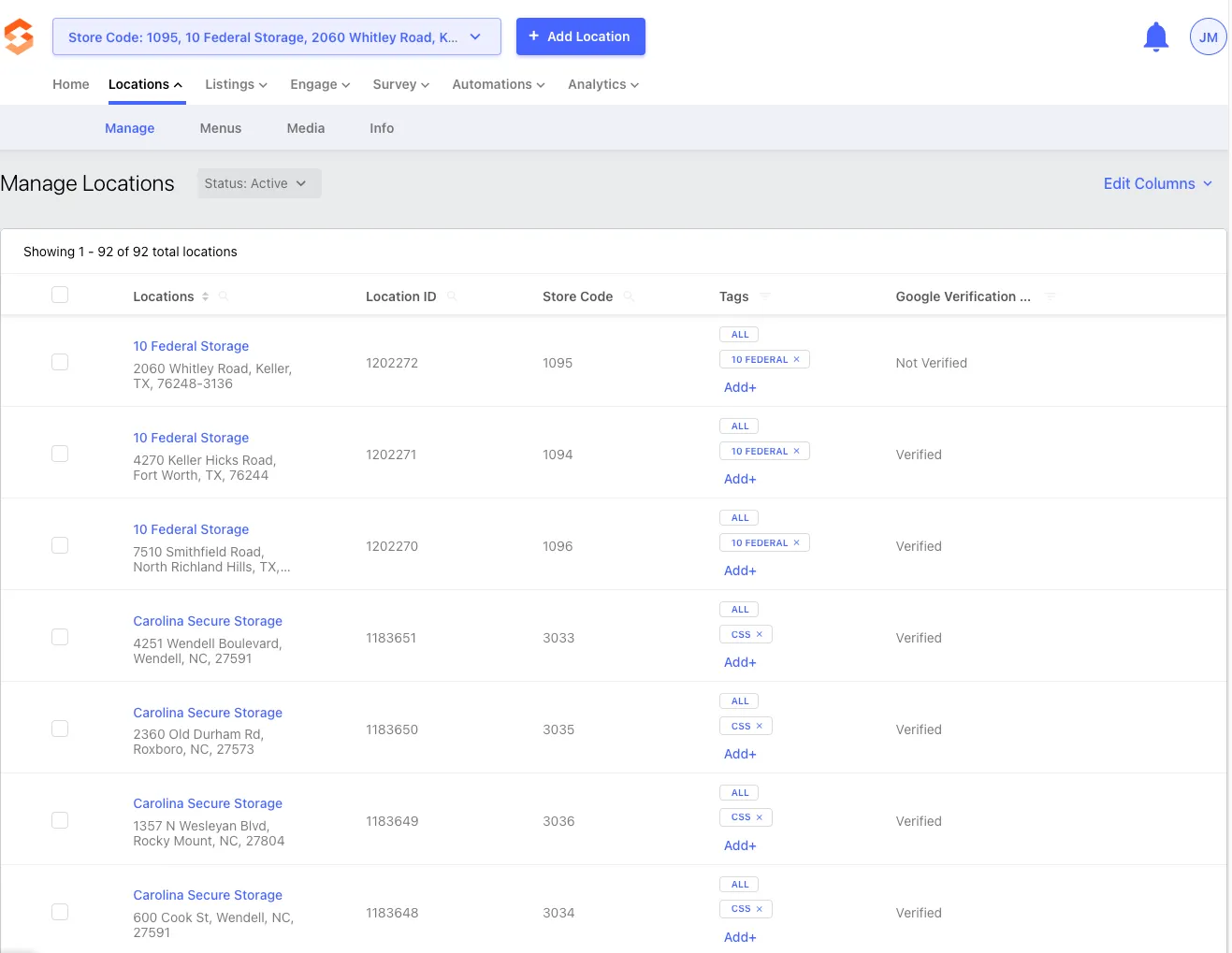
A. Viewing Location Details
- Displays a list of all active locations associated with the Storagely account.
- Includes business name, address, phone number (NAP), and Google Verification Status across online directories.
- Operators can filter locations based on their sync status to identify those needing attention.
B. Editing Business Information
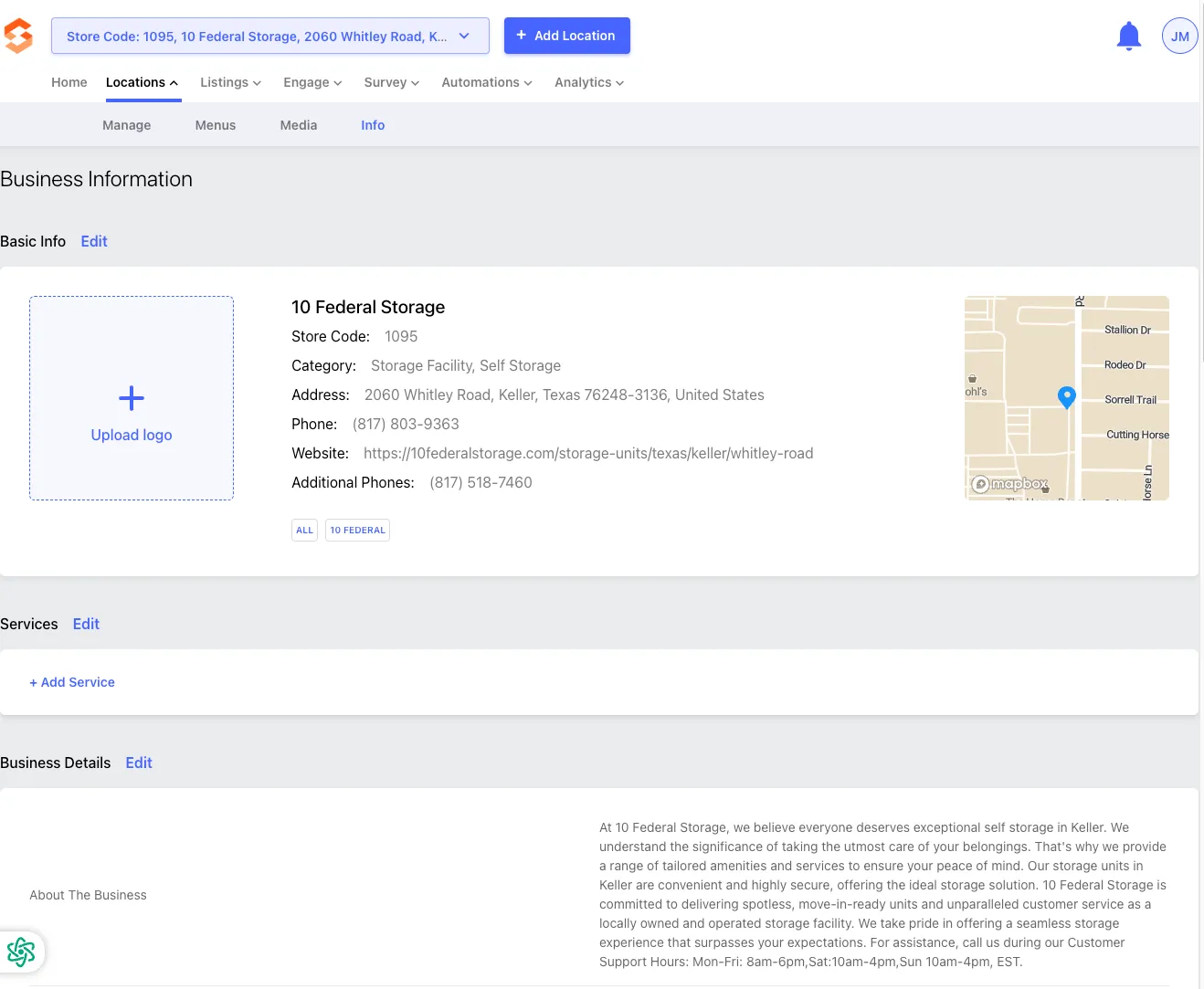
Operators have access to update the following location details:
- Business Name – Ensure it matches the official facility name used in marketing.
- Address – Must be formatted correctly for mapping services.
- Phone Number – Ensure it reflects the correct facility contact.
- Hours of Operation – Adjust regular and holiday hours to ensure accurate online display.
- Website URL – Must link to the correct Storagely-powered website or facility landing page.
- Services & Amenities – Highlight key offerings such as climate-controlled storage, drive-up access, or security features.
- Photos & Media – Upload high-quality facility images where supported.
Note: Any updates will automatically sync across connected platforms. Changes may take up to 24-48 hours to reflect on external directories.
C. Managing Multiple Locations at Once
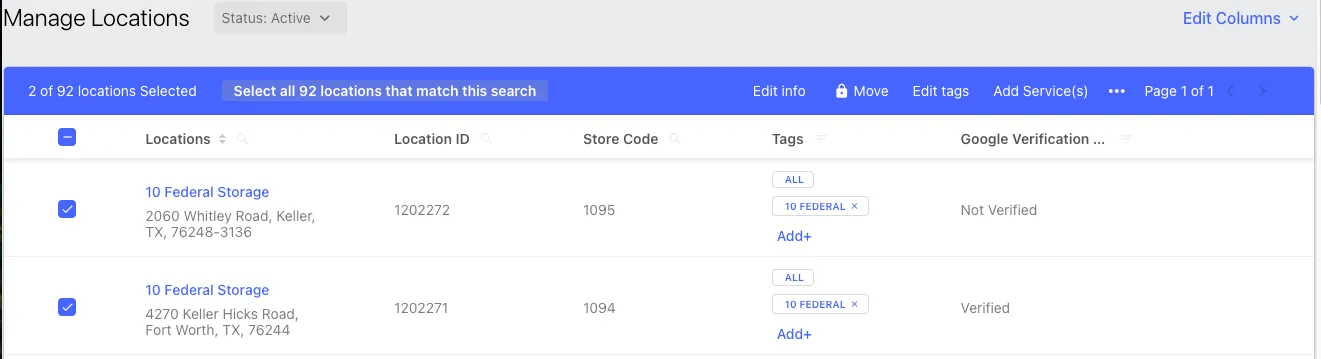
If an operator clicks one or more locations, a blue action bar appears at the top of the screen, allowing them to perform bulk actions, including:
- Edit Info – Modify details for multiple locations at once.
- Move – Change category or group assignments.
- Edit Tags – Add or remove tags for location categorization.
- Add Services – Include additional features or offerings.
Tip: This feature saves time when updating multiple locations with similar changes.
D. Understanding Sync Statuses
Each location in the Storagely Listings Tool has a sync status, indicating whether it is correctly listed online. The available statuses are:
- Active – The location is successfully synced and live across directories.
- Archived – The location is no longer actively managed or displayed.
- Archival Pending – The location is in the process of being archived.
- Verification Pending – The listing is awaiting verification before going live.
- Unapproved – The listing has been rejected or has not met approval criteria.
- Require Action – The location requires updates or corrections before syncing.
Tip: If a location is marked Require Action or Unapproved, operators should review and make corrections immediately to maintain listing accuracy.
D. Deactivating or Removing Locations
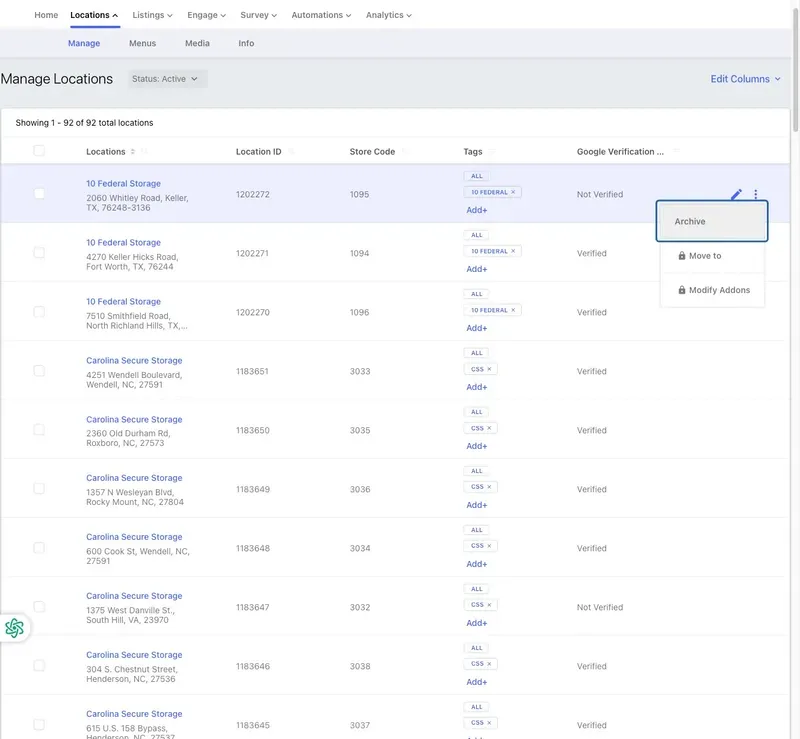
- If a facility closes or no longer needs to be listed, operators can archive it within the platform.
- Click "More Actions" on the right side of the listing to be archived.
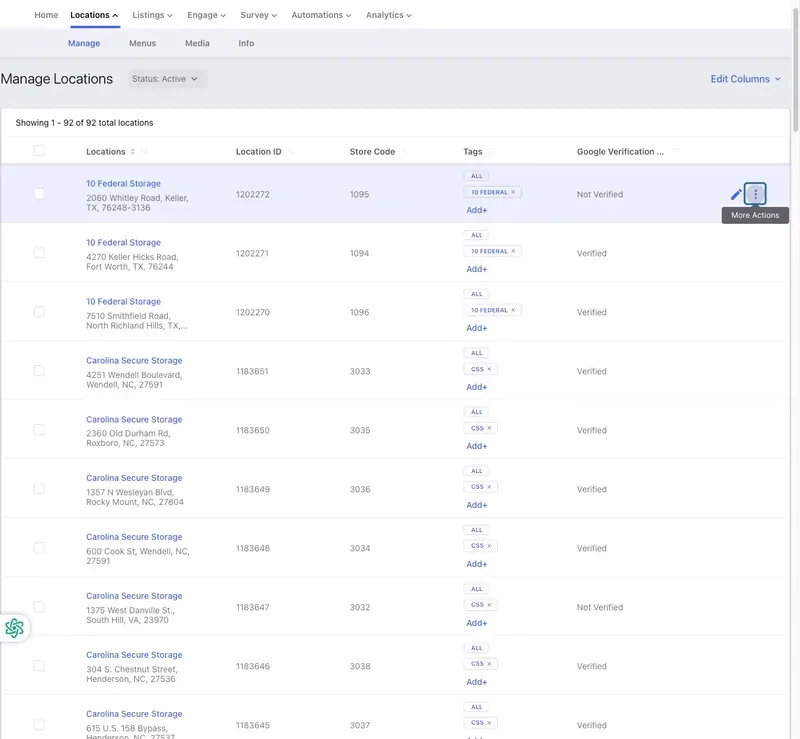
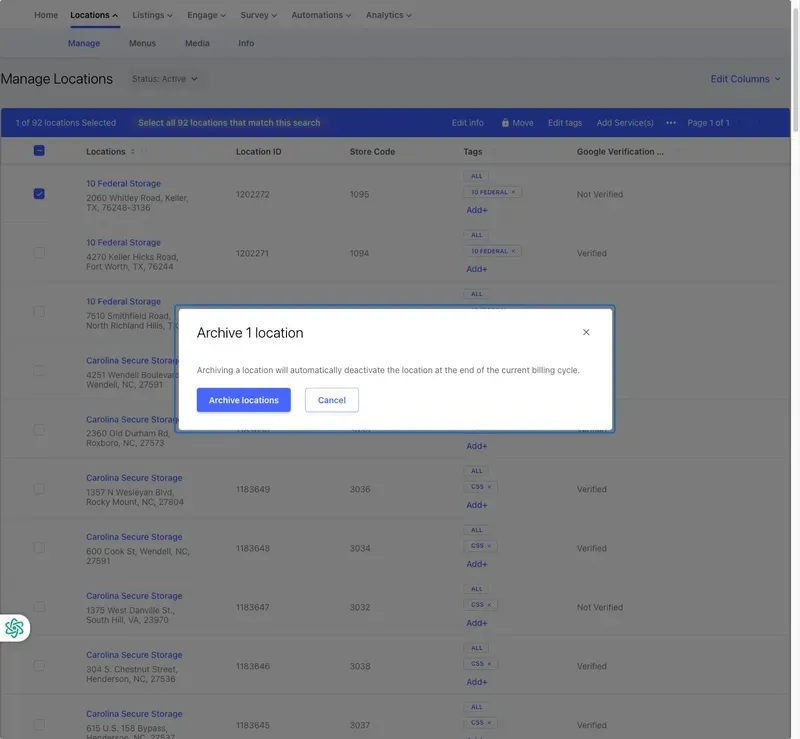
- Click "Archive" to deactivate a listing.
- Confirm the action before proceeding.
Warning: Once a location is archived, it will no longer sync across online directories, and the action cannot be undone without re-verification.
4. Best Practices for Location Management
✅ Regularly review and update business details to reflect changes in hours, services, or contact information. ✅ Ensure special promotions or services are highlighted to improve customer engagement. ✅ Monitor sync statuses frequently and resolve issues in listings needing action. ✅ Use consistent NAP (Name, Address, Phone) details across all platforms to improve search rankings. ✅ Upload high-quality photos and keep descriptions accurate to enhance online visibility.
As always, if you have any questions during this process, our Customer Success Team is here to help. The best way to reach us is by submitting a support ticket.